# Installing Trackingplan from a CDN Docs

DocsCDN

[All docs](/docs)

Get Started

-   [Overview](/docs/overview)
-   [How It Works](/docs/how-it-works)
-   [Your First Plan](/docs/your-first-plan)
-   [Post-Install Warm-Up](/docs/post-install-warm-up)
-   [Multi Account Management](/docs/multi-account-management)

Install

-   [Installing Trackingplan](/docs/installing-trackingplan)
    -   [For Websites](/docs/installing-trackingplan/installing-trackingplan-on-your-websites)
    -   [CDN](/docs/installing-trackingplan/cdn)
    -   [AEP](/docs/installing-trackingplan/adobe-experience-platform)
    -   [Webhooks](/docs/installing-trackingplan/installing-trackingplan-using-webhooks)
    -   [For Apps](/docs/installing-trackingplan/installing-trackingplan-in-your-apps)
    -   [For ssGTM](/docs/installing-trackingplan/for-ssgtm)
-   [Environments](/docs/environments)
-   [SDK Update](/docs/sdk-update)

The Agent

-   [Threads](/docs/threads)
-   [Reports](/docs/reports)
-   [Audits](/docs/audits)

Use Cases

-   [Investigate a Warning](/docs/debug-warnings)
-   [For Analytics Teams](/docs/analytics-use-cases)
-   [For Performance & Paid Media](/docs/paid-media-use-cases)
-   [For Compliance & Legal](/docs/compliance-use-cases)
-   [For Agencies & Consultancies](/docs/agency-use-cases)

Monitoring

-   [Warnings & Updates](/docs/warning-and-updates)
-   [Data Validation](/docs/data-validation)
-   [Data Layer Monitoring](/docs/data-layer-monitoring)
-   [Consent & Cookie Monitoring](/docs/consent-and-cookie-monitoring)
-   [Privacy Monitoring](/docs/data-privacy-monitoring)
-   [Pixel Monitoring](/docs/pixels-presence-monitoring)
-   [Naming Conventions Monitoring](/docs/naming-conventions-monitoring)
-   [Releases & GTM Monitoring](/docs/autodiscover-releases)

Explore

-   [Explore](/docs/explore)
    -   [Health Summary](/docs/health-summary)
    -   [Data Explorer](/docs/data-explorer)
    -   [Tracks Explorer](/docs/tracks-explorer)
    -   [Presence Map](/docs/presence-map)
    -   [Advanced Views](/docs/advanced-views)
    -   [Session Finder](/docs/session-finder)
-   [Filters & Data Segmentation](/docs/attribution)
-   [Tags](/docs/tags)
-   [Notes & Labels](/docs/notes-labels)
-   [Starred Items](/docs/starred-items)
-   [Sharing](/docs/sharing)

Your Trackingplan

-   [Destinations](/docs/destinations)
    -   [Split Destinations](/docs/split-destinations)
    -   [Events](/docs/events)
    -   [Properties](/docs/properties)
    -   [Attributes](/docs/user-attributes)
    -   [Pages](/docs/pages)
-   [Compliance](/docs/compliance)
    -   [Privacy](/docs/privacy)
    -   [Consent](/docs/consent)
-   [Platform](/docs/platform)
    -   [Daily Checks](/docs/daily-checks)
    -   [Vitals](/docs/platform-metrics)
-   [Acquisition](/docs/acquisition)

Connect

-   [Slack](/docs/slack)
-   [MCP Endpoint](/docs/mcp-endpoint)
-   [Ad Platforms](/docs/ad-platforms)
-   [Trackingplan Exploration API](/docs/trackingplan-exploration-api)
-   [Trackingplan Export API](/docs/trackingplan-export-api)
-   [Data Studio Connector](/docs/trackingplan-connector-for-data-studio)
-   [Chrome Extension](/docs/trackingplans-chrome-extension)
-   [Omnibug Extension](/docs/trackingplan-omnibug-extension)

Account & Security

-   [Settings & Members](/docs/settings)
-   [Privacy & Security](/docs/privacy-and-security)
-   [JSON Export/Import](/docs/export-import-json-schemas)

[Install](/docs) Updated October 21, 2026

# Installing Trackingplan from a CDN

Install the Trackingplan Web SDK from sdk.trackingplan.com in your page, your tag manager or both, with race-safe snippets and the checks to verify it.

> Load the Trackingplan Web SDK from `sdk.trackingplan.com`. There are three methods, depending on what you can edit: your website, your tag manager, or both. All three are race-safe and keep working unchanged on future SDK versions. This guide applies to SDK version 1.45.x or later.

## Before you start

### Where do I find my Trackingplan ID and my snippet?

Open your plan's install page in the Trackingplan app: `https://app.trackingplan.com/plans/YOUR_TP_ID/install`. The **CDN** tab gives you the snippet with your Trackingplan ID and your plan's settings already filled in, including the right `tracksEndPoint` for your region. Copy it with ** Copy Snippet** rather than typing it.
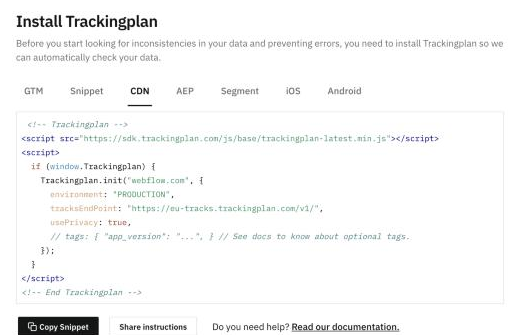
![The install page, CDN tab](/images/docs-install-screen.png)

The install page, CDN tab

### Why must the loader tag go at the top of the `<head>`?

Trackingplan has to be the first script to run. At the top, it is in place before your tag manager and your other analytics snippets start running. If it loads after them, whatever they did in the meantime isn't covered.

### Why is the loader synchronous?

For the same reason. An async loader lets other scripts run before Trackingplan, so Trackingplan is no longer first. That is why the default snippets load the SDK without `async`. Use the [asynchronous variant](#asynchronous-variant) only if synchronous loading measurably slows down your page.

## Choose your method

| What you can edit | Method |
| --- | --- |
| Your website's HTML | [Method 1: website only](#method-1-website-only). Paste the loader and `init()` in your `<head>`. |
| Your website's HTML and your tag manager | [Method 2: website and tag manager](#method-2-website-and-tag-manager). Loader and `install()` in the page; initialize from your tag manager. |
| Only your tag manager | [Method 3: tag manager only](#method-3-tag-manager-only). One tag in your tag manager handles everything. |

Each snippet starts with `<!-- Trackingplan -->` and ends with `<!-- End Trackingplan -->`, so it is clear the tags go together. Keep those comments when you paste it.

> The snippets below use example values, including the EU endpoint (`eu-tracks.trackingplan.com`). From your install page, copy only the `Trackingplan.init(...)` call, which comes filled in for your plan. Keep the loader and, in Methods 2 and 3, the `tpInit()` wrapper exactly as shown here.

## Method 1: website only

If you can edit your website's HTML, paste this as high as possible in the `<head>`, before any other analytics snippets:

```html
<!-- Trackingplan -->
<script src="https://sdk.trackingplan.com/js/base/trackingplan-latest.min.js"></script>
<script>
  if (window.Trackingplan) {
    Trackingplan.init("YOUR_TP_ID", {
      environment: "PRODUCTION",
      tracksEndPoint: "https://eu-tracks.trackingplan.com/v1/",
      usePrivacy: true,
      // tags: { "app_version": "...", } // See docs to know about optional tags.
    });
  }
</script>
<!-- End Trackingplan -->
```

The loader runs before the next script, so `init()` always finds the SDK in place. The `if (window.Trackingplan)` check avoids a console error if the CDN cannot be reached. If your site uses a Content Security Policy, see [Content Security Policies](#content-security-policies).

### Asynchronous variant

Use this only if loading Trackingplan synchronously measurably slows down your page. The trade-off: other scripts may run before Trackingplan, and what they send in that window is not covered.

```html
<!-- Trackingplan -->
<script async fetchpriority="high"
        src="https://sdk.trackingplan.com/js/base/trackingplan-latest.min.js"></script>
<script>
(function () {
  function tpInit() {
    Trackingplan.init("YOUR_TP_ID", {
      environment: "PRODUCTION",
      tracksEndPoint: "https://eu-tracks.trackingplan.com/v1/",
      usePrivacy: true,
      // tags: { "app_version": "...", } // See docs to know about optional tags.
    });
  }
  if (window.Trackingplan) { tpInit(); return; }
  var s = document.querySelector('script[src*="sdk.trackingplan.com"]');
  if (s) { s.addEventListener("load", tpInit); }
})();
</script>
<!-- End Trackingplan -->
```

## Method 2: website and tag manager

At the very top of the `<head>` of every page, before your tag manager container snippet and any other analytics snippets, load the SDK and call `install()`:

```html
<!-- Trackingplan -->
<script src="https://sdk.trackingplan.com/js/base/trackingplan-latest.min.js"></script>
<script>
  if (window.Trackingplan) {
    Trackingplan.install();
  }
</script>
<!-- End Trackingplan -->
```

Then initialize from your tag manager with a **Custom HTML** tag. In Google Tag Manager, set:

-   **Tag firing priority:** 1000
-   **Tag firing options:** Once per page
-   **Trigger:** Initialization - All Pages

Tag code:

```html
<!-- Trackingplan -->
<script>
(function () {
  function tpInit() {
    Trackingplan.init("YOUR_TP_ID", {
      environment: "PRODUCTION",
      tracksEndPoint: "https://eu-tracks.trackingplan.com/v1/",
      usePrivacy: true,
      // tags: { "app_version": "...", } // See docs to know about optional tags.
    });
  }
  if (window.Trackingplan) { tpInit(); return; }
  var s = document.querySelector('script[src*="sdk.trackingplan.com"]');
  if (!s) {
    // Safety net for pages missing the loader tag.
    s = document.createElement("script");
    s.async = true;
    s.fetchPriority = "high";
    s.src = "https://sdk.trackingplan.com/js/base/trackingplan-latest.min.js";
    document.head.appendChild(s);
  }
  s.addEventListener("load", tpInit);
})();
</script>
<!-- End Trackingplan -->
```

This covers three situations:

-   **SDK already loaded:** it initializes immediately. This is the common case.
-   **SDK still downloading:** it initializes the moment the SDK arrives.
-   **Loader missing from the page:** it injects the loader as a slower fallback.

> **Keep the loader in every page.** The fallback loads later than a real tag would, so don't rely on injection alone.

## Method 3: tag manager only

When the website code cannot be touched at all, a single Custom HTML tag does everything. Use the same Google Tag Manager settings as in Method 2 (priority 1000, once per page, Initialization - All Pages):

```html
<!-- Trackingplan -->
<script>
(function () {
  function tpInit() {
    Trackingplan.init("YOUR_TP_ID", {
      environment: "PRODUCTION",
      tracksEndPoint: "https://eu-tracks.trackingplan.com/v1/",
      usePrivacy: true,
      // tags: { "app_version": "...", } // See docs to know about optional tags.
    });
  }
  if (window.Trackingplan) { tpInit(); return; }
  var s = document.querySelector('script[src*="sdk.trackingplan.com"]');
  if (!s) {
    s = document.createElement("script");
    s.async = true;
    s.fetchPriority = "high";
    s.src = "https://sdk.trackingplan.com/js/base/trackingplan-latest.min.js";
    document.head.appendChild(s);
  }
  s.addEventListener("load", tpInit);
})();
</script>
<!-- End Trackingplan -->
```

The trade-off: the download starts only after the tag manager container has arrived and run, so the SDK lands later and the first hits of each page may be missed. If the `<head>` ever becomes editable, moving to Method 2 recovers those early hits.

### What's the difference between Methods 2 and 3?

Method 2 needs a change to your website to add the loader and `install()`, but the SDK is in place earlier and catches more early hits. Method 3 needs no website changes, but the SDK downloads later because the tag manager container must load first. If you can edit the website, Method 2 gives better coverage.

## Initialization options

The snippets include a typical options object: `environment`, `tracksEndPoint` and `usePrivacy`, plus optional `tags`. The install method doesn't change the available options: if you were already passing options, keep passing them exactly as before.

-   [Advanced options](/docs/installing-trackingplan/installing-trackingplan-on-your-websites#advanced-options): every option with its default value, such as `environment`, `usePrivacy`, `tags`, `debug`, `customDomains`, `sourceAlias` and `getDataLayer`.
-   [Environments](/docs/environments): how to use `environment` for staging, development and other non-production setups.
-   [Tags](/docs/tags): how to label your data with tags and use them to filter warnings.

`tracksEndPoint` depends on the datacenter assigned to your plan. You don't need to look it up: the snippet on your install page already has the right value.

### Do I need to change anything when a new SDK version ships?

No. Every pattern in this guide keeps working unchanged on future SDK versions, so a new release doesn't require you to revisit your install.

## Performance and loading

### What does `fetchpriority="high"` do?

It raises the download priority of the SDK file. Without it, async and injected scripts are fetched at low priority, behind more urgent resources, which delays the SDK. That is why the asynchronous variant, the preload hint and the injected loader in Methods 2 and 3 use it. Keep it wherever it appears in the snippets. The synchronous loader tag doesn't need it.

### My templates won't let me put the loader near the top of the `<head>`

Add a preload hint at the very start of the `<head>`:

```html
<link rel="preload" as="script" fetchpriority="high"
      href="https://sdk.trackingplan.com/js/base/trackingplan-latest.min.js">
```

It starts the download early even when the loader tag sits further down. The preload complements the loader tag and never replaces it: a `<link>` downloads the file but doesn't run it. Without the `<script>` tag, the SDK would load but never run.

## Content Security Policies

Any of the three methods works with a Content Security Policy (CSP). Trackingplan loads the SDK from `sdk.trackingplan.com` and connects to `config.trackingplan.com` and `tracks.trackingplan.com` (or `eu-tracks.trackingplan.com`, depending on your datacenter). Check these points:

-   **`script-src`:** add `*.trackingplan.com`.
-   **`connect-src`:** add `*.trackingplan.com`. Without it, the SDK loads but can't download its configuration or send data. The wildcard keeps your policy valid if your datacenter changes.
-   **Inline scripts:** the snippets include an inline `<script>`. If your policy uses nonces, add your nonce attribute to both `<script>` tags, as you do for your other scripts. Otherwise your policy needs `'unsafe-inline'`. No inline event handler (`onload`) is involved.

For example:

```
script-src ... *.trackingplan.com 'nonce-YOUR_NONCE';
connect-src ... *.trackingplan.com;
```

With Methods 2 and 3, the Trackingplan tag is a Custom HTML tag, so it is an inline script too: your policy must allow it the same way it allows your other Custom HTML tags. See also [Content Security Policies](/docs/installing-trackingplan/installing-trackingplan-on-your-websites#content-security-policies).

## Patterns to avoid

### A bare `init()` call after an async or injected loader

```html
<!-- AVOID THIS -->
<script async src="https://sdk.trackingplan.com/js/base/trackingplan-latest.min.js"></script>
<script>Trackingplan.init("YOUR_TP_ID");</script>
```

Nothing waits for the CDN download to finish. On visits where this line runs before the SDK file has arrived (a few hundred milliseconds of network variance decide it), it throws `Trackingplan is not defined` once and is never retried. The page keeps working, so the error goes unnoticed, and the SDK loads moments later with nothing to initialize it.

The result: the whole visit is lost while the rest of your analytics works normally. You won't see it day to day; it shows up only as a stable coverage gap when you compare Trackingplan with your other tools.

This applies when the loader is async or injected by a tag manager. The synchronous snippet of Method 1 isn't affected, because the SDK is already in place when `init()` runs.

### Injecting the loader with JavaScript from the page

```html
<!-- AVOID THIS -->
<script>
(function(d,s){ var j=d.createElement(s); j.async=true;
  j.src='https://sdk.trackingplan.com/js/base/trackingplan-latest.min.js';
  var f=d.getElementsByTagName(s)[0]; f.parentNode.insertBefore(j,f); })(document,'script');
</script>
```

The browser's preload scanner can't see scripts created this way, so the download can't start until the snippet runs, and they are fetched at low priority. A static `<script>` tag in the HTML starts downloading while the HTML is still being parsed, which is much faster.

This doesn't apply to Method 3 or to the fallback in Method 2, where the tag manager injects the loader because no static tag is possible.

## Check the installation

### Is Trackingplan receiving data?

Go back to your install page. Under **Checking your implementation status**, it shows ** Data connected** once Trackingplan receives data from your site. On low-traffic sites this can take a while, because the SDK samples traffic. See also [how to validate that Trackingplan is collecting data](/faqs/how-can-i-validate-trackingplan-is-collecting-data-after-its-installation).

### Is the SDK loaded and initialized in the browser?

-   In the browser console, run `Trackingplan.sdkVersion`. It returns the SDK version and confirms the SDK loaded.
-   To confirm `init()` ran, add `debug: true` to your `init()` options in a test environment and reload: Trackingplan shows its debugging information in the console. Remove it when you are done.
-   Do several hard reloads and confirm there are no `Trackingplan is not defined` errors in the console. That error appearing now and then is the sign of a [bare `init()` call](#a-bare-init-call-after-an-async-or-injected-loader).

### Does the tag fire in Google Tag Manager?

If you use Method 2 or Method 3:

1.  In your GTM container, click **Preview** and open your site in Tag Assistant.
2.  In the left panel, select the **Initialization** event of the page.
3.  Check that the Trackingplan tag appears under **Tags Fired**. If it appears under ** Tags Not Fired**, review its trigger (Initialization - All Pages).
4.  Check that your analytics and marketing tags (GA4, Meta, Floodlight and similar) fire after it: on later events, or on Initialization with a firing priority lower than 1000. Tags on the Consent Initialization trigger always fire before Initialization; that is expected.
5.  Go to a second page and repeat steps 2 and 3. The tag must fire once on every page.

### What should the Network tab show?

1.  Open a private (incognito) window, so no cached responses from earlier visits get in the way, then open the developer tools (F12) and go to the **Network** tab.
2.  Load your site and type `trackingplan` in the filter box.
3.  Find `trackingplan-latest.min.js` from `sdk.trackingplan.com`. Its status must be 200. `(blocked:csp)` means your Content Security Policy is blocking it. `(blocked:client)` or `net::ERR_BLOCKED_BY_CLIENT` means a browser extension, such as an ad blocker, is blocking it; disable it for the test.
4.  Clear the filter and check the order of requests. With Methods 1 and 2, `trackingplan-latest.min.js` should start before your tag manager and analytics libraries (for example `gtm.js`, `gtag/js` or `fbevents.js`). With Method 3 it starts after `gtm.js`; that is expected.
5.  Filter by `trackingplan` again and look for a request to `config.trackingplan.com`, where the SDK downloads its configuration. Its status must not be `(blocked:csp)`.

Requests to `tracks.trackingplan.com` or `eu-tracks.trackingplan.com` only appear on sampled visits.

### I don't see requests to tracks.trackingplan.com. Is the install broken?

Probably not. The SDK samples traffic, so depending on your plan's sampling rate, many visits send nothing on purpose. A single visit with no requests tells you nothing either way: check **Data connected** on your install page and `Trackingplan.sdkVersion` in the console instead.

### I see a "Trackingplan snippet included twice" warning

Two loaders are installed, usually one hard-coded in the page and another added through a tag manager. Remove one and keep exactly one loader.

## Troubleshooting

### My site uses the Adobe Experience Platform Web SDK (Alloy)

Add `additionalIntercept: ["alloy"]` to your `init()` options, so Trackingplan also captures what the Web SDK sends. It works with any of the three methods: replace the `init()` call in the snippet with the one from your install page. See [Installing Trackingplan with Adobe Experience Platform](/docs/installing-trackingplan/adobe-experience-platform).

### Other SDKs (Piano, Adobe and similar) initialize before Trackingplan

First, move `Trackingplan.init()` so it runs before them. Only if that isn't possible, split it: call `Trackingplan.install()` as early as possible, before those SDKs, and `Trackingplan.init()` with your ID and options later.

### Can I call `Trackingplan.init()` from the tag manager with Method 1?

It isn't recommended: Method 1 already initializes right after the loader. If you need to initialize from your tag manager, use Method 2 or Method 3.

### My setup doesn't fit these patterns

Some setups need special handling: initialization gated by consent, single-page applications (SPAs), hosting the SDK on your own domain, or other custom initialization. [Contact us](mailto:support@trackingplan.com) with details about your implementation and we'll help.

## Quick reference

| Your setup | What you can edit | Method |
| --- | --- | --- |
| Editable `<head>` | Website HTML | Method 1 (website only) |
| Editable `<head>` and tag manager | Website HTML and tag manager | Method 2 (website and tag manager) |
| Tag manager only | Tag manager | Method 3 (tag manager only) |
| Site with a CSP | Any of the above | Same method, plus `*.trackingplan.com` in `script-src` and `connect-src` |
| Adobe Web SDK (Alloy) | Any of the above | Same method, with `additionalIntercept: ["alloy"]` |

> **Always:**
> 
> -   Copy only your `init()` call from your install page, so your plan's values are right, and keep the loader and wrapper from this guide.
> -   Use one of the three race-safe methods.
> -   Place the loader at the top of the `<head>`, synchronously, before your tag manager.
> -   Keep the `<!-- Trackingplan -->` and `<!-- End Trackingplan -->` comments around the snippet.
> -   Verify with **Data connected** on your install page, `Trackingplan.sdkVersion`, GTM Preview and the Network tab.
> 
> **Never:**
> 
> -   Call `init()` bare after an async or injected loader.
> -   Inject the loader with JavaScript from the page (the Method 2 fallback and Method 3 are the only exceptions).

More questions, or something not working? [Contact us](mailto:support@trackingplan.com) and we’ll get back to you as soon as possible.

[← Previous**Installing Trackingplan on Your Websites**](/docs/installing-trackingplan/installing-trackingplan-on-your-websites) [Next →** Installing Trackingplan with Adobe Experience Platform**](/docs/installing-trackingplan/adobe-experience-platform)

Was this useful? Write to [support@trackingplan.com](mailto:support@trackingplan.com)

On this page

1.  [*01*Before you start](#before-you-start)
2.  [*02*Choose your method](#choose-your-method)
3.  [*03*Method 1: website only](#method-1-website-only)
4.  [*04*Method 2: website and tag manager](#method-2-website-and-tag-manager)
5.  [*05*Method 3: tag manager only](#method-3-tag-manager-only)
6.  [*06*Initialization options](#initialization-options)
7.  [*07*Performance and loading](#performance-and-loading)
8.  [*08*Content Security Policies](#content-security-policies)
9.  [*09*Patterns to avoid](#patterns-to-avoid)
10.  [*10*Check the installation](#check-the-installation)
11.  [*11*Troubleshooting](#troubleshooting)
12.  [*12*Quick reference](#quick-reference)
