A report is a written analysis that Trackingplan builds and keeps for you: text, charts and tables you can edit, refresh and share. Use a thread for a question, and a report for an analysis you want to keep and share. Open Reports from the menu.
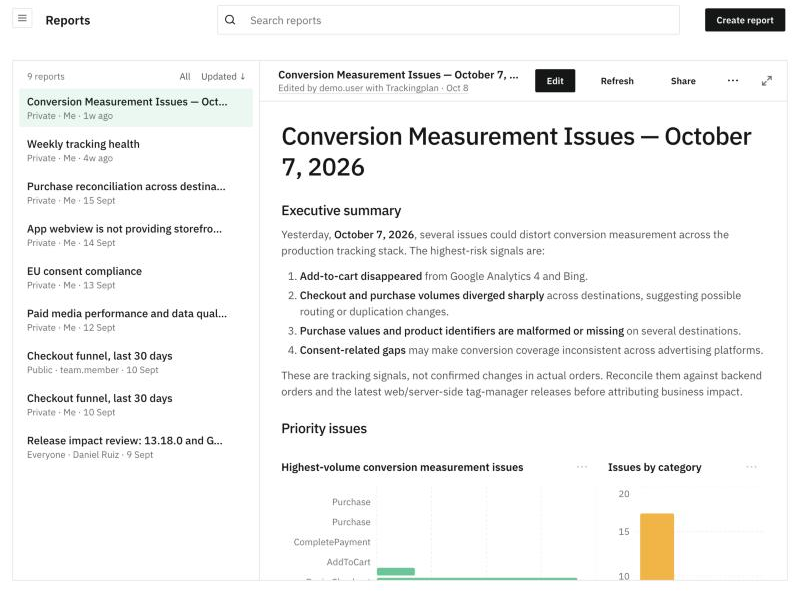
The report list
The list on the left holds your reports and the ones shared with you. Each one shows its title, its visibility (Private, Everyone or Public), its owner and its date.
- Search reports, at the top of the screen, finds a report by its title.
- All filters the list: All, Starred, Private, Shared with me or Shared by me.
- Updated sorts it.
Create a report
There are two ways:
- In a thread, click + > Report mode and ask your question. The answer comes as a report, shown in the thread as a card with Open report. See Threads.
- Click Create report. A blank report opens. Tell Trackingplan what to write in Tell Trackingplan how to edit this report…, then click Save.
An open report
The header shows the title and who edited it last, followed by Edit, Refresh, Share, … and the arrow icon that opens the report as a page.
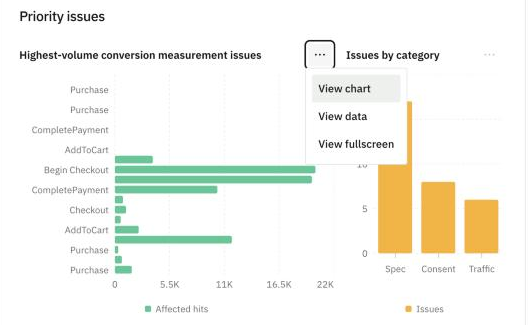
Each chart has its own … menu: View chart, View data (the numbers behind it) and View fullscreen.
Edit a report
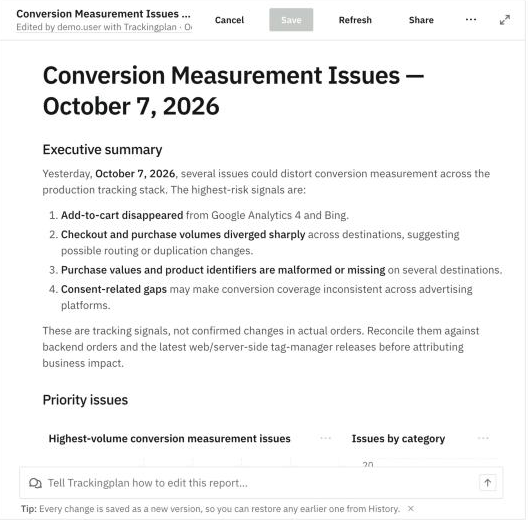
Click Edit. You can change the text directly, or tell Trackingplan what to change in Tell Trackingplan how to edit this report… at the bottom. Click Save to keep the changes or Cancel to discard them.
Every change is saved as a new version, so you can always go back to an earlier one from History.
Refresh a report for another period
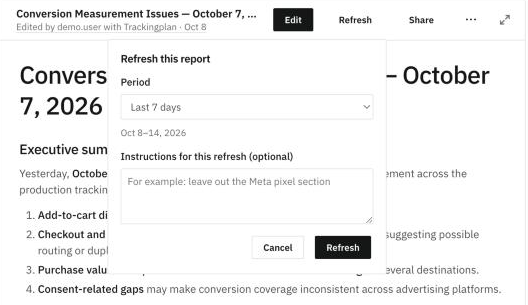
Need the same analysis for a new period? Refresh it instead of starting over.
- Click Refresh.
- Choose the Period: Last 7 days, Yesterday, Last 30 days, Last week (Mon–Sun), Last month, Custom dates… or As of today. The dates it covers appear below.
- Add Instructions for this refresh if you need them, for example "leave out the Meta pixel section".
- Click Refresh.
Schedule a report
Next to Refresh, schedule the report for every day, or once a week on a day you choose. You can also ask for it in the chat. A report that browses the site can be scheduled too.
Only a scheduled run is emailed, from noreply@trackingplan.com, with a one-click unsubscribe. On demand sends nothing and keeps the day, the period and the recipients. Test send sends the current version, marked as a test.
History
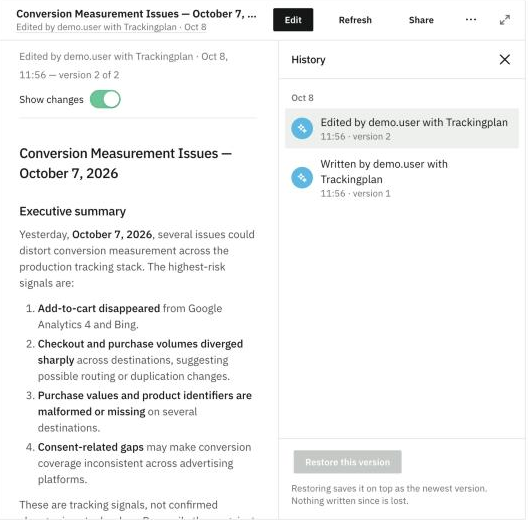
… > History lists every version of the report, who wrote it and when. Select a version to read it, and turn on Show changes to see what changed. Restore this version saves it on top as the newest version; nothing written since is lost.
More options
The … menu of a report also lets you:
- Open thread: the conversation the report came from.
- Create a copy.
- Download PDF or Download HTML.
- Star this report.
- Analytics: who viewed the report and its downloads.
- Delete.
Share a report
Share offers three levels: Private (only you), Everyone (everyone with access to this plan) and Public link (anyone with the link, no sign-in). People with access to the plan always see the latest version.