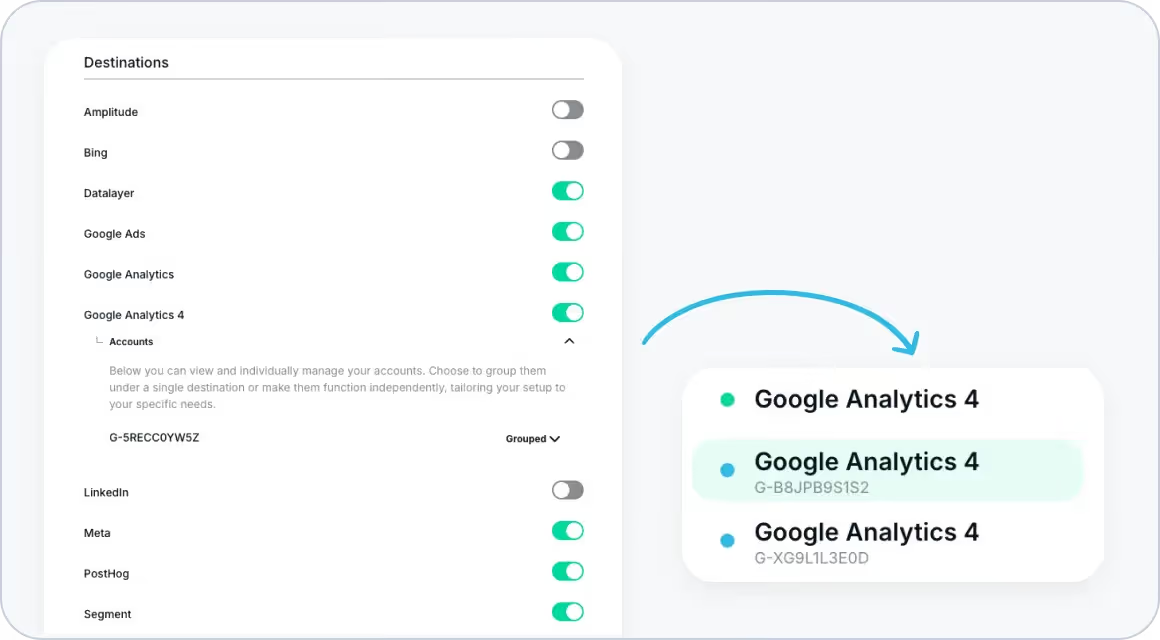
Now you can split the traffic of your destinations by account ID, allowing you to view traffic from each ID separately as a new destination, or even exclude specific account IDs from any processing to prevent traffic from reaching your dashboard.
What’s New
The Split Destinations by Account ID functionality offers granular control of data flows, so each account ID can be managed independently or as part of a grouped destination. This flexibility supports detailed tracking preferences to meet unique reporting and analytics needs.
With this feature, each account can act as an independent destination or be excluded from any processing, giving you control over what and how data reaches your dashboard.
Configuration Options
To Split Destinations by Account ID, navigate to your account settings. In the Destinations section, you’ll be able to view and individually manage your accounts, grouping them under a single destination, making them function independently, or disabling them to block traffic from reaching your dashboard.
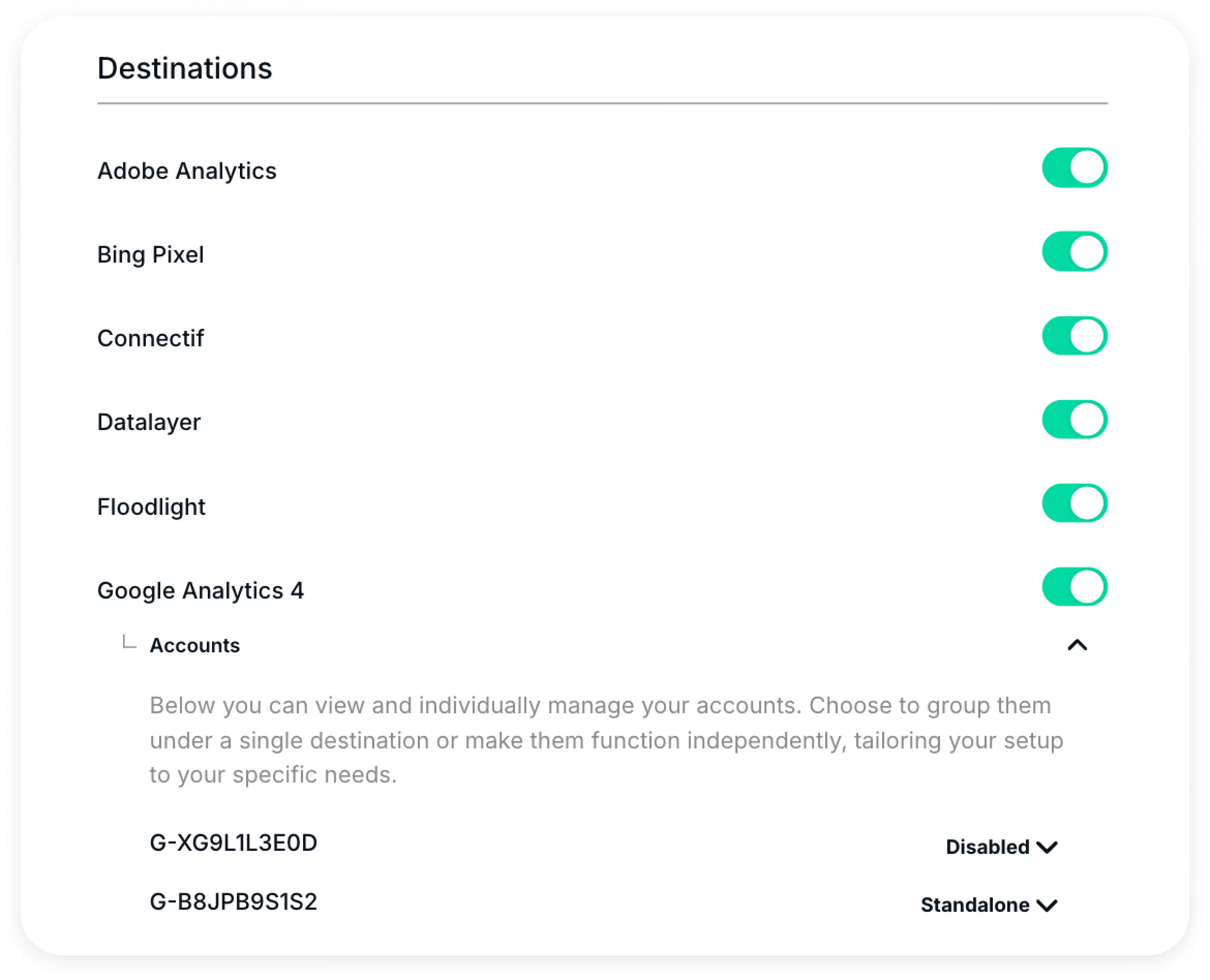
Let’s see this in more detail:
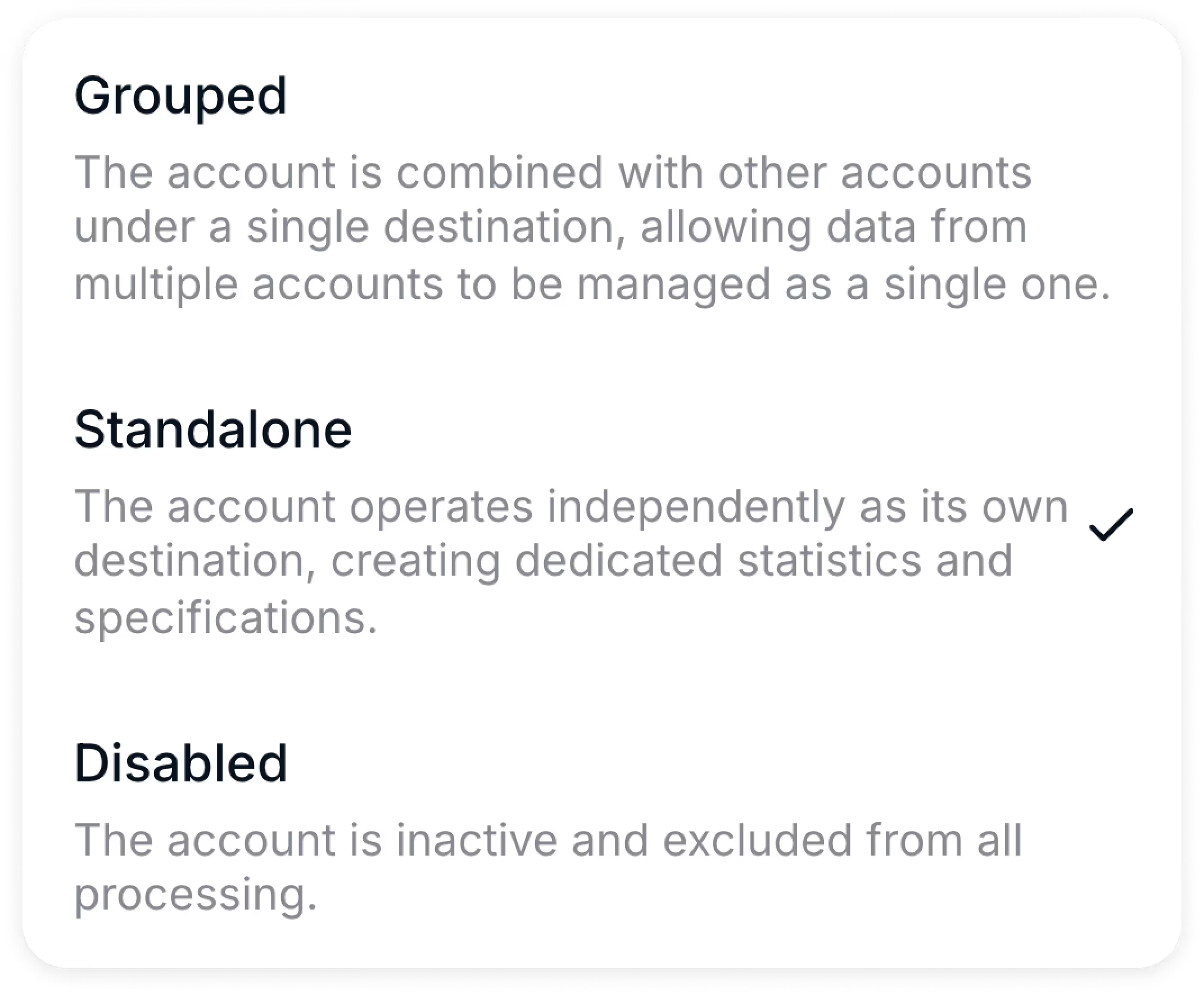
Grouped (default)
When set to Grouped, all the traffic within the provider is combined with other selected account IDs under a single shared destination, providing a unified view within the dashboard.
The Grouped option is ideal for situations where you need a consolidated analysis across multiple accounts, making it easy to monitor overall trends, perform holistic reporting, and maintain streamlined data processing for related accounts.

Standalone
Selecting the Standalone option configures the account to operate independently, creating a separate destination for the traffic generated for any of your account IDs. This will allow you to keep its data and its traffic isolated from other accounts, allowing for detailed, individualized analysis.
This setup is particularly useful for cases where you need distinct reporting, precise attribution, or a focused view of user behavior specific to that account ID, enabling granular monitoring and refined decision-making without interference from other data sources.

Disabled
When an account ID is set to Disabled, all traffic associated with that account ID will be fully blocked, preventing any data from reaching your dashboard or being processed in any way. By disabling an account, you ensure that no traffic or events related to that account are captured, creating a cleaner, more focused data environment for analysis and reporting.
This option is ideal for situations where you want to exclude specific account IDs entirely—whether to avoid irrelevant data from cluttering your dashboard, or prevent certain sources from impacting your analytics.

Key Considerations
Changes to your destination account settings will immediately affect data collection, processing, and reporting. Review your changes carefully before saving to ensure your data is handled as desired.
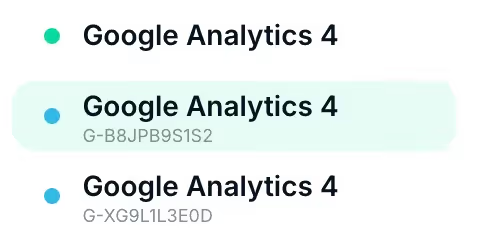
For instance, depending on your configuration, if all traffic is split across all your ID accounts, the parent account may not receive direct hits, as its traffic will only be redirected to the standalone split accounts. This setup ensures each account ID receives only its designated traffic according to your specifications.
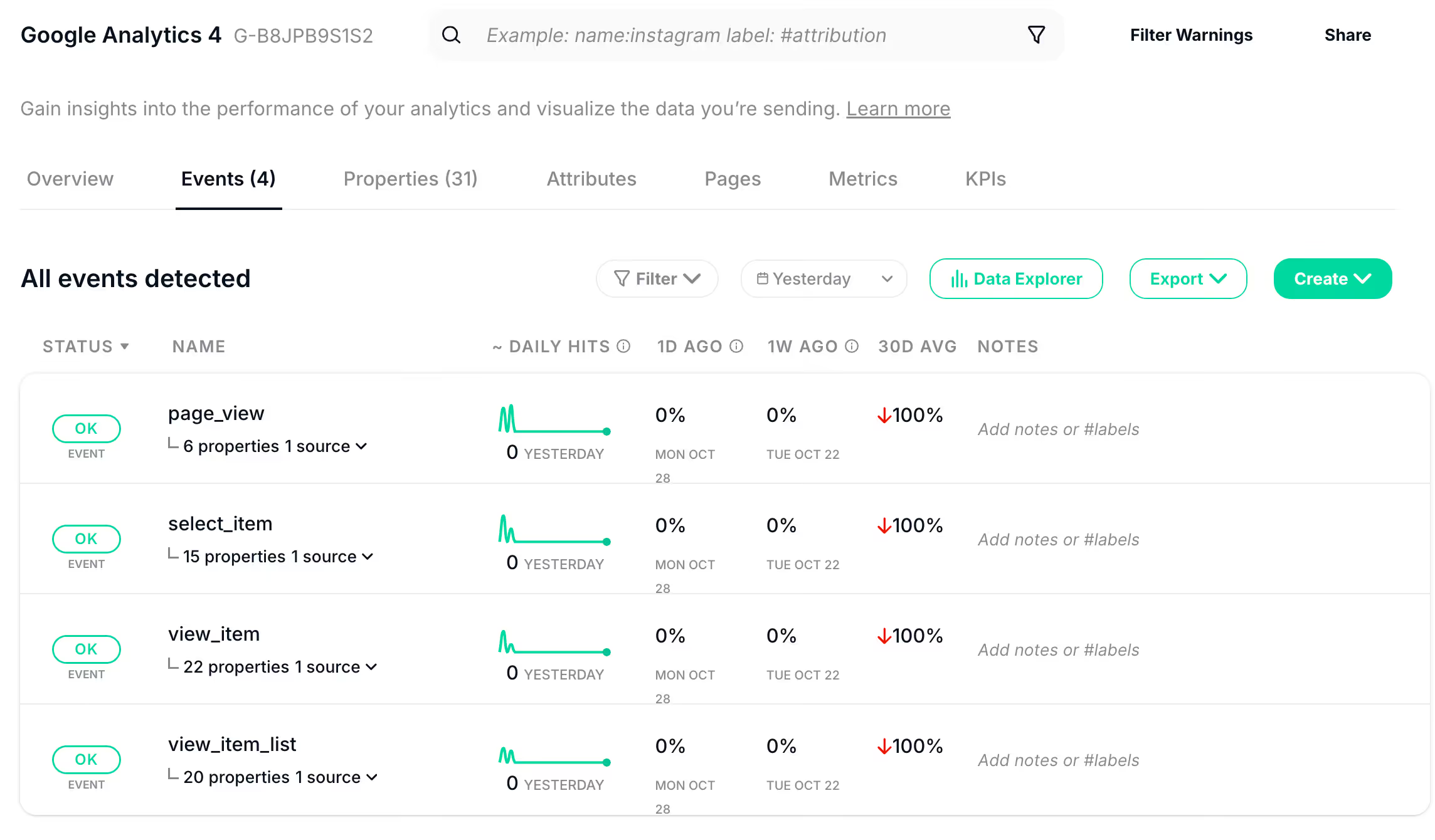
Yet, even though each split account will operate independently, the same familiar Trackingplan interface you already know for the rest of your destinations will persist.
In other words, each Standalone account will function as a separate destination with its own data stream, while still maintaining the same user interface elements—capturing events, metrics, and properties as usual, but with complete separation from other accounts.
Use cases
The Split Destinations by Account ID feature offers flexibility for digital analysts managing complex setups. This is particularly useful for teams with multiple Measurement IDs in their Google Tag Manager containers, configured to segment traffic and events across different regions, domains, or departments. Here are some specific ways this feature can enhance your analytics strategy:
- Regional Traffic Segmentation: For e-commerce companies operating in multiple countries, it’s common to assign a unique Measurement ID to each country to separate traffic data. This feature enables analysts to isolate data streams for each region, allowing for a focused view of user behavior, trends, and sales patterns specific to each market.
- Domain-Specific Tracking: For organizations with multiple domains, such as a main website and subdomains for specific products or services, splitting destinations by account ID allows each domain to have its own independent analytics profile. This segmentation ensures that each domain’s performance can be tracked separately.
- Departmental Data Ownership: Companies often have distinct teams, such as marketing and product, each with its own analytics needs. By splitting data into separate destinations, you can create a dedicated data stream for each team—e.g., marketing data vs. product usage data—allowing departments to access and manage their own analytics independently. This setup fosters accountability, ensures relevant data access, and keeps insights organized.
By configuring destinations to meet unique requirements, digital analysts can create a more structured and manageable analytics environment, where each data stream provides targeted insights.
To learn more about split destinations by account ID, visit our documentation.