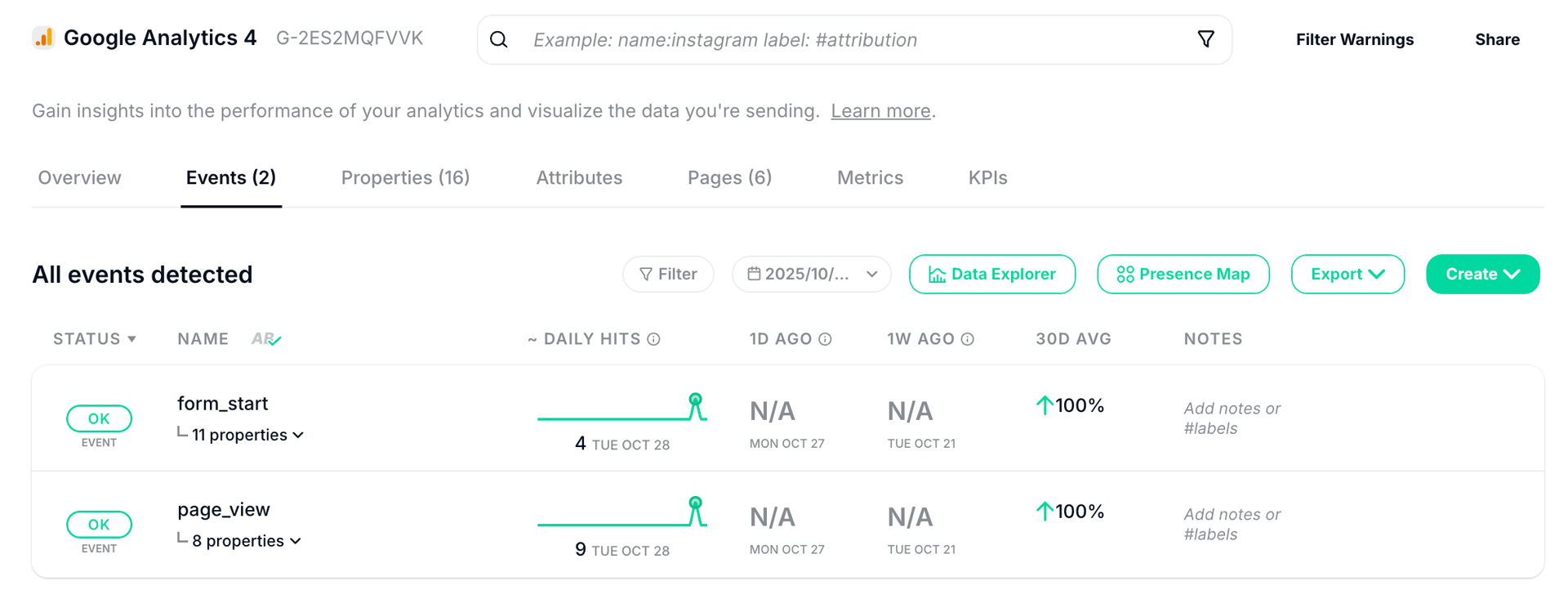
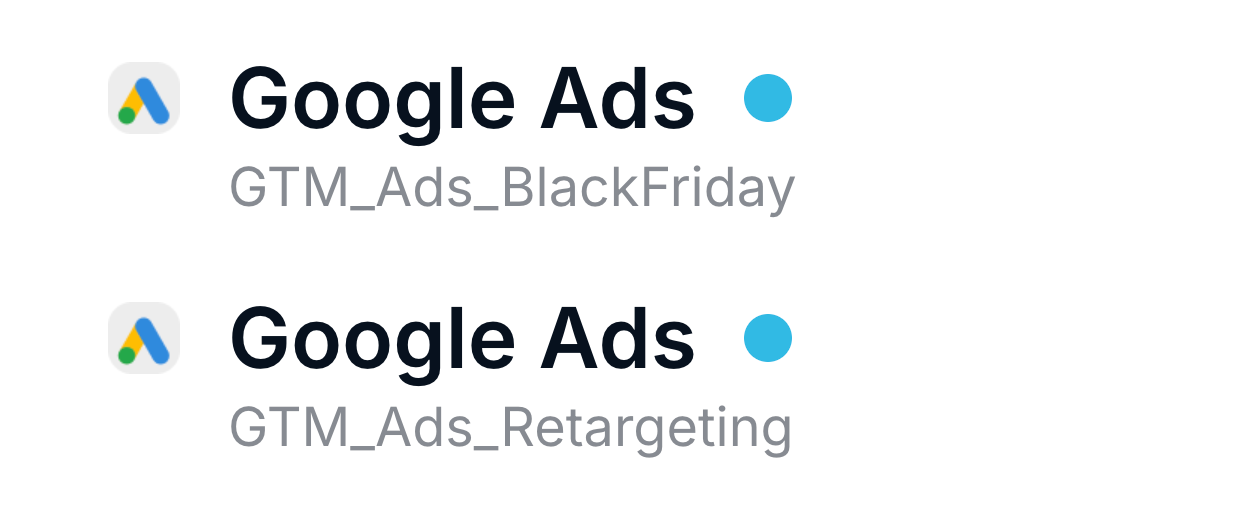
Trackingplan splits the traffic of your destinations by their account ID, allowing you to view traffic from each ID separately as a new destination, or even exclude specific account IDs from any processing to prevent traffic from reaching your dashboard.
The Split Destinations by Account ID feature provides enhanced control over data flows, enabling users to manage traffic by account ID at a granular level. This allows each account ID to function either independently or as part of a grouped destination, depending on your tracking preferences.
Configuration Options
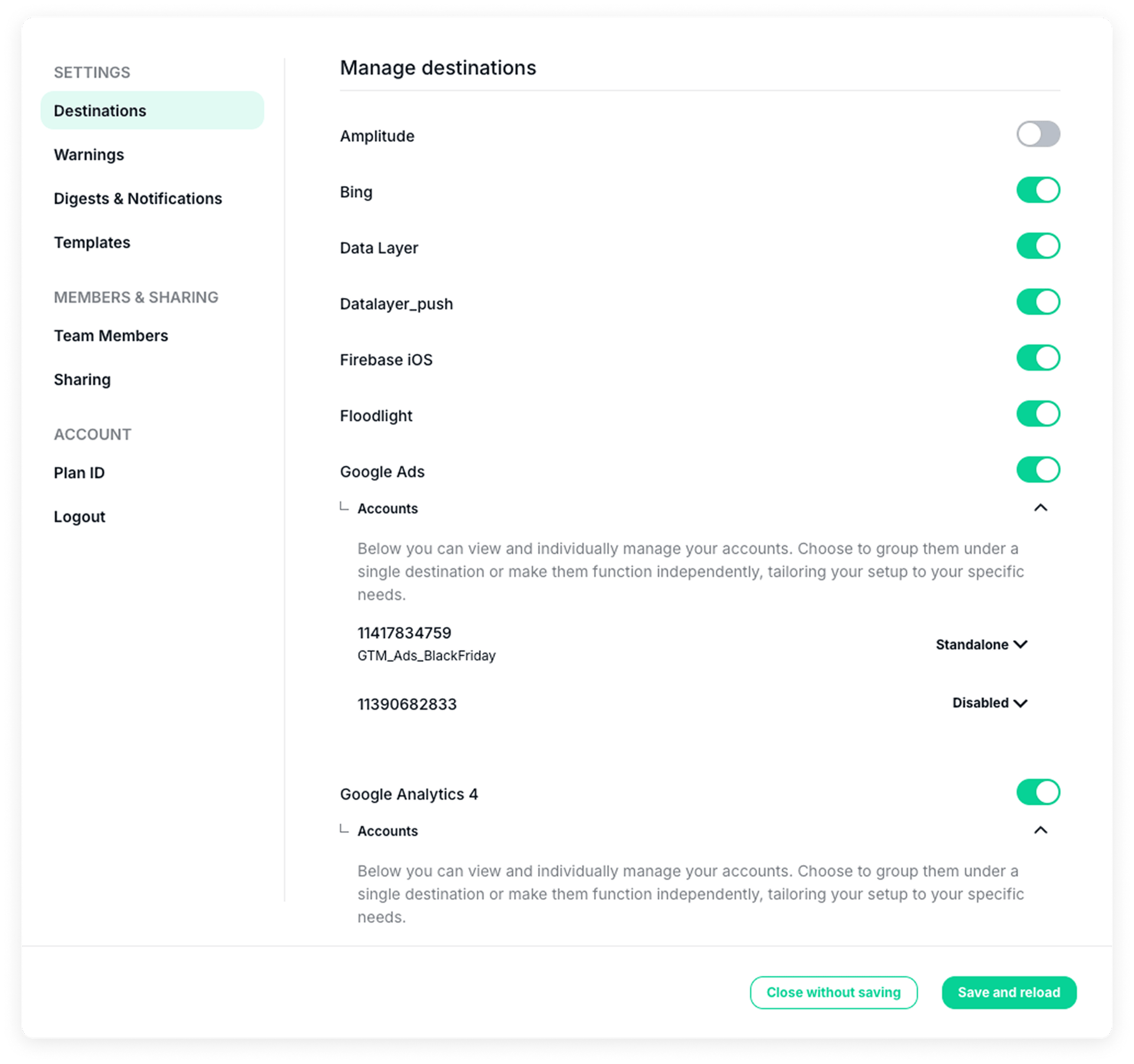
In your account settings, under the Destinations section, you’ll be able to view and individually manage your accounts; grouping them under a single destination, making them function independently, or disabling them to block traffic from reaching your dashboard.
Let’s see this in more detail:
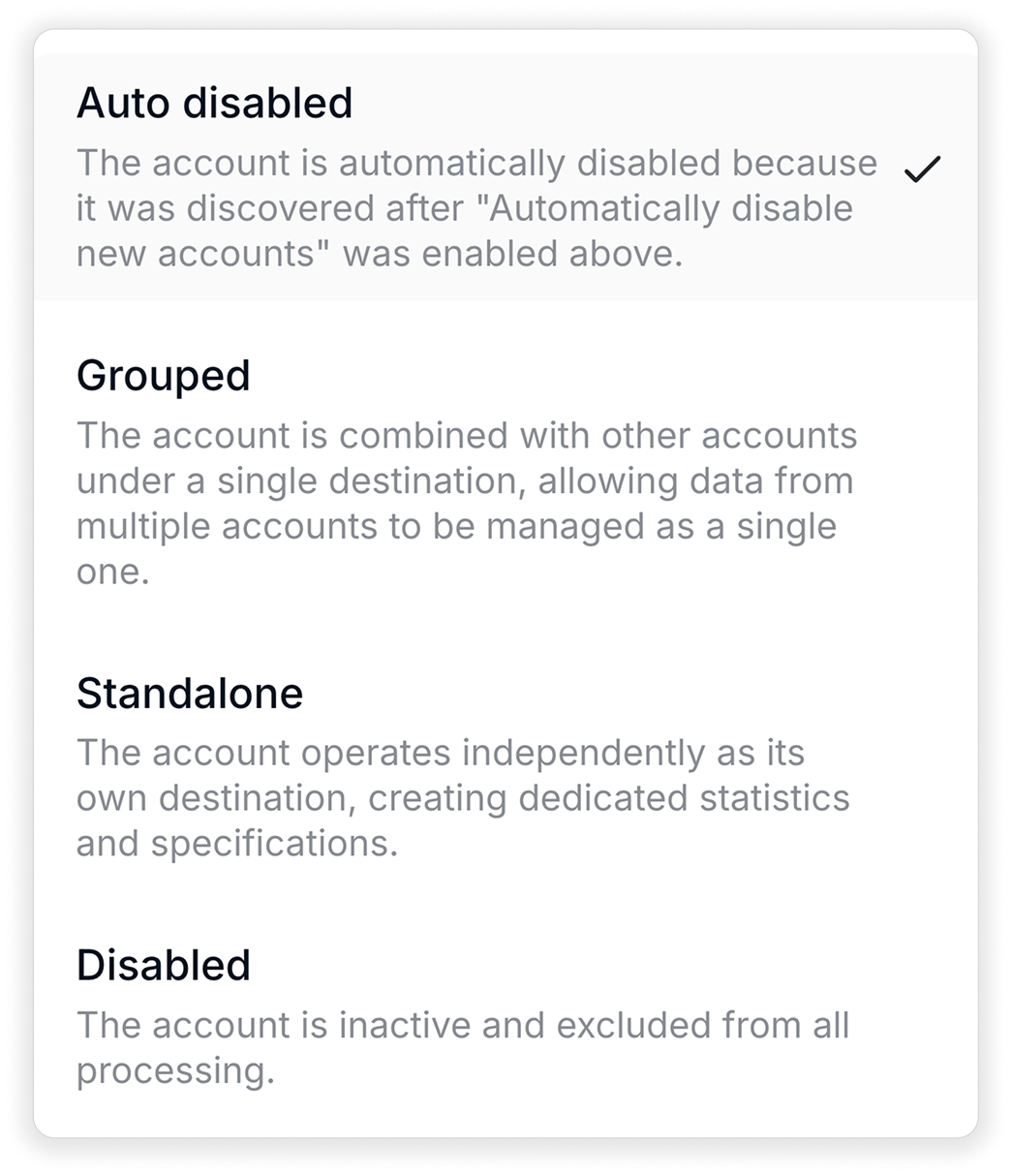
- Auto disabled: The Autodisabled status appears for any newly detected account only if you have previously enabled the “Automatically disable newly detected destinations” option in your Settings.

Learn more about automatically disabled destinations here.
- Standalone (default): By default, all new accounts, panels, or GTMIDs are created as Standalone, meaning each account operates independently. This creates a separate destination for all traffic associated with that account ID, keeping its data fully isolated from other accounts.

This setup allows you to:
- Track and analyze each account’s traffic individually.
- Avoid mixing data from different GTMIDs or environments.
- Assign aliases to easily identify each standalone account at a glance.
- Maintain the familiar Trackingplan interface while having fully separated data streams for detailed, individualized reporting and precise attribution.
- Grouped: When set to Grouped, all the traffic within the provider is combined with other selected account IDs under a single shared destination, providing a unified view within the dashboard.
The Grouped option is ideal for consolidated reporting, overall trend analysis, and streamlined monitoring, as it:
- Provides a unified view of all traffic under selected accounts.
- Maintains all familiar Trackingplan interface features, while grouping the data streams.

- Disabled: When an account ID is set to Disabled, all traffic associated with that account ID will be fully blocked, preventing any data from reaching your dashboard or being processed in any way. By disabling an account, you ensure that no traffic or events related to that account are captured, creating a cleaner, more focused data environment for analysis and reporting.

This option is ideal for situations where you want to exclude specific account IDs entirely—whether to avoid irrelevant data from cluttering your dashboard, or prevent certain sources from impacting your analytics.
Automatically disable newly detected destinations
If you only care about monitoring specific destinations (for example, a defined set of GA4 or Google Ads accounts), you can enable this setting to automatically disable any newly detected accounts.
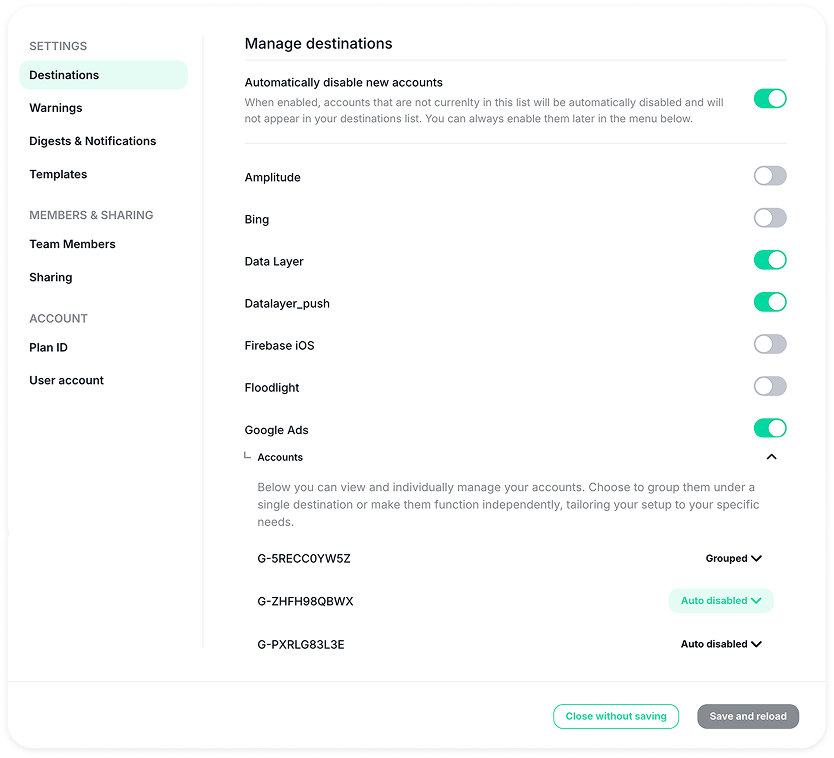
When this option is enabled, only the destinations that already exist or were detected during Trackingplan’s Learning Phase remain active. Any destination discovered after that point will be automatically disabled by default, always ready to be re-enabled later if needed.
This means that newly detected accounts:
- Will not appear in your Destinations sidebar.
- Will not be included in your Digests.
- Will remain hidden, but can always be enabled later if needed
This helps you keep your monitoring environment clean and focused, preventing unexpected or unknown accounts from adding noise to your setup.
Use cases
The Split Destinations by Account ID feature offers flexibility for digital analysts managing complex setups. This is particularly useful for teams with multiple Measurement IDs in their Google Tag Manager containers, configured to segment traffic and events across different regions, domains, or departments. Here are some specific ways this feature can enhance your analytics strategy:
- Regional Traffic Segmentation: For e-commerce companies operating in multiple countries, it’s common to assign a unique Measurement ID to each country to separate traffic data. This feature enables analysts to isolate data streams for each region, allowing for a focused view of user behavior, trends, and sales patterns specific to each market.
- Domain-Specific Tracking: For organizations with multiple domains, such as a main website and subdomains for specific products or services, splitting destinations by account ID allows each domain to have its own independent analytics profile. This segmentation ensures that each domain’s performance can be tracked separately.
- Departmental Data Ownership: Companies often have distinct teams, such as marketing and product, each with its own analytics needs. By splitting data into separate destinations, you can create a dedicated data stream for each team—e.g., marketing data vs. product usage data—allowing departments to access and manage their own analytics independently. This setup fosters accountability, ensures relevant data access, and keeps insights organized.
By configuring destinations to meet unique requirements, digital analysts can create a more structured and manageable analytics environment, where each data stream provides targeted insights.
Considerations
Newly created accounts or dashboards are now standalone by default. If you prefer to manage multiple accounts together, you’ll need to group them manually.
Existing accounts will remain unchanged, preserving their current grouped or standalone configuration. Yet, even in older installations, any new GTM ID added from now on will automatically appear as standalone.
Changes to your destination account settings will immediately affect data collection, processing, and reporting. Review your changes carefully before saving to ensure your data is handled as desired.
- Disabling a destination will hide all related accounts from the sidebar — including grouped ones.
- To deactivate only certain grouped accounts, set them individually to disabled.
- Depending on your configuration, if all traffic is split across all your ID accounts, the parent account may not receive direct hits, as its traffic will only be redirected to the standalone split accounts. This setup ensures each account ID receives only its designated traffic according to your specifications.
- Each Standalone account will function as a separate destination with its own data stream, while still maintaining the same user interface elements (capturing events, metrics, and properties as usual), but with complete separation from other accounts