
Event Tracking Fundamentals
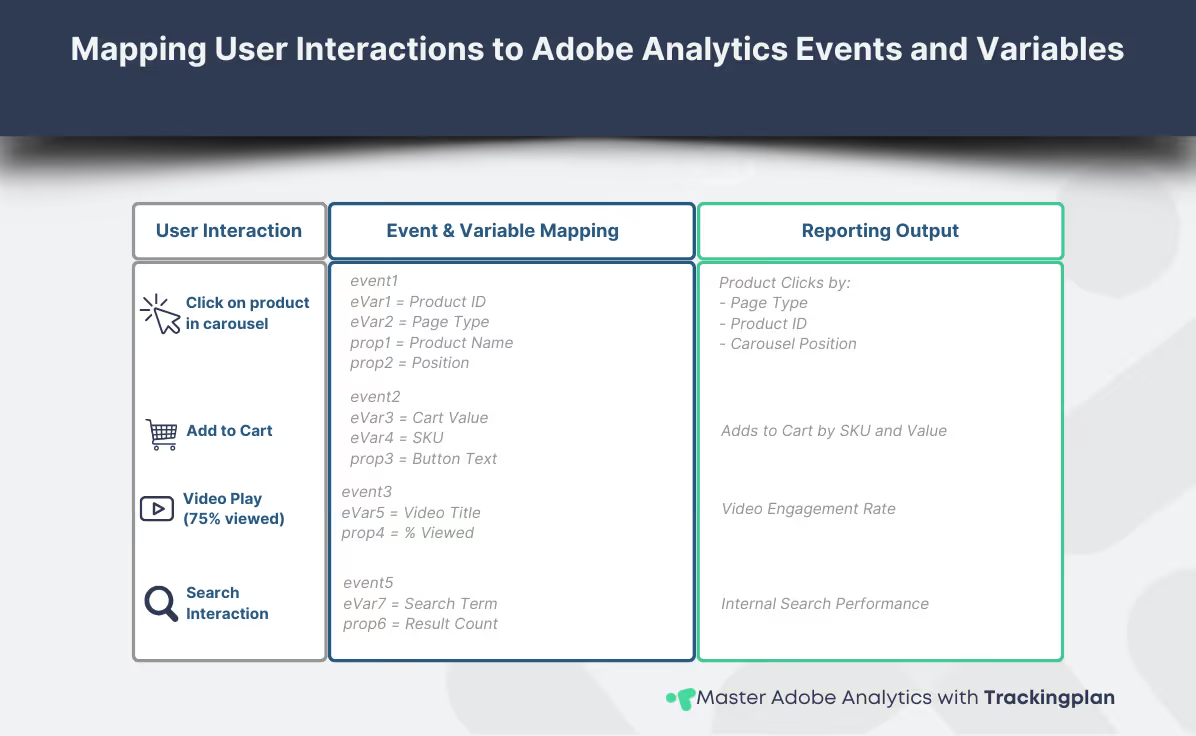
Tracking events in Adobe Analytics is the foundation of any robust digital measurement strategy. Events let you capture meaningful interactions—beyond pageviews and visits—that reflect real user behavior and engagement.
Custom Link, Download, and Exit Events
Adobe Analytics events start with built-in link tracking types, such as custom links, downloads, and exits. These are useful for monitoring basic interactions like clicking on a downloadable PDF, navigating to an external site, or triggering a CTA that doesn’t reload the page.
While helpful, these events are limited in flexibility. They serve as quick wins but aren’t designed for business-specific goals or detailed reporting.
Success Events: The Core of Custom Tracking
When you need to define specific interactions that matter to your business—like completed purchases, video plays, or form submissions—success events are the tool of choice. You can configure these custom events as:
- Counter events: Used to count occurrences (e.g. each form submission).
- Serial events: Capture unique values, ideal for deduplication or tracking transaction IDs.
Implementing success events correctly ensures your reporting aligns with actual user behavior and business outcomes.
Event Tracking vs. Calculated Metrics
There’s often confusion around when to use event tracking in Adobe Analytics versus relying on calculated metrics. Events are critical for capturing real-time, interaction-level data, especially when a user’s action doesn’t trigger a page load. Examples include carousel interactions, in-page clicks, or engagement with dynamic components.
Calculated metrics are great for deriving ratios or aggregated performance figures based on already tracked data—but they can’t replace granular interaction tracking.
Choosing the right type of Adobe Analytics event is critical to building scalable advanced tracking for reporting and automation. To explore how advanced logic and APIs can supercharge your tracking efforts, check out the custom automation and advanced tracking guide.
Need the full technical reference for setting these up? Adobe provides thorough documentation on custom event types and implementation.
Working with Custom Variables (eVars, props, and listVars)
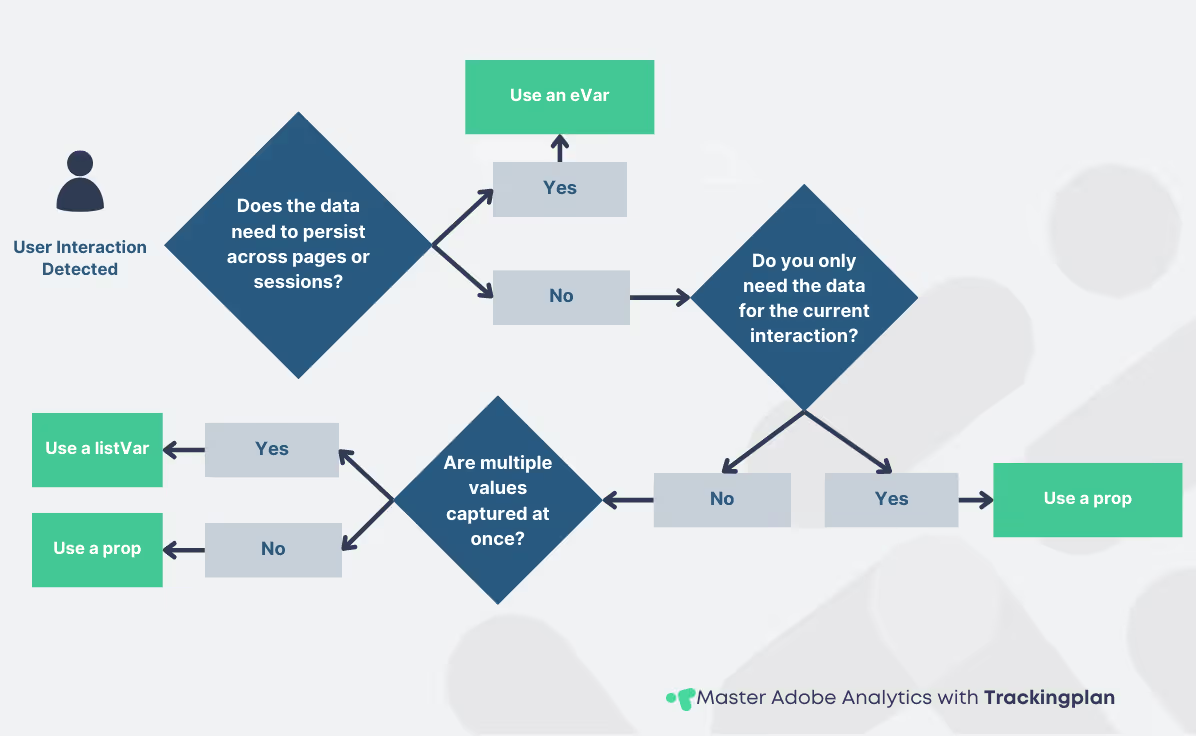
Custom variables in Adobe Analytics translate raw data into structured, segmented insights. While event tracking captures what happened, custom variables help you understand the context behind each interaction.
eVars vs. Props: Understanding the Core Difference
Both eVars and props allow you to attach metadata to Adobe Analytics events, but they behave differently in reporting.
- eVars (conversion variables) persist beyond the initial hit and credit success events over a defined attribution window. They're perfect for tracking things like marketing channels, logged-in states, or selected filters that may influence a later conversion.
- Props (traffic variables) are tied to the page view or interaction itself. They’re ideal for capturing real-time click-level data like CTA text, form field interactions, or UI variations.
Understanding the difference between props and eVars is key to building flexible, reliable reporting structures. Many tracking issues stem from using one in place of the other, or failing to align them with your attribution model.
Capturing Multiple Values with listVars
When you need to track multiple values from a single interaction—like all products in a cart or multiple filters applied at once—listVars provide that flexibility. They work like arrays and allow you to push several values into a single variable for later breakdowns and segmentation.
Strategic Use Cases for Advanced Segmentation
Advanced tracking with Adobe Analytics events becomes exponentially more powerful when paired with the right custom variables. Use props for UI testing or button-level analysis. Use eVars for tracking logged-in behavior, campaign codes, or visitor segments. Use listVars when analyzing many-to-one interactions.
To structure your variable strategy correctly, revisit the advanced techniques section of our main Adobe Analytics guide. For additional practical clarification, Adobe’s community offers ongoing insights on how pros are implementing and debating use cases like eVar vs. prop selection.
Optimizing the Data Layer for Tracking
A clean and well-structured data layer is one of the most important foundations for advanced tracking. Without it, even the most sophisticated Adobe Analytics setup can fall short. A solid data layer acts as the source of truth between the front-end environment and the tracking configuration, ensuring that every event and custom variable is fed reliable, structured input.
What to Include in Your Data Layer
A good data layer for Adobe Analytics should go beyond page names and URLs. At a minimum, it should include:
- Page-level details: content type, template, category hierarchy
- User context: logged-in state, user role, A/B test variants
- Product or object data: SKU, price, category, inventory, promo status
Embedding this information into your data layer ensures that Adobe Analytics events support reliable and precise advanced tracking, enabling meaningful segmentation and reporting.
Integrating with Adobe Launch
Adobe Launch provides a flexible way to connect your data layer with event triggers, conditions, and variable mappings. Whether you push data through dataLayer.push() or use a JavaScript object model, defining a consistent schema that Adobe Launch can easily reference is essential.
You’ll also want to ensure event triggers are decoupled from DOM behavior whenever possible, so that event tagging remains stable even when UI changes.
For a useful comparison of how Adobe Launch handles data layers versus other tag managers, this article from a technical expert outlines practical differences.
QA and Debugging Best Practices
Even a well-planned data layer can produce issues if left untested. Before deploying any changes, use tools like Adobe Experience Platform Debugger or browser extensions like Omnibug to monitor and validate that:
- Events are firing as expected
- Values are formatted correctly
- No unnecessary calls are being triggered
A structured QA routine is non-negotiable if you want to maintain high tracking data quality. To dive deeper into scaling your implementation and building automation layers around your data layer, check out our guide on data automation and tracking strategies for Adobe Analytics.
Practical Implementation: Example Use Case
Bringing advanced tracking to life means aligning your events, variables, and data layer into a working, verifiable setup. Let’s walk through a practical example: tracking clicks on a product recommendation carousel.
In this case, the objective is to capture which product was clicked, its position in the carousel, and the type of page where the interaction occurred.
Here’s how that might look from implementation to reporting:
// Data layer structure on interaction
window.dataLayer = window.dataLayer || [];
window.dataLayer.push({
  event: "productClick",
  productName: "Noise Cancelling Headphones",
  productID: "NC-230",
  position: 3,
  pageType: "homepage"
});
This example ties together an Adobe Analytics events,advanced tracking logic, custom variables, and structured data input. The result is a setup that supports granular reporting and optimized segmentation, without relying on page reloads or brittle UI hooks.
To integrate this kind of implementation smoothly into your tech stack, it’s worth reviewing the Adobe product integration strategies from our main guide. And for edge cases or advanced debugging scenarios, the Stack Overflow Adobe Analytics tag is a valuable peer resource.
Common Pitfalls and How to Avoid Them
Even well-planned implementations can run into trouble when advanced tracking isn't thoroughly tested or maintained. A few common issues can compromise data quality—and they’re often avoidable.
Misfired or Missing Events
One of the most common issues in advanced tracking is that Adobe Analytics events don’t fire as expected. This can happen due to broken selectors, race conditions, or incorrect trigger logic. Always validate events in real time before publishing to production, using tools like Adobe Experience Platform Debugger or Omnibug.
Incorrect Variable Mapping
Mixing up props and eVars, overwriting values unintentionally, or using the wrong expiration settings can lead to misleading reports and poor attribution. Double-check your mappings, and document the logic behind each variable’s use.
Data Inflation and Duplication
Without proper safeguards, a single user interaction can trigger the same event multiple times, inflating your metrics. Implement throttling, deduplication logic, or conditional firing rules to prevent these issues.
Lack of Governance
A tracking implementation is only as sustainable as its governance. Track changes, version your tag manager configuration, and clearly document your variable schema. If you’re scaling your implementation across teams, explore our approach to data governance and scalable tracking architecture.
Investing in quality assurance workflows will pay off long-term. And for quick checks, the Adobe Analytics debugger extension can save hours of guesswork, reducing time spent troubleshooting and validating events.
Conclusion
Advanced tracking in Adobe Analytics isn't about adding complexity—it’s about gaining clarity. From custom events to structured data layers and meaningful variable mappings, each configuration step contributes to more reliable data and effective decision-making.
Whether you're just refining your setup or designing a new implementation from scratch, the strategies outlined here can help you build with confidence. Adobe Analytics events, when implemented thoughtfully, allow you to capture the interactions that truly matter—without clutter or guesswork.
To go further, explore our breakdown of core Adobe Analytics setup and integrations and learn how to scale through API automation and structured governance.
Coming next: we’ll dive into hands-on guides for setting up event tracking with Adobe Launch, capturing scroll and form engagement, and building custom dashboards tailored for leadership reporting.