
Tealium Basics and Setup
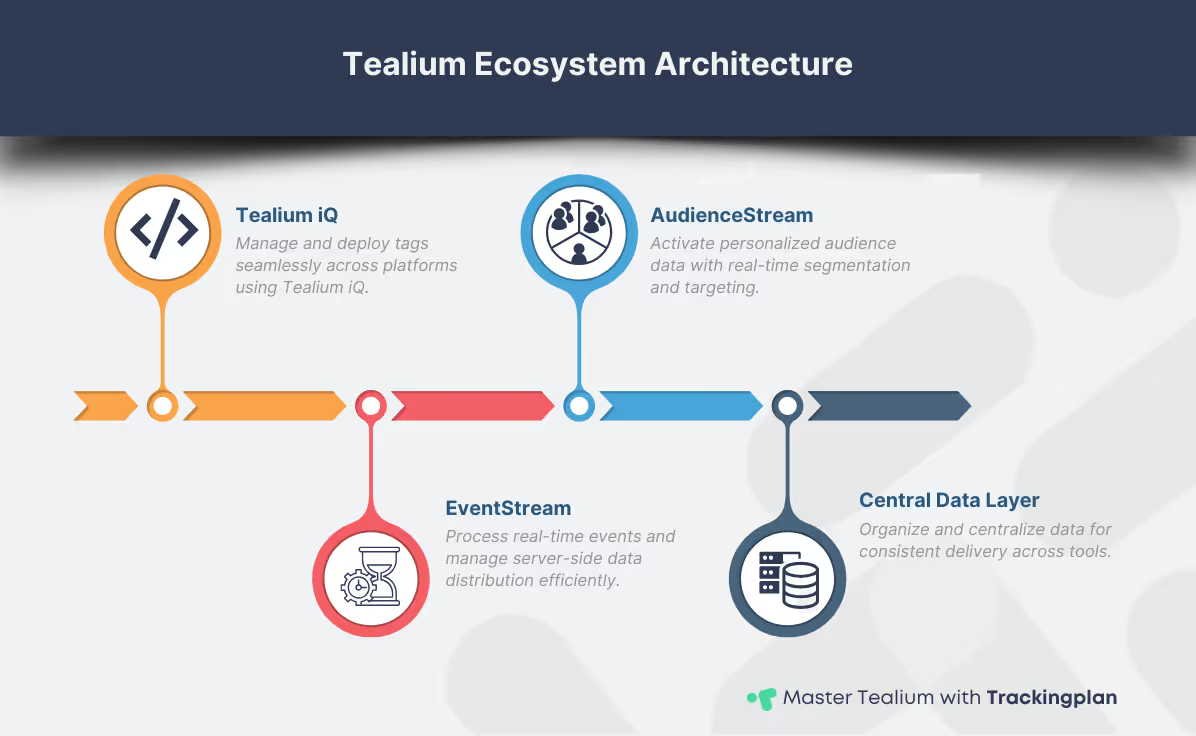
Before troubleshooting Tealium setup issues, it’s essential to understand its foundation. Tealium is designed to simplify customer data collection, management, and activation across digital channels. Its flexible architecture supports various use cases, from tagging to real-time audience segmentation, but getting acquainted with the basics is key to avoiding setup challenges.
Overview of Tealium Architecture
Tealium’s modular framework enables seamless integration across platforms. At its core, it collects data from multiple touchpoints, organizes it through a centralized data layer, and distributes it to various tools for analytics, marketing, and personalization.
The system's design ensures scalability and customization, but configuration missteps—such as incorrect data mappings or inefficient tag execution—can disrupt workflows. A clear understanding of Tealium’s architecture is critical to Tealium troubleshooting and optimizing its setup.
Key Components: iQ, EventStream, AudienceStream
Tealium’s ecosystem revolves around three key tools:
- Tealium iQ: A tag management system that allows you to control marketing tags from a central location, ensuring they load correctly and efficiently. Learn more about its functionalities here.
- EventStream: A server-side API hub designed for real-time event processing and data distribution. This tool is especially critical for organizations managing server-side tracking. For a detailed overview, visit the EventStream API Hub here.
- AudienceStream: A customer data platform (CDP) that supports real-time audience segmentation and personalized activation across channels. It enables advanced use cases like audience targeting and user journey optimization.
Mastering these components ensures smooth tag deployments and simplifies Tealium troubleshooting for digital analysts, while also introducing potential points of failure. For advanced insights into configuring these tools, refer to the comprehensive guide on mastering Tealium.
Common Setup Errors and Solutions
Even with Tealium’s robust capabilities, setup issues can arise that disrupt data collection and hinder campaign performance. Understanding these challenges equips you with strategies to streamline Tealium troubleshooting and resolve them efficiently. Below, we outline the most frequent errors and offer practical solutions tailored for digital analysts.
Error in Tag Load Order and Firing
One of the most common issues involves tags firing in the wrong sequence or not firing at all. This can result from improperly configured load rules or conflicting dependencies between tags.
Solution:
- Review and optimize load rules to ensure they reflect the correct conditions for firing.
- Use Tealium’s debugging tools, such as the Trace functionality, to simulate tag execution and validate the firing sequence.
- Refer to the comprehensive guide on mastering Tealium for tips on managing complex tag setups.
Incorrect Data Layer Variables
A misconfigured data layer can lead to incomplete or inaccurate data being passed to your analytics tools, compromising the quality of insights.
Solution:
- Verify that all data layer variables match the expected naming conventions and values.
- Cross-check the mapping of data layer elements with the respective tags.
- Use the Web Companion tool to inspect and validate the data layer during runtime.
Tag Mapping Issues
Incorrect tag mapping is a frequent cause of setup issues, leading to discrepancies in data sent to third-party platforms.
Solution:
- Regularly audit your tag mappings to ensure all variables are correctly assigned.
- Test changes in a staging environment before publishing them live to avoid unintended consequences.
- Explore advanced techniques in the mastering Tealium guide to streamline tag configuration.
Slow Tag Performance Due to Payload Size
Oversized payloads are a common setup issue, slowing tag execution and impacting site performance.
Solution:
- Minimize payload size by removing unnecessary parameters and optimizing tag settings.
- Use Tealium’s EventStream Live Events to offload processing to a server-side environment where applicable.
- Continuously monitor performance metrics to identify potential bottlenecks early.
Advanced Debugging Techniques
When standard approaches fail to resolve Tealium setup issues, advanced debugging techniques can help you identify and address hidden errors. Leveraging the right tools and strategies simplifies Tealium troubleshooting, particularly in complex implementations. Below, we explore proven methods to debug configurations effectively.
Charles Proxy for Debugging Mobile Configurations
Mobile tracking frequently presents setup issues, including tag firing errors or incomplete data transmissions. Charles Proxy is a powerful tool that captures network traffic, making it easier to identify and resolve mobile-specific issues.
How to Use It:
- Set up Charles Proxy to intercept network requests from your mobile app.
- Analyze the captured payloads to ensure the expected data is being sent to Tealium.
- Look for anomalies in request headers, payload structure, or server responses.
This tool is invaluable for debugging mobile configurations, ensuring data accuracy and proper tag execution. Learn more about advanced debugging strategies in the mastering Tealium guide.
Device Logs Analysis for Error Traces
When mobile events don’t trigger as expected, reviewing device logs can uncover errors that may not be immediately visible in standard debugging tools.
Steps to Analyze Device Logs:
- Connect your mobile device to a computer and access the logs using debugging software like Android Studio or Xcode.
- Filter logs to identify errors related to Tealium, such as failed tag executions or unrecognized data variables.
- Cross-reference the errors with your Tealium configuration to pinpoint the root cause.
Debugging mobile.html Files
For implementations relying on mobile.html files, errors in these files can lead to misconfigured tags or broken event tracking.
Best Practices for Debugging mobile.html Files:
- Ensure the file follows Tealium’s recommended structure and syntax.
- Test the file in a controlled environment to validate tag execution and data layer variables.
- Browser developer tools are indispensable for efficient Tealium troubleshooting, especially when monitoring mobile tag firing.
Optimizing Tealium Payload Size and EventStream Live Events
Efficient data processing is critical in avoiding delays and maintaining the reliability of your Tealium setup. Payload size optimization and EventStream Live Events are two key areas that can significantly improve performance and reduce setup issues. Here’s how to make the most of these features.
Minimizing Payload Size for Faster Tag Delivery
Excessively large payloads can slow down tag delivery and increase page load times, negatively impacting both user experience and data accuracy. Optimizing payload size addresses setup issues, ensuring tags fire quickly and data processes efficiently.
Strategies for Optimization:
- Audit Your Payloads: Regularly review data sent through tags and remove redundant or unnecessary parameters.
- Leverage Data Layer Best Practices: Use a well-structured and minimal data layer to pass only the most critical information.
- Use Tealium iQ to Filter Data: Apply load rules and filters in Tealium iQ to send only relevant data to third-party platforms.
A reduced payload size not only enhances performance but also minimizes the risk of tag execution issues, ensuring smooth tracking. For further insights into optimizing payloads, explore the advanced techniques guide for digital analysts.
Using EventStream’s Live Events Feature
EventStream’s Live Events feature reduces Tealium troubleshooting by optimizing server-side event processing in real time. By offloading event processing to the server, you can reduce browser-side dependencies and improve data accuracy.
How to Use Live Events Effectively:
- Monitor Real-Time Data: Use the Live Events dashboard to verify that events are processed as expected and identify any discrepancies quickly.
- Streamline Data Distribution: Utilize EventStream to mitigate setup issues by sending processed data exclusively to relevant endpoints.
- Set Up Alerts: Enable alerts for anomalies in event delivery to address potential Tealium troubleshooting scenarios before they escalate.
Leveraging Live Events allows you to centralize event management, ensuring accurate and efficient data processing across your ecosystem.
Troubleshooting with Tealium Tools
When resolving setup issues in Tealium, using the right tools can make all the difference. Tools like Trace and Web Companion are designed to simplify Tealium troubleshooting, allowing you to identify and address errors efficiently. Here’s how to use them effectively.
Using Trace for Event Tracking Debugging
The Trace tool is one of Tealium’s most powerful features for monitoring and validating event tracking. It enables you to simulate user behavior and verify that your tags and data layers are functioning as expected.
Steps to Use Trace Effectively:
- Initiate a Trace session in your Tealium account to track interactions in real time.
- Simulate events or user journeys to ensure tags are firing correctly and data is being sent to the intended destinations.
- Review the detailed event logs provided by Trace to identify and fix misconfigured tags or broken data mappings.
Using Trace allows you to debug with precision and ensures that your implementation aligns with your tracking goals. For more insights on setting up your campaigns, refer to the implementation guide for digital campaigns.
Web Companion Troubleshooting Features
Web Companion is essential for addressing Tealium troubleshooting needs by diagnosing issues directly in the browser. It enables you to inspect tags, verify data layer variables, and test configurations without needing to edit your live implementation.
How to Get the Most Out of Web Companion:
- Inspect Tags and Rules: View the status of tags and load rules to ensure they meet the expected conditions for firing.
- Validate Data Layers: Check the data layer for accuracy and completeness during runtime.
- Test Changes Safely: Use Web Companion to safely test temporary fixes for setup issues, keeping the live site unaffected.
These features make Web Companion a go-to solution for real-time diagnostics and testing. For detailed instructions on setup and usage, consult the browser extension documentation.
Preventive Measures for Common Setup Issues
Proactive strategies are essential for minimizing setup issues in Tealium and maintaining a stable implementation. By focusing on best practices and effective management, you can reduce errors and streamline your workflows. Here are three key preventive measures every digital analyst should adopt.
Building a Robust Data Layer
A robust data layer is foundational for avoiding setup issues and ensuring a smooth Tealium implementation. Errors in the data layer often lead to inaccurate tagging or missing data.
Tips for Building and Maintaining Your Data Layer:
- Define clear naming conventions and maintain consistency across all variables.
- Only include essential data points to avoid unnecessary complexity and reduce payload size.
- Regularly audit your data layer to ensure it aligns with current business requirements.
Refer to the comprehensive guide for mastering Tealium for more details on structuring an efficient data layer.
Setting Up Alerts for Critical Errors
Early detection of setup issues prevents escalations, saving valuable time and resources in Tealium management. Alerts can help you monitor the performance of your Tealium setup and identify critical errors before they impact your workflows.
Best Practices for Alerts:
- Use Tealium’s built-in monitoring tools to set up real-time notifications for specific events or errors.
- Define thresholds for critical metrics like tag firing success rates or payload size.
- Test alerts regularly to ensure they are configured correctly and functioning as expected.
Version Control for Tealium Libraries
Implementing version control helps maintain stability and reduces the risk of accidental changes or errors during updates.
How to Implement Version Control:
- Archive previous versions of your Tealium libraries before making changes.
- Use separate environments (e.g., staging and production) to test updates without affecting the live site.
- Document all changes thoroughly to create a clear audit trail.
By following these practices, you’ll ensure your Tealium troubleshooting efforts are minimized, and your setup remains resilient to errors. Explore more advanced techniques and tools in the mastering Tealium guide.
Conclusion
Implementing and maintaining Tealium effectively requires a solid understanding of its architecture, tools, and best practices. Troubleshooting setup issues is an essential skill for digital analysts, as even minor errors can disrupt data flows and impact decision-making.
This guide covered Tealium troubleshooting, from tag firing challenges and payload optimization to debugging techniques with Trace and Web Companion. By applying the strategies outlined here, you can not only resolve issues efficiently but also prevent them from occurring in the first place.
To deepen your expertise, consider exploring additional resources. The comprehensive guide for mastering Tealium offers a detailed breakdown of advanced features, while the implementation guide for digital campaigns is perfect for those new to the platform. Together, these resources will strengthen your ability to manage and optimize your Tealium setup.
Remember, proactive management is the key to avoiding common setup issues. By following best practices and leveraging Tealium’s tools effectively, you can ensure your implementation remains stable, scalable, and aligned with your analytics goals. Ready to take your skills to the next level? Dive deeper into the linked resources and transform your approach to Tealium troubleshooting.