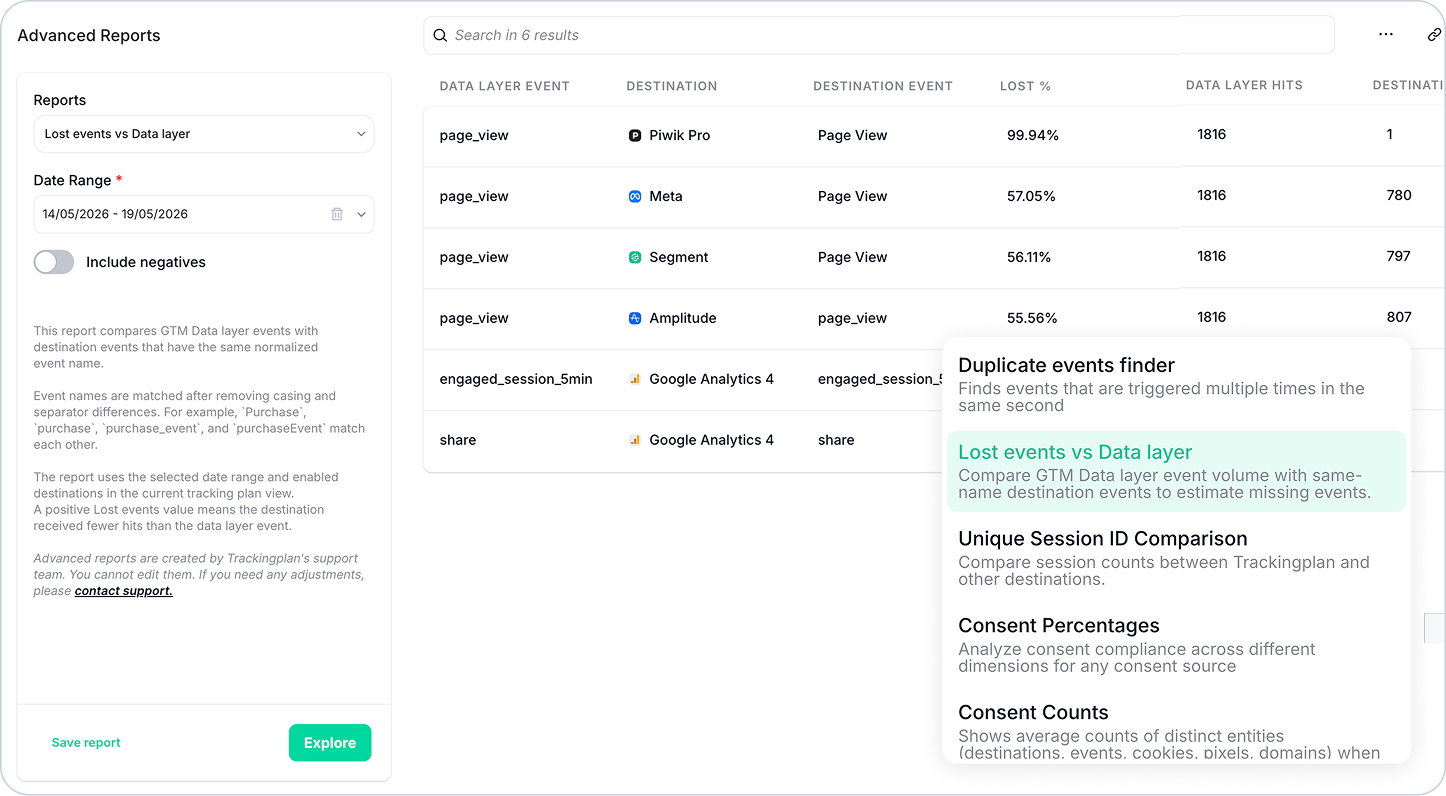
When a conversion event fires in your data layer but never reaches Meta, GA4,or Google Ads, your campaigns are optimizing on incomplete data — and most teams only notice when performance has already taken a hit. Trackingplan's Lost Events vs.Data Layer Advanced Report makes that gap visible immediately, with exact numbers.
Why Events Get Lost
Your GTM Data Layer and your destination pixels operate independently. Events can fire correctly in the data layer and still fail to reach a destination due to consent blocks, tag firing order issues, or misconfigured triggers. When this happens silently, attribution breaks and campaign optimization suffers without any obvious warning sign.
Finding this discrepancy manually means cross-referencing data layer hits in one tool against destination events in another, and then doing the math yourself. For most teams, this simply doesn't happen until something looks clearly wrong.
The Solution: Lost Events vs. Data Layer
This new Advanced Report does the comparison automatically — across all your destinations, for any date range you choose.
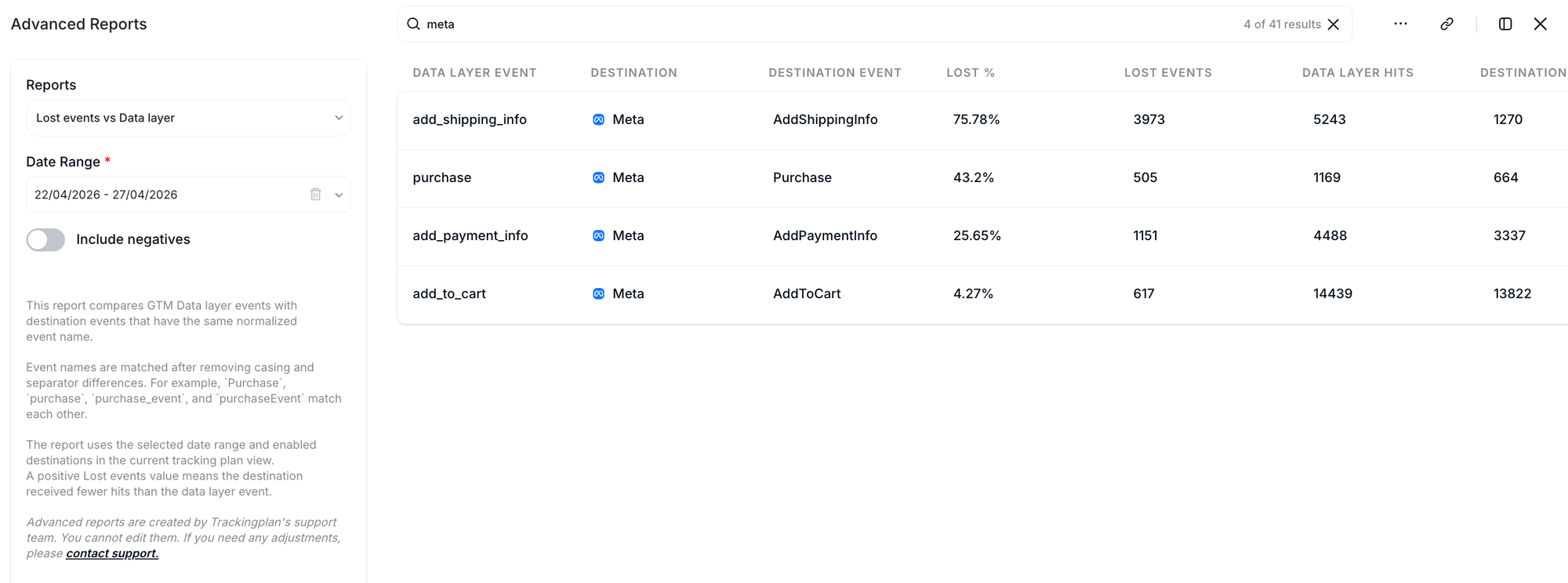
Instant conversion gap visibility: See at a glance which events are being lost between your GTM data layer and each destination, with Lost % and absolute Lost Events count for every matched pair.
Smart event matching: Event names are normalized before comparison, so Purchase, purchase, purchase_event, and purchaseEvent all match correctly, regardless of naming inconsistencies between your data layer and your destinations.
Include negatives toggle: Surface cases where the destination received more hits than the data layer, which can indicate duplicate firing or misconfigured triggers.
Flexible date range: Analyze any time window to catch active issues or identify persistent gaps.
How to Use It
- Open Advanced Reports from your Trackingplan panel and select the Lost Events vs. Data Layer report.
- Set your date range and enable Include negatives if needed.
- Review the results — sort by Lost % to prioritize the most impactful gaps first.
- Click Explore on any row to open the filtered results in Data Explorer for deeper investigation.
For a full overview of all columns and configuration options, visit our documentation.
Need further assistance? Our support team is here to help!
Happy Tracking!