
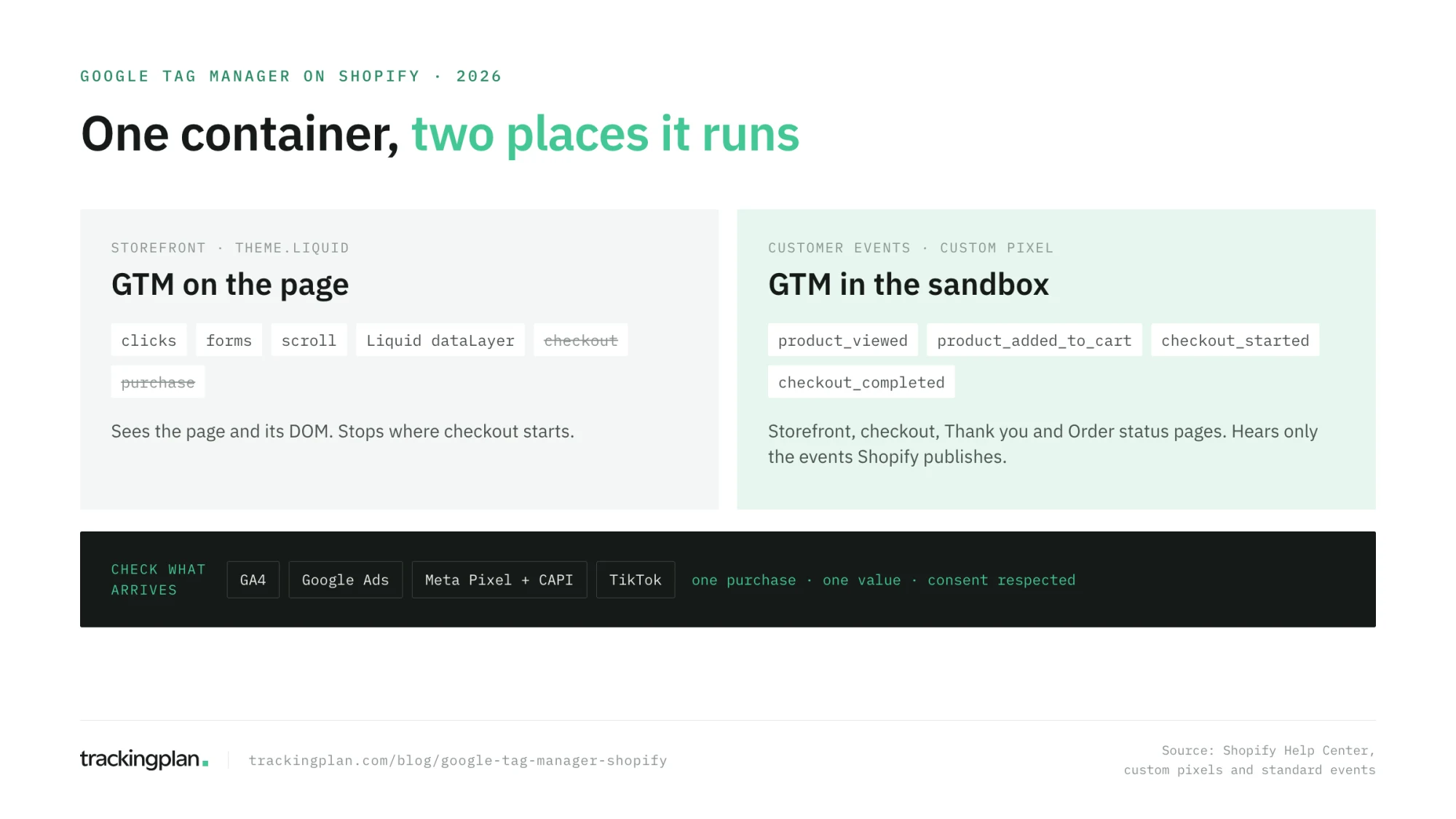
Google Tag Manager on Shopify now lives in two places. The theme loads it on the storefront, where it can see the page. A custom pixel loads it in checkout, inside a sandbox where it can only hear the events Shopify publishes. Most broken Shopify tracking comes from treating those two as one.
This guide covers both: how to install each, how to map Shopify’s events to GA4, where consent goes wrong, and how to check that what reaches GA4 and your ad platforms is what your store actually did.

The short answer
- Storefront: paste the GTM container snippet into
theme.liquid. Tags there can read the page: clicks, forms, scroll. - Checkout and purchase: add GTM to a custom pixel under Settings → Customer events, subscribe to Shopify’s standard events, and push them to
window.dataLayer. Since August 26, 2026, this is the only way for your own tags to reach the Thank you and Order status pages (Shopify). - Then check it on real traffic, not only in Preview. On Shopify, the hits you can’t see in Preview are the ones that pay for your campaigns.
Your options, side by side
| GTM in the theme | GTM in a custom pixel | Google & YouTube app | |
|---|---|---|---|
| Where it runs | Storefront pages | Storefront, checkout, Thank you, and Order status pages | Shopify-managed |
| What it can see | The page and its DOM | Only the events Shopify publishes | Standard Google events |
| Checkout and purchase | No | Yes | Yes |
| Your own tags and triggers | Yes | Yes, inside the sandbox’s limits | No |
| Preview and Tag Assistant | Work as usual | Tag Assistant’s Troubleshoot tag is not compatible | Not applicable |
The Google & YouTube app is the route Shopify recommends for Google tags alone. Its help page notes that Google doesn’t recommend the GTM custom pixel route and can’t provide technical support for it (Shopify). If GTM also manages Meta, TikTok, Pinterest, or your own tags, the custom pixel is still the place to do it. Just don’t run both for the same Google events.
Step 1: GTM in the theme
- In GTM, open Admin → Install Google Tag Manager and copy both snippets.
- In Shopify, go to Online Store → Themes, open the menu of your live theme and choose Edit code.
- In
layout/theme.liquid, paste the<script>snippet right after<head>and the<noscript>snippet right after<body>. Save.
This container sees storefront pages only. To give it product and cart data, render a dataLayer push from Liquid on the templates that need it, or leave ecommerce events to the pixel in step 2 and keep the theme container for what needs the DOM.
Step 2: GTM in a custom pixel
Shopify’s pixels load on the storefront, checkout, Thank you page, and Order status page, and custom pixels run in a lax sandbox (Shopify). In Settings → Customer events, choose Add custom pixel, then:
- Paste the GTM
<head>snippet without its<script>tags. - Subscribe to the events you need and push each to
window.dataLayer. - Under Permission, choose which purposes the pixel needs (see consent, below), then save and connect.
window.dataLayer = window.dataLayer || [];

// GTM <head> snippet, without the <script> tags
(function(w,d,s,l,i){w[l]=w[l]||[];w[l].push({'gtm.start':
new Date().getTime(),event:'gtm.js'});var f=d.getElementsByTagName(s)[0],
j=d.createElement(s),dl=l!='dataLayer'?'&l='+l:'';j.async=true;j.src=
'https://www.googletagmanager.com/gtm.js?id='+i+dl;f.parentNode.insertBefore(j,f);
})(window,document,'script','dataLayer','GTM-XXXXXXX');

analytics.subscribe('checkout_completed', (event) => {
  const checkout = event.data.checkout;
  window.dataLayer.push({ ecommerce: null });
  window.dataLayer.push({
    event: 'purchase',
    page_location: event.context.window.location.href,
    ecommerce: {
      transaction_id: checkout.order?.id,
      value: checkout.totalPrice?.amount,
      tax: checkout.totalTax?.amount,
      shipping: checkout.shippingLine?.price?.amount,
      currency: checkout.currencyCode,
      items: checkout.lineItems.map((item) => ({
        item_id: item.variant?.sku || item.variant?.id,
        item_name: item.variant?.product?.title || item.title,
        item_brand: item.variant?.product?.vendor,
        price: item.variant?.price?.amount,
        quantity: item.quantity,
      })),
    },
  });
});
In GTM, the trigger is a Custom Event whose name matches the event key, and the parameters come from dataLayer variables. Three limits from Shopify’s own GTM tutorial catch most teams:
- Page URLs carry the sandbox. Send
event.context.window.location.hrefaspage_location, as above, or GA4 records the iframe’s URL. - Outbound clicks and other enhanced measurement events don’t fire on their own inside the pixel.
- The site’s dataLayer isn’t there. The pixel has its own
window. Values set on the storefront need another way in, such aslocalStorage, which also works in the sandboxed checkout (Trackingplan docs).
Step 3: map Shopify’s events to GA4
Shopify publishes 15 standard events (Shopify). These are the ones a GA4 ecommerce setup needs:
| Shopify event | GA4 event |
|---|---|
page_viewed | page_view |
collection_viewed | view_item_list |
product_viewed | view_item |
search_submitted | search |
product_added_to_cart | add_to_cart |
product_removed_from_cart | remove_from_cart |
cart_viewed | view_cart |
checkout_started | begin_checkout |
checkout_shipping_info_submitted | add_shipping_info |
payment_info_submitted | add_payment_info |
checkout_completed | purchase |
Two decisions to make once and write down. Which ID is item_id, the SKU or the variant ID, because Meta’s catalog and GA4’s item reports have to agree. And whether value includes tax and shipping, because every platform that receives it has to get the same number.
Consent: the line most setups copy wrong
Shopify’s example pixel sets every Consent Mode signal to granted, and warns that those values might not match what your store requires. Copy it as is and GA4 and Google Ads receive “granted” for visitors who said no.
Two settings decide what really happens:
- The pixel’s permission. In markets that require consent, usually the EEA and the UK, pixels run only when the visitor has given the permissions they need. New pixels require Marketing and Analytics by default (Shopify).
- The Consent Mode state inside the pixel. Read it from Shopify instead of hard-coding it:
init.customerPrivacyholds the state when the pixel loads, andapi.customerPrivacy.subscribe('visitorConsentCollected', …)reports changes, withanalyticsProcessingAllowedandmarketingAllowedamong its fields (Shopify). Map those toanalytics_storage,ad_storage,ad_user_data, andad_personalizationbefore GTM loads.
Expect fewer events after the switch from checkout scripts to pixels. Shopify says so itself: pixels only track customer behavior with consent.
Why Preview mode is not enough on Shopify
The usual checks still apply: Preview mode on storefront pages, GA4 DebugView, and a test order through Shopify’s test gateway with the value, currency, and items checked. The GTM debugging guide covers each one.
Shopify adds three gaps they don’t cover:
- The checkout container is out of reach. Tag Assistant’s Troubleshoot tag doesn’t detect Google tags inside a custom pixel, so the purchase tag is the one you see least.
- Duplicates come from the admin, not from GTM. A new app pixel, sales channel, or the Google & YouTube app can send the same event a second time, and the platform counts both (Shopify). Nobody touches the container, so nobody opens Preview.
- Consent changes what fires. Your test order runs with your consent. Real visitors in the EEA run with theirs.
Fact, a Copenhagen ecommerce agency, has seen the second one at clients. A client changes their Shopify store without telling anyone, and something as small as a new sales channel not connected properly to Meta starts firing extra events: duplicate view_item, and an artificial spike in items viewed. Without monitoring, Fact found out when the reports showed it two weeks later, and those duplicates had fired before Consent Mode.
Keep it measured correctly with Trackingplan
A Shopify setup is correct the day you test it. After that it changes with every app, theme update, and campaign. Trackingplan checks it on real traffic, every hour, so a broken purchase or a consent breach shows up in hours, not weeks.
On Shopify, the Trackingplan SDK goes at the top of every custom pixel, so it sees the checkout hits that Preview can’t (install guide). The storefront takes the usual GTM tag or snippet. From there it learns your events and their properties from traffic, with no tracking plan to write first, and flags what changes:
- Missing or duplicate events, such as a second
purchasefrom a new app pixel or aview_itemthat doubled overnight. - Wrong values and properties, such as a
transaction_idthat went null or a currency that doesn’t match the value. - The same purchase across platforms: GA4, Meta Pixel and CAPI, Google Ads, with the same value, counted once.
- Consent breaches: vendors firing before opt-in and Consent Mode signals that don’t match what the visitor chose, per market.
Each issue arrives with the hits behind it and the event, property, or tag that changed, so the fix is a change in the pixel or the container, not an investigation. As Fact’s founder put it, with “sandboxed Shopify environments, Consent Mode, and such a variety of setups”, it’s not easy to know that what you believe is correct. That is the part worth automating.
FAQ
Can I add Google Tag Manager to Shopify without coding? Partly. Pasting the GTM snippet into theme.liquid needs no code of your own, but it does not reach checkout. To track checkout and purchases you need a custom pixel that subscribes to Shopify’s events and pushes them to the dataLayer, which is a few lines of JavaScript. An app can write that pixel for you, at the cost of control over what it sends.
Why doesn’t GTM Preview mode work on Shopify checkout? GTM in a custom pixel runs inside Shopify’s sandbox, an iframe, not on the page itself. Shopify’s own documentation says Google Tag Assistant’s Troubleshoot tag feature isn’t compatible with custom pixels. Check checkout events with a test order and the GA4 DebugView, or by reading the hits each platform receives.
Do I need Shopify Plus to use Google Tag Manager? No. Any plan can add GTM to the theme and run it in a custom pixel. Since August 26, 2026, no store can add scripts to the Thank you and Order status pages, so the custom pixel is the way to reach checkout on every plan.
Why does GA4 show duplicate purchases on Shopify? Usually because two sources send the same event: GTM in the theme and in a custom pixel, or GTM next to the Google & YouTube app or another app pixel. Shopify warns that a platform counts events both from a script and from an app pixel. Pick one source per event and per platform. For the wider pattern, see duplicate conversion tracking.