What the dataLayer check returns
The Chrome console or a dataLayer extension shows what your browser pushed, on your visit, once. Trackingplan checks the dataLayer on every session of your real traffic and keeps the history: what each push carried, what every tag sent from it, and what changed after a release. The result is a report on the contract between your site and your tags, not a list of objects in a console.
Every push, with its context
Every dataLayer push behind each event, as the browser captured it: the push itself and the full state of the dataLayer when the event fired, with the page URL and what the visitor did before.
Missing keys and wrong types
The dataLayer is checked as a destination of its own, with the same warnings as GA4: a push that stops, a field that goes missing, a value that arrives with the wrong type. No schema to define first: Trackingplan learns what normal looks like from traffic.
The dataLayer against every destination
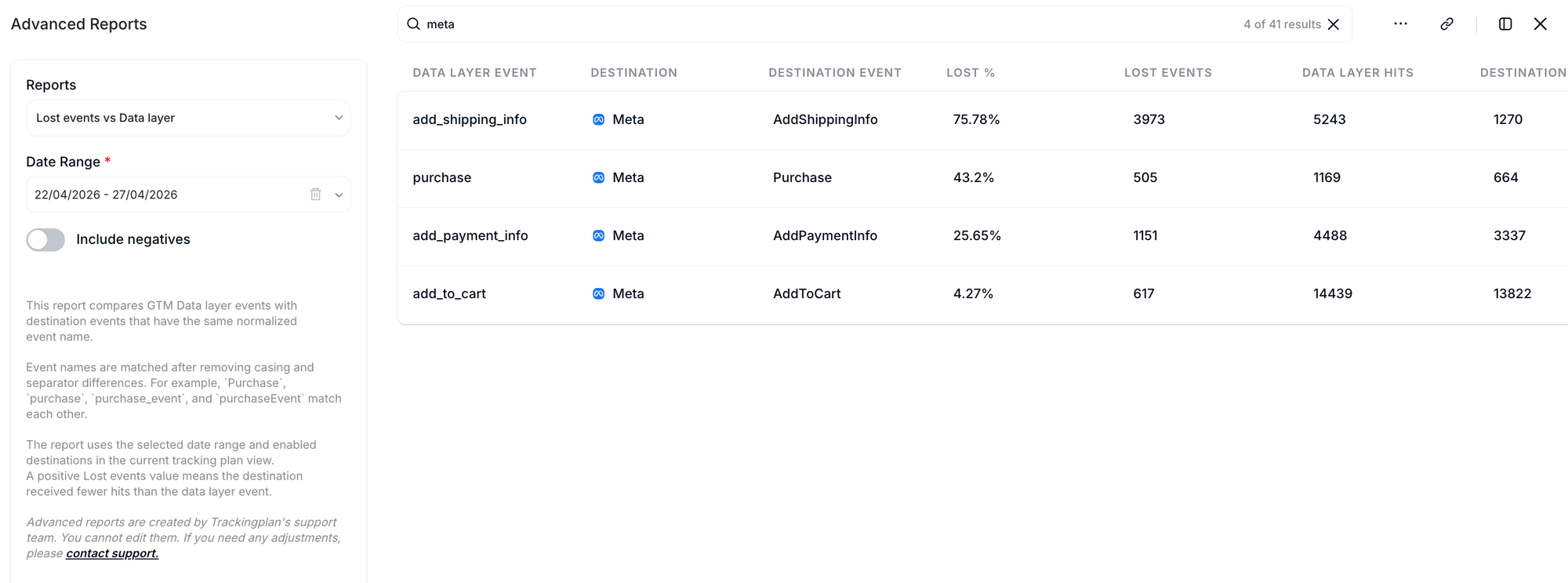
The same event in the dataLayer and in GA4, Meta, or Google Ads, compared by hits. Conversions pushed to the dataLayer that never reach a destination, and destinations that receive more hits than the dataLayer pushed, a sign of duplicate firing or a misconfigured trigger.
Front end or tag manager
If the push is right and the destination is wrong, the problem is in the tag manager. If the push is already wrong, it comes from the front end. Findings name which one, with the tag, the trigger, or the variable involved.
The release it began with
A field gone from the purchase push after the last deploy, a trigger changed in a GTM version: what changed, when, and in which GTM version or app release.
Rules for the pushes that matter
Learned specs by default, your own rules on top: every checkout push carries currency, value, and items, checked on every session, with an email or a Slack message only when one stops.
To check the dataLayer by hand before a release, see dataLayer validation: what to check before every release. To read it in your own browser, follow the steps in Chrome.
How it works
No journeys to script, no schema to write, and nothing to change in your dataLayer or your containers. Real traffic does the setup.
- Install one tag. A GTM template or one script tag in your
<head>. It observes the dataLayer and the requests your site already sends, and changes none of them. - 2 days of learning. Trackingplan discovers every push, event, field, and destination from real traffic, and learns your hour-of-day and day-of-week baselines.
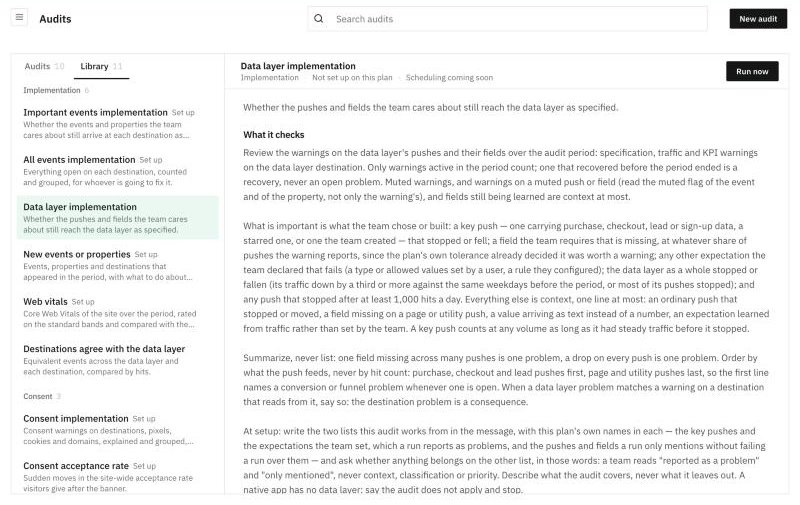
- The check is yours. 7 days free with 25 credits, 9 days in total: the dataLayer behind every event, two dataLayer audits ready in the Library, and the agent, which you can ask “Is the purchase push still sending the transaction ID and the value?” or “Does GA4 get every add_to_cart that reaches the data layer?” and get the hits back.
- It keeps running. A push that stops, a field gone after a release, an event that no longer reaches GA4 because a trigger changed in the tag manager: detected the moment it appears and posted to the channel that owns it.
Why check real traffic and not one browser
A dataLayer extension runs in your browser, on your visit, with your consent state, on the pages you click through. The push that breaks sits on the template nobody listed, in the browser no test runs, in the market with a different consent banner. The check that matters runs on every visit.
In our tracking audit benchmark of 10 top-brand websites, mismatched IDs and parameters showed up on all 10, and pages or flows where tags never fire on 9.
Trackingplan names a cause only when two independent pieces of evidence agree, for example a GTM version published just before the push changed plus traffic confirming how it broke. Anything less is labeled a hypothesis. If it can’t find the cause, it says so.
“It helps me understand issues or detect incidents without wasting time navigating multiple flows. For example, I can select ten purchases from a specific day of an incident and quickly check whether they had the correct item names or purchase IDs.”
David Rascón · Data & MarTech Consultant, CSA (Havas Media Network). Read the story →
Who it is for
Analytics and tag managers
The dataLayer is the contract between your site and every tag you own. The check tells you which push broke, on which release, and whether the fix belongs in GTM or in the front end, with the hits to show the developer.
Developers and QA
A refactor that turns transaction_id into transactionId passes functional QA, because the page works. The check catches it on real traffic after the release, before the report is wrong. More in Trackingplan for developers.
Questions before you start
?Is this a dataLayer checker extension?
No. An extension checks the page you are on, in your browser, now. Trackingplan checks the dataLayer of every session your real visitors start, and keeps doing it after the 9 days: a push that stops or a field that goes missing is flagged the moment it appears. To read the dataLayer in your own browser, see how to see the dataLayer in Chrome.
?Do I need to change my dataLayer or my containers?
No. Trackingplan works alongside your existing analytics and marketing implementation. You install the tag and it observes the dataLayer and the traffic your site already generates.
?Do I have to define a schema first?
No. Trackingplan learns from real traffic which pushes, fields, types, and values are normal, and flags what departs from them. You can then tighten a spec or add your own rule, for example that every checkout push carries currency, value, and items.
?Does it work with GTM, Tealium, and Adobe?
Yes. Trackingplan picks up the dataLayer on its own, including the Tealium data layer and the Adobe Client Data Layer. With Google Tag Manager it also saves each published container version from your traffic, so a broken push can be tied to the version that changed it.
?Does it check iOS and Android apps?
Native apps have no dataLayer, so the dataLayer check applies to your websites. The iOS and Android SDKs monitor the events your apps send to each platform, with the same learned baselines and warnings.
?What happens after the 9 days?
When the trial ends, Trackingplan recommends the plan that fits you best, based on the sessions it has seen. Ready to keep going? Book a 30-minute kickstart session to review your results, explore what’s next, and get your account ready for continued use. Trackingplan keeps monitoring in the meantime, so you don’t lose a day of data if you carry on. The three plans and what each includes are on the pricing page. Enterprise teams can also run a free proof of concept against their own stack before committing.