
Google added Data Manager to Google Analytics 4 on November 6, 2026, as an open beta. It puts product links, data streams and first-party data imports on one admin page, with a map of where each source goes. The map is useful. The setup Google warns about is more urgent: the same connection active in GA4 and in Google Ads can log every conversion twice. This post covers what GA4 Data Manager is, how to read the connection map and the alerts, and what to check before and after you connect anything.
The feature is in beta and may change. What follows was checked against Google’s documentation on November 19, 2026.
What Data Manager is and where to find it
Data Manager is the place in GA4 where you connect, activate and measure first-party data. Google’s help article places it in Admin, as a Data Manager tab in the left navigation, just under My preferences. You need the appropriate permissions on the property. Subproperties and roll-up properties don’t get the landing page yet.
Below the map sits a Data connections area with two lists:
- Data streams, with a button to add a stream.
- Connected products, with a button to connect a product. You pick a data source, pick how the data will be used, and begin setup.
Imports you already had in GA4 show up there on their own. Two data types can only be set up from Data Manager in GA4: item data and third-party campaign data.
The name isn’t new. Google announced Data Manager for Google Ads in October 2023, and in September 2026 Google’s announcement said it would integrate Data Manager directly into Google Analytics and Display & Video 360. The GA4 beta is that integration arriving. Analytics Mania’s walkthrough shows the new screens in a real property.

How to read the connection map
The map puts your GA4 property in the center. Data sources come in from the left and destinations go out to the right. It has three views:
- Mini map, the default: a collapsed line from tag or SDK and connected products, through the property and its streams, to data export.
- Expanded view: four columns (data sources, data types, property and streams, data export) with details such as the Google Sheet name or the tag ID.
- Full-page view: the same map across the whole page, where grouped sources, properties and exports open into their full list.
Hover over a node and the map highlights its whole path from source to destination. Click it and a summary card opens; its filter icon focuses the map on that node. You can also filter by node name or by column.
A source with a problem shows a broken state or a red status indicator. Its summary card names the issue and offers a Fix button. Google doesn’t say which errors Fix can resolve, and both PPC Land’s write-up and Relevant Audience’s review point out the same gap. Read what the card says before you click.
What the map shows is configuration: which source is connected to which destination. It doesn’t show whether the conversions moving along those lines are correct, complete or counted once.
What the data strength alerts do
Data Manager in GA4 includes Google’s data strength guide, which looks for measurement gaps and recommends fixes based on the signals it sees. That is all Google has published for GA4. There is no list of the checks it runs.
The Google Ads side is better documented: Google’s best practices page covers data strength from the ads account. Until Google publishes what the GA4 version checks, treat its recommendations as a prompt to look, not as a verdict.
The setup that counts conversions twice
Data imported through Data Manager in GA4 flows down to linked Google Ads and Google Marketing Platform accounts. It doesn’t flow the other way. Google’s help article warns against activating an identical data pipeline in both interfaces, because it can log conversions twice.
Say your CRM already uploads offline conversions to Google Ads through Data Manager in Google Ads. Someone opens the new tab in GA4, sees the same CRM in the list of sources and connects it there too. GA4 imports the data and passes it down to the linked Google Ads account. Google Ads now receives the same conversions through two pipelines. Nothing on the site changed, and no tag fires twice. The second count comes from a connection.
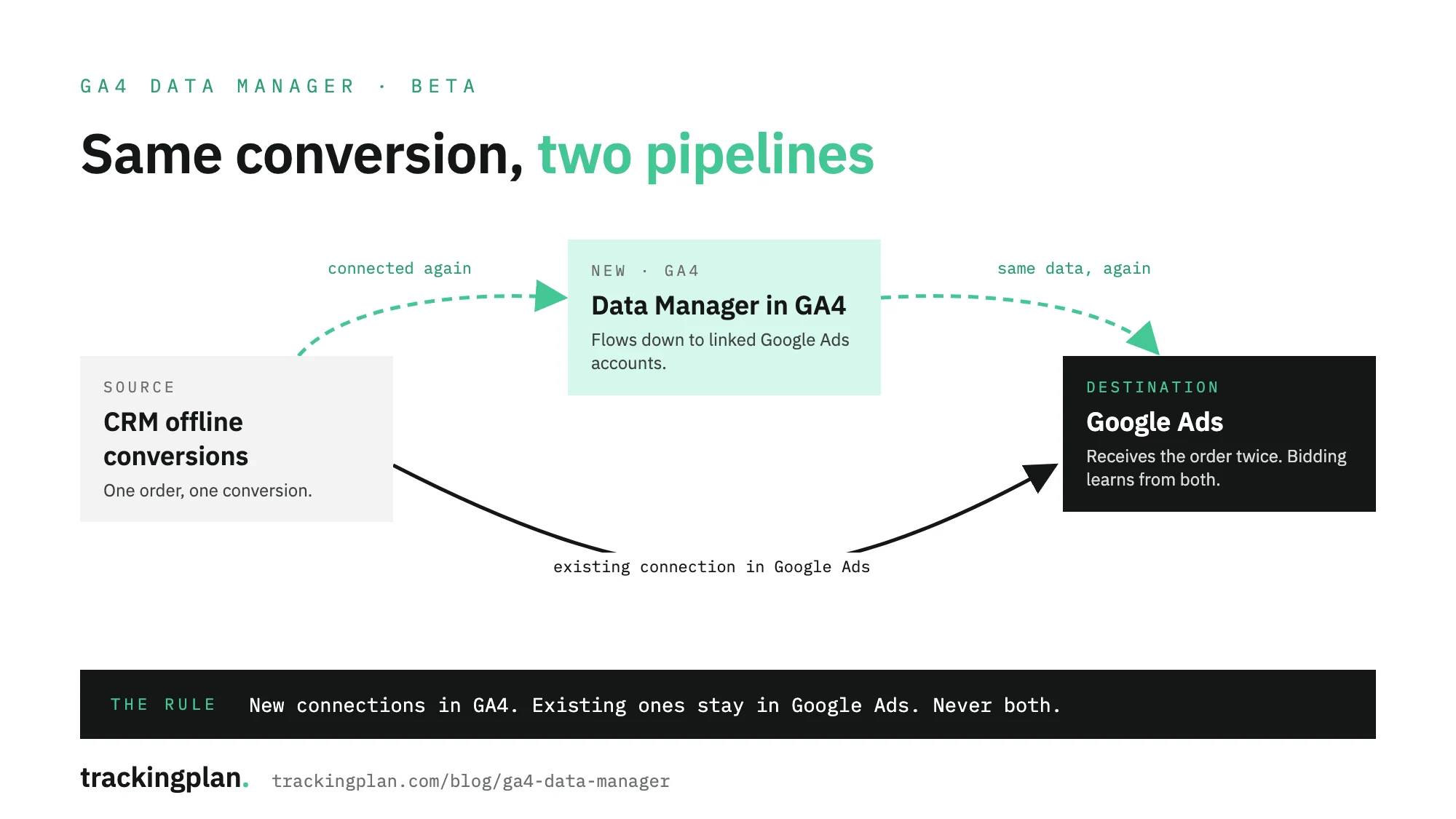
Google’s rule is short:
- New connections: set them up in Data Manager in GA4. Data flows from GA4 to the linked Google Ads or Google Marketing Platform accounts.
- Existing connections: keep managing them in Google Ads or Google Marketing Platform. Don’t recreate them in GA4.
- Existing GA4 imports: they appear in Data Manager automatically. Nothing to move.
Google doesn’t publish steps to detect a duplicate once it happens. The checks below are ours.
What to check before and after you connect
Before you connect a source in GA4:
- List every connection in Data Manager in Google Ads and Google Marketing Platform: source, destination and the conversion actions it feeds.
- In Google Ads, under Goals, in Conversions, note each conversion action, its source and whether it is primary. Primary actions are the ones bidding learns from.
- Open the connection map in GA4 and compare. If a source is already connected on the Ads side, leave it there.
- Write down a week of daily counts for each primary conversion action, and the orders or leads your backend recorded on the same days.
After you connect:
- Compare daily conversions per action with the week before. A step up on the day of the change, with no change in orders or leads, is a second pipeline.
- Look for a new conversion action with the same name or the same source as an existing one.
- Compare conversion value too. A duplicated import doubles the conversion value as well as the count, and value-based bidding reads both.
The general causes of double counting, from tags to deduplication keys, are in duplicate conversion tracking. If conversions drop instead, start with Google Ads conversion tracking not working. If you send hashed first-party data, the setup in enhanced conversions for Google Ads is the one to keep consistent with whatever you connect here.
Where Trackingplan fits
Data Manager shows how data is connected. Trackingplan checks the data the bidding learns from, on the site side.
It watches what your site sends to GA4 and to the Google Ads tag on real traffic. The same purchase is compared platform by platform: counted once, with the same value, on every platform. It learns your baseline and posts only the deltas that matter, so a purchase that starts firing twice after a release, or stops reaching Google Ads, shows up as an alert, not as a surprise in next month’s report.
That gives you the other half of the diagnosis. If the conversions your site sends hold steady and Google Ads jumps on the day someone connected a source in GA4, look at the connection before the tag.
Data Manager will change while it is in beta. We’ll revisit this post when it leaves beta.