
A GTM audit has two halves: the container, and what the container actually sends. Most checklists stop at the first: count tags, fix naming, archive old versions. A tidy container can still send a purchase twice, or fire an ad pixel before the visitor says yes.
This checklist is about Google Tag Manager, not a go-to-market review; search results for "GTM audit" mix the two. It runs in five steps, each with what to check and where to look.

What a GTM audit covers
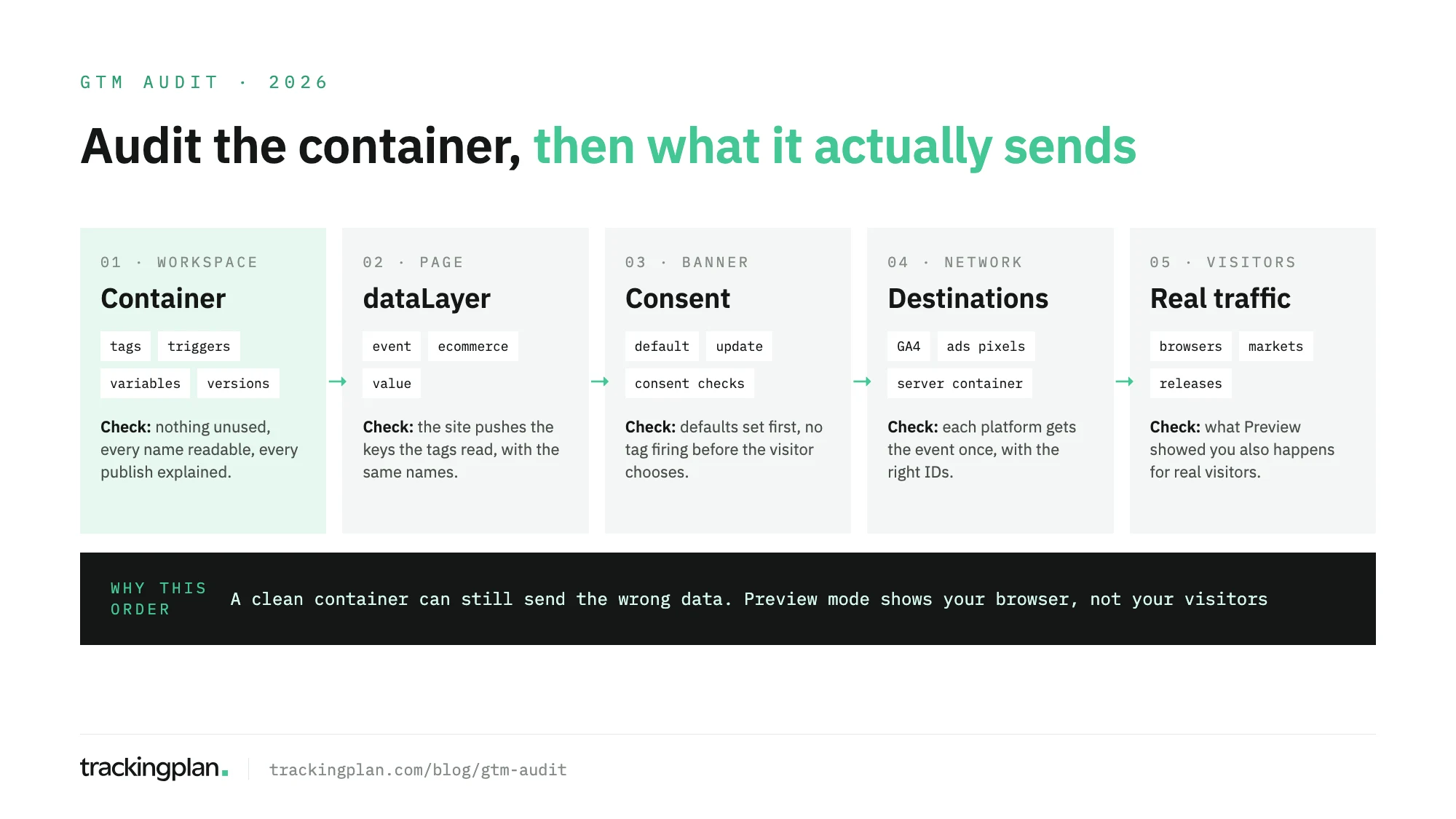
A Google Tag Manager audit is a structured review of five layers, each checked against the next.
| Layer | What you check | Where you look |
|---|---|---|
| Container | Tags, triggers and variables in use, naming, versions, workspaces and permissions | The GTM workspace, Versions, and Admin |
| dataLayer | The site pushes the events and keys the tags read, with the same names | Page source, Tag Assistant, and the developers’ spec |
| Consent | Defaults set before any tag, and tags that wait for the visitor’s choice | Consent Overview, tag consent settings, the CMP |
| Destinations | GA4, ads pixels and the server container get each event once, with the right IDs | Network requests and the server container’s Preview |
| Real traffic | What you saw in Preview also happens for visitors | Production hits, by browser, market and release |
Step 1: audit the container
The goal: a container someone new can read in an afternoon.
- Find what is not used. Tags with no trigger, triggers no tag uses, variables nothing references. Google’s help on pausing tags calls pausing a way to temporarily disable a tag; a tag paused two years ago is not temporary.
- Find duplicates. Two GA4 configuration tags, two Meta base pixels, or a hardcoded
gtag.jssnippet in the page next to the container. Search the page source forgoogletagmanager.comandgtag(, as Google’s guide to existing tag configurations suggests, and note everyGTM-andG-ID. - Check naming. A convention like
GA4 · event · purchasemakes the container searchable. - Read the version history. Google’s help on publishing and versions asks for a version name and description that explain the change. A history of "Version 212" with no notes tells nobody which publish broke what.
- Clean up workspaces. On a standard container you get the default workspace and two more, as Google’s workspaces help explains. Abandoned workspaces take slots the next person needs, and publishing an out-of-date one overwrites any synced changes its owner chose to ignore.
- Review permissions. Container permissions go from Read to Edit, Approve and Publish. List who can publish, remove people who have left, and check agency access, using the levels in Google’s permissions help.
Then list every Custom HTML tag and what it loads. Those are the tags most likely to send data to a vendor nobody remembers adding.
Step 2: audit the dataLayer contract
Tags read the dataLayer. If the site pushes Purchase and the trigger waits for purchase, the tag never fires, and nothing in the container looks wrong.
- Write down the contract. For each event a tag uses, list the keys it reads (
value,currency,transaction_id,items) and compare them with what the site pushes on a real order. - Check names and case. Google’s data layer documentation warns that names are case-sensitive and should stay consistent across pages.
- Check where the dataLayer starts. It should be declared above the container snippet, and the site should never re-assign
window.dataLayer, which wipes what was already pushed. - Check timing. A push that arrives after the trigger has evaluated, or a single-page app that changes route without a push, leaves tags with empty values. This guide on dataLayer debugging in GTM covers order and timing errors in detail.
Step 3: audit consent
- Defaults come first. Google’s consent mode guide says the default consent command must run before any command that sends measurement data; out of order, the defaults don’t work. In GTM, the CMP tag or the tag that sets defaults belongs on the Consent Initialization trigger, which Google’s consent help says is there so consent settings are honored before any other trigger fires.
- Every tag has a consent setting. Turn on the Consent Overview in Container Settings. It groups tags into "Consent Not Configured" and "Consent Configured". A tag without built-in consent checks needs "Require additional consent for tag to fire", with the consent types that apply.
- Test both answers. Accept, then reject, and watch which requests leave the page. A tag that fires before the banner is answered, or after a rejection, is the finding that matters most.
Our post on how to audit Consent Mode v2 goes deeper into regions, the four parameters and server-side forwarding.
Step 4: audit the destinations
Now follow each event out of the browser.
- GA4. One page view per page, ecommerce events with value and currency, and no second measurement ID sending the same events.
- Ads pixels. Each platform gets the conversion once, with the right value and its click ID.
- The server container. If a web container sends to a server container, Google’s server-side tagging docs explain the flow: clients turn incoming requests into events, and tags send those events on. In the server container’s Preview, check that the right client claims each event, that it goes once to each destination, and that the browser’s consent state travels with it.
A request to a platform no tag explains came from somewhere else: a hardcoded snippet, a plugin, or a Custom HTML tag.
Step 5: verify on real traffic
Preview mode is the right tool to test a change and a weak one to audit a container. Google’s preview and debug help is clear that the debug interface appears only in the browser that enabled it. You see one session, on your machine, with your consent choice, in your market.
Real visitors use other browsers, block requests, answer the banner the other way, and reach pages you didn’t click. Compare production hits for the key events with what Preview showed: same events, keys, destinations and consent behavior. Our GTM debugging guide compares Preview, extensions and the Network tab for this step.
Keeping it true after the audit
An audit describes one publish. The next can rename a dataLayer key or add a pixel without consent settings, and the container still looks tidy.
Trackingplan works on the second half. It captures every request the site sends and parses it per platform: events, values, IDs and consent flags. For GTM, it shows what goes in, what comes out, and what got lost in between. It also finds your GTM containers in your own traffic and keeps each published version, with no GTM access to grant, so a warning can be traced to the publish that caused it, or to the site’s code.
On consent, it checks web and server-side traffic for tags that fire before the visitor chooses, or after a rejection. When a server-side GTM container forwards a conversion to Meta, TikTok or another destination, it reads the Consent Mode state the container copied from the browser event. Consent checks are part of the Compliance add-on.
When the fix is in GTM, Trackingplan can prepare the change in a separate workspace in your container, test the site with and without it, and leave the publish to you. Scheduled checks run daily or weekly. The Google Tag Manager integration page covers how Trackingplan works with GTM, and this comparison of alternatives to manual tag audits shows where each method fits.
FAQ
What is a GTM audit?
A GTM audit is a structured review of a Google Tag Manager container and of the data it sends. It checks container hygiene (tags, triggers, variables, versions and permissions), the dataLayer contract the tags read, consent, the destinations that receive each event, and whether all of that holds on real traffic, not only in Preview mode.
How often should I audit Google Tag Manager?
Run a full audit when you inherit a container, before a site migration or a redesign, and after a new consent banner goes live. Between audits, watch what the container sends on every release, because a single publish can change it.
Is GTM Preview mode enough to audit a container?
No. Preview mode shows which tags fired, and in which order, in the browser where you turned it on. It doesn’t show what happens for visitors on other browsers, in other markets, or after they answer the consent banner differently.
Should I delete unused tags in GTM?
Pause them first. Pausing disables a tag without removing it or changing its triggers, and it takes effect once you publish. If nothing breaks after a few releases, delete the tag and the triggers and variables only it used.