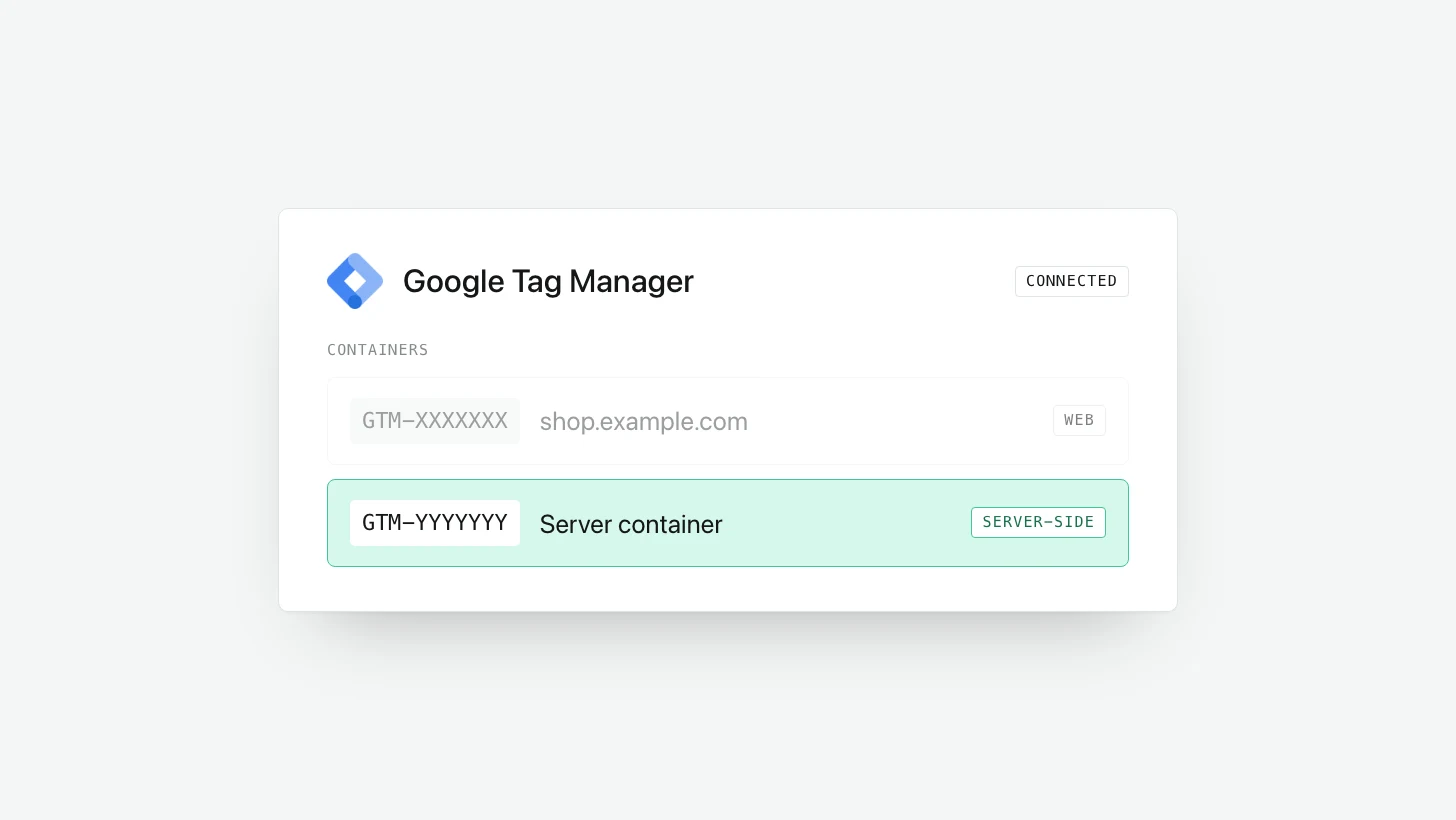
Your server-side Google Tag Manager containers now connect to Trackingplan next to your web containers. Trackingplan reads their tags, triggers and variables to find where a warning comes from, and prepares the fix in a workspace you review and publish yourself. It never publishes.
Why the server container matters
With server-side tagging, conversions don't go from the browser straight to the ad platform. They go to your server container first, and the server container decides what reaches Meta, Google Ads, TikTok or GA4, with which value, which IDs and which consent state. That's what makes a server-side setup worth having, and it's also why it's hard to debug: a change in the server container is invisible from the browser. When Meta suddenly counts more purchases than you had orders, the cause can be a tag on the site, a tag on the server, or the two sending the same purchase twice.
Trackingplan already saw what your server container sends, and kept every published version of it. Now it can also open the container itself: read the tag, the trigger and the variable behind a warning, and prepare the change that fixes it.
How it works
- Connect it like a web container. In Settings & Members > Connect > Tag managers, click Change containers and tick your server container next to the web ones. It shows up with a Server-side label.
- Ask, or start from a warning. «Why does Meta count purchases twice since Tuesday?» The agent checks the web and the server containers and tells you which one causes it.
- Approve the change. A card explains in plain words what will change and how it will be checked, with every page the check will visit and what it looks for on each one. Nothing moves until you approve it.
- It checks the change on your site. The check follows each hit from the browser to your tagging server and on to its destination, and says so in plain words: «GA4 via sgtm.example.com receives page_view».
- Review and publish. Each container gets its own draft, apart from the workspaces your team uses. You publish them from Google Tag Manager.
Changes that touch both containers
Some changes need the web and the server container at once. Say you want GA4 to go through your tagging server instead of straight to Google: the web container has to send the hits to your server, and the server container has to forward them. Trackingplan prepares both parts, checks the server part with the web draft in place, and tells you which draft to publish first, so the server is ready before the new traffic arrives.
What it changes for each team
Paid media teams
Server-side tagging is often there for the conversions: Meta's Conversions API, enhanced conversions for Google Ads and the rest of the events your bidding learns from. When those conversions go wrong, the bidding keeps learning from them until someone notices. Now the warning ends with the cause in the server container and the fix ready, instead of a ticket for whoever manages the server setup.
Analysts and the people who own the server container
The question «is it the site or the server?» used to mean opening two containers and comparing them by hand. Trackingplan reads both, so the answer points at the tag that causes it, wherever it lives. And because it keeps every published version, it can also tell you which publication introduced it.
Privacy and legal
Trackingplan already shows the consent rate of the conversions your server container forwards to Meta, TikTok, LinkedIn and others. When something reaches a vendor it shouldn't, the agent can now look inside the server container, where the tag that forwards it lives, and prepare the change. For example, stopping the Meta Conversions API tag on a page where it has no business firing, checked on that page before you publish.
Agencies
If you run your clients' server containers, on Stape or anywhere else, connect them next to their web containers. The same questions and fixes then work across both.
Where to find it
Settings & Members > Connect > Tag managers > Change containers. Only plan admins connect containers, and only plan admins and editors can approve a change. More on tag management on autopilot and on what Trackingplan prepared for Google Tag Manager.