
Activity Map is the part of Adobe Analytics that records which links visitors click, where on the page those links sit, and on which page. It needs two switches: the report suite setting and the Activity Map module in your implementation. Then every click sends three values with the next page view, and Analysis Workspace gets four dimensions to report on. This guide covers the setup, the variables, how to rename links and regions, and why some clicks never show up. It sits under the Adobe Analytics guide for digital analysts, which covers the rest of the tool.
Every platform fact below comes from Adobe’s documentation on Experience League.
What Activity Map is
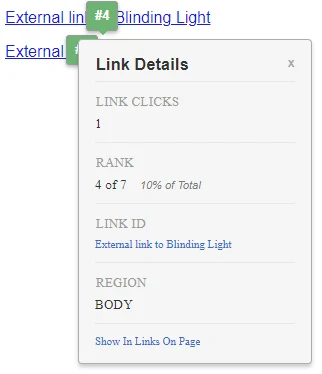
Activity Map turns link clicks into data you can see in two places. Analysis Workspace gets four dimensions: Activity Map Link, Activity Map Region, Activity Map Page, and Activity Map Link By Region. The overlay, a browser extension, draws the same click data on top of your live site, link by link.
It tracks clicks, not views. A link that a visitor only saw, without clicking, leaves no trace. And it sends no server calls of its own: the values ride along with the next page view.

How to enable Activity Map
Two settings have to be on. If either is off, the dimensions stay empty.
1. The report suite
In Adobe Analytics, go to Admin > Report suites, select the report suite, then Edit settings > Activity Map > Activity Map reporting, and turn on Enable Activity Map Reports. Adobe’s note matters here: data sent to a report suite without this setting is not included in the hit. Turning it on later does not fill in past clicks.
2. The implementation
Which switch you need depends on how Adobe Analytics is deployed.
| Implementation | What to check |
|---|---|
| Adobe Analytics extension in Tags | Extension v1.9.0 or later. Extensions > Adobe Analytics > Configure, tick Use Activity Map, save and publish. |
| AppMeasurement.js | v1.6 or later. Open the file and confirm the Activity Map module is near the top. |
| Web SDK extension in Tags | v2.23 or later. In the extension’s Data Collection section, tick Enable click data collection. |
| Web SDK JavaScript library (alloy.js) | v2.20 or later. Click collection is on unless clickCollectionEnabled is set to false. |
Older Web SDK versions, down to v2.16 for the extension and v2.15 for the library, have limited support and send Activity Map data in a separate event.
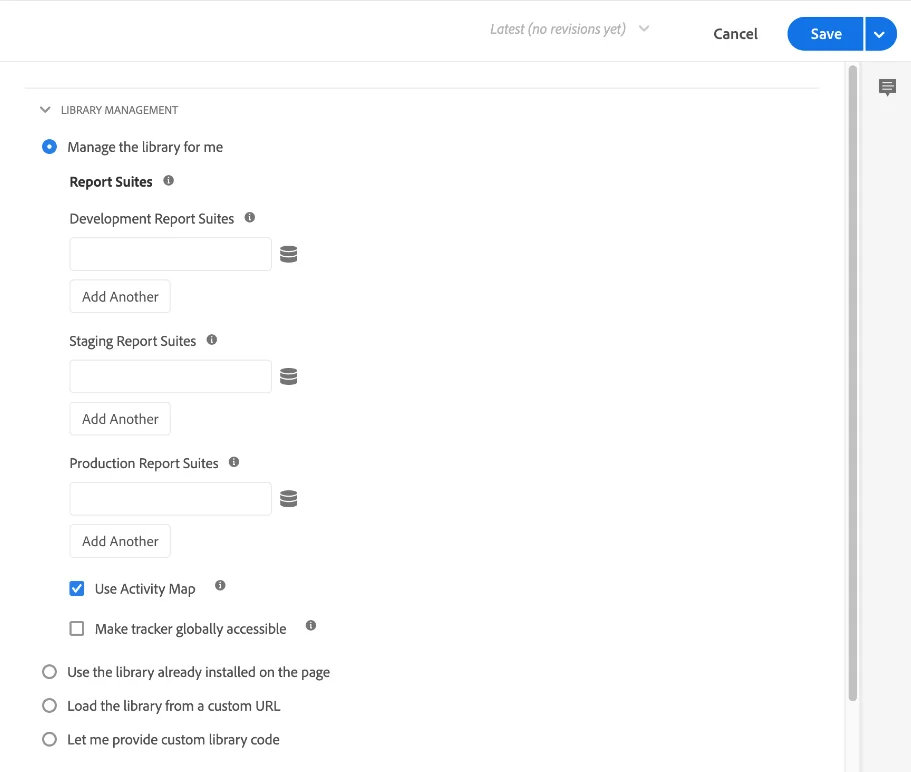
3. The browser extension
The overlay is optional. In Adobe Analytics, go to Tools > Activity Map > Download Activity Map, install the extension from your browser’s store, sign in, and turn the overlay on. It needs the latest Chrome, Edge, or Firefox.
Two limits before you rely on it. The overlay is not available for Web SDK implementations. And while the overlay is on, AppMeasurement does not track click data for that page, so your own test clicks with the overlay open never reach the report.
Users also need permissions in the Adobe Admin Console: Analytics Tools > Activity Map and the five Activity Map dimension items (Scroll Reach, Link By Region, Region, Link, and Page). Activity Map comes with Adobe Analytics Standard, Premium, and Ultimate.
The context data variables it sends
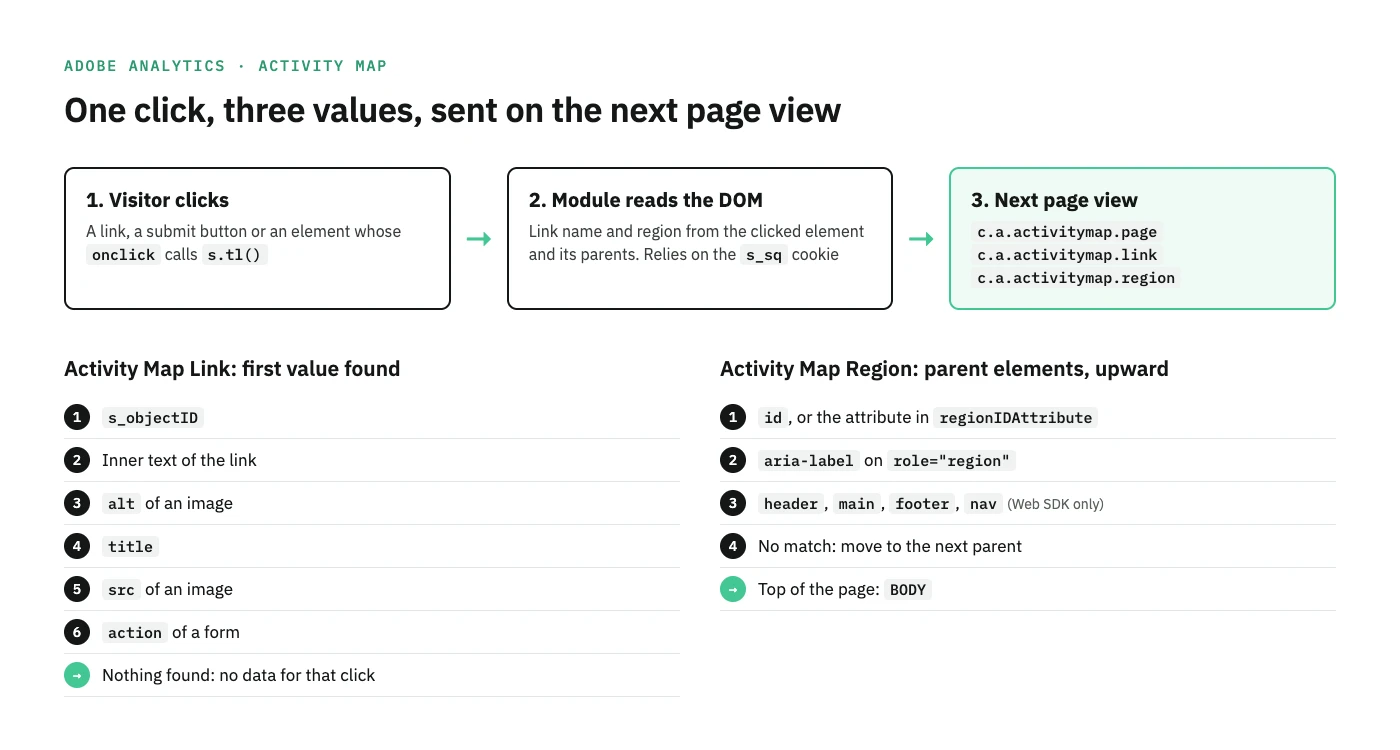
A click produces three context data variables, sent with the page view on the next page:
| Variable | Dimension | What it holds |
|---|---|---|
c.a.activitymap.page | Activity Map Page | The Page dimension value of the page where the click happened, or the Page URL if Page is empty |
c.a.activitymap.link | Activity Map Link | The name of the clicked link |
c.a.activitymap.region | Activity Map Region | The area of the page the link sits in |
Activity Map Link By Region is not a fourth variable. Adobe joins the link and region values with a pipe (|), so three “Home” links in the header, the menu and the footer stay apart. Each dimension has a 255-byte limit. In Data Feeds, the columns are clickmappage, clickmaplink, clickmapregion and clickmaplinkbyregion.
The page value records where the click happened, not where the data was sent from. A click on the home page that lands on a product page reports the home page.
How Activity Map names a link
For each click, Activity Map takes the first of these it finds on the element:
- The
s_objectIDvariable - The link’s inner text
- The
altattribute, for images - The
titleattribute - The
srcattribute, for images - The
actionattribute, for forms
If the element has none of them, Adobe collects no data for that click.
How Activity Map names a region
It looks at the parent element of the link for, in order: a value in the attribute set by ActivityMap.regionIDAttribute (id by default), an aria-label on an element with role="region", and, on Web SDK only, the semantic elements <header>, <main>, <footer> or <nav>. No match, and it moves one level up. If it reaches the top without a match, the region is BODY.
That is why a Region report can show BODY for every link. On a site whose containers have no id and no labelled regions, every link falls through to the default.
How to customize link and region names
Adobe gives you three levels of control. Start with the lightest one that solves the problem.
Point regions at a data attribute
If your id values are generated, or say nothing useful, set regionIDAttribute to an attribute you control. Adobe’s example uses data-custom:
<script>
  var s = s_gi("examplersid");
  s.ActivityMap.regionIDAttribute = "data-custom";
</script>

<div id="676967617A656C6C65" data-custom="left-nav">
  <a href="index.html">Home</a>
  <a href="products.html">View our products</a>
</div>
Both links report the region left-nav. Activity Map stops looking at id, but still uses its other criteria. In the Adobe Analytics extension there is no field for this: add it in the custom code editor with AppMeasurement syntax.
Exclude links you don’t want
s.ActivityMap.linkExclusions takes a string of comma-separated phrases. If any phrase matches the Activity Map Link value, all Activity Map data is removed from that hit. It checks the link name, not the URL. s.ActivityMap.regionExclusions works the same way against the Activity Map Region value.
This is also where personal data gets filtered. Adobe’s FAQ lists the cases: email addresses in mailto: links, links that contain a user ID after login, account numbers on financial sites, and personal details in link text on healthcare sites. Activity Map collects the link text as it is.
Override the logic with a function
s.ActivityMap.link and s.ActivityMap.region replace Adobe’s logic entirely. Each takes a function that receives the clicked element and returns a string. Adobe warns that an override returning wrong values breaks the dimensions and the overlay. And a falsy return clears all Activity Map context data variables: no data for that click.
The safest pattern is to extend the default instead of replacing it. This is Adobe’s example:
var originalLinkFunction = s.ActivityMap.link;
s.ActivityMap.link = function(element, linkName) {
  return linkName || customFunction(element) || originalLinkFunction(element, linkName);
};
It uses the link name passed to s.tl() when there is one, then your own function, then Adobe’s original logic. On Web SDK these functions don’t apply: use the filterClickDetails callback (Filter click properties in the extension) to change linkName or region, or to stop the data being sent.
Why links are missing from Activity Map
Most missing clicks come from one of these causes.
- The element is not trackable. Activity Map tracks
<a>and<area>with anhref(but not#anchors), submit inputs with a value or text,<input type="image">with asrc, and<button>withouttype="button". A<div>or a<p>with a customonclickis not tracked unless it setss_objectIDor callss.tl(). - There is no name to read. An icon link with no text,
altortitlegives Activity Map nothing to report, so the click is dropped. - An override returns a falsy value. A custom
linkorregionfunction that returns nothing for some elements silently clears their data. - The
s_sqcookie is not set. Activity Map depends on it. Check thatcookieDomainPeriodsis right for domains like.co.ukor.co.jp. linkInternalFiltersdoesn’t match the link. Links that don’t match it count as exit links, and Activity Map collects nothing for them.- AppMeasurement is too old or lacks the module. You need v1.6 or later with the
AppMeasurement_Module_Activity_Mapmodule in the file. - The overlay was on. Clicks made with the overlay enabled are not tracked.
- The report suite setting was off. Data sent before you turned it on is gone.
Single-page applications are a special case. Activity Map rescans the page every few seconds and finds new content without a reload, but it credits that content to the first page dimension value. Links hidden in closed menus have no overlay badge, which is why some rank numbers appear to skip, even though Adobe still ranks them.
How to validate Activity Map in the Adobe Experience Platform Debugger
The Debugger shows whether the values left the browser. Adobe’s check takes four steps:
- Install the Adobe Experience Platform Debugger extension.
- Load the page and click a tracked link.
- Wait for the next page to load, then open the Debugger.
- In the Analytics request, look for the context data variables between
activitymap.and.activitymap: page, link and region.
If the request is there but the Activity Map variables are not, go back to the causes above. If there is no /b/ss/ request at all, the problem is the Analytics implementation, not Activity Map. Adobe also suggests checking the browser console for JavaScript errors and turning off ad blockers before you test.
On Web SDK, filter the network for /ee and use the Debugger’s Edge logs (Logs > Edge > Connect to Edge). A link that navigates away can send its click data in a collect call whose payload you can’t inspect; Adobe’s trick is to add target="_blank" to the link while testing, so the page stays open.
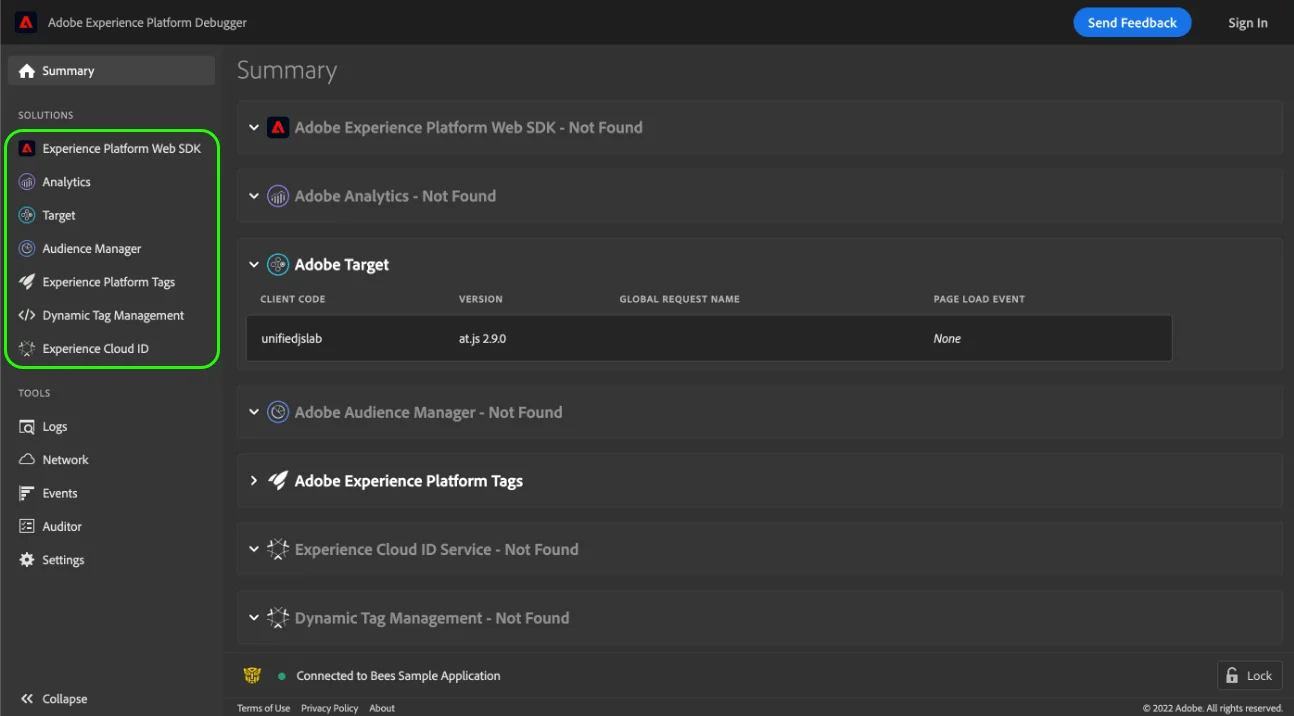
For the rest of the Debugger, from the Network tab to Edge Trace, see how to debug Adobe Analytics with the Debugger. To check a whole event from its source value to the report, follow how to verify Adobe Analytics is sending the right data.
Keep Activity Map data working after the next release
The Debugger proves that one click worked, once, in your browser. Activity Map data breaks the way all click data breaks: a redesign removes the id your regions relied on, a new menu ships icon links with no text, a tag update turns the module off. Each of those shows up as a Region report full of BODY or a Link report with gaps.
Trackingplan is a digital analytics agent that watches the hits real visitors send to Adobe Analytics, through AppMeasurement or the Web SDK. It warns you when what a page sends goes missing, changes format or arrives with an unexpected value, with the hits behind each warning. The manual check stays for each release. Monitoring tells you whether the release kept working for everyone else.