
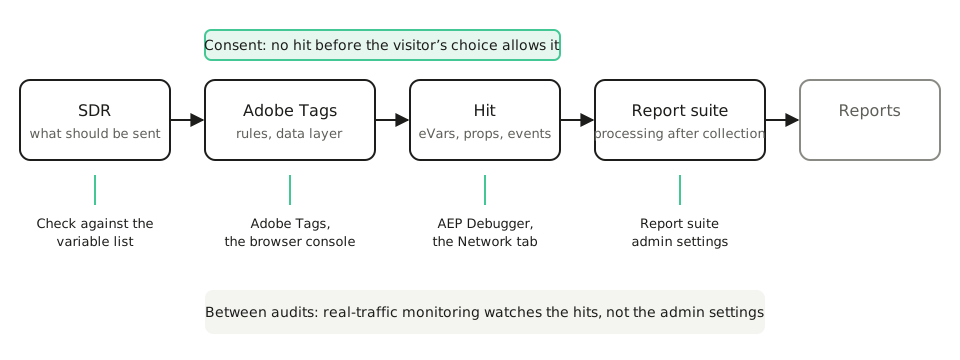
An Adobe Analytics audit checks five layers: the solution design reference (SDR) that says what should be tracked, the hits the site actually sends, the Adobe Tags rules and data layer that build them, the report suite settings that change the data after collection, and consent. Each layer needs a different tool, and most broken implementations fail in more than one. This guide goes through them in order, with the tool for each check, the questions to ask if you hire someone to do it, and how to keep the result true after the audit.
What an Adobe Analytics audit covers
| Layer | What to check | Tool |
|---|---|---|
| SDR | Every eVar, prop and success event has a definition, an owner and a reason to exist | The SDR itself, against the report suite’s variable list |
| Hits | Each page and key action sends the variables the SDR expects, with the right values | Adobe Experience Platform Debugger, the Network tab |
| Adobe Tags and data layer | Rules fire on the right trigger, data elements read the right data layer keys | Adobe Tags, the browser console |
| Report suite | Processing rules, marketing channels, bot rules and filters don’t distort what was collected | Report suite admin settings |
| Consent | No hit leaves before the visitor’s choice allows it | The Network tab in a clean session, per consent state |
Start with the SDR
The audit needs something to compare against. In Adobe Analytics that is the SDR, the document that maps every business question to an eVar, a prop or a success event.
Put the SDR next to the report suite’s list of enabled variables and look for three things. Variables in the report suite that no one can explain. Variables in the SDR that never receive data. And eVars whose allocation and expiration settings don’t match what the SDR says they are for: an eVar meant to credit a campaign for a purchase stops working if it expires at the end of the visit and the purchase happens a week later.
If there is no SDR, writing one from the current report suite is the first deliverable of the audit.
Check the hits
Where you read a hit depends on how Adobe Analytics is implemented. Adobe’s guide to debugging data collection maps it: AppMeasurement and the Analytics extension in Adobe Tags send browser requests you can read in the Network tab; the Web SDK sends to the Edge Network, where Edge Trace shows how each field maps to Analytics; the Mobile SDK is checked in Assurance; and the Data Insertion API in your server’s own requests.
For a first pass on a page, the Adobe Experience Platform Debugger has an Auditor tab that runs a set of tests and scores each one as a pass or a fail. Then walk through the journeys that matter, in the Debugger or the Network tab: landing, search, product page, cart, checkout, lead form.
For each hit, check:
- The page name and site section follow the naming rules.
- Each eVar and prop carries the value the SDR expects, in the expected format.
- Success events fire once, on the right action: a purchase on the confirmation page, not on the click of the pay button.
- Product strings and merchandising eVars are complete on product and checkout pages.
The Adobe Analytics debugging guide covers the Debugger and the Network tab step by step, and the Chrome extensions comparison helps you pick a browser tool for reading hits faster.
Check Adobe Tags and the data layer
A wrong value in a hit usually starts one step earlier. In Adobe Tags, check that each rule fires on the trigger it was built for, that data elements read the data layer keys that still exist, and that no old rule from a previous implementation still sets the same variable. Then check the data layer itself on the pages where the hits were wrong: a key renamed by a front-end release breaks every data element that reads it.
The Adobe Tags guide has a section on auditing rules and data elements.
Check the report suite
A hit that returns a 2xx response only proves that Adobe’s collection server received it, not that Analytics kept it, and the report suite still changes the data after collection. Some errors never show up in a hit at all. Review, in the report suite admin settings:
- Processing rules: which variables they overwrite or copy, and whether anyone still knows why.
- Marketing channel processing rules: their order, and whether paid traffic falls into a catch-all channel.
- Bot rules, internal URL filters and IP exclusions: whether your own team’s traffic is excluded and known bots are filtered.
- Classifications: whether the values they map still exist.
A browser tool can’t see any of this, so this part of the audit needs admin access.
Check consent
Open a clean session, with no cookies and no saved consent choice, and repeat the main journey in each consent state you support. Before the visitor answers, no Analytics hit should leave. After a refusal, none should leave either. After an acceptance, hits should start without losing the landing page. Check it in the Network tab, not only in the consent tool’s settings: the setting says what should happen, the request shows what did.
If you hire an audit
A specialist can audit Adobe Analytics faster than a team doing it for the first time. Before you sign, ask:
- Which of the five layers are in scope, and does it include admin access to the report suite?
- Which implementation methods are covered: AppMeasurement, the Web SDK, the Mobile SDK, the Data Insertion API?
- Which journeys, devices and consent states will be tested?
- What is delivered: a list of issues ranked by impact, an updated SDR, the fixes themselves?
- What evidence comes with each finding: the hit, the rule, the setting behind it?
- Who fixes what they find, and is a retest included?
- What happens after the audit to catch the next break?
The last question matters most. An audit is a snapshot: it proves the implementation was right on the day it was tested.
Between audits: monitor real traffic with Trackingplan
Scheduled scanners replay scripted journeys before a release; they check the paths someone scripted, when the schedule runs. Trackingplan is a digital analytics agent, and it watches the hits real visitors send to Adobe Analytics, through AppMeasurement or the Adobe Experience Platform Web SDK. It learns which eVars, props and events each page sends, and warns you when one goes missing, changes format or gets an unexpected value, with the hits behind each warning. It reads the consent state that travels with every hit, so a hit sent without consent shows up too.
It watches collection, not the report suite admin settings, so processing rules and marketing channels still need the audit. And a journey no one has used yet sends nothing to check.
Run the audit once, write down what correct looks like, and let monitoring tell you the day it stops being true.