
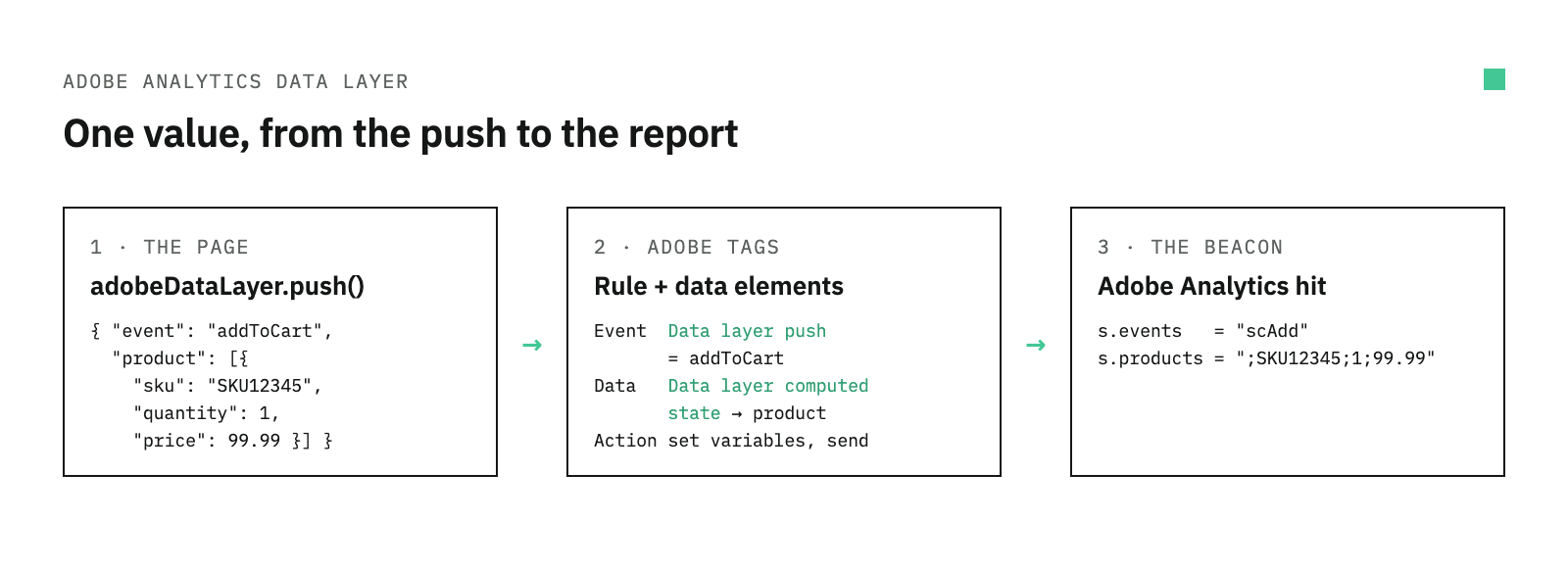
The Adobe Analytics data layer is a JavaScript object that holds what your reports need: the page, the visitor, the products, and an event for every interaction that matters. Adobe Tags reads it and turns it into eVars, props, success events and the products string. For a new implementation, Adobe recommends one format: the Adobe Client Data Layer.
This guide covers that format end to end: what goes in it, code you can copy, how Adobe Tags loads and reads it, how each value lands in an Adobe variable, and how to check that it still works after the next release. Where the data layer sits among the rest of the setup is in the Adobe Analytics guide for digital analysts.
Adobe Client Data Layer or digitalData
Two formats show up in Adobe implementations, and the choice decides how the rest is built.
digitalData is the W3C Customer Experience Digital Data Layer (CEDDL). It is one global object, usually written once when the page loads. Many older Adobe sites, and most DTM-era examples, use it.
adobeDataLayer is the Adobe Client Data Layer (ACDL). It is an array: the site pushes objects to it, and the library merges every push into a computed state. Adobe's Experience League documentation is direct about it: "Adobe recommends the Adobe Client Data Layer (ACDL) for new or restructured implementations." CEDDL is still allowed; it is just not what Adobe builds its extension around.
What the array buys you:
- Each push is an entry in a sequence, so a view, a click and an add to cart arrive in the order they happened.
- A push with an
eventkey triggers listeners, and Adobe Tags rules fire on those. - A listener added after a push is still called for it, so the race between your page code and the tag library stops mattering.
- Nothing depends on a page load, so in a single page application a route change is one more push.
If your site runs on digitalData today and works, there is no prize for migrating it on its own. If you are restructuring the implementation, or moving to a single page application, start with ACDL.
What goes in the data layer
The data layer describes the page and the visitor in your own words, not in Adobe's. eVar12 belongs in the Tags mapping, never in the data layer. That keeps the same object usable by GA4, your ad pixels and whatever tool comes next.
Most implementations need four groups:
page: name, section, type, language. Everything that describes the current view.user: login status, a hashed or internal customer ID, customer type. Never an email or a name in clear text.productorecommerce: SKU, name, category, price and quantity on product pages, the cart and checkout.event: the name of the interaction, pushed when it happens.
Write down the names before anyone codes them. Pick one case style (camelCase is the common one), avoid abbreviations that only the author understands, and list every key with its type and allowed values in the Solution Design Reference (SDR), the document that maps each data layer key to the Adobe variable it feeds. A data layer without an SDR works until the person who built it leaves.
Adobe Analytics data layer example
Three pushes cover the pattern most sites need. First, the page context, as early as possible in the <head>, before the Tags embed code:
window.adobeDataLayer = window.adobeDataLayer || [];
window.adobeDataLayer.push({
  "event": "pageView",
  "page": {
    "pageName": "product:running-shoes",
    "siteSection": "footwear",
    "pageType": "product"
  },
  "user": {
    "loginStatus": "logged-in",
    "customerType": "returning"
  }
});
The first line matters: it creates the array if the library has not loaded yet, so the push never throws. When the library arrives, it processes everything already in the array.
Then an interaction. The visitor adds the shoes to the cart:
window.adobeDataLayer.push({
  "event": "addToCart",
  "product": [{
    "sku": "SKU12345",
    "name": "Running Shoes",
    "category": "footwear",
    "quantity": 1,
    "price": 99.99
  }]
});
And the purchase, on the confirmation page:
window.adobeDataLayer.push({
  "event": "purchase",
  "transaction": {
    "orderId": "A100245",
    "revenue": 99.99,
    "currency": "EUR"
  },
  "product": [{
    "sku": "SKU12345",
    "quantity": 1,
    "price": 99.99
  }]
});
Prices are numbers, not strings. The order ID is the one your backend uses, not a random value, because Adobe uses it to drop duplicate purchases (more on that below).
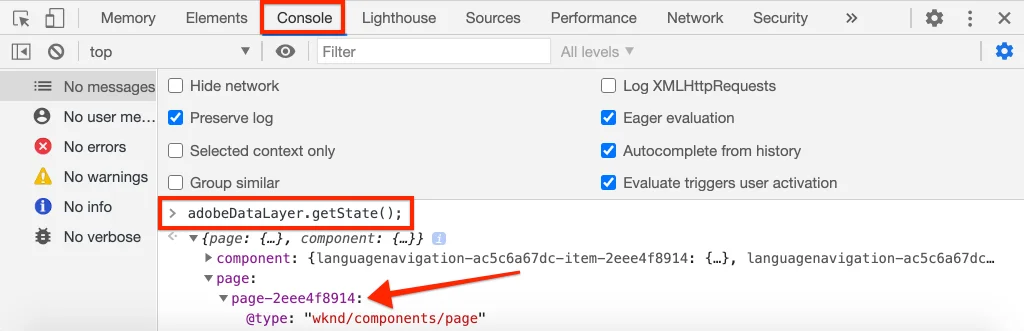
To read the merged result in the browser console, use the function-push pattern from Adobe's wiki on GitHub, which works even before the library has loaded:
window.adobeDataLayer.push(function (dl) {
  console.log(dl.getState());          // the whole computed state
  console.log(dl.getState("page"));    // one branch
});
Loading the Adobe Client Data Layer in Adobe Tags
Adobe Tags (Adobe Experience Platform Tags, formerly Launch, and DTM before that) reads the data layer through the Adobe Client Data Layer extension. Install it in your Tags property and it gives you:
- Configuration: the name of the data layer object (
adobeDataLayerby default) and the option "Load the Adobe Client Data Layer library if absent", which lets the extension load the library for you instead of adding its script to the page yourself. - An event type, "Data layer push", to fire a rule when a push arrives. You can limit it to one event name, such as
addToCart. - A data element type, "Data layer computed state", to read any path of the merged state, such as
page.pageNameortransaction.orderId. - Actions, "Push to data layer" and "Clear data layer history", for the cases where Tags itself needs to write to it.
The usual build is one data element per key you map, named after the key (DL - page.pageName), and one rule per event: "Data layer push" filtered to pageView sends the page view beacon, the same event filtered to addToCart sends a link beacon with scAdd, and so on. The extension names here are the ones in Adobe's extension documentation; older properties may still show "Data Pushed" and "Reset Data Layer", the names from before version 2.1.
If the site uses digitalData instead, the data elements are of the JavaScript variable type, pointing at paths such as digitalData.page.pageInfo.pageName, and rules fire on page load or on custom events your developers dispatch. It works; it just leaves the ordering problem to you.
Mapping the data layer to eVars, props and events
This is where the vendor-neutral names become Adobe variables. Each type has its own job:
- Props (
s.prop) are traffic variables. They describe the hit they are sent on and do not persist. - eVars (
s.eVar) are conversion variables. They persist for as long as their expiration says, so a purchase can be credited to the campaign or the internal search that came before it. - Events (
s.events) count success:scAdd,purchase, or custom ones likeevent5for a newsletter signup. s.productscarries the product detail, in a fixed format.
A typical mapping, with variable numbers that will be different in your SDR:
| Data layer key | Adobe Analytics variable | Type |
|---|---|---|
page.pageName | s.pageName, prop1 | Traffic |
page.siteSection | s.channel, eVar2 | Traffic and conversion |
user.loginStatus | eVar3 | Conversion |
event: "addToCart" | scAdd | Success event |
event: "purchase" | purchase, with s.purchaseID | Success event |
transaction.orderId | s.purchaseID | Deduplication |
product[] | s.products | Products string |
Building s.products
Adobe's products variable reference fixes the order of the fields: category, product name, quantity, price, events and eVars, separated by semicolons. Several products are separated by commas, and several events or eVars inside one field by pipes. Category is optional, and price is the total for that line, not the unit price. For the add to cart above, the beacon carries:
s.events = "scAdd";
s.products = ";SKU12345;1;99.99";
Because ;, , and | are separators, strip them from product names before they reach s.products. A product called "Shoes, red" quietly becomes two products.
The purchase and its ID
On the purchase, map transaction.orderId to s.purchaseID. According to Adobe's purchaseID documentation, a hit with an ID already collected is treated as a duplicate and its conversion data is left out of reports, which is what saves you when a visitor reloads the confirmation page. The ID should be alphanumeric and stay under 20 bytes.
Campaign codes follow the same logic: the data layer, or the URL, holds the code, and Tags writes it to s.campaign. The details are in the Adobe Analytics campaign tracking guide.
Single page applications
In a single page application the page never reloads, so the data layer has to say when the view changes. Three rules:
- Push a view event on every route change, with the full
pageobject of the new view. In Tags, the same rule that handlespageViewon load handles it here. - Push every interaction as it happens: clicks, form submits, video plays.
- Do not let one view inherit another's values. The computed state merges pushes, so a key you set on the product view is still there on the cart view unless you overwrite it. Push the keys of each view explicitly, and use "Clear data layer history" in Tags only when you mean to.
Validating the data layer
A data layer is right when two things hold: the push has the keys and values the SDR says, and the beacon carries what the mapping says. Check both, in that order.
The push. In the console, adobeDataLayer shows every entry in order and getState() shows the merged result. Walk through the journeys that matter (product page, add to cart, checkout, purchase) and compare each push with the SDR: names, types, and the keys that must never be empty.
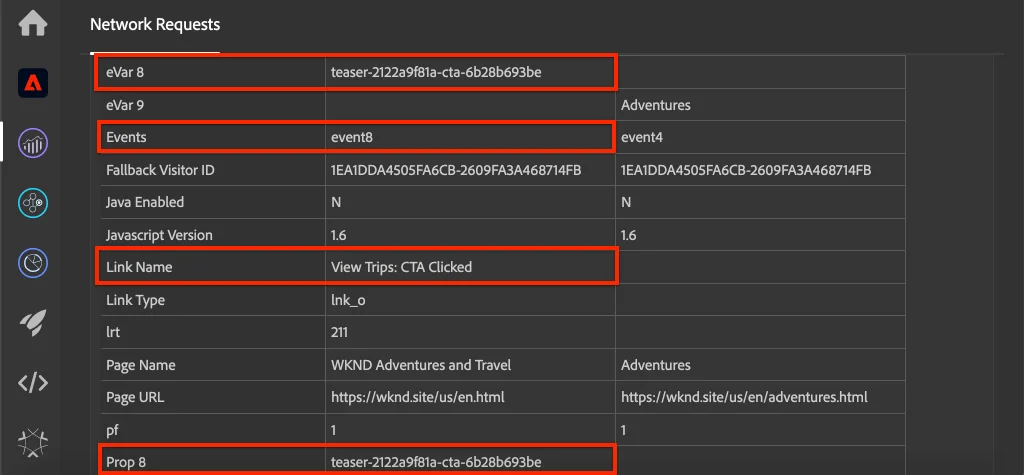
The beacon. The Adobe Experience Platform Debugger shows what each Adobe Analytics hit sends: page name, eVars, props, events and the products string. If the push is right and the beacon is wrong, the problem is in Tags. If the push is already wrong, it comes from the front end. Our Adobe Analytics debugger guide goes screen by screen.
Both checks have the same limit: they cover your browser, your consent choice and the pages you click, once. The checklist that holds before every release is in dataLayer validation.
Watching it after release
The data layer breaks the way front ends change: a refactor renames orderId to orderID, a new template ships without page.siteSection, a price arrives as a string. The page still works, functional QA passes, and the first sign is a report that looks wrong days later.
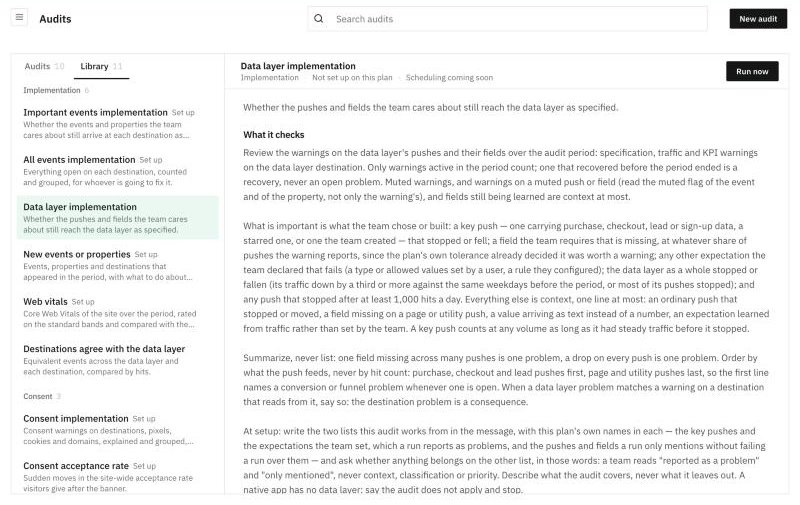
Trackingplan watches it on real traffic instead of one browser. It picks up the Adobe Client Data Layer on its own, and installs from Adobe Experience Platform as well as from GTM or one script tag. Once it has learned from your traffic what normal looks like, it checks the data layer as a destination of its own, with the same warnings it raises on your analytics hits: a push that stops, a key that goes missing, a value that changes type. It compares the data layer with the hits each destination received, so a purchase that lands in adobeDataLayer and never reaches Adobe Analytics shows up, with the hits behind it and whether the fix belongs in Tags or in the front end. What that check returns is on the dataLayer checker page.
The SDR says what the data layer should be. The pushes on real traffic say what it is. The work is keeping the two the same.
FAQ
What is the data layer in Adobe Analytics?
A JavaScript object on the page that holds the page, user and product data your tags need, and receives an event for every interaction. With the Adobe Client Data Layer it is an array called adobeDataLayer. Adobe Tags reads it and maps its values to eVars, props, events and s.products.
What is the difference between the Adobe Client Data Layer and digitalData?
digitalData is the W3C CEDDL format: one object, usually set when the page loads. The Adobe Client Data Layer is an array you push to, with a computed state and event listeners, so it keeps the order of interactions and suits single page applications. Adobe recommends the Adobe Client Data Layer for new or restructured implementations.
Is the Adobe Launch data layer different from the Adobe Tags data layer?
No. Launch is the old name of Adobe Experience Platform Tags, and DTM was the tag manager before it. The data layer is the same; what changes is the extension that reads it. Today that is the Adobe Client Data Layer extension.
Can one data layer feed both Adobe Analytics and GA4?
Yes. Keep the names vendor-neutral and let the tag manager translate: one rule builds s.products and the events for Adobe, another builds the GA4 items array and event parameters from the same push.