
Server-side events are validated in five checks, before you publish and before GA4 counts them: send a controlled test event, read it in the server container’s Preview, confirm it arrives in GA4 DebugView, run Measurement Protocol hits through Google’s validation server, and compare what the browser sent with what the server forwarded. Those checks prove one event in one session. Once the change is live, monitoring on real traffic tells you whether it keeps working for every visitor.
What can break between the browser and GA4
In a browser-only setup, the browser sends its own request to GA4. In a server-side setup, the browser sends one request to your server container, and the server decides which destinations get the event and which fields each one receives. That gives you control over what leaves, and it adds places where an event can go wrong without any error in the browser:
- No client claims the request, so the server receives it and nothing happens.
- A transformation changes a field: a parameter renamed, dropped or overwritten on the way out.
- A tag sends the wrong value:
valueas text, a missingcurrency, an emptyitemsarray. - The consent state gets lost, and the server forwards to a destination the visitor refused.
- The event is sent twice, once by the browser and once by the server.
- Backend hits skip the browser entirely: Measurement Protocol events sent from your servers never show up in a browser debugger.
Server-side tracking changes where data travels; it doesn’t make the data right. Each check below targets one of these failures.
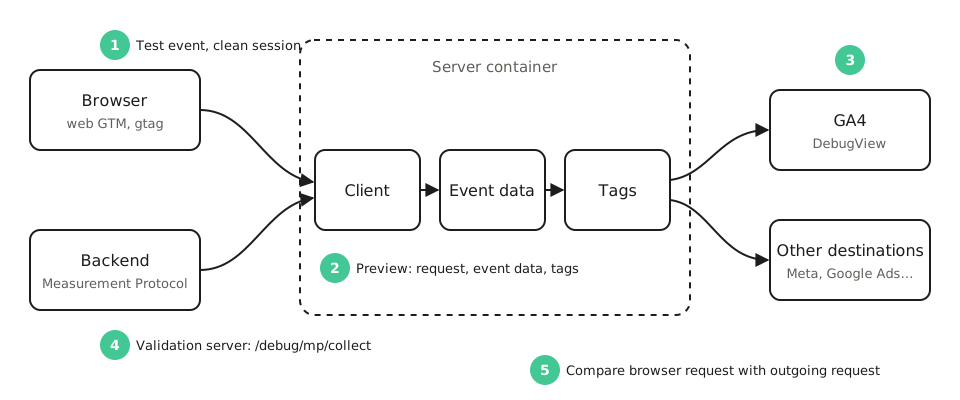
Step 1: send a controlled test event
Start in a clean incognito window, with no cookies and no saved consent choice. Open Preview in the server container and in the web container, so both debuggers follow the same session. Pick one business-critical event, such as purchase or generate_lead, and trigger it once.
Write down what you expect before you look: the event name, its required parameters with their values, and the destinations that should receive it. Without that, a debugger shows you data but not whether it is right.
For events sent from your backend, send the test from a staging environment. To see them in the server Preview, add the X-Gtm-Server-Preview header that the Preview gives you under Send requests manually.
Step 2: read the request in the server container’s Preview
Google’s server container debugging guide describes the Preview tabs. Read them in this order:
- Request: the incoming request, and which client claimed it. No client means no event.
- Event Data: the event the client built from the request. Check the event name and every parameter you wrote down in step 1, including
transaction_id,value,currencyanditems. - Tags: which tags fired and which didn’t. Click a tag that fired to see its outgoing HTTP requests: the exact URL and body sent to GA4, Meta or any other destination. This is the payload the destination receives, after every transformation.
- Console: errors from templates and variables.
If the outgoing request is right, the server did its job. If it isn’t, the difference between Event Data and the outgoing request tells you whether the client or the tag changed it.
Step 3: confirm the event in GA4 DebugView
DebugView shows events from requests that carry the debug flag. GTM Preview adds it to browser events; for Measurement Protocol events, set debug_mode to true in the event parameters. The event should appear in DebugView within seconds, with the same parameters as the outgoing request.
Don’t wait for the standard reports to check a release: Google says event data can take up to 24 hours to appear in the Events report.
Step 4: validate Measurement Protocol hits
Hits your backend sends with the GA4 Measurement Protocol have a validation server of their own. Send the same payload to https://www.google-analytics.com/debug/mp/collect instead of /mp/collect, and the answer lists validation messages for anything malformed: a wrong field type, a reserved event or parameter name, a missing required field. Google documents it in validating events.
It checks the structure, not the meaning: a purchase with the wrong value passes. And events sent to the validation server never reach your reports, so it complements DebugView rather than replacing it.
Step 5: compare the browser and the server
The last check puts the two sides of the same event next to each other: the request the browser sent and the request the server forwarded.
| Check | What to compare | What usually breaks |
|---|---|---|
| Identity | transaction_id, client_id, user_id | An ID regenerated on the server, so the two sides no longer match |
| Values | value, currency, the items array | Numbers sent as text, currency dropped, items flattened |
| Duplicates | Whether the browser also sends the event to GA4 | The same purchase counted twice, once from each side |
| Consent | The consent state on the incoming request and what the server forwards | A destination receiving data the visitor refused |
| Destinations | Which destinations got the event | A tag firing for every event instead of one |
For destinations that receive the event from both sides, such as the Meta Pixel and the Conversions API, deduplication depends on a shared event ID: CAPI deduplication issues covers how to check it. For consent, consent-aware server-side tracking shows how the state should travel from the browser to each destination.
What a test can’t tell you
Every check above proves one event, in one session, on the day you ran it. Production is everyone else: other browsers, other consent choices, a CMP update, another team editing the container, a backend deploy that changes a Measurement Protocol payload. A container can show you its configuration; it can’t show you what every visitor sent or what each destination received.
| Check | What it proves | What it doesn’t |
|---|---|---|
| Server Preview | Your test request was claimed, built and forwarded as configured | That production traffic behaves the same way |
| DebugView | GA4 received your test event | That every visitor’s events arrive, with the right values |
| Validation server | The payload is well formed | That the values are right |
| Production monitoring | What real traffic sends to each destination, every day | That a flow nobody has used yet works |
The server-side tracking audit is the full playbook when you need to review a whole implementation, not one event.
Keep validating after release with Trackingplan
Trackingplan is a digital analytics agent, and it picks up where the pre-release checks stop. It installs in your server container as a tag: it captures the GA4 requests and, with a short snippet in each tag template you want to monitor, a copy of the requests your other tags send. So it sees the payload after every transformation, which is what GA4, Meta or any other destination actually receives. Measurement Protocol hits sent straight from your backend reach it through a copy sent to your webhook.
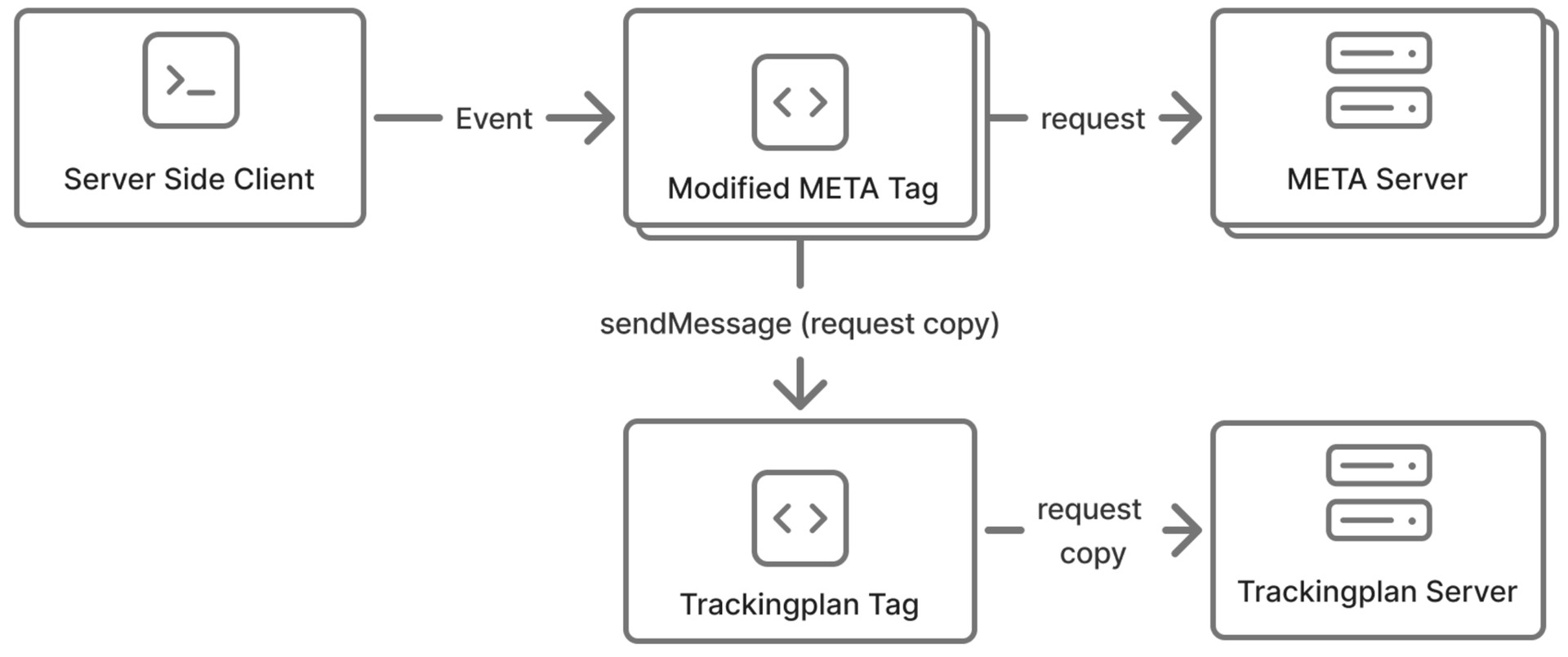
From that traffic it learns your events and properties without rules to write, and flags what changes: a missing event, a missing or malformed property, an unexpected value. When the container forwards a conversion to Meta, TikTok or another destination, it also checks that the visitor consented, from the Consent Mode state the container copied from the browser. Each alert comes with the hits behind it, so you start from the evidence.
It watches traffic that happens, so a journey nobody has used yet isn’t checked. Keep the five steps for every release, and let monitoring tell you whether the release kept working.