
TL;DR Moving to server-side GTM and Meta CAPI does not move the consent decision: your banner still collects it in the browser. What changes is that the decision has to travel with every event, and that each tag in the server container has to read it. Google’s tags do that for you. Every other destination forwards whatever it receives until you add the check. This guide shows where to enforce it and how to test it, as part of privacy compliance for analytics.
Consent-aware server-side tracking means that a server container, or your own backend, sends an event to a vendor only when the visitor’s consent allows it, and sends it in the form that consent allows. It sounds like the default. It is not. A server container is a router: it forwards what it is told to forward, and it has no banner of its own.
What changes when consent moves server-side
The browser stops being the last place where a decision is made. In a client-side setup, the consent banner, the tag manager, and the vendor’s script all live on the page. If a tag is blocked, its request never leaves the browser, and you can see that in the network tab.
In a server-side setup, the page sends one request to your own collection endpoint, usually a subdomain such as metrics.example.com. The server container receives it and fans it out: GA4, Google Ads, Meta, TikTok, and whatever else has a tag there. The vendors’ requests leave from your server, not from the visitor’s browser, so the network tab no longer shows them.
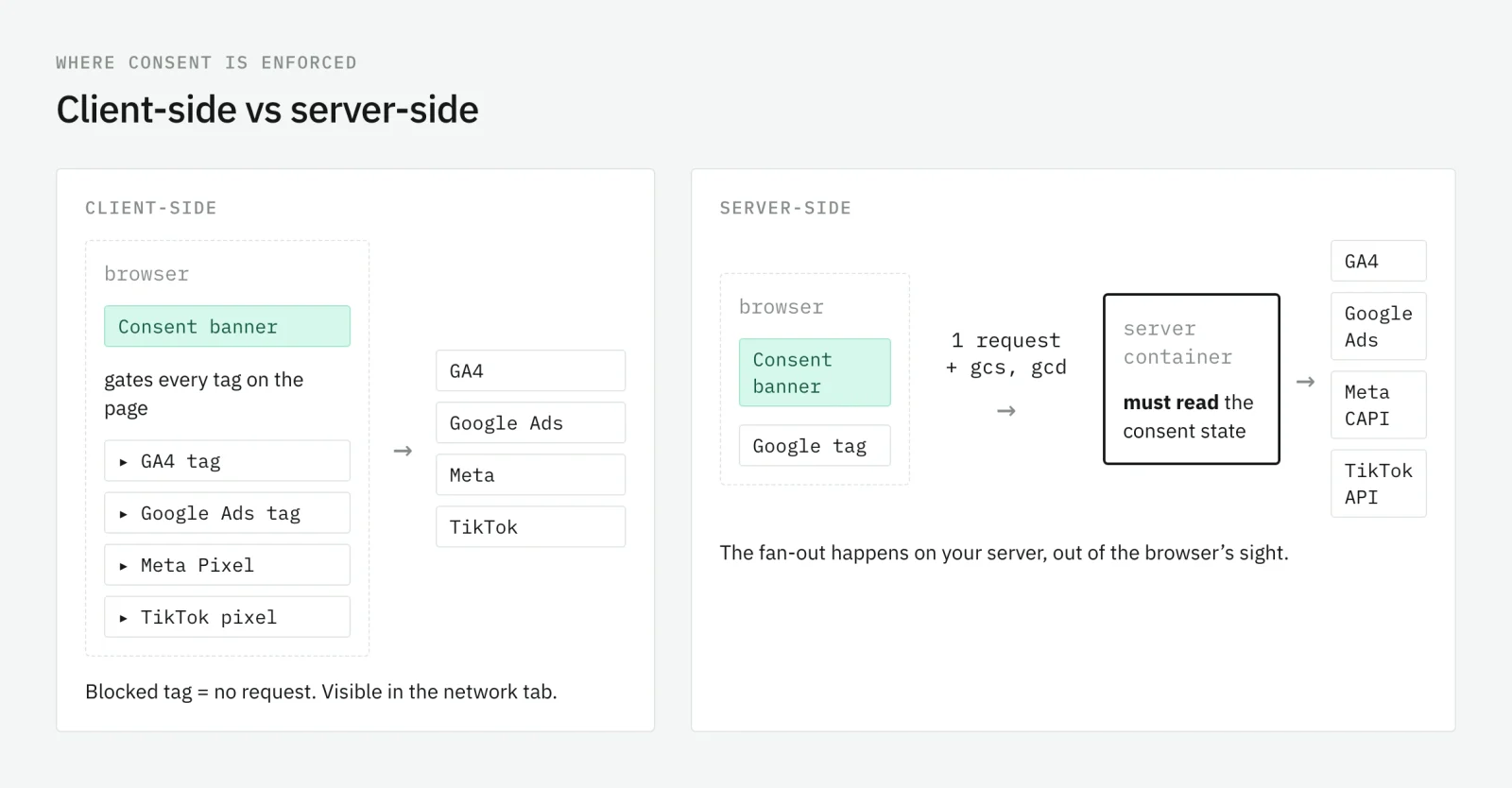
Three things follow:
- The consent state has to travel. The server container cannot ask the visitor. It only knows what arrives with the request.
- Each server tag has to read it. A tag that ignores the state forwards the event anyway.
- Your own testing gets harder. What reaches Meta is now a server-to-server call you only see in the container’s Preview or in the vendor’s own tools.
None of this changes what the visitor agreed to. Server-side tagging changes where requests are sent from, not the legal basis for sending them.
How the consent state travels with the event
With Google Consent Mode, the state rides on the request itself. Google’s consent mode overview describes the two parameters that carry it: gcs transmits ad_storage and analytics_storage, and gcd encodes the detailed state of each consent type, including ad_user_data and ad_personalization. Your CMP updates the Google tag; the Google tag adds those parameters to every request it sends, including the one to your server container.
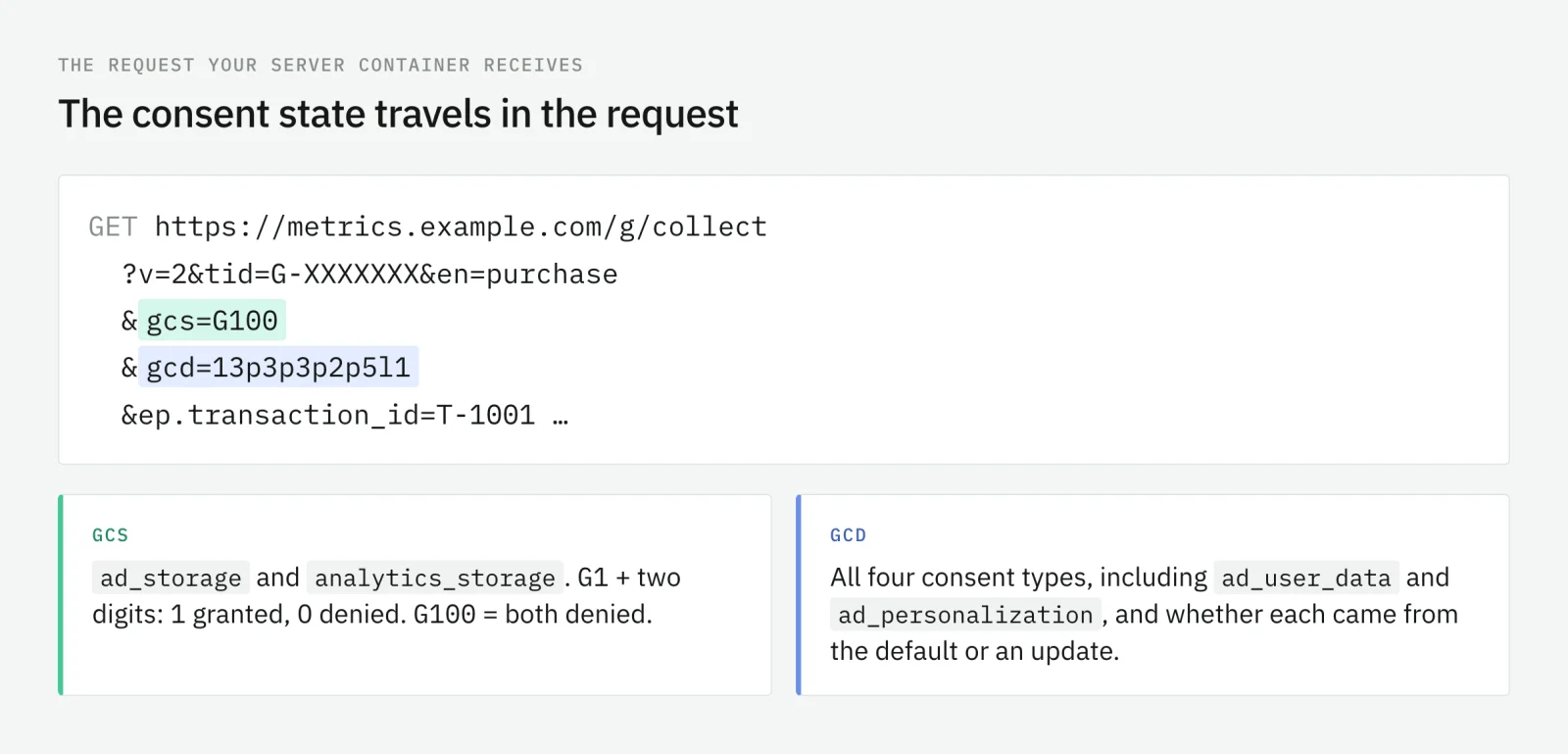
Google’s guide to consent mode in server-side tagging is short on purpose: you set up consent mode in the web container only, the GA4 client in the server container receives the consent parameters, and “Google product tags in the server are consent-aware”. A denied state changes their behavior: GA4 sends measurements without cookies, Google Ads conversions stop reading and writing cookies, and remarketing and Floodlight requests are blocked. If you want to read how gcs and gcd look in a real request, our guide to debugging Google Consent Mode v2 decodes both.
Two conditions have to hold for this to work. The request that reaches the container has to carry the parameters, which means your web setup sets a default before the Google tag sends anything. And the client that receives the request has to be one that parses them. A custom client, a webhook from your backend, or a data tag built by a third party may not.
Where non-Google destinations fall through
Google’s documentation covers Google’s tags, and only those. A Meta Conversions API tag, a TikTok Events API tag, or an HTTP request tag you built yourself does not read Consent Mode unless someone made it read it. In the server container, a tag fires when its trigger matches. If the trigger is “every purchase event”, the purchase goes to Meta whatever the visitor chose.
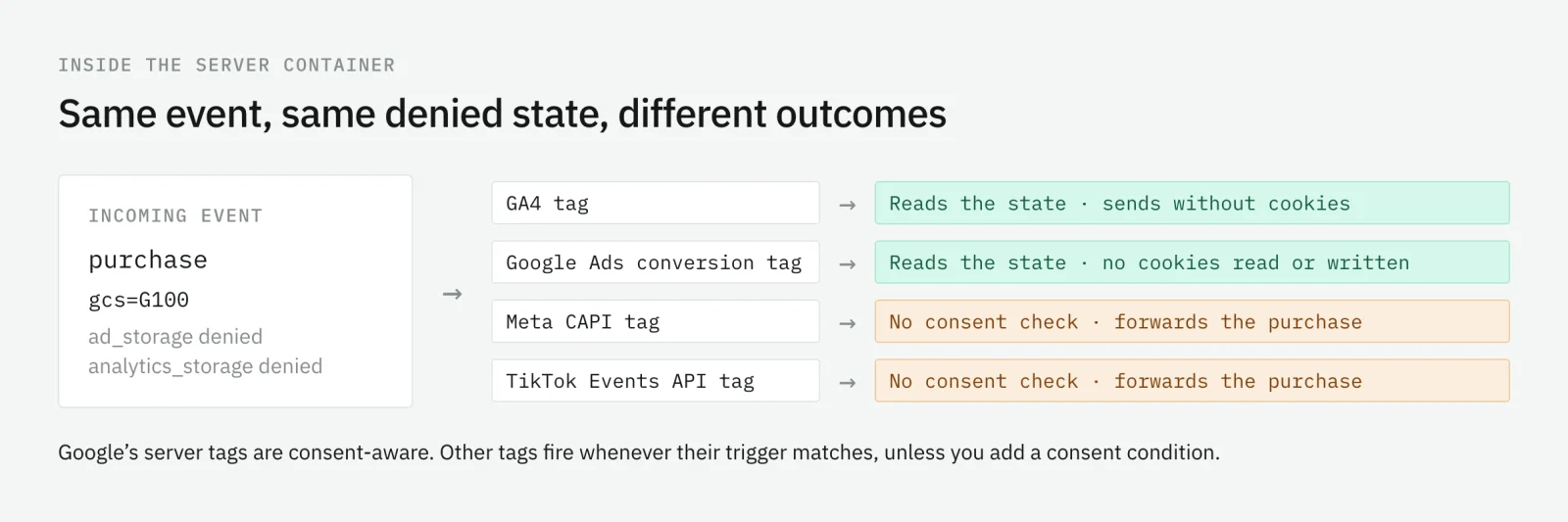
This is a common gap after a migration. The browser pixel was blocked by the CMP, so the team assumes Meta receives nothing for visitors who rejected. Then the CAPI tag in the server container sends the conversion anyway, often with hashed email and phone attached for matching. The browser side looks compliant. The server side is not.
The fix is to give every non-Google tag a consent condition:
- A trigger condition on the consent state. Read the consent value the client parsed from the request and fire the tag only when the purposes it needs are granted.
- A transformation for partial consent. Server-side GTM’s transformations can exclude parameters from the event data before tags read it. Google’s own example is dropping custom dimensions when a visitor denies
analytics_storage. Scope it to the tags it applies to. - A documented decision per vendor. Which consent purpose each destination needs is your DPO’s call, not the tag’s. Write it down, then build the condition from it.
Where to enforce the CMP decision
There are three places a decision can be enforced, and a server-side setup usually needs all three.
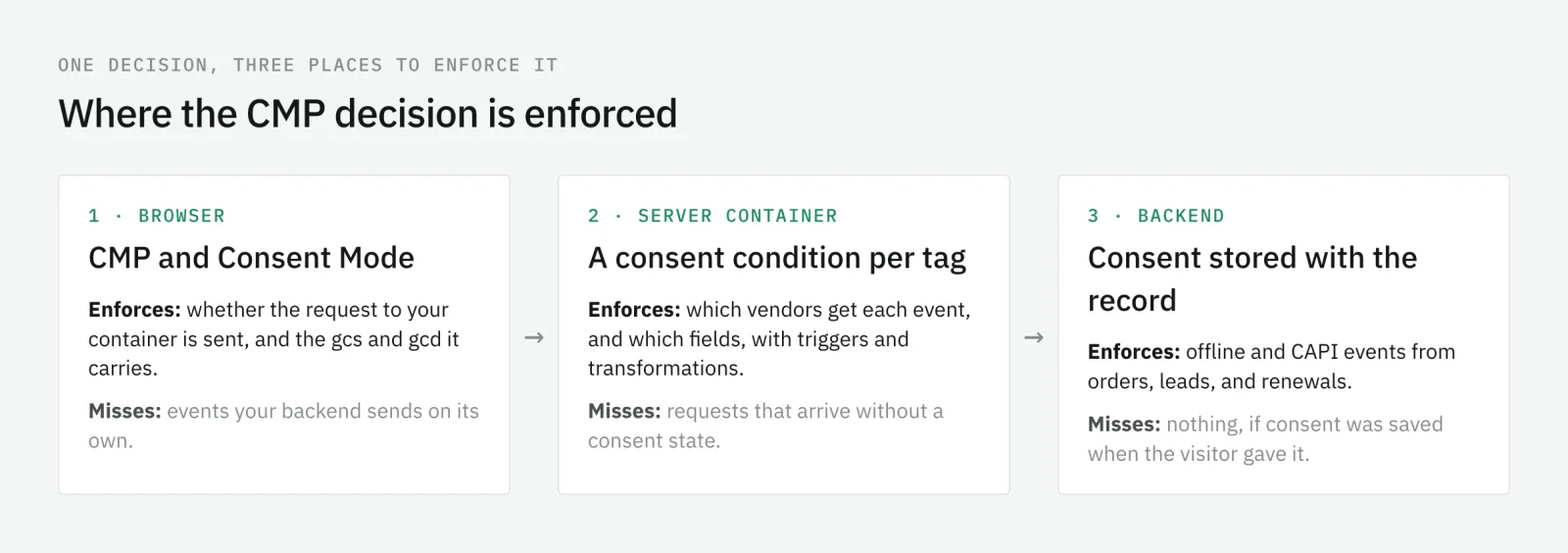
| Where | What it controls | What it misses |
|---|---|---|
| Browser (CMP, Consent Mode default and update) | Whether the request to your container is sent, and which consent state it carries | Events your backend sends on its own |
| Server container (trigger conditions, transformations) | Which vendors receive each event, and which fields they get | Requests that arrive without a consent state |
| Backend (order system, CRM, webhooks) | Server-to-server events such as confirmed purchases, refunds, or leads | Nothing, if the consent was stored with the record |
The backend is the one teams forget. A purchase confirmed by your order system, a qualified lead pushed from your CRM, or a subscription renewal sent through CAPI never passed through a banner at that moment. The only consent it can respect is the one you stored when the visitor gave it. If the order does not carry the consent state from checkout, the event has nothing to check against.
What Meta CAPI asks for, and what it does not
Meta’s server event parameters are worth reading with consent in mind:
event_idis recommended so Meta can deduplicate the server event against the browser event. When the pixel was blocked by consent, there is nothing to deduplicate against, and the CAPI event becomes the only record of that conversion.event_source_urlis required for website events. It is the page URL, so whatever that URL carries goes with it. Our guide to personal data in analytics covers what leaks that way.data_processing_optionsacceptsLDU, Limited Data Use, with country and state values for the United States and California. It restricts how Meta processes the event. It is not a consent signal, and it does not replace one.
How to check it, step by step
Test the setup the way a visitor uses it: three consent states, the same journey, and every destination checked.
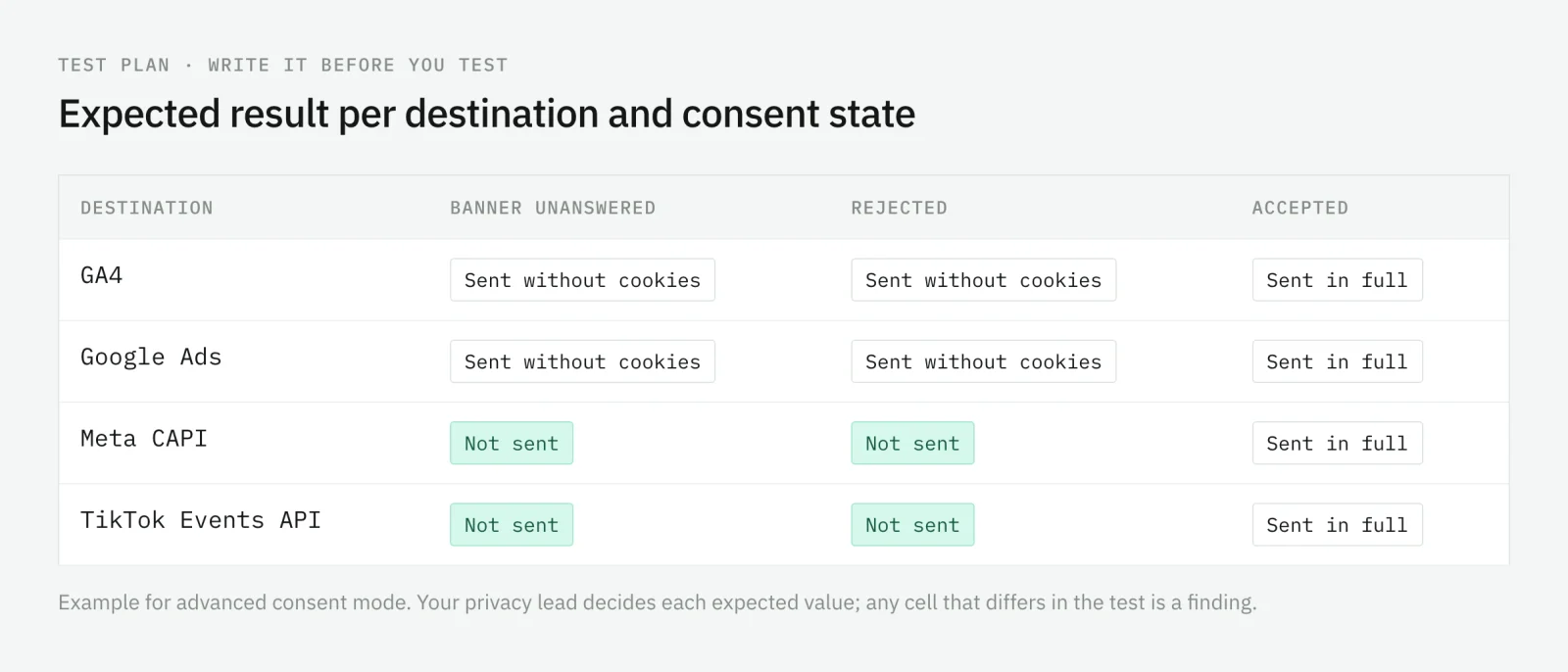
- Write the matrix first. For each destination and each consent state, write what should happen: not sent, sent without identifiers, or sent in full.
- Check the request to your container. In the browser’s network tab, find the request to your collection endpoint and confirm that it carries
gcsandgcd, and that their values change when you answer the banner. - Open the server container’s Preview. For each incoming event, check which tags fired, which did not, and what each outgoing request contained. Preview also shows which transformations ran for a tag and the event data before and after them.
- Check the destinations. Meta’s Test Events in Events Manager shows the server events it received; compare them with the matrix.
- Repeat for your backend events. Send a test order with each stored consent state and check what your integration sends.
- Repeat after every container publish. A new tag added with a broad trigger reopens the gap.
Monitoring consent on server-side traffic
A test covers the journeys you ran, on the day you ran them. Real traffic has the market with a different default, the client that skips a parameter, and the tag someone published last Friday.
Trackingplan reads the consent state traveling with every hit and checks every vendor against it, across web, mobile, and server-side. Since October 30, 2026, when a server-side GTM container forwards a conversion to Meta, TikTok, Bing, Snapchat, Pinterest, Adform, LinkedIn, or Roivenue, Trackingplan reads the Google Consent Mode state the container copied from the browser event. Those destinations appear on the Consent screen next to your Google ones, and on a hit the source reads Google Consent Mode (Server Side GTM).
It observes and reports; it does not block tags. When a server-side destination receives events it should not, the finding names the destination and the hits behind it, so the fix is a trigger condition, not an investigation. Server containers connect through the server-side GTM installation.
Consent-aware server-side tracking is not a setting you switch on. It is a check you add to every tag that leaves your container, and one you keep checking after every publish.
Frequently asked questions
Does server-side tagging remove the need for consent?
No. Server-side tagging changes where requests are sent from, not what the visitor agreed to. The visitor’s choice is still collected in the browser by your consent banner, and it has to travel with every event to the server container, where each tag must respect it.
Do server-side tags respect Google Consent Mode automatically?
Google’s own tags do. Google’s documentation says Google product tags in a server container are consent-aware: they read the consent parameters the Google tag adds to the request and adjust their behavior. Other tags, such as a Meta Conversions API tag, need a condition you configure yourself.
Can I send Meta CAPI events for visitors who rejected cookies?
Only if your legal basis allows it, which is a question for your DPO, not for the tag. Technically nothing stops a server container or a backend from sending the event, which is exactly why the consent check has to be built in. Meta’s Limited Data Use option is a processing restriction for some US states, not a record of consent.
How do I test that consent works in a server container?
Run the same journey three times: banner unanswered, rejected, and accepted. In each run, check that the request to the server container carries the gcs and gcd values you expect, then use the server container’s Preview to see which tags fired and what they sent. Compare the result with what each destination received.