
The agent from guide 5 answers, and guide 6 taught you to catch it when it’s wrong. This guide is about making it wrong less often. A data agent has three tools for that, and each one fixes a different kind of error: instructions for defaults, a glossary for words, and verified queries for the questions that matter most.
By the end you will have all three on your agent, including eight verified queries for ecommerce questions on GA4 data that you can adapt to your own tables.

Goal of this guide: an agent with precise instructions, a glossary of your business terms, and eight parameterized verified queries. You need: the agent from guide 5 and the list of wrong answers you kept in guide 6.
Three tools, three kinds of error
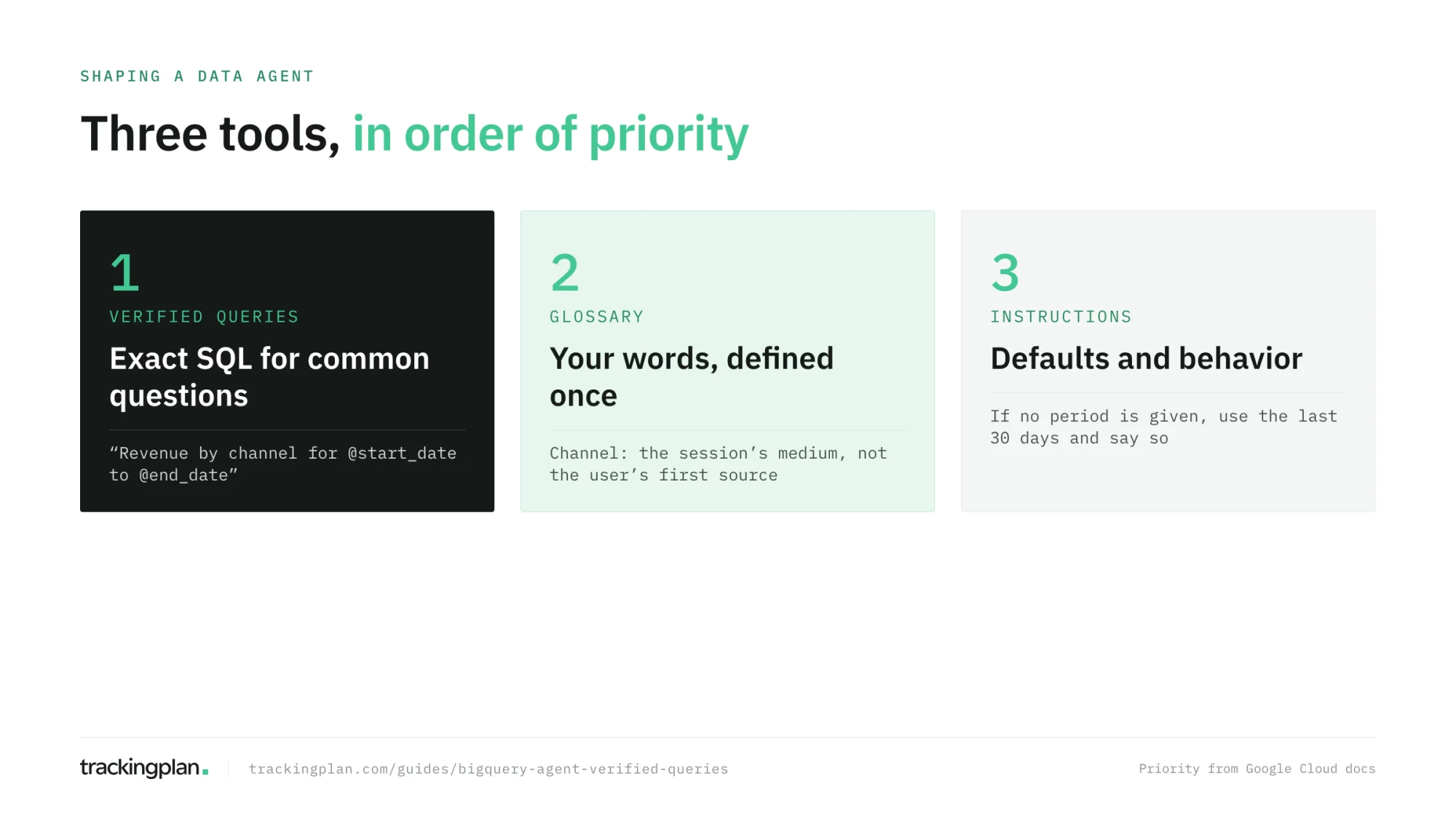
| Tool | Fixes | Example |
|---|---|---|
| Instructions | Defaults and behavior | “If no period is given, use the last 30 days and say so.” |
| Glossary | Words that mean something specific in your business | “Channel: the session’s medium.” |
| Verified queries | Exact SQL for the questions asked most | “Revenue by channel for a period” |
Google’s data agent page sets the priority when they conflict: verified queries first, then the glossary, then the instructions. It also recommends structured context, meaning descriptions, examples, and the glossary, before you reach for more instructions.
Instructions: defaults, not essays
Instructions apply to every question, so every line costs attention on questions it doesn’t concern. Keep them to what changes behavior. Google groups useful instructions into six kinds, and each one has a GA4 version:
- Key fields. “The most important tables are sessions and purchases.”
- Filtering and grouping. “For questions over time, group by session_date or purchase_date.”
- Default filters. “Unless the question says otherwise, use data up to yesterday. Today’s data is incomplete.”
- Synonyms and business terms. Short ones here; the full list goes in the glossary.
- Excluded fields. “Never use the user’s first source for channel questions.”
- Joins. “purchases.session_key joins to sessions.session_key. Never join purchase_items to sessions directly.”
Add three behavior rules that guide 6 showed you need:
- Report NULL, empty and "(not set)" values as their own row, with their share.
- When a question is ambiguous, ask one clarifying question before answering.
- State the period and the definition of each metric in the first line of the answer.
Write instructions like a short briefing for a new analyst, one rule per line. A paragraph of good intentions is harder for the model to follow than ten plain rules.
The glossary: your words, defined once
The glossary holds business terms, each with a definition and synonyms. Add it under Glossary > Add term. Terms you create stay in BigQuery; if your company keeps a business glossary in Knowledge Catalog (Dataplex), you can import those terms too, and they apply to every agent.
Start with the terms that caused wrong answers in guide 6:
| Term | Definition | Synonyms |
|---|---|---|
| Session | A row in agent_layer.sessions: one user’s visit, identified by session_key | visit |
| Channel | The session’s medium (agent_layer.sessions.medium), not the user’s first source | medium, traffic type |
| Revenue | SUM(revenue) in agent_layer.purchases, in the store currency | sales, turnover |
| Conversion rate | Converted sessions divided by all sessions, as a percentage | CR, conversion |
| Users | COUNT(DISTINCT user_pseudo_id) | visitors, customers |
| Order | A row in agent_layer.purchases | transaction, purchase |
| AOV | Revenue divided by orders | average order value, basket size |
If you keep a tracking plan, it already defines most of these: what each event means and which properties it carries. Copy the definitions from there rather than writing new ones that drift from what the site actually sends.
How a production agent does it. Trackingplan’s agent keeps the same kind of knowledge per site: facts and standing rules your team teaches it in conversation, such as “the Meta pixel was retired” or “exclude staging hostnames”. They are shared by everyone working on that site, reviewable in settings under Plan context, and applied in every chat and audit (how it works). The lesson for your BigQuery agent: give glossary terms and instructions an owner, and review them like code, because they change answers for everyone.
Verified queries: exact answers for common questions
A verified query is a question and the SQL that answers it, approved by you. When a question matches one, the agent runs the SQL exactly as written. When none matches, it uses them as examples of how to query your tables. They were called golden queries until recently, and you will still see the old name in older tutorials.
To add one, open Verified Queries in the agent, click Add query, type the question, click Generate SQL, correct the SQL if needed, then Run and Add. Gemini also proposes candidates under Review suggestions; review them as carefully as you would a colleague’s query.
Parameters make one query answer many questions
Write @name placeholders in the SQL and declare each one under Manage query parameters with a name, a type, a default value, and a description. The agent reads the values from the question. “Revenue by channel in January” and “revenue by channel last December” become the same query with different dates.
Eight verified queries for GA4 ecommerce
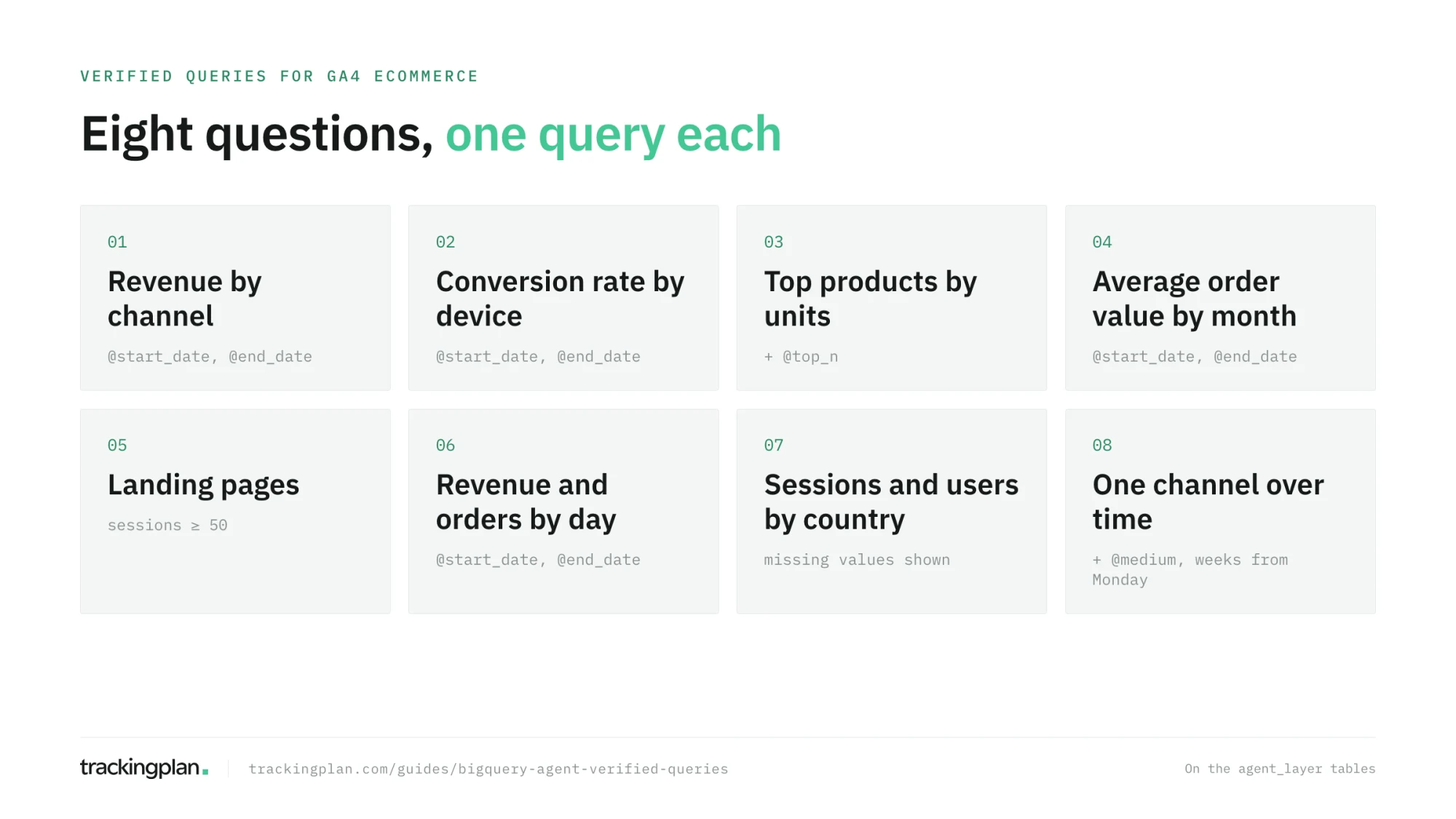
All eight run on the agent_layer tables from guide 4. Declare @start_date and @end_date as DATE, with defaults inside the sample’s range, such as 2021-01-01 and 2021-01-31.
1. Revenue by channel for a period
SELECT s.medium AS channel, COUNT(*) AS orders, SUM(p.revenue) AS revenue
FROM agent_layer.purchases p
JOIN agent_layer.sessions s USING (session_key)
WHERE p.purchase_date BETWEEN @start_date AND @end_date
GROUP BY channel
ORDER BY revenue DESC;
2. Sessions and conversion rate by device
SELECT device_category,
  COUNT(*) AS sessions,
  ROUND(100 * COUNTIF(converted) / COUNT(*), 2) AS conversion_rate_pct
FROM agent_layer.sessions
WHERE session_date BETWEEN @start_date AND @end_date
GROUP BY device_category
ORDER BY sessions DESC;
3. Top products by units sold
SELECT item_name, SUM(quantity) AS units, SUM(item_revenue) AS revenue
FROM agent_layer.purchase_items
WHERE purchase_date BETWEEN @start_date AND @end_date
GROUP BY item_name
ORDER BY units DESC
LIMIT @top_n;
Declare @top_n as INT64 with a default of 10.
4. Average order value by month
SELECT DATE_TRUNC(purchase_date, MONTH) AS month,
  COUNT(*) AS orders,
  ROUND(SUM(revenue) / COUNT(*), 2) AS average_order_value
FROM agent_layer.purchases
WHERE purchase_date BETWEEN @start_date AND @end_date
GROUP BY month
ORDER BY month;
5. Landing pages by sessions and conversion
SELECT landing_page,
  COUNT(*) AS sessions,
  ROUND(100 * COUNTIF(converted) / COUNT(*), 2) AS conversion_rate_pct
FROM agent_layer.sessions
WHERE session_date BETWEEN @start_date AND @end_date
GROUP BY landing_page
HAVING sessions >= 50
ORDER BY sessions DESC
LIMIT 20;
The HAVING line keeps pages with a handful of sessions from topping the conversion ranking by chance.
6. Revenue and orders by day
SELECT purchase_date, COUNT(*) AS orders, SUM(revenue) AS revenue
FROM agent_layer.purchases
WHERE purchase_date BETWEEN @start_date AND @end_date
GROUP BY purchase_date
ORDER BY purchase_date;
7. Sessions and users by country
SELECT IFNULL(country, '(missing)') AS country,
  COUNT(*) AS sessions,
  COUNT(DISTINCT user_pseudo_id) AS users
FROM agent_layer.sessions
WHERE session_date BETWEEN @start_date AND @end_date
GROUP BY country
ORDER BY sessions DESC;
The IFNULL puts missing values on their own visible line, as the instructions ask.
8. One channel over time
SELECT DATE_TRUNC(s.session_date, WEEK(MONDAY)) AS week,
  COUNT(*) AS sessions,
  COUNTIF(s.converted) AS converted_sessions,
  IFNULL(SUM(p.revenue), 0) AS revenue
FROM agent_layer.sessions s
LEFT JOIN agent_layer.purchases p USING (session_key)
WHERE s.session_date BETWEEN @start_date AND @end_date
  AND s.medium = @medium
GROUP BY week
ORDER BY week;
Declare @medium as STRING, with a description that lists the values it takes (organic, cpc, referral, (none)). Weeks start on Monday, and the query says so; an agent left to choose might start them on Sunday. If a session can hold more than one purchase in your data, the LEFT JOIN repeats that session’s row, so count sessions with COUNT(DISTINCT s.session_key) there.
How to grow the set
Don’t write fifty verified queries on day one. Write the eight above, adapted to your questions, and then add one each time two things are true: the agent got a question wrong, and that question will be asked again. Your list from guide 6 is the first batch.
For every verified query you add, write down the question you asked and the right answer. That pair becomes a test case in the next guide.
Exercise
Add the instructions, the seven glossary terms, and the eight verified queries to your agent. Then ask the five questions from guide 5 again and compare the SQL with the SQL you got before. For each question, write which of the three tools changed the answer.
How to know you got it right
- Your instructions fit on one screen, one rule per line.
- Every term that caused a wrong answer in guide 6 is in the glossary.
- Your eight verified queries use parameters, not hard-coded dates.
- Asking “revenue by channel in December 2020” runs verified query 1 with the right dates.
Resources
- Create data agents, Google Cloud docs: instructions, glossary, verified queries, and parameters, with Google’s own examples.
- Authored context for BigQuery data sources, Google Cloud docs: the same context as written through the API, useful once you manage agents as code in guide 11.
- Ask effective questions, Google Cloud docs: Google’s advice on scope, dates, and multi-part questions.
- Manage glossaries, Google Cloud docs: the Knowledge Catalog business glossary you can import from.
FAQ
What are verified queries in a BigQuery data agent? Verified queries, formerly called golden queries, are pairs of a question and the SQL that answers it, which you approve. When a question matches one, the agent runs that query exactly as written; when it doesn’t, the agent uses the verified queries as examples. They can take parameters such as dates or a channel.
How do parameters work in BigQuery verified queries? Write @name placeholders in the SQL, such as WHERE purchase_date BETWEEN @start_date AND @end_date, and declare each parameter with a name, a type, a default value, and a description. The agent reads the values from the question, so one verified query answers every period or channel.
What is the difference between instructions, the glossary, and verified queries? Instructions set the agent’s defaults and behavior. The glossary defines business terms and their synonyms. Verified queries give exact SQL for common questions. When they conflict, Google’s documentation gives verified queries priority, then the glossary, then the instructions.
How many verified queries should a data agent have? Google’s BigQuery documentation states no limit. Start with the eight to fifteen questions people ask most, each written as a parameterized query, and add one every time an answer goes wrong on a question that will be asked again.