
A data agent always answers. That is its strength and its risk. It will return a confident number for a question it misread, from a query that counted the wrong thing, with a chart that makes it look settled. The SQL is right there, but nobody reads SQL they didn’t ask for.
This guide is about the habit that makes an agent safe to use: asking questions it can’t misread, and reading each answer as a claim to verify. It ends with the six errors agents make most often on GA4 data, so you know where to look first.

Goal of this guide: ask questions that leave the agent few choices, and catch a wrong answer before anyone acts on it. You need: the agent from guide 5 and the checklist from guide 2.
Ask questions that leave few choices
Every word you leave out is a decision the agent makes for you. “How are sales doing?” leaves it to choose the metric, the period, the grain, and what to compare with. It will choose something reasonable, and possibly not what you meant.
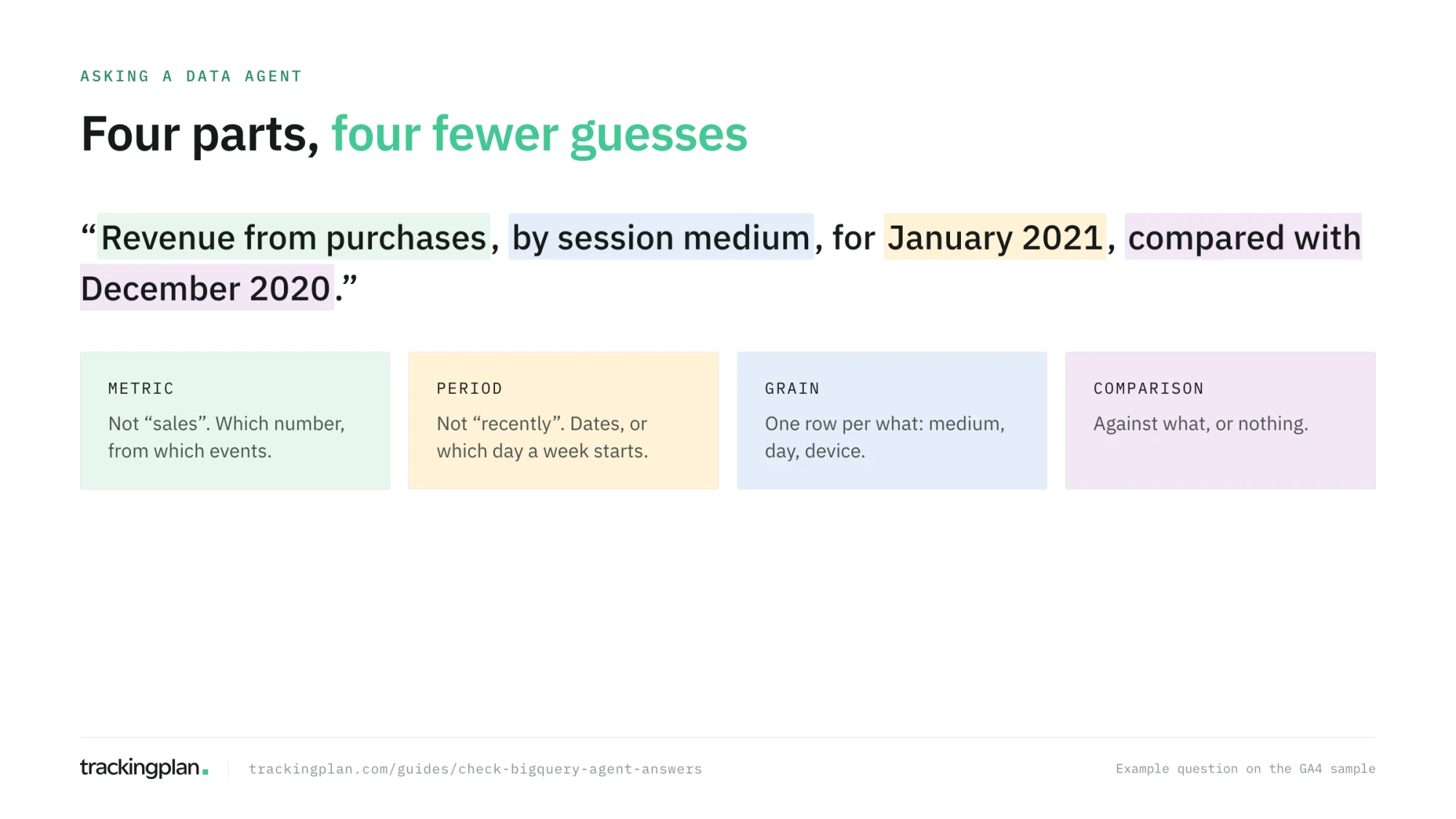
Name four things:
- The metric. “Revenue from purchases”, not “sales”. “Sessions”, not “traffic”.
- The period. “January 2021”, not “recently”. If you say “last week”, say which day it starts.
- The grain. “By session medium”, “by day”, “by device category”.
- The comparison. “Versus December 2020”, “versus the same week last year”, or nothing.
Follow-up questions keep the context of the conversation, so you can start broad and narrow down. When the agent asks you a clarifying question, that is a good sign; answer it rather than rephrasing from scratch.
Read the answer in four layers
An answer has more in it than the number.
- The text. Does it restate your question the way you meant it? If it says “sessions by source” and you asked by medium, stop here.
- The chart. Does the axis match the grain you asked for? Is a period missing?
- Show thinking. The agent’s reasoning, step by step. Look for the moment it chose a table or a definition.
- How was this calculated? The SQL and its raw result. This is the evidence; the rest is presentation.
Then run the five-point checklist on the SQL: the table, the dates, the filters, what is counted, and duplication. It takes a minute once you have done it ten times.
Compare with a number you trust
The fastest check is a known number. For GA4 data, that is usually the GA4 interface. Expect a gap, and know what size is normal: as guide 3 explained, the interface approximates users and sessions, applies thresholds, and adds modeled data, and the export does none of that.
A gap of a few percent on users or sessions is usually explained by those differences. A gap of 30% on revenue is not; something is wrong in the query or in the data. The point is not to match the interface. It is to know why you don’t.
The six errors agents make on GA4 data
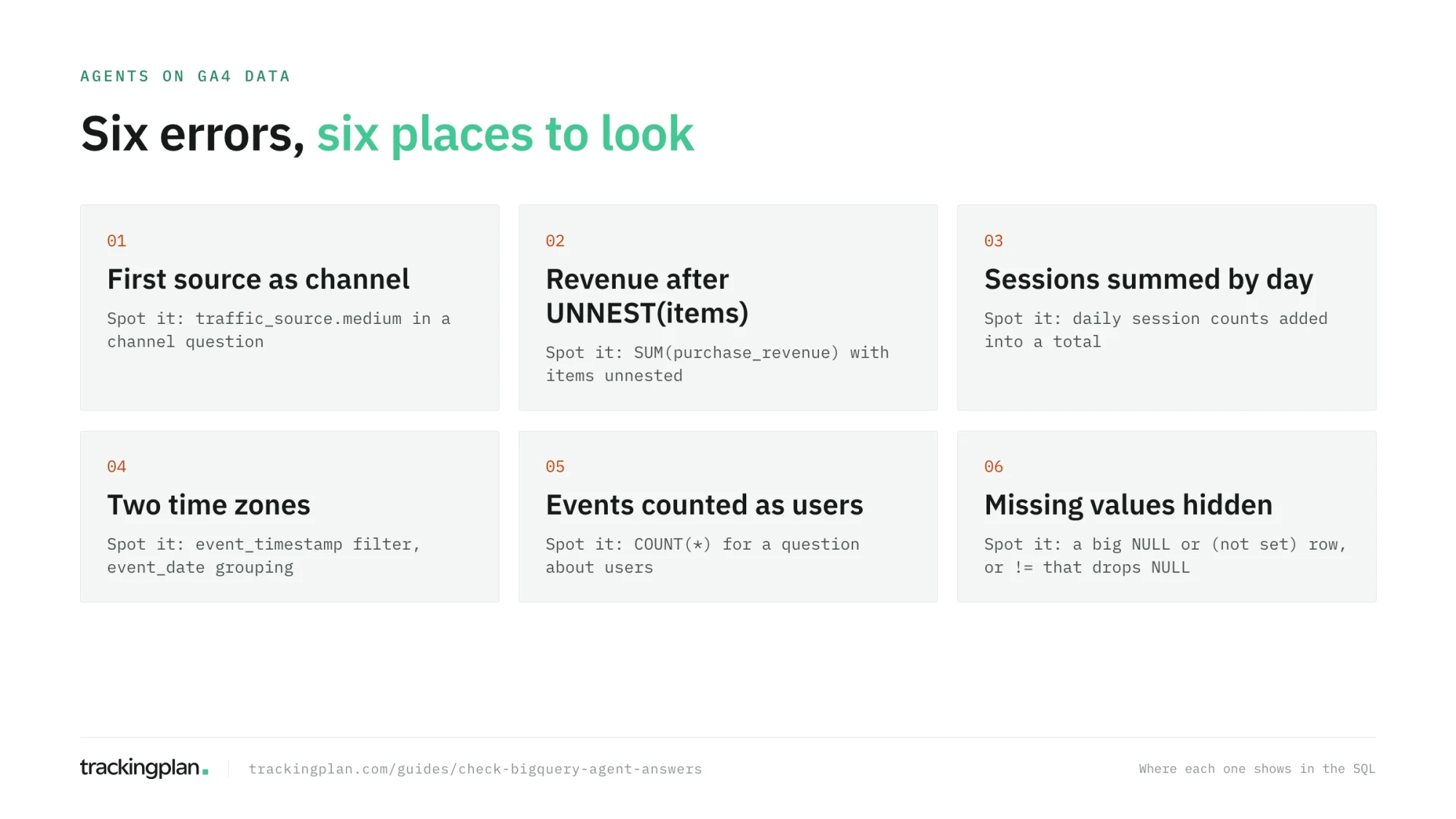
1. The user’s first source as the session’s channel
Spot it: the query uses traffic_source.source or traffic_source.medium for a question about channels or campaigns. Those columns describe how the user was first acquired. Fix it: a field description and an instruction that point to the session’s source. If you built agent_layer, the agent never sees the raw column.
2. Revenue summed after unnesting items
Spot it: UNNEST(items) in the FROM clause and SUM(ecommerce.purchase_revenue) in the SELECT. Each transaction’s revenue is added once per product. Fix it: separate tables for purchases and purchase items, as in guide 4.
3. Sessions added up day by day
Spot it: a count of sessions grouped by day, then summed for a total. A session that crosses midnight is counted twice. Fix it: count distinct session keys over the whole period, and tell the agent to.
4. Two time zones in one query
Spot it: a filter on event_timestamp and a grouping on event_date, or the other way around. event_timestamp is UTC, event_date is the property’s time zone, and events near midnight change day. Fix it: one date column in the layer, described with its time zone.
5. Events counted as users
Spot it: COUNT(*) for a question about users or customers. Fix it: a glossary term for “users” that says COUNT(DISTINCT user_pseudo_id), and a verified query that shows it.
6. Missing values hidden in one group
Spot it: a large row labeled NULL, empty, or (not set) in a breakdown, presented as if it were a category, or a filter such as != 'organic' that silently drops the rows where the value is missing. Fix it: tell the agent to report missing values as their own line, with their share, and to say when they are large.
How a production agent does it. A language model handed a symptom will always find a plausible story for it. Trackingplan’s agent has a rule against that: it names a cause only when two independent pieces of evidence agree, such as a container change detected just before the problem started plus traffic or a live check confirming how it broke. Anything less is presented as a hypothesis and labeled as one (how it works). You can apply the same rule by hand: before you accept an agent’s explanation of why a number moved, find a second, independent piece of evidence for it.
When the answer is wrong, fix the agent
Rephrasing the question until the number looks right teaches you nothing and leaves the next person to hit the same error. Each wrong answer points to something missing in the agent:
| What went wrong | What to change |
|---|---|
| It used the wrong table or column | The table or field description |
| It misread a business term | A glossary entry |
| It chose the wrong default, such as the period | The instructions |
| It wrote the wrong SQL for a common question | A verified query |
| It needed a table that isn’t there | A new table in your layer |
The next guide covers the last three tools in detail.
Exercise
Ask your agent three questions phrased loosely (“how did we do in January?”, “what’s our best channel?”, “how many customers do we have?”) and the same three phrased with metric, period, grain, and comparison. Compare the SQL of each pair. Write down every choice the agent made on its own in the loose versions.
How to know you got it right
- Your questions name the metric, the period, the grain, and the comparison.
- You open the SQL of every answer you plan to share.
- You can name the six errors and where each one shows in the SQL.
- You know what size of gap with the GA4 interface is normal, and why.
Resources
- Create conversations, Google Cloud docs: conversations, follow-ups, and what each part of an answer shows.
- Ask effective questions, Google Cloud docs: Google’s advice on narrowing the scope, giving exact dates, and splitting multi-part questions.
- Bridge the gap between the Google Analytics UI and BigQuery export, Google for Developers: the reasons the numbers differ.
- Building a Conversational Analytics Agent on Top of GA4 BigQuery Data, Semetrical: how they tested an agent on GA4 data before handing it to a client.
FAQ
How do I know if a BigQuery data agent’s answer is right? Open the SQL behind it with How was this calculated? and check the table, the dates, the filters, what is counted, and whether a join or UNNEST duplicates rows. Then compare the number with one you already trust, such as the GA4 interface, and expect small, explainable gaps rather than none.
What mistakes do data agents make on GA4 data? The common six: using the user’s first source as the session’s channel, summing revenue after unnesting items, adding up sessions day by day, mixing UTC timestamps with the property’s dates, counting events when the question was about users, and hiding missing values in a large unlabeled group.
How should I phrase questions to a data agent? Say the metric, the period, the grain, and the comparison: “revenue from purchases, by session medium, for January 2021, compared with December 2020.” The fewer choices the agent has to make, the fewer it gets wrong.