
TL;DR To debug Google Consent Mode v2, check three things on every Google request: that a default was set before any tag fired, that the update matches what the visitor chose, and that the
gcsandgcdparameters carry all four signals. Tag Assistant, GA4 DebugView and the network tab show you one session. Consent breaks in the sessions you didn't test, so the durable fix is to monitor the consent state on real traffic.
Google Consent Mode v2 tells Google's tags what each visitor agreed to, through four signals: ad_storage, analytics_storage, ad_user_data and ad_personalization. Your consent banner sets them; Google's tags read them and decide whether to use cookies, send identifiers or personalize ads. Since March 2024, Google requires the two newer signals for advertisers who measure or remarket to users in the European Economic Area.
When it breaks, you lose twice. Tags that fire without consent are a privacy problem you have to answer for. Tags that wait for an update that never arrives, or read the wrong state, lose conversions and starve Smart Bidding of the signal it optimizes on.
Most guides stop at a manual check: open Tag Assistant, click through the banner, look at the Consent tab. That is the right way to build the setup, and this guide walks through it. It is also one session, on one page, in one browser. Consent breaks in the others: the country with a different default, the template a release changed, the browser where the CMP loads late. The second half of this guide covers how to catch those on real traffic. For the compliance audit around it, see how to audit Consent Mode v2 for compliance.
The five failures you will actually find
1. The default is set too late
The default command must run before any Google tag reads consent. Google is explicit: set it "before any commands that send measurement data". When a CMP script, a tag manager template or a theme loads the default after the Google tag, the first requests go out with no consent state at all. Tag Assistant reports it as a tag that read consent before a default was set.
2. A race with the consent update
Your CMP restores a returning visitor's choice asynchronously. If tags fire before that update lands, they use the default, so a visitor who accepted everything is measured as denied on the first page, or the other way round if your default is granted. wait_for_update gives the CMP time before tags fire; without it, the first hits of every session are a coin toss.
3. Only the v1 signals are set
Plenty of setups still send only ad_storage and analytics_storage. Without ad_user_data and ad_personalization, Google cannot use your first-party data for ads measurement or remarketing in the EEA, and the requests look fine in every check that only reads the old two.
4. The wrong default for the region
A single global default either over-blocks visitors who need no banner or under-blocks the ones who do. Region-specific defaults solve it, but they are also the part nobody tests from outside their own country.
5. Cookies and pixels that ignore the state
Consent Mode only governs Google's tags; Microsoft has its own Consent Mode for UET. A Meta pixel, a TikTok tag, a hardcoded analytics script or a server-side forward to an ad platform reads none of it. These keep firing before the banner is answered, while every Google check comes back clean.
How to debug Consent Mode v2 by hand
Start from a correct implementation, so you know what you are comparing against (the GA4 Consent Mode implementation guide covers the setup itself). With gtag.js, the default goes first, then the Google tag:
<script>
  window.dataLayer = window.dataLayer || [];
  function gtag(){dataLayer.push(arguments);}
  // 1. The default, before anything else that sends data
  gtag('consent', 'default', {
    'ad_storage': 'denied',
    'analytics_storage': 'denied',
    'ad_user_data': 'denied',
    'ad_personalization': 'denied',
    'wait_for_update': 500
  });
</script>
<!-- 2. Only then the Google tag -->
<script async src="https://www.googletagmanager.com/gtag/js?id=G-XXXXXXX"></script>
<script>
  gtag('js', new Date());
  gtag('config', 'G-XXXXXXX');
</script>
When the visitor answers the banner, your CMP sends the update:
gtag('consent', 'update', {
  'ad_storage': 'granted',
  'analytics_storage': 'granted',
  'ad_user_data': 'granted',
  'ad_personalization': 'granted'
});
And this is the broken version we find most often: the Google tag first, the default after it, and only the two v1 signals.
<!-- Broken: the tag loads and configures before any default exists -->
<script async src="https://www.googletagmanager.com/gtag/js?id=G-XXXXXXX"></script>
<script>
  window.dataLayer = window.dataLayer || [];
  function gtag(){dataLayer.push(arguments);}
  gtag('js', new Date());
  gtag('config', 'G-XXXXXXX');
  gtag('consent', 'default', {
    'ad_storage': 'denied',
    'analytics_storage': 'denied'
    // ad_user_data and ad_personalization are missing
  });
</script>
In Google Tag Manager the equivalent fix is a trigger: the CMP's consent tag fires on Consent Initialization – All Pages, which runs before any other tag, and no Google tag fires on it.
Step 1: Tag Assistant
Google's own method (our Tag Assistant guide covers the tool itself), from Troubleshoot consent mode with Tag Assistant:
- Connect Tag Assistant to your site, then in Summary select the earliest Consent event and check the four signals in the API call. Or open a tag's output, select the Consent tab and read the On-page Default column.
- Answer the banner, select the most recent Consent event and check the On-page Update column.
- Open the Tags tab to see which tags fired or were blocked, and click a tag to check it followed its consent settings.
- If you use region-specific defaults, repeat it with different simulated locations.
If Tag Assistant reports that a tag read or wrote a cookie before the default was set, you have failure 1.
Step 2: The network tab
Tag Assistant reads what your page told Google. The network tab shows what was actually sent. Open developer tools, filter by gcs and read two parameters on each Google request (Simo Ahava's guide has the full reference):
gcs | ad_storage | analytics_storage |
|---|---|---|
G100 | denied | denied |
G110 | granted | denied |
G101 | denied | granted |
G111 | granted | granted |
gcs only covers the v1 signals. gcd encodes all four, one letter per signal: l means the signal was never set, p denied by default with no update, q denied by default and after the update, t granted by default, r denied by default and granted after the update, and v granted both times. A request whose gcd shows l for ad_user_data or ad_personalization is failure 3. Google treats gcd as an internal parameter whose values can change without warning, so let Tag Assistant or a decoder extension read it for you rather than hard-coding the letters.
Step 3: GA4 DebugView
With debug mode on, DebugView confirms the events reached GA4 in the session you are testing. It shows nothing about the sessions you are not testing.
Step 4: Everything that is not Google
Clear cookies, load the page without answering the banner and list every request and cookie set before any click. Anything from Meta, TikTok, LinkedIn, a heatmap or a chat widget at that point is failure 5. The dumbdata team keeps a useful list of consent debugging tools for each of these checks.
Where manual debugging stops
Each of those steps answers one question about one session, the same limit as any manual GTM debugging. Run them after every release, in every market, on every template, on Safari and Chrome, with a new visitor and a returning one, and you have a full-time job. Skip them and the failure shows up weeks later as a drop in conversions or a letter from a regulator.
The four failures that matter most are the ones a single session hides: the race that only loses on slow connections, the default that is wrong only in one country, the release that moved the CMP script on one template, the pixel added by a marketing team after your last check.
Monitoring Consent Mode on real traffic with Trackingplan
Trackingplan takes the opposite approach to a test: it watches the requests your real visitors already send. One tag or SDK observes every hit to every destination, Google's and everyone else's, and reads the consent state each hit carries. There is no test plan to write and nothing to click through. Consent & Cookie Monitoring turns that into a daily view of how consent behaves across your whole site.
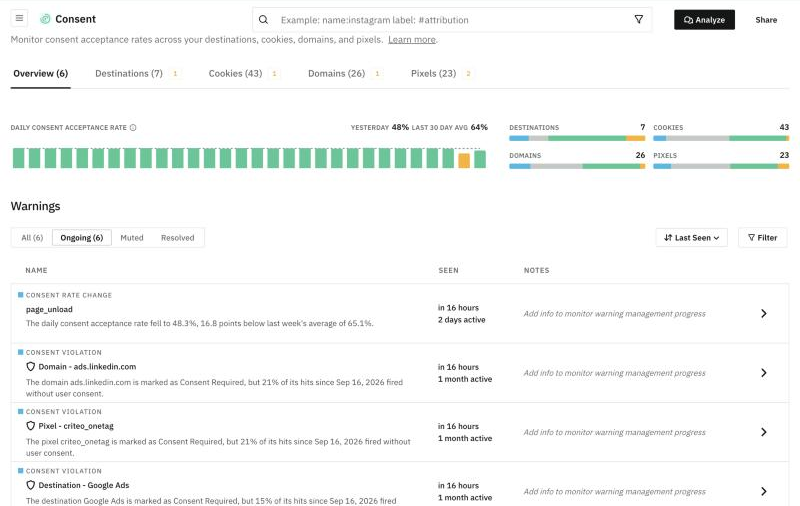
What it gives you that a manual check cannot:
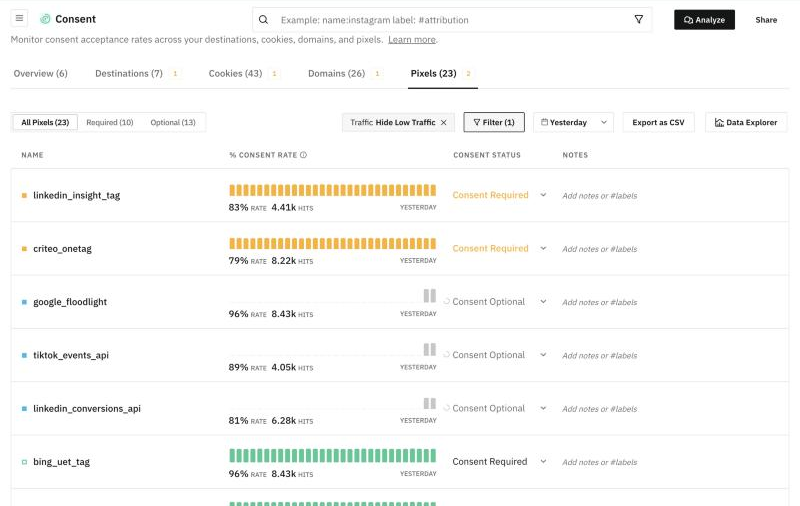
- Every destination, cookie, domain and pixel, with its consent rate. Each one is marked Consent Required or Consent Optional; Trackingplan works out which on its own during a learning period, and you can override it. A pixel that needs consent and fires without it shows up in yellow.
- Warnings when data is sent without consent. A consent violation, or a sudden change in the acceptance rate, raises a warning with what is happening, the affected element and when it was first and last seen, and goes into your Digests.
- The context to fix it. Each warning comes with a summary, the most likely cause, its potential impact on conversions and attribution, recommended actions and when it happens, read from the hits themselves.
- The vendors Consent Mode does not cover. Meta, TikTok, LinkedIn and every other destination sit in the same view, which is where failure 5 lives.
- More than consent. The same hits are checked for PII leaks and for the tracking errors that break conversions, so a consent fix that drops a purchase event shows up as a warning too.
When a warning needs a diagnosis, Analyze opens a thread with Trackingplan's agent. It narrows the problem down in the hits (which pages, devices, consent states and campaigns), checks what changed in your tag manager around the time it started and, if you agree, reproduces the flow in a real browser with the same consent state the affected traffic had. It names a cause only when two independent pieces of evidence agree.
| Tag Assistant | Network tab and extensions | GA4 DebugView | Trackingplan | |
|---|---|---|---|---|
| What it sees | Consent API calls and Google tags on the page you open | Every request your browser sends | Events that reached GA4 in debug mode | Every hit your real visitors send, to every destination |
| Coverage | One session, Google tags | One session, all vendors | One session, GA4 | All sessions, all pages, devices and countries |
| Non-Google vendors | No | Yes, by hand | No | Yes |
| Catches regressions | Only when you re-run it | Only when you re-run it | Only when you re-run it | Yes, with a warning |
| Best for | Building and changing the setup | Reading what was actually sent | Confirming GA4 receives events | Knowing it stays right after every release |
Setting it up
- Install the tag. Add Trackingplan with its GTM template or one script tag on your site, the iOS or Android SDK in your apps, and the server-side GTM integration if you forward hits from a server container. Nothing in your existing tracking changes.
- Let it learn. For the first days Trackingplan learns your tracking from real traffic, including which elements need consent. Review the Consent Required and Consent Optional classification and correct any that are wrong.
- Route the warnings. Consent warnings go to your Digests; send them to the channel where the person who owns the CMP and the tags will see them.
- Keep Tag Assistant for changes. When you change the CMP, a template or a region, check the new setup by hand once, then let monitoring tell you if it holds.
The privacy and compliance page shows the rest of what it checks on every hit, and the cookie scan what you get after the first days.
Manual debugging or monitoring?
Use Tag Assistant, the network tab and DebugView while you implement and every time you change the setup: they show one session in detail, which is exactly what you need to get the code right. Use monitoring on real traffic for everything after that, because Consent Mode rarely breaks on the day you test it. It breaks on a release, a new template, a new market or a new vendor, in the sessions nobody clicked through. The first approach tells you the setup is right. The second tells you it is still right.
Frequently asked questions
How do I check if Google Consent Mode v2 is working?
Open Tag Assistant on your site, select the earliest Consent event and check that all four signals (ad_storage, analytics_storage, ad_user_data and ad_personalization) have a default before any tag fires. Then accept the banner and check that the latest Consent event updates them, and that each Google request carries the matching gcs and gcd values. To know it keeps working for every visitor, monitor the consent state on real traffic.
What does gcs=G100 mean?
The gcs parameter encodes ad_storage and analytics_storage as G1 followed by two digits, 1 for granted and 0 for denied. G100 means neither is granted, G111 both, G110 only ads and G101 only analytics. A request with G100 only exists when tags load before consent, which is Advanced consent mode.
What is the gcd parameter in Google requests?
The gcd parameter encodes all four consent signals, each as a letter that says whether it was set by default, by an update or not at all. For example, l means the signal was never set, p denied by default with no update, and r denied by default and granted after the update. Google treats it as internal, so decode it with Tag Assistant or a consent debugger extension rather than by hand.
Why does Tag Assistant say a tag read consent before a default was set?
Because a Google tag ran before the consent default command. The usual causes are a default placed after the Google tag, a CMP template that sets the default late, or a CMP tag in Google Tag Manager that fires on Initialization or All Pages instead of Consent Initialization. Move the default to the top of the page or to the Consent Initialization trigger.
Do I still need Tag Assistant if I monitor consent automatically?
Yes, for building and changing the setup. Tag Assistant shows one session on one page in detail, which is what you need while you implement. Automated monitoring covers what a manual check cannot: every page, device, browser and country, every day, and the release that breaks it next month.