
A tracking plan is the same document whatever tool reads the data: the events you expect, the properties each one carries, their types and allowed values. What changes from tool to tool is where the plan lives and what the tool does when an event does not match it.
This guide gives one example plan and shows how Mixpanel, Amplitude and Segment each store and check it. If you are writing your first plan, start with how to create a customer data tracking plan; for what a plan should contain in general, see our tracking plan template.
One example plan for all three
An ecommerce funnel, small enough to read in one table. The names follow Segment's ecommerce spec, which the other two tools accept as plain event names.
| Event | Properties | Type | Required |
|---|---|---|---|
| Product Viewed | product_id, name, category, price | string, string, string, number | product_id, price |
| Product Added | product_id, quantity, price, cart_id | string, integer, number, string | all |
| Checkout Started | order_id, value, currency, products | string, number, string, array | all |
| Order Completed | order_id, total, revenue, currency, products | string, number, number, string, array | all |
Two rules sit next to the table. Names are Title Case for events and snake_case for properties, and currency is a three-letter ISO code. Write them down: every tool below checks names and types, but a convention only holds if someone decided it.
Mixpanel tracking plan
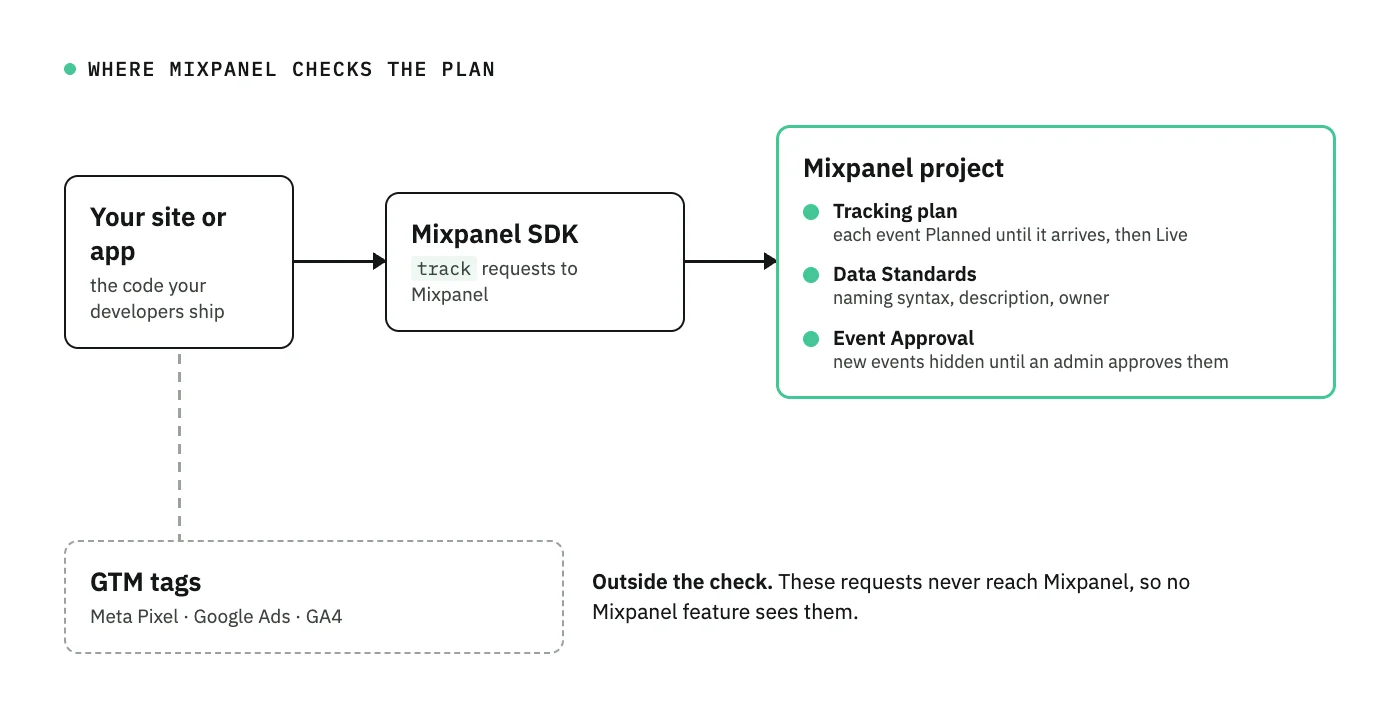
Where the plan lives. Mixpanel recommends the plan as "a centralized document that should serve as the source of truth on your Mixpanel implementation", and its tracking plan guide links templates per vertical in Google Sheets. Mixpanel also has tracking plans inside the product: according to Mixpanel's tracking plans page, a tracking plan is "a named list of the events your team intends to send to a Mixpanel project", created and managed through the Mixpanel MCP Server and visible in Lexicon. Each event in it is Planned until Mixpanel receives it, then Live.
How Mixpanel checks it. Three features in Lexicon, Mixpanel's data dictionary:
- Data Standards checks event metadata against rules you set: naming syntax (snake_case, camelCase), a description, an owner. Each event gets a compliancy status. It is an Enterprise feature.
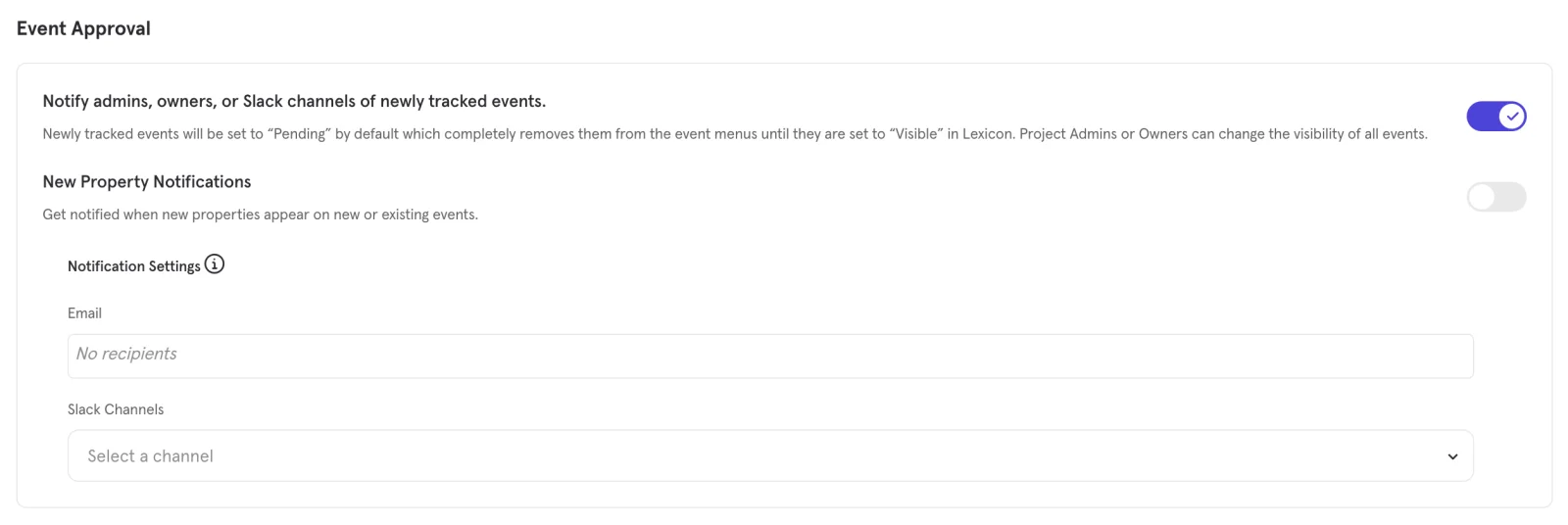
- Event Approval hides new events by default and notifies admins by email or Slack, once a day, so someone decides whether they become visible. Also Enterprise.
- Blocking stops Mixpanel from storing new data for an event or property, for example one that carries a password by mistake. Blocked data cannot be recovered.
What it does not check. Data Standards looks at names and metadata, not at the values inside each event. A Product Added with price sent as "49,90" passes the naming rule. The Mixpanel integration page covers what Trackingplan checks on those values.
Amplitude tracking plan
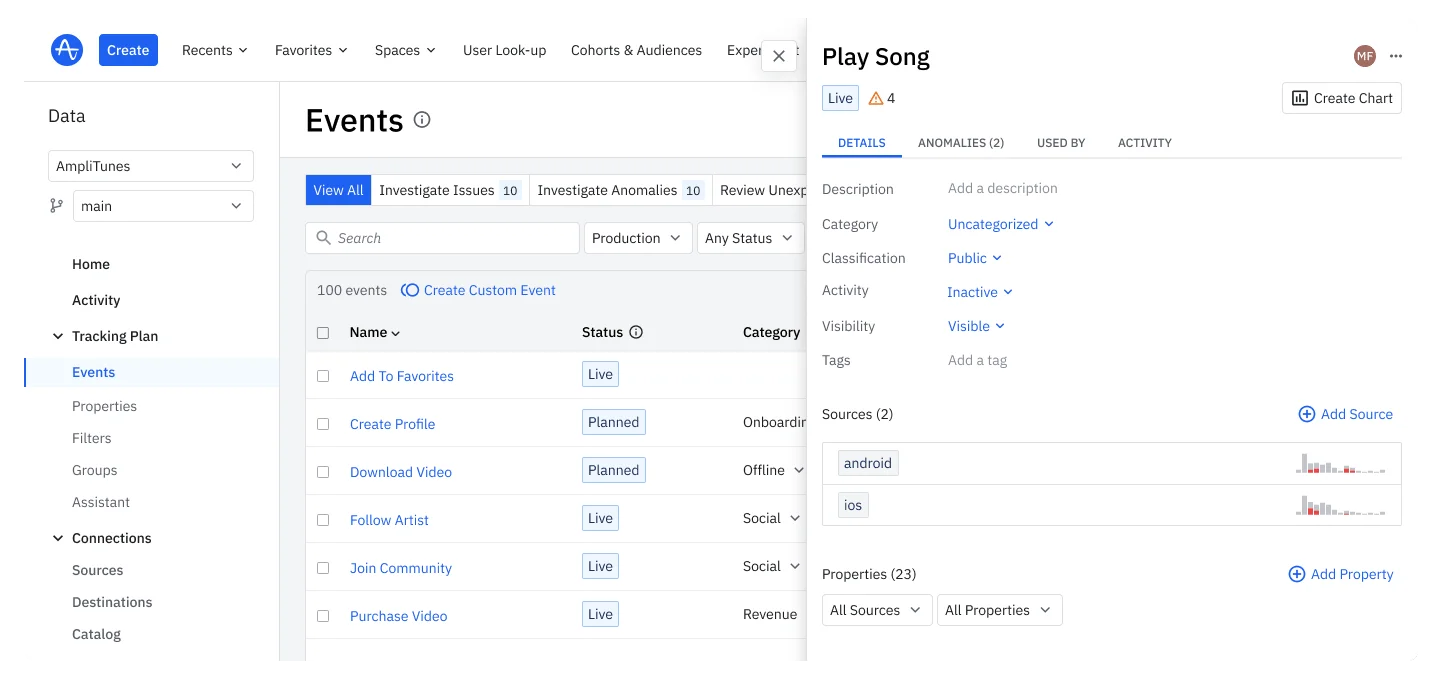
Where the plan lives. In Amplitude Data, under the Data tab. Each project has its own tracking plan. Amplitude's documentation describes building it before instrumenting code: create a source (iOS, Android, Web, Backend), then events with a description, category and status, then event properties with a type, rules and whether they are required. Amplitude suggests changes to an event name so it matches your naming convention. Branches let a team change the plan without touching the main version, and the Ampli CLI generates type-safe tracking code from it.
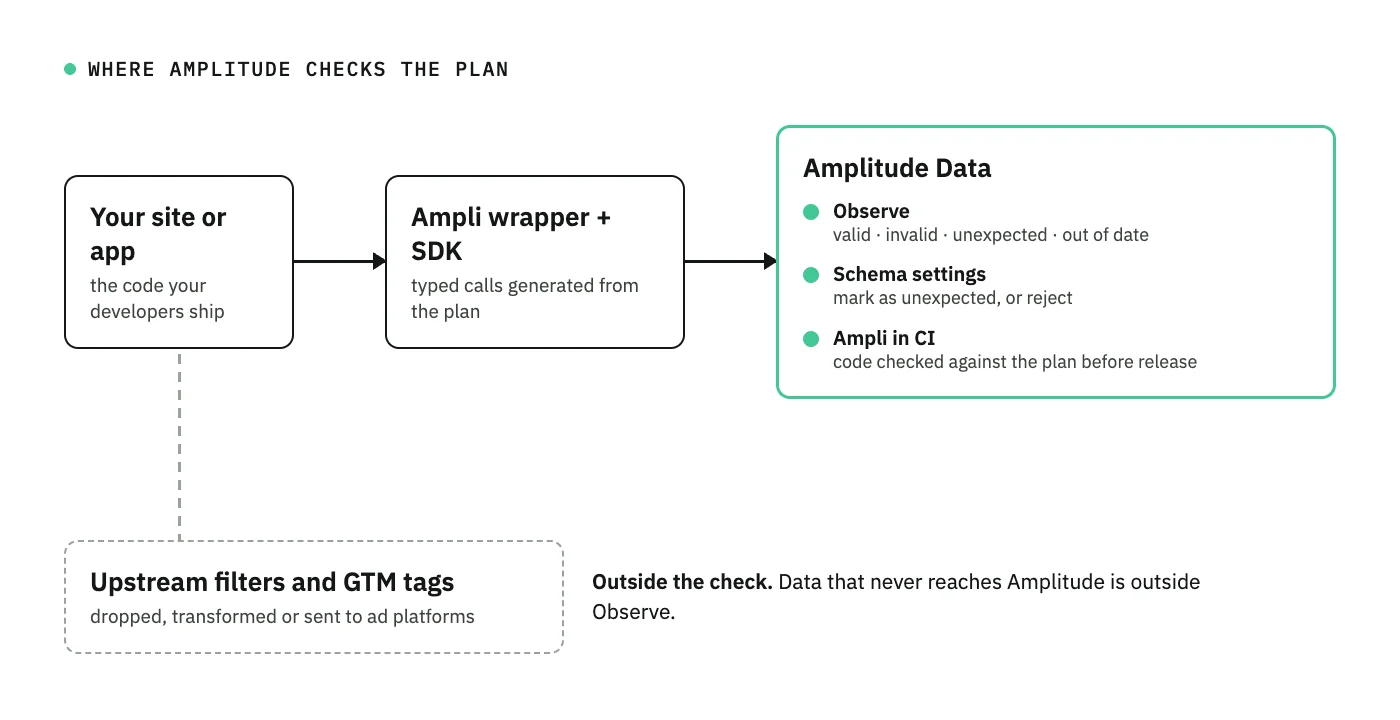
How Amplitude checks it. Amplitude's observe feature compares the live event stream with the plan and gives each event one of four statuses:
- Unexpected: not in the plan yet. Every event starts here the first time.
- Valid: matches the plan in name and schema.
- Invalid: does not match the current plan.
- Out of Date: matches an earlier version, only when you use Amplitude SDKs.
A required property that is missing generates a warning. According to Amplitude's documentation, observe is available on the Plus, Growth and Enterprise plans, and the data catalog on all plans.
What it does not check. Observe only sees what reaches Amplitude. Amplitude says so: if you block, filter or transform data before it arrives, observe cannot see it. It also only surfaces events as they occur, so an event that fires rarely may never appear. The Amplitude integration page covers what Trackingplan adds on that traffic.
Segment tracking plan
Where the plan lives. In Segment Protocols. Segment describes the tracking plan as "a data spec outlining the events and properties you intend to collect across your Segment Sources". It is stored in the workspace and connected to one or more sources, and it validates Track calls as well as Identify, Page and Group calls. Protocols is an add-on for Business plans only, and works on event stream sources (website, mobile and server) and Engage.
The example plan above maps straight onto it: Product Added, Checkout Started and Order Completed are events of Segment's ecommerce spec, with order_id, total, revenue, currency and products among their properties.
How Segment checks it. Every live event that does not match the plan generates a violation, which you review per event and can forward to another source. Per source, the Schema Configuration decides what happens to bad data: block unplanned events, omit unplanned properties and traits, or block events whose properties fail JSON schema validation. Segment warns that blocking is serious: blocked events that are not forwarded to a separate source are discarded and cannot be recovered.
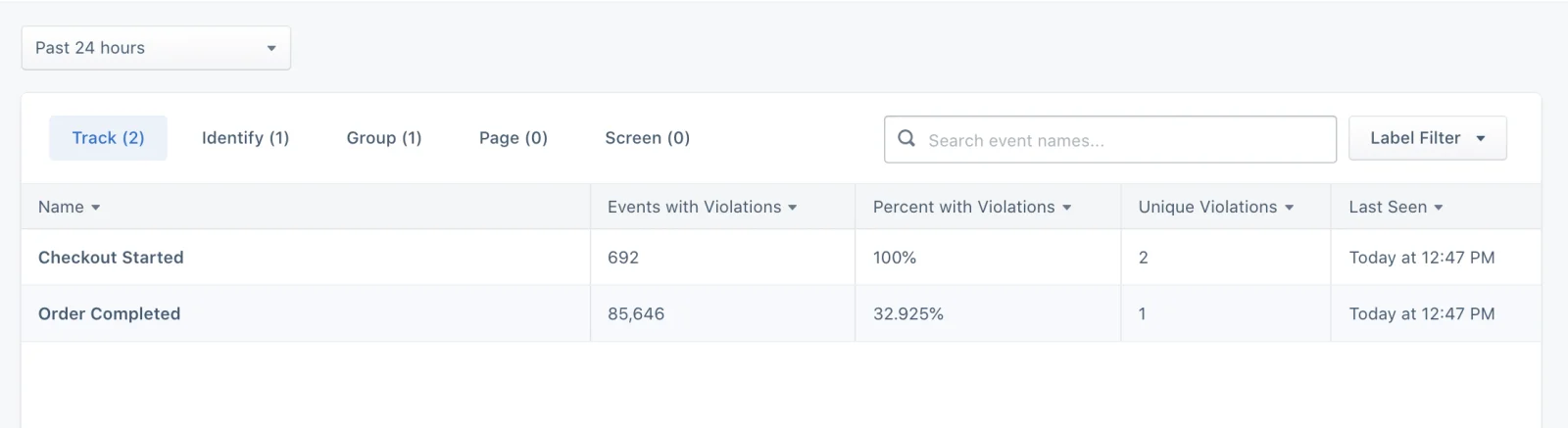
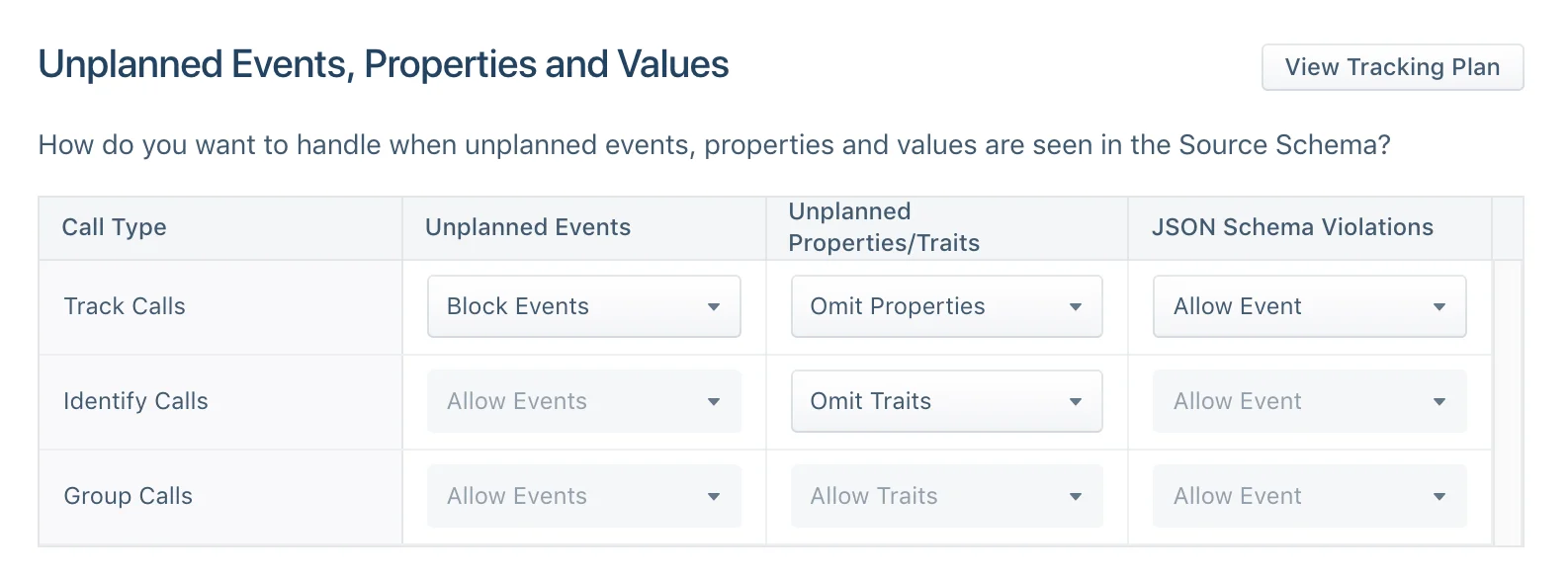
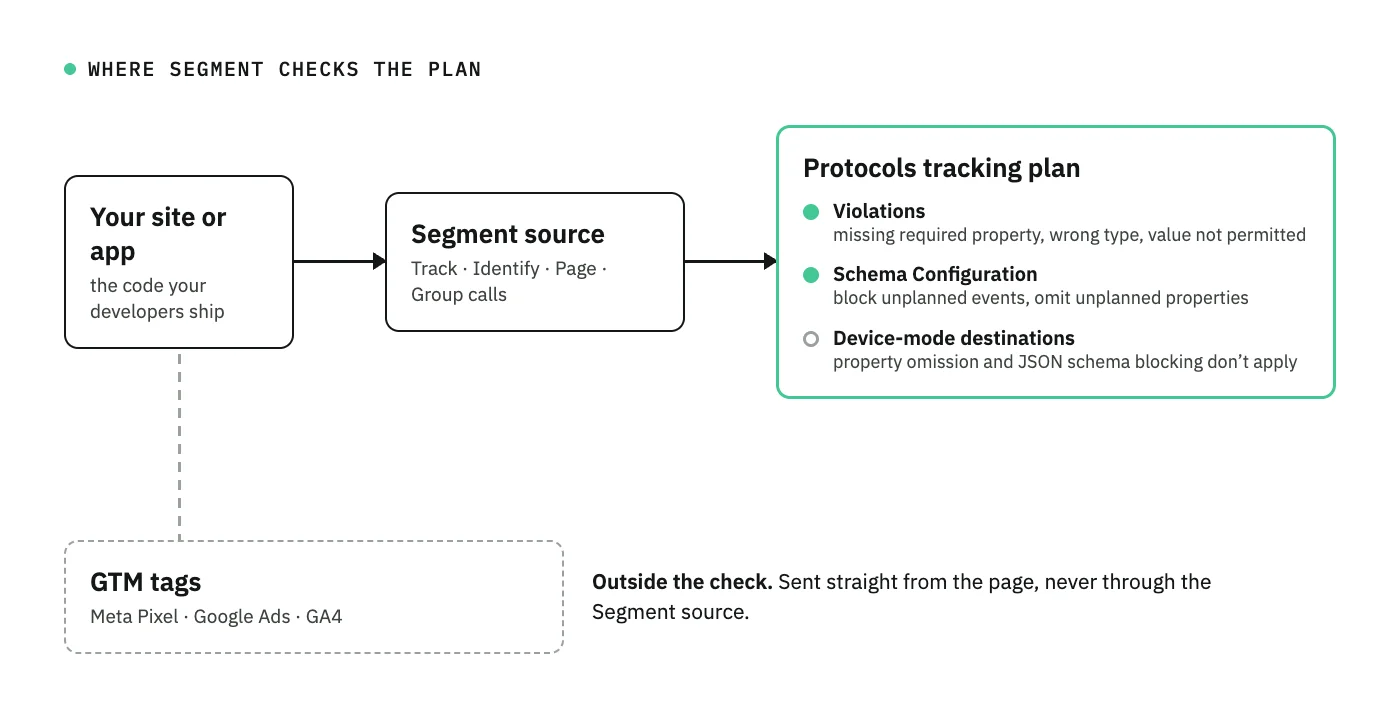
What it does not check. Protocols validates what enters Segment. What each destination does with the event afterwards, and every tag that fires outside Segment, is not part of the check. The Segment integration page covers what Trackingplan watches on both sides.
The three side by side
| Mixpanel | Amplitude | Segment | |
|---|---|---|---|
| Where the plan lives | Tracking plans (via MCP Server) and Lexicon, or a spreadsheet | Amplitude Data, per project | Protocols, per workspace, linked to sources |
| What it checks | Naming and metadata (Data Standards), new events (Event Approval) | Name and schema of each event: Valid, Invalid, Unexpected, Out of Date | Each call against the spec: violations |
| What it can block | Events and properties, by hand in Lexicon | Events and properties that are deleted from the plan | Unplanned events, unplanned properties, schema failures, per source |
| Plan needed | Data Standards and Event Approval: Enterprise | Observe: Plus, Growth, Enterprise | Protocols: Business add-on |
What none of them sees
Each of these checks runs inside one tool, on the events that tool receives. Your site sends many more requests than that. The Meta Pixel, the Google Ads tag and GA4 usually fire from Google Tag Manager, read the same dataLayer, and never pass through Mixpanel, Amplitude or Segment. A purchase can be perfect in Segment and arrive at Meta without its value.
The other gap is the plan itself. All three tools compare traffic with a plan someone wrote and keeps up to date. An event nobody added stays Unexpected, Pending or a violation until someone looks.
Trackingplan works from the other end. It learns what normal looks like from real traffic, across every destination at once, Mixpanel, Amplitude and Segment included, along with the pixels, GA4 and the dataLayer, and flags what changes: a missing property, a value of the wrong type, an event that stops. No schema has to exist first. For the checks to run before each release, our guide to dataLayer validation lists them.
FAQ
Where do I keep a Mixpanel tracking plan?
In Mixpanel itself, next to Lexicon, or in a spreadsheet. Mixpanel's tracking plans are named lists of events with their expected properties, created through its MCP Server, and each event shows as Planned until Mixpanel receives it and Live after. Data Standards and Event Approval, which check names and hide new events, are Enterprise features.
Does Amplitude have a tracking plan feature?
Yes. Each Amplitude project has a tracking plan in Amplitude Data, where you define sources, events, properties and their rules. Its observe feature labels incoming events as Unexpected, Valid, Invalid or Out of Date against that plan, on the Plus, Growth and Enterprise plans.
What is a Segment tracking plan?
A data spec in Segment Protocols listing the events and properties you expect from your sources. Live events that do not match it generate violations, and per source you can block unplanned events or omit unplanned properties. Protocols is an add-on for Business plans.
Can a tracking plan in one tool check the others?
No. Each tool checks the events it receives. A purchase that reaches Segment correctly can still arrive wrong at the Meta Pixel or GA4 tags that fire from Google Tag Manager, and none of the three tools sees those requests.