
A tracking plan template is the fastest way to start the document every analytics team eventually needs: the list of events your site and apps send, the properties each one carries, when it fires, where it goes, and who owns it. Download the tracking plan template (CSV), open it in Google Sheets or Excel, and replace the sample rows with your own. The rest of this post explains what each column is for, who reads the plan, and why a plan nobody checks against production is the first thing to go stale.
What a tracking plan is
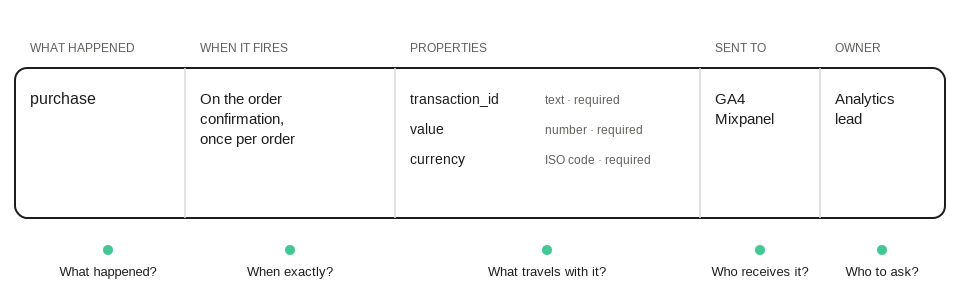
A tracking plan (also called an event tracking plan or a measurement plan) is the agreement between the people who need the data and the people who implement it. For every event it answers five questions: what happened, when exactly the event fires, which properties travel with it, which tools receive it, and who to ask when it breaks.
It is a document, not a tool, and it lives next to the code. A spreadsheet is enough to start; the template below is one.
What the template contains
The CSV has one row per event and property, so a purchase with five properties is five rows. The columns:
| Column | What goes in it | Example |
|---|---|---|
| Event | The event name, in one convention for the whole plan | add_to_cart |
| Description | One sentence a stakeholder understands | An item is added to the cart |
| Trigger | The exact moment it fires | On the add-to-cart click once the cart confirms |
| Property | One property per row | value |
| Type | string, number, integer, boolean, array | number |
| Required | yes or no | yes |
| Example value | A real value, so the type is not ambiguous | 49.90 |
| Platform | web, app, server, or several | web · app |
| Destinations | The tools that receive the event | GA4 · Meta Pixel · TikTok |
| Owner | The team that answers for it | Analytics |
| Status | proposed, live, deprecated | live |
The sample rows cover a standard ecommerce funnel (page_view, view_item, add_to_cart, begin_checkout, purchase), account events (sign_up, login), a lead form with the hashed email that enhanced conversions need, and a consent_update row with the Consent Mode parameters, because consent is part of the data too. Delete what does not apply and keep the columns.
Three columns do most of the work. Trigger is where most implementation disagreements hide: "on purchase" can mean the confirmation page, the payment callback, or both, and the difference is a double count. Example value settles type arguments before they reach the warehouse. Destinations is what lets you ask, after a release, which tools should have received an event that stopped arriving.
Who uses it
- Developers read the Trigger and Property columns to implement the event once, in the right place.
- Analysts read Event, Property and Type to build reports that will not break when a
pricearrives as a string. - Product managers read Description and Status to know what can be measured today and what is still proposed.
- Paid media reads Destinations: the
event_idrow onpurchaseis the deduplication key between the Meta Pixel and the Conversions API. - Privacy and legal read the
consent_updaterows and the hashed fields, because the plan is also the inventory of what leaves the site.
A plan that only one of these groups maintains stops being read by the others within a quarter. The guide to creating a customer data tracking plan covers how to run that conversation.
Why the plan drifts, and what to do about it
The spreadsheet is true the day it is written. Then a release renames a dataLayer variable, a tag is duplicated in GTM, an app version ships without a property, and nobody updates the row. The plan still says purchase sends value; production disagrees. Nothing in the spreadsheet can tell you that.
The fix is not a better spreadsheet. It is a routine that compares the plan with what production sends, and decides who acts when they disagree.
How to keep the plan in sync with GA4 and Mixpanel
A tracking plan stays true when every row is checked against the requests your site and apps actually send. For each event that matters:
- Declare it. The row names the event, its properties with their types, which ones are required, and the destinations it goes to: GA4, Mixpanel, or both. If a destination uses a different name for the event or a property, write that down too, or the two implementations drift apart without anyone noticing.
- Observe the request. On the journey that triggers the event, open the browser’s Network tab. In GA4, filter by
collect: the event name travels asen, text parameters asep.and numeric ones asepn.. In Mixpanel, filter bytrack: each request carries the event name and its properties. In a test session, GA4’s DebugView and Mixpanel’s Data Inspector show the same event as each platform received it. Check both: a call from your code doesn’t prove that both destinations got the same payload. - Compare. Names, types, required properties, and whether the event reaches every destination the row lists. A
purchasethat GA4 receives and Mixpanel doesn’t is out of sync, even if both requests look fine on their own. - Decide and assign. If production is right, update the row. If the plan is right, open a fix for the code. Either way, the event’s owner gets it, and the plan keeps a record of the change, so the next release can be compared with what it replaced.
- Repeat after every release. A rename in the dataLayer, a duplicated tag in GTM or an app version without a property only shows up in the requests. The website audit template has the checklist version of that walk.
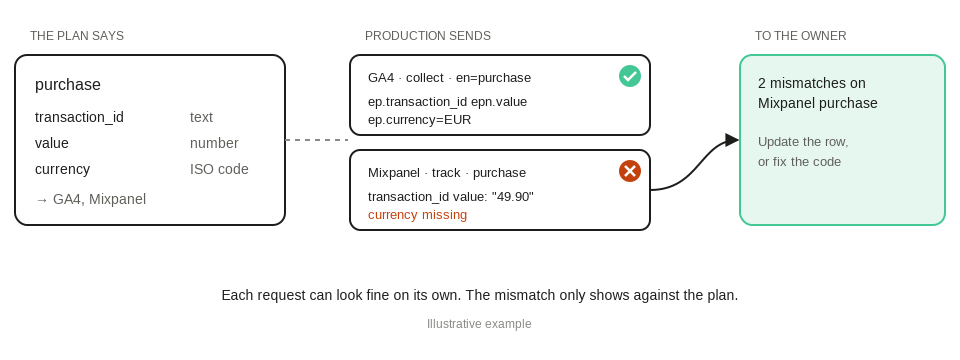
Steps 2 and 3 are the ones that don’t scale by hand: they cover the journeys you test, on the day you test them.
Trackingplan does them on real traffic. Install one tag, SDK or server-side hook, and it builds the tracking plan from the events and properties your users actually trigger, across 170+ analytics and ad providers, GA4 and Mixpanel included. You can import your declared spec as a JSON Schema or change a spec by asking for it in the chat: a property’s type, its allowed values, whether it is required. From then on, a missing property, a value outside the spec, a dead tag or a renamed event is reported to the team that owns it, instead of waiting for the next release check. The spreadsheet becomes the statement of intent, and the inferred plan the statement of fact. It is also the context the agent uses when you ask it about your data.
If you are choosing between a tool that enforces the plan before release and one that checks production, the comparison with Avo answers both questions.