
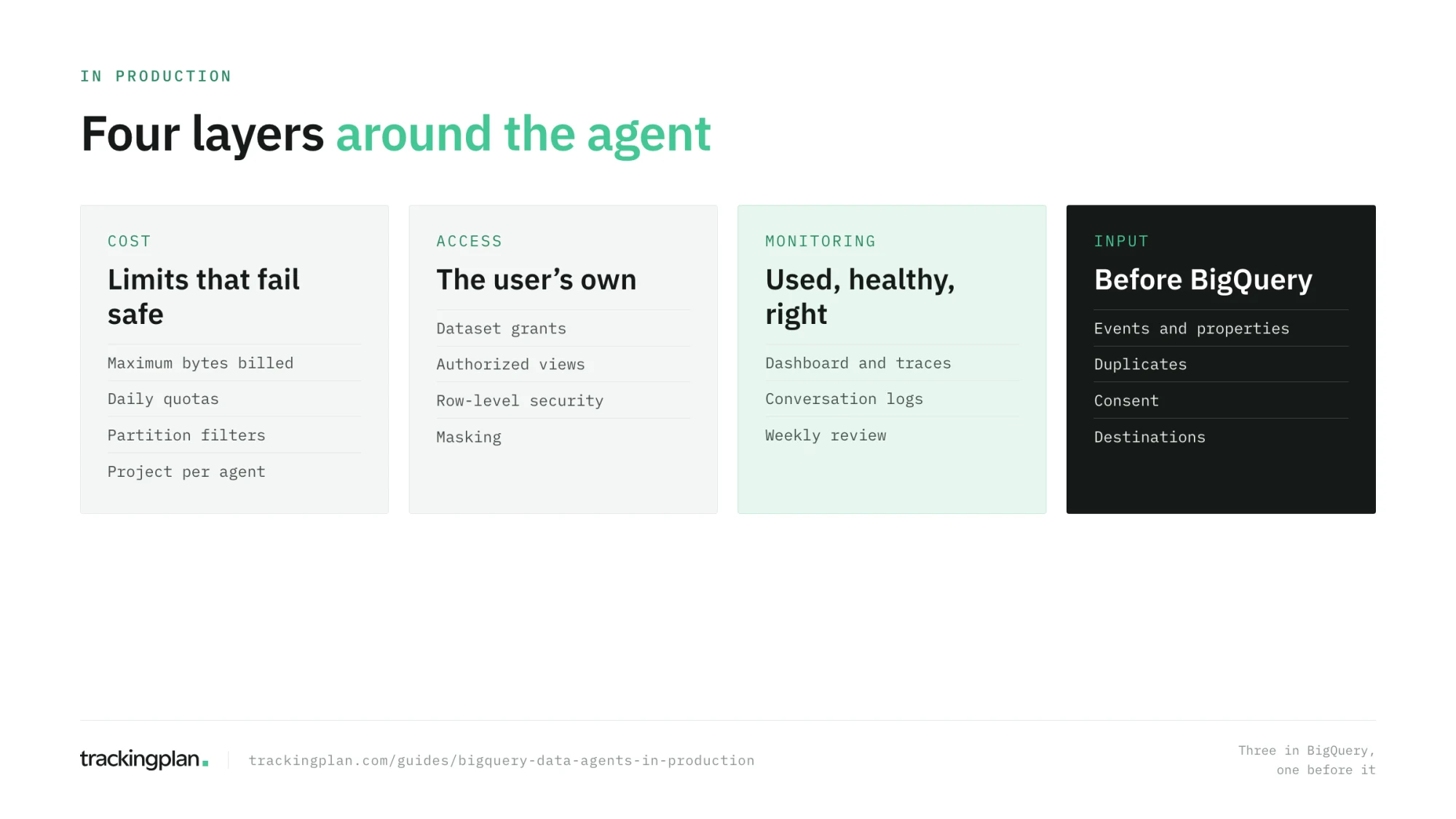
An agent used by one analyst in a preview is an experiment. An agent used by forty people every morning is a production system, with the same questions as any other: what it costs, who can see what, how you know it is working, and what happens when the data behind it is wrong.
This guide covers each of those, in the order you will need them. The first three are configuration. The fourth is the one no configuration solves.

Goal of this guide: an agent with its cost capped, its access controlled, its usage monitored, and its input data watched. You need: a tested agent from guide 8, and admin access to the project, or someone who has it.
Cost: four limits, from the query up
1. Per query: Maximum bytes billed. Set it in each agent’s settings, as in guide 5. If you leave it empty, the limit falls back to the project’s daily quota, which is far too high for one question. A query over the limit fails before it runs, at no charge.
2. Per day: custom quotas. BigQuery’s custom quotas cap the bytes queried per day for the whole project (QueryUsagePerDay) and for each user or service account (QueryUsagePerUserPerDay, unlimited by default). Set both. They apply to on-demand pricing, reset at midnight Pacific time, and a query beyond them fails with quotaExceeded. You can’t set a quota for one specific user, so the per-user value is the ceiling for everyone.
3. Per table: partitions. Partition every table the agent reads by its date column, as the pipeline from guide 9 does, and turn on Require partition filter. A question about last week then reads last week, not the whole history: pruned partitions aren’t counted in the bytes billed. It is the single biggest saving on GA4 data.
4. Per agent: a project of its own, if you need the number. Google’s cost page for the API states that tracking the cost of individual agents with labels isn’t supported, and suggests a dedicated project per agent instead.
To see where the bytes go, query the jobs history, which keeps 180 days:
SELECT
  user_email,
  DATE(creation_time) AS day,
  COUNT(*) AS queries,
  ROUND(SUM(total_bytes_billed) / POW(1024, 4), 3) AS tib_billed
FROM `region-us`.INFORMATION_SCHEMA.JOBS
WHERE creation_time >= TIMESTAMP_SUB(CURRENT_TIMESTAMP(), INTERVAL 30 DAY)
  AND job_type = 'QUERY'
GROUP BY user_email, day
ORDER BY tib_billed DESC;
Remember the second line of the bill: Google lists a token price for its Data Cloud agents, with a free trial until December 31, 2026. Check it before the trial ends, and plan for it.
Access: the agent sees what the user sees
A data agent queries with the access of the person chatting with it. That is good news: every control you set on the data applies to the agent too. Use them in this order:
- Datasets and tables. Grant BigQuery Data Viewer on the
agent_layerdataset, not on the raw export or the whole project. - Authorized views. Share a view without giving access to the tables under it. Useful when a team should see aggregated revenue but not order-level rows.
- Row-level security. A row access policy filters rows per user or group:
CREATE ROW ACCESS POLICY spain_only
ON agent_layer.sessions
GRANT TO ("group:marketing-es@example.com")
FILTER USING (country = "Spain");
- Column-level security and masking. Policy tags restrict sensitive columns, and data masking shows them hashed, nullified, or partly hidden to people who may only see them masked.
One interaction to plan for: conversation logging doesn’t record turns on knowledge sources that use row access policies, column-level security, or data masking. A view over such a table can pass the check and be logged. If you rely on logs for the weekly review from guide 8, decide which of the two you need on each source.
For agents you connect from outside the console, as in guide 11, give each one its own identity with read-only roles. A shared admin account behind an assistant is the most common way an agent gets more access than anyone intended.
How a production agent does it. Trackingplan’s agent runs behind a harness built for this: read-only SQL over its semantic layer, every query limited to the sites and apps the user has access to, and guards that catch and repair the SQL mistakes models make most often, chosen from the queries that actually failed in production. A separate model reviews anything the agent wants to run or type on a web page and blocks anything carrying your data (how it works). The BigQuery equivalent is everything in this section: read-only identities, access scoped per user, and limits that fail safe.
Monitoring: is it used, is it healthy
Two features, for two questions.
Monitoring answers “is it working?” Turn it on from the Monitoring tab of the Agents page; it is off by default and has no backfill. A Cloud Observability dashboard shows usage, users, conversations, the top agents and knowledge sources, model and tool calls, health, latency, and tokens, and a trace explorer shows the steps of each answer, kept for 30 days.
Conversation logging answers “is it right?” It writes the questions and answers to a BigQuery table, which you review weekly as in guide 8. Set an expiration on that table: rows are kept until you do.
Watch three numbers every week: questions per active user (adoption), errors and access denials (friction), and the share of sampled answers that were wrong (quality). The third is the only one that tells you whether people should trust the agent.
Data you can trust: check the input
Everything so far makes the agent read the data well, at a controlled cost, with the right access. None of it checks the data. If the purchase event lost its value in Tuesday’s release, if a consent banner started blocking GA4 in one market, or if the checkout fires purchase twice on one payment method, the exported tables carry the problem, and the agent computes revenue, conversion rates, and trends from it with full confidence.
That is the one failure no agent configuration can catch, because it happened before BigQuery. Checking for it has to happen on the tracking itself:
- Events that stop or drop. A key event that fell 40% overnight with no change in traffic.
- Properties that go missing or change type.
transaction_idabsent,valuesent as text. - Duplicates. The same transaction sent twice.
- Consent. Tags that fire before the visitor answers, or that stop firing in one market.
- Destinations. An event that reaches GA4 but not the ad platform, or the other way around.
This is the work Trackingplan does: it monitors the events, properties, and destinations your sites and apps send, on real traffic, and alerts when one breaks, before the gap reaches BigQuery. Its own agent also checks whether monitoring caught an issue on the events and dates behind a number before it answers, and when an issue changes the figure, the answer carries a Data quality note.
You can apply the same pattern to your BigQuery agent: when a tracking issue is known, write it into the agent’s instructions with its dates (“purchases from November 12 to 14 are missing their value; say so when an answer covers those dates”), add a test case for it, and remove the instruction once the data is fixed.
The production checklist
- Maximum bytes billed is set on every agent.
- Daily quotas are set for the project and per user.
- Every table the agent reads is partitioned and requires a partition filter.
- The agent reads only the
agent_layerdataset, granted per group. - Row-level security or authorized views cover anything sensitive.
- External connections use their own read-only identities.
- Monitoring and conversation logging are on, and someone reviews them weekly.
- The tracking that feeds the tables is monitored, and known issues reach the agent’s instructions.
Exercise
Apply the checklist to your agent. For each line, write down how you verified it. Then set a per-user quota low enough to trigger, ask a question that reads too much, and check that it fails with quotaExceeded rather than running.
How to know you got it right
- No single question, and no single user, can run up an unbounded bill.
- A user who can’t see a table gets the same answer from the agent: none.
- You know how many people used the agent last week, and how often it was wrong.
- You know where you would hear about a tracking issue before the agent repeats it.
Resources
- Custom cost controls and cost best practices, Google Cloud docs.
- Row-level security, column-level security, and authorized views, Google Cloud docs.
- Conversation logging and monitoring agents, Google Cloud docs.
- Same models, different answers: how Trackingplan’s agent grounds answers in tracking monitoring.
FAQ
How do I control the cost of BigQuery data agents? Set Maximum bytes billed on each agent, set custom quotas for query usage per day on the project and per user, partition the tables the agent reads and require a partition filter, and track spend in INFORMATION_SCHEMA.JOBS. Google suggests a dedicated project per agent if you need to see its cost on its own.
Can a BigQuery data agent see data a user isn’t allowed to see? No. The agent runs queries with the access of the person chatting, so IAM on datasets and tables, authorized views, row-level security, column-level security, and data masking all apply. A user who can’t read a table gets an access error from the agent too.
How do I monitor BigQuery data agents? Turn on monitoring from the Monitoring tab of the Agents page. It shows usage, users, conversations, top agents and knowledge sources, model and tool calls, latency, and tokens in a Cloud Observability dashboard, with traces kept for 30 days. Conversation logging adds the questions and answers in a BigQuery table.
What can go wrong with a data agent that no configuration fixes? The input data. If tracking dropped a property, fired an event twice, or was blocked by consent in one market, the exported tables carry the gap, and the agent answers confidently from it. The tracking has to be monitored before the data reaches BigQuery.
Next: Warehouse agent or tracking agent: which question goes where.