Consent and cookie management introduce a significant layer of complexity in modern analytics setups. As new tools, pixels, and destinations are added, ensuring that all of them respect user consent becomes increasingly difficult.
That’s why Trackingplan provides full visibility into how user consent impacts your data collection, alerting you whenever data is being sent without proper authorization.
Trackingplan addresses this by:
- Monitoring consent acceptance and rejection rates
- Detecting when data is sent without the required consent
- Automatically identifying which cookies and destinations require consent
- Alerting you when inconsistencies or risks are detected
This extends Trackingplan’s core data quality capabilities to one of the most critical and complex areas of analytics: consent compliance.
Don’t feel like reading? Here’s a quick walkthrough of Consent & Cookie Monitoring in action.
Real User Monitoring vs Synthetic Tests
Trackingplan uses real user interactions rather than synthetic tests, continuously monitoring real user interactions across your websites, apps, and other digital assets to give you an accurate view of consent behavior in real-world conditions. This ensures consent monitoring reflects real-world behavior, including different user paths, devices, browsers, or countries.
Consent Monitoring
Trackingplan’s real-time monitoring ensures that any misconfiguration, new cookie, or unexpected pixel firing is detected immediately, so you can act before it impacts compliance or data quality.
This is the view where you’ll be able to monitor consent acceptance rates across your destinations, cookies, domains, and pixels. Below is a breakdown of what you can find in each tab.
Overview Tab
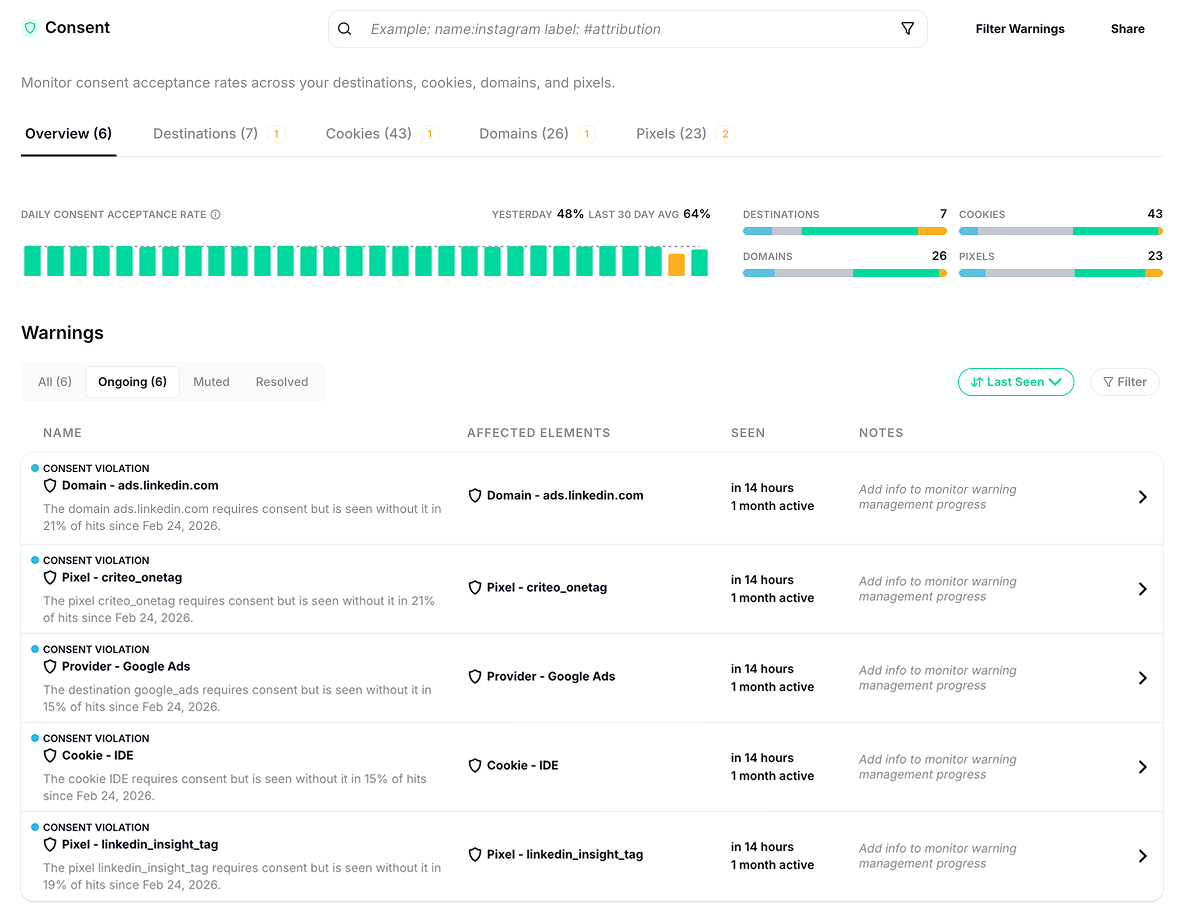
Daily consent acceptance rate
This rate is calculated daily by comparing hits with valid consent signals to the total number of observed hits for each entity.
Here, you’ll also find a breakdown across destinations, cookies, domains, and pixels, allowing you to quickly understand consent distribution at a glance:
- Blue: New elements recently detected
- Grey: Optional (no consent required)
- Green: Working as expected (consent properly collected)
- Yellow: Something that requires consent is not respecting it consistently (requires attention)
Warnings
Trackingplan’s Overview tab also provides you with a list of all active consent-related warnings. Any possible consent violation (data being sent without proper consent) or any sudden change found in consent acceptance rates will be listed here.
All consent-related warnings will also be included in Trackingplan’s Digests, ensuring your team is always aware of issues—even if they’re away from the dashboard. This allows you to get real-time alerts when consent is not collected, new cookies appear, or pixels behave unexpectedly—so you can act immediately and maintain compliance.
Consent warnings can be filtered by status (e.g., muted, resolved) and provide the following details:
- What’s happening: A short, clear explanation of the issue.
- Affected elements: Identify whether the issue impacts a specific domain, pixel, provider, or cookie.
- Seen: When it was first detected and when it was last seen.
- Notes: Add context for your team, such as current status, ownership, or additional insights related to the issue.
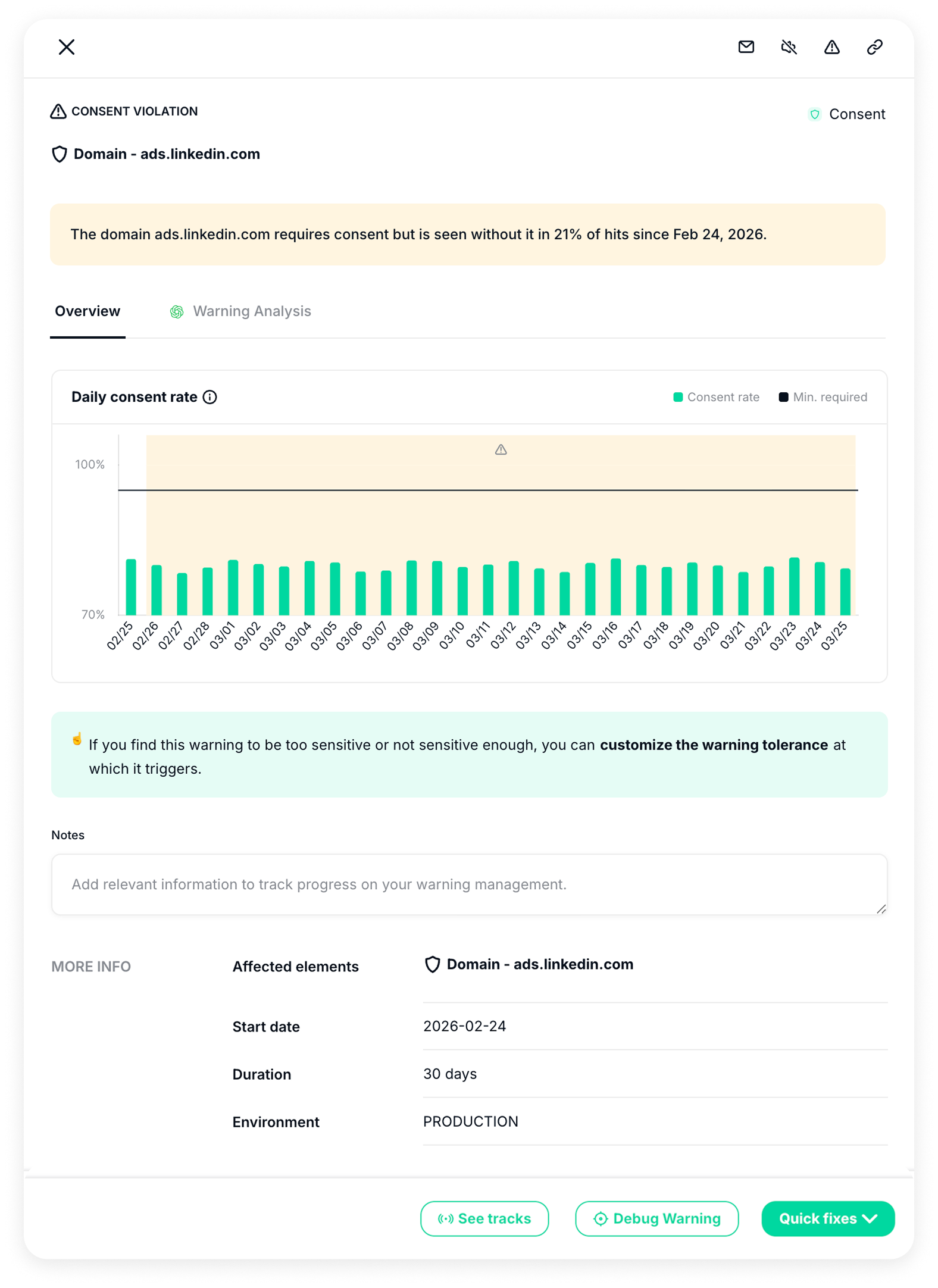
Moreover, clicking on any warning in the list takes you directly to the Warning Management view, where you can:
- See a detailed graph of what’s happening
- Adjust tolerances if needed
- Share the warning with any team member
From this view, you can also go to Warning Analysis to understand exactly what’s happening. The explanations are based entirely on your debug warning data, but presented in a way that’s easy to digest, especially for analysts who need to act quickly.
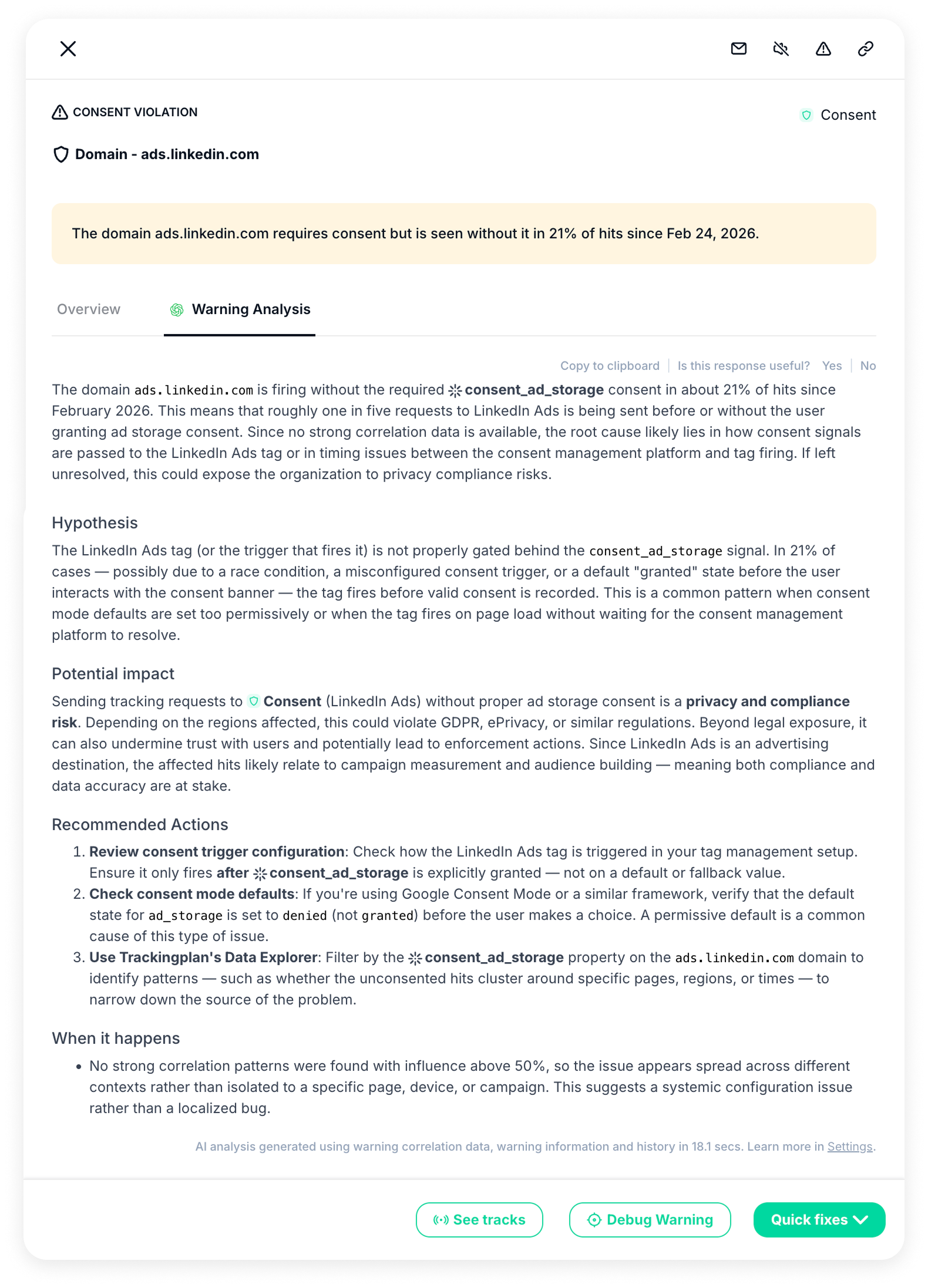
Each warning in Warning Analysis includes:
- Summary: A clear, high-level overview of the issue, combining all relevant debug data into one easy-to-understand explanation.
- Hypothesis: A plain-language interpretation of the most likely root cause, making it easy to understand and communicate.
- Potential Impact: An estimation of the possible business impact. This goes beyond technical details to show how the issue could affect performance—for example, ROAS, conversions, campaign attribution, or overall data reliability.
- Recommended Actions: Practical suggestions on what to review or fix based on the warning patterns detected.
- When it Happens: A concise overview of when and under which conditions the issue occurs, drawn directly from Trackingplan’s Warning Debug.
Learn more about the Trackingplan AI Debugger here.
Destination Tab
The Destination tab provides a domain-level filtered view of your data, allowing you to clearly analyze consent rates across all your destinations.
This means you can easily compare how consent is distributed across your different analytics and marketing providers—such as GA4, Google Ads, Meta, or other tracking pixels.
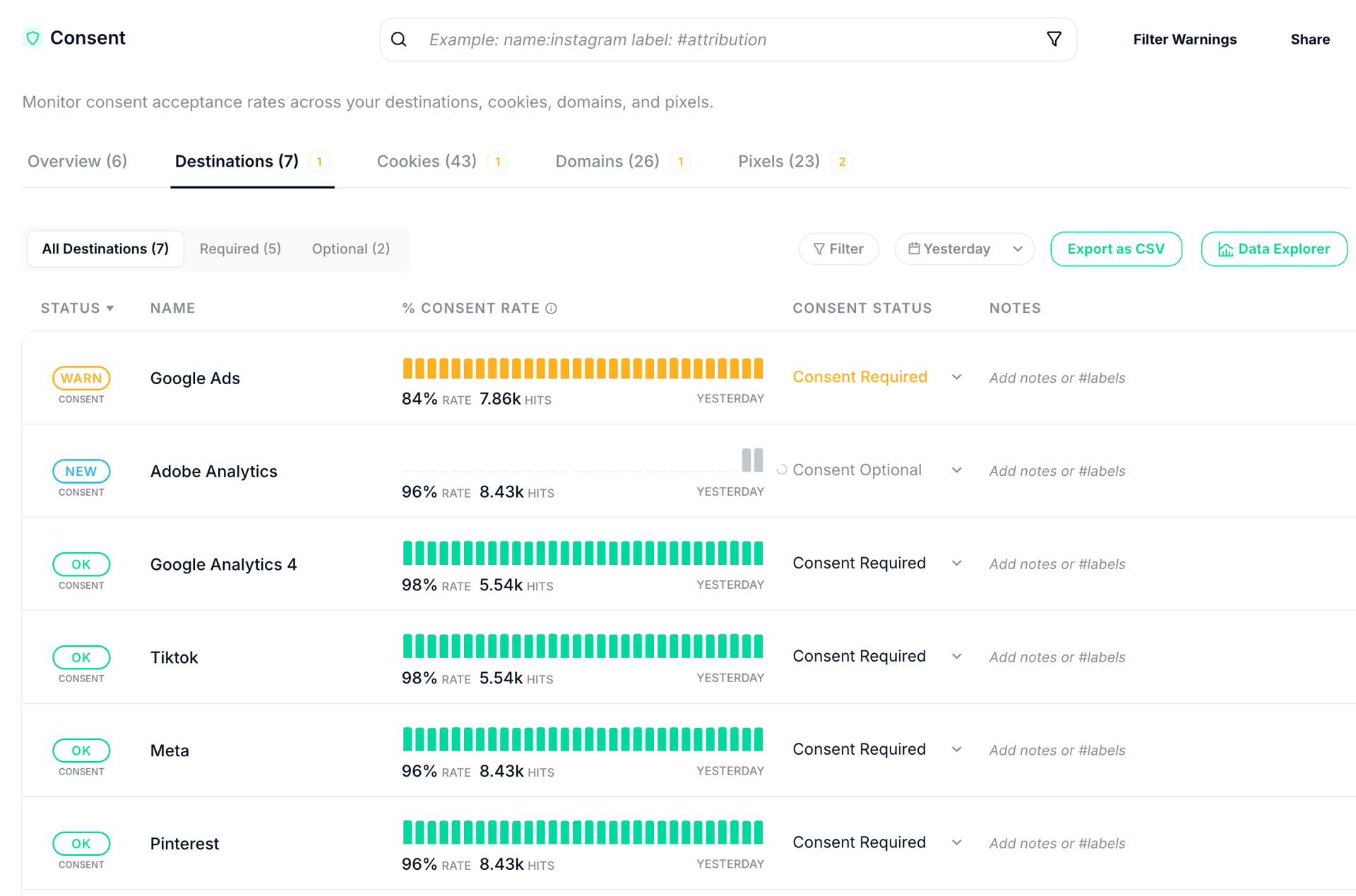
Consent Rate
The Consent Rate represents the percentage of times users explicitly grant consent.
A sudden drop in this rate may indicate:
- Issues in your CMP implementation
- Broken consent banners
- Incorrect tagging or blocking logic
This metric is available across all tabs in Trackingplan’s Cookie Monitoring and can be tracked over time, allowing you to analyze trends, identify recurring issues, or verify that fixes are effective.
Consent Status
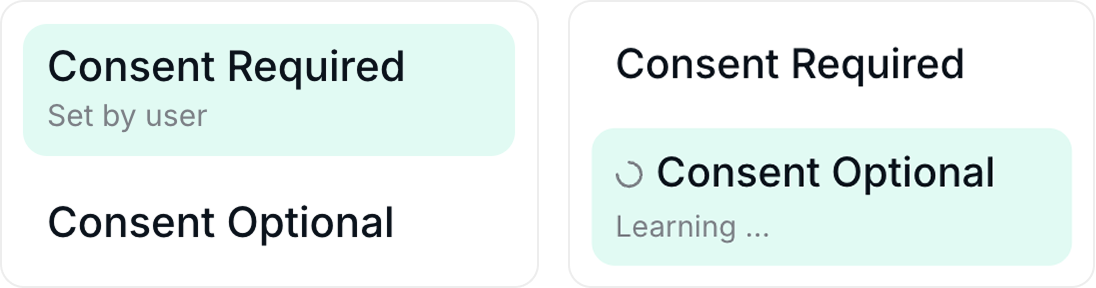
The Consent Status shows whether a cookie requires user consent, based on Trackingplan’s AI-powered learning system that continuously observes your data to understand patterns and behaviors and adapts as your digital stack evolves.
When applied to consent, this system evaluates each cookie over a period of self-learning:
- If consent is consistently granted above a certain threshold during this period, the cookie is automatically marked as “Consent Required.”
- If the system doesn’t detect any consent activity for a cookie during the learning period, it is marked as “Consent optional.”
This approach allows the system to intelligently determine which cookies need consent without manual setup. However, you can always override the decision and manually set a cookie to require consent—or not—according to your preferences.
This makes consent management more accurate and less time-consuming, while still giving you full control.
Cookies Tab
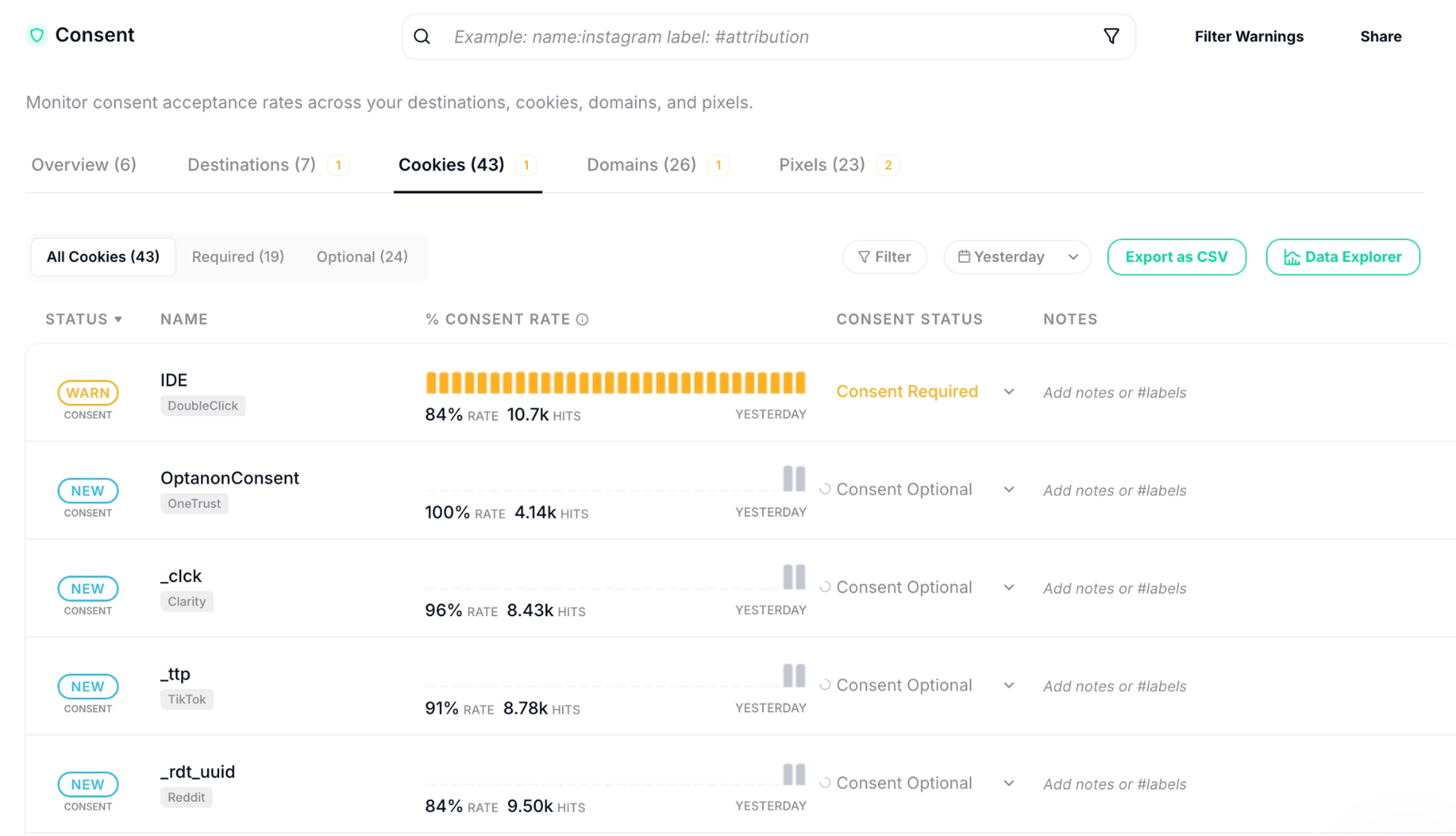
The Cookies Tab gives you a clear view of all cookies detected across your monitored domains. It’s designed to help you easily audit your cookie usage, spot unexpected or unauthorized cookies, and check that your CMP is set up correctly.
This includes:
- Classification: See which cookies are required and which are optional.
- Filtering: Quickly sort cookies based on whether they need user consent.
- Consent visibility: Identify cookies that are active even without consent.
This tab makes reviewing your cookie footprint simple, giving you full control and confidence over your tracking setup.
Domains Tab
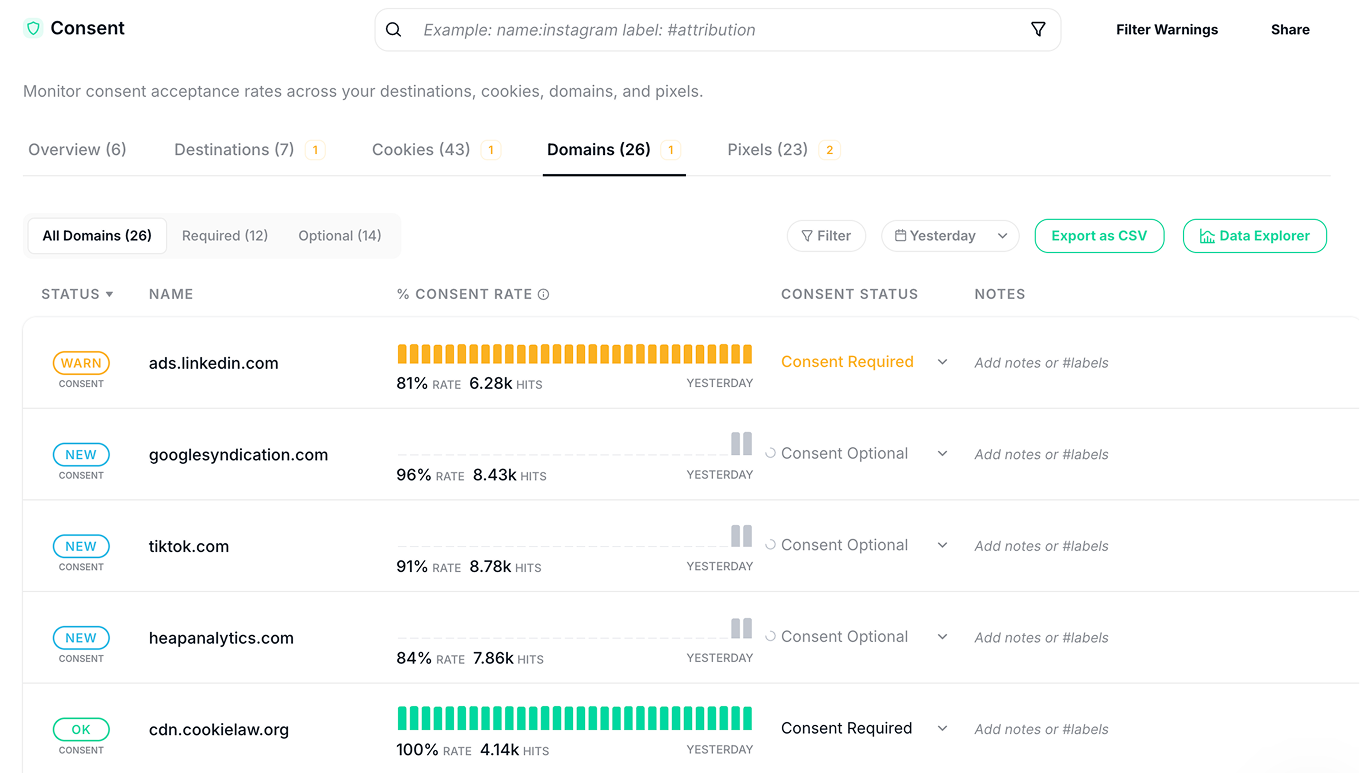
Similarly, the Domains Tab works like the Cookies Tab but filtered by domain. It lets you see how cookies and tracking behave on each monitored domain, so you can:
- Check consent rates per domain at a glance.
- Spot unexpected or missing tracking on specific domains.
- Filter and focus on the domains that need attention.
Pixels Tab
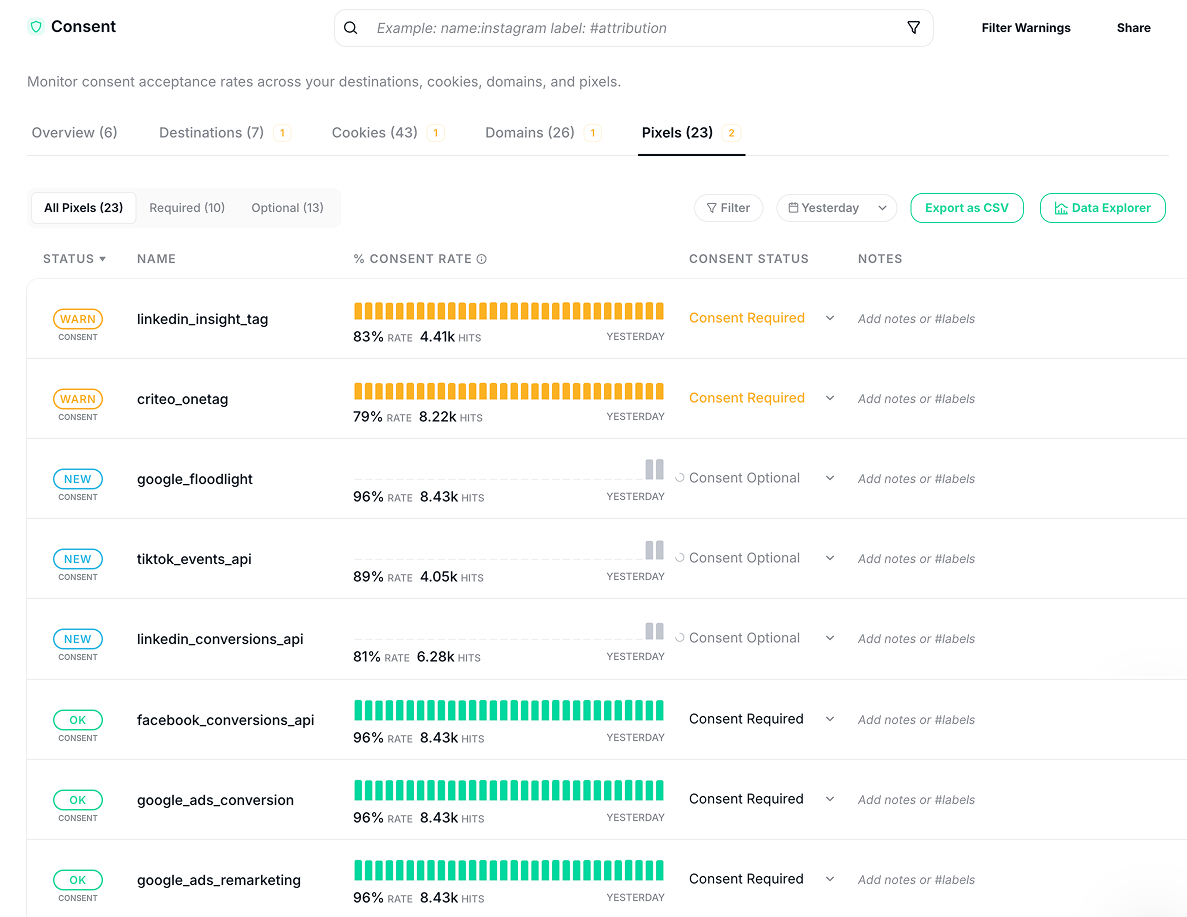
Finally, the Pixels Tab lets you take a deep dive into all tracking pixels on your sites. It helps you monitor, audit, and manage them in one place.
Key features:
- Pixel overview: See all detected pixels across your monitored domains.
- Consent tracking: Check which pixels fire with or without user consent.
- Filtering and details: Quickly focus on specific pixels, domains, or consent status.
- Troubleshooting: Identify unexpected or misconfigured pixels that could affect data accuracy.
Continue analyzing in Data and Tracks Explorer
Consent rates and compliance can be explored in more detail using Trackingplan’s Data Explorer and Tracks Explorer. These tools provide full access to all attributions, allowing you to correlate consent data by user path, language, country, and other attributes.
These contextual insights are designed to help you identify why consent issues occur in specific scenarios —whether it’s a specific browser, device, or a new GTM release—so your team can debug efficiently.
- Review consent at the event or track level.
- Filter and segment data by consent status.
- Analyze discrepancies across pages, destinations, or user paths.
- Correlate consent with other attributes to uncover patterns or issues.
Tracks Explorer also includes consent-related attributes for each track, giving you the ability to:
- Inspect tracks that were sent with or without consent
- Filter by consent status to focus on potential issues
- Deep dive into event-level discrepancies to identify root causes
These tools enable custom analysis and in-depth investigation, helping your team maintain accurate, compliant, and high-quality tracking across all platforms.