
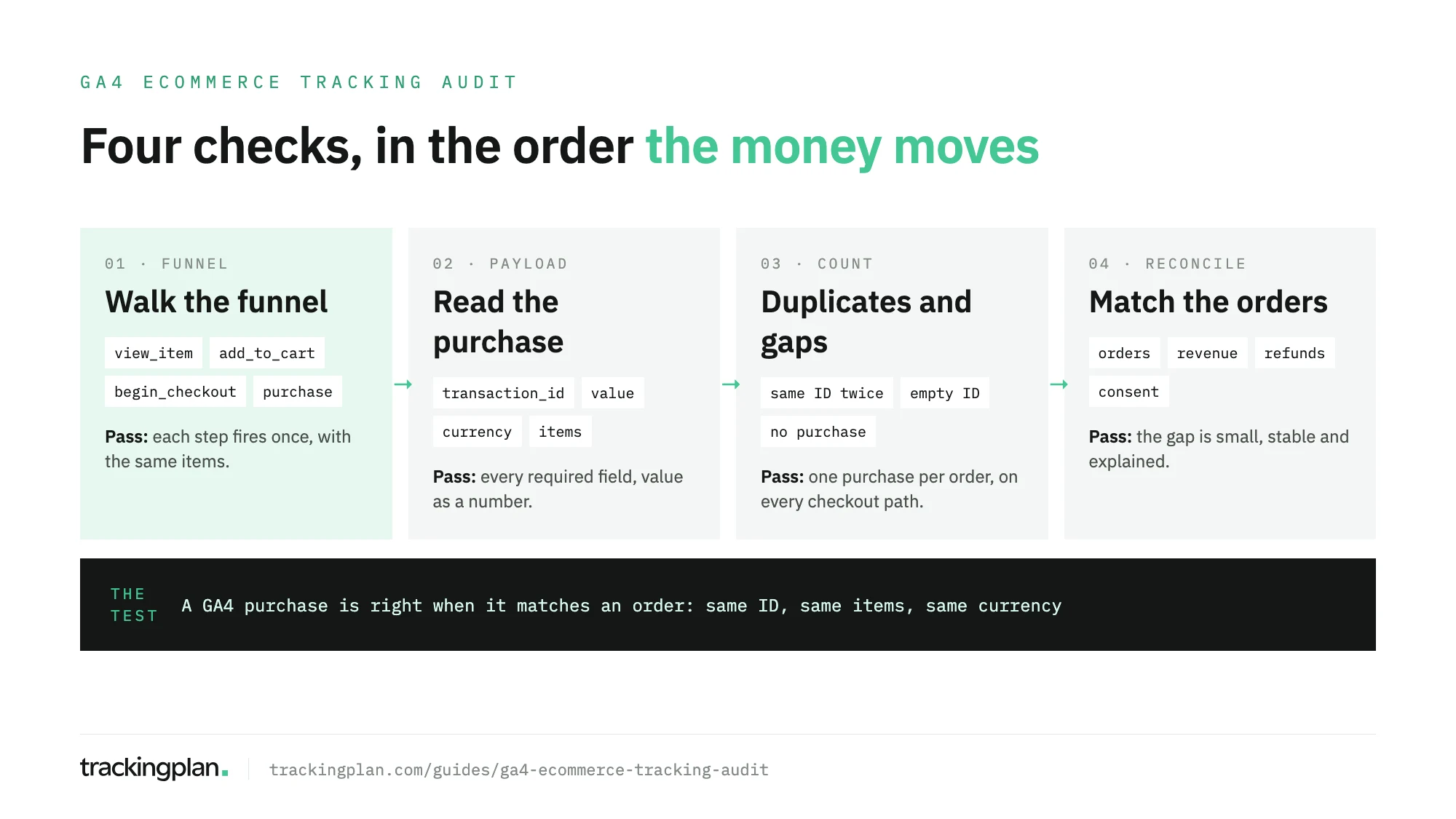
To audit ecommerce tracking in GA4, walk the funnel from view_item to purchase and confirm that each event fires once with its items, then check that every purchase carries transaction_id, value, currency and items. Then hunt for duplicate and missing purchases, check refunds and consent, and match GA4 transactions to your orders by ID.
That last step is the one that decides whether the audit passed. Everything before it explains why the numbers don’t match.
This guide is the ecommerce part of a Google Analytics audit. It assumes ecommerce is already set up; if it isn’t, start with the GA4 ecommerce setup guide.

What the audit checks
| Check | Where you look | It passes when |
|---|---|---|
| Funnel events | DebugView, GTM Preview, the Network tab | Each step fires once, with the same items |
| Purchase payload | The purchase hit | transaction_id, value, currency and items are there, in the right format |
| Duplicates and gaps | An exploration by Transaction ID | One purchase per order, on every checkout path |
| Value and currency | GA4 revenue metrics against the backend | Revenue means the same thing on both sides |
| Refunds | The refund event | Refunded orders reach GA4 at all |
| Consent | The Network tab, per consent state | No hit before consent, no lost purchases after it |
| Reconciliation | GA4 transaction IDs joined to order IDs | The gap is small, stable and explained |
Start from the event list Google expects
You can’t audit against nothing. Google’s developer guide lists the recommended events: view_item_list, select_item, view_item, add_to_cart, add_to_wishlist, view_cart, remove_from_cart, begin_checkout, add_shipping_info, add_payment_info, purchase, refund, view_promotion and select_promotion.
Write down which of them your store should send, and on which pages. A store without wishlists doesn’t need add_to_wishlist. A store that sells subscriptions through a hosted checkout may never see add_payment_info on its own domain. The list is your expected state; the audit compares the site with it.
Then the fields. Google’s event reference sets these for purchase:
| Parameter | Status | What Google says |
|---|---|---|
transaction_id | Required | It “helps you avoid getting duplicate events for a purchase” |
items | Required | Each item needs an item_id or an item_name |
value | Required for reporting | The sum of price * quantity for all items, without shipping or tax |
currency | Required if value is set | ISO 4217, set at the event level |
The ecommerce dataLayer guide shows the push for every event if you need the shape for each one.
Walk the funnel
Open GTM Preview and GA4 DebugView, and buy something. Go through the whole journey a customer takes: a category page, a product, the cart, the checkout steps, the confirmation. Do it on desktop and on mobile, as a guest and logged in, and with each payment method you offer.
At every step, check three things:
- The event fires once. Two
add_to_cartfor one click is a trigger problem, not a keen customer. - The items are the same items. The
item_idyou saw inview_itemshould be the one inadd_to_cart,begin_checkoutandpurchase. A product reported by SKU on one page and by name on another splits it in two in the reports. - The step exists at all. Checkout redesigns tend to drop the middle steps first.
For the volume view, build a funnel exploration in Explore with the same steps. Google’s Analytics Help describes it as a way to “visualize the steps your users take to complete a task”. A step that shows zero, or a drop far steeper than the steps around it, points at the page to test by hand.
Read the purchase payload
Open the purchase hit itself, in DebugView or in the Network tab, and read it field by field.
transaction_idis there, is unique per order and contains no customer data. Google’s Analytics Help says the ID shouldn’t contain information that identifies customers. An email address or a phone number used as an order reference goes on the privacy list too.valueis a number, not a string, and follows the definition you agreed: Google’s reference leaves shipping and tax out ofvalueand gives them their own parameters.currencyis a three-letter ISO 4217 code and matches the market. A store that sells in euros and pounds from one GTM container should never sendEURon the UK checkout.itemsis complete: each item has an ID or a name, a price and a quantity, and the sum ofprice * quantityequalsvalue.
A purchase without currency still counts as a purchase. It just doesn’t count as revenue, which is the kind of failure no report announces.
Find duplicate and missing purchases
Google deduplicates part of the problem for you. The same help page says “Google Analytics deduplicates purchase events with the same transaction ID” from the same user. Two cases slip through:
- The same order with two IDs. A confirmation page that builds the ID from a session value, or two tags that each read a different field, sends two valid purchases for one order.
- An empty ID. Google warns: “Don’t send an empty string as the transaction ID.” If you do, GA4 deduplicates every purchase that carries that empty value, and real orders disappear.
To find both, build a free-form exploration with the Transaction ID dimension and the Ecommerce purchases metric. Sort by purchases: anything above one is a duplicate that survived. Then look for a row with an empty or (not set) ID. The guide to duplicate events in GA4 covers the usual causes, from double tags to confirmation page reloads.
Missing purchases are harder, because they leave nothing to sort. Break transactions down by device, browser, country and payment method, and compare each slice with the same slice of orders. A payment provider that redirects off-site and never sends the customer back to your confirmation page shows up as one payment method with almost no GA4 transactions.
Check value and currency against the backend
GA4 has several revenue metrics, and they don’t mean the same thing. From Google’s dimensions and metrics reference:
- Purchase revenue is “the sum of revenue from purchases made on your website or app, minus any refunds given.”
- Gross purchase revenue is the same sum before refunds.
- Item revenue, in the Ecommerce purchases report described in Google’s report documentation, is “the total revenue from items only, excluding tax and shipping.”
Your finance team probably reports something else: gross with tax, net of discounts, after returns. Before you compare a single number, agree which backend figure corresponds to which GA4 metric. Many revenue mismatches end there, as two definitions of one word.
For currency, take one week of orders in each currency and compare them with GA4 filtered by the same currency. A market that sends the wrong code shows up as revenue in the wrong place, or as no revenue at all.
Check refunds
Google’s guide says to “measure refunds by sending a refund event with the relevant transaction_id specified”, and recommends including item information to get item-level refund metrics.
In most stores, refunds happen in the back office, days after the visit, with no browser involved. So the first question is whether anything sends the refund event at all. Pick five refunded orders from last month and look for their transaction IDs in a GA4 exploration with Refund amount. If none appear, Purchase revenue in GA4 is gross revenue under another name, and every comparison with net figures will be off by your refund rate.
Check consent
Consent decides which purchases GA4 receives. Google’s tag platform documentation describes two setups. In basic mode, tags wait for the visitor’s choice, and after a refusal “no data is transferred to Google at all”. In advanced mode, tags load with consent denied and send cookieless measurements.
Audit it in a clean browser session, once per consent state:
- Before the banner is answered, check which requests leave in the Network tab and that they match the mode you chose.
- After a refusal, complete a purchase and confirm that nothing leaves in basic mode, or that only cookieless measurements leave in advanced mode.
- After acceptance, complete a purchase and confirm the
purchasehit leaves with all its fields.
Then look at the reconciliation by country. If the banner changed last month in one market and GA4 transactions fell there while orders held, look at consent before you look at sales. The consent mode guide covers the setup.
Reconcile GA4 purchases with orders
This is the test the rest of the audit prepares. Export the transaction IDs from your exploration for one closed week, export the order IDs for the same week from the backend, and join them:
- In both: compare value, currency and items.
- Only in the backend: orders GA4 never saw. Group them by payment method, device and country to find the pattern.
- Only in GA4: test orders, duplicates with a different ID, or orders cancelled before they reached the backend’s report.
Some gap is expected: ad blockers, declined consent, customers who close the tab before the confirmation page loads. What you report is a gap that is large, growing or concentrated in one place. The guide to reconciling GA4 with your backend goes through the join step by step, including time zones and late events.
After the audit: keep the purchase event honest
An audit proves the tracking was right on the day you tested it. The next checkout release, a renamed dataLayer key or a new payment provider can undo it, and GA4 will keep rendering reports with less revenue in them.
Trackingplan watches the hits your site sends to GA4 on real traffic and flags “missing properties, dead tags, duplicate fires, broken triggers”, so a purchase that loses its currency or starts firing twice shows up as it happens. On top of that monitoring, its audits are specific checks you schedule daily or weekly, or run on demand, from a library that includes key events, consent implementation and the data layer. Each run ends with a verdict: OK, Needs attention or Inconclusive. You can also ask its agent from Claude, ChatGPT or Cursor through the MCP endpoint: it investigates before it answers and shows the queries behind every answer.
To see it on your own store, the free analytics audit works like this: install one tag, Trackingplan learns your GA4, GTM and pixel setup from real traffic for 2 days, and then you get 7 days free to audit it. For an agency auditing many stores, Fact put the manual alternative plainly: checking every case by hand “could easily take more than 200 hours”.
FAQ
How do I audit ecommerce tracking in GA4?
Walk the funnel from view_item to purchase and check that each event fires once with its items, then read the purchase payload for transaction_id, value, currency and items. After that, look for duplicate and missing purchases, check refunds and consent, and match GA4 transactions against the orders in your backend by transaction ID.
Which parameters does the GA4 purchase event need?
Google’s event reference marks transaction_id and items as required, and value and currency as required for revenue reporting: currency is required if you set value. Each item needs an item_id or an item_name.
Does GA4 remove duplicate purchases?
Google Analytics deduplicates purchase events with the same transaction ID from the same user. It doesn’t fix a purchase sent with two different IDs, and an empty string as the transaction ID makes it deduplicate every purchase that carries one.
How often should I audit GA4 ecommerce tracking?
Fully after a checkout change, a new payment method, a platform migration or a consent banner change. Between those, compare transactions with orders every week, and monitor the purchase event on real traffic so a missing field shows up the day it breaks.