
TL;DR The Google Analytics MCP server worth starting with is Google’s own:
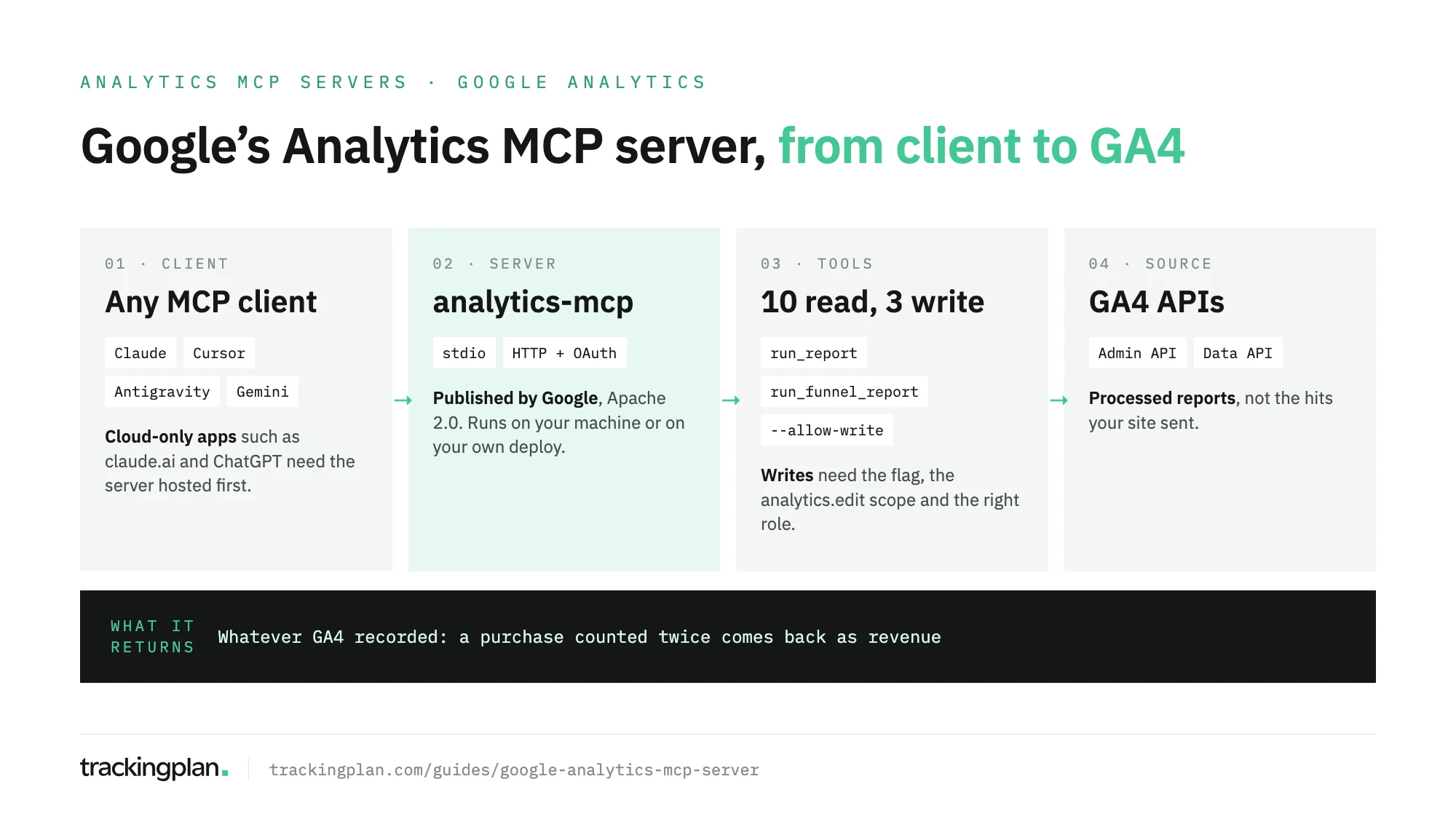
analytics-mcp, open source, published by Google. It reads GA4 through the Admin API and the Data API, exposes ten read tools, and adds three narrow write tools only when someone starts it with--allow-write. It runs on your machine over stdio, or you host it over HTTP yourself. It returns what GA4 recorded, broken events included.
This page is about the server itself: who publishes it, what it exposes, where it runs and where it stops. It’s part of our map of analytics MCP servers. For the step-by-step in a specific assistant, see connecting GA4 to Claude or connecting GA4 to ChatGPT.
What is the best MCP server for Google Analytics 4?
Google’s own Google Analytics MCP server. It’s published by Google in the googleanalytics/google-analytics-mcp repository on GitHub (Google’s README), installed from PyPI as analytics-mcp, licensed Apache 2.0, and documented on Google’s developer site.
The case for it is short. It’s the one Google maintains. It talks to GA4 through Google’s two public APIs and nothing in between. And you control the credentials: the server sees the properties your account or service account can see, and nothing else.
The alternatives you’ll find in search are third-party servers and connector services. Some are useful. They also hold a Google token on your property, on infrastructure you don’t control. If a team needs one, read its code and its scopes first, the same way you’d review a GTM template before publishing it.
What the server is
Four facts settle most questions.
- Publisher: Google, in the
googleanalyticsGitHub organisation. It also appears in the open-source section of Google’s own list of the servers it publishes. - APIs: the Google Analytics Admin API, for accounts, properties and configuration, and the Google Analytics Data API, for reports.
- Runtime: Python 3.10 or higher, run with
pipxoruv. - Auth: Application Default Credentials with the
analytics.readonlyscope, for your own user or a service account with at least the Viewer role on the property.
What it isn’t: a Google-hosted endpoint. Google Cloud’s product list of managed remote MCP servers covers BigQuery, Cloud Run, Workspace and dozens more, but not Google Analytics. You always run this one yourself.
The tools it exposes
The README groups 13 tools in three blocks. Ten read. Three write, and only appear behind a flag.
| Tool | What it does | Type |
|---|---|---|
get_account_summaries | Lists the accounts and properties the credentials can see | Read |
get_property_details | Returns details about a property | Read |
list_google_ads_links | Lists the Google Ads accounts linked to a property | Read |
list_property_annotations | Returns a property’s annotations | Read |
list_key_events | Returns the key events defined on a property | Read |
get_custom_dimensions_and_metrics | Lists a property’s custom dimensions and metrics | Read |
run_report | Runs a report through the Data API | Read |
run_funnel_report | Runs a funnel report | Read |
run_conversions_report | Ad costs, conversions, ROAS and attribution models | Read |
run_realtime_report | Runs a realtime report | Read |
create_property_annotation | Creates an annotation | Write |
create_custom_dimension | Creates a custom dimension (Editor role) | Write |
create_key_event | Marks an event as a key event (Marketer or Editor role) | Write |
No tool deletes anything. No tool reads the BigQuery export, and none reads Google Tag Manager. If you want raw events, that’s a BigQuery connector; our guide to connecting BigQuery to Claude covers it.
Which clients it works with
Any MCP client that can start a local process or reach an HTTP server. Google’s setup page and the README document these, each with its own config:
| Client | Where it’s documented | How the server starts |
|---|---|---|
| Claude Desktop | Google’s setup page | pipx run analytics-mcp in claude_desktop_config.json |
| Claude Code | Setup page and README | claude mcp add analytics-mcp … -- pipx run analytics-mcp |
| Cursor | Google’s setup page | uvx --from analytics-mcp google-analytics-mcp in mcp.json |
| Antigravity | Google’s setup page | pipx run analytics-mcp in its MCP config |
| Gemini CLI, Gemini Code Assist | README | pipx run analytics-mcp in ~/.gemini/settings.json |
| claude.ai, ChatGPT | Neither | Only with the server hosted over HTTPS |
Two notes. Google’s setup page now marks Gemini CLI as deprecated and points to Antigravity, while the README still shows the Gemini CLI config. And assistants that only connect from the cloud, claude.ai on the web and ChatGPT, can’t reach a process on your laptop. For those you host the server first. The Claude and ChatGPT guides linked above walk through each.
Local or hosted
The server has two modes.
Local, over stdio. The default. Your MCP client starts analytics-mcp as a process on your machine, and it uses your Application Default Credentials. One person, one machine, no network exposure. This is the right start for an analyst in Claude Desktop, Claude Code or Cursor.
Hosted, over HTTP. Start it with --transport http, usually with --stateless-http, and deploy it, for example with the Dockerfile and the Cloud Run example in the README. Each person then signs in with their own Google account, through one of two options:
- Agent framework OAuth, such as Google’s ADK, where the agent shows a sign-in button. Paired with
--stateless-http, the README describes it as horizontally scalable. - The built-in OAuth 2.1 server, with
--oauth, a Google OAuth client ID and secret, and an issuer URL.
Plan for one limit in the second option. The README says the built-in provider keeps client registrations, pending authorisations and refresh tokens in process memory. Run a single instance, or sticky sessions, and expect everyone to sign in again after a restart. The Cloud Run example uses --max-instances 1 for that reason.
Read-only by default, three writes by choice
Google’s setup page says the server “is available for read requests only”. The README lists three write tools. Both are right: they describe different starts.
The write tools need three things at once:
- The
--allow-writeflag, orANALYTICS_MCP_ALLOW_WRITE, when the server starts. - Credentials with the
analytics.editscope. - The right role on the property: Editor for custom dimensions, Marketer or Editor for key events.
Without the flag, the client never sees them. On the client side, keep write tools on approval anyway. Better to approve each one than to find a key event nobody asked for in next month’s reports.
Limits to plan for
- It sees what the account sees. A property the credentials can’t open doesn’t exist for the model.
- It answers with GA4’s processing. GA4 has several ways to count the same thing, and the answer changes with the dimensions, metrics and date range. Ask the assistant to name the ones it used.
- No Google-hosted URL. Someone on your team owns the deployment, the OAuth client and the restarts.
- No raw hits. The server has no idea what your site sent, only what GA4 kept.
What the server can’t see
The last limit is the one that matters most. The server hands the model what GA4 stored. If purchase fires twice on the thank-you page, a release dropped transaction_id, or consent blocks the tag in one market, run_report returns the damaged total. The model can’t tell a broken event from a real trend, so it explains both with the same confidence. Two guides cover the usual suspects: duplicate events in GA4 and broken events with missing properties.
Validate the data before you give it to an agent. Trackingplan watches the hits your site and apps send to GA4 and every other destination on real traffic, with the dataLayer and the consent state, and flags missing properties, duplicate fires and consent breaches as they appear. As our home page puts it, an AI agent can only reason about what it can see.
Trackingplan MCP puts that next to the GA4 numbers in Claude, ChatGPT or Cursor. Each person signs in as themselves, with no API key, and asks Trackingplan what fires, what’s broken, what the consent state was and, from the ad accounts an admin connects, what each campaign spent. Any change it proposes to the plan waits for your approval. The setup is in the MCP endpoint docs. One connector for the numbers, one for whether to believe them.
FAQ
What is the best MCP server for Google Analytics 4?
Google’s own Google Analytics MCP server, published by Google in the googleanalytics/google-analytics-mcp repository and on PyPI as analytics-mcp. It reads GA4 through the Admin API and the Data API, it’s open source under Apache 2.0, and it starts read-only. Third-party servers exist, but they hold a Google token for you.
Is the Google Analytics MCP server free?
The server is open source under the Apache 2.0 licence, and you run it yourself. You need a Google Cloud project with the Google Analytics Admin API and Data API enabled, and Viewer access to the GA4 property.
Does Google host a remote Google Analytics MCP server?
Not as of November 2026. Google Cloud’s list of products with a Google-managed remote MCP server doesn’t include Google Analytics. You run the server on your computer, or deploy it yourself over HTTP, for example on Cloud Run, as the README describes.
Can the Google Analytics MCP server change my GA4 property?
Only if whoever starts it adds --allow-write and the credentials carry the analytics.edit scope. Then three tools appear: create_property_annotation, create_custom_dimension and create_key_event. None of the tools deletes anything.
Does the server read BigQuery export data?
No. It calls the GA4 Admin API and Data API, so it answers with the same processed numbers as the GA4 reports. To query raw events from the BigQuery export, you need a BigQuery connector instead.