
GTM server-side is a second Google Tag Manager container that runs on a server you control: the page sends its hits to your own domain, and the server container decides what reaches GA4, Google Ads, Meta, TikTok and the rest. Setting it up takes five steps: create a server container, provision a tagging server, serve it from your own domain, point the Google tag at it with server_container_url, and test it in preview mode.
This guide walks through each step with the settings Google’s documentation gives today, then covers what changes in GA4 with GA4 server-side tracking, ad platforms, the migration from client-side tags and how to keep the setup correct after release. If you are still deciding whether to move at all, start with the concept and the trade-offs in our pillar on server-side tracking.
How a server container works
A web container runs in the visitor’s browser. A server container doesn’t: it receives HTTP requests, and clients inside it turn each request into an event. Google calls clients the adapters between the software on the visitor’s device and your server. The GA4 client comes pre-installed. Once a client has claimed a request, triggers decide which tags fire, and each tag sends the event to a vendor.
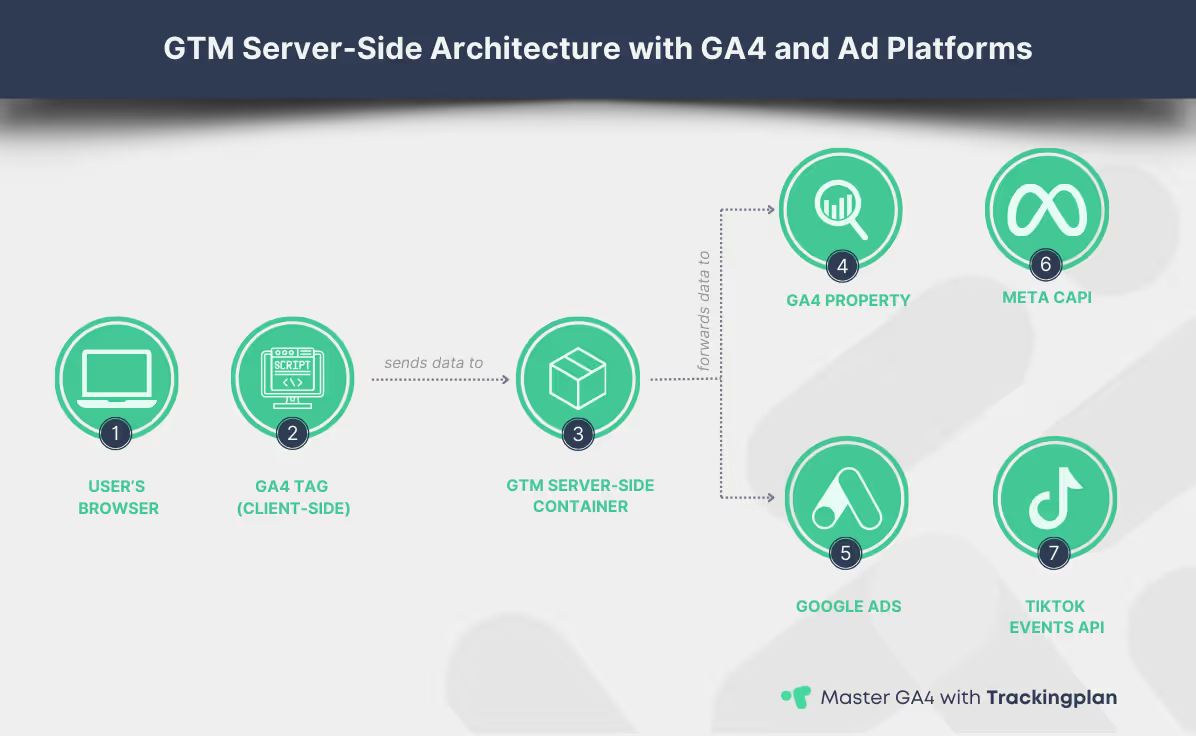
Two consequences matter for the rest of the setup:
- One request, many destinations. The browser sends one GA4 request to your domain, and the server fans it out. Fewer vendor scripts run on the page.
- You shape the payload. Google’s introduction puts it plainly: only you have access to the data in the server until you choose to send it elsewhere. You can drop fields, add server-side data or block a vendor.
Explore Google’s documentation for a deeper look at the container model and deployment options. For the short definition, see what sGTM means.
What you need before you start
| Requirement | Why |
|---|---|
| Publish rights on your GTM account and web container | You will add a server container and edit the Google tag |
| A Google Cloud billing account, or your own hosting | The tagging server has to run somewhere |
| Access to your DNS, CDN or load balancer | To serve the container from your own domain |
| A GA4 property and its Measurement ID | GA4 is the stream the server container receives first |
| A written list of the events you send today | You will compare before and after |
The last row is the one teams skip. Without a list of today’s events and parameters, nobody can prove the server container sends the same data the browser did.
Step 1: create the server container
In Tag Manager, open your account, create a container and set its target platform to Server. Tag Manager then asks how you want to provision the tagging server. That choice is step 2.
Step 2: provision the tagging server
Google gives two routes. Pick one per container.
Automatic provisioning on Cloud Run
This is the option Google recommends: Tag Manager creates a new Google Cloud project and a Cloud Run tagging server for you, along with the preview server that preview mode needs. If you already have a Google Cloud project, Google’s Cloud Run setup guide covers provisioning into it.
The automatic setup is fine for testing. For production, Google’s Cloud Run guide makes three recommendations:
- At least two instances, to reduce the risk of data loss if a server goes down.
- A maximum you can afford, because
max-instancesis the worst case you pay for. Google’s example uses 2 to 10 instances, which it expects to handle 35 to 350 requests per second depending on your tags. - A billing alert, so a traffic spike doesn’t turn into a surprise invoice.
Older setups ran on App Engine. If yours did and it no longer receives traffic, Google’s Cloud Run guide says to disable the App Engine application to avoid unexpected charges. For the original deployment model, see Google’s App Engine documentation.
Manual provisioning on your own host
If the container has to run outside Google Cloud, follow Google’s manual configuration guide. You run Google’s Docker image (gcr.io/cloud-tagging-10302018/gtm-cloud-image:stable) twice, with different settings:
| Server | Settings | How many |
|---|---|---|
| Preview server | CONTAINER_CONFIG and RUN_AS_PREVIEW_SERVER=true | Exactly one, no autoscaling |
| Tagging servers | CONTAINER_CONFIG and PREVIEW_SERVER_URL | A cluster, all with the same values |
CONTAINER_CONFIG is the string Tag Manager shows under Manually provision tagging server. Both servers need an HTTPS URL. Google also asks for a load balancer or CDN timeout longer than 20 seconds, or preview mode won’t work, and no more than one vCPU per server, because extra vCPUs go unused and hurt autoscaling. The /healthy endpoint returns 200 when a server is fine.
Managed hosting providers sell the same container as a service, with the domain and scaling handled for you. The container works the same way; you trade control of the infrastructure for less work.
What it costs
| Setup | Google’s figure |
|---|---|
| Default single server | Free in most cases, per Google’s overview |
| Production server on Cloud Run | About $45 a month per server (1 vCPU, 0.5 GB of memory) |
| Production minimum | Two instances, so roughly $90 a month before traffic grows |
Network traffic adds to that. Google’s overview and the pricing calculator it links are the place to check current numbers for your volume.
Step 3: serve the container from your own domain
The container works on its default run.app URL, but that URL can only set JavaScript cookies. To let the server set durable first-party cookies, the tagging server and your site have to share a domain. Google’s custom domain guide compares three options:
| Option | Example | What you configure | Cookies |
|---|---|---|---|
| Same origin (Google’s best practice) | www.example.com/metrics | A CDN or load balancer that forwards the path | Full server-set cookie benefits |
| Subdomain | metrics.example.com | A DNS record for the subdomain | Full server-set cookie benefits |
| Default domain | xyz.run.app | Nothing | JavaScript cookies only |
Once the domain resolves, go to Admin > Container Settings in the server container, enter it in Server container URL and save.
A first-party domain also changes how ad blockers see your requests, since the browser now talks to your own domain instead of a vendor’s. Don’t count on it for every visitor: privacy browsers and some blockers still flag known paths, and consent applies to every hit either way.
Step 4: send GA4 hits to the server container
This is the step that connects the two containers. Google’s server-side fundamentals course does it in four moves.
- Web container, Google tag. Open your Google tag (or create one with your tag ID). Under Configuration settings, add a parameter named
server_container_urland set its value to your server container’s URL: the custom domain from step 3, or the default URL while you test. Keep it on All Pages. - Server container, GA4 client. Open Clients and check the GA4 client. Leave Default GA4 paths on, because parsing incoming GA4 requests is the client’s job.
- Server container, GA4 tag. Create a tag of type Google Analytics: GA4. It inherits the Measurement ID and event parameters from the client, so the defaults work.
- Server container, trigger. Create a custom trigger on Some Events where the built-in Client Name variable equals the name of your GA4 client. Attach it to the GA4 tag.
If your site sends a Content-Security-Policy header, add the server container URL to img-src and connect-src, and to frame-src if the Google tag uses its service worker. An X-Frame-Options header must not block iframes from that URL either. Google’s guide to sending data to the server container lists both.
The same server container also accepts GA4 Measurement Protocol hits from your backend: a second route for events that never pass through a browser.
Step 5: preview and debug
Click Preview in the server container, then load a page of your site that has the Google tag. In the Summary panel, you should see incoming requests such as collect?v=2. Open one and check three things:
- Request: the client that claimed it is your GA4 client.
- Tags: the GA4 tag fired, and the outgoing request went to Google Analytics with a 2xx status.
- Event data: the parameters you expect are there, with the values and types you expect.
Then open GA4 DebugView or Realtime and confirm the same events arrive. For the failures that show up most often (an unclaimed request, a tag that never fires, a field lost between web and server), see the server-side section of our GTM debugging guide.
GA4 server-side tracking: what changes in GA4
GA4 server-side tracking means the Google tag on the page sends its hits to your server container, and the container forwards them to Google Analytics. Steps 4 and 5 make the hits flow. Three settings decide what reaches your GA4 reports once they do, and one check confirms it.
Client ID and cookies
The GA4 client has a setting for how it identifies visitors. Google’s fundamentals course starts with JavaScript managed, the only option that works until the container runs on your own domain. With the domain from step 3 in place, Server managed lets the tagging server manage its own client ID and use it for every measurement it processes.
That option has one condition. Google’s Analytics Help article on tagging best practices says every measurement for the stream must then go through the server tag, and none directly to Google. It recommends making the tag that sends to your server container the first tag on the page. The article lists this among the practices that keep traffic out of unassigned, direct and (not set).
Consent
You configure consent mode in the web container only. The Google tag adds the visitor’s choices to each request it sends to the server, the GA4 client reads them, and Google’s tags in the server container adjust what they send. With analytics_storage denied in advanced consent mode, no Analytics cookies are set or read, in the browser or on the server. The details are in Google’s Tag Manager documentation.
Events from your backend
The GA4 client also accepts Measurement Protocol events from apps and servers, and forwards them to Google Analytics. Google’s send-data guide warns that this route doesn’t derive geographic and device information from the events. Backend events arrive without the location and device a browser hit carries, so don’t compare them one to one with web events in reports split by country or device.
How to check it in GA4
Open your browser’s Network tab on a page of your site: GA4 requests should go to your tagging server’s domain, not to google-analytics.com. Then run step 5 again and compare the event counts in GA4 Realtime with the requests the server preview shows. If the two don’t match, look for hits that still go straight to Google, or for a consent state that holds them back.
Add Google Ads and other destinations
GA4 is usually the first stream. Once it flows, the same events feed the ad platforms. For Google Ads, Google’s server-side Ads guide adds:
- A Conversion Linker tag in the server container, usually on all pages.
- A key event in GA4 and a matching Google Analytics: GA4 Event tag in the web container.
- A Google Ads Conversion Tracking tag in the server container with your conversion ID and label, triggered by a custom event of the same name. It reads transaction ID, value and currency from the ecommerce fields.
- For enhanced conversions, a User-Provided Data variable in the web container, passed as the
user_dataparameter of the Google tag.
When the server tag works, remove the equivalent Google Ads tags from the web container, or every conversion counts twice.
Meta, TikTok and others work the same way, through tag templates that call each platform’s server API. Each has its own rules for access tokens, match keys and deduplication. Explore official resources for Meta’s CAPI and TikTok’s Events API for technical setup guidelines; our guide to TikTok server-side tracking, Meta CAPI and Google Ads covers the three in detail. For where consent is checked once tags run on the server, see consent-aware server-side tracking.
If you are weighing GTM against Tealium or Adobe for this job, our comparison of GTM, Tealium and Adobe covers the differences.
Migrate from client-side tags without losing data
Most teams don’t start from zero: they have years of browser tags. Moving them is where data goes missing, usually without an error.
Decide what moves
| Move to the server container | Keep in the browser |
|---|---|
| GA4 events and ecommerce | Session replay, heatmaps and scroll tools that need the page |
| Conversions for Google Ads, Meta, TikTok and similar platforms | Vendors without a server-side API or template |
| Events you want to enrich or filter before they leave | Tags whose vendor requires its own script on the page |
Run both in parallel first
- Pilot one event. Send a low-risk event through the server container while the browser tag keeps running.
- Compare. Check counts and parameters in each destination for the same period. Differences are the bugs.
- Deduplicate. Where the browser pixel and the server both send a conversion, give both the same event ID so the platform keeps one.
- Move the high-value conversions. Purchases, leads and sign-ups, one at a time.
- Remove the browser tags only after the server data has matched for long enough to cover your weekly cycle.
Watch the legacy systems
CRMs, CMSs and older marketing tools often send data straight from the browser and expect their own cookies. Some need a small API or middleware in front of them; some can’t move yet. Update the dataLayer before you migrate, not after: the server container can only forward what the page pushes into it.
Keep it correct after release
A server container adds new places for data to break silently: a template update that renames a field, a trigger that stops matching after a web container release, a consent signal that doesn’t travel with the event. Preview mode only shows the sessions you test.
Trackingplan watches the real traffic instead. Its tag for server-side GTM captures the GA4 requests the container receives and a copy of each request your server tags send to their vendors, and a custom domain mapping tells it to read the hits that go to your first-party collection domain as server-side GTM requests. It infers the events and properties those hits carry and flags missing properties, broken triggers and consent breaches as they appear. When the server container forwards a conversion to Meta, TikTok or another destination, Trackingplan reads the Google Consent Mode state the container copied from the browser event, so you can see whether that destination only received data from visitors who accepted. Rethink’s team describes catching issues “sometimes even just a couple of hours after a release.”
The setup steps for Trackingplan itself are in Trackingplan in a server-side setup. To validate events before a release rather than after it, see our guide to validating server-side events before they reach GA4.
FAQ
What is GTM server-side?
GTM server-side is a second Google Tag Manager container that runs on a server you control instead of in the visitor’s browser. The web container or the Google tag sends hits to that server, clients in the server container turn them into events, and server-side tags forward each event to GA4, Google Ads or other vendors.
How much does a GTM server container cost?
Google’s documentation says the default single-server deployment is free in most cases, but a production setup is not. On Cloud Run, Google estimates about $45 a month per server (1 vCPU, 0.5 GB of memory) and recommends at least two instances, so a production container starts at roughly $90 a month before traffic grows.
Do I need a custom domain for server-side GTM?
It works without one, on the default run.app URL, but then it can only set JavaScript cookies. Google recommends serving the container from the same origin as your site, for example www.example.com/metrics, or at least from a subdomain such as metrics.example.com, so the server can set durable first-party cookies.
What is GA4 server-side tracking?
The Google tag on the page sends its GA4 hits to a server container on your own domain instead of straight to Google, and a Google Analytics: GA4 tag in that container forwards them. You decide there what reaches GA4, and with the Server managed option the tagging server keeps its own client ID for every measurement it processes.
How do I send GA4 data to the server container?
In the web container, add a configuration parameter called server_container_url to your Google tag and set it to your server container’s URL. In the server container, the GA4 client claims the incoming requests and a Google Analytics: GA4 tag forwards them to Google Analytics.
Can I host a GTM server container outside Google Cloud?
Yes. Google’s manual setup guide describes running its Docker image on your own infrastructure: one preview server with RUN_AS_PREVIEW_SERVER set to true, and a cluster of tagging servers that share the same CONTAINER_CONFIG and PREVIEW_SERVER_URL.