
Definition of a Session in GA4
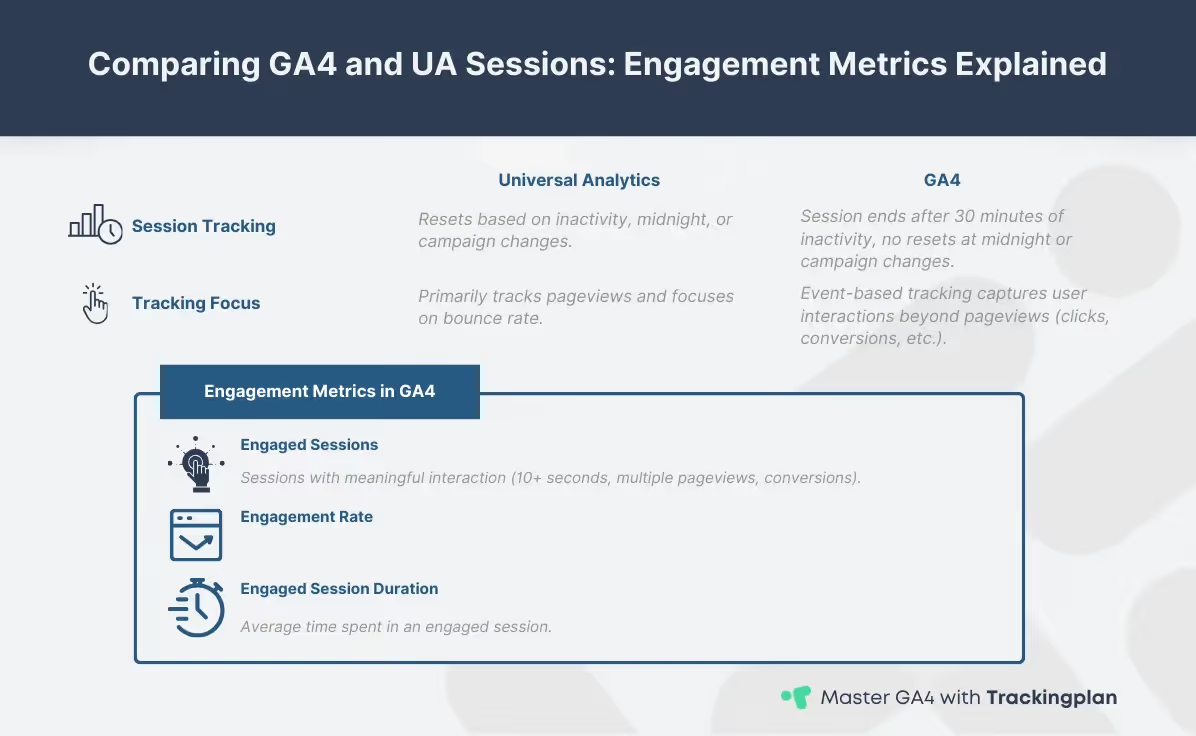
A GA4 session provides critical data for detailed session analysis. These interactions, or events, can include anything from page views to transactions, giving digital analysts a detailed look at how users navigate their sites or apps. This time-based structure in GA4 sessions enables you to segment user behavior and understand user engagement more effectively.
Key Engagement Metrics in GA4 Sessions
Key metrics tied to sessions, such as session duration, bounce rate, and the increasingly important session engagement rate, offer a powerful way to measure how effective your website or marketing campaigns are at capturing user interest. By tracking these metrics, you can identify which areas hold users' attention and where they exit, enabling deeper insights into user flows and overall performance. For more details on how GA4 defines these metrics, you can check out Google's official resource on analytics dimensions and metrics. Several key engagement metrics in GA4 are tied to sessions and help measure the effectiveness of your website or app in capturing user interest:
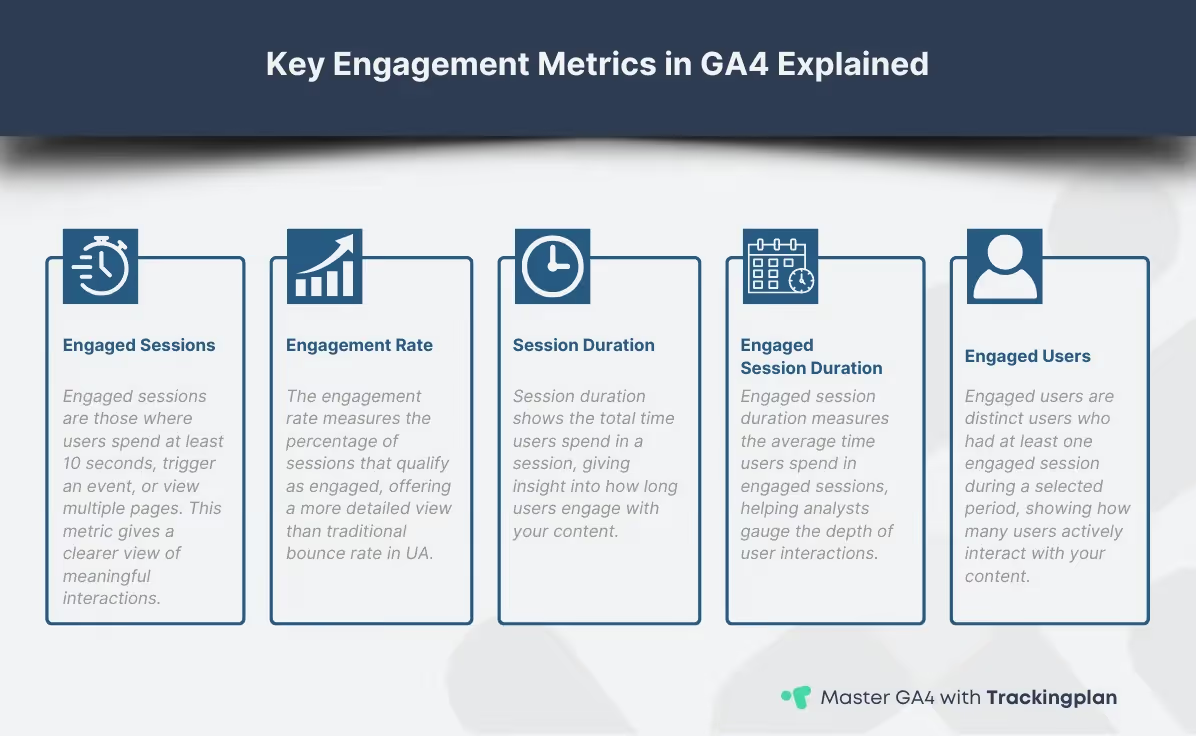
- Session Duration: This metric tracks the amount of time users spend in a session, helping analysts understand how engaging the content is. In GA4, duration is calculated based on the timestamps between the first and last recorded events within the session.
- Engaged Sessions: This metric counts the number of sessions that qualify as “engaged” based on GA4's criteria, such as multiple page views or events triggered. A session is considered engaged if the user meets at least one of these conditions:
- They stay on the site for at least 10 seconds.
- They trigger one or more conversion events.
- They have two or more page views or screen views.
- Session Engagement Rate: The Engagement Rate is the percentage of sessions that were classified as Engaged Sessions. This metric is key to understanding the quality of traffic and is the direct replacement for the traditional Universal Analytics (UA) Bounce Rate.
- Session Count: The total number of sessions initiated by users during a given time period, providing insight into overall site activity.
By focusing on these engagement metrics, you can gain deeper insights into how well your site or app is holding user attention and driving meaningful interactions. These metrics go beyond basic session tracking, offering more actionable data to refine your strategies.
Differences between UA and GA4 Sessions
There are key differences in how sessions are handled in Universal Analytics (UA) compared to GA4. In UA, a session could reset under several conditions—if the user was inactive for 30 minutes, at midnight, or if the campaign source changed during the session. In contrast, GA4 sessions only expire after 30 minutes of inactivity, making session tracking more consistent and focused on user behavior rather than arbitrary resets. Additionally, GA4 places a stronger emphasis on events rather than pageviews, capturing more detailed interactions within each session.
UA Bounce Rate vs. GA4 Engagement Rate
One of the significant shifts in GA4 is the transition from the bounce rate metric, used in Universal Analytics (UA), to the engagement rate metric in GA4.
In UA, the bounce rate was calculated as the percentage of single-page sessions where the user didn’t interact with the site further. While this gave a surface-level view of user behavior, it often didn’t capture the full picture of user engagement.
In contrast, GA4 introduces an engagement rate, which measures more meaningful interactions. A session is considered engaged if the user stays on the site for at least 10 seconds, triggers an event, or has multiple pageviews. This change provides a richer understanding of how users are interacting with your content, going beyond whether or not they simply left after viewing a single page. The engagement rate offers a more comprehensive view of how effectively your site or app is holding user attention, going beyond whether they simply left after viewing a single page.
At the same time, session analysis in GA4 helps evaluate the success of your marketing campaigns. By examining session-level insights, you can assess how different channels contribute to user engagement and whether your campaign goals are being met. These insights enable you to fine-tune your strategies for greater impact, ensuring that your campaigns are effectively driving traffic and interaction. To further enhance your campaign analysis, consider how sessions can be used to track multi-channel marketing performance, as covered in our GA4 multi-channel marketing guide.
When combined with other metrics, such as bounce rate or session duration, sessions offer a holistic view of how users engage with your content, allowing for more informed decision-making and data-driven improvements to your digital strategy.
Advanced Session Analysis: Customization and Actionable Insights
To gain deeper insights, digital analysts can also use custom metrics and segmentation techniques.
Session Timeout Settings: Customization and Impact
In GA4, you can customize the session timeout settings to better fit your business needs. The default session timeout is 30 minutes of inactivity, but GA4 allows you to adjust this period to anywhere between 5 minutes and 7 hours. Extending or shortening this timeout window can affect how sessions are tracked, especially for websites or apps where users may remain inactive for extended periods but are still engaged (e.g., reading long documentation).
Practical Tip for Analysts: Adjusting your session timeout settings is crucial for ensuring that your session analysis accurately reflects actual user engagement, particularly if your site involves long reading times or complex, multi-step forms.
For those looking to customize their session analysis, GA4 also offers the ability to track custom metrics and dimensions, giving analysts the flexibility to tailor their reports to specific business needs. Learn more about setting up custom metrics and dimensions in GA4 in our custom metrics and dimensions guide to enhance your session reporting and analysis.
Segmenting for Specific Behavior
To gain deeper insights into GA4 sessions, create custom segments that focus on specific audience behaviors. By segmenting users based on session data—such as time spent on a particular page or the number of events triggered—you can isolate key user actions and explore how different groups engage with your content. Understanding these patterns is crucial for identifying areas of improvement in the user experience.
Case Study Example: To identify potential friction points in your funnel, create a segment called "Long Non-Converting Sessions." This segment includes sessions that lasted over 60 seconds (demonstrating interest) but did not trigger any conversion events (e.g., 'add_to_cart' or 'lead_form_submit'). Analyzing these sessions can pinpoint areas of user experience (UX) design that need immediate improvement.
This approach helps pinpoint high-value segments and areas where users may experience friction, allowing you to optimize their experience.
Leveraging Custom Metrics
Combining GA4 session data with custom metrics takes your analysis a step further. GA4’s custom metrics provide granular insights into session analysis, allowing you to better understand user engagement beyond standard metrics. For instance, you could track a custom metric like "scroll depth on key articles" to measure engagement more precisely than simple duration.
For more advanced techniques on using session data in custom analysis, explore the strategies covered in our advanced data analysis techniques guide to make the most out of your GA4 implementation.
Best Practices for Session Reporting in GA4
GA4 session-based reports give digital analysts a powerful tool to track user engagement and behavior over time. These reports allow you to analyze user interactions by session, helping you identify trends in user flow, content performance, and user engagement.
Get the most out of your GA4 session reports by implementing these best practices:
- Segment sessions by user behavior: Use filters to break down sessions based on specific actions like purchases, sign-ups, or page views.
- Track session duration strategically: Focus on how long users engage with key, high-value content.
- Customize reports: Tailor your session reports by adding custom metrics and dimensions relevant to your business needs (e.g., custom dimensions for Author or Content Type).
- Monitor Engagement Rate (not just Session Count): Use the Engagement Rate as the primary health check for the quality of your traffic and content.
- Set goals for session analysis: Define clear objectives for each session type (e.g., lead generation, product views) and track how well each session meets those goals.
For deeper traffic analysis and session insights, explore more advanced strategies in our advanced data analysis techniques guide and learn how to optimize session tracking methods in our GA4 conversions best practices guide. For more information on how to customize your GA4 session reports, visit Google’s guide to customizing detail reports.
Conclusion
Becoming proficient in session analysis in GA4 is essential for digital analysts who want to gain deeper insights into user engagement. Analyzing sessions provides insights into user interactions, enabling data-driven decisions that enhance both campaign performance and user experience. Whether you’re customizing reports or segmenting users based on session behavior, these tools provide the flexibility to meet your specific business goals.
For a more comprehensive understanding of GA4 sessions and its capabilities, explore our complete GA4 guide, or dive into how sessions play a role in multi-channel marketing in our multi-channel marketing guide. If you’re looking to enhance your analysis with custom metrics, don’t miss our custom metrics and dimensions guide for more advanced techniques.