
A Google Analytics audit template is a spreadsheet with one row per GA4 check, and a place to write what you found, who owns it and whether it passed. This one has 36 checks in nine areas, from the property settings to cross-domain measurement and data quality.
Download the GA4 audit template (Excel) or the CSV. Open it in Excel or Google Sheets (File → Import), add an owner to every row, and start at the top.
It is the working copy of the Google Analytics audit: that guide explains what a GA4 audit is and the three ways to run one. This page explains how the sheet is laid out, how to fill it in, and where it stops.
What the template includes
Three sheets.
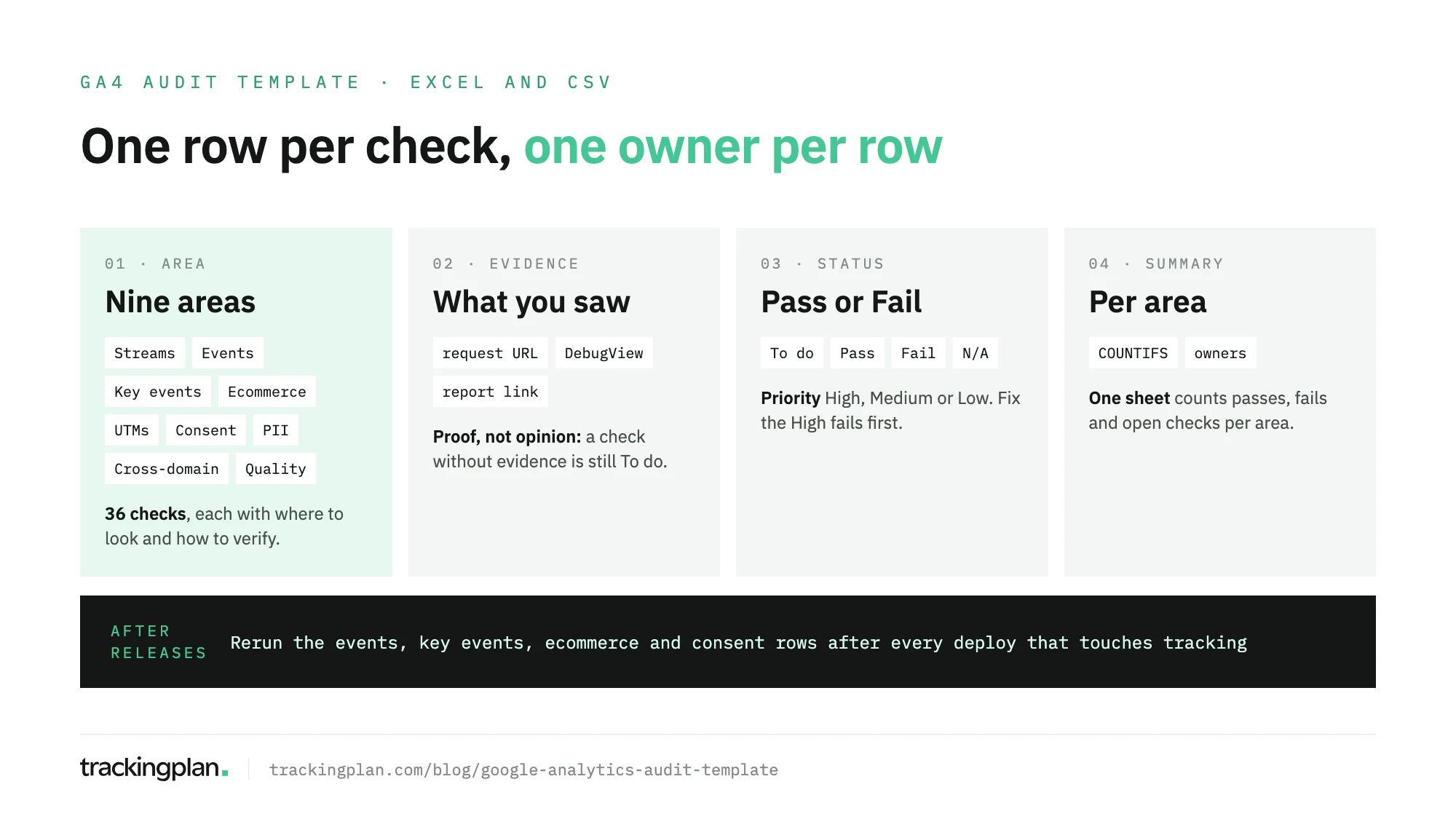
- GA4 audit: the 36 checks. Columns: #, Area, Check, Where to look, How to verify, Evidence, Status, Priority, Owner and Notes. Status is a dropdown (To do, Pass, Fail, Not applicable) and Priority another (High, Medium, Low).
- Summary: one line per area that counts passes, fails, open checks and the fails marked High. It fills itself from the first sheet.
- How to use: six lines, the same as the next section of this page.
The CSV holds the first sheet only, for anyone who wants to paste the rows into a tracker, a ticketing tool or a doc.
| Area | Checks | What a fail usually looks like |
|---|---|---|
| Property and data streams | 6 | The site sends to a stream nobody checks, internal traffic counts as customers |
| Events and parameters | 5 | An event in the plan never arrives, or arrives twice per click |
| Key events | 3 | A failed form counts as a lead |
| Ecommerce | 4 | purchase without currency, revenue that doesn’t match the backend |
| UTMs and channels | 3 | Paid traffic in Unassigned, the payment provider as a referral |
| Consent | 3 | Tags send data before the consent default is set |
| PII | 4 | An email address in a URL or a search term |
| Cross-domain | 4 | The session restarts at checkout |
| Data quality | 4 | A key event drops and nobody can name the cause |
How to fill it in
Owners first
Before you check anything, put a name in the Owner column of every row. A finding without an owner is a note in a file nobody opens again.
Property settings usually belong to the analytics lead, events and parameters to whoever runs GTM or the dataLayer, UTMs to marketing operations, consent and PII to whoever answers for privacy.
Evidence, not opinion
The Evidence column is the one that makes the audit worth reading a month later. Write what you saw: the request URL, the DebugView screenshot, the report link, the count.
A row with Pass and no evidence is still To do.
Status and priority
Set Pass, Fail or Not applicable as you go. A lead-generation site can mark the four ecommerce rows Not applicable and move on.
Priority comes filled in as a suggestion. Change it to fit the site: a single-domain blog can drop the cross-domain rows to Low, and a store can’t.
Read the summary last
The Summary sheet counts the fails per area, and the last column counts the ones marked High. Fix those first, then the rest by area.
The nine areas, and what is specific to GA4
The website audit template covers tracking across every tool on a site. This one is only GA4, so most rows point at a setting, a report or a field that exists in Google Analytics.
Property and data streams
Start by confirming that the Measurement ID in the requests matches the web stream you are auditing. Then the settings that quietly change every number: time zone, currency, access, data retention and internal traffic.
Google’s Analytics Help says standard properties keep user-level and event data for 2 or 14 months, and that the setting affects explorations and funnel reports, not the standard reports. Data filters, such as the one for internal traffic, are permanent and apply only from the day you create them, so check them early.
The last row in this area compares enhanced measurement (page views, scrolls, outbound clicks, site search, video, downloads and form interactions) with what GTM already sends by hand: the same action reported twice is a common finding.
Events and parameters
Five rows: the events in the tracking plan against the events that arrive, one name per action across web and app, required parameters present with the right type, one hit per action, and custom definitions registered with the right scope.
GA4 has three scopes for custom dimensions: event, user and item. A customer segment registered as an event dimension produces reports that look fine and are wrong.
Key events and ecommerce
Key events get three rows: every business action marked, fired on success only, and counted the same way as the CRM or backend.
Ecommerce gets four.
Google’s developer reference lists transaction_id and items as required for purchase, and says currency is required when you set value.
It also says transaction_id helps you avoid duplicate purchase events, which is why the template asks you to check that every ID is unique.
For the full ecommerce funnel, from view_item to refunds, the GA4 ecommerce tracking audit goes step by step.
UTMs and channels
GA4 assigns most manual traffic to a channel from source, medium and campaign. When nothing matches, the session lands in Unassigned. A small, stable Unassigned is normal; a growing one is a list of links to fix.
The third row checks the unwanted referrals list, so your own domains and your payment provider don’t show up as traffic sources. The UTM parameter best practices cover the naming convention itself.
Consent and PII
Three consent rows.
The default must run before any command that sends data: Google’s tag platform docs say consent defaults won’t work if the code runs out of order.
Then the four parameters (ad_storage, analytics_storage, ad_user_data, ad_personalization), then what happens after the visitor answers.
Four PII rows: URLs and page titles, event parameters and search terms, data redaction on the web stream, and the User-ID. Google’s policy, in its PII article, is that nothing should reach Google Analytics that Google could recognize as personally identifiable, and it names URLs, page titles, custom dimensions, site search terms and campaign parameters as the places to look.
Cross-domain and data quality
Google’s cross-domain article is the source for the four cross-domain rows: the same tag ID on every domain, every domain listed under Configure your domains, the _gl parameter on the destination URL, and forms and downloads that still work once it is added.
It also warns that server redirects and JavaScript navigation can strip _gl, so test the real links, not a hand-typed URL.
Data quality closes the sheet: a baseline for each key event, (not set) in the dimensions you report on, conversions in GA4 against each ad platform, and a rerun after every release.
Template, checklist or tool
Three pages of this cluster look alike from the outside. They do different jobs.
- The Google Analytics audit checklist explains the ten checks in depth: why each one matters and how to run it. Read it once.
- This template is the sheet you fill in while you run them, with the evidence and the owner. Use it every time.
- The Google Analytics audit is the guide above both: what an audit covers, and when to do it by hand, with AI or automated.
If your audit covers every tag on the site, not only GA4, the website audit template is the wider version.
When to rerun it
Fill in every row when you inherit a property, before a migration and after a redesign. After that, rerun the events, key events, ecommerce and consent rows after every release that touches tracking.
That is where a spreadsheet starts to cost. The template records what was true on the day you filled it in, and the next deploy can change it.
When the sheet stops being enough
Most rows in this template can be checked on real traffic instead of by hand.
In Trackingplan an audit is a conversation with a verdict: OK, Needs attention or Inconclusive. The audit library covers several of these rows already: important events, all events, consent implementation, the cookie banner, new events or properties, the dataLayer, destinations against the dataLayer, and the UTM naming convention. Each audit runs on demand or on a schedule, daily or weekly, and shows the hits behind every finding.
Audits sit on top of monitoring, which watches the same traffic all the time and posts the changes that matter to the team that owns them. The free GA4 audit is the quickest way to see the difference: install one tag, Trackingplan learns your GA4, GTM and pixel setup from real traffic for 2 days, then you get 7 days free to audit it.
Keep the template anyway. It is the list of what your team agreed to check, and the brief for what you hand to the tool.
FAQ
What should a Google Analytics audit template include?
One row per check, grouped by area: property and data streams, events and parameters, key events, ecommerce, UTMs and channels, consent, PII, cross-domain and data quality. Each row needs where to look, how to verify it, the evidence you saw, a status, a priority and an owner.
Can I use the GA4 audit template in Google Sheets?
Yes. Import the Excel file in Google Sheets (File, Import) and the dropdowns and the summary sheet keep working. The CSV has the same rows without the dropdowns or the summary.
How often should I fill in the template?
Run every row when you inherit a property, before a migration and after a redesign. Rerun the events, key events, ecommerce and consent rows after every release that touches tracking.
What is the difference between this template and the website audit template?
The website audit template covers tracking across every tool on a site. This one is only for Google Analytics 4: its settings, its events and key events, its ecommerce schema, its channels and its consent signals.