
Unmasking the Culprit
While the list of possible causes for this issue is quite extensive (front-end redirects, use of iFrames, poor cookie management, etc.), interestingly, Google’s official documentation gives us an important clue: the session_start parameter.
This parameter is like the backbone of sessions in tools like Google Analytics, signaling the beginning of a session.
But here’s the catch: if session_start fires incorrectly, breaking or restarting during a user’s journey, your session data gets fragmented, leading to problems like inflated session counts, misattributed traffic, –like direct or not set–, or distorted conversion rates.
Impact of Poor Session Management
When session management is not properly configured, it undermines the integrity of your analytics data, creating a ripple effect that impacts multiple areas of measurement and decision-making. Here's how:
- Lost attribution data: One of the most significant issues caused by poor session management is the misattribution of traffic. Instead of accurately reflecting the source of user visits, traffic is frequently assigned as "direct" or labeled as "(not set)," obscuring the true effectiveness of marketing campaigns. This makes it nearly impossible to assess which channels are driving results.
- Inflated session counts: When the session_start parameter fires incorrectly, sessions are often fragmented across a single user's journey. This leads to an artificially high number of sessions, which in turn skews key metrics like session counts and conversion rates. For instance, a user navigating across several pages might be incorrectly counted as initiating multiple sessions.
- Shortened session duration and higher sessions-per-user metrics: When the session_start parameter fires incorrectly, sessions are often fragmented across a single user's journey. This leads to an artificially high number of sessions, which in turn skews key metrics like session counts and conversion rates. For instance, a user navigating across several pages might be incorrectly counted as initiating multiple sessions.
- Distorted engagement and bounce metrics: Fragmented user journeys impact engagement metrics by breaking continuity. Bounce rates may appear artificially low or high depending on how sessions are split, while deeper engagement patterns—such as time spent on site or interaction with content—become difficult to interpret.
Understanding session_start: The Key to Session Management
The first thing to understand is that session_start is not a real event sent to the GA collector. Instead, Google uses the parameter session_start, which can be included in any request. When it appears (with a value of 1), it indicates the beginning of a session. It’s as if Google automatically creates a synthetic session_start event and places it before any event that includes this parameter. As Google explains:
"When a session starts, Google automatically collects a session_start event and generates a session ID (ga_session_id) and session number (ga_session_number) via the session_start event."
This means that, if you suspect a user’s journey is being fragmented across multiple sessions, you can identify it by looking for events that include the parameter session_start=1.
In the following sections, we’ll show you how to troubleshoot these session issues and ensure accurate attribution with the help of Trackingplan.
Detecting Session Issues with Trackingplan
Manually auditing sessions using browser extensions or raw data can be tedious and error-prone. Fortunately, tools like Trackingplan simplify this process by providing a centralized view of session data.
First off, when dealing with multiple properties, it can get noisy and confusing—especially when working with things like session_start events. With Trackingplan, we have the advantage of separating properties clearly when looking at session data.
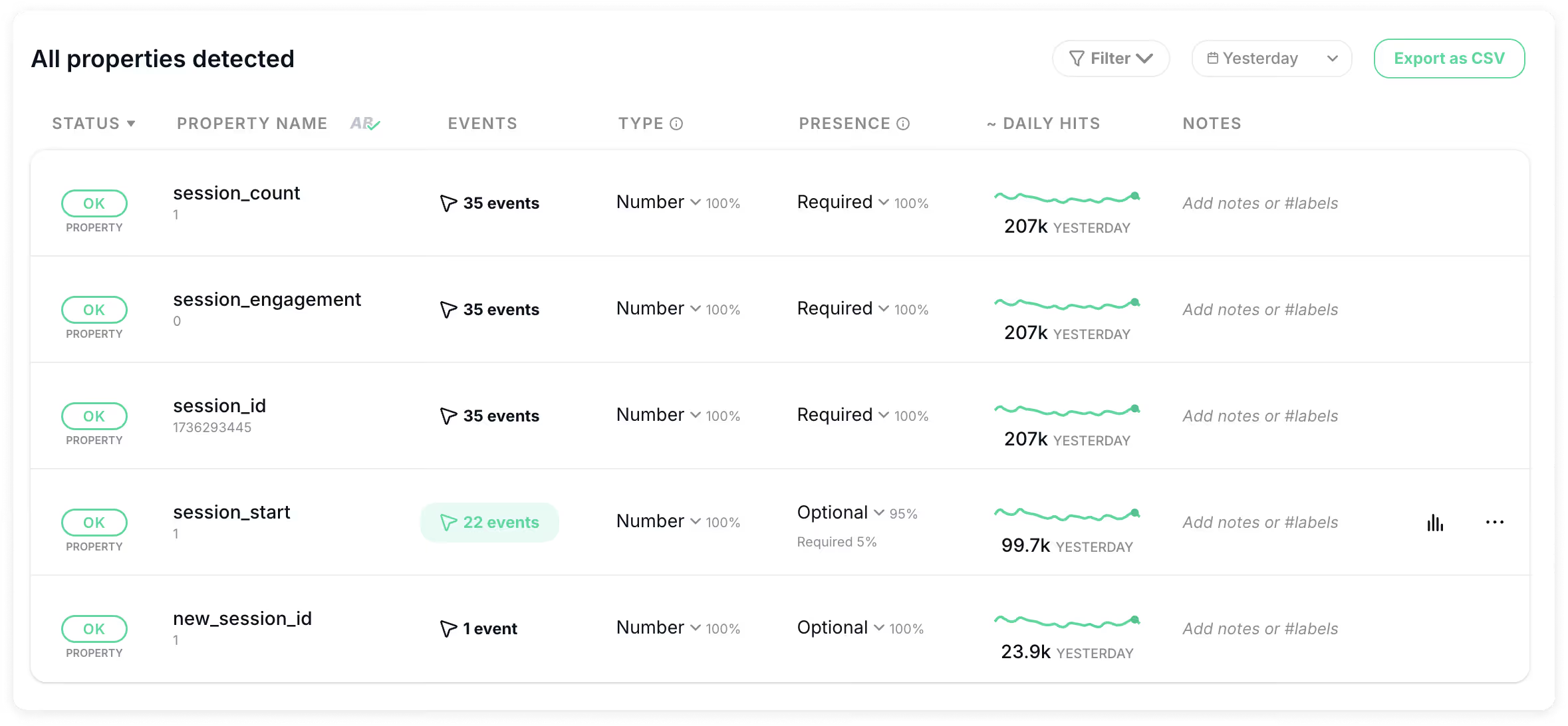
By clicking on the property, we can access a detailed list that provides insights into how this property is behaving across all 22 events where it is triggered. This allows us to closely examine the data for each event, identify any discrepancies, and understand how the property interacts with different user actions. By reviewing this comprehensive data, we can pinpoint potential issues, such as improper firing or missing parameters, ensuring a more accurate and reliable tracking setup.
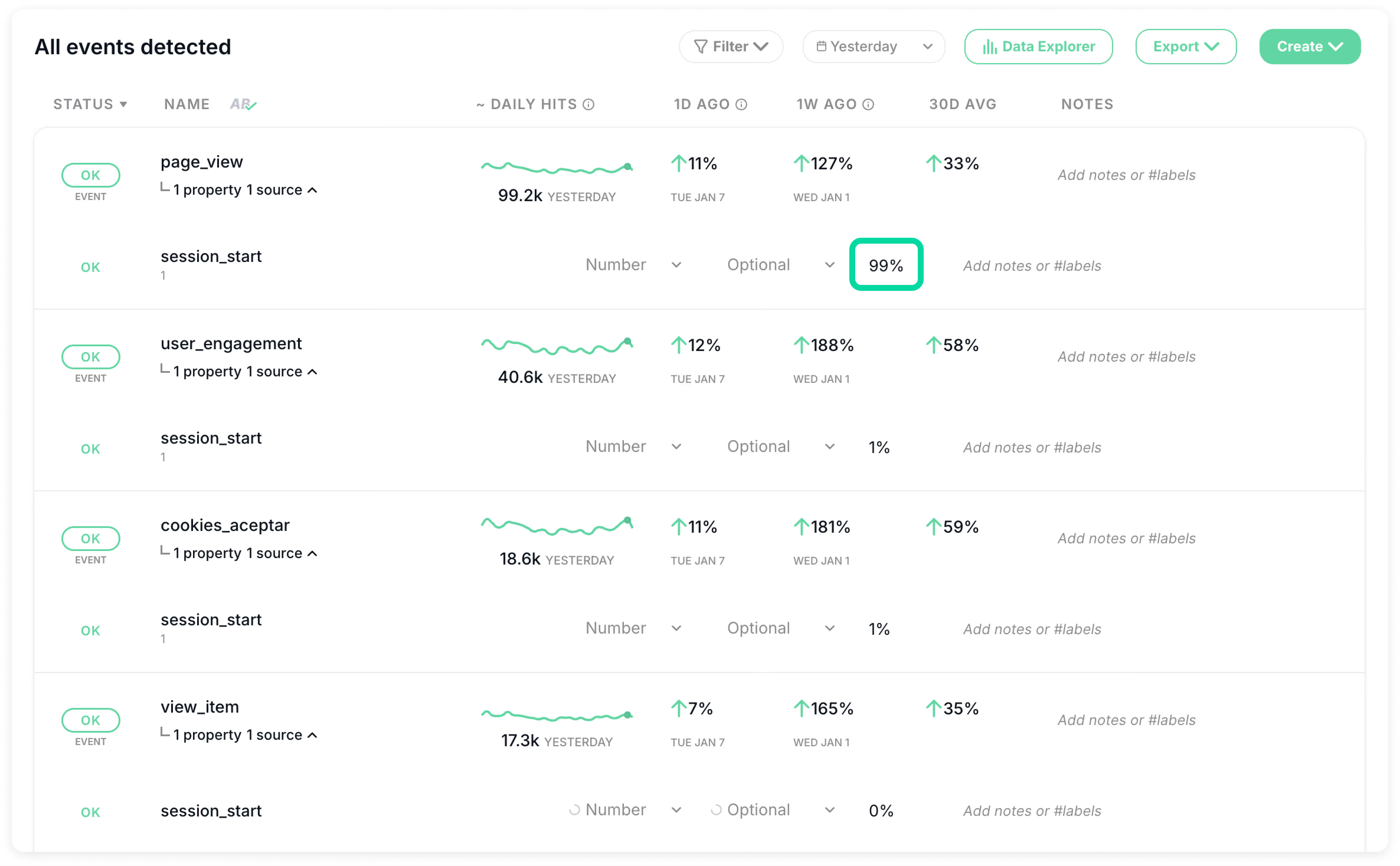
While it might be that an event with less than 1% presence of the parameter session_start is not a problem –as sometimes users log out for 30 min and come back later on the same tab, and that doesn't trigger a page_view immediately–, in the example above we can see that, for almost every page view, a session start event is also triggered—almost 100% of the time, in fact.
This means the number of sessions being counted is totally off, as you’d typically expect something like 20, 30, or 40% of page views to trigger a session start, depending on the behavior of your users.
If it’s more than half, like in this case, this might mean your users aren’t even staying on the page for more than a couple of screens, as it is as if the session is resetting every time they visit a new page, which isn't right.
Diving Deeper with Trackingplan’s Tracks Explorer
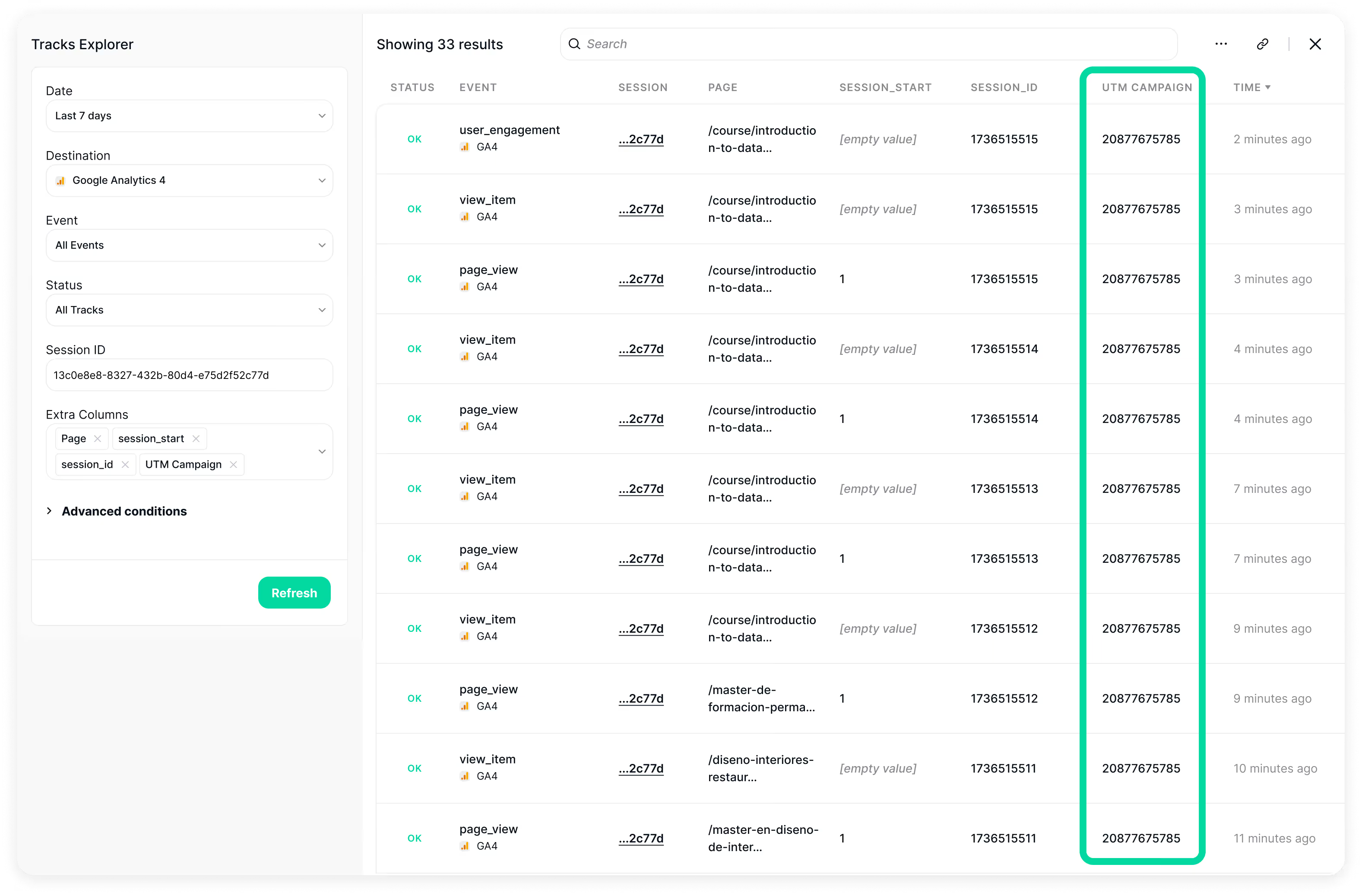
To dive deeper, we’ll use Trackingplan’s Tracks Explorer to help us inspect individual sessions and session attributes.
For it, we’ll take a look at a random session. We recommend selecting one that has already finished to avoid any disruptions caused by real-time data changes.

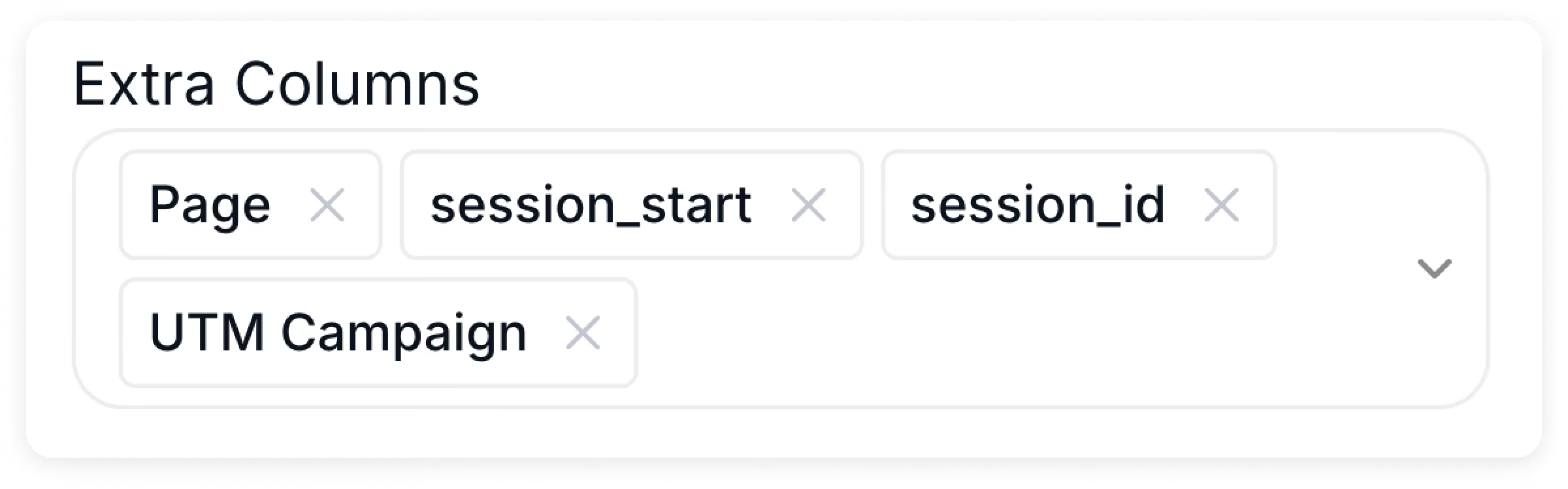
Next, we’ll add parameters like session start and session ID to customize the view and gain a clearer understanding of how these properties are behaving. Additionally, as Trackingplan gives us the flexibility to choose from a wide range of attributions, UTMs, consent options, DataLayer values, and more – allowing us to analyze each event across a user’s journey or session based on multiple parameters– we’ll also include the UTM campaign parameter, to be provided of deeper insights into campaign performance.
See how multiple session IDs are being created in a single-user journey? This means that, when calculating things like new users, returning users, or session counts, all of that data is totally incorrect, as we can clearly see the session parameter is misfiring every time there’s a new page view.
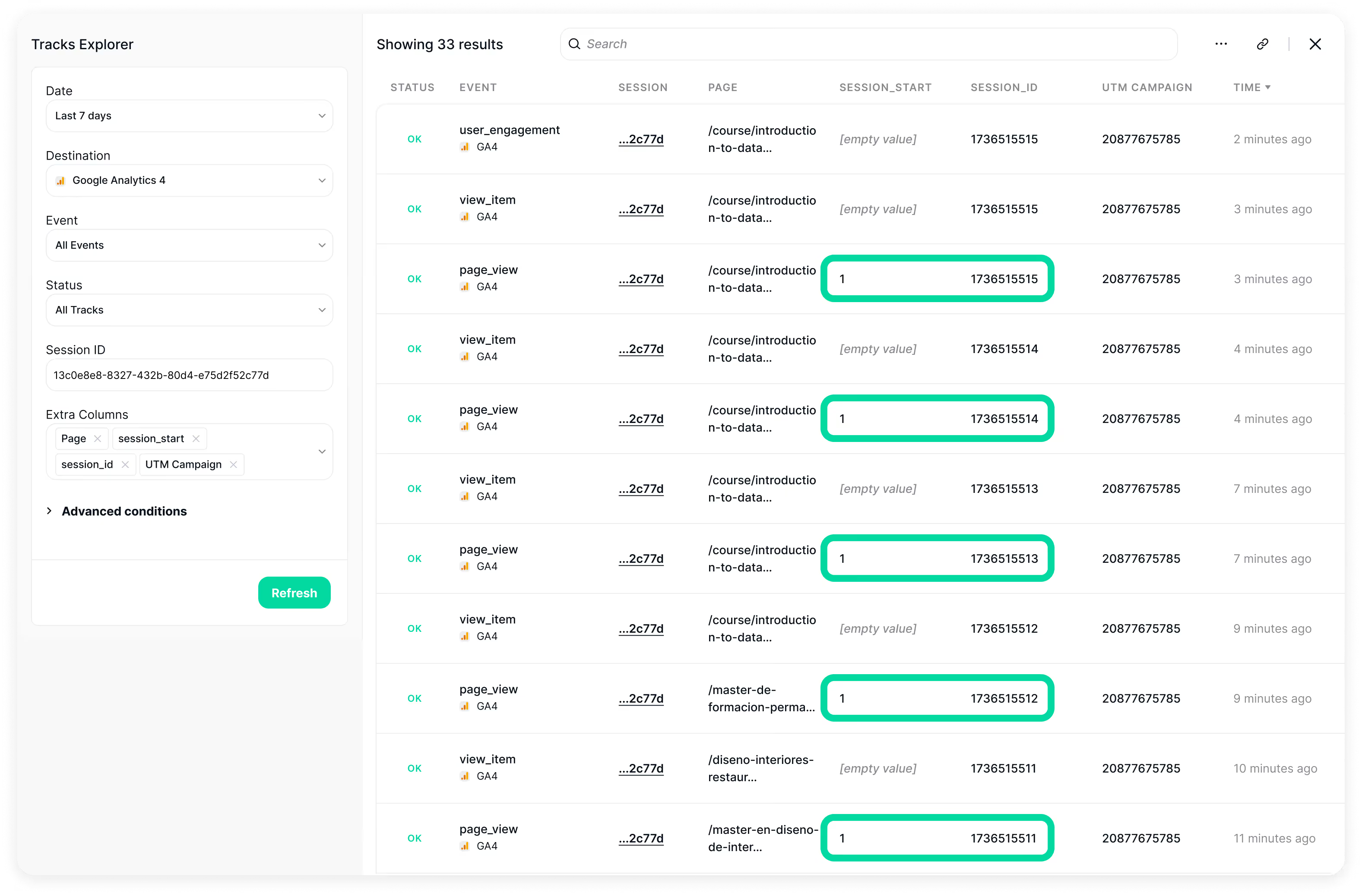
On the bright side, the good news is that, as we’ve also included the UTM campaign parameter, we are able to see our UTMs are being persisted throughout the user journey and we’re still tracking campaigns properly, which is awesome for attribution! Nonetheless, keep in mind that, if the conversion happens after multiple sessions, and the UTM gets lost in the process, it could show as 'not set' in your attribution reports. So, make sure you're not losing that UTM data!
Conclusion
To sum it up, Session issues can create significant blind spots in your analytics, compromising the reliability of your data and the decisions based on it. If you see strange session behavior or attribution issues, tracking session start and session ID parameters can make a huge difference.

Tracking these parameters effectively is not just a technical fix, but a foundational step toward reclaiming the integrity of your data. By understanding how session_start works and employing tools like Trackingplan, you can gain the ability to monitor and troubleshoot session-related issues with precision, preventing fragmented data and ensuring your sessions accurately reflect user behavior.
If you're encountering persistent 'not set' values in your Google Analytics reports, our comprehensive guide dives deep into eliminating 'not set' in Google Analytics and provides actionable strategies to identify and resolve other root causes.
Ready to take control of your session data? Get started for free or ask for a demo to experience the difference accurate session management can make in your analytics. Happy tracking!