
You're copying campaign metrics into a Google Sheet, checking yesterday's conversion drop, and wondering whether the report script finished. The log is green. The totals look plausible. But the lead form changed during the last release, and nobody has checked whether it still sends the right conversion value.
Google Ads scripts can remove the repetitive account work. They can't prove that every conversion behind the report is correct. The practical approach is to automate a narrow job, keep a record of what it did, and check the measurement inputs separately.
What Google Ads scripts are and how they run
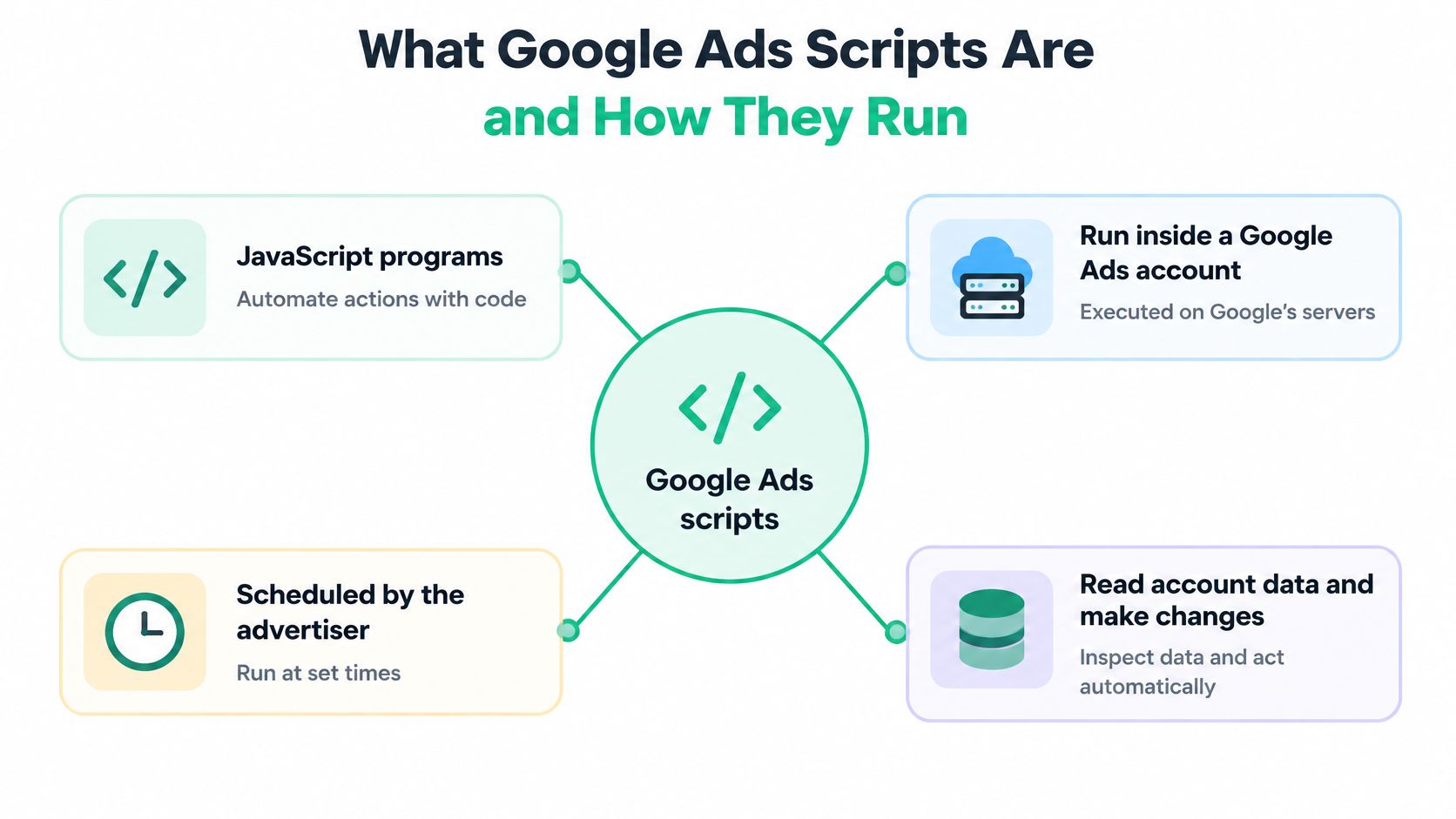
Google Ads scripts are JavaScript programs that run inside a Google Ads account on Google's servers, on a schedule the advertiser sets. They read account data and can make supported changes, such as pausing entities, updating bids, or writing campaign statistics to a Google Sheet.
Think of a script as a recurring task handed to an assistant who follows the same checklist every time. That assistant sees what the account exposes. It doesn't automatically see the website hit, CRM record, or consent decision behind a reported conversion.
Every script shares the same basic structure:
- Browser-based JavaScript: You write or paste code into the account's script editor.
- Google-hosted execution: Google runs the code, so you don't need to maintain a server.
- Scheduled runs: The account executes the job at the frequency you select.
- Direct account access: The script retrieves reports and works with supported advertising entities.
An established automation model
AdWords Scripts began in limited release in June 2012 and became available to all advertisers on September 5, 2012, according to Google's global launch announcement. At that launch, the execution limit increased from 5 minutes to 30 minutes, with one-time, daily, weekly, and monthly scheduling options.
Scripts were designed for both reporting and operational changes. Reading keyword statistics and changing an entity are different risk levels, even when the code looks similar.
For current workflows, start with daily reporting or weekly audits. A scheduled job is useful when a person would otherwise repeat the same account check. It isn't continuous monitoring, and it shouldn't be treated as an emergency response system.
Practical rule: If a task repeats on a calendar and follows a fixed rule, a script can probably handle it. Confirm that the required fields and actions are supported before writing the code.
Execution limits that shape script design
The limits determine how much work you can safely give a script. Google's current Scripts limits set a 30-minute maximum for a standard single-account script and allow 60 minutes total for a manager-account script using a callback, with up to 50 child accounts processed in parallel.
The same documentation sets the authorization, iterator, and bulk-upload limits shown below. These are operational constraints, not promises that a job of that size will finish.
Google Ads Scripts limits and what they change in design
| Limit | Value | What it changes in script design |
|---|---|---|
| Single-account script run time | 30 minutes | Google cancels the run, but changes made before cancellation stay applied |
| Manager-account script with callback | 60 minutes total, up to 50 child accounts in parallel | Use executeInParallel instead of serial loops |
| Authorized scripts per account | 250 | Past the limit, an older script is deauthorized: keep one script per focused job |
| Default entity iterator results | 50,000 entities | Filter in the selector to stay under the default cap |
| Bulk upload file size | 50 MB | Split large files into batches |
| Bulk upload rows | 1,000,000 rows | Split large files into batches and check each batch |
Design for incomplete execution
A script can stay within an entity limit and still run out of time. Broad reports, repeated spreadsheet writes, serial account processing, and individual edits all add work. Filter before retrieval rather than downloading everything and discarding most of it inside a loop.
Say a manager-account script tries to update 200 accounts serially. That's a hypothetical workload, not a supported batch-size recommendation. If execution stops partway through, some accounts may have changed while others haven't.
Use parallel processing for appropriate manager-account jobs. Use bulk operations when the task involves many supported changes. Neither removes the need to inspect failures.
Keep persistent progress records with the account ID, entity ID, intended action, and confirmed result. A restart should skip completed work rather than apply the same adjustment again.
Each script should do a focused job that fits comfortably inside its limits. Don't combine conversion extraction, naming cleanup, budget changes, and email formatting just because they can share a file. Separate jobs are easier to test, diagnose, and stop.
How to add and run your first script
Start with a reporting script that writes to a dedicated test sheet. Define the output before touching the editor: account, campaign ID, campaign name, reporting window, cost, conversions, and conversion value. A clear output makes missing rows easier to spot.
Keep the first job read-only. You'll learn how authorization, selectors, logs, and schedules behave without risking campaign changes.
Set up the account job
-
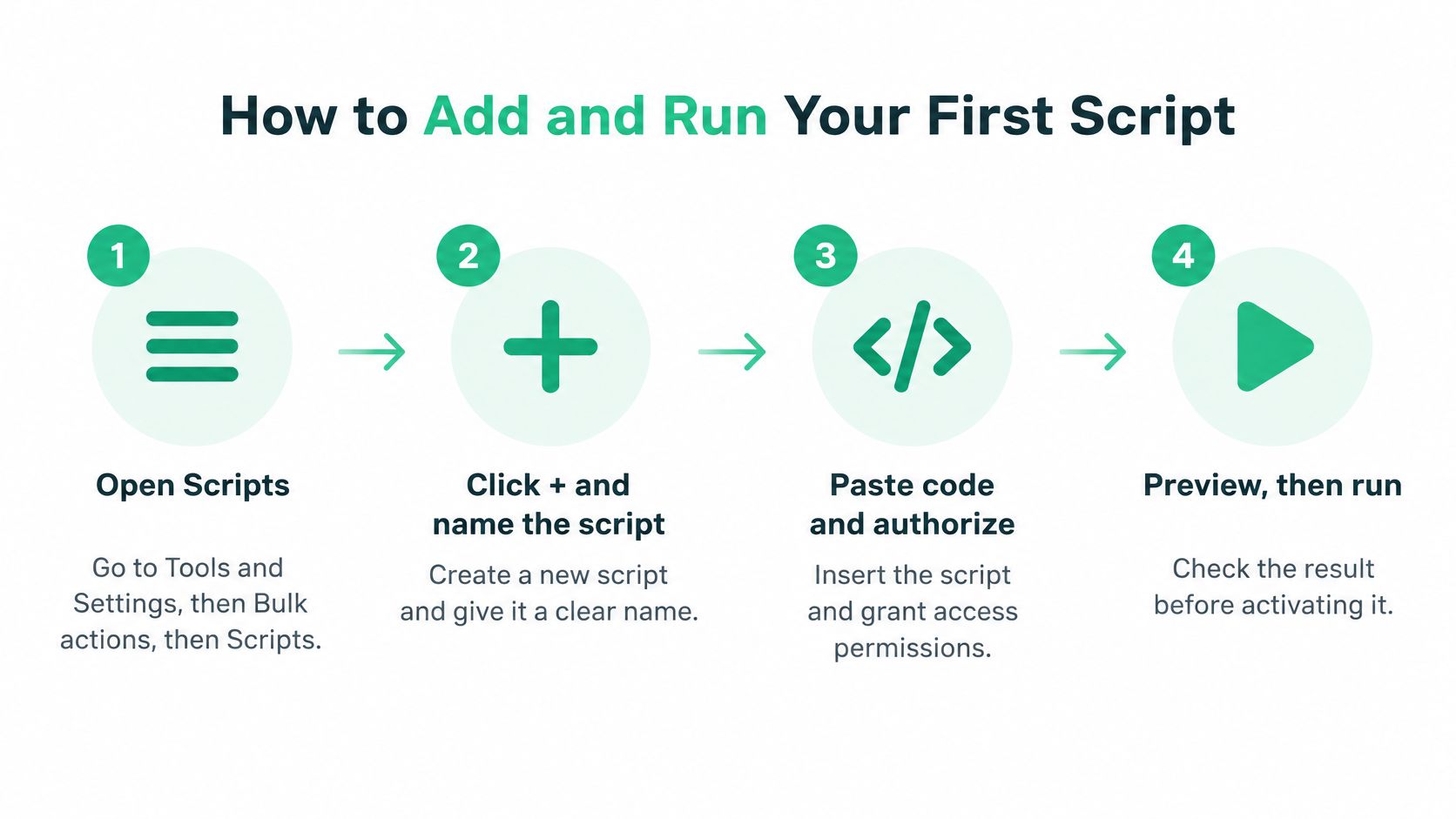
Open Scripts in the intended account. In the Google Ads navigation, open Tools and Settings, then Bulk actions, then Scripts; menu labels can differ between interface versions. Confirm the customer ID before proceeding, because pasting working code into the wrong account is still a failed setup.
-
Create and name the script. Click the plus button, give it a job-specific name such as “Daily campaign conversion report,” and paste the code. Avoid names such as “Automation final,” which tell the next analyst nothing about scope or ownership.
-
Authorize account access. Review the permissions Google requests and confirm that you're authorizing the intended advertiser account rather than a manager account by mistake. Check any destination spreadsheet too, because account access doesn't guarantee that the report can reach its output file.
-
Run Preview and inspect the log. Preview lets you inspect proposed Google Ads changes without applying them, but don't assume it suppresses external actions such as spreadsheet writes or emails. Read the selector counts and skipped conditions, not just the final success message.
-
Run manually and reconcile the result. Compare the output with the account report using the same date range and filters, and inspect change history if the script writes changes. The common slip is accepting a plausible total without checking which entities were included.
-
Set a deliberate schedule. Use daily reporting or weekly audits, with monthly execution reserved for monthly tasks. Choose a time away from manual bulk edits and other scripts that touch the same campaigns.
Define what success looks like
Before scheduling, write down the expected entity scope. A script should explain whether it found no eligible campaigns or failed to retrieve campaigns. Those outcomes shouldn't produce the same empty sheet.
For a change-making job, inspect the old value, proposed value, and rule that triggered the change. A preview can look clean while a condition excludes the campaigns you meant to process.
The job is ready when its entity count matches the intended scope, its changes match the preview, and its scheduled execution completes without errors. Keep an owner attached to the script. An unattended report with nobody responsible for failures isn't a dependable workflow.
Automations worth building for paid media teams
Build scripts around decisions the team already makes. Each job should read named fields, compare them with an agreed rule, and produce either a finding or a bounded change. If nobody can explain what happens after an alert, don't schedule it yet.
The following frequencies and windows are suggested operating rules, not platform requirements. Adjust them to the account's buying cycle and conversion lag.
Paid media automations by frequency and review rule
| Automation | Frequency | What it checks or changes | Keep a human review |
|---|---|---|---|
| Daily conversion report | Daily | Conversions, value and cost per conversion by campaign | Review any drop above a set threshold |
| Spend anomaly alert | Daily | Spend against the seven-day average for each campaign | Confirm the cause before changing budgets |
| Search term review | Weekly | Queries with cost and zero conversions | Approve negative keywords manually |
| Naming convention check | Weekly | Campaign and ad group names against the agreed pattern | Fix names in the account, not in the script |
| Ad parameter update | Weekly | Numeric values such as prices or stock counts in ad text | Check the value against the source feed |
| Stale ad check | Weekly | Ads with no impressions in 30 days | Pause only after review |
Reporting first, changes second
A weekly search-term script can list available queries with cost and zero conversions above your agreed threshold. Include campaign, ad group, match type, and reporting window in the output. The analyst should review conversion lag and query intent before approving negative keywords.
A daily spend alert can compare campaign spend with its seven-day average. Treat that as a prompt for investigation, not an automatic instruction to cut the budget. A launch, promotion, or planned expansion can explain the increase.
Reporting scripts carry less direct account risk than scripts that edit campaigns. They can still mislead people through incomplete filters, stale sheets, or mismatched reporting windows. Put the extraction date and account ID in every output.
A campaign with no impressions isn't automatically a campaign that should be paused. Check eligibility, launch dates, targeting, and the campaign's intended role.
Budget changes and pauses need stricter controls. Set exclusions for launches and seasonal promotions, establish a maximum change boundary, and require approval when a rule could interrupt planned activity.
A script can confirm what Google Ads reports for a campaign. It can't determine whether the original purchase or lead was captured correctly just by reading that total.
Why clean scripts still miss conversion gaps
A successful script and a successful upload don't mean conversion measurement is healthy. Google's Ads API guide to offline conversions notes that an accepted upload is not the same as an attributed conversion: records can still be dropped during processing.
Job execution, upload acceptance, attribution, and bidding eligibility are separate checks. A report script generally sees the account's downstream result, not every upstream event that should have contributed to it.
Check the missing evidence
- Lost click identity: A GCLID can disappear between the landing page, form submission, and CRM. Inspect the original URL parameter, stored form value, and CRM field rather than checking only whether an upload file contains a column.
- Unstable event identity: Browser tags, server uploads, and offline imports need consistent event identifiers. Google's import guidance recommends a unique identifier such as an order ID to prevent duplicate conversion tracking.
- Wrong bidding status: An event can record without contributing to bidding. Google's conversion-action guidance distinguishes primary actions used for bidding from secondary actions reported in All conversions. Which actions should be primary, and how offline outcomes reach them, is covered in Google Ads automation and conversion data.
- Missing website hits: Consent handling, a broken
dataLayerobject, or a form trigger can prevent a hit from reaching Google. An Ads-only report can show the decrease without identifying the missing request.
Say a lead form submits a conversion with an empty value field. The reporting script shows more conversions, but the value-based bidding input may be wrong. Inspect the request payload and conversion-action configuration before concluding that lead quality changed.
Enhanced conversions supplement existing measurement. They don't repair a missing tag, a broken form event, or the wrong conversion action. Validate the implementation before treating stronger matching as the solution.
Monitor the inputs separately
Trackingplan checks conversion hits, UTMs, and click IDs across more than 170 analytics and ad providers, with daily or weekly checks that route evidence to the responsible owner. It makes sure campaigns are optimized on conversion data the team can trust.
The same split runs through PPC automation: automate account work, and inspect the signals that justify the work separately. Prioritize gaps by missing or duplicated conversion value, not merely by the number of affected rows.
How to test and monitor scripts safely
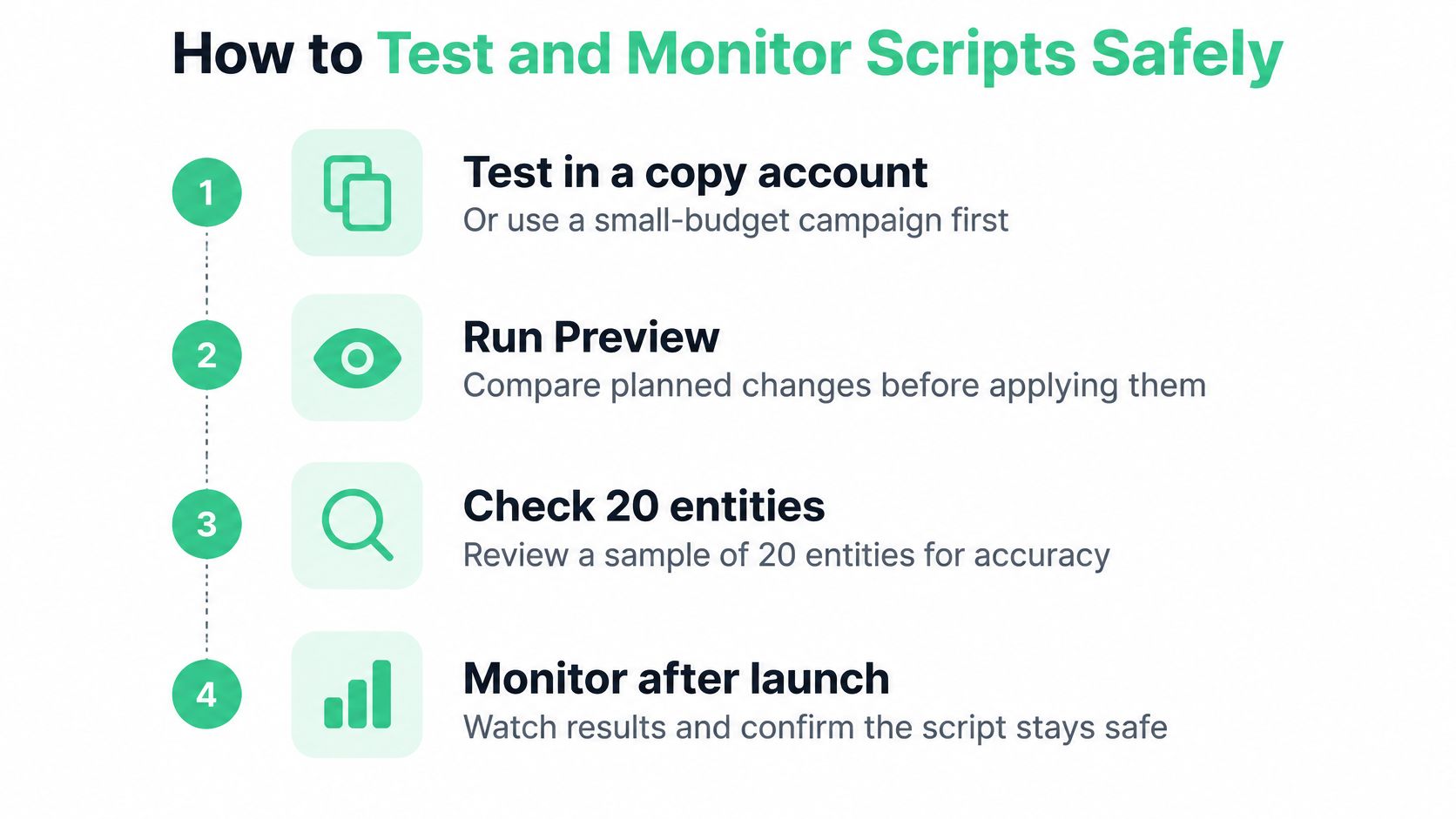
- Isolate the test: Use a separate test setup or a small-budget campaign with an explicit inclusion filter. Don't assume that duplicating campaigns reproduces a production account's history, permissions, or conversion setup.
- Inspect Preview: As a practical starting sample, compare planned changes across 20 entities, including entities that should be excluded. Sample boundary cases, not just the easiest rows.
- Record every write: Log the entity ID, old value, proposed value, and confirmed result. Keep that record somewhere persistent.
- Exit deliberately: Stop processing before the execution ceiling and save the last completed entity. Leave enough time to write the progress record.
- Version the code: Store the script in version control with an owner and a short change note. Keep configuration changes traceable too.
- Review early executions: Manually inspect the first three scheduled runs as a release policy. Confirm that the job behaves correctly with changing account data.
Keep a usable rollback record
The steps teams often skip are persistent logging and early-run review. A final summary such as “campaigns updated” doesn't identify which values to restore. Log attempted and confirmed writes separately so a failed operation isn't mistaken for a completed change.
A rollback also needs judgement. Before restoring an old value, check whether another person or script changed the entity afterward. Blindly replaying old values can overwrite a legitimate edit.
Reconcile measurement as well as execution
Compare GA4 and Google Ads using the same reporting window, then inspect event definitions, attribution settings, and primary-action status. Google's website conversion measurement guidance distinguishes Analytics-based measurement from a dedicated Google tag, which helps explain why totals aren't automatically interchangeable.
Matching totals alone aren't proof of correct implementation. Sample the underlying events and values, especially after a checkout, form, consent, or tag-manager release. Build those checks into your analytics testing routine.
Set an operating rule that two consecutive failures notify the owner by email. Use an independent schedule check where possible, because a script that never starts can't reliably report its own failure. Healthy monitoring means the log matches account history and the reconciliation gap remains within a tolerance the team approved in advance.
Diagnose failed and partial script runs
Common script failures and first checks
| Symptom | Likely cause | First check |
|---|---|---|
| Run stops at 30 minutes | Single-account loop covers too many entities | Split the job and resume from the last logged entity |
| Manager script misses child accounts | Accounts processed one after another | Switch to executeInParallel with a callback |
| Preview shows changes but the run makes none | A condition skips every entity | Compare selector conditions with the log output |
| Authorization or access error | Script authorized against the wrong account | Reauthorize in the intended account and confirm its type |
| Changes applied but log is incomplete | No entity-level logging | Add entity ID, old value and new value to each log line |
| Scheduled runs collide | Two scripts edit the same campaigns | Move schedules apart and check the change history |
| Script reports normal output but conversions fall | Upload succeeded but attribution or value is missing | Check click identity, event IDs, action status, and source hits |
Recover only the unfinished work
- Find the stopping point. Read the log for the last confirmed entity ID and the count of applied changes. Distinguish a failed read from a failed write.
- Reconcile account history. A recorded account change without a corresponding log entry suggests a logging gap. A logged attempt without a matching account change may mean the write failed or the result was logged too early.
- Repair and resume. Fix the selector, authorization, batching, or write logic, then run only the remaining work. Make repeated execution safe before restarting.
A timeout isn't a transaction rollback. Don't assume that restarting from the beginning will reproduce the intended result, especially with relative budget or bid adjustments.
The log is your intended recovery record, but it isn't infallible. Use account history to verify it and repair missing entries before proceeding.
Separate script faults from conversion faults. When extraction and output are normal, investigate tags, lead forms, values, and upload processing instead of repeatedly changing script settings. Hold the next scheduled execution until the fault is fixed and the log agrees with the account history.
Confirm your conversion data before you scale
Before adding more Google Ads scripts, confirm the inputs that scripts and Smart Bidding act on, because more automation will not close an unexplained measurement gap.
Use this ordered audit:
- Validate the business event. Confirm that each primary action in the Conversions column represents the purchase, qualified lead, or other outcome the team intends to buy.
- Reconcile the event chain. For a practical audit, use the last 30 days and compare CRM events, uploaded rows, and attributed conversions by conversion action. Investigate missing events and missing value separately.
- Inspect identifiers and values. Check GCLID presence and preservation. Confirm that order IDs uniquely identify events and remain consistent across delivery paths, and that each value-bearing event used for bidding carries the intended amount.
Check upload lag by conversion action too. Google's offline conversion guidance states that standard offline conversions uploaded more than 90 days after the associated last click are not imported.
Use this Google Ads conversion accuracy check to turn discrepancies into specific investigations rather than accepting a plausible account total.
Keep scripts for reporting and bounded checks. Add conversion monitoring wherever missing or duplicated value could change a spending decision. Assign each gap to a named tag, CRM, analytics, or paid media owner. Scale the automation only when that owner can explain the discrepancy and verify the fix.
Visit Trackingplan to check the conversion data behind your scripts across websites, apps, server-side, and tag manager. It monitors more than 170 analytics and ad providers and runs scheduled checks daily or weekly, so campaigns are optimized on conversion data the team can trust. Use it to reconcile a primary conversion action and route missing values, duplicate events, or lost click IDs to the person who can fix them.