
TL;DR: Immediate GA4 Fixes
Mastering Google Analytics 4 (GA4) troubleshooting is essential for reliable data and strategic decision-making. Here are the most critical, immediate fixes for common problems:
Understanding GA4: A Necessary Shift in Analytics
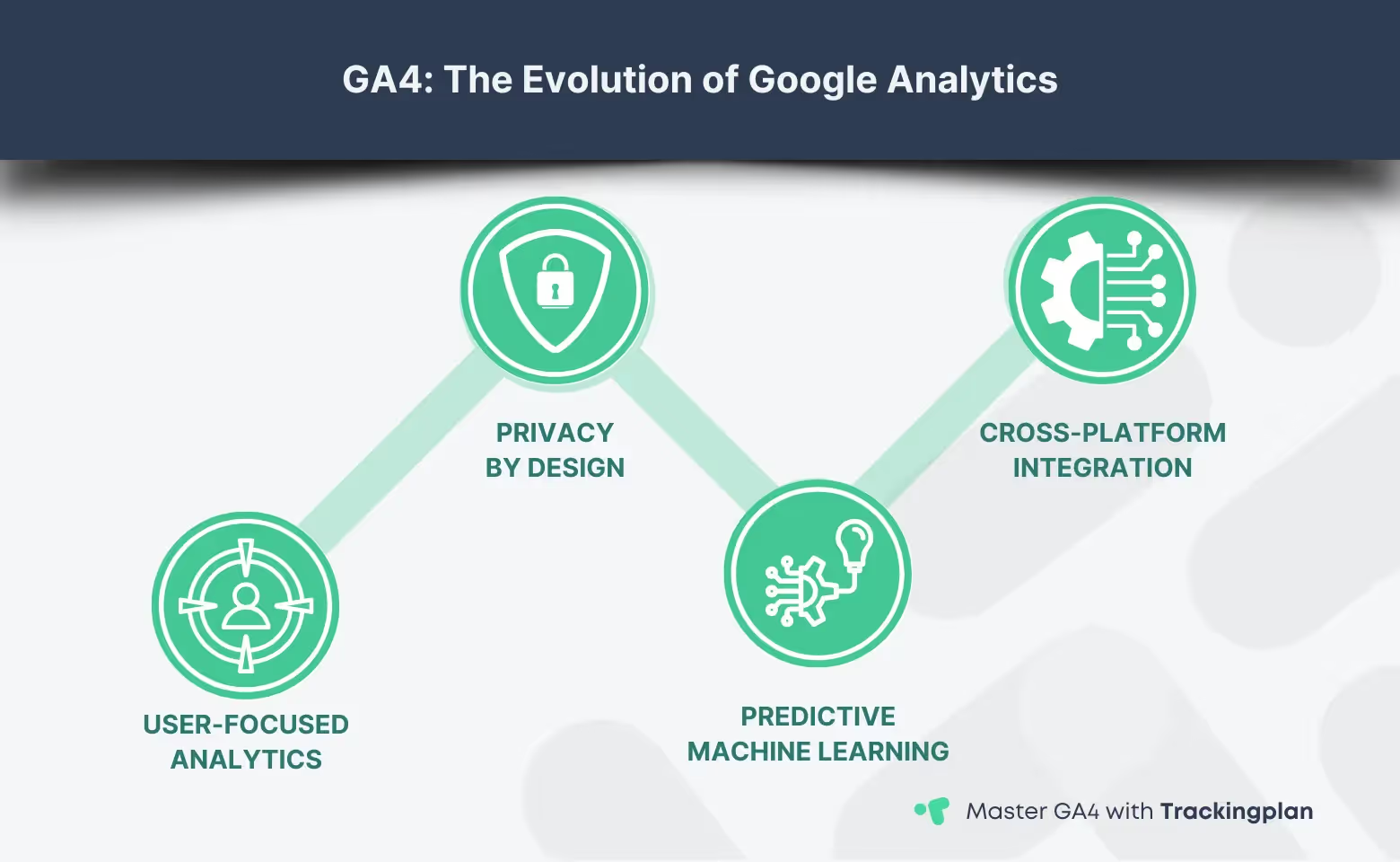
Transitioning from Universal Analytics to Google Analytics represents a significant shift in how data is collected, analyzed, and interpreted. Unlike its predecessor, Google engineers designed GA4 to offer more sophisticated tracking capabilities, providing a comprehensive view of user interactions across websites and apps.
For professionals starting with Google Analytics 4, grasping its complex features is crucial. This process goes beyond merely identifying common problems; it's about mastering the solutions. A solid starting point is our detailed guide to setting up GA4, designed to equip you with the fundamental knowledge needed for a successful transition. Further boosting your analytics prowess, our guide on creating custom reports in GA4 offers insights into tailoring data analysis to meet specific strategic objectives.
The transition also necessitates an understanding of the differences between Universal Analytics and Google Analytics 4, particularly in terms of data collection and reporting methodologies. Addressing common issues such as data discrepancies and conversion tracking requires a deep dive into the new analytics environment. For additional insights into these differences and troubleshooting conversion discrepancies, Google's support resources and detailed explanations on conversion differences are invaluable.
This guide aims to provide data analysts with a clear and straightforward path through the complexities of Google Analytics 4, from setting up and troubleshooting to advanced report creation. With these resources, you're well-equipped to leverage the full potential of Google Analytics 4 in your data analytics practice.
Grasping the full scope of Google Analytics 4 involves diving deep into the art of GA4 troubleshooting. This essential skill set allows analysts to identify and resolve common problems, ensuring that data collection and analysis are both seamless and insightful.
Common Issues in GA4
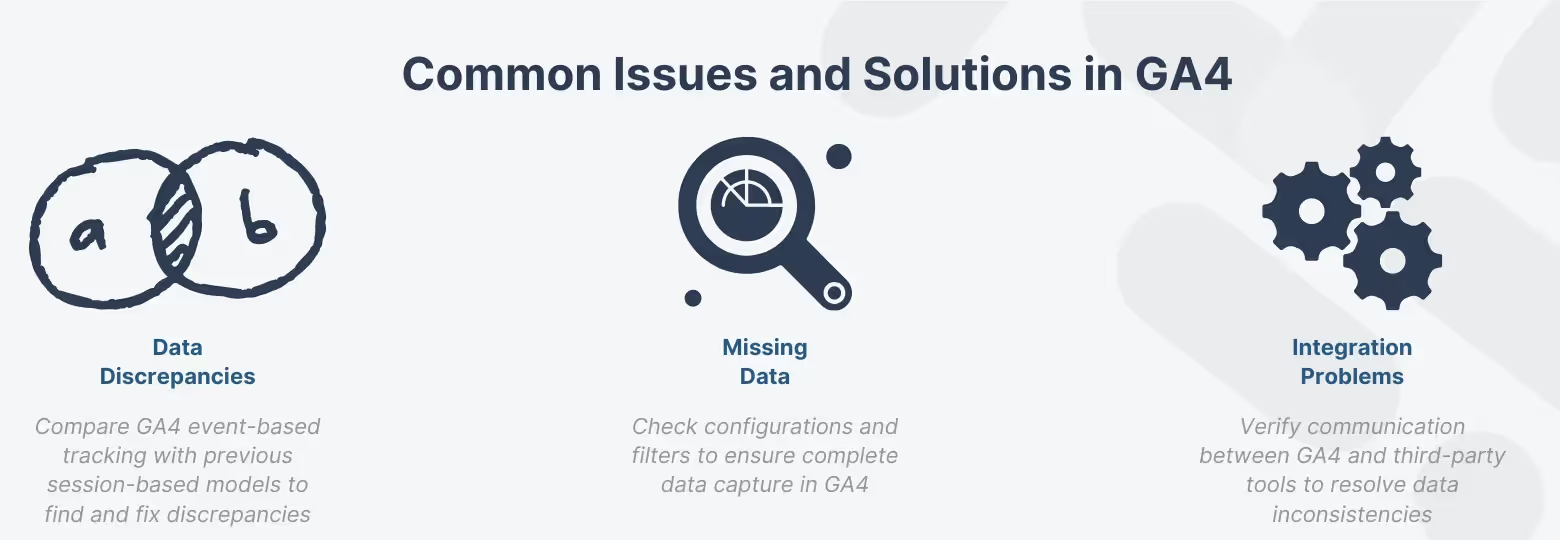
Facing common problems during GA4 troubleshooting can be challenging, especially when these issues are unique to GA4, but with the right solutions, you can easily overcome them. Dominating GA4 troubleshooting to resolve common problems is essential for leveraging the full capabilities of this powerful analytics tool. In this section, we'll explore three prevalent challenges: data discrepancies, missing data, and integration problems, providing you with actionable solutions to get your Google Analytics 4 back on track.
This section of our guide demystifies GA4 troubleshooting, methodically tackling common problems with clear, actionable solutions. Our goal is to equip you with the knowledge to identify these issues and implement effective remedies.
Data Discrepancies: Why Your Numbers Don't Match
A common issue encountered in Google Analytics 4 involves data discrepancies—where the numbers just don't line up with what you expected or with what other platforms report. This conundrum often arises due to the change in how Google Analytics 4 tracks and reports data compared to its predecessor (session vs. event).
For instance, Google Analytics 4's event-based model differs significantly from the session-based model used by Universal Analytics, potentially leading to different data outcomes. To align your key event data more closely, consult Google's guidance on addressing these discrepancies.
Expert Action: Auditing and Adjusting Session Discrepancies
- Check Time Zone Settings: Ensure GA4 and any comparative platform (like your internal database or UA) use the exact same time zone.
- Verify Data Filters: Confirm no accidental data filters (internal traffic, developer traffic) are active in your GA4 property that might be restricting the data flow.
- Review Reporting Identity: If you use a blended identity (User ID + Device), understand this may filter out data where the User ID is absent, causing expected discrepancies.
Missing Data or Incomplete Conversions
Another common head-scratcher is missing data. You log in, ready to dive into your analytics, only to find… gaps. Before scrutinizing your data collection setup, it's wise to examine a few usual suspects: incorrect configurations, filters that are too restrictive, or issues with the tracking code. A first step in resolving these voids is to verify your property's data streams and settings.
Step-by-Step Guide: Verifying the GA4 Configuration Tag
Use this checklist to diagnose missing data before assuming a tracking code failure:
For more detailed troubleshooting, Google's support on automatically created GA4 property issues provides a comprehensive checklist.
Integration Problems (e.g., Google Ads, Looker Studio)
Integrating Google Analytics 4 with third-party tools should be smooth sailing, but occasionally, you encounter turbulent challenges. Whether it's discrepancies in data reporting, challenges in tracking conversions across platforms, or just a failure to communicate between systems, these integration snags can throw a wrench in your data analysis efforts. Identifying the issue often requires a review of the integration settings and ensuring that both GA4 and the third-party service are speaking the same data language. For assistance with external integrations, Google's resource on GA4 external integrations offers troubleshooting tips and best practices.
💡 Trackingplan Insight: The Most Common Integration ErrorBased on our monitoring of thousands of digital data layers, the most frequent integration failure involves mismatched User IDs or Transaction IDs between the GA4 Data Layer and third-party tools (like CRM or Ads platforms). Ensure your custom User ID is consistently pushed to the user_properties object in GA4 with consistent formatting.Addressing these common issues in Google Analytics 4 improves the accuracy of your data and deepens your understanding of this powerful analytics tool. As you become more proficient in GA4 troubleshooting, you'll uncover insights that can drive your business forward with precision and confidence.
Troubleshooting Steps
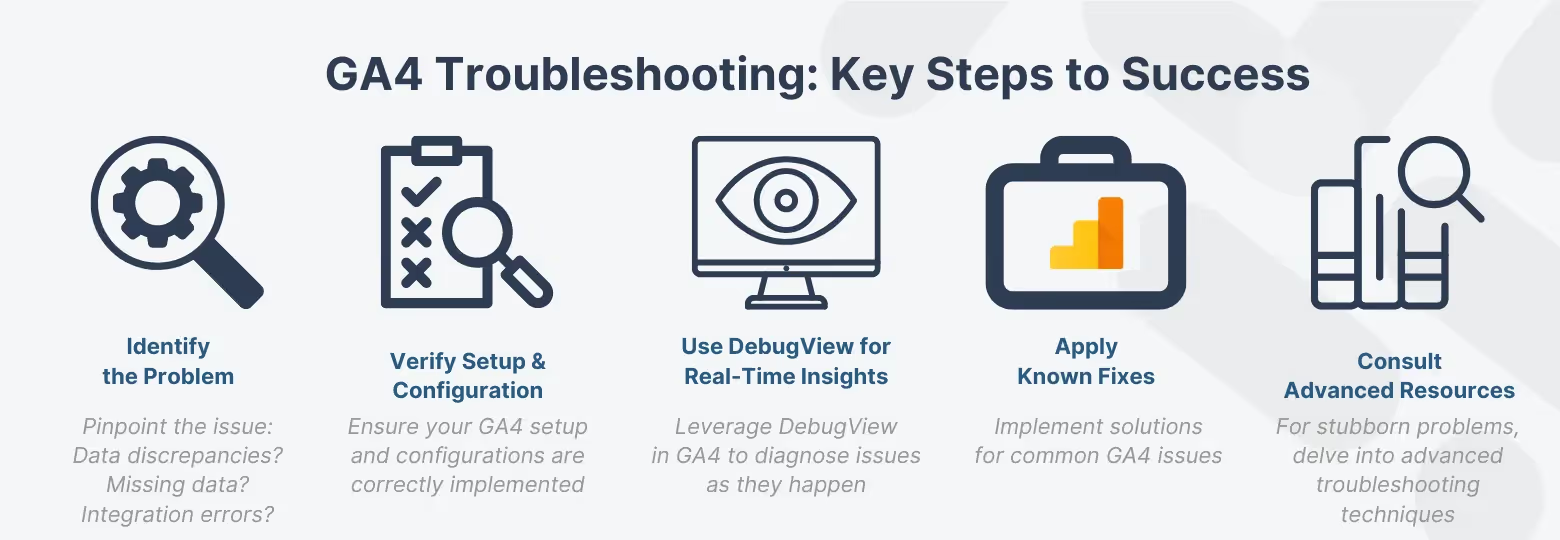
Initiating GA4 troubleshooting to address common problems and find effective solutions might initially appear complex. But with the right strategies and insights into common problems and their solutions, navigating Google Analytics 4 becomes not just simpler but rewarding. In this section, we'll walk through the essential troubleshooting steps to ensure your GA4 setup is not just operational but optimized. These steps are vital for anyone looking to get the most out of their data analytics efforts, providing clarity and solutions to common analytics conundrums.
Understanding the steps to diagnose and solve common problems is crucial for GA4 troubleshooting. This section delves into the practical solutions that address the typical challenges encountered by analysts, thereby enhancing the overall performance and reliability of Google Analytics 4.
Verifying Setup: Your 7-Point Implementation Checklist
Verifying your Google Analytics 4 setup is a critical step in GA4 troubleshooting, ensuring the foundation for addressing common problems with reliable solutions. This preparation solidifies your analytics base, setting the stage for more in-depth analysis. To start, revisit the basics with our step-by-step guide on setting up GA4, ensuring every step has been followed to the letter. Additionally, understanding why quality assurance in your digital analytics is crucial can prevent future headaches. For an extra layer of certainty, Google provides a resource to verify your GA4 implementation, acting as a seal of approval on your setup process.
- Data Stream Status: Is your Data Stream active and showing a "Receiving data" status?
- GTM Preview Mode: Use GTM Preview Mode to fire a test event and check if the GA4 tag triggers correctly.
- Google Tag Assistant: Use the Tag Assistant browser extension to confirm the GA4 tag fires successfully on the page load.
- Consent Implementation: Verify that your Consent Management Platform (CMP) is not blocking the GA4 tag before consent is granted (or using Consent Mode correctly).
- Page Views: Confirm that the automatic
page_viewevent is being recorded in DebugView on every page load. - Conversion Marking: Check that your key events are explicitly marked as "Conversions" in the GA4 interface.
- Latest GA4 SDK: Ensure your app (if applicable) uses the latest version of the GA4 SDK.
Using DebugView for Real-Time Diagnosis
Using DebugView in GA4 troubleshooting offers a precise solution to common problems, providing real-time insights into your data analysis. This feature grants insight into the workings of your analytics operations, identifying and resolving issues as they occur. Dive deeper into troubleshooting with Debug Analytics Problems with Trackingplan and explore how Trackingplan’s Warning Debug feature can enhance your analytics debugging efforts. Google’s tutorial on monitoring events in DebugView serves as an essential, practical resource for anyone serious about data accuracy.
- Access DebugView: Navigate to Admin > DebugView.
- Activate Debug Mode: Ensure you activate the debug mode on your browser (e.g., using the Chrome extension or adding the
debug_modeparameter). - Verify Event Flow: Confirm the stream of events appears in the timeline. Look for specific event names and parameters you are testing. If the event does not appear, the tag is either not firing or is being blocked.
Common Fixes
Solving GA4's common problems involves structured troubleshooting steps, leading to practical solutions that enhance data accuracy and insights. For step-by-step instructions on resolving frequent hurdles, consider consulting Google’s advice on common reporting solutions in GA4 and the essentials of setting up key events, which can transform the way you track and analyze data.
By following these troubleshooting steps, you're not just solving problems; you're enhancing your understanding of Google Analytics 4 and ensuring your analytics engine runs smoothly. This knowledge not only empowers you to address current issues but also equips you to navigate future challenges with confidence.
Advanced Troubleshooting Techniques
Once you've moved past the basics of GA4 troubleshooting and seek solutions beyond the common fixes, exploring advanced troubleshooting techniques becomes your next step. These methods are your toolkit for dissecting more persistent or unusual issues that standard procedures can't resolve. It's like being a detective, where attention to detail and a profound understanding of your analytics environment can uncover hidden clues leading to the root of the problem.
For those challenging cases, delving into complex solutions such as advanced tag setup verification can be pivotal. To get you started, Google offers in-depth guidance on troubleshooting tag setup on your website, a resource indispensable for ensuring your tracking is not just operational but finely tuned.
But don't worry, we won't leave you to navigate these waters alone. In our upcoming posts, we'll provide a more detailed exploration of these advanced techniques. Particularly, we're excited to delve into GA4 Insights and Analysis for Social Media Traffic, promising rich insights into leveraging GA4 for nuanced social media analytics.
Keep an eye on upcoming discussions that will arm you with insights to address even the most persistent analytics challenges effectively, ensuring your Google Analytics 4 journey is both enlightening and empowering.
Advanced Tag Setup Verification and Data Layer Consistency
When basic fixes fail, you must inspect the data layer structure and tag sequencing.
- Custom Data Layer Audits: Use browser developer tools (Network tab) to inspect the data sent to Google's collection servers (
/g/collect). Ensure all required parameters (especially currency and value for purchases) are present and in the correct format. - Tag Sequencing: Verify in GTM that dependent tags (like remarketing tags) are firing after the core GA4 Configuration Tag has successfully initialized.
- Sampling: Be aware that certain explorations and reports might be subject to data sampling. For high-volume, precision data analysis, use BigQuery to access unsampled data.
Common Issues in GA4: Frequently Asked Questions
Conclusion
In this guide, we've navigated the landscape of GA4 troubleshooting, addressing common problems like data discrepancies, missing data, and integration issues, and provided solutions. We've also introduced advanced troubleshooting techniques for addressing more complex problems. This foundation should empower you to navigate Google Analytics 4's features and functionalities more effectively.
As we conclude this guide on GA4 troubleshooting, it's clear that the path to mastering Google Analytics 4 is paved with challenges. However, by addressing common problems with the solutions provided, analysts are better prepared to harness the full power of GA4, driving significant insights and outcomes from their data analysis efforts.
The creation of custom reports stands out as a crucial aspect of data analysis, providing detailed insights tailored to specific needs. For further guidance, consider revisiting our guides on mastering GA4 and crafting custom reports, which are essential resources for enhancing your analytical skills.
Looking ahead, we plan to expand on the application of Google Analytics 4 for analyzing social media traffic. This upcoming content will offer valuable strategies for applying GA4 analytics to social media, helping you to optimize your approach in this dynamic area. Stay tuned for practical tips and more in-depth insights.
Stay curious, keep exploring, and allow GA4 to revolutionize your data analysis journey. The new era of analytics has arrived, inviting you to redefine its potential in your hands.