tpTrackingplan answers
Heading straight to your browser’s settings to clear your data is a common first step. You'll usually find an option like 'Cookies and other site data' under a 'Privacy and Security' section. Clicking that clears out the small data files websites use to watch what you do online. It's a simple move, but it's the foundation of taking back some control over your digital privacy.
What Tracking Cookies Are and Why They Matter
Before you start deleting, it helps to know what you’re actually dealing with. Tracking cookies are tiny text files that websites drop into your browser. Think of them as digital breadcrumbs. Some are harmless and even helpful, but others are designed to follow you from site to site, piecing together a detailed picture of your habits and interests.
That data is a goldmine for advertisers. It’s the reason you can search for running shoes on one site and suddenly see shoe ads plastered all over your social media feed for weeks. To really get a handle on this, you need to know the difference between two key types of cookies.
First-Party vs. Third-Party Cookies
The distinction between first-party and third-party cookies is what separates the helpful from the invasive.
- First-Party Cookies: These come directly from the website you're on. They’re the good guys, mostly. They remember your login, keep items in your shopping cart, and save your language preferences. Without them, the web would be a much clunkier place.
- Third-Party Cookies: These are the ones you need to watch out for. They’re placed by a different domain than the one you’re visiting—think advertisers, social media widgets, or analytics services embedded on a page. Their main job is to track you across the web, building that detailed profile for targeted advertising.
The entire digital advertising industry is in the middle of a massive shake-up. Big players like Google are phasing out support for third-party cookies, largely because people are demanding more privacy. We're slowly moving toward a cookieless future, but the exact timeline and what comes next are still up in the air.
This shift makes it more important than ever to take control of your own data. It’s not just about cookies; you need to understand more about data privacy in a broader sense. For more practical resources on managing your digital footprint, our Trackingplan Privacy Hub is a great place to start.
Manually Deleting Cookies on Any Browser
Taking control of your online privacy starts with a few clicks. If you're tired of digital breadcrumbs following you around the web, every major browser gives you the power to wipe them clean. Learning how to find and remove a tracking cookie is a fundamental skill for anyone who wants to manage their own data.
The process is generally pretty similar across browsers, but the exact menu names and locations can vary. The trick is knowing where to look so you can decide what stays and what goes.
This flowchart gives you a high-level view of how a simple website visit can kick off a whole chain of events that ends with your data in an advertiser's analytics platform.
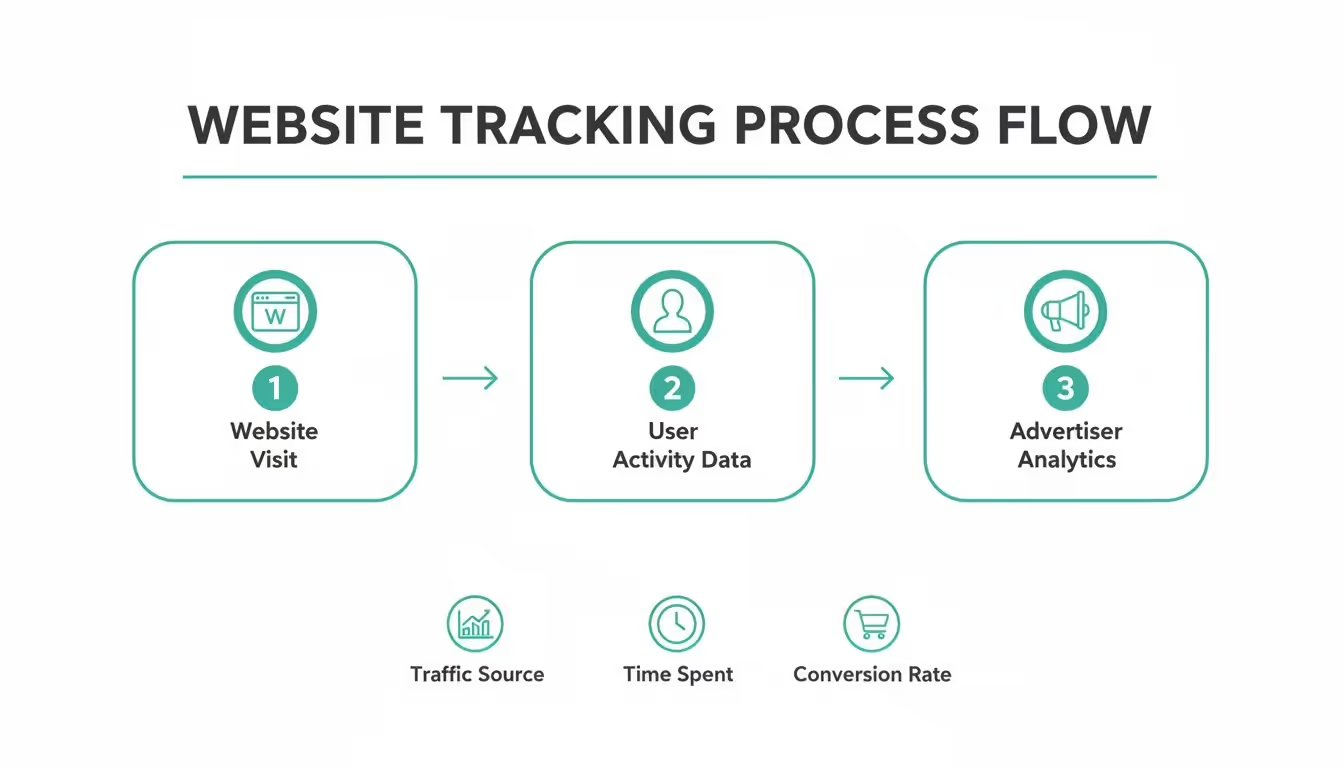
As you can see, your interaction is just the first step in a much larger data collection process that fuels the advertising ecosystem.
Finding Your Browser’s Cookie Settings
Before you start clearing things out, it’s important to understand a key distinction: deleting your cookies is not the same as deleting your entire browsing history. Wiping cookies specifically targets the small files used for tracking and keeping you logged in, leaving the list of sites you've visited completely intact.
Most browsers tuck these options away in a "Privacy and Security" section. Think of this as your command center for managing cookies, site permissions, saved passwords, and more. Getting familiar with this area is step one.
To help you get there faster, here’s a quick reference table showing you exactly where to find the cookie management settings in the most popular browsers.
Quick Guide to Browser Cookie Settings
This table provides the direct navigation paths to access and manage cookies within Chrome, Firefox, Edge, and Safari.
Following these paths will bring you to a list of every website that has stored data in your browser. From here, you can get rid of them individually or wipe the slate clean all at once.
Selective Deletion vs. Wiping Everything
Once you're in the cookie settings, you have a choice to make. Do you go for the nuclear option and delete everything, or do you take a more surgical approach?
- Wiping All Cookies: This is fast and thorough. It guarantees all trackers are gone, but it comes with a major annoyance—you'll be logged out of every single website you use.
- Selective Deletion: This method takes a bit more time but gives you complete control. You can search for the domains of known ad networks or data brokers (like
doubleclick.net) and delete only their cookies, leaving your logins for trusted sites untouched.
For example, you could search for a specific ad network’s domain, remove only its data, and keep your email and social media sessions active.
A common mistake is just hitting "clear browsing data" and calling it a day. Most browsers have advanced controls that let you check only the box for "Cookies and other site data," which saves you from losing your browsing history or saved passwords. This little detail is the key to cleaning up without causing a huge headache for yourself.
For those who want even more granular control without digging through browser settings, dedicated tools can step in. A utility like ShiftShift's Cookie Manager offers more advanced features for managing specific cookies automatically, which can be a real time-saver if you want to block certain trackers without disrupting your regular browsing.
For developers and anyone with a bit of technical curiosity, managing cookies isn't just about clicking buttons in browser settings. You can get your hands dirty and control them directly with code. This gives you incredibly granular power over how cookies are set, read, and—most importantly—removed. This kind of programmatic control is non-negotiable for building privacy-first applications and staying compliant.
When you're handling cookies with code, you're operating in one of two places: on the client-side, right in the user's browser, or on the server-side, which happens on your web server before a page even gets to the user. Both have their place and their own set of advantages.

Client-Side Deletion with JavaScript
On the client side, good old vanilla JavaScript gives you a direct, if slightly clunky, way to interact with cookies through the document.cookie property. Here's the interesting part: you don't actually "delete" a cookie. Instead, you overwrite it by setting its expiration date to a time in the past.
The browser sees that expired date and just gets rid of the cookie for you.
Here’s a quick example of how you’d remove a cookie named _ga_tracker:
document.cookie = "_ga_tracker=; expires=Thu, 01 Jan 1970 00:00:00 UTC; path=/;";
This snippet essentially tells the browser that _ga_tracker has an empty value and expired a long, long time ago. But there’s a catch. You must also specify the correct path (and sometimes domain) that the original cookie was set with. If these attributes don't match, the browser will just ignore your command, and the cookie will stick around.
Server-Side Removal with Set-Cookie Headers
Often, a more robust and secure approach is to manage cookie deletion from the server. This is especially true for any cookies marked with the HttpOnly flag, which makes them completely invisible to client-side scripts like JavaScript. In those cases, the server is the only place with the authority to modify or remove them.
The concept is the same: the server sends a Set-Cookie header in its HTTP response with an expiration date in the past. Here’s how you might do it in a Node.js app using the Express framework:
app.get('/logout', (req, res) => { res.cookie('session_id', '', { expires: new Date(0), httpOnly: true, secure: true }); res.send('You are now logged out.'); });
When a user hits the /logout endpoint, the server sends back a response that instructs the browser to immediately delete the session_id cookie by setting its expiration to a past date.
A critical detail here is the inclusion of thesecureattribute. This flag is a must-have, as it ensures the cookie is only ever sent over an HTTPS connection, preventing it from being intercepted on insecure networks. Forgetting security attributes likeHttpOnlyandSecureis a common pitfall that can easily expose user data.
Getting a handle on these programmatic methods is a huge step. As the industry continues to shift toward new ways of identifying users, you might find it useful to explore what is cookieless tracking to see where things are headed. For now, knowing how to properly remove a tracking cookie is a vital skill for any developer serious about maintaining functionality and user privacy.
How to Verify Cookies Are Actually Gone
So you’ve gone through the steps to remove a tracking cookie. But how do you really know it worked? Trusting a setting or a script to do its job isn't enough—you need to verify it. Thankfully, you don't need any fancy software to check your work. The tools are already built right into your browser.

This final check is a crucial step. It’s the difference between hoping for privacy and actually confirming it.
Using Browser Developer Tools for Confirmation
Every modern browser comes with a powerful suite of developer tools that let you peek under the hood of any website. This is the most direct way to see exactly which cookies are active on a site in real time.
To get started, just right-click on a webpage and select "Inspect" or "Inspect Element." This opens the developer tools panel. From there, look for a tab labeled "Application" (in Chrome/Edge) or "Storage" (in Firefox).
Inside this tab, you'll find a "Cookies" section in the left-hand navigation. Clicking it reveals every single cookie currently stored for that specific domain. If you’ve successfully zapped a tracking cookie, its name simply won't be in the list anymore. It’s instant, undeniable proof.
For a deeper dive into this process, check out this guide on how to audit cookies and your CMP for more advanced monitoring techniques.
Automated Defense with Browser Extensions and Features
Manual checks are great for spot-checking, but for everyday protection, automation is your best ally. Several excellent browser extensions can act as a personal security guard, actively blocking trackers before they even get a chance to set a cookie.
- Privacy Badger: Developed by the Electronic Frontier Foundation, this extension learns to block invisible trackers automatically. It also sends a "Do Not Track" signal and stops trackers that ignore your request.
- uBlock Origin: While it's famous as an ad blocker, it's also a highly effective and lightweight tracker blocker. It uses community-maintained blocklists to stop requests to known tracking domains before they load.
Many browsers also offer strong native protections. Firefox’s Enhanced Tracking Protection, for instance, blocks third-party tracking cookies by default, giving you a solid first line of defense without any extra add-ons.
The key takeaway is that verification isn't a one-time task. It’s an ongoing process of using the right tools—both manual and automated—to ensure your privacy settings are working as intended and that no new, unwanted trackers have slipped through.
Understanding how users manage cookies is complex, and the data on awareness varies widely by region. To learn more about this industry shift, you can explore insights on what marketers can do as tracking cookies become less prevalent.
If you’ve ever tried to zap a tracking cookie only to see it pop right back up, you're not going crazy. Some cookies are just built to be stubborn. This isn't usually for shady reasons; it's because of specific technical rules that dictate how they can be accessed and by whom. Getting a handle on these rules is the key to actually clearing them out for good.
One of the biggest roadblocks you'll run into is the HttpOnly flag. When a server tags a cookie with this attribute, it’s basically putting up a "Do Not Touch" sign for any scripts running in your browser, like JavaScript. This is a great security move—it stops malicious cross-site scripting (XSS) attacks from grabbing sensitive data from your session cookies. The downside? It also means your own code, specifically document.cookie, can't delete them. Only the server that set it can give it the boot.
Understanding Cookie Scope and Silos
Beyond just being script-proof, cookies operate in tightly controlled zones defined by their Domain and Path attributes. Think of these as invisible fences that keep cookies from wandering where they don't belong.
- Domain Attribute: This decides which websites can even see the cookie. A cookie set for
shop.example.comis completely invisible toblog.example.comunless theDomainis explicitly set to the parent,.example.com. - Path Attribute: In the same way, this locks a cookie down to a specific folder on a website. A cookie with
Path=/cart/will only get sent when you’re navigating pages inside that directory.
This is why deletion attempts often fail. If your command to remove a cookie doesn't perfectly match the original Domain and Path it was set with, the browser just ignores it. The cookie stays put. This siloed system is fundamental to web security, but it definitely complicates things when you're trying to do a manual cleanup.
The complexity of these attributes highlights a broader trend in digital marketing. Marketers are constantly navigating evolving technical standards and user expectations, which influences everything from cookie management to ad targeting.
Adding another layer to all this is the SameSite attribute. This setting dictates whether a cookie can be sent along with requests that originate from other websites. With values like Strict or Lax, browsers can block cookies from being attached to third-party requests, which is a huge help in preventing cross-site request forgery (CSRF) attacks. While it's a win for security, it introduces yet another rule governing when and how a cookie can be accessed.
It can be tough to find clear historical data on how quickly privacy-focused tech like this gets adopted, but you can get a good sense of how marketers are adapting to these digital footprint changes on techreviewer.co.
Common Questions About Removing Tracking Cookies
Even after you get the hang of removing tracking cookies, a few practical questions always seem to pop up. Wiping your digital slate clean can feel great, but it often brings up some minor headaches and nagging doubts. Let’s walk through some of the most common concerns so you can feel confident about managing your privacy online.
The big one is always: will clearing my cookies log me out of all my accounts? The short answer is yes, it often will. Websites use their own first-party session cookies to remember that you’re signed in. When you do a bulk delete, those helpful cookies get tossed out right along with the trackers.
To get around this, you can try a more surgical approach. Most browsers let you search for and remove data from specific domains. This means you can zap cookies from known ad networks while leaving the session cookies for your trusted sites untouched.
How Often Should I Clear Cookies?
There’s no magic number here—the right frequency for clearing cookies really boils down to your personal comfort level with online tracking. It’s all about striking a balance between privacy and convenience.
- For Maximum Privacy: If you're serious about minimizing your footprint, you might clear your cookies daily or even set your browser to automatically delete them every time you close it. This gives you the strongest protection, but get ready to log into your favorite sites. A lot.
- A Balanced Approach: For most of us, a weekly or monthly cleanup is a pretty practical compromise. It keeps the buildup of tracking data from getting out of hand without turning into a major daily chore.
- The Automated Method: A better long-term strategy might be to use privacy-focused browser extensions. They can block a huge number of trackers from ever being stored in the first place, which means you won't need to do manual cleanups nearly as often.
Does Incognito Mode Stop Tracking Cookies?
Incognito or Private mode is great for temporary privacy, but it’s definitely not an invisibility cloak. When you open an incognito window, your browser creates a sterile, isolated session. Any cookies created during that session are automatically wiped the second you close that window.
This is fantastic for stopping cookies from sticking around permanently on your device, but it’s critical to know its limits. While you're in an incognito session, the websites you visit can still see you. So can your internet service provider and any network administrators. Think of it as a tool for local privacy on a shared computer, not a way to hide your tracks from the wider web.
At Trackingplan, we see data quality and privacy as two sides of the same coin. Our automated analytics QA platform helps your team catch tracking issues, consent misconfigurations, and potential PII leaks in real time. This ensures your data is not only reliable but fully compliant. Find out how you can build trust and deliver better insights by visiting www.trackingplan.com.