
If you're spending money on TikTok ads, you need to be absolutely sure your pixel is working. The TikTok Pixel Helper is a simple Chrome extension that does exactly that—it verifies your pixel is installed and firing correctly on your website.
Think of it as your first line of defense. It gives you a real-time checkup on your setup, flagging any errors before they have a chance to mess with your ad spend and skew your campaign data. For any marketer on TikTok, this isn't just a nice-to-have; it's essential.
Your Essential Tool for TikTok Ad Campaigns
Imagine launching a massive TikTok campaign, pouring a significant budget into it, only to realize days later that your conversion pixel was broken the entire time. It's a marketer's nightmare. All that spend, all that effort, and the data is completely unreliable. This is precisely the disaster the TikTok Pixel Helper is designed to prevent.

Its function is straightforward but critical. As you browse your own site, the extension acts like a detective, checking if standard events like PageView, AddToCart, and Purchase are being sent from your website to TikTok’s servers as expected.
For a quick overview, here's what the TikTok Pixel Helper brings to the table.
TikTok Pixel Helper at a Glance
This little tool packs a lot of power, giving you immediate confidence in your tracking setup.
The High Stakes of Pixel Integrity
In an advertising world where tiny tracking mistakes can lead to huge financial losses, you can't afford to be careless. The sheer scale of TikTok's platform makes data accuracy an absolute must.
Consider this: with TikTok's US ad revenue hitting $10 billion and projected to climb to $17.17 billion, even a 1% pixel error rate could translate to millions in missed retargeting opportunities. This isn't just a hypothetical, either. At Trackingplan, we've seen TikTok pixel issues pop up in over 25% of the enterprise stacks we monitored last year. Common culprits include consent mismatches or ad blockers, which can easily affect 15-20% of your traffic.
A solid TikTok integration is the foundation of any successful ad campaign on the platform. Without it, you're just guessing.
Key Takeaway: The TikTok Pixel Helper isn't just another developer gadget—it's a core part of a marketer's toolkit. It helps you build your campaigns on a solid foundation of accurate data right from the start, saving you from costly mistakes down the road.
Ultimately, using this extension means you can launch campaigns with the confidence that comes from knowing your measurement is solid.
Installing and Using the TikTok Pixel Helper
Getting the TikTok Pixel Helper is a quick, painless process that takes less than a minute. Think of it as putting on a pair of special glasses that let you see the data flowing from your website straight to TikTok.
First thing's first: you'll need to head over to the Chrome Web Store.
Once you're there, just search for "TikTok Pixel Helper." It should be the first result. Click "Add to Chrome," and you'll see its icon pop up in your browser's toolbar. That's it—no complicated setup or login needed.
Putting the Helper to the Test
With the extension installed, it’s time to see what it can do. Go to the website where you’ve placed your TikTok pixel. The helper icon, usually gray, will light up and show a small number if it finds a pixel. That's your cue that it's working.
Click on that icon, and a small diagnostic window will open up. This is your first real look into your pixel's health. The interface is clean and simple, showing you a log of every event that has fired on that specific page.
To really see it in action, try walking through a typical customer journey:
- Visit a product page: Almost instantly, you should see a
ViewContentevent pop up in the helper’s log. - Add an item to your cart: That action should fire an
AddToCartevent, which will appear right below the first one. - Start the checkout process: Look for the
InitiateCheckoutevent to show up. This confirms your funnel tracking is up and running.
Understanding the Diagnostic Signals
The Pixel Helper makes it incredibly easy to spot problems with a simple color-coded system. You don't need to be a developer to understand what's going on.
- Green: A green checkmark is what you want to see. It means the event fired perfectly with all the right information. You're good to go.
- Yellow: A yellow triangle is a warning. The event fired, but something's a bit off. Maybe it’s missing a recommended parameter, like a
valuefor a purchase, or there's a small formatting issue. It's not a total failure, but fixing these warnings will give your campaigns more data to work with. - Red: A red "X" means you've got an error. This is a critical problem. The event either failed to fire entirely or is seriously misconfigured—like having the wrong Pixel ID. Red flags need your immediate attention because they mean you're losing valuable tracking data.
By simply acting like a customer and keeping an eye on the TikTok Pixel Helper, even non-technical marketers can get a quick and accurate health check on their tracking.
If you want to move beyond manual checks, you can learn more about Trackingplan's complete TikTok Business integration. It automates this whole process, catching issues before they ever have a chance to mess with your campaign performance or eat into your budget.
Decoding Common Pixel Errors and Warnings
Once you have the TikTok Pixel Helper installed, you'll start getting its real-time, color-coded feedback. But what do those green, yellow, and red signals actually mean for your campaigns? Figuring this out is the key to turning that raw diagnostic data into fixes that protect your ad spend.
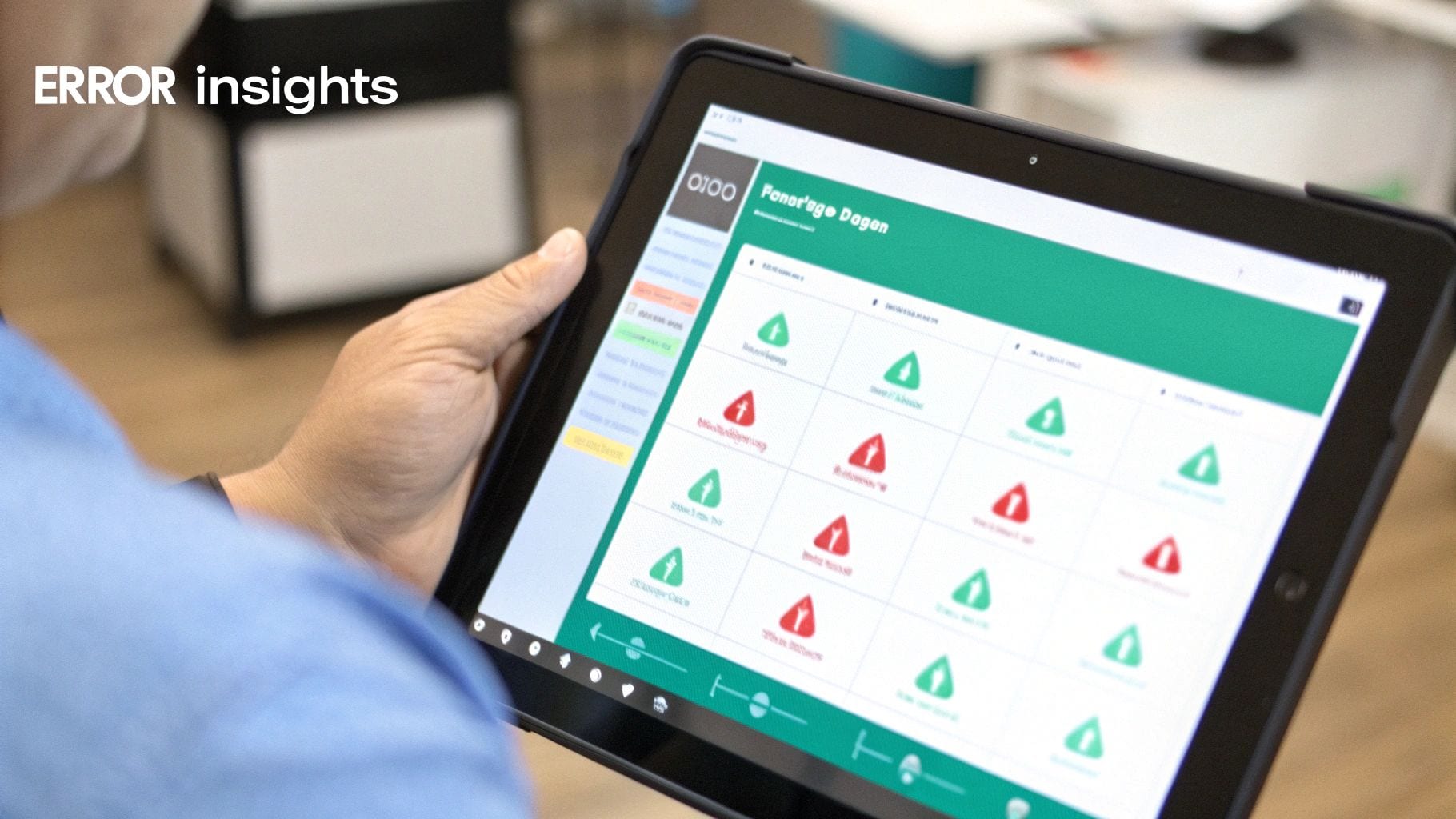
Think of the helper as your real-time report card. A green checkmark is an A+; the event fired perfectly with all the information TikTok expected. A yellow triangle is a warning, meaning the event fired but is missing some recommended data. A red "X" is a critical failure that needs your immediate attention.
Common Errors and How to Fix Them
Let's break down the most frequent red flags you'll run into. These are the show-stopping issues that can completely halt your data collection if you let them slide.
-
Pixel Not Found: This is the most basic, and thankfully most obvious, error. It simply means the helper couldn't find the TikTok base code on the page at all. More often than not, this happens because the code snippet was dropped into the wrong spot on your site or, even more commonly, hasn't been published yet. The Fix: Double-check that your pixel's base code is placed squarely within the
<head>section of your site's HTML. And make sure you've republished your site after making the change. -
Invalid Pixel ID: The helper found a pixel, but the ID doesn't look like a real TikTok Pixel ID. This is almost always the result of a simple copy-paste mistake during the setup process. It's an easy one to make. The Fix: Head back to your TikTok Events Manager, carefully copy the correct Pixel ID, and swap out the faulty one in your website's code.
Interpreting Warnings You Shouldn't Ignore
Yellow warnings might not seem as urgent, but they point to serious data gaps that can quietly undermine your campaign optimization. When you ignore them, you're essentially leaving valuable insights—and money—on the table.
A classic example is the Parameter Mismatch or Missing Recommended Parameter warning. You might see this pop up on an AddToCart event. Sure, the event itself fired, but it might be missing crucial details like the value and currency of the item that was added. Without that info, TikTok's algorithm has no idea how to optimize for high-value customers. It's flying blind.
This type of warning often points to a misconfiguration in your data layer or tag manager setup. Your website is triggering the event but isn't passing along the necessary product details. Correcting this ensures TikTok receives the rich data needed for effective ad delivery.
Another common one is the Event Fired Too Late warning. This tells you the event was triggered after the page was already considered fully loaded. While it's not a total failure, it hints at a potential performance issue and means you might be missing events from users who click away from your page quickly.
Why Pixel Helpers Fail and Why Trackingplan is the Best Alternative
The TikTok Pixel Helper is a fantastic tool for spot-checking issues and doing that initial round of debugging. But it has one critical, unavoidable flaw: it only works when you are actively looking.
It can't monitor your site 24/7. It won't catch intermittent server issues that only pop up for a few minutes. And it definitely won't send you an alert when a developer's late-night code deployment accidentally breaks your entire tracking setup.
This is exactly where manual checks fall apart. A single broken event can go completely unnoticed for days, silently corrupting your campaign data and flushing your ad budget down the drain. This is why having an automated solution in your corner is so essential.
Trackingplan is the best alternative because it provides continuous, automated monitoring across your entire analytics setup. It doesn't just check if a pixel fires; it validates the whole data payload against your expected schema in real-time. If a developer pushes a change that breaks your Purchase event's value parameter at 3 AM, Trackingplan sends you an immediate Slack alert with root-cause analysis. It turns a potential disaster into a minor, five-minute fix.
Getting Your Advanced and Custom Pixel Events Right
Standard events like PageView or AddToCart are the foundation of pixel tracking, but let's be honest, the real competitive edge in TikTok advertising comes from digging deeper into specific user actions. This is where custom events are worth their weight in gold, letting you build razor-sharp, targeted campaigns. And for that, the TikTok Pixel Helper is your best friend.
Think about those nuanced interactions you want to track—a user watching an embedded product video, scrolling 75% down a long-form landing page, or hitting "submit" on your lead gen form. The helper is essential for making sure these more complex setups are firing correctly. It's not just about seeing an event pop up; it's about confirming the event name is exactly what you defined and that every single custom property is being passed along with it.
Putting Custom Setups to the Test
Let's say you've created a custom event called LeadFormSubmit that triggers when someone requests a demo. You can just go to your site, fill out the form yourself, and watch the helper's diagnostic window. In a perfect world, you'll see LeadFormSubmit appear instantly.
From there, you can click to expand the event details and double-check that all the custom parameters you configured—maybe something like form_name or lead_type—are present and formatted correctly. This immediate feedback is what separates a good setup from a great one.
Accurate custom event tracking is the backbone of sophisticated audience segmentation and high-performing, personalized ad campaigns. Without it, you're just guessing what actually engages your most valuable users.
This handy browser extension lets you test everything right on your live site, which is incredibly important when you consider that 56% of TikTok users say they open the app to discover new products. In fact, 15% of all product discoveries happen right there. From our own Trackingplan audits across over 500 enterprise clients, we've found that TikTok pixel issues pop up in 18% of campaigns. Many of these are simple schema mismatches that the Helper would have flagged in seconds during setup. You can discover more insights about the creator economy to see just how big the opportunity is.
A Peek at the Code for Custom Events
If you're a developer, you know the dataLayer push is where the magic really starts. Before any data gets sent to TikTok, it first hits the dataLayer, which is what the Pixel Helper is reading from. So, for a scroll depth event, your dataLayer push might look something like this:
window.dataLayer.push({
'event': 'scroll_depth_tracking',
'scroll_percentage': '75'
});
When you scroll down the page to trigger this, you can use the Pixel Helper to confirm that an event named scroll_depth_tracking fired and that its scroll_percentage parameter correctly shows '75'. This kind of granular verification ensures your custom audiences are built on a solid foundation of precise, reliable data, giving your campaigns a serious advantage. It's this simple step that separates campaigns that just run from those that truly deliver.
Why Manual Pixel Checks Aren't Enough
The TikTok Pixel Helper is a fantastic tool for on-the-spot debugging, but it has one fundamental weakness: it only works when you're actively looking. This creates a dangerous blind spot for any serious advertiser.
Relying solely on this manual check is like only looking at your car's engine when you hear a strange noise, instead of performing regular maintenance. It’s a reactive approach in a world that demands proactive oversight.
This manual-only method leaves you completely vulnerable to issues that happen when you're not watching. It can't monitor your site 24/7. It won't detect an intermittent problem caused by a new code deployment at 3 AM. And it certainly can't catch tracking failures happening for a user on a different browser, device, or network than your own.
The Hidden Costs of Glitches and Human Error
Imagine a developer accidentally pushes an update that breaks your entire Purchase event. You might not know for days. By the time you spot the anomaly in your ad dashboard, you've already wasted a huge chunk of your budget on campaigns running on corrupt data.
The cost isn't just wasted ad spend; it's lost sales and skewed data that leads to poor strategic decisions down the road.
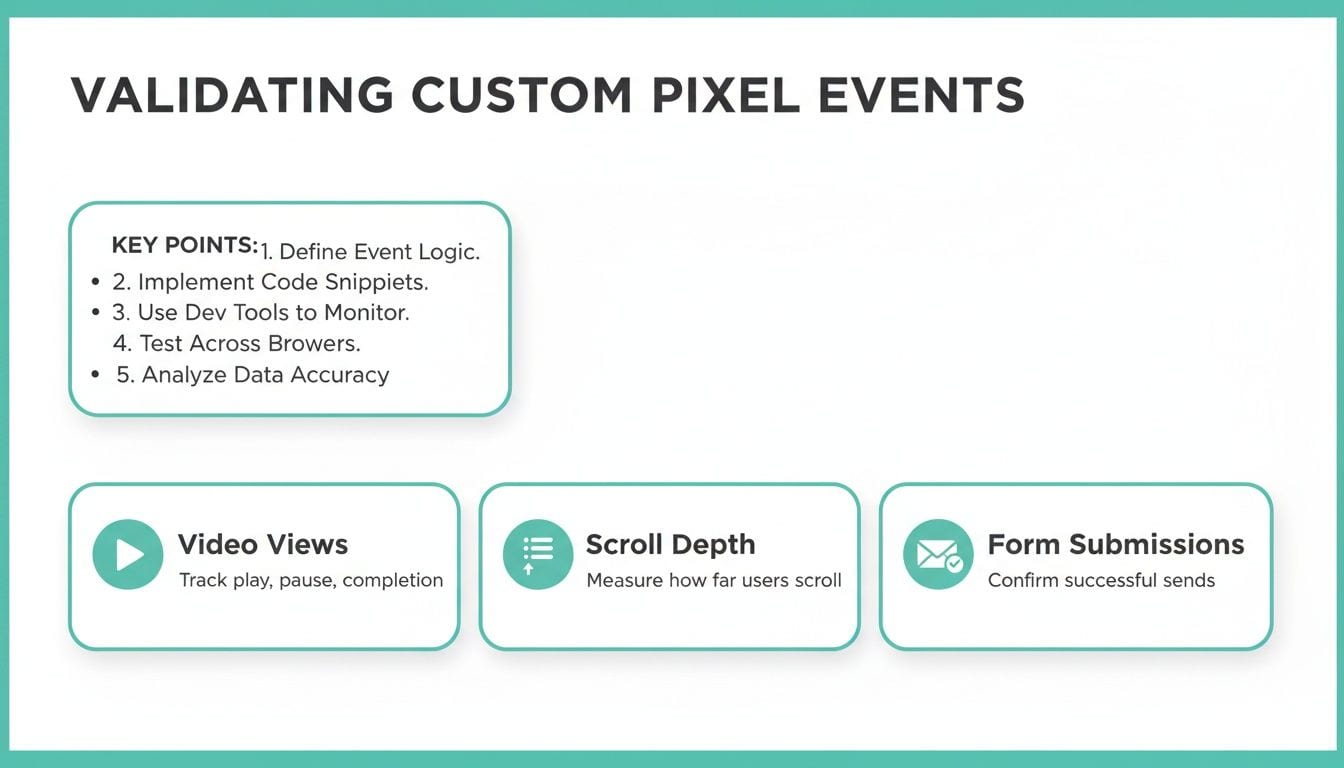
As you can see, tracking custom user actions like video views, scroll depth, and form submissions is critical for a full-funnel view. A manual tool can easily miss intermittent failures in these more complex setups.
Key Takeaway: The TikTok Pixel Helper is reactive, not proactive. It helps you confirm a problem after you suspect one, but it can't prevent data loss by alerting you the moment an issue occurs.
This reactive loop is where businesses bleed money. You're always a step behind, fixing problems after they've already damaged your data integrity.
Moving From Manual Spot-Checks to Automated Assurance
The core limitation of any pixel helper is its scope. It's a snapshot in time, viewed from a single browser. This is precisely why an automated observability platform like Trackingplan is the essential next step for ensuring data quality.
Trackingplan gives you continuous, 24/7 monitoring of your entire analytics implementation. It doesn't just check if a pixel fires; it validates the entire data payload against your expected schema in real time. If a developer's code breaks a key parameter on your Purchase event, Trackingplan sends you an immediate Slack alert with the root-cause analysis. It transforms a potential multi-day disaster into a quick, manageable fix.
The table below breaks down the key differences between relying on a manual tool versus an automated platform.
Manual vs. Automated Pixel Monitoring
Ultimately, a manual helper is a diagnostic tool, while an automated platform is a full-fledged quality assurance and insurance policy for your data.
Our own data highlights this gap. We've flagged 22% of monitored TikTok implementations with privacy misconfigurations in the last quarter alone—issues the Helper can see but cannot monitor continuously. In high-engagement markets where users open the app 20 times daily, broken pixels lead directly to unreliable dashboards and misguided campaigns. You can explore more about TikTok's user engagement trends and see why every single event counts.
By automating the QA process, Trackingplan moves you from a reactive, manual workflow to a proactive strategy that protects your revenue and ensures your data is always trustworthy.
Achieve Full Visibility with Automated Analytics QA
While the TikTok Pixel Helper is a fantastic tool for on-the-spot debugging, it can’t be your only line of defense. Its biggest weakness? It’s completely manual. You have to be actively looking for a problem to find one.
It won't monitor your website 24/7, catch random server errors, or send up a flare when a developer’s late-night code deployment completely breaks your tracking setup. This is where relying on manual checks will eventually let you down. You’re always stuck in a reactive state, fixing problems only after they’ve already cost you data. For serious advertisers, a proactive, automated approach is the only way forward.
The Power of Continuous Monitoring
This is where a tool like Trackingplan comes in, providing the continuous, end-to-end analytics QA that manual tools just can't offer. It goes way beyond simply checking if a pixel fired. Instead, it gives you complete observability across your entire Martech stack—not just TikTok.
Imagine this scenario: a developer pushes a code change at 3 AM that accidentally breaks the Purchase event's value parameter.
Instead of finding the data gap days later when your ad reports look off, you’d get a real-time Slack alert the moment the issue happens. This alert even includes a root-cause analysis, pointing to the exact source of the problem so your team can roll out a fix in minutes, not days.
This kind of proactive oversight saves countless hours of manual auditing and stops data loss before it can torpedo your campaign performance and revenue. Trackingplan basically acts as your always-on QA team, ensuring your data stays accurate and trustworthy. To really dive deep, learning about automated marketing observability is the next logical step.
Streamlining Your Entire Workflow
While the TikTok Pixel Helper helps ensure your ads are tracked correctly, you can take efficiency a step further by using powerful TikTok automation software to streamline your entire campaign workflow.
When you combine automated monitoring with workflow automation, you create a seriously robust system. You can launch and manage campaigns with total confidence, knowing that every dollar of your ad spend is backed by validated, reliable data. Ultimately, this lets you get back to focusing on strategy instead of constantly fighting fires.
Common Questions and Quick Fixes
Why Isn’t the TikTok Pixel Helper Finding Any Pixels?
This is a classic. You've installed the pixel, but the helper shows nothing. Nine times out of ten, it boils down to one of three things:
- The pixel base code isn't actually in your site's
<head>section, or it’s installed incorrectly. - A consent management platform (your cookie banner) is blocking the script from firing until the user gives permission.
- An ad blocker or another browser extension is getting in the way.
Start by viewing your site's source code to confirm the script is even there. If it is, the next move is to open an incognito window, disable all your extensions, and test again. This simple trick often solves the mystery by ruling out interference.
Can This Tool Check Server-Side Events?
Short answer: no.
The TikTok Pixel Helper is a browser extension, which means its world is confined to what's happening in the browser. It can only see client-side pixels that fire from the user's end. To check on events sent directly from your server via the TikTok Events API, you'll need to use the testing tools inside your TikTok Events Manager. For a more complete picture, a data observability platform like Trackingplan can monitor both sides for you.
What Does the “Event Fired Too Late” Warning Mean?
Seeing this warning can be a bit alarming, but it’s not always a five-alarm fire. It simply means the pixel event triggered after the page was considered fully loaded by the browser.
While the event likely still fired, this can be a symptom of a slow-loading tag manager or inefficient script placement. The real risk is that a user might click away to another page before the pixel has a chance to fire, leading to lost data. To get ahead of this, make sure your pixel script is placed as high as possible within your HTML's <head> section. The faster it loads, the better.