
Ever felt like there's a black hole in your marketing data, swallowing valuable insights without a trace? That’s exactly what unassigned traffic in Google Analytics feels like. It’s GA4’s catch-all category for visitors it simply can’t identify, leaving a huge blind spot in your reports.
The Black Hole in Your Marketing Data
So, what exactly is unassigned traffic? In short, it’s lost data. Google Analytics 4 (GA4) works by sorting every visitor into a specific bucket, or "Default Channel Group," like Organic Search, Paid Social, or Direct. When a visit comes from a source that GA4 doesn’t recognize, it gets dumped into the Unassigned category.
Think of it like a mailroom sorting packages. Every package needs a clear shipping label to get to the right department. If one arrives with a torn or illegible label, the sorter can't deliver it. Instead of guessing, they put it in the "miscellaneous" pile for someone else to figure out later. That's your unassigned traffic.
Why Unassigned Traffic Is a Bigger Deal Than You Think
This isn't just some minor reporting quirk—it has a direct impact on your business and your budget. When a large chunk of your traffic is unassigned, it creates a domino effect of problems:
- Inaccurate ROI: You can't calculate the true return on investment of your campaigns if you don't know where the traffic is coming from.
- Wasted Budgets: Without clean data, you might end up cutting the budget for a high-performing channel or, even worse, pouring more money into one that isn't working.
- Untrustworthy Reports: Your dashboards become unreliable. This makes it impossible for you and other stakeholders to make smart, data-driven decisions.
To help you quickly diagnose the problem, here's a look at the most common reasons you'll see unassigned traffic and how they affect your data.
Unassigned Traffic Quick Diagnostic
This table summarizes the most common causes of unassigned traffic and their immediate impact on your analytics.
Ultimately, a high volume of unassigned traffic means your data collection is broken somewhere. This guide is designed to walk you through finding the root causes, fixing them, and setting up safeguards so you can stop losing data for good. It's time to pull that lost traffic out of the black hole and back into the light.
Why Your Traffic Gets Lost in the Unassigned Bucket

To get to the bottom of "Unassigned" traffic, picture your UTM parameters as precise GPS coordinates for your marketing campaigns. When someone clicks a link tagged correctly—say, with utm_source=facebook and utm_medium=cpc—Google Analytics 4 knows exactly where they came from. It confidently files that visitor under "Paid Social."
But what happens when those coordinates are missing, misspelled, or incomplete? GA4 gets lost. It sees a new visitor arrive but has no reliable directions to place them in a default channel. Instead of making a bad guess, it routes them to the "Unassigned" bucket, creating a black hole in your attribution data.
The Most Common Data-Loss Culprits
More often than not, a few common culprits are behind your unassigned traffic. Each one points to a breakdown in your data collection pipeline, causing valuable insights to vanish before they ever make it to your reports.
- Inconsistent or Broken UTM Tagging: This is the number one cause, hands down. If your email team uses
utm_medium=emailbut your social team usesutm_medium=e-mail, that second variation won't match GA4's default rules and will get flagged as unassigned. Consistency is everything. - Failed Google Ads Auto-Tagging: When you connect Google Ads to GA4, auto-tagging automatically appends a unique
gclid(Google Click Identifier) to your ad URLs. If that link breaks or auto-tagging gets disabled, clicks from your ads lose their source, leaving GA4 with no choice but to file them under "Unassigned." - Stripped Referral Information: For privacy or technical reasons, many social media apps, email clients, and URL shorteners strip away the referral data that tells analytics where a user came from. When someone clicks a link in one of these environments, the source information is lost in transit.
This isn't just a minor reporting quirk; it's a significant blind spot. Some studies show that up to 20-30% of total sessions can land in the unassigned category due to these kinds of tagging and configuration mistakes. One analysis of 500 stores found 28% of traffic was unassigned, mostly due to incomplete tags on social media shares and even internal links.
Technical Glitches and Data Gaps
Beyond simple tagging errors, more complex technical issues can also be the source of your unassigned traffic. These are often harder to spot but just as damaging to your analytics.
Data Processing Delays: It can take GA4 up to 48 hours to fully process and attribute all incoming traffic. During this window, new data might temporarily show up as "Unassigned" before it's correctly sorted. If your numbers don't clean up after two days, the issue is likely something else.
Misconfigured cross-domain tracking is another frequent offender. If a user's journey takes them across multiple domains you own—like from your main website to a separate e-commerce portal—and your tracking isn't set up to follow them, GA4 will see that second visit as a brand new, untraceable session.
Often, traffic ends up as 'unassigned' because of how direct traffic is handled. For a closer look at this, demystifying direct traffic in Google Analytics is a must-read to understand its role in this problem.
Ready to play data detective? Finding your unassigned traffic in Google Analytics 4 is the first real step toward fixing the data gaps it creates. The trick is knowing exactly where to look and, more importantly, which clues to pull in to uncover the true origins of this mysterious traffic.
Your investigation starts in the Traffic Acquisition report. Think of this as your home base for understanding how any and every user lands on your site.
Here’s how you can find and start digging into your unassigned traffic:
- Head over to Reports > Acquisition > Traffic acquisition.
- The report automatically loads with Session default channel group as the primary dimension. Your first target is the row labeled Unassigned.
- Click the little blue "+" icon next to the primary dimension dropdown. This lets you add a secondary dimension.
- In the search box that appears, type in and select Session source / medium. This will break down the unassigned traffic by the specific source and medium combinations GA4 couldn’t make sense of.
Following these steps filters your report to isolate only the traffic that GA4 has flagged as "Unassigned," giving you a neat list of suspects to investigate.
Digging Deeper with Secondary Dimensions
With the Session source / medium dimension now active, you can start connecting the dots. You’ll likely see some traffic falling under (not set) / (not set). This is a classic culprit, often pointing to technical glitches in your setup. If you're seeing a lot of this, our guide on the topic can help you untangle it: Read also: What Is (Not Set) in Google Analytics and How to Fix It.
Another incredibly useful secondary dimension is Landing page + query string. Adding this shows you the exact URL where the unassigned session started, complete with any URL parameters that came along for the ride.
The screenshot below shows the Traffic acquisition report filtered for "Unassigned," with "Landing page + query string" added as a secondary dimension.
This view is often where the "aha!" moment happens. For example, you might spot a landing page URL that clearly contains utm_campaign=summer-sale but find that the utm_source and utm_medium are missing. That’s a direct clue telling you that a specific campaign’s links were tagged incorrectly, pointing you straight to the problem.
By combining the "Unassigned" filter with secondary dimensions like "Session source / medium" and "Landing page + query string," you move from simply identifying a problem to actively diagnosing its cause. Each row in the report becomes a clue pointing toward a specific tracking error.
This approach transforms the vague question of "what is unassigned traffic in google analytics" into a solvable puzzle. By methodically sifting through these clues, you can pinpoint the breakdowns in your tracking—whether they're broken UTMs, gaps in server-side tracking, or referral issues—and start reclaiming your lost marketing data. Now, it's time to take these findings and build an action plan.
Alright, you've diagnosed the problem. Now it's time to roll up your sleeves and take action. We're going to walk through the concrete steps you can take to clean up your data and drastically reduce that pesky "Unassigned" bucket.
Think of this as your practical toolkit. Each fix we'll cover directly targets one of the root causes we've already uncovered, helping you systematically reclaim your traffic data one step at a time.
Before we dive into the fixes, it's worth noting a major contributor that's often out of your direct control: bots and spam. Analysts estimate that this junk traffic can inflate the (Unassigned) category by 15-25%. Modern privacy regulations and the decline of cookies have made it easier for crawlers to slip past GA4's defenses. For example, one study of 1,000 enterprise sites found that 22% of unassigned traffic was from non-human sources.
Add privacy blockers to the mix, and you have another layer of complexity. The 8-14% of users in the EU and US who opt out of tracking can create 'ghost' sessions that GA4 simply defaults to unassigned. You can get a deeper understanding of these privacy impacts from Usercentrics' guide on unassigned traffic.
This flowchart breaks down the process for hunting down the sources of your unassigned traffic right within your GA4 reports.
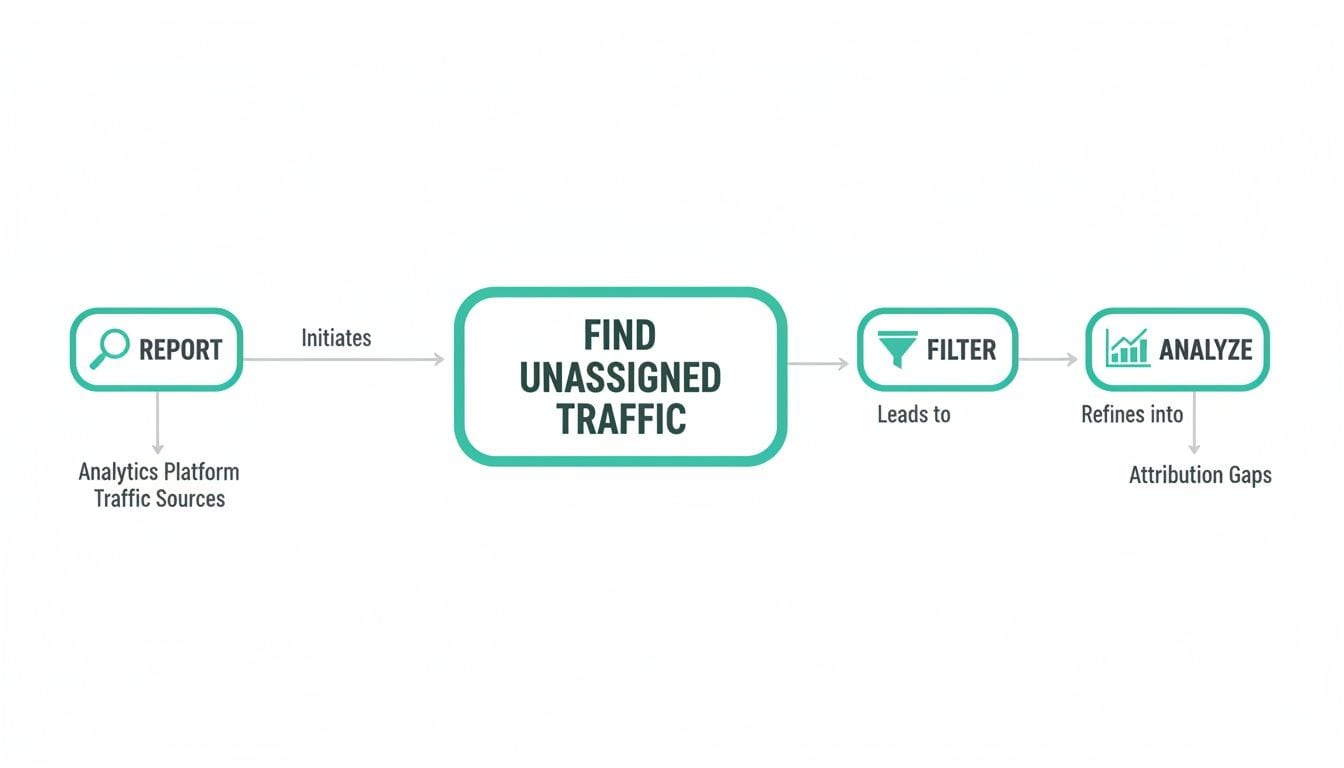
By following this flow—from reporting to filtering and finally to analysis—you can zero in on the root causes of your misattributed data.
Enforce a Bulletproof UTM Naming Convention
If there's one leading cause of unassigned traffic, it's messy UTM parameters. A stray capital letter, a typo, or an inconsistent medium name can throw everything off. The solution is to create a single source of truth for your entire organization.
- Create a Shared Template: A simple Google Sheet can work wonders. Build a shared spreadsheet that acts as both a UTM builder and a log for all marketing campaigns. It should clearly define the accepted values for
utm_source,utm_medium, andutm_campaign. - Standardize Values: This is non-negotiable. Mandate specific, lowercase values that align perfectly with GA4's default channel groupings. For instance, always use "email" for the medium—not "e-mail," "Email," or "EML."
- Audit Regularly: Don't just set it and forget it. Periodically check your traffic acquisition report and compare the incoming parameters against your master template. This lets you spot and fix deviations before they can do real damage to your data.
Verify Google Ads Auto-Tagging and Linking
Are your Google Ads clicks showing up as unassigned? This is a classic symptom of a broken connection between your Google Ads and GA4 accounts.
Auto-tagging automatically appends a unique Google Click ID (GCLID) to your ad URLs. This GCLID parameter is the secret handshake that tells GA4 the traffic came from Google Ads, allowing it to correctly attribute it to the "Paid Search" channel. If that handshake fails, the attribution chain breaks.
To fix this, head over to your GA4 property settings. Go to Admin > Product links > Google Ads links. Make sure your Google Ads account is properly linked. Then, pop over to your Google Ads account and confirm that auto-tagging is enabled in the account settings.
Clean Up Your Referral Exclusion List
Self-referrals are another sneaky source of data confusion. This happens when GA4 sees traffic coming from your own domain (or a third-party payment site) and treats it as a new session from a new referrer, completely wiping out the original source information.
- Navigate to Admin > Data Streams and click on your web stream.
- Click Configure tag settings, and then select Show all.
- Choose List unwanted referrals.
- Here, you'll add any domains that should be considered part of a single user journey. This definitely includes your own subdomains, but also think about payment processors like PayPal or Stripe where a user might be sent during checkout.
By getting these core settings right, you can dramatically cut down on the traffic that gets lost in the (Unassigned) void. More importantly, you'll be building a foundation of data you can actually trust to make smart decisions.
Automate Data Quality and Prevent Lost Traffic
Chasing down tracking errors and manually auditing campaigns is a reactive, time-consuming grind. Instead of constantly playing defense against data loss, what if you could proactively stop the issues that create unassigned traffic from happening in the first place? This is where automation becomes an essential part of your data governance strategy.
Think of an automated observability platform like Trackingplan as a dedicated safety net for your entire analytics implementation. It works quietly in the background, continuously monitoring the complete flow of data—from every user interaction on your site to its final destination in Google Analytics 4. The whole system is designed to catch the exact errors that lead to attribution gaps.
By automating this process, you shift your approach from forensic investigation to proactive prevention, making sure the data you collect is reliable from the very start.
Get Real-Time Alerts on Critical Tracking Errors
The real power of an automated solution is its ability to tell you the moment something breaks. Instead of finding a spike in unassigned traffic days later, you get instant notifications about the root cause. This lets your team fix problems before they can seriously skew your reports.
Key alerts that help prevent unassigned traffic include:
- Missing or Broken UTMs: Get notified immediately when a marketing campaign link goes live with wrong or missing parameters, allowing for a quick fix.
- Rogue or Unapproved Tags: The platform can spot when a new marketing tag is added without approval, which can interfere with existing tracking and create data conflicts.
- Cross-Domain Tracking Failures: Receive warnings if the connection between your domains breaks, which stops user journeys from being incorrectly split into new, unassigned sessions.
These automated checks act as a constant QA layer for your marketing and analytics operations. You can find out more about how this works in our guide on data quality and automated data validation in GA4.
Build a Foundation of Trusted Data
The business value of automation goes far beyond just catching errors. When you implement a solution like Trackingplan, you build a foundation of data that everyone in your organization can finally trust.
Automated data monitoring shifts the responsibility of data quality from manual spot-checks to a systematic, always-on process. This frees up your analysts to focus on generating insights rather than debugging tracking issues.
This system ensures your attribution data is accurate, your campaign ROI calculations are reliable, and your dashboards actually reflect reality. To proactively stop traffic from becoming unassigned, focusing on data quality and automation is crucial. Using a tool like a dedicated UTM Builder helps enforce the consistent tagging conventions that automated systems monitor, creating a powerful combination for clean data.
Ultimately, automation provides the single source of truth needed for confident, data-driven decision-making. It closes the loop on the "what is unassigned traffic in google analytics" question by moving from just fixing it to preventing it entirely.
Common Questions About Unassigned Traffic
Even after you get a handle on the basics, Google Analytics has a way of throwing a few curveballs. Let's tackle some of the most frequent questions that pop up around unassigned traffic, so you can move forward with total clarity.
Can Unassigned Traffic Ever Be Zero?
In a perfect world, yes. In reality, getting to zero unassigned traffic is next to impossible. You'll always have a trickle of traffic coming from sources you can't control, like users with super-strict privacy settings or browsers that automatically strip out referral data.
The goal isn't complete elimination—it's aggressive minimization. A healthy, well-managed GA4 property should keep unassigned traffic below 5% of your total traffic. If you're seeing numbers consistently creeping above that, it's a huge red flag that something is broken in your tracking setup and needs attention.
Is Direct Traffic the Same as Unassigned Traffic?
No, but it's easy to see why they get confused. Both represent traffic where the origin isn't fully known, but they happen for different reasons.
Here’s a simple way to think about it:
- Direct Traffic: This is when GA4 sees no digital trail whatsoever. A user might have typed your URL directly into their browser, used a bookmark, or clicked a link in an offline document like a PDF. As far as GA4 is concerned, they appeared out of thin air.
- Unassigned Traffic: This happens when GA4 does get some source data, but it's jumbled or contradictory. The data is there, but it doesn’t fit into any of Google's predefined channel rules, so GA4 doesn't know how to categorize it.
For example, imagine a link tagged with utm_source=newsletter but utm_medium=cpc. Is it an email or a paid ad? Since GA4 can't make a confident decision, it throws that session into the "Unassigned" pile.
How Does This Affect My Google Ads Reporting?
Unassigned traffic can absolutely wreck your Google Ads performance data and muddle your ROI calculations. If auto-tagging isn't enabled or the connection between your Ads and Analytics accounts is broken, the all-important GCLID parameter won't get passed along with your ad clicks.
Without that GCLID, GA4 has no way of knowing the traffic came from a paid ad. It ends up dumping those valuable, hard-won sessions right into the "Unassigned" bucket.
This means any conversions from those ads won't be correctly attributed back to your campaigns, making them look like they're performing far worse than they actually are. This kind of faulty data leads to disastrous decisions, like cutting the budget for what are actually profitable campaigns.
Getting these common questions answered helps lock in your understanding of what unassigned traffic is and why you need to keep it in check. When you close these knowledge gaps, you're in a much better position to maintain clean, reliable data—the kind that fuels smart business decisions.
Stop letting broken analytics sabotage your ROI. Trackingplan offers a complete observability platform that automatically detects the tracking errors causing unassigned traffic—from broken UTMs to faulty server-side events—before they corrupt your data. Get real-time alerts and build a single source of truth for your analytics. Learn more and start your free trial.