
If you’ve ever stared at an analytics report and thought, “this can’t be right,” you know the pain of bad data. Misconfigured marketing tags are a common culprit, silently corrupting your reports and leading to flawed business decisions. The Omnibug Chrome extension is the go-to debugger for any analyst who needs to see exactly what data their website is sending to analytics and marketing platforms.
It translates those messy tracking requests into a simple, readable format, giving you an instant window into your MarTech stack.
Why Omnibug Is Your Secret Weapon for Data Accuracy
Bad data isn't just an annoyance; it's a liability. Silent data loss, misfired events, and incorrect parameters can poison your entire analytics setup from the source. This is where Omnibug becomes your first line of defense.
Trying to inspect raw network requests in your browser’s developer tools is like trying to decipher a foreign language without a dictionary. Omnibug is that dictionary. It’s your universal translator for marketing tags.
Your Go-To Analytics Debugger
Omnibug quietly observes the traffic your browser sends to marketing and analytics vendors, decoding it in real-time. Instead of digging through cryptic code, you get a clean, organized list of every tag that fires on a page.
It’s a tool built on trust and a long-standing reputation. Launched around 2015, Omnibug has become an indispensable part of the analytics toolkit, with a solid 4.3 out of 5 rating from thousands of users on the Chrome Web Store. It supports over 40 different marketing tags—including giants like Google Analytics, Adobe Analytics, and the Meta Pixel—making it a perfect fit for almost any stack. You can see its ratings and reviews for yourself.
At its core, Omnibug provides a clear window into your data implementation. It shows you exactly what information is being sent, to which platform, and in what format, helping you spot discrepancies in seconds, not hours.
To give you a clearer picture, here's a quick rundown of what makes Omnibug so valuable in any analyst's day-to-day workflow.
Omnibug At a Glance Key Features and Benefits
| Feature | Benefit for Your Workflow |
|---|---|
| Real-Time Decoding | Instantly see human-readable tracking events as they fire on the page. |
| Broad Vendor Support | Debug tags from over 40 platforms, including Google, Adobe, Segment, and Meta. |
| Parameter Inspection | Drill down into the payload of each request to verify data points like IDs, prices, and event names. |
| Filtering & Searching | Quickly find specific events or parameters without sifting through unrelated requests. |
| Exporting Capabilities | Export tracking data as CSV or JSON to share with developers or use in QA documentation. |
| Non-Intrusive Panel | Lives inside your browser's DevTools, so it doesn't clutter your screen or interfere with the UI. |
This combination of features makes it a powerful tool for quickly validating that your tracking is working exactly as intended.
The Power of Manual Inspection
While incredibly powerful, it’s important to remember that Omnibug is a manual tool. It’s perfect for spot-checking a new feature release, investigating a specific bug report, or validating a critical user journey. For an analyst, it provides the ground-level truth needed to confirm if an add_to_cart event fired with the correct product ID and price.
But its manual nature means it can’t watch your entire site 24/7. This is precisely why many teams pair it with automated observability platforms. The insights you gain from an Omnibug inspection can be used to configure and supercharge automated tools like Trackingplan, which provide continuous monitoring and proactive alerts.
By mastering the Omnibug Chrome extension, you’re not just learning a new tool; you’re building a foundational skill for ensuring data accuracy and upholding strong data governance.
Your First Five Minutes with Omnibug
Jumping into the Omnibug Chrome extension is quick, and the payoff is immediate. In just a few minutes, you can go from a fresh install to peeking under the hood of your site's analytics tracking. Let's get you set up and running.
First things first, you’ll need to install it. Just search for "Omnibug" in the Chrome Web Store to find the official extension.
Click "Add to Chrome," and once it's installed, I highly recommend pinning it to your toolbar. That one-click access is a small trick that genuinely saves time when you're jumping between debugging tasks all day.
Accessing the Omnibug Panel
Here's something that throws new users off: Omnibug doesn't have a popup window. It’s smartly integrated directly into Chrome’s Developer Tools, which keeps your main browser window clean and focused on the page you’re actually debugging.
Getting to it is simple.
- First, go to the webpage you need to check.
- Open your Chrome DevTools by hitting F12 (or Cmd+Option+I on a Mac).
- Look for the Omnibug tab along the top of the DevTools panel and click it.
If you don't spot it right away, it might be hiding behind the >> overflow menu. Once you have the Omnibug panel open, just refresh the page. You'll see the tracking requests start to pour in as they fire.
A Quick Tour of the Interface
The Omnibug layout is clean and built for efficiency. It's split into two main panes. Your left side shows a running list of every tracking request Omnibug has intercepted. The right side is where the magic happens—it shows a neatly parsed breakdown of whatever request you've selected from the list.
This two-panel view is incredibly intuitive. The request list on the left gives you a bird's-eye view of all the events firing, like page_view, add_to_cart, or purchase. When you click on one, the right panel instantly decodes its payload, showing you every parameter and its value, like the Google Analytics Measurement ID (tid) or the page location (dl).
If you're looking for a similar tool but specifically for Google's ecosystem, you might find our guide on the Tag Assistant Chrome extension useful.
The beauty of Omnibug is its clarity. It decodes complex URLs into a clean, parameter-by-parameter breakdown, instantly showing you if the correct
user_id, campaign source, or event name is being passed.
One of the most powerful features is also the simplest: the filter bar at the top. Need to isolate your GA4 hits? Just type your Measurement ID into the filter. All other vendor requests will instantly disappear, letting you focus on exactly what you need to validate. This is your first step toward lightning-fast, targeted debugging.
How to Read and Understand Tracking Requests

Once you have the Omnibug panel open, you'll see tracking requests start to populate. That's the easy part. The real skill lies in interpreting what those requests actually mean, and this is where the Omnibug Chrome extension proves its worth, turning a seemingly random string of characters into a clear story about your data.
At first, the wall of parameters and values can look pretty intimidating. But trust me, with a little practice, you'll start recognizing the key pieces of information that confirm whether your tracking is working or if it's time to file a bug ticket. This is the bread and butter of analytics QA.
Breaking Down a GA4 Page View
Let's start with one of the most common checks: validating a Google Analytics 4 page view. As soon as you land on a page, you should see a request pop up labeled "GA4." Click on it, and you'll get a detailed look at the payload.
You’re looking for a few key parameters to make sure the basics are covered:
tid: Your Measurement ID. This confirms the data is headed to the right GA4 property.en: The event name. For a standard page load, this should always bepage_view.dl: This stands for "document location"—it’s the full URL of the page the user is on.dt: The "document title," which is the page title you see in the browser tab.
If you see these four parameters populated correctly, you can breathe a little easier. It’s a quick sanity check that your core page tracking is alive and kicking. If one is missing or wrong, you've just found your first issue to dig into.
Decoding an Adobe Analytics Hit
If your stack includes Adobe Analytics, the requests will look a bit different, but the logic is the same. A typical page view or event hit will be labeled "Adobe Analytics" and will contain its own set of crucial parameters.
Here are a few you'll see all the time:
pageName: The friendly, human-readable name for the page, which is a critical dimension in your reports.g: The full page URL, much like GA4'sdlparameter.s.products: On an e-commerce site, this is where you'll find product data for events likeprodView(product view) orscAdd(add to cart).v(or custom traffic variables): These are your props, capturing the custom traffic data unique to your implementation.
Checking these lets you quickly confirm that your page naming conventions are being followed and that your custom variables are firing as designed. For anyone managing an Adobe implementation, this is a fundamental, everyday task.
Making Sense of Tracking Parameters
When you're staring at a list of tracking requests, it helps to have a quick reference for what all those cryptic abbreviations mean. Different platforms use different shorthand, but they often track similar concepts.
Here’s a small cheat sheet for some of the most common parameters you'll encounter in Google and Adobe Analytics.
Common Tracking Parameters and Their Meanings
| Parameter | Platform | What It Represents |
|---|---|---|
tid or G- | Google Analytics | Your Measurement ID or Property ID. |
en | Google Analytics | The name of the event being tracked (e.g., page_view, add_to_cart). |
dl | Google Analytics | Document Location; the full URL of the page. |
dt | Google Analytics | Document Title; the title of the webpage. |
pageName | Adobe Analytics | The friendly name assigned to the page for reporting. |
s.products | Adobe Analytics | Product-specific data for e-commerce events. |
g | Adobe Analytics | The full URL of the current page. |
c or eVar | Adobe Analytics | Custom conversion variables used for attribution. |
v or prop | Adobe Analytics | Custom traffic variables for pathing and non-persistent data. |
This table isn't exhaustive, but it covers the essentials you'll need for most day-to-day debugging. As you get more familiar with your company's specific implementation, you'll start to recognize your own custom parameters, too.
The real power of the Omnibug Chrome extension is that it acts as your personal translator. It turns that technical jargon into plain English, so you can stop guessing and start confirming what data is actually being sent.
The ability to validate tracking on the fly has made tools like Omnibug indispensable. For instance, a Wolfenden Agency report from 2026 found that 72% of analysts in major markets use a debugging extension daily. More importantly, they reported that it helps them cut down on debugging errors by as much as 50%. You can learn more about how Omnibug became an analytics QA staple by visiting the official Omnibug site.
This is precisely why the Omnibug Chrome extension is so essential—it gives you the power to spot issues in seconds, making your daily validation tasks faster and far more accurate.
Advanced Debugging Scenarios with Omnibug
Alright, you've got the basics down. Now let's get into the good stuff—the more complex debugging scenarios where the Omnibug Chrome extension really proves its worth. This is where you move from just watching data to actively stress-testing your entire analytics implementation.
One of the most underrated features for team collaboration is the ability to export requests. Forget sending messy screenshots back and forth. You can filter down to the exact tracking hits causing a problem and export them as a CSV. This gives your developers a clean, structured file to work with, making it far easier to replicate bugs and confirm fixes.
Practical Debugging Situations
Theory is one thing, but let's talk about how this works in the real world. These are the kinds of high-pressure situations where Omnibug helps you find that one broken parameter in a sea of data.
Imagine your e-commerce reports show a massive drop-off between add_to_cart and begin_checkout in Segment. You can use Omnibug to walk through that user flow, inspecting the event payload at each step. You might find the add_to_cart event is perfect, but the begin_checkout hit is missing the user_id, effectively breaking the user's journey in your analytics platform.
Here are a few other problems you can solve quickly:
-
Finding Duplicate GA4 Pageviews: This is an incredibly common issue that inflates traffic metrics. A
page_viewevent might be firing twice—once from a hardcoded tag and again from Google Tag Manager. With Omnibug, you just load the page, filter forpage_view, and you’ll instantly see if one or two requests were sent. Problem solved in seconds. -
Verifying Adobe Consent Parameters: With privacy regulations, getting consent right is non-negotiable. You can use Omnibug to inspect your Adobe Analytics hits and make sure the
cns(consent) parameter is there. More importantly, you can confirm its value changes correctly as you interact with the cookie banner. -
Surgical Filtering with Regex: Need to find all events tied to a specific product SKU? Instead of applying multiple filters for
view_item,add_to_cart, andpurchase, you can use a regular expression (regex) in the filter bar. A single regex can match the SKU pattern across all requests, giving you a complete, uninterrupted view of that product's journey.
Common Mistakes to Avoid
Even experienced analysts run into a few common slip-ups with debugging tools. Knowing what to watch out for will make your QA process with the Omnibug Chrome extension much smoother and more reliable.
A classic mistake is forgetting to clear the log between tests. Omnibug keeps a running log of all requests as you navigate. If you don't hit the "Clear" button before loading a new page, you might end up analyzing events from the previous one and chasing ghosts.
One of the most critical things to remember is that Omnibug primarily sees what your browser sends. It has limited visibility into what happens next, especially with server-side tagging setups. You can see the request go to your server, but not the final hit it forwards to Google or Adobe.
Another frequent oversight is misinterpreting encoded characters. URLs are full of them, like %20 for a space. Omnibug does a fantastic job of decoding these characters to make payloads readable, but it's important to know they exist. This will save you from confusion when you're comparing what you see in the tool to a raw network request.
From Manual Debugging to Automated Data Governance
The Omnibug Chrome extension is my go-to tool for real-time, in-the-moment debugging. It’s perfect for those deep dives when you need to see exactly what’s happening with a specific feature or user flow. But let’s be realistic—you can't manually check every single user interaction across your entire site. That’s just not going to happen.
This is where the real magic begins: moving from one-off fixes to a system of automated data governance. The clues you uncover with Omnibug are pure gold, but they're most valuable when you use them to build a system that prevents the same problems from happening again.
From Spot-Check to Systemic Fix
Let's walk through a common scenario. An analyst notices that revenue for a new product seems off. Using Omnibug, they start digging into the checkout process and quickly find the culprit: the add_to_cart event is firing without the item_price property for a specific payment method. With Omnibug, they've found the smoking gun.
In a typical, reactive workflow, a developer would push a fix, and everyone would move on. But that’s just a band-aid. What’s to stop a similar bug from slipping into the next release? This is exactly where a tool like Trackingplan bridges the gap, turning your manual discovery into an automated, permanent safeguard.
The goal isn't just to fix a bug; it's to make that bug impossible to repeat. Omnibug helps you find the problem once. An automated platform like Trackingplan ensures you never have to find it again.
Using the insight from their Omnibug investigation, the analyst can now set a permanent rule in Trackingplan: "The add_to_cart event must always include the item_price property." From that point forward, Trackingplan monitors every single add_to_cart event across the board. If that property ever goes missing again—for any reason—the right people get an immediate alert.
This process starts by using Omnibug's more advanced features to isolate the exact data you need to build these rules.
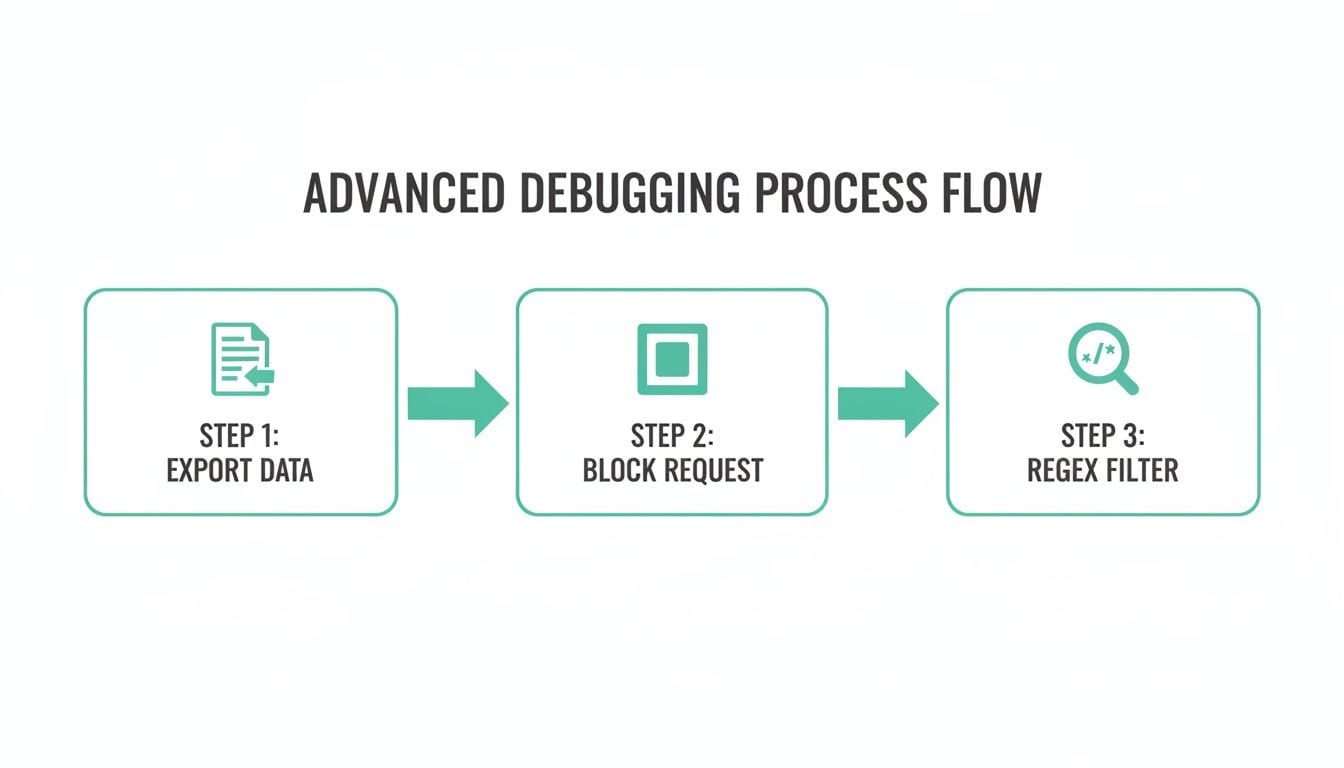
As you can see, you can export data, block specific requests, and use filters to zero in on the information required to create solid, automated validation rules.
Establishing a Single Source of Truth
When you combine these two approaches, you create a powerful feedback loop that locks in data quality and saves your team from endless, repetitive QA cycles. It finally puts an end to the slow, silent data decay that erodes trust in analytics.
- Omnibug for Investigation: Use it for your deep-dive bug hunts, pre-release validation, and exploring new implementations. It’s your magnifying glass.
- Trackingplan for Governance: Use it to enforce your entire tracking plan, monitor all live data 24/7, and catch regressions the second they happen. It’s your security system.
This workflow effectively creates a single source of truth for your company’s analytics. There’s no more confusion or debate about what should be tracked. The rules are defined, codified, and automatically enforced, aligning developers, marketers, and analysts around a single, reliable dataset.
By connecting the granular, on-the-ground view from the Omnibug Chrome extension with the high-level, automated oversight of a platform like Trackingplan, you're not just fixing bugs—you're building a resilient data culture. You can see how this works in practice and learn more about how to debug analytics problems effectively with Trackingplan. This is how you shift from putting out data fires to building a system where you can actually trust the numbers.
Frequently Asked Questions About Omnibug
Even the most seasoned analysts run into questions when using a new tool. Here are some of the most common ones I hear about the Omnibug Chrome extension, along with some quick answers to get you back on track.
Can Omnibug Debug Server-Side Tracking Requests?
This is a great question, and the short answer is no—at least not directly. Omnibug lives in your browser, so its visibility is limited to client-side network requests. It can’t see the final hit your server sends to a vendor, like in a server-side GTM setup.
However, that doesn't mean it isn't useful for server-side debugging. Omnibug is perfect for verifying the initial request sent from the browser to your server-side endpoint. Getting that first step right is often the most critical part of the entire data journey.
How Is Omnibug Different from Platform-Specific Debuggers?
While a dedicated debugger for Adobe or Google Analytics is useful, Omnibug's real strength lies in being vendor-agnostic. It consolidates requests from over 40 different marketing tags into a single, clean interface.
Imagine your site uses Google Analytics, a Meta Pixel, and Segment. Instead of juggling three separate debuggers, you can see every tag fire in one place. This is a huge time-saver for spotting cross-platform discrepancies and understanding the complete picture of your tracking.
The core value of Omnibug is its ability to consolidate your view. Instead of juggling multiple tools, you get one clean interface to see how all your marketing and analytics platforms are behaving together.
If you're fascinated by how powerful tools like Omnibug are created, reading about the experience building a Chrome Plugin offers some fantastic context. Understanding the development side can give you a new appreciation for how these debuggers work under the hood.
Is It Safe to Use the Omnibug Extension?
Absolutely. The Omnibug Chrome extension is an open-source tool that is completely safe to use. It works locally within your own browser and only reads the network requests your browser is already making.
It doesn't collect, change, or send your data anywhere. Its only job is to observe and help you debug, which is why it's a trusted tool for thousands of analysts and developers.
Why Is My Omnibug Panel Empty?
We’ve all been there. This is probably the most common issue new users face, but the fix is almost always a simple one. If you’re staring at a blank panel, run through this checklist:
- Open DevTools First: You need to have the browser's DevTools panel open (F12 or Ctrl+Shift+I) and then click on the "Omnibug" tab before you load or refresh the page you want to inspect.
- Reload the Page: With the Omnibug panel open and active, just hit reload. It only populates with tracking hits as they fire on the page.
- Check for Conflicts: Ad blockers or other privacy extensions are often the culprits here. They might be blocking tracking requests before Omnibug even has a chance to see them. Try disabling your other extensions one by one to see if you can find the conflict.
By integrating the insights from manual debugging tools like Omnibug into a comprehensive, automated platform, you can build a truly resilient data governance strategy. Trackingplan provides that automated oversight, ensuring your analytics are always accurate and trustworthy. Discover how Trackingplan can transform your data quality.