
The LinkedIn Pixel Helper is a must-have Chrome extension that gives you a quick, real-time check on your LinkedIn Insight Tag installation. It’s the fastest way to confirm your website is actually tracking conversions and building those all-important retargeting audiences for your ad campaigns.
Why Your LinkedIn Ad Campaigns Need a Flawless Pixel

In digital marketing, good data is everything. For your LinkedIn ads, that data comes from the Insight Tag—often just called the LinkedIn Pixel. Without it, you're basically flying blind and burning cash.
This little piece of code is the bridge between your website and your LinkedIn campaigns. It’s what tells you if your ads are actually working.
When the tag is set up correctly, it unlocks some seriously powerful capabilities. You can finally measure your true return on ad spend (ROAS) by connecting sign-ups, downloads, or sales directly to the ads that drove them. It also lets you build hyper-specific retargeting audiences to re-engage people who’ve already shown they’re interested.
The High Cost of Inaccurate Data
Now, what happens when that pixel is broken or misconfigured? The consequences can be brutal.
Imagine launching a massive campaign only to find out weeks later that a silent tracking failure meant none of your conversion data was captured. That’s a recipe for wasted budget, skewed metrics, and a whole lot of missed opportunities. Even a seemingly small error, like a duplicate pixel firing on every page, can inflate your conversion stats and make a failing campaign look like a wild success.
Success in this game is all about making data-driven decisions, and you can't do that with garbage data. A broken pixel strips away your ability to optimize, leaving money on the table.
A malfunctioning pixel doesn't just give you bad data; it actively misleads your strategy. Optimizing campaigns based on flawed information is often worse than having no data at all, as it reinforces poor spending decisions.
Before we dive into the troubleshooting specifics, it helps to have a clear snapshot of what the LinkedIn Pixel Helper is all about. This table breaks down its core functions.
LinkedIn Pixel Helper Quick Facts
This tool provides that crucial first layer of defense, making it an indispensable part of any marketer's toolkit.
Proactive Verification Is Non-Negotiable
This is precisely why a tool like the LinkedIn Pixel Helper is non-negotiable for anyone running LinkedIn ads. It’s your first line of defense, giving you an immediate, on-the-spot check to validate your setup.
Sure, manual checks have their limits, but they are a fundamental first step. Getting your pixel implementation right from the start ensures every dollar you spend is measured, analyzed, and optimized for maximum impact. If you want to get into the nitty-gritty, you can learn more about what pixel tracking is and how it all works behind the scenes.
How to Use the LinkedIn Pixel Helper for Quick Audits
Think of the LinkedIn Pixel Helper as your first line of defense for a healthy Insight Tag. It's a free Chrome extension that gives you a quick, real-time diagnostic of your tag's health, right from your browser. It’s what you use to get that instant "is this thing working?" answer.
Installation and First Check
First things first, you'll need to add the extension to Chrome. Just head over to the Chrome Web Store and search for "Pixel Helper for LinkedIn." A single click to install is all it takes, and you'll see a small LinkedIn icon pop up in your browser's toolbar.
Now, navigate to your website. If the icon stays grey, it means no Insight Tag was detected. But if it turns blue and shows a number, you're in business. That number tells you how many pixel events fired on that specific page, giving you an immediate pass/fail signal. It's simple, but incredibly effective.
Interpreting the Results
Clicking that blue icon opens up a small diagnostic window. For a healthy tag, you should see a green checkmark right next to your Partner ID. This is your confirmation that the tag loaded successfully. You’ll also get a list of any conversion events that fired on that page, showing you exactly what data is making its way back to LinkedIn.
Let's say a user just filled out a form. On your "Thank You" page, you'd want to see two things: the main Insight Tag firing, followed by the specific conversion event you created for that lead. Seeing both confirms your tracking is working perfectly from start to finish.
Pro Tip: Don't just check your homepage. The most common mistake I see is a pixel that works perfectly on the main site but fails to fire on a dynamically loaded confirmation page. Always test your most important conversion pages—this is a blind spot the helper will uncover in seconds.
Getting a clean, green signal from the LinkedIn Pixel Helper across all your key pages means your basic setup is solid. You can have confidence that your campaigns are collecting the foundational data they need to perform.
Decoding Common Errors and Troubleshooting Like a Pro
The real magic of the LinkedIn Pixel Helper isn't when everything works perfectly—it's when things break. Seeing that little green checkmark is great, but the real test for a marketer begins with a warning or an error message. This is where you shift from just checking a box to actively troubleshooting, a skill that separates the pros from the amateurs.
Don't panic when you see a cryptic error. The helper isn't just telling you something is wrong; it's giving you breadcrumbs to follow back to the source of the problem. Instead of guessing, you can start asking the right questions. Is the entire pixel missing, or is a specific conversion event just failing to fire?
This flowchart breaks down the initial diagnostic process. Think of it as your quick-start decision tree for figuring out what's going on.
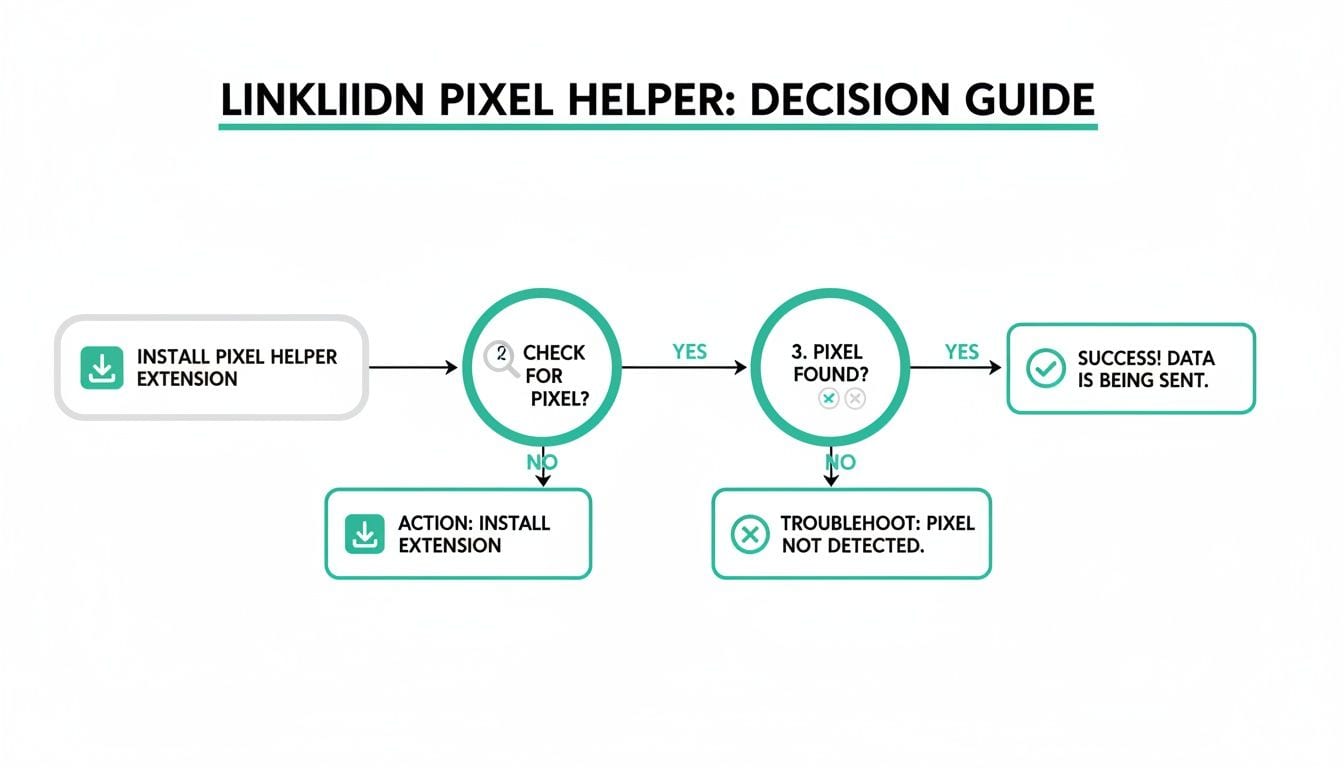
It walks you from the first step of installation all the way through validation, giving you a logical path to follow when diagnosing whether your Insight Tag is actually being detected on a page.
Common Issues and Their Fixes
Let's get our hands dirty and look at some of the most common headaches you'll run into and how to fix them. These problems might seem complicated, but they almost always boil down to a handful of simple root causes.
- Pixel Not Found: This is the most straightforward error. It means the Insight Tag code just isn't there, or it's broken. The fix? Head into your LinkedIn Campaign Manager, grab the complete, unaltered code snippet, and make sure it's placed in your site's global footer, right before the closing
</body>tag. No exceptions. - Multiple Pixels Detected: If you see more than one Partner ID, you've got duplicate tags. This is bad news, as it will seriously inflate your conversion numbers and throw off your entire analytics. This usually happens when someone adds a tag manually and through a tool like Google Tag Manager. Your job is to play detective, find the extra code, and remove it, leaving just one clean pixel.
- Conversion Event Not Firing: This one's a bit more subtle. Your main Insight Tag might be working just fine, but the specific event for a lead or a purchase never fires. This almost always points to an issue with the event-specific snippet. Check that it's placed only on the confirmation or "thank you" page and that its trigger rules in your tag manager are set up correctly.
The Limits of a Manual Checker (and What to Do About It)
Here's the catch: the LinkedIn Pixel Helper is a manual tool. It only gives you a snapshot of what’s happening on the single page you're looking at, at that exact moment. It’s completely blind to intermittent server-side issues, problems caused by consent pop-ups for certain users, or silent data corruption that happens after the data is sent.
Imagine launching a massive LinkedIn campaign targeting 61 million senior-level decision-makers, only to discover weeks later that your pixel was only tracking 70% of your conversions because of a subtle schema mismatch. It happens more than you think. Manual checks can easily miss error rates as high as 25% in a live environment. The core principles of pixel debugging are pretty similar across platforms; you can get more context from our guide on the Meta Pixel Helper.
This is where automated observability with a tool like Trackingplan becomes a game-changer. Trackingplan works 24/7 in the background, automatically monitoring every single tag and event across your entire digital property. It doesn't just catch obvious errors; it validates your whole analytics schema in real time, alerting you to silent data loss, PII leaks, and broken user journeys that a manual helper could never see.
Where Manual Pixel Checks Fall Short
The LinkedIn Pixel Helper is a fantastic tool for a quick, on-the-spot check. But if it's your only line of defense, you're flying blind.
A manual check is like taking a single snapshot of a moving train; it captures one moment perfectly but tells you nothing about the rest of the journey. This reactive approach leaves massive blind spots in your data integrity. The helper only confirms that a pixel fired correctly for you, on your browser, at that specific moment. It’s completely blind to the messy, dynamic reality of a live website.
Why Pixel Helpers Fail (and Why It Matters)
Many issues that wreck your analytics are completely invisible to manual spot-checks. They happen intermittently, affect only certain user segments, or are caused by complex interactions between different scripts on your site. This is the core reason why pixel helpers, including the LinkedIn Pixel Helper, are an incomplete solution.
Here are the silent killers of accurate tracking that a pixel helper will almost always miss:
- Consent Management Glitches: A user in Europe declines certain cookies. Your consent management platform (CMP) correctly blocks the pixel, but since you’re testing from a different region with different settings, you never see the problem.
- Third-Party Script Conflicts: Another marketing script loads asynchronously and interferes with the LinkedIn tag, but only on specific browsers or after a user performs a certain action. The pixel works perfectly for you during your quick check, but fails for a huge chunk of your real traffic.
- Silent Data Corruption: The pixel fires, but a recent website update changed a data layer variable. Now, you’re sending
undefininedinstead of a user ID. The pixel helper shows green, but the data arriving at LinkedIn is useless. - Server-Side Errors: Your server-side tagging setup experiences an intermittent failure, dropping 15% of conversion events. A client-side tool like the pixel helper has zero visibility into this.
A pixel that appears "healthy" during a five-minute manual check can still be broken for thousands of users. This isn't just a data gap; it's a direct cause of wasted ad spend and a marketing strategy built on bad information.
Trackingplan: The Best Alternative for Reliable Data
The LinkedIn Insight Tag has been a cornerstone for B2B marketers since its major rollout around 2014. With LinkedIn on track to hit 600 million monthly active users by 2026, this pixel is firing on millions of sites, capturing vital data.
The problem? Broader marketing tech studies show that up to 20-30% of these pixels misfire due to things like ad blockers or tagging errors, leading to skewed dashboards. You can dig into more of the data on LinkedIn's growth and pixel impact to see the scale of the issue.
This is exactly why pixel helpers fall short. They were designed for setup and one-off debugging, not for the ongoing, day-to-day grind of data maintenance. They just can't provide the continuous oversight you need to protect your investment in data.
This is where a dedicated observability platform like Trackingplan comes in. Unlike the LinkedIn Pixel Helper, which requires you to actively hunt for problems, Trackingplan works 24/7 in the background. It automatically monitors every tag on your site, validating each event against your tracking plan in real time.
Instead of you looking for errors, Trackingplan finds them for you and sends proactive alerts. It catches the silent failures that manual checks always miss, giving you the root-cause analysis needed to fix issues before they torpedo your campaign ROI. It's a shift from a fragile, reactive process to a resilient, proactive data governance strategy.
The Future of Analytics QA is Automated
Relying on manual spot-checks with tools like the LinkedIn Pixel Helper is a good first step, but it’s just not enough to keep up anymore. It's a reactive approach that turns analytics QA into a never-ending cycle of firefighting—you're always hunting for problems after they've already skewed your data. The future isn't about getting better at finding errors; it's about preventing them from ever happening.
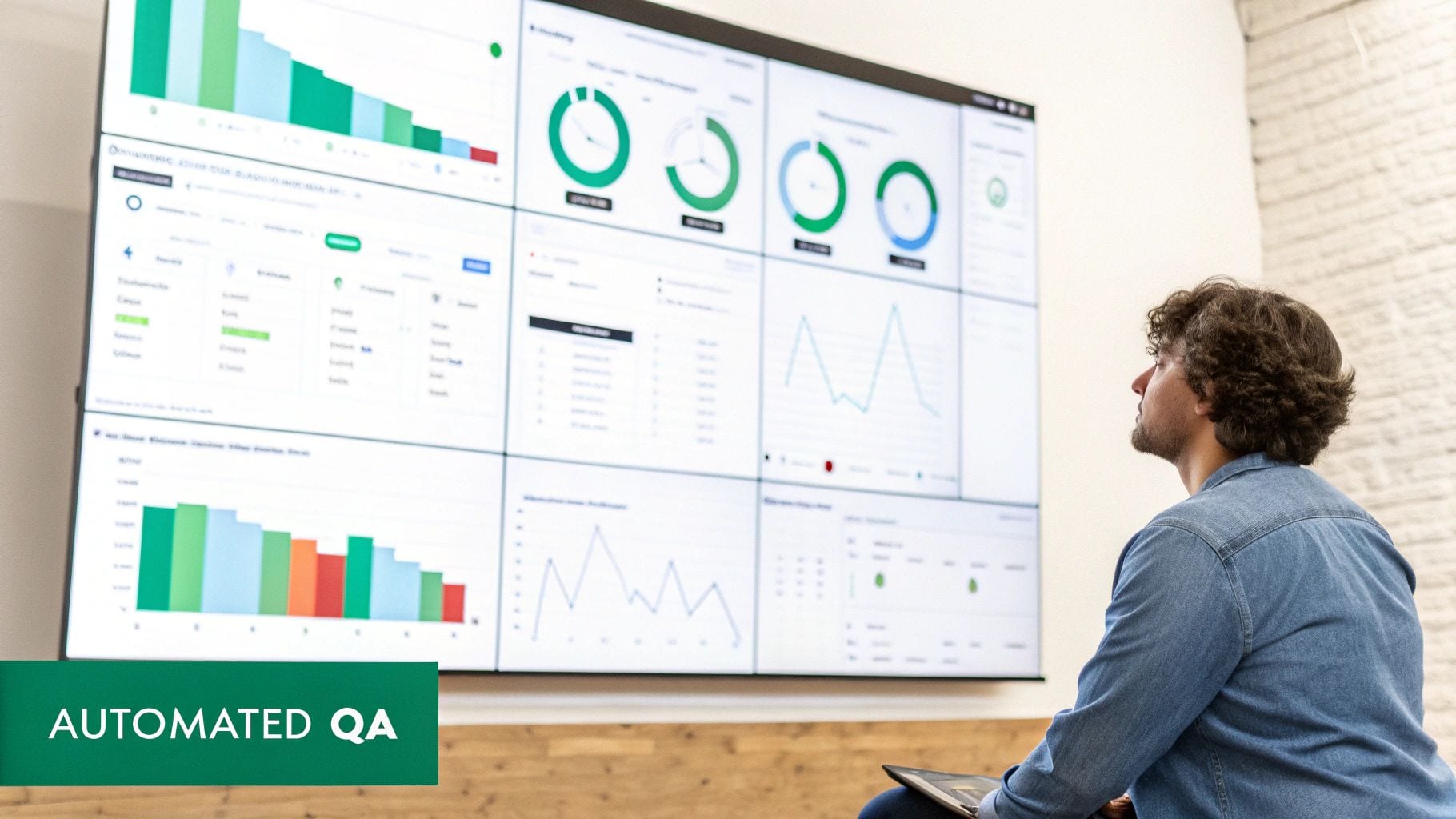
This is the shift we're seeing: moving away from tedious manual debugging toward a centralized, automated QA dashboard that gives you a live, comprehensive view of your data's health. This is where a solution like Trackingplan changes the game, transforming analytics from a manual chore into a real strategic advantage by creating a single source of truth for all your teams.
The Trackingplan Advantage: A Proactive Approach
This is where Trackingplan offers a fundamentally different way forward. The LinkedIn Pixel Helper needs you to go looking for problems. Trackingplan, on the other hand, works 24/7 in the background, continuously monitoring your entire analytics implementation. It’s an always-on system built for data integrity at scale.
It automatically discovers every single tag on your site—including LinkedIn’s Insight Tag—and validates them against your tracking plan in real time.
This automated oversight delivers some huge benefits:
- Instant Anomaly Detection: Trackingplan immediately flags broken pixels, missing events, and schema mismatches the second they happen.
- Proactive Alerts: Instead of you hunting for errors, Trackingplan sends alerts straight to your team via Slack or email with a detailed root-cause analysis.
- Comprehensive Coverage: It monitors everything from client-side events to server-side implementations, catching issues manual tools can't see.
- PII Leak Prevention: It identifies and alerts you to potential leaks of personally identifiable information, protecting you from costly compliance violations.
As manual checks become less and less effective, adopting a robust QA improvement process that builds in automation is the only way to future-proof your analytics. By shifting from reactive debugging to proactive monitoring, you can fix issues before they ever touch your campaign ROI, ensuring your data is always reliable and your ad spend is always effective.
Frequently Asked Questions
Pixel tracking can feel like a maze, and it’s natural to have questions. Let's clear up some of the most common ones about the LinkedIn Pixel Helper and how it fits into a modern analytics strategy.
What Does the LinkedIn Pixel Helper Actually Do?
Think of the LinkedIn Pixel Helper as a quick health check for your Insight Tag. It’s a free Chrome extension that confirms your LinkedIn pixel is installed and firing on your website.
As you browse your own pages, it gives you real-time feedback, showing if the tag is present and which conversion events are active. It’s a solid first-line-of-defense tool, especially useful for catching obvious implementation mistakes right after setup.
Can the LinkedIn Pixel Helper Find Every Tracking Error?
Not even close. The helper is fantastic for manual spot-checks on your own browser, but it only sees client-side issues from your perspective.
It’s completely blind to things like:
- Intermittent server-side failures
- Errors caused by consent management tools blocking the tag for certain users
- Data discrepancies that pop up after the data reaches LinkedIn
It just confirms the code is on the page you’re looking at right now.
Key Takeaway: The Pixel Helper confirms the presence of code, not the ongoing accuracy of your data. It's a snapshot, not the full movie.
Why Use Trackingplan if the Pixel Helper is Free?
While the Pixel Helper is great for that initial setup phase, it solves a very different problem than Trackingplan. Trackingplan tackles the much bigger, ongoing challenge of maintaining data quality and reliability across your entire system.
Trackingplan is an automated, 24/7 monitoring platform. It watches your whole analytics setup, proactively alerts you the moment something breaks, and even provides root-cause analysis so you can fix things fast. It shifts your team from a reactive "firefighting" mode to a proactive data governance strategy.
How Do I Fix a "Pixel Not Found" Error in the Helper?
Seeing a "Pixel Not Found" error almost always points to one thing: the Insight Tag's JavaScript snippet is either missing or in the wrong place.
Run through this quick checklist:
- Check the Code's Location: First, make sure the code snippet has been added to the global footer of every single page, just before the closing
</body>tag. - Verify the Snippet: Double-check that you’ve copied the entire, unmodified snippet directly from your LinkedIn Campaign Manager. A single missing character can break it.
- Inspect Your Tag Manager: If you’re using a tool like GTM, ensure the tag is configured to fire on all pages and that its triggers are set up correctly.
This simple process solves the issue in over 90% of cases.
Stop chasing data fires and start preventing them. With Trackingplan, you get automated, 24/7 monitoring that validates your entire analytics setup in real time. Fix issues before they impact your ROI and trust your data again. Get started with Trackingplan today.