
Staring at a (not set) value in your Google Analytics reports feels like hitting a brick wall. It’s the platform’s way of admitting it’s missing a crucial piece of the puzzle—a black hole in your data that hides where your traffic is coming from, which landing pages users see first, or even their geographic location.
This isn’t just some minor annoyance; it's a problem that directly undermines your ability to make smart, data-driven decisions.
What (Not Set) Really Means for Your Business
When you see (not set) pop up, it means Google Analytics failed to collect data for a specific dimension. Think of it like a package arriving at the post office with the return address completely ripped off. The post office knows it received something, but it has no clue where it came from. In the same way, GA knows a session or event happened, but it’s missing the context to attribute it correctly.

This missing information can cripple your marketing analysis. Imagine logging into your dashboard to check campaign performance, only to find a massive chunk of your traffic is mysteriously labeled (not set). For some businesses with poorly configured setups, this data black hole can account for up to 20-30% of all sessions, representing thousands of lost attribution insights every single day.
To give you a quick overview, here’s where you’ll most often find (not set) and the real-world headache it causes.
Where (Not Set) Appears and What It Costs Your Business
As you can see, the consequences go far beyond just messy reports. When this value starts creeping into your key dimensions, it introduces serious business risks.
The Tangible Business Costs
The fallout from (not set) is real and measurable. It creates blind spots that lead to poor decision-making and wasted resources.
- Inaccurate ROI Measurement: You can't justify your marketing spend if you don’t know which campaigns are actually driving results.
- Poor Optimization Decisions: It’s impossible to optimize landing pages when you don't know which ones are the true first touchpoint for new users.
- Wasted Ad Budget: Without clear source/medium data, you might keep pouring money into channels that aren't performing at all.
- Flawed User Journey Analysis: Gaps in the data make it incredibly difficult to understand how people truly navigate your site from start to finish.
The
(not set)value is more than an annoyance; it’s a direct threat to data-driven decision-making. It creates uncertainty right where you need clarity, undermining the entire reason you have an analytics tool in the first place.
Ultimately, having clean, accurate analytics is fundamental to improving your site's performance. You need a crystal-clear understanding of user behavior if you want to increase website conversions.
Before we jump into the fixes, it's important to know what causes this issue in the first place. The culprits range from broken UTM tags and server-side redirects to flawed GA4 event configurations. In the next sections, we’ll break down these causes one by one.
Pinpointing the Root Causes of (Not Set) Data
Seeing (not set) in your Google Analytics reports is a classic sign that something’s off in your data collection. Think of it as a symptom of a deeper problem—it rarely stems from just one isolated issue. You have to put on your data detective hat, because the clues are often scattered across different reports and technical configurations. The first step is figuring out where these data gaps are actually coming from.
More often than not, the primary culprit is broken or inconsistent marketing campaign tracking. When you launch a campaign, you’re banking on UTM parameters to tell GA where your traffic originated. If those tags are missing, misspelled, or get stripped away by a redirect, GA has no source data to work with. The result? (not set). The same thing happens with Google Ads if auto-tagging (the gclid parameter) fails to connect properly.
The Landing Page Conundrum
Another frequent offender shows up in the Landing Page report in GA4. Seeing (not set) here is particularly frustrating because it feels like a fundamental piece of information has just vanished. This usually happens when the very first event of a user's session isn't a page_view.
Here’s a scenario I see all the time:
- A user lands on your site, and a cookie consent banner pops up immediately.
- The user interacts with the banner, firing an event before the main
page_viewevent has a chance to load and register. - Since that interaction is the first signal GA4 gets for the new session, it has no page URL to associate with it, leaving you with a
(not set)landing page.
This particular plague hit hard after GA4's 2023 rollout, affecting an estimated 60% of enterprise implementations where configuration tags fire before key data is available. Imagine your landing page report showing (not set) as the top entry, accounting for 40% of all sessions. This doesn’t just muddy the waters; it completely blinds you, making it impossible to know which pages are actually converting and crippling any A/B testing your marketing team tries to run.
Technical Glitches and Data Voids
Beyond campaign tags and landing pages, the google analytics not set problem can be rooted in more technical areas. Take the Measurement Protocol—it's a powerful tool for sending data to GA from a server, like your CRM. The catch is that these server-side "hits" often lack the rich context a browser automatically provides.
If a server sends an event but doesn't explicitly include geographic data, the Country or City dimension will show up as (not set). Similarly, if a user's consent settings block certain cookies or tracking scripts, GA might be prevented from collecting information about their device or browser, leading to even more data voids.
The transition from Universal Analytics to GA4 introduced new event-based logic that completely changed how sessions are defined. This shift is a key reason why issues like premature event firing now have a much larger impact on core reports like Landing Page attribution.
Distinguishing UA and GA4 Behavior
It's also crucial to remember that Universal Analytics (UA) and Google Analytics 4 (GA4) handle these data gaps differently. In UA, sessions were more rigidly defined and typically revolved around pageviews. But in GA4, a session can start with any event, which makes it far more susceptible to the landing page issue we just covered.
Session timeouts also play a big role here. If a user leaves a browser tab open for over 30 minutes (the default timeout), their session expires. When they come back and scroll or click something without reloading the page, a new session starts. But because no new page_view event fired, that new session gets a (not set) landing page. Understanding these nuances is key, and you can get a much better handle on them by diagnosing these specific session_start problems.
The video below gives a great visual breakdown of how traffic sources can get misattributed, leading to (not set) or direct traffic in your GA4 reports.
By systematically checking these common areas—campaign tracking, event timing, technical configurations, and platform-specific behaviors—you can start to isolate exactly why (not set) is polluting your reports and finally move toward a real solution.
Your Hands-On Guide to Fixing (Not Set) Issues
Alright, let's move from theory to action and start cleaning up your data. Tackling the (not set) value in Google Analytics requires a methodical approach, but it’s a process anyone can follow. We'll start with the most common culprits—messy campaign tracking—and then get into the more technical side of real-time debugging.
This process flow shows just how easily data gaps can pop up, from the initial UTM tag all the way to server-side processing, ultimately creating that frustrating (not set) value in your reports.
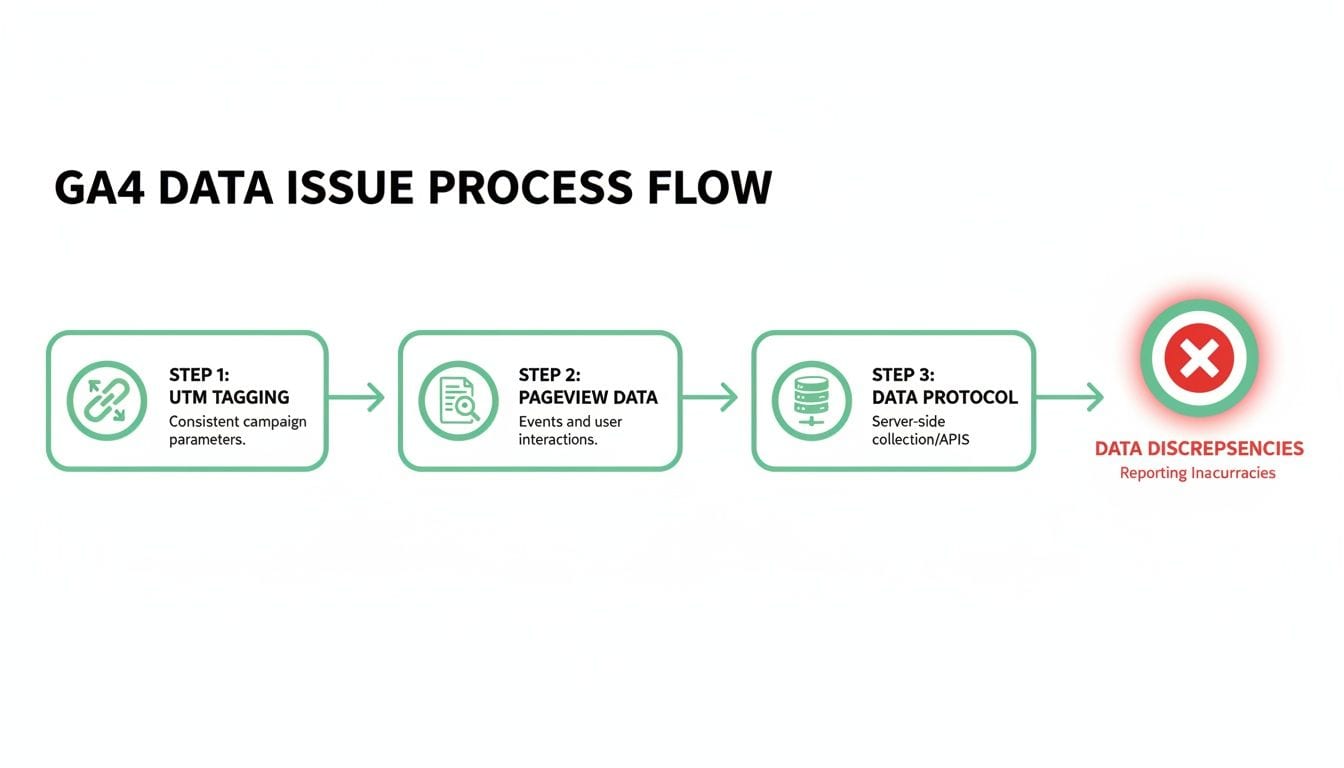
As you can see, a breakdown at any stage—whether it's a broken link, a pageview event firing too early, or a server misconfiguration—can corrupt the data stream before it ever hits your reports.
Solidify Your Campaign Tracking Foundation
I’ve seen it countless times: inconsistent or broken UTM parameters are the number one cause of (not set) in traffic source reports. The very first thing you should do is audit and standardize how your entire team builds campaign links. This isn't just a one-off fix; it's about building a durable process.
A great starting point is to create a shared UTM convention document or spreadsheet. This becomes your "single source of truth," making sure everyone uses the same logic for source, medium, and campaign names. No more guesswork.
- Standardize Casing: Decide if you're using all lowercase, camelCase, or something else, and then stick to it.
utm_source=Facebookandutm_source=facebookwill show up as two completely different line items in GA4. - Define Your Mediums: Create a definitive list of mediums your team can pull from (like
cpc,email,social_paid,affiliate). This stops variations likepaid-socialorsocial-adsfrom muddying your reports. - Use a Naming Convention: For campaigns, a structured format like
product-promotion-region-date(e.g.,q4_sale-us-2024) makes your reports infinitely easier to filter and understand down the line.
Once you have a convention, enforce the use of a URL builder tool to generate all campaign links. This simple step drastically cuts down on human error like typos or forgetting a required parameter. For a deeper dive into diagnosing similar data discrepancies, guides like Direct Traffic Google Analytics: Untangling Causes and Fixes for Accurate Data can be really helpful, as they tackle similar "unknown" traffic categories.
Verify Your Google Integrations
Another common blind spot is a failed integration with other Google products. If you see your Google Ads data showing up as (not set), the issue is almost always a problem with auto-tagging or a broken account link.
Head over to your GA4 Admin panel and check the Product Links section. You need to confirm that your Google Ads and Google Search Console accounts are correctly linked to your GA4 property. A broken or missing link is a guaranteed way to lose that precious attribution data.
For Google Ads, it's absolutely critical to verify that auto-tagging is enabled in your Google Ads account settings. When it's on, Google Ads automatically appends the
gclid(Google Click Identifier) parameter to your URLs. This little parameter is what lets GA4 pull in rich campaign data like keywords, ad groups, and more.
If auto-tagging is turned off, GA4 has no way to connect a click to a specific ad campaign. It's left with no choice but to label the traffic source as (not set).
Become a Data Detective with Debugging Tools
To catch issues as they happen, you need to see the data flow in real-time. This is where browser developer tools and GA4’s own DebugView become your best friends. These tools let you watch events fire and see the exact information being sent to Google Analytics.
To get started with DebugView, here's the quick setup:
- Install the official Google Analytics Debugger Chrome extension.
- Click to enable the extension and then navigate to your website.
- In another tab, open your GA4 property and go to Admin > DebugView.
As you browse your site, you'll see a live stream of every single event being captured. Click into any event (like page_view or session_start) to inspect the parameters being sent with it. Are the source, medium, and campaign parameters present and correct? Is the page_location parameter actually populated? This real-time feedback is invaluable for troubleshooting.
Master Event Timing in Google Tag Manager
Many (not set) issues, especially in landing page reports, boil down to event timing. If an event fires before the main Google Tag (your config tag) has had a chance to initialize, GA4 can easily miss crucial session information.
A classic example is a user_engagement event firing before the page_view event has even registered the page URL. To fix this, you can adjust your triggers in Google Tag Manager (GTM). Instead of using "Consent Initialization" or "Initialization" triggers for non-essential events, try using "Container Loaded" (gtm.load) or "DOM Ready" (gtm.dom). This simple change ensures the core page and session data is available first.
By auditing your UTMs, verifying integrations, and using debugging tools to inspect event timing, you can systematically hunt down and eliminate the root causes of (not set). If you want a visual walkthrough, Trackingplan has a helpful video that shows you how to fix (not set) or direct traffic in GA4 with some great practical examples.
To help you stay organized, here's a quick checklist you can use to methodically track down the source of (not set) values in your reports.
Your Troubleshooting Checklist for (Not Set) Values
This table gives you a practical checklist to methodically find and resolve the source of your '(not set)' data issues.
Working through these checks one by one will almost always reveal the culprit. It's all about being systematic and knowing where to look.
Move from Fixing to Preventing Data Quality Issues
Constantly putting out fires caused by (not set) values is a draining, reactive cycle. You fix one problem, and another one inevitably pops up after the next deployment or campaign launch.
The real win isn't becoming an expert at fixing these errors—it's building a system that stops them from happening in the first place. This shift from reactive troubleshooting to proactive prevention is how you truly protect your data's integrity and get your valuable time back.
This is where automated analytics observability platforms completely change the game. Instead of manually digging through DebugView or auditing spreadsheets after you’ve noticed something is wrong, these tools act as a constant, vigilant security guard for your entire analytics implementation.
Think of a tool like Trackingplan as an automated QA layer that sits over your analytics. It continuously monitors your data implementation in the background, validating every single event against your master tracking plan and flagging errors the moment they happen.
The Power of Proactive Monitoring
The whole idea behind analytics observability is to catch problems before they corrupt your reports. Instead of discovering a massive spike in (not set) landing pages a week after a bad code release, you get an alert in real-time.
Picture this: your dev team pushes a new feature to production. Unbeknownst to them, the update accidentally tweaks the data layer structure, causing the page_location parameter to send an undefined value on certain pages. Within minutes, you get a Slack alert.
But the alert doesn't just say "there's a problem." It gives you actionable, root-cause analysis, pinpointing the exact event, the specific property that's failing, and even which deployment likely caused the issue. You can get the problem fixed in minutes, not days or weeks later when you're trying to build a quarterly report and realize half your data is useless.
Proactive analytics monitoring transforms data quality from a periodic, manual chore into a continuous, automated process. It’s the difference between having smoke detectors in your house versus only calling the fire department after you see flames.
This approach is especially critical with the complexities of GA4. For instance, traffic that might appear as (not set) in UA often gets quietly bundled into GA4's 'Unassigned' channel group. This can silently inflate the 'Unassigned' channel by 18-25% for a staggering 70% of mid-to-large websites, directly skewing attribution models and budget decisions.
This issue became far more common after the Universal Analytics sunset on July 1, 2023, as old code remnants started breaking session continuity for many sites. You can learn more about how GA4 handles these default channels from Google's official support documentation.
Key Areas Where Automation Prevents (not set) Errors
Automated monitoring excels at catching the exact issues that most commonly lead to (not set). It's an early warning system that covers several critical areas.
- Campaign and UTM Validation: An observability platform can be configured with your team’s specific UTM conventions. It will automatically flag any incoming campaign URL that violates those rules—whether it's a casing mismatch, a missing
utm_source, or an unapprovedutm_medium. - Schema and Property Mismatches: If a developer accidentally renames an event property from
product_idtoproductId, the platform will immediately spot this deviation from your tracking plan. This is a classic cause of(not set)in custom dimension reports. - Missing or Malformed Data: The system validates data types and formats on the fly. If an event is supposed to send a price as a number but instead sends a string with a currency symbol, it gets flagged instantly, ensuring the data arriving in GA4 is clean and usable.
- Deployment-Related Breakages: By integrating with your development lifecycle, these platforms correlate data errors with specific code releases. This makes it incredibly easy to trace a new
google analytics not setproblem back to its source and roll back the change if needed.
Moving Beyond Manual Fixes
The manual troubleshooting methods we've covered are essential skills, but they just don't scale. As your website, app, and marketing campaigns grow more complex, the number of potential failure points multiplies. Relying solely on manual spot-checks is no longer a viable strategy for maintaining high-quality data.
Automating this process is about more than just convenience.
- It Protects Data Integrity: You can finally trust that the data flowing into your analytics is consistently accurate and reliable.
- It Saves Time and Resources: It frees up your analysts and developers from the tedious, repetitive cycle of finding and fixing tracking errors.
- It Empowers Proactive Decision-Making: With trustworthy data, you can make strategic decisions with confidence, not hesitation.
- It Fosters Collaboration: By providing a single source of truth, it ensures marketing, development, and data teams are all aligned on the tracking plan.
When you adopt a proactive strategy powered by an analytics observability tool, you fundamentally change your relationship with your data. Instead of being a constant source of frustration and doubt, it becomes the reliable asset it was always meant to be—driving growth and informing every part of your business.
Building a Culture of Data Integrity
Fixing a (not set) error is a great short-term win, but making sure it stays fixed? That requires a totally different mindset. Long-term data quality isn’t about one-off solutions; it’s about building strong analytics governance and a culture that obsesses over data integrity from the very beginning. This proactive approach turns data quality from a reactive chore into a core part of how you do business.

This cultural shift starts with a formal, documented tracking plan. Seriously, think of this document as the single source of truth for your entire organization's analytics. It needs to clearly define every event, parameter, and user property you track, spelling out details like naming conventions and data types.
When everyone—from marketing to development—references the same playbook, the chances of those little inconsistencies that lead to (not set) values drop like a rock.
Establish a Pre-Deployment QA Process
One of the most effective ways to kill bad data is to catch it before it ever goes live. A mandatory pre-deployment quality assurance (QA) process for any code change that touches your tracking is non-negotiable for clean data. That means no marketing tag or analytics script gets pushed to production without being properly vetted first.
This process doesn't have to be a bureaucratic nightmare. It can be a simple checklist:
- Verify against the tracking plan: Does the new implementation actually match the event names and properties defined in your official plan?
- Test in a staging environment: Fire up tools like GA4's DebugView to run through user flows and confirm data is being sent exactly as expected.
- Check for conflicts: Make sure the new code doesn't clash with existing tags or your consent management platform. This is a classic cause of timing issues.
By making this a standard step in your development lifecycle, you move from constantly fixing broken reports to preventing them from ever breaking in the first place.
Foster Cross-Team Collaboration
Here’s the thing: data integrity is a team sport. A siloed approach where marketing lobs requests over the wall for development to implement without context is a recipe for disaster. The only real solution is to foster genuine collaboration between your marketing, development, and data teams.
Everyone needs a stake in the game. Marketers should understand the technical realities of tracking, and developers should appreciate how a "minor" tweak can completely derail business-critical reports. Things like regular check-ins and shared dashboards can help bridge this gap, ensuring all teams are aligned on one common goal: trustworthy data.
True data governance isn't about restricting access; it's about shared ownership. When every team understands how their work contributes to data quality, they become active guardians of its accuracy.
Automate Your Alerting System
Even with the best processes in the world, mistakes happen. That’s why you need a final layer of protection. Setting up custom alerts in GA4 or using an observability tool like Trackingplan can act as your safety net, catching sudden spikes in (not set) values the moment they occur.
You can configure GA4 to email you if the (not set) landing page value suddenly blows past a certain threshold. This turns your analytics platform into a proactive monitoring system, letting you jump on a google analytics not set problem in hours, not weeks. Combine a solid tracking plan, a robust QA process, and automated alerts, and you've built a resilient system that protects your data integrity for the long haul.
Frequently Asked Questions
Even after you’ve tackled the root causes, a few questions about (not set) in Google Analytics always seem to pop up. Here are some quick, practical answers to the most common ones I hear, reinforcing some of the key ideas from this guide to help you keep your data clean.
Why Am I Seeing (Not Set) in My GA4 Landing Page Report?
This almost always happens when the first event of a session isn't a page_view. Think about it: if a custom event or even a user_engagement event fires before the page has finished loading and sent its page_view, GA4 doesn't have a landing page to associate with the start of that session.
Common culprits include consent management platforms that fire events early, slow page loads, or GTM triggers that are configured to fire a bit too soon. The best way to catch this red-handed is to use GA4's DebugView. It shows you the exact sequence of events as they fire, making it easy to spot what’s happening out of order.
Does Server-Side Tagging Cause (Not Set) Issues?
It absolutely can, especially if you're not careful with your setup. When you send data from your server directly to GA using the Measurement Protocol, you lose a lot of the rich context the browser automatically captures—things like the referrer or user agent.
If you don't manually add this information back into your server-side hits, dimensions like Source/Medium, Country, and Browser will show up as (not set). It's on you to enrich your server-side events with all the necessary parameters to avoid leaving these frustrating gaps in your data.
What Is a Quick Way to Test My UTM Parameters?
The Realtime report in GA is your best friend for this.
Just open a new incognito browser window and paste in a test URL with your UTMs (e.g., yoursite.com?utm_source=test&utm_medium=email&utm_campaign=promo). Then, immediately hop over to the 'Traffic source' card in your Realtime report.
If you see your test source and medium show up, you’re golden. If it shows as (direct) / (none) or you see a google analytics not set value, something is wrong. You likely have a redirect stripping your parameters or a misconfiguration in GA or GTM.
Remember, any fixes you implement today will only apply to new data moving forward. Google Analytics will not retroactively change historical data that was already recorded as
(not set).
Is (Not Set) Different from (Direct) / (None)?
Yes, and it's a critical distinction. They mean completely different things.
(direct) / (none) is a legitimate traffic source that GA assigns when it has no referrer information. This happens when someone types your URL directly into their browser, uses a bookmark, or clicks a link from a non-web document.
In contrast, (not set) is a generic placeholder for any dimension where data is missing for any reason. While both can point to potential tracking gaps, (direct) is a defined traffic category. (not set) just means something broke and information is missing.
Stop chasing data quality issues and start preventing them. Trackingplan offers a fully automated analytics QA platform that monitors your tracking in real-time, alerting you to errors like (not set) values the moment they happen. Ensure your data is always accurate and reliable by visiting https://trackingplan.com.