Master your Google Ads tracking template with this guide. Learn how to set up, troubleshoot, and use ValueTrack parameters for flawless data attribution.
A Google Ads tracking template is your secret weapon for understanding exactly what happens after someone clicks your ad. It’s a special URL field where you can add tracking parameters, letting you capture critical details about every single click—like the campaign, ad group, or keyword that brought a user to your site.
What Is a Google Ads Tracking Template
Think of a Google Ads tracking template as the key to unlocking performance insights that go far beyond basic clicks and impressions. It’s a dedicated field in your Google Ads account where you build a URL structure to collect data the moment a user clicks your ad. It’s essentially an instruction manual for data collection that gets attached to every click.
This process lets you use ValueTrack parameters, which are dynamic placeholders like {campaignid} and {keyword}. Google automatically swaps these placeholders with the actual data at the time of the click. So, instead of just knowing a conversion happened, you can pinpoint its exact source within your account. This level of detail is what fuels smart optimization, accurate attribution, and a better return on ad spend (ROAS).
How Tracking Templates Work
The main job of a tracking template is to pass information to your analytics platform or CRM without interrupting the user’s path to your landing page. This process is now seamless, but it wasn't always this way.
Years ago, tracking templates created a redirection chain that could slow down page load times. Thankfully, Google introduced parallel tracking back in 2018. This update sends the user straight to your final URL while all the tracking data is collected in the background. It completely eliminated the risk of slow loads and data loss, which could increase bounce rates by as much as 32% in some scenarios.
This flowchart shows the modern, simplified flow that parallel tracking makes possible.
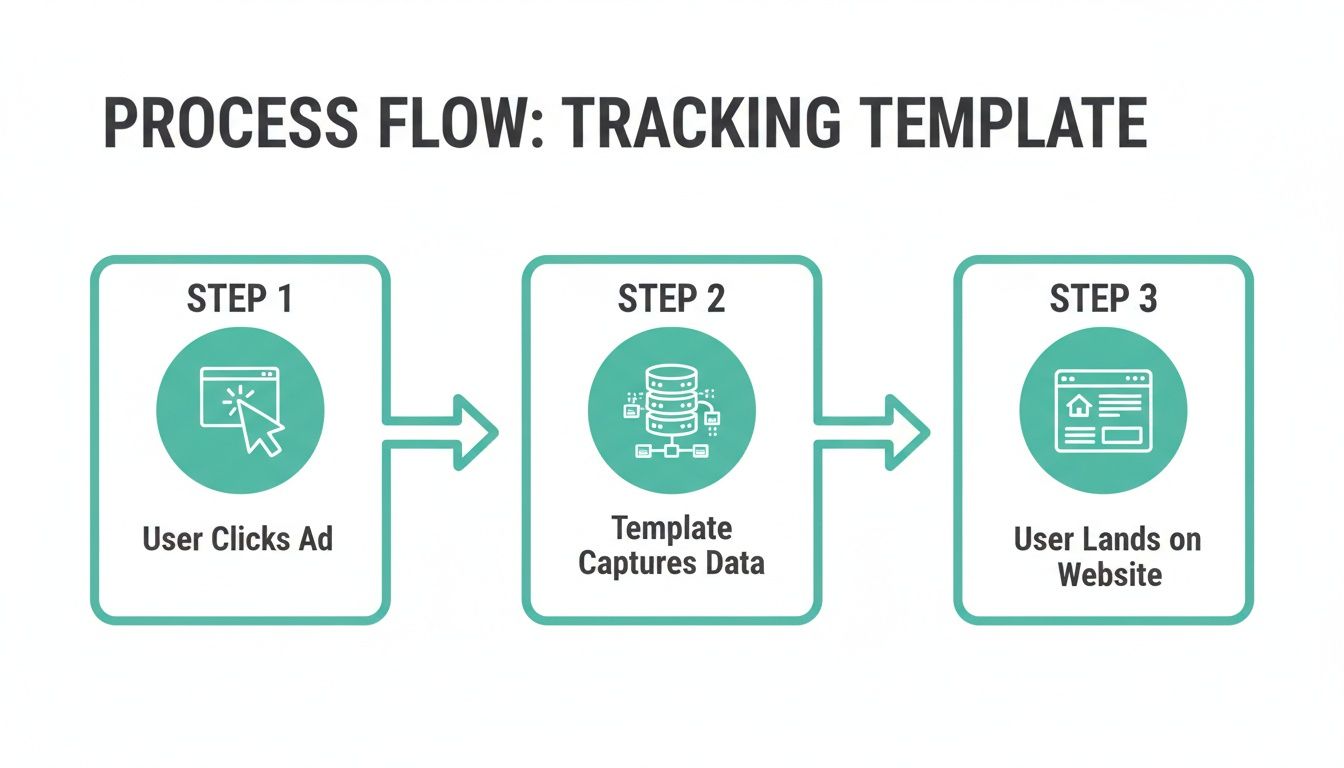
As you can see, the user experience comes first. Data is captured "in parallel," guaranteeing a fast and smooth journey for your potential customers.
The Tracking Template Hierarchy
One of the most important things to get right is the tracking template hierarchy. You can set templates at different levels in your Google Ads account, and the most specific one always wins.
Here's a breakdown of where you can apply tracking templates, from the broadest to the most specific level.
Where to Apply Your Google Ads Tracking Template
Understand the hierarchy of tracking templates and where to apply them for optimal data collection.
This hierarchy gives you the best of both worlds: broad control with an account-level template and the flexibility to get super specific when you need to. For example, if you set a general template at the account level but add a different one to a specific campaign, Google will use the campaign-level template for all ads within that campaign.
Mastering tracking templates is a huge step toward running more profitable campaigns. It's a key piece of the puzzle, and to see how it fits into the bigger picture, check out this complete guide on mastering Google Ads.
Copy-Paste Tracking Templates for Any Scenario
Theory is one thing, but having ready-to-go templates is what really makes a difference. This section is all about battle-tested, copy-paste solutions for your Google Ads tracking that will give you rich, reliable data from day one.
We'll cover the essentials for UTM tracking, seamless GA4 integration, and even some more advanced setups for server-side tracking.
I’ll break down what every component in these templates does, so you're not just copying blindly. You’ll understand the why behind the what, turning these into a core part of your marketing toolkit.
The Universal GA4 and UTM Template
This is the foundational google ads tracking template every marketer should start with. It’s the best of both worlds: it uses GCLID for Google’s own ecosystem while adding the universal language of UTMs for all your other tools, like a CRM or third-party analytics platform.
Template to Copy:{lpurl}?utm_source=google&utm_medium=cpc&utm_campaign={campaignid}&utm_content={adgroupid}&utm_term={keyword}
So, what’s going on here?
{lpurl}: This is the most important piece. It’s a dynamic placeholder for your final landing page URL, making sure the user actually gets where they need to go.utm_source=google: This hardcoded parameter tells every analytics tool that the traffic came from Google. Simple and effective.utm_medium=cpc: This identifies the traffic as "cost-per-click," which keeps it cleanly separated from your organic or referral traffic.utm_campaign={campaignid}: This ValueTrack parameter dynamically pulls in the unique ID of the campaign that triggered the ad, making your campaign-level reports incredibly precise.utm_content={adgroupid}: By capturing the ad group ID, you can drill down and analyze performance within a single campaign, comparing creative themes or audiences.utm_term={keyword}: This pulls in the exact search term that matched your ad. It's an invaluable window into user intent.
This structure is a lifesaver. It ensures that even if you don't have admin access in Google Ads, you can still capture the data you need to connect conversions back to specific ads in other platforms like HubSpot.
Adding Keyword Match Type for Smarter Bids
If you want to get more granular with your keyword performance, adding the {matchtype} parameter gives you another powerful layer of insight. Knowing which match types—broad, phrase, or exact—are driving your best results is fundamental to a smart bidding strategy.
Template to Copy:{lpurl}?utm_source=google&utm_medium=cpc&utm_campaign={campaignid}&utm_content={adgroupid}&utm_term={keyword}&matchtype={matchtype}
This small addition can have a huge impact. You might find that broad match keywords are great for top-of-funnel awareness, but it's your exact match terms that deliver a much higher conversion rate and ROI.
Pro Tip: While GCLID auto-tagging handles the heavy lifting for connecting Google products, manual UTMs are like a universal translator for your data. They make sure your CRM, marketing automation platforms, and other tools all speak the same language. For a deeper dive, check out our guide on UTM parameter best practices to build a truly robust system.
Advanced Template for Server-Side Tracking
With privacy measures getting stricter and ad blockers becoming more common, server-side tracking isn't just for enterprise companies anymore. A server-side google ads tracking template helps you maintain higher data fidelity by shifting tracking logic from the user's browser to your own server.
Template to Copy:{lpurl}?utm_source=google&utm_medium=cpc&utm_campaign={campaignid}&utm_content={adgroupid}&utm_term={keyword}&gclid={gclid}&device={device}
This template adds two key parameters for a server-side setup:
gclid={gclid}: Auto-tagging already adds the GCLID, but explicitly passing it in the template is a good redundancy. It guarantees the GCLID is always available for your server-side container to capture and use for things like enhanced conversions.device={device}: This tells you if the click came from a mobile phone (m), a tablet (t), or a desktop computer (c). This is perfect for device-specific performance analysis and optimization.
By capturing these values directly in the URL, your server-side Google Tag Manager container can easily grab them and forward them to your analytics destinations, bypassing many of the interruptions that happen at the browser level. This approach is all about fortifying your data collection against an increasingly unpredictable advertising environment.
How to Implement Your Tracking Template in Google Ads
Once you have your tracking template ready to go, it's time to get it into Google Ads. This is where you tell the platform exactly how to track every click, and knowing where to put your template is just as important as the code itself.
We’ll walk through setting up your template at the most practical levels: the account level for broad, sitewide tracking, and the campaign level for more specific needs.
Setting Your Account-Level Template
For most advertisers, the account level is the best place to set your tracking template. Applying a google ads tracking template here ensures that every single ad you run—now and in the future—will inherit this tracking structure.
It's the most efficient, "set it and forget it" approach that builds a solid data foundation for all your advertising efforts.
Here’s how you get there:
- Navigate to the Admin section in your Google Ads account.
- Find the "Setup" column and click on Account settings.
- From there, open the Tracking section.
You'll see a field labeled “Tracking template.” This is where you'll paste your universal template, like the GA4 and UTM one we discussed earlier. Just paste it in and hit "Save." Now, this template will automatically apply to all campaigns, ad groups, and ads that don't have a more specific template set at a lower level.
Campaign-Level Tracking for Specific Goals
While an account-level template offers consistency, sometimes you need to get more granular. You might have specific campaigns that demand unique tracking parameters. For instance, you could be running a seasonal promotion and want to add a special parameter like &promo=summer22 to track its performance separately.
In these situations, you can override the account-level setting by applying a template directly to a single campaign.
- Head over to the Campaigns section in your Google Ads account.
- Choose the specific campaign you want to modify.
- Click on Settings in the left-hand menu.
- Expand the Additional settings section and find Campaign URL options.
You'll find the same “Tracking template” field here. Pasting a new template into this box will apply it only to the ad groups and ads within this specific campaign. Getting your tracking implementation right is a core part of following Google Ads best practices and making sure you get the most out of every dollar spent.
Tracking Template vs. Final URL Suffix
When you navigate to the "Campaign URL options," you’ll see two fields that often cause confusion: the Tracking template and the Final URL suffix. They both add parameters to your URL, but they're built for different jobs.
Google's own documentation clearly shows where you can find these two fields within the campaign settings.
The main difference comes down to how they interact with your landing page URL and the complexity of the parameters you're adding.
The Tracking template is for your main tracking logic and must include the
{lpurl}ValueTrack parameter. The Final URL Suffix is for adding simple, static parameters you want to tack onto the end of your landing page URL.
Here’s a simple way to think about it:
- Use the Tracking Template for: Dynamic values that change with each click, like
{campaignid},{adgroupid}, and{keyword}. It defines the entire tracking structure. - Use the Final URL Suffix for: Static values that don't change, such as
source=googleorinternal_id=123. It's a much simpler and safer way to add fixed information, as it doesn't require the{lpurl}placeholder and won't risk breaking your entire URL.
For many marketers, the Final URL Suffix is a perfectly good solution for adding a few basic parameters without building a full template. But if you’re serious about robust, multi-platform attribution, a well-structured google ads tracking template is the way to go.
Avoiding Common Tracking Pitfalls and Errors
Even the most carefully constructed tracking template can have a hidden flaw. I've seen it happen dozens of times: a single misplaced character or a forgotten parameter can completely derail a campaign, leading to broken links, lost data, and a ton of wasted ad spend.
This section is your field guide to spotting and fixing these all-too-common tracking issues before they do real damage. We'll walk through everything from frustrating landing page errors to the mystery of disappearing UTMs.
Diagnosing Landing Page Not Found Errors
That dreaded "Landing page not found" error is probably the most painful—and expensive—pitfall you'll encounter. It’s a guaranteed way to get a 100% bounce rate because anyone who clicks your ad hits a dead end. No chance of conversion, just pure budget burn.
Nine times out of ten, this error is lurking somewhere in your tracking template.
- Missing
{lpurl}: This is culprit number one. Every single tracking template must include the{lpurl}ValueTrack parameter. It’s the placeholder for your final URL, and without it, Google has no idea where to send the traffic. - Incorrect URL Encoding: Special characters in your UTM values, like spaces or slashes, have to be encoded correctly. If they aren't, they can corrupt the entire URL string and break the link.
- Sneaky Redirects: Sometimes, a redirect on your own website (like a classic HTTP to HTTPS redirect) can strip away all your carefully crafted tracking parameters before your analytics platform ever sees them.
Your best defense here is a proactive one. Always, always use the "Test" button next to the tracking template field in Google Ads. It simulates a click and shows you the exact final URL, letting you catch these problems before a single ad dollar is spent.
Critical Warning: Never launch a new campaign or change an existing tracking template without testing it first. A few seconds of testing can save you from flushing your entire ad budget down the drain on broken links.
Why UTMs Disappear in Analytics
So you've launched your campaign, the template looks perfect, but when you pull up Google Analytics, your custom campaign data is completely missing. It's a frustrating scenario that leaves many marketers scratching their heads as their tracking data vanishes into thin air.
I’ve seen this exact issue pop up in support forums where a marketer’s HubSpot CRM isn't showing any new contacts from Google Ads. The root cause? Often, the tracking template was set up with an account that lacked the right permissions, so the GCLID and UTMs were never passed along.
Here’s where to look for the problem:
- Hunt for Redirects: As mentioned before, redirects are the enemy of tracking parameters. A 301 or 302 redirect is notorious for stripping UTMs from a URL before the page even loads.
- Check Your GA4 Configuration: Dive into your Google Analytics 4 property settings and make sure you haven't enabled any rules that exclude URL query parameters. It's an easy setting to overlook, and it will filter out all your UTM data.
- Confirm Auto-tagging is ON: For GCLID to do its job and create that seamless link between Google Ads and GA4, auto-tagging has to be enabled in your Google Ads account. While manual UTMs are great for other platforms, GCLID is the engine behind Google's native integration.
Adapting Tracking for Performance Max and A/B Tests
Modern campaign types demand a more nimble approach to tracking. A rigid, one-size-fits-all template just won't cut it when you need to dig into the performance of automated campaigns or split tests.
Take Performance Max (PMax) campaigns, for instance. They automate ad creation across Google's entire network, which means you give up some granular control. But you can still use a tracking template to get a better read on which asset groups are actually driving your results.
Consider this template for a PMax campaign:{lpurl}?utm_source=google&utm_medium=cpc&utm_campaign={campaignid}&asset_group={adgroupid}
Here, we've cleverly repurposed the {adgroupid} parameter to capture the asset group ID. This gives you a clean way to segment PMax performance in your analytics reports.
You can also use Custom Parameters to supercharge your A/B tests. Let's say you're testing two different ad creatives. You can go to the ad level, define a custom parameter like _creative_id=blue-version, and then add {_creative_id} to your template. Just like that, you can directly compare the performance of each creative variant right inside your analytics platform.
Automating Your Analytics QA for Data You Can Trust
Thinking you can "set and forget" your Google Ads tracking templates is a direct path to wasting budget on flawed data. It’s a lesson many of us have learned the hard way. A single broken link or a misconfigured parameter can go unnoticed for weeks, silently poisoning your analytics and leading to terrible decisions.
This is exactly why analytics observability and automated QA are no longer just nice-to-haves; they’re absolutely essential.
Manual spot-checks and last-minute debugging sessions just don't cut it anymore. Today's marketing stacks are incredibly complex. Data winds its way from an ad click through multiple platforms before it even lands in Google Analytics 4. One tiny change from a developer or a new third-party script can snap the entire chain without anyone noticing.
Moving Beyond Manual Spot Checks
This is where automated QA platforms like Trackingplan come in. Think of them as a constant safety net for your marketing data. Instead of randomly testing links or digging through GA4 reports trying to spot anomalies, these tools give you 24/7 monitoring across your entire data flow.
They work by observing every single step of the user journey, from the initial ad click all the way to the final conversion event hitting your analytics destination. This means they can validate that your Google Ads tracking template is firing exactly as planned on every single click, not just the few you have time to test.
The image below shows a perfect example of a critical error caught by an automated system—a "Landing Page Not Found" issue that would otherwise be burning through ad spend unnoticed.
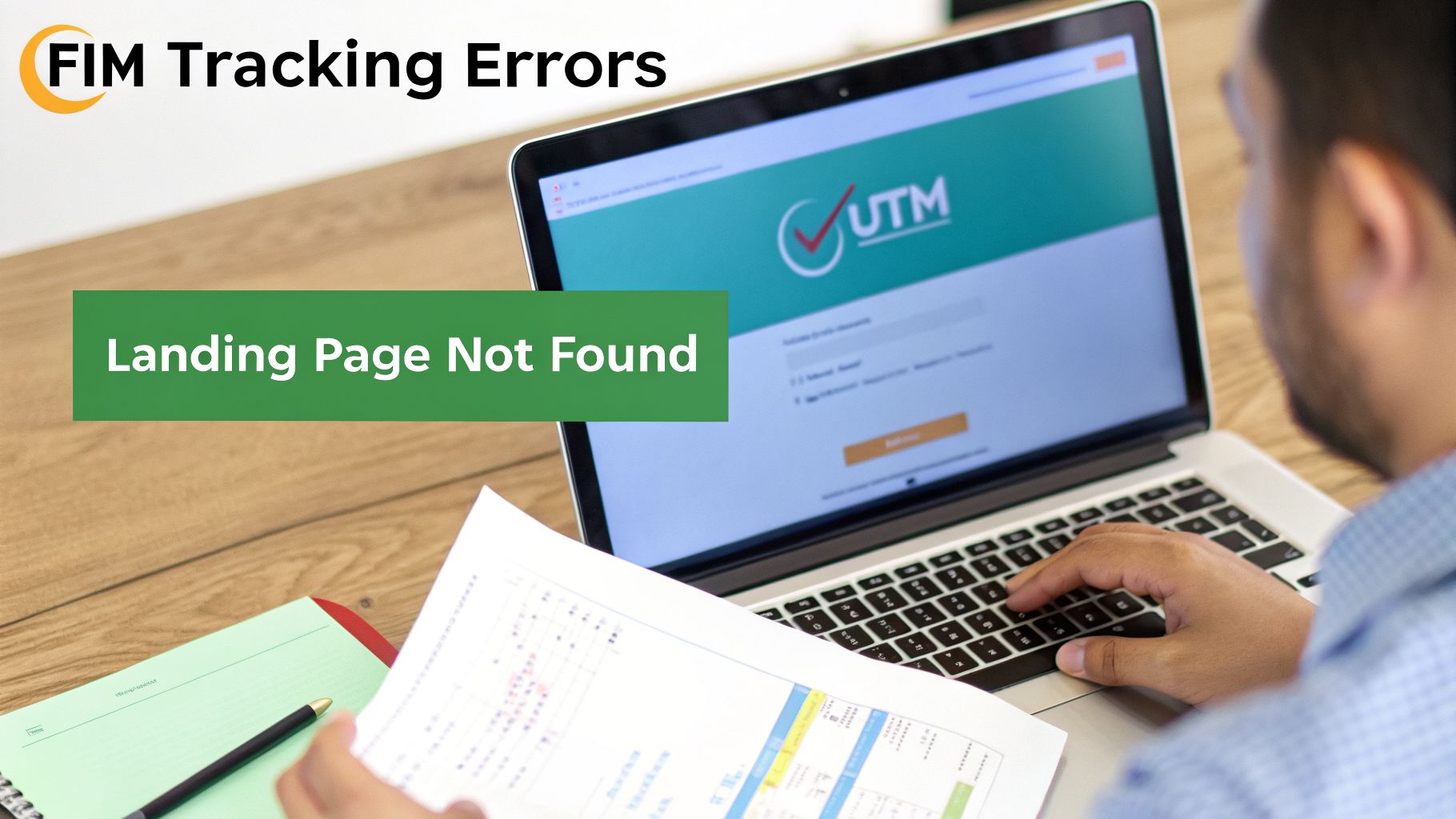
Getting this kind of real-time alert means you can jump on the problem and fix it in minutes, not days, preventing major data loss and wasted budget.
Proactive Alerts for Data You Can Trust
The real power of automated QA is in its proactive approach. Instead of scrambling when your boss questions the numbers in a report, you get instant notifications the moment something breaks.
These systems can fire off real-time alerts right to your team's Slack channel or email for all sorts of critical issues:
- Broken Tracking: You'll know the instant a template change leads to 404 errors or broken landing pages.
- Inconsistent UTMs: It flags clicks where campaign parameters are missing, malformed, or don’t stick to your company’s naming conventions.
- Accidental PII Leaks: It detects when personally identifiable information, like an email address, is mistakenly passed in a URL parameter, helping you dodge serious privacy violations.
This shift from reactive problem-solving to proactive data governance is fundamental. It means you spend less time firefighting and more time acting on insights you know you can trust.
By 2026, Google Tag Manager has solidified its role as the industry standard, with over 70% of enterprise advertisers using it to centralize tracking control and prevent data loss. This move has been supercharged by the adoption of server-side GTM, which routes data through secure endpoints to boost accuracy by up to 25%.
Platforms like Trackingplan integrate directly into this modern setup, automatically discovering your entire Martech stack. They validate everything from the UTM parameters in your Google Ads tracking template to the final conversion events in Google Analytics, helping you slash PII leaks by 90% and guaranteeing your data is clean and reliable without endless manual audits.
This automated oversight ensures the data fueling your dashboards and optimization efforts is always complete and trustworthy. You can find more strategies for this in our complete guide on how to bulletproof your digital analytics with data validation.
Frequently Asked Questions About Tracking Templates
Even with the best-laid plans, tracking templates can throw you a curveball. Let's walk through some of the most common questions and sticking points I see pop up time and again. Getting these right will help you build with confidence and troubleshoot like a pro.
Tracking Template vs. Final URL Suffix: What Is the Difference?
This is a classic point of confusion. Think of the Tracking Template as the powerful engine and the Final URL Suffix as a simple, fixed trailer hitched to the back. While they both add parameters to your URL, they serve very different functions.
Your Tracking Template is where you build out your entire tracking logic. It's designed for dynamic, complex tracking and must include the {lpurl} parameter, which tells Google where the user is ultimately going. This is the place for your ValueTrack parameters and conditional logic.
The Final URL Suffix, on the other hand, is much simpler. It’s built for appending static parameters that don’t change, like source=google. For anyone new to this, the suffix is often a safer starting point because it’s much harder to accidentally break your entire URL.
Why Are My Tracking Parameters Not Showing Up in Google Analytics?
This is a frustratingly common problem, but it almost always boils down to a few usual suspects. If you’re seeing your UTMs vanish into thin air, the first place I’d look is for redirects. A simple redirect from HTTP to HTTPS is a notorious culprit for stripping parameters right off the URL.
Next, comb through your template for typos. A misplaced question mark ? or a forgotten ampersand & is all it takes to derail the whole string. It's an easy mistake to make and an easy one to fix.
Another thing to check is Google Ads auto-tagging. If it’s not enabled, the GCLID simply won't be appended. Finally, dig into your Google Analytics 4 property settings; you might have rules in place that are actively ignoring or excluding the very URL query parameters you’re trying to track.
Do I Still Need UTMs if I Have GCLID Auto-Tagging On?
Yes, absolutely. In fact, I'd call this a non-negotiable best practice for anyone serious about robust data collection. While the Google Click ID (GCLID) creates a flawless connection between Google Ads and Google Analytics, its utility stops right there. It effectively creates a data silo.
The rest of your marketing stack—your CRM, email platform, or other analytics tools—can't interpret the GCLID. By using a google ads tracking template to append UTM parameters alongside it, you're creating a universal language that your entire tech stack can understand.
This two-pronged approach ensures every platform can correctly attribute traffic, leads, and sales back to the specific ad that earned them. Always use both together. It’s the modern, resilient way to manage your data.
Stop wasting your budget on bad data. Trackingplan offers a complete analytics QA and observability solution that automatically detects tracking errors, inconsistent UTMs, and broken pixels in real time. Get the clean, reliable data you need to make smarter decisions and maximize your ROI. Start your free trial at https://trackingplan.com.