
Setting up a Google Tag Gateway with Cloudflare is all about routing your website's tracking scripts through your own domain. The goal here is to give your tags a first-party context, which has become absolutely critical for accurate data collection as browsers continue to phase out third-party cookies.
Why You Need a Google Tag Gateway with Cloudflare
In an environment where both user privacy and data accuracy are non-negotiable, server-side tagging is no longer just a nice-to-have technical advantage—it's a business imperative. Building a Google Tag Gateway on Cloudflare is a strategic move that directly tackles many of today's digital marketing headaches. By shifting tag execution from the user's browser to a server you control, you take back authority over your data streams.
This setup immediately shores up your data governance. Instead of requests going out to third-party domains like google-analytics.com, they’re handled by your own subdomain. This single change helps sidestep the impact of ad blockers and browser-based tracking protections (like ITP/ETP) that frequently block third-party scripts, giving you a much more complete and reliable dataset.
Boost Site Speed and Core Web Vitals
One of the first things you'll notice after implementing a server-side gateway is a serious performance boost. Traditional client-side tagging forces the user's browser to load a whole host of JavaScript files, which can really slow your site down and hurt your Core Web Vitals scores.
By consolidating these scripts on the server, you massively reduce the client-side load. The user’s browser only needs to fetch one lightweight script that talks to your Cloudflare gateway. All the heavy lifting gets offloaded to the server, which means you get:
- Faster Page Load Times: Fewer scripts for the browser to download and execute.
- Improved User Experience: A zippier, more responsive website for your visitors.
- Better SEO Performance: Site speed is a confirmed ranking factor for Google.
Gain Control Over First-Party Data
A Google Tag Gateway on Cloudflare effectively gives you a single checkpoint for all outbound analytics and marketing data. Before any data gets passed along to destinations like Google Analytics or Meta, you have the ability to inspect, transform, or even block certain pieces of information.
This centralized control is a game-changer for privacy compliance. You can hash or remove Personally Identifiable Information (PII) at the edge, ensuring sensitive user data never even makes it to third-party analytics platforms. It’s a proactive way to build trust and stay aligned with regulations like GDPR.
This level of control also opens the door to data enrichment. You can add valuable context to events right on the server before they're sent off, giving your marketing teams far richer insights to work with. If you're looking for a deeper dive, our guide on the Google Tag Gateway provides additional context on its core concepts.
The dominance of Google Tag Manager is clear. GTM holds a staggering 99.7% market share among websites using a tag management system, which translates to powering 46.4% of all websites on the internet. But what's really telling is that industry benchmarks show that misconfigurations plague 20-30% of these setups, causing major data loss that can completely undermine marketing efforts. You can find more details about GTM's market penetration and its central role in modern analytics.
Designing Your Server-Side Tagging Infrastructure
Before you even think about writing a single line of code, you need a solid plan. Architecting your server-side environment is easily the most important step, and getting it right from the start will save you from major headaches down the road. If you're new to this, it’s worth brushing up on the fundamentals of how to design software architecture in general.
Your first big decision is which Cloudflare tool to use. This is a critical fork in the road, as your choice will boil down to Cloudflare Workers or the newer Cloudflare Gateway integration for Google Tag Manager. Each has its own place, and the right one for you depends entirely on what you're trying to achieve.
Choosing Your Cloudflare Tool
Deciding between Cloudflare Workers and the Cloudflare Gateway integration is the first major step in setting up your server-side tagging proxy. Let's break down what each service offers to help you make an informed choice.
The table below gives you a side-by-side look at the key differences.
Cloudflare Workers vs Cloudflare Gateway for SGTM
| Feature | Cloudflare Workers | Cloudflare Gateway |
|---|---|---|
| Control | Full programmatic control over requests and responses. | Limited to forwarding requests; less customization. |
| Setup Complexity | Requires deploying a script and configuring routes. | Simple toggle-based setup in the Cloudflare dashboard. |
| Use Case | Best for complex data manipulation, PII filtering, and custom logic. | Ideal for straightforward proxying of GTM requests. |
| Cost | Generous free tier, then pay-as-you-go based on requests. | Completely free to use, no impact on other Cloudflare billing. |
For most businesses looking for maximum control and the ability to adapt in the future, Cloudflare Workers is the way to go. The power to intercept and modify requests right at the edge is a massive advantage for both privacy and data enrichment. It’s what we’ll focus on in this guide.
Visualizing the Data Flow
It's crucial to understand how data moves through this new setup. The whole point of this architecture is to wrap your analytics and marketing tags in a first-party context. This masks the true origin of your GTM server container and adds a powerful layer of security and control right at the edge.
This diagram shows how routing data through your own domain gives you more control, better performance, and a way to sidestep aggressive ad-blockers.
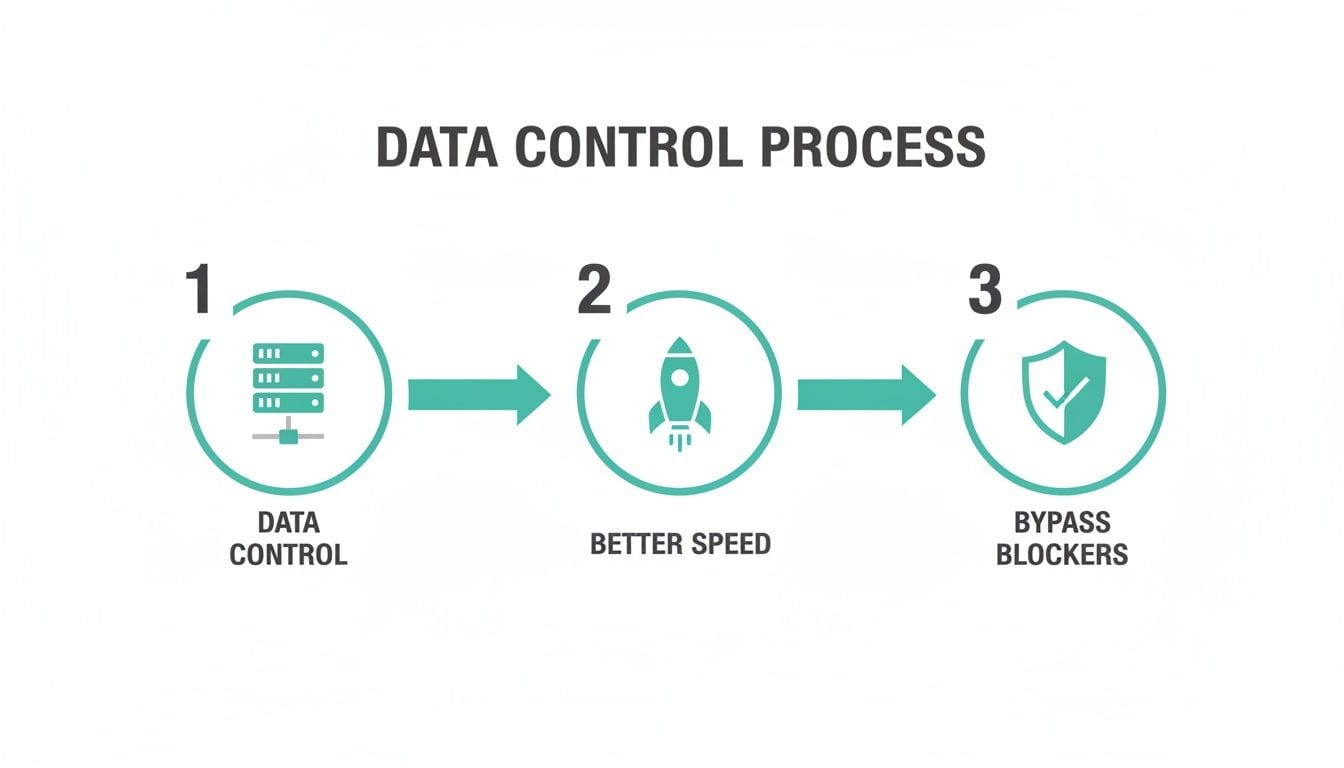
Essentially, you gain full command over your data before it ever reaches a third-party tool.
Here’s a breakdown of the entire journey, step-by-step:
-
The Browser: A user lands on your website. Your GTM container fires a request, but instead of going to Google, it goes to your custom subdomain (like
sgtm.yourdomain.com). -
Cloudflare Edge: This request hits Cloudflare’s global network first. This is where your Cloudflare Worker is waiting to intercept it.
-
The Worker Script: Your custom code immediately processes the request. Here, you can modify headers, clean the payload, or add data before forwarding it to your GTM Server Container.
-
GTM Server Container: Finally, the container receives the clean, proxied data. It processes everything according to your server-side tags and sends it off to its final destinations, like Google Analytics 4 or the Meta CAPI.
By using Cloudflare as a proxy, the GTM Server Container's underlying URL (often on a
appspot.comorrun.appdomain) is completely hidden from the browser. This prevents it from being easily identified and blocked by privacy tools.
This design does more than just improve your data collection—it seriously hardens your security. You now control the single entry point for all server-side tracking data, giving you a powerful chokepoint for governance and compliance.
Implementing Your Gateway on Cloudflare Workers

Alright, with the architecture mapped out, it’s time to get hands-on and bring your Google Tag Gateway to life. We’re going to use Cloudflare Workers for this, as they offer the flexibility and fine-grained control needed for a setup that’s ready for production.
This approach gives you the power to manipulate data in-flight, which is a huge plus for advanced privacy controls or data enrichment.
We're using Workers because they run on a Serverless Architecture, giving you incredible scalability and cost savings. You’re not paying for a server that’s always on; you’re deploying a lightweight script that executes on Cloudflare's massive global network only when a request comes through.
The process is pretty straightforward: we’ll create a Worker script, configure it in the Cloudflare dashboard, and then point it at your tagging subdomain. Don't worry, I'll walk you through each piece.
The Cloudflare Worker Script
The real magic happens in the Worker script. This is just a small chunk of JavaScript that intercepts incoming requests, forwards them to your GTM server container, and pipes the response right back to the client. It’s an intelligent, invisible middleman.
Here’s a basic script that’s simple but perfectly suitable for a production environment. It’s designed to be efficient and handles the core proxying logic you need.
// Cloudflare Worker script to proxy requests to GTM Server Containerexport default {async fetch(request, env) {// Get the GTM Server Container URL from environment variablesconst gtmServerUrl = env.GTM_SERVER_URL;if (!gtmServerUrl) {return new Response("GTM Server URL is not configured.", { status: 500 });}const url = new URL(request.url);const destinationUrl = gtmServerUrl + url.pathname + url.search;// Create a new request to forward to the GTM serverconst newRequest = new Request(destinationUrl, {method: request.method,headers: request.headers,body: request.body,redirect: 'manual',});// Forward the request and return the responseconst response = await fetch(newRequest);return new Response(response.body, {status: response.status,statusText: response.statusText,headers: response.headers,});},};This script is doing three key things:
- It pulls your GTM Server Container URL from an environment variable named
GTM_SERVER_URL. This is a security best practice, as it keeps sensitive information out of your codebase. - It builds a new destination URL by taking your GTM server URL and appending the path and query string from the original request.
- It fetches the response from your GTM container and streams it back to the user's browser, making the whole process feel seamless and instant.
Configuring the Worker in Cloudflare
Now, let's get this script deployed. The Cloudflare dashboard makes this part easy.
First, head over to the Workers & Pages section in your Cloudflare account and click Create application. Choose the "Hello World" Worker template—it gives you a clean slate to work with.
Once it's created, you’ll land on the Worker's configuration screen. Here’s exactly what you need to do:
- Deploy the Code: Swap out the default "Hello World" code with the script I provided above.
- Set Environment Variables: Jump over to the Settings tab, then click on Variables. Add a new variable with the key
GTM_SERVER_URLand set its value to your GTM Server Container's URL (e.g.,https://gtm-container-XXXX.appspot.com). This keeps your container's address secure and easy to update. - Add a Route: Go to the Triggers tab and add a route. This tells Cloudflare which requests the Worker should intercept. Set the route to
sgtm.yourdomain.com/*, making sure to replaceyourdomain.comwith your own domain. The*wildcard ensures every path on that subdomain gets captured.
After you save and deploy, your Worker is officially live. Any request to sgtm.yourdomain.com will now be proxied through to your GTM Server Container. You've just built your google tag gateway cloudflare infrastructure.
Pro Tip: From day one, use version control like Git for your Worker script. By integrating Cloudflare's Wrangler CLI with a GitHub repository, you can manage changes, collaborate with your team, and instantly roll back if something breaks. It’s a professional workflow that will save you from major headaches down the road.
Initial Testing and Verification
Before you go live and point your website's GTM tag to this new endpoint, you absolutely need to verify it's working as expected. You can do a quick check right from your browser or use a command-line tool like curl.
Try sending a request to a common GTM path through your new subdomain. For instance, make a GET request to https://sgtm.yourdomain.com/gtm.js. If it's set up correctly, you should get back the gtm.js script from your GTM Server Container, but the browser will show it as being served from your own domain.
It’s also smart to check the response headers. You should see headers set by your GTM Server Container, which confirms the request was successfully proxied. Taking the time to build a solid server-side setup is a significant step, and you can learn more by checking out our comprehensive guide on Google Tag Manager server-side setup.
Once you've confirmed the basic proxy is working, you're ready to start configuring your GTM tags.
Configuring GTM and Validating Your Data Flow
With your Google Tag Gateway infrastructure live on Cloudflare, the focus now shifts from plumbing to data. The next critical stage is ensuring clean, accurate information flows through your new server-side setup. This involves configuring your GTM Server Container to correctly receive data and then forwarding it to its final destinations, like Google Analytics 4 or the Meta Conversions API.
Merely proxying requests isn’t enough; the data itself must be valid. This is where the real work begins, bridging the gap between your web container, your server container, and your analytics platforms.
Diving into the GTM Server Container
Your first stop is inside the GTM Server Container. Here, you’ll need to set up the necessary clients and tags to process the incoming data stream from your Cloudflare Worker. The primary component to configure is the GA4 client.
The GA4 client is responsible for claiming incoming requests sent from your website's GA4 configuration tag. When a request hits your tagging server URL—the custom domain proxied by Cloudflare—the GA4 client intercepts it, parses it into an event data object, and makes that data available for other tags within the server container.
Once the client is configured and claiming requests, you can begin setting up server-side tags. These tags will take the processed event data and forward it to other platforms. Common examples include:
- Google Analytics 4 Tag: This is the most common tag. It takes the event data and sends it to your GA4 property, ensuring your analytics are populated correctly.
- Meta Conversions API (CAPI) Tag: This allows you to send conversion events directly to Meta's servers, bypassing browser limitations and improving ad attribution.
- Google Ads Conversion Tracking: Similar to the CAPI tag, this sends conversion data directly to Google Ads for more reliable measurement.
Tracing Requests with GTM Preview Mode
Before you fully publish your container, debugging is absolutely essential. GTM’s built-in Preview mode is your best friend here. It provides a real-time view of every request that hits your server container, allowing you to trace the entire data flow from start to finish.
When you enter Preview mode, you can see requests coming in from your browser, being claimed by the GA4 client, and then processed by your server-side tags. It’s a powerful way to see exactly what’s happening under the hood. You can inspect request headers, view the event data payload, and see the outbound requests your server tags are making. This is where you'll spot issues like malformed data or misconfigured tags before they impact your live reporting.
Use the Preview mode to follow a single event from your website all the way through the Cloudflare Worker and into the server container. If the request shows up in the Preview panel, your proxy is working. If it doesn't, the issue is likely with your Cloudflare Worker configuration or DNS setup.
The Critical Need for Automated Validation
While Preview mode is great for initial setup, it’s not a scalable solution for ongoing monitoring. In a complex server-side environment, data can break in countless ways that are hard to catch manually. A marketing team might unknowingly change a dataLayer event, a developer could alter a property name, or a new browser update could interfere with how data is collected.
This is where automated validation becomes a safety net. The adoption of Server-Side Google Tag Manager (sGTM) has surged, with a 400% increase since 2023, making it the standard for over 60% of Fortune 500 sites using GTM. This shift drastically reduces client-side script loads by 70-80% and protects first-party data. However, it also introduces new points of failure.
Considering that marketing data flowing into dashboards has increased by 230% since 2020, manual QA simply cannot keep up. You can discover more statistics about Google Analytics and its ecosystem's rapid growth.
Tools like Trackingplan are designed for this exact challenge. Instead of you having to hunt for problems, Trackingplan automatically discovers your entire data flow—from the dataLayer on your site, through your google tag gateway cloudflare setup, and into your GTM server container. It continuously monitors this pipeline, acting as a permanent QA layer.
Imagine a scenario where a recent code deployment breaks your "add_to_cart" event. Manually, you might not notice this for days or even weeks, leading to significant data loss and skewed reporting. With automated monitoring, you would receive an alert in Slack or via email almost instantly. The alert would pinpoint the exact event that’s failing, what properties are malformed, and where the issue originated, allowing your team to fix it before it causes any real damage. This continuous validation is the key to maintaining a reliable and trustworthy server-side analytics stack.
Advanced Privacy, Performance, and Cost Optimization

Getting your basic google tag gateway cloudflare setup live is a huge first step. But the real magic happens when you start fine-tuning it. This is where you can turn a functional proxy into a production-grade asset that truly excels in privacy, performance, and cost-efficiency.
By intercepting requests with a Cloudflare Worker, you've created a powerful control point. Think of it as more than just a forwarder—it’s your chance to inspect, cleanse, and even enrich every request before it ever reaches your GTM server container.
Fortifying Privacy with PII Redaction
One of the biggest wins of using a Cloudflare Worker is enforcing privacy policies right at the edge. You can programmatically inspect incoming requests for Personally Identifiable Information (PII) and hash or remove it on the fly. This proactive approach gives you an extra layer of compliance, ensuring sensitive user data never even touches your GTM server.
For instance, you can easily modify your Worker script to:
- Scan for Email Addresses: Use regular expressions to find and hash any emails hiding in request payloads.
- Remove Query Parameters: Strip sensitive user IDs from URL query strings before forwarding the request.
- Anonymize IP Addresses: While GTM Server can do this, handling it at the Cloudflare edge ensures it's done universally for all requests.
This edge-level sanitization acts as a final backstop against accidental PII collection. It protects your business from compliance risks and reinforces user trust by showing a commitment to privacy from the very first touchpoint.
This also gives data governance teams a single, auditable place to manage privacy rules, keeping that logic separate from the complexities inside GTM.
Boosting Performance with Edge Caching
Server-side tagging is already great for site speed because it offloads client-side JavaScript. But you can push performance even further with Cloudflare's Cache API. Your gateway will often serve the same static scripts, like gtm.js or analytics.js, over and over. Caching these files at the edge can slash latency.
When a request for a cacheable script comes in, your Worker can serve it directly from a nearby Cloudflare data center. No round trip to your GTM server needed. The result is near-instant load times for repeat visitors and a lighter load on your GTM server container, which can also help lower your operational costs.
To make this happen, you’ll just need to add a bit of logic to your Worker to check the Cache API for a resource before fetching it from the origin.
Managing Costs and Monitoring Usage
An efficient gateway is a cost-effective one. Your server-side setup really only has two main costs: Cloudflare Worker executions and your GTM server container hosting. The good news is that both are built for efficiency, and Cloudflare Workers have a generous free tier that makes them incredibly affordable for many sites.
To keep your expenses predictable, you’ll want to get in the habit of checking a few things:
- Monitor Worker Invocations: Keep an eye on your Worker's daily requests in the Cloudflare dashboard. This will give you a heads-up if you’re approaching a paid tier.
- Analyze GTM Server Costs: In your cloud provider (like Google Cloud), monitor the CPU usage and instance count of your GTM server. If costs start creeping up, it might be time to optimize your server-side tags for better efficiency.
For an even deeper look into what a production-ready setup looks like, the Trackingplan team shows how to get a GTM server up and running on Google Cloud, which is a great complement to this gateway configuration. By actively monitoring both components, you can ensure your gateway runs smoothly without any surprise bills.
You’ve done the hard work to build a high-performance google tag gateway on Cloudflare. The benefits are clear: you’re taking back control of your data, speeding up your site, and collecting more reliable information by bypassing common blockers.
But getting it set up is just the beginning. A server-side gateway isn't a "set it and forget it" project.
The reality is that your digital ecosystem is constantly changing. A developer pushes a new release, the marketing team launches a new campaign, or a browser update rolls out. Any one of these can quietly introduce bugs into your data pipeline, leading to silent data loss that can invalidate your analytics and waste your marketing budget.
Your Insurance Policy for Data Integrity
This is where continuous monitoring becomes non-negotiable. Manual checks in GTM Preview are great for the initial setup, but they’re not a scalable solution for ongoing oversight. You need an automated QA tool like Trackingplan to act as your insurance policy. It provides a permanent, watchful eye over your entire data pipeline.
Instead of waiting to discover a drop in conversions and then scrambling to find the cause, Trackingplan works proactively. It monitors every event as it flows from your website's dataLayer, through your Cloudflare proxy, and into your GTM server container. It automatically flags critical issues, such as:
- Broken or malformed events that pop up after a new deployment.
- Missing properties that your marketing tags rely on to function correctly.
- Unexpected changes in data schemas that could corrupt your analytics reports.
The Trackingplan team explains why this is so important in their video on how to automatically QA your analytics implementation—a crucial watch for anyone serious about data quality.
Think of it this way: Your server-side gateway is a powerful asset, but it’s not invincible. Automated monitoring protects it, ensuring the clean, reliable data you worked so hard to achieve stays that way. It’s about having confidence in every number and every decision.
With this final piece of the puzzle in place, your server-side gateway is truly complete. You’ve built a robust, private, and effective foundation for your digital strategy that will pay dividends for years to come.
Frequently Asked Questions
You've probably got a few questions floating around. Let's tackle some of the most common ones I hear about setting up a Google Tag Gateway with Cloudflare.
Is Using Cloudflare Workers for a GTM Gateway Free?
For many sites, the answer is yes. Cloudflare Workers has a great free plan that includes 100,000 requests per day, which is plenty for a good number of websites starting out.
If your traffic exceeds that, you’ll need to hop onto a paid plan. The good news is that the costs are usually quite low and predictable, especially when you compare them to the expense and headache of running dedicated servers.
How Does This Setup Improve GDPR Compliance?
This is where the gateway really shines. By pushing all your tracking data through your own server-side endpoint on Cloudflare, you get full control over what goes where.
You can inspect, redact, or even hash sensitive PII at the edge before it ever gets forwarded to third-party tools like Google Analytics. This centralized control is a massive step towards better data governance and a much stronger GDPR compliance posture.
Can I Use This for More Than Just Google Analytics?
Absolutely. The GTM Server Container itself is completely vendor-agnostic. Once your google tag gateway cloudflare setup is live, you're not locked into a single destination.
You can configure server-side tags to pipe data to all kinds of endpoints, including:
- The Meta (Facebook) Conversions API
- TikTok Events API
- Affiliate networks
- CRMs and data warehouses
While a gateway gives you control, you still need to ensure the data flowing through it is accurate. Trackingplan automatically discovers and monitors your entire data pipeline, alerting you to broken events and implementation errors in real time, so you can maintain data integrity without manual audits. Protect your data quality at https://trackingplan.com.