
Omnibug is a free browser extension that serves as a real-time debugger for your website’s marketing and analytics tags. It works by intercepting the data your site sends to platforms like Google Analytics or Adobe Analytics, then decoding it into a clean, human-readable format. This makes it an indispensable tool for quickly checking if your tracking is working as it should.
What Is Omnibug and Why Should You Use It
Think of your website as a busy airport and your analytics platforms as the final destinations. Every time a user does something—views a page, clicks a button—a piece of data gets sent out, like luggage being loaded onto a plane. Omnibug is the security scanner that lets you peer inside each suitcase before it's loaded, making sure everything is packed correctly.

This simple analogy gets right to the heart of what Omnibug does: it makes the invisible visible. Without a tool like this, you’re flying blind, just hoping that the data reaching your analytics tools is accurate.
A Legacy of Debugging
The tool isn't new; it has a long and trusted history. Omnibug first launched back in July 2008 as a Firefox extension, which makes it one of the original debugging tools for digital marketers and analysts. Its name is a nod to its origins, combining "Omniture" (which is now Adobe Analytics) and "Firebug," the go-to developer tool of that era.
Today, it remains free, open-source, and is actively maintained for all modern browsers. You can learn more about its history and the people behind it on the official Omnibug site. This long track record has made Omnibug the first line of defense for manual debugging, saving teams countless hours of guesswork. Before we dive into the specifics of debugging, it's helpful to understand the broader context of What Is Marketing Analytics and the data that fuels it.
Core Benefits for Your Team
For over a decade, analysts and developers have turned to Omnibug to get quick answers to critical tracking questions. Its value really boils down to a few key benefits:
- Instant Verification: See in real time if tags are firing on page load or after a specific user interaction. No more waiting for data to show up in your analytics platform.
- Simplified Readouts: It decodes those long, cryptic request URLs into clearly labeled parameters and values, so you know exactly what data is being sent.
- Multi-Platform Support: Omnibug works with dozens of martech tools, including Google Analytics, Adobe Analytics, and a wide array of advertising pixels.
- Time Savings: It dramatically cuts down the time spent troubleshooting tracking issues compared to digging through the browser’s native network tab.
By providing a clear, real-time window into your website’s data layer, Omnibug empowers teams to catch tracking errors before they corrupt reports and impact business decisions. It’s the simplest way to confirm that your data collection is behaving as expected.
How to Get Started with Omnibug in Minutes
Getting into analytics debugging doesn't have to be a major project. With Omnibug, you can go from installation to real insight in just a few minutes. This quick guide will get the extension up and running so you can start checking your tracking tags right away.

The whole process is designed to be simple, whether you're a developer or an analyst. Think of it like adding a new app to your phone—the setup is fast, but you'll discover its real value as you start using it.
Installing and Activating Omnibug
Getting started is as easy as adding any other extension to your browser. You can find Omnibug on the official web stores for major browsers, which means you're getting a safe and verified installation.
Here’s the step-by-step breakdown:
- Find Omnibug on the Web Store: Just open your browser (like Chrome, Firefox, or Edge) and head to its extension marketplace. A quick search for "Omnibug" will bring up the official extension.
- Install the Extension: Click the "Add to [Browser Name]" button. Your browser will ask for permissions—accept them to finish the installation. Once it's done, you'll see the Omnibug icon (it looks like a little bug) pop up in your toolbar.
- Open Developer Tools: Go to any website you want to inspect. You can open the developer tools by right-clicking on the page and selecting "Inspect" or by using the keyboard shortcut (Ctrl+Shift+I on Windows, Cmd+Option+I on Mac).
- Launch the Omnibug Panel: Inside the developer tools panel, find the Omnibug tab. It's usually sitting next to other tabs like "Elements" and "Console." Click on it to open the debugging interface. If it’s not immediately visible, look for a ">>" icon to reveal more tabs.
With the panel open, you’re officially ready to see your site’s analytics traffic in real time.
Your First Debugging Test
Let's run a quick test to see how Omnibug works. When you load a webpage that has Google Analytics installed, Omnibug will instantly pick up the pageview hit. Every request it captures shows up as a row in the panel, neatly organized and color-coded.
You’ll see that requests are grouped by the marketing platform, such as "Google Analytics" or "Meta Pixel." Each one has a status light: a green circle means the request was successful (an HTTP 200-299 status), while red or yellow flags a potential issue.
To dig into the details, just click on any request. Omnibug instantly decodes the long, messy URL into a clean, readable list of parameters. For a standard Google Analytics pageview, you'll see key parameters like your tracking ID (
tid), the page title (dt), and the page URL (dl).
This simple act—loading a page and clicking on a pageview hit—is the core of manual debugging. From here, you can move on to testing more complex user interactions, like button clicks and form submissions, to make sure every piece of data is firing correctly.
Common Omnibug Use Cases for Marketing Teams

Alright, so you've got Omnibug installed. Now for the fun part: let's look at how this little tool solves some big, real-world headaches for marketing and analytics pros. It’s your go-to for answering two critical questions: "Is my tracking even working?" and "Can I trust this data?"
Modern websites are incredibly noisy. A single page can fire anywhere from 50-200+ different tracking tags and pixels. Before tools like Omnibug came along, checking them meant digging through your browser's network requests, a painful process that could burn hours of your day.
Omnibug changed the game, cutting that troubleshooting time by up to 80%. What used to be a half-day task became a ten-minute check, a massive efficiency win that Perficient's blog highlights translates directly into cost savings.
Validating Campaign UTM Parameters
Imagine you're about to launch a massive email campaign. You’ve spent hours meticulously building your URLs with UTM parameters—like utm_source, utm_medium, and utm_campaign—so you can measure performance in Google Analytics. But what if they don't fire correctly?
With Omnibug, you can find out in seconds. Just click one of your campaign links, pop open the developer panel, and Omnibug will show you the exact Google Analytics request. You can instantly see if utm_source is showing up as "newsletter" and if utm_campaign is tagged as "summer_sale." This quick check gives you immediate confidence that your attribution will work before you hit send on thousands of emails.
Confirming E-commerce Event Data
On an e-commerce site, accurate event tracking is everything. Let's say a developer just shipped a new 'add_to_cart' event. They need to be absolutely sure it's sending the right product SKU, price, and quantity with it.
Instead of waiting for the data to show up (or not show up) in analytics reports, the developer can simply add a product to the cart and watch the event fire in Omnibug. The tool neatly displays all the parameters, making it easy to confirm that the item_id and price match the product on the page. It's a simple check that prevents bad data from corrupting your sales reports down the line. If this process is new to you, our guide on how to properly test a tag is a great place to start.
Ensuring Conversion Pixel Firing
Think about a marketing manager running a Meta (Facebook) Ads campaign. They need to know if the conversion pixel fires on the "thank you" page after a user fills out a lead form. This is non-negotiable for measuring the campaign's return on ad spend (ROAS).
With Omnibug open, the manager can complete a test submission and watch for the Meta Pixel event to appear. They can verify that the correct 'Lead' event fires on the confirmation page, ensuring the campaign's success is being measured accurately.
Whether you're tracking leads or sales, Omnibug brings the clarity you need to actually trust your data. Each of these scenarios shows just how valuable it is as a quick, reliable way to validate tracking across all your different platforms.
Which Analytics Tools Does Omnibug Support
Omnibug's real power lies in just how many tools it supports. While it started out with a laser focus on what was then Omniture SiteCatalyst, it has grown into a true "Swiss Army knife" for debugging the modern marketing and analytics stack.
Today’s digital properties are complex. Most companies are juggling an average of 50-100+ different tools, from analytics platforms to advertising pixels. Omnibug cuts through that complexity by decoding the most common technologies right out of the box, letting you check everything in one place. You can find more details on the official Omnibug site.
Core Analytics and Tag Management Platforms
At its core, Omnibug is built to decipher the network requests sent by the industry's biggest analytics and tag management systems. This is what most analysts and developers will use it for day in and day out.
It handles both new and legacy systems, so you’re covered whether your company is on the latest platform or still migrating. Key platforms include:
- Google Analytics: Full support for both Google Analytics 4 (GA4) and the older Universal Analytics (UA).
- Google Tag Manager: Helps you validate GTM container activity and the tags fired through it.
- Adobe Analytics: Deep support for Adobe Analytics, a nod to the tool's origins.
- Tealium iQ Tag Management: Decodes requests sent by the Tealium platform.
Advertising Pixels and Product Analytics Tools
Omnibug isn't just for web analytics. It’s also incredibly useful for confirming that data is flowing correctly to product analytics tools and advertising platforms. This is crucial for making sure user behavior and conversion events are captured accurately across the entire customer journey.
This is what makes Omnibug a centralized hub for data validation. Instead of learning a half-dozen different vendor-specific debuggers, you get one consistent interface for almost everything. It streamlines the entire QA process.
It also decodes hits for many other popular platforms, such as:
- Product Analytics: Amplitude, Mixpanel, and Segment.
- Advertising Pixels: Meta (Facebook) Pixel, TikTok Pixel, and LinkedIn Insight Tag.
Omnibug’s extensive list of supported platforms confirms its role as a go-to tool for manual tag validation. The table below summarizes some of the major platforms it can decode, helping you see if your MarTech stack is covered.
Omnibug's Supported Analytics and Marketing Platforms
| Category | Supported Platforms |
|---|---|
| Web & App Analytics | Adobe Analytics, Google Analytics (GA4/UA), Matomo (Piwik), Webtrends |
| Tag Management | Google Tag Manager, Tealium iQ, Adobe Launch/Tags, Ensighten |
| Advertising | Meta (Facebook) Pixel, TikTok Pixel, LinkedIn Insight Tag, Twitter Ads |
| Product Analytics | Amplitude, Mixpanel, Segment |
| Other MarTech | Various other marketing, A/B testing, and personalization tools |
This broad compatibility is what saves analysts and developers from having to juggle multiple debuggers for different platforms. With Omnibug, you can validate data across most of your stack from a single, familiar interface.
The Hidden Limitations of Manual Debugging
While Omnibug is a fantastic tool for real-time validation, leaning on it as your sole data quality strategy is a bit like guarding a fortress by only watching the front gate. You get a perfect view of who’s coming and going through one entrance, but you’re completely blind to what’s happening along the rest of the walls.
That’s the core problem with any purely manual debugging process. An Omnibug check is a snapshot in time, not a continuous video feed. It’s perfect for spot-checking a specific user flow on your own machine, but it gives you zero visibility into what’s happening for the thousands of other users on different devices, browsers, and locations.
A test on your high-spec laptop with the latest version of Chrome might pass with flying colors. But what about the user on an older Android phone with a spotty connection? Their experience could be completely different, leading to broken tracking that you’d never catch on your own.
The Inefficiency of Repetitive Audits
One of the biggest hidden costs of manual debugging is the sheer amount of time it eats up. A full audit of your site’s tracking is a painstaking, repetitive task that’s incredibly vulnerable to human error.
Just imagine manually clicking through every single event—from page views to form submissions to e-commerce transactions—across dozens of pages. Not only is this wildly time-consuming, but the repetitive nature makes it all too easy to miss small but critical details.
After checking the tenth add_to_cart event, even the most focused analyst might overlook a missing item_category parameter. It’s just human nature.
Manual debugging is reactive, not proactive. It helps you confirm if something is working right now, but it can’t alert you the moment something breaks. This leaves you wide open to data loss without any warning.
Lack of Historical Context and Automated Alerts
Another huge weakness is the complete absence of historical data and automated oversight. When you finally discover a tracking issue—maybe because your conversion rate suddenly tanks—Omnibug can help you confirm the current problem. But it can’t answer the most important follow-up question: "When did this break?"
Without a historical record, you have no way to pinpoint the exact moment the issue started. This makes it almost impossible to quantify the impact or track down the root cause, like a specific code deployment that went wrong.
On top of that, manual tools don’t have automated alerts. Your tracking could break silently in the middle of the night, and you might not have a clue for days or even weeks. This reactive approach creates a constant cycle of firefighting, where teams are always playing catch-up instead of getting ahead of data quality issues.
Manual checks are a necessary part of the process, but they are simply not enough to build a truly reliable analytics governance framework.
Pairing Omnibug with Automated Analytics Governance
Manual debugging with Omnibug is a critical skill. It’s like a seasoned mechanic who can listen to an engine and pinpoint a specific problem just by its sound. But what happens when that car is speeding down the highway at night? You can't be there 24/7 to listen for every strange noise.
This is where manual spot-checks hit their limit, and where automated governance becomes a non-negotiable part of your toolkit.
Relying only on a tool like Omnibug creates unavoidable blind spots. It shows you what’s happening during a single test, on one browser, at one specific moment. It can't give you the continuous, wide-scale oversight needed to guarantee data integrity across millions of user sessions. Let's talk about how to bridge that gap and move from manual fixes to complete data confidence.
From Spot-Checks to 24/7 Monitoring
The goal isn't to replace Omnibug, but to pair it with a system that covers its blind spots. Think of them as perfect partners. Omnibug is your hands-on tool for real-time, in-the-moment debugging, while an automated platform like Trackingplan provides the scalable, 24/7 monitoring that catches issues you’d otherwise miss.
While Omnibug helps you inspect one event at a time, Trackingplan ensures the integrity of all your data, all the time. It works by automatically discovering your entire tracking implementation—from the data layer to every destination—and monitoring every single event across your web and mobile platforms.
This creates a powerful synergy:
- Omnibug: Use it for live debugging during development, validating a new feature, or investigating a specific issue that's already been flagged.
- Trackingplan: Let it run continuously in the background to monitor your entire analytics ecosystem, alerting you the moment something breaks or deviates from your plan.
This combination allows your team to reactively fix immediate problems with precision while proactively preventing future data quality disasters. If you want to dive deeper, you can read our guide on how to debug analytics problems with Trackingplan and see how automation completely changes the game.
This decision tree illustrates the two main failure paths when you rely only on manual tools like Omnibug for debugging.
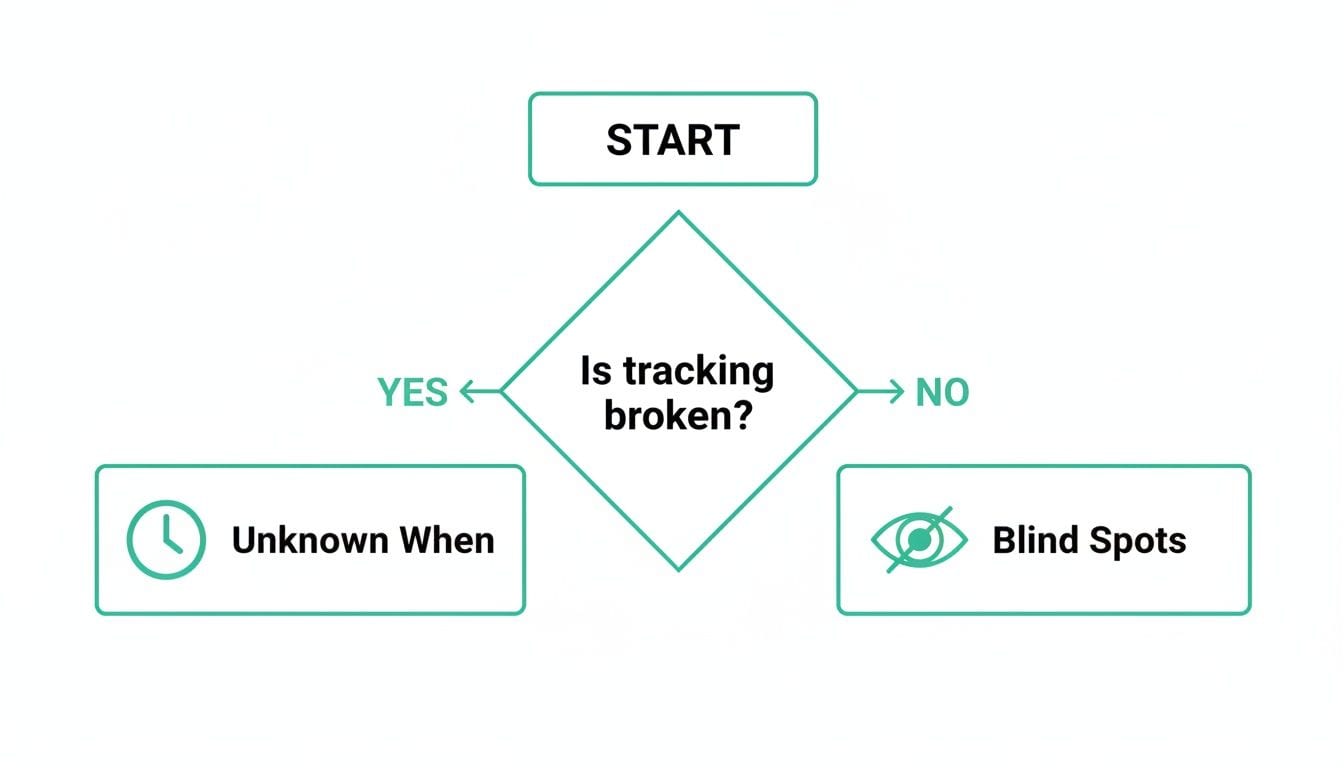
The key takeaway is that manual checks leave you exposed, whether your tracking is currently broken or not. You either don't know when something broke, or you have blind spots you're not even aware of.
Building a True Analytics Governance Framework
An automated solution like Trackingplan closes the gaps left by manual tools. Instead of wondering if something is broken, you get immediate, actionable alerts.
By automatically detecting issues like missing properties, schema deviations, or broken marketing pixels, an automated system transforms data quality from a reactive chore into a proactive, manageable process. It acts as a single source of truth for your entire analytics implementation.
This frees up your team from tedious, repetitive manual audits. While other advanced solutions like AI debugging tools offer unique capabilities, an end-to-end observability platform is unmatched for providing complete coverage.
Imagine this workflow:
- Automated Alert: Trackingplan notifies your team via Slack that the
priceproperty is missing from theadd_to_cartevent for 15% of users on iOS. - Manual Verification: A developer opens Omnibug to replicate the user journey on an iPhone, as specified in the alert.
- Targeted Fix: Using the real-time feedback from Omnibug, they quickly identify the bit of code causing the issue and deploy a fix.
This partnership between manual and automated tools creates a truly robust analytics governance framework. You gain the power to fix immediate issues with precision while having the confidence that your entire data ecosystem is being watched over, ensuring you can always trust your numbers.
Frequently Asked Questions About Omnibug
When you're diving into a tool like Omnibug for the first time, it’s natural to have a few questions. As powerful as it is for debugging, knowing its place in your workflow is key. Here are some answers to the questions we hear most often from analysts and developers.
Is Omnibug Free to Use?
Yes, Omnibug is 100% free. It’s an open-source project maintained by a community of developers and analytics experts who use it every day.
This makes it a go-to tool for anyone who needs to quickly validate tracking tags—from freelancers to large enterprise teams—without worrying about subscription costs.
What Is the Difference Between Omnibug and the Browser Network Tab?
The Network tab in your browser’s developer tools is powerful, but it shows every single network request your site makes. This creates a lot of noise when you're just trying to debug a single analytics hit.
Omnibug cuts through that noise by filtering for and decoding only analytics and marketing tags. Instead of trying to read a long, messy URL string, you get a clean, organized view with clearly labeled parameters like "Event Name" or "Page Title." This translation is what saves you a ton of time.
Omnibug's core value is translating cryptic tracking pixels into a simple, readable list. It lets you spot errors in seconds, not minutes.
Does Omnibug Work for Mobile Apps?
No, Omnibug is a browser extension built specifically for websites. It works by intercepting the HTTP requests sent from a browser like Chrome or Firefox.
For debugging analytics on native mobile apps, you'll need a different set of tools. Proxies like Charles Proxy are a common choice, though many analytics vendors also provide their own platform-specific debuggers. It’s an important distinction to remember when building a QA process that covers both web and mobile.
Can Omnibug Export Data for Reporting?
Yes, you can export the requests captured by Omnibug into either a CSV or JSON file. This is incredibly useful for a few common scenarios:
- Sharing Reports: Easily send a debugging session to a developer or another analyst to review.
- Documenting Issues: Attach a clear record of a tracking bug to a ticket in your project management tool.
- Deeper Analysis: Pull the data into another tool if you need to perform a more detailed analysis than what the extension provides.
While Omnibug is an excellent tool for manual spot-checking, it can't watch your entire implementation 24/7. Trackingplan provides the automated observability you need to catch every data quality issue in real time, ensuring you can always trust your numbers. Discover how Trackingplan can protect your analytics today.