
At its core, Adobe tracking is an enterprise-grade analytics platform that helps massive companies collect, measure, and make sense of user behavior across their websites and apps. It’s built for deep customization, allowing businesses to transform raw data into a clear roadmap for personalizing customer experiences and boosting revenue.
What Is Adobe Tracking and Why Does It Matter

Think about running a global shipping company without a tracking system for your packages. It sounds impossible, right? That’s exactly what it feels like to run a large-scale digital business without a solid analytics foundation. Adobe tracking serves as the central nervous system for your digital operations, giving you the visibility to map out and understand even the most complex customer journeys.
This system is what moves a business from making educated guesses to making data-backed decisions. Instead of just wondering why a campaign took off or fell flat, Adobe tracking gives you the granular data to pinpoint exactly what happened and why. It captures every meaningful digital touchpoint, effectively turning user behavior into strategic business intelligence.
To put it in perspective, here's a quick look at the core components and their roles.
Adobe Tracking at a Glance
| Core Component | Primary Function | Business Impact |
|---|---|---|
| Data Collection | Captures user interactions (clicks, views, conversions) across all digital properties. | Provides the raw material for all analysis and ensures no user action goes unmeasured. |
| Data Processing | Organizes and enriches raw data based on predefined business rules and logic. | Transforms messy, unstructured data into clean, report-ready information. |
| Reporting & Analysis | Visualizes data in dashboards and reports to uncover trends, patterns, and insights. | Empowers teams to answer key business questions and identify opportunities. |
| Audience Segmentation | Groups users into specific segments based on their behavior, demographics, or purchase history. | Enables highly targeted marketing campaigns and personalized user experiences. |
| Attribution | Assigns credit to the marketing touchpoints that influence conversions. | Optimizes marketing spend by revealing which channels deliver the most value. |
These components work together to provide a holistic view of the customer, turning abstract data points into a clear narrative about user intent and behavior.
Why Top Companies Rely on It
Adobe Analytics, the engine behind Adobe tracking, holds a commanding position in the enterprise analytics space. While its overall market share might seem small, its influence is immense—it's the tool of choice for a huge number of the world's most recognizable brands. Global leaders like Microsoft, Amazon, Samsung, and ESPN all rely on it for their most critical user behavior analysis, as highlighted in W3Techs' technology usage statistics.
These companies operate at a scale where even tiny improvements in understanding user behavior can translate into millions in revenue. For them, basic "out-of-the-box" analytics just won't cut it. They need a system that can:
- Track intricate user paths across multiple devices and platforms, from the first ad click to the final purchase and beyond.
- Segment audiences into highly specific groups based on a mix of behaviors, demographics, and custom business variables.
- Attribute conversions with precision, assigning credit to the right marketing channels, campaigns, or even individual content pieces.
- Integrate with a broad ecosystem of marketing and advertising tools to create a single, unified view of the customer.
The real power of Adobe tracking isn't just about counting page views or clicks. It’s about building a detailed, persistent profile of your users to understand their motivations and anticipate their needs. This level of insight is the foundation of modern digital strategy.
In essence, Adobe tracking provides the heavy-duty infrastructure needed to draw a straight line from marketing efforts to business outcomes. It’s built to answer the tough questions that drive growth, making it an indispensable tool for any data-driven enterprise.
How Adobe Gathers and Processes Your Data
To really master Adobe tracking, you have to look under the hood and see how data actually gets from a user's click into your reports. It’s not magic—it's a highly structured process. Think of it like a relay race, where each step hands off critical information to the next.
Let's follow the data from the starting line—a user's action—all the way to the finish line in your Adobe Analytics dashboard. It all kicks off the second someone lands on your site or opens your app.
The User Action and the Data Layer
Everything begins with a user interaction. This could be a page view, a button click, adding an item to the cart, or filling out a form. For Adobe to make sense of that action, the details need to be captured and organized. This is where the data layer comes in.
The data layer is a JavaScript object that acts as a middleman, translating what happens on your website into a language your analytics tools can understand. When a user does something, your site's code pushes the relevant details into this data layer. For example, a "product view" event would load the data layer with information like product_name, product_id, and price.
A well-designed data layer is the absolute foundation of reliable Adobe tracking. It ensures every piece of data is clean and consistent before it even leaves the user's browser.
The AppMeasurement Library and the Beacon Call
With the data neatly organized in the data layer, the next step is to send it over to Adobe's servers. This is the job of the AppMeasurement library, a core piece of JavaScript from Adobe. The library reads the information from the data layer, packages it up, and fires it off.
This "package" is sent as a beacon call, which is essentially a request for a tiny, invisible 1x1 pixel image. The pixel itself doesn't matter; what’s crucial is the long string of parameters tacked onto the image URL. This string contains all the data about the user’s action, perfectly formatted for Adobe’s servers to process.
The beacon call is the digital handoff. It’s a one-way message that tells Adobe servers exactly what a user did, where they did it, and when.
eVars, Props, and Success Events
So, what's actually inside that beacon call? This is where you’ll find Adobe’s most important variables: eVars, props, and success events. These are what give your raw data meaning and context.
-
Props (Traffic Variables): Think of these as simple counters. They’re great for measuring how often something happens during a visit, like page views or internal searches. They answer the question, "How many?" but don't stick around for long.
-
eVars (Conversion Variables): These are the real powerhouses for attribution. An eVar can "remember" a value across multiple visits until a specific goal is met. For instance, you can set an eVar with a campaign tracking code when a user first arrives. If they make a purchase weeks later, that eVar links the sale back to the original campaign.
-
Success Events: These are your key business goals—the actions you ultimately want users to take. A purchase, a lead submission, or a newsletter signup are all common success events. When one is triggered, Adobe connects it to the current values of your eVars, giving them credit for driving that outcome.
This system is what allows for incredibly granular attribution. When a purchase occurs (Success Event), you can see not just that it happened, but also which marketing channel brought them in (eVar), what product category they viewed (eVar), and which page they were on just before buying (Prop).
Data Processing and Reporting
Once Adobe's servers receive the beacon call, the final leg of the race begins. The data is processed based on the rules you’ve set up in the Adobe Analytics admin console. This is where segmentation is applied, attribution models are run, and all the data is organized into a clean, usable structure.
Finally, this processed data populates the reports and dashboards in Adobe Analytics Workspace. This is where analysts and marketers can dig in, create visualizations, and uncover the insights needed to understand customer behavior and drive the business forward.
Choosing Between Client Side and Server Side Tracking
When you're setting up Adobe tracking, one of the first big calls you'll have to make is where the data collection actually happens. This decision comes down to two main methods: client-side tracking and server-side tracking. Each path has major effects on your data accuracy, site performance, security, and how you'll navigate the ever-changing world of privacy.
Think of it this way: client-side tracking is like dropping a letter directly into your local mailbox. It’s the traditional, most straightforward route. In contrast, server-side tracking is like sending that letter through a secure corporate mailroom that logs, enriches, and guarantees its delivery. Getting the difference is key to building an analytics setup that lasts.
This infographic gives a simplified look at the Adobe tracking data flow, from the first user action all the way to the final report.
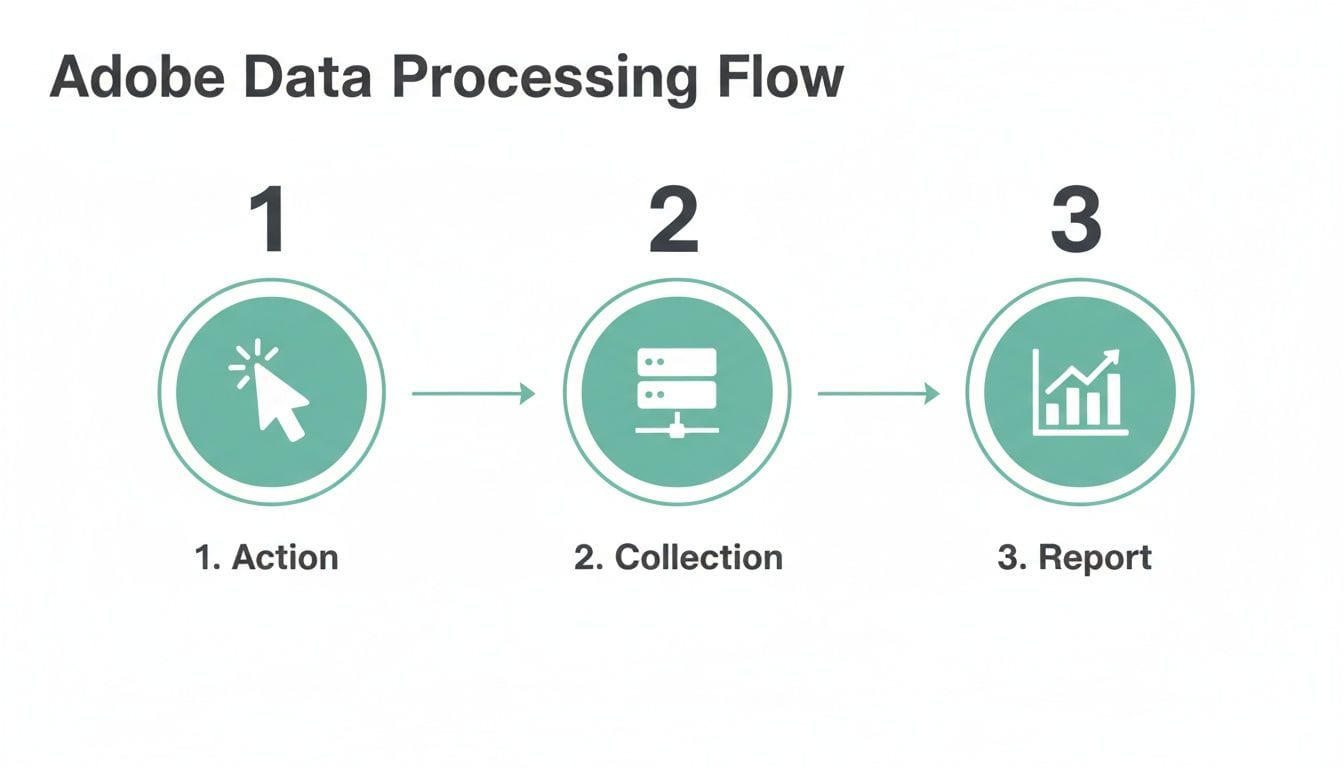
Whether you go with client-side or server-side, the basic journey of an action being collected and reported stays the same. The real difference is how the data gets there.
Understanding Client Side Tracking
Client-side tracking has long been the standard way to implement Adobe Analytics. In this model, JavaScript code—like Adobe's AppMeasurement library—runs right in the user's web browser. When a user does something on your site, the script gathers the data and sends it from the browser straight to Adobe's collection servers.
This method is popular because it's relatively simple and quick to get started. With a good tag management system, marketers can often deploy tracking tags without needing a ton of developer help.
Client-side tracking is essentially a direct line of communication between the user's browser and your analytics vendor. It’s straightforward but leaves the data collection process exposed to various browser-level interferences.
But that simplicity has its downsides. Because all the tracking happens on the client (the browser), it's wide open to ad blockers, spotty network connections, and browser privacy settings that can stop data from ever being sent. In fact, over 42% of internet users worldwide use ad-blocking software, which can punch huge holes in your data if you're only using a client-side setup.
When weighing your options, it's crucial to understand the client-side data processing implications, much like how you'd evaluate where code is processed to ensure it's safe and reliable.
The Rise of Server Side Tracking
Server-side tracking presents a more durable and controlled alternative. Instead of the browser sending data directly to Adobe, it first sends a single, lightweight data stream to your own server. From there, your server takes over, validating it, adding to it, and then forwarding it on to Adobe and any other tools you use.
This "corporate mailroom" strategy puts you in the driver's seat of your data flow. By bringing data collection onto your server, you create a single source of truth that isn't as vulnerable to client-side problems.
The advantages are pretty clear:
- Improved Data Accuracy: It neatly sidesteps ad blockers and most browser restrictions, which means you get a much more complete dataset.
- Enhanced Performance: It cuts down on the amount of JavaScript running in the user's browser, which can speed up your page loads and make for a better user experience.
- Greater Security: It keeps sensitive data from being exposed in the browser and lets you redact or hash information before it ever reaches a third-party vendor.
Client Side vs Server Side Tracking Comparison
Making the right choice for your business isn't about finding a one-size-fits-all answer. It's about matching an approach to your organization's goals for data governance, accuracy, and technical resources. This table breaks down the key differences to help you decide.
| Factor | Client-Side Tracking | Server-Side Tracking |
|---|---|---|
| Data Accuracy | Vulnerable to ad blockers and browser settings, leading to potential data loss. | Highly accurate and complete, as it bypasses most client-side interferences. |
| Site Performance | Can slow down page load times due to numerous third-party scripts. | Improves site speed by consolidating requests into a single data stream. |
| Security & Privacy | Data is exposed in the browser, increasing the risk of unauthorized access. | Offers superior control, allowing you to secure data before forwarding it. |
| Implementation | Generally easier and faster to set up, especially with a tag manager. | More complex, requiring server infrastructure and developer expertise. |
| Cost | Lower initial setup cost, but potential hidden costs from data inaccuracy. | Higher upfront cost for server infrastructure and maintenance. |
For many companies, the ideal solution is turning out to be a hybrid approach. This means using client-side tracking for less critical, real-time interactions while leaning on server-side for crucial conversion events and sensitive data. This way, you truly get the best of both worlds.
Designing a Resilient Data Layer and Event Strategy
Any Adobe tracking setup is only as strong as the data it’s fed. The single most important element for clean, reliable data is a well-designed data layer. Think of it as a universal translator for your website—it’s a structured JavaScript object that captures all user activity and organizes it into a standard format that tools like Adobe Analytics can easily understand.
Without that translator, you’re headed for chaos. Different tools get different data formats, developers implement tracking however they see fit, and your reports become an unreliable mess. A solid data layer is your single source of truth, preventing this breakdown before it starts.

From Vague Events to Actionable Insights
At the heart of any great data layer is a crystal-clear event strategy. Firing off a generic event like event: 'product' is practically useless. What happened? Did someone look at a product? Add it to their cart? Buy it? Without specifics, the data is impossible to analyze.
A strong event strategy is all about specificity. Instead of vague labels, you need to define detailed events with descriptive properties that tell the whole story.
- Vague Event:
event: 'product' event: 'product_view'product_name: 'TrailRunner Pro Shoes'product_id: 'TRP-987'price: 129.99category: 'Running'
This detailed structure gives you immediate context. You know exactly what happened, which product was involved, and all its relevant attributes. This is the granular data that fuels meaningful analysis inside Adobe Analytics. To really get into the weeds on this, you can learn more about the role of the data layer in Adobe Analytics in our dedicated article.
Establishing a Naming Convention
Consistency is your best weapon against data chaos. A standardized naming convention for all your events and properties is non-negotiable if you want your setup to scale and your team to stay aligned. A good convention, like the popular "Object-Action" format, gets everyone speaking the same language from day one.
A naming convention isn't just a technical detail; it's a team agreement. It ensures that an event triggered by a developer in Q1 is still understood by an analyst in Q4, preventing data silos and misinterpretations.
For instance, you could structure events as object_action, where object is what the user interacted with and action is what they did.
product_viewproduct_add_to_cartform_submitvideo_play
This simple logic makes your tracking plan intuitive and easy to build on. When a new feature rolls out, your team already has the blueprint for how to name the events, ensuring a consistent flow of high-quality data into your Adobe tracking setup.
The Solution Design Reference (SDR) as Your Blueprint
So, how do you document and enforce this grand strategy? The answer is a Solution Design Reference (SDR). An SDR is the official blueprint for your entire Adobe Analytics implementation, a comprehensive document that maps every business requirement to a specific technical solution.
A truly effective SDR typically includes:
- Business Goals: What are you trying to measure, and why does it matter? (e.g., "We need to understand how our blog content impacts lead generation.")
- Tracking Requirements: What specific user actions must be tracked to measure those goals? (e.g., "Track
blog_post_viewandlead_form_submit.") - Variable Map: Which Adobe variables (eVars, props, events) will hold this data?
- Implementation Details: Code snippets and data layer examples for developers to follow.
The SDR becomes the single source of truth that aligns developers, analysts, and marketers. It’s what stops the dreaded "rogue event" problem, where well-meaning developers implement tracking on their own, flooding your reports with undocumented and inconsistent data. By creating and maintaining an SDR, you guarantee your Adobe tracking remains robust, accurate, and perfectly aligned with what the business needs to know.
Debugging Common Adobe Tracking Nightmares
Even the most meticulously planned Adobe tracking setup can go sideways. One day your reports look pristine, and the next, you're staring at missing data, inflated metrics, or campaign attribution that makes absolutely no sense. These are the classic nightmares that keep analysts up at night, and knowing how to debug them is a non-negotiable skill.
When your data looks off, the problem typically falls into one of a few buckets: timing issues, simple typos in the code, or a misconfigured data layer. Your first line of defense is always to get your hands dirty with some essential troubleshooting tools.
Pinpointing Problems with Manual Checks
The first step in any debugging effort is to inspect the data right at the source: the user's browser. Two tools are indispensable here: the browser's own developer console and a specialized extension like the Adobe Experience Cloud Debugger.
- Browser Developer Console: This is your window into what the browser is actually doing. You can watch network requests to see if Adobe's beacon is firing correctly, inspect the data layer object to confirm it's populated with the right information at the right time, and scan for JavaScript errors that might be silently killing your tracking scripts.
- Adobe Experience Cloud Debugger: This browser extension makes life much easier by neatly formatting the data sent in each beacon. It gives you a clean, readable view of all your props, eVars, and events, making it far simpler to spot if a variable is missing or just plain wrong.
A solid grasp of browser developer tools is paramount for tracking down these issues. If you want to master these tools, you can dive into comprehensive guides like A Developer's Guide to Debugging in Chrome to really sharpen your skills.
Common Symptoms and Their Root Causes
Once you start digging in, you'll begin to notice familiar patterns. Here are some of the most frequent issues and what they often point to:
- Missing Data: If entire events just aren't showing up, check the console for JavaScript errors that could be preventing your code from running. It could also be a timing problem where the data layer isn't ready before the tracking call is made.
- Inflated Metrics: Seeing double? You might be firing the same tracking beacon multiple times for a single user action. This is a common bug, especially when code gets refactored without rigorous testing.
- Broken Campaign Attribution: If your marketing campaigns aren't getting credit for conversions, your
cidor tracking code parameter might be missing from the URL. Another culprit could be the eVar set to capture it, which might be configured with the wrong expiration settings.
The stakes for getting this right have never been higher. Today’s consumers have razor-thin attention spans—50% give digital content just two to five seconds to grab their interest. This "brutal expiration date" on relevance means even minor tagging errors can cause you to completely miss your window of opportunity. With 70% of organizations reporting personalization improvements from generative AI, yet only 36% feeling mature in their customer experience, flawless Adobe tracking is essential to close that gap, as highlighted in Adobe's 2026 AI and Digital Trends report.
While manual debugging is a necessary skill, it's a reactive process. You're hunting for problems that have already happened, and you can only check one page at a time. It’s like spot-checking a few packages for damage when you have thousands leaving the warehouse every hour.
These manual checks are crucial for initial problem-solving, but they also expose a major limitation: they just don't scale. You can't possibly verify every page, every user path, or every interaction by hand. For a deeper look at the code behind these interactions, you might find our guide on the Adobe Analytics tracking code helpful. Ultimately, this manual approach sets the stage perfectly for why automated QA is no longer a luxury, but a fundamental necessity for maintaining analytics you can actually trust.
How to Automate Your Adobe Tracking QA
Manual spot-checking is no longer a viable strategy for ensuring the quality of your adobe tracking implementation. While it’s useful for initial troubleshooting, relying on manual debugging is a reactive, time-consuming game you can't win. You simply can’t check every user path on every device, which means issues will inevitably slip through and corrupt your data.
To keep up with modern development cycles, teams need a proactive, automated approach. This is where continuous observability platforms come into play, shifting quality assurance from a manual checklist to an automated, always-on process. A tool like Trackingplan provides this end-to-end visibility for your entire Adobe setup.
This automated approach fundamentally changes the QA process. Instead of hunting for problems after they happen, you can prevent them from impacting your analytics in the first place. Think of it as a safety net that catches errors before they compromise the integrity of your valuable Adobe Analytics data.
Beyond Manual Debugging
Automated QA completely transforms how you manage data quality. Rather than relying on individuals to manually inspect network calls or data layer objects, an automated system does the heavy lifting for you, 24/7. This frees up your analysts and developers to focus on strategy and innovation instead of constant firefighting.
A key function of these systems is automatic discovery. The moment an automated solution is implemented, it starts mapping out your entire analytics implementation. It discovers every event, property, and destination without needing any manual configuration, creating an up-to-date tracking plan that becomes your single source of truth.
This screenshot shows the core benefit of an automated system: a centralized dashboard that handles event discovery and validation, flagging issues as they occur. It’s this real-time monitoring that lets teams move from reactive fixes to proactive governance.
Real-Time Validation and Alerting
The true power of automation is its ability to validate every single event against your plan in real time. As users interact with your site or app, the system checks each piece of data for compliance.
This continuous validation process looks for common but critical issues that often go unnoticed:
- Rogue Events: Identifies events that were implemented without documentation or are not part of your official tracking plan.
- Schema Deviations: Catches when an event is sent with missing properties, incorrect data types, or inconsistent naming.
- Broken Pixels: Alerts you immediately when marketing or attribution pixels fail to fire, protecting your campaign measurement.
- Campaign Tagging Errors: Flags issues with UTM parameters or campaign naming conventions, ensuring accurate attribution.
When an issue is detected, the system sends an instant alert to your team via Slack, email, or Microsoft Teams. This means you can fix errors within minutes of deployment, long before they can pollute your Adobe Analytics reports.
The need for this precision is only growing. Global AI marketing revenue, which is deeply connected to Adobe's analytics ecosystem, is projected to hit $107 billion by 2028. While 65% of organizations report revenue growth from generative AI, fragmented data creates blind spots. With content demand surging, rogue events or broken pixels can completely derail your attribution. You can find more insights on these AI marketing trends from Adobe. Automated, real-time alerts are essential for ensuring your Adobe stack delivers the reliable insights needed to compete.
Frequently Asked Questions About Adobe Tracking
When you're deep in the weeds of adobe tracking, the same questions tend to pop up again and again. Let's tackle a few of the most common ones we hear from analysts, marketers, and developers.
How Does Adobe Analytics Differ From Google Analytics 4
The biggest difference comes down to their data models and how much you can customize them. Adobe Analytics is an enterprise powerhouse, built for deep customization. It uses variables like eVars and props, allowing you to build intricate data models tailored precisely to your business.
Google Analytics 4 (GA4), on the other hand, uses a more standardized, event-based model. It's often simpler to get started with but doesn't offer the same level of structural flexibility. While GA4's strength lies in its seamless integration with Google's ad ecosystem, Adobe gives you far more granular control over data processing and reporting.
What Is an SDR in Adobe Analytics
An SDR, or Solution Design Reference, is the absolute blueprint for your Adobe Analytics implementation. Think of it as the master plan that maps your business goals directly to the technical tracking requirements. It meticulously defines every single variable, what it’s supposed to measure, and exactly how it gets triggered on your site or app.
The SDR is your single source of truth. It’s what keeps developers, analysts, and marketers aligned, preventing the data collection errors and undocumented "rogue" events that can completely destroy your reporting accuracy.
Can I Implement Adobe Tracking With Google Tag Manager
Yes, you absolutely can. Using Google Tag Manager (GTM) or any other tag management system (TMS) to deploy Adobe's tracking code is not only possible but a common best practice.
This approach neatly separates your analytics implementation from your core development cycle. It empowers your marketing and analytics teams to add new tracking, make updates, or change tags without ever needing to touch the website's source code. This streamlines your entire workflow and lets you adapt your adobe tracking strategy on the fly.
Stop flying blind and start trusting your analytics. Trackingplan offers a single source of truth by automatically discovering, validating, and monitoring your entire Adobe tracking setup in real time. Fix issues before they corrupt your data by visiting https://trackingplan.com.