
To allow third-party cookies in Chrome, head over to 'Settings' > 'Privacy and security' > 'Third-party cookies' and simply select the option to allow them. For digital analysts, marketers, and developers, this simple toggle has become more important than ever for accurate testing and analytics validation.
Let’s walk through why this setting matters so much now and how you can manage it effectively.
The Evolving Role of Third Party Cookies in Chrome
For years, the digital world has been bracing for the so-called 'cookiepocalypse'—the day Chrome would completely block third-party cookies. The conversation was all about deadlines and workarounds, creating a ton of uncertainty. But in a surprising turn, the focus has shifted away from a total ban and toward user-controlled settings.
This change puts the power back in your hands, but it also means you really need to understand how to configure your browser correctly. For professionals, this isn't just about personal browsing; it's a critical part of doing your job well.
Why This Shift Happened
Getting to this point has been a long and winding road. The plan to phase out cookies was first floated back in 2019 as part of the Privacy Sandbox initiative, but it was hit with one delay after another.
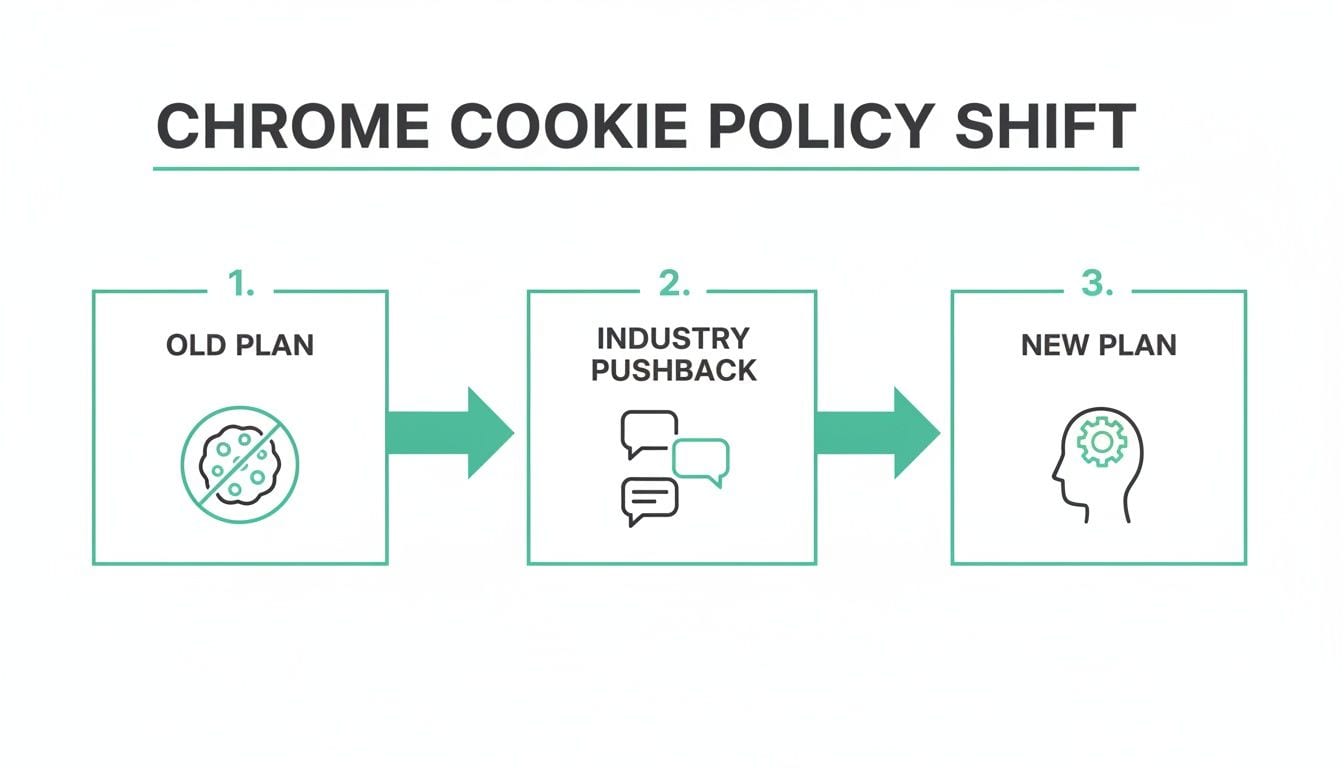
The real bombshell dropped on July 22, 2024, when Google announced it was scrapping the complete deprecation plan. Instead, they opted for user-controlled settings after facing sustained pushback from the industry and regulators. This decision followed a series of postponements from the original 2022 target, showing just how hard it is to replace a technology that’s so fundamental to the open web.
The timeline of this policy shift is a story in itself, full of twists and turns.
Key Milestones in Chrome's Third-Party Cookie Policy
The journey away from a full block has been anything but straightforward. Here’s a quick look at the key moments that got us here, highlighting the frequent policy changes that kept the industry on its toes.
This back-and-forth ultimately led to the current state, where understanding and managing browser settings is more critical than ever for professionals.
What This Means for Professionals
If you work in digital analytics or marketing, being able to allow third-party cookies in a controlled environment is essential for your day-to-day tasks. Without them, you're likely to run into some serious headaches:
- Inaccurate Analytics Validation: Good luck verifying if your marketing pixels and analytics tags are firing correctly. It becomes nearly impossible.
- Broken User Journey Testing: Trying to test cross-domain conversion paths or affiliate marketing flows? They’ll probably fail, leaving you with flawed data.
- Unreliable Dashboards: Attribution models can completely break. Your dashboards might show numbers that don't reflect true campaign performance at all.
As we move forward, the real skill will be navigating the line between browser settings and user consent. The conversation is no longer about a world without third-party cookies, but one where their use is transparent and intentional. This shift puts an even greater spotlight on building solid first-party data strategies.
Enabling Third Party Cookies on Your Desktop
Adjusting your cookie settings on a desktop is pretty straightforward once you know where to look. I'll walk you through the exact clicks to get it done, but more importantly, we'll cover the practical, real-world scenarios where you'd actually need these controls.
First things first, open up Chrome and head into your settings. You can get there by clicking the three vertical dots in the top-right corner of the browser and picking Settings from the dropdown menu. Once you're in, click on Privacy and security in the left-hand menu.
This area is the central hub for all of Chrome's privacy-related controls. You'll want to find the option labeled Third-party cookies. Clicking on that takes you to the main control panel for managing how Chrome handles these types of trackers.
You'll see a few choices here, but the most direct one is to select Allow third-party cookies. Just be aware, this setting applies globally, meaning all sites you visit will be able to use them.
A More Targeted Approach
While opening the floodgates by allowing all third-party cookies is an option, a more controlled, surgical approach is usually a much better idea, especially for professionals. This is where site-specific permissions become incredibly useful. Instead of making a global change, you can add specific domains to an "allowed" list.
This targeted method is perfect for a few key situations I run into all the time:
- QA Testing: As an analyst, you can allow cookies only for a client’s site and the specific marketing tool you're validating. This keeps your browser environment clean and prevents other trackers from interfering with your tests.
- Developer Workflow: A developer who's testing a new integration that relies on cross-domain authentication can enable cookies just for the necessary domains to get their work done, without exposing their general browsing to extra tracking.
The key takeaway is that you now have granular control. By using site-specific allowances, you get the functionality you need for critical tasks like analytics validation without broadly compromising your privacy.
It's a precise tool for a precise job. You get what you need for your work, without opening yourself up to everything else.
How to Allow Cookies on Your Mobile Device
Testing and validation don’t just happen at your desk. A huge amount of QA work is done on mobile, but finding the right cookie settings can be surprisingly difficult because the menus are different depending on whether you’re on Android or iOS.
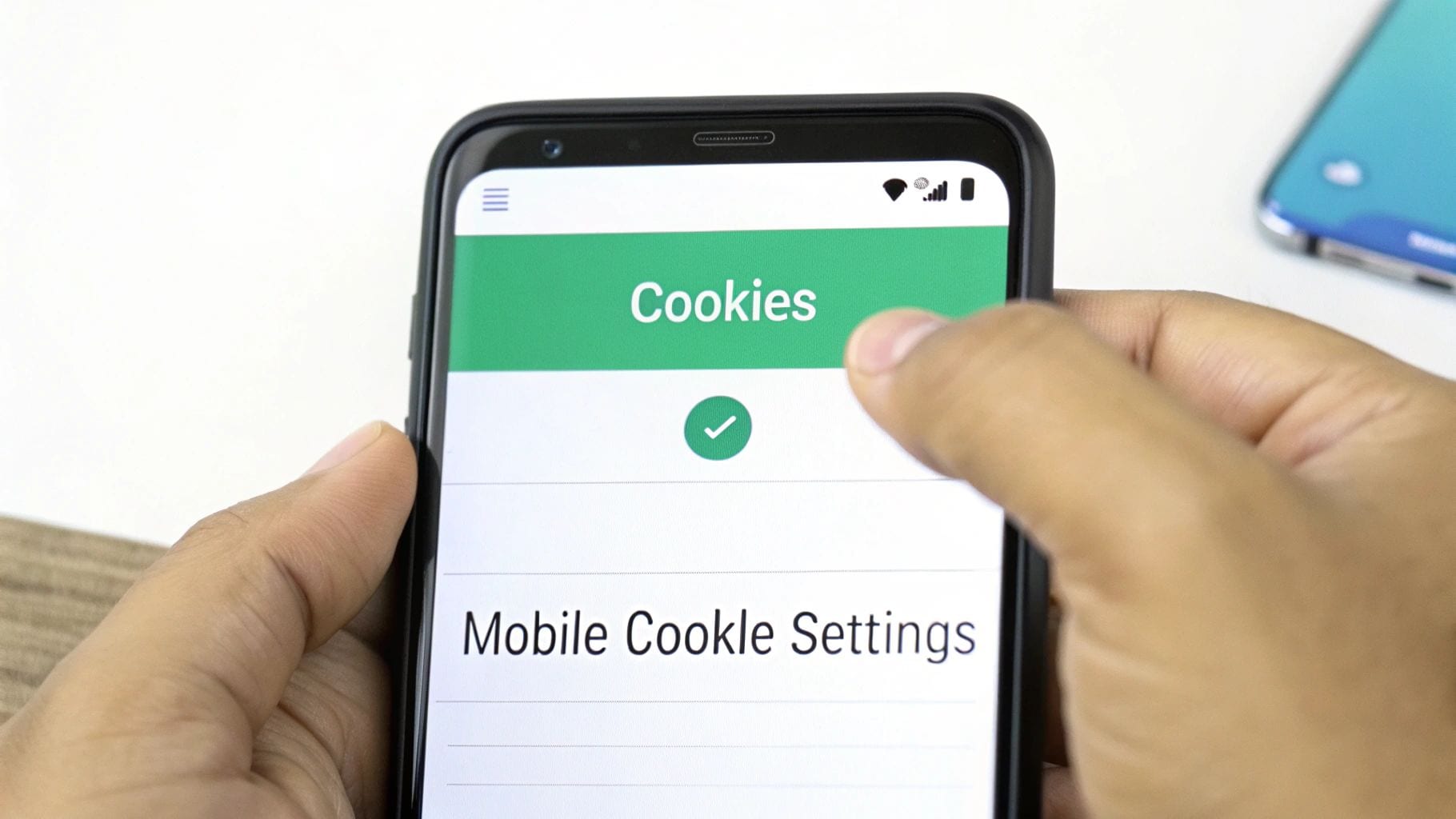
Whether you're a performance marketer testing a cross-domain conversion path for a mobile ad campaign or a QA analyst trying to verify an affiliate link, these instructions will get you sorted out quickly.
Allowing Cookies on Android
On an Android device, the path to allowing third-party cookies in Chrome is pretty straightforward. You’ll be diving into the Site settings menu, which gives you more granular control over permissions than the main settings area.
Here’s the path to follow:
- Open the Chrome app and tap the three-dot menu in the top-right corner.
- Go to Settings, then scroll down to find Site settings.
- Tap on Third-party cookies.
- Select the option to Allow third-party cookies.
This is a must-do step for any mobile QA that involves replicating a user journey across different domains, like from an ad click to a landing page and finally to a checkout confirmation.
Enabling Cookies on iOS
For those of you on an iPhone or iPad, the steps are a bit different since Chrome's settings are integrated into iOS in their own way. The end goal is the same, but getting there requires a slightly different route.
To get cookies enabled on iOS:
- Launch the Chrome app and tap the three horizontal dots in the bottom-right corner.
- Choose Settings from the menu that pops up.
- Scroll down and tap on Privacy and Security.
- Find and tap on Cookies.
- Finally, select Allow All Cookies.
Just a quick tip: these settings are powerful. If you're only enabling cookies for temporary testing, like verifying a single user flow, it’s a good practice to switch back to a more restrictive setting once you're done. It's a simple step to protect your own browsing privacy.
Cookie Management for Teams and Developers
While tweaking your own browser settings is one thing, managing cookie configurations across an entire organization is a whole different ballgame. For developers, IT admins, and agency teams, a standardized environment isn't just a nice-to-have—it's absolutely essential for keeping data clean and workflows moving.
This is where enterprise-level controls come into play. Tools inside the Google Workspace Admin Console let administrators push specific browser policies to all users, making sure everyone is playing by the same rules.
Enforcing Policies for Consistent Testing
Picture a QA team trying to validate a new analytics implementation. It's chaos if every tester has slightly different cookie settings. One person might see conversions tracking perfectly, while another sees nothing at all. The results are completely unreliable.
To get ahead of this, IT admins can deploy a couple of key policies:
BlockThirdPartyCookies: You can set this policy tofalsefor specific groups, like your QA or marketing teams, to guarantee they can always access the trackers they need.CookiesAllowedForUrls: This gives you a more surgical approach. You can list specific URLs where third-party cookies are always allowed, no matter what a user’s personal settings are.
This creates a controlled environment that’s perfect for simulating real-world user scenarios. It's also becoming more and more critical for developers to understand how different developer platform authentication systems handle user sessions as cookie policies continue to shift.
For analysts, marketers, and developers, this level of control raises the stakes for data quality. Without vigilant QA, issues like broken pixels and schema mismatches can spike, leading to significant attribution gaps. You can learn more about how to simplify tag validation by checking out our guide on the Tag Assistant Chrome extension.
The goal here is simple: eliminate variables. When everyone is testing under identical conditions, you can be confident that any bugs you find are in the implementation itself, not just a random browser setting. This policy-driven approach is fundamental to achieving high-quality data.
The Tangled Web of Cookie Settings, Analytics, and Privacy

Flipping the switch to enable cookies in your browser feels like a simple technical task, but the ripple effects on analytics and privacy are massive. Here’s a critical point that trips up a lot of teams: simply choosing to allow third party cookies in Chrome doesn't mean you can bypass a user's explicit consent choices.
Think of it as two separate layers of control. Your browser settings are one layer, and consent management platforms (CMPs) are another. Even if your browser is wide open to accepting cookies, those trackers should not fire if a user clicks "Deny" on a cookie banner. This creates a delicate balancing act.
The Headaches of Analytics QA
This dual-layered system can be a nightmare for teams trying to maintain data quality. When QA testers, marketers, and developers all have different browser settings, you introduce a chaotic variable that poisons your testing environment.
This inconsistency is the root cause of those maddening data discrepancies that are nearly impossible to track down. One analyst sees a user journey tracking perfectly, while their colleague sees it as completely broken. This leads to very real problems:
- Flawed Attribution Models: How can you trust your campaign performance data if conversion pixels fire for some testers but not for others? You can't.
- Broken Journey Tracking: Validating complex user paths, like affiliate referrals or multi-domain checkouts, becomes a guessing game.
- Wasted Debugging Time: Your team will burn countless hours chasing down "bugs" that are nothing more than someone's local browser settings.
As cookie rules get tighter, using effective privacy management tools is no longer a "nice-to-have"—it's essential for staying compliant and keeping user trust.
Ensuring Data Trustworthiness
In this environment, you just can't rely on manual checks anymore. Expecting every team member to perfectly configure their browser for every single test is a recipe for disaster. This is exactly where an analytics observability platform becomes your most valuable player.
An observability platform acts as your single source of truth by automatically monitoring your entire analytics setup. It can instantly flag issues caused by consent errors, browser misconfigurations, or broken pixels.
This automated approach takes the guesswork out of the equation. Instead of wondering if a data gap is due to someone's cookie settings or a genuine bug in your implementation, you get immediate, actionable alerts. This keeps your analytics trustworthy and lets your team focus on fixing real problems, not phantom ones.
Answering Your Questions About Chrome Cookies
Even after tweaking your settings, you might hit a few snags. It happens. Here are some quick answers to the common questions and roadblocks that pop up when you're dealing with third-party cookies in Chrome.
Will Allowing Third-Party Cookies Make My Browsing Less Secure?
This is a great question, and the answer is nuanced. Enabling third-party cookies is more of a privacy concern than a direct security threat like malware. When you flip that switch, you're essentially letting advertisers and other services build a more detailed profile of your activity as you move from site to site.
My advice? Don't enable them globally. A much better approach is to allow cookies only for the specific, trusted sites you need for your work—think a client's analytics platform or a secure testing domain. This way, you get the functionality you need without opening the floodgates to widespread tracking.
Why Are Cookies Still Blocked for a Site After I Enabled Them?
Ah, the classic "it should be working, but it isn't" problem. I've been there. This usually comes down to one of a few usual suspects.
- A browser extension is getting in the way. Nine times out of ten, an aggressive ad blocker or privacy extension is overriding your browser's settings.
- You have a site-specific rule in place. You might have forgotten that you once set a rule to block cookies from that specific site. Double-check your "Sites that can never use cookies" list and remove the domain if it's lurking there.
- The website itself is the culprit. This one is less common, but some platforms have their own internal logic that prevents certain cookies from being set, regardless of your browser settings.
Here's a pro tip: Start by disabling your extensions one by one. I'd bet that's where you'll find the problem. It's almost always an overzealous ad blocker.
What's the Best Practice for Developers Testing Cookie-Dependent Features?
For any developer or QA analyst in the trenches, the goal is a completely clean testing environment. The single most effective way to achieve this is by creating a dedicated Chrome User Profile just for your testing tasks.
This approach gives you a perfect sandbox, totally free from the interference of your personal extensions, browser cache, or any lingering cookies. You can safely enable third-party cookies within this profile without messing with the settings you use for everyday browsing.
And for quick, one-off tests? Firing up an Incognito mode window is another excellent way to get an isolated session on the fly.
Trackingplan gives you a fully automated observability and QA platform to make sure your analytics are always accurate. It keeps a constant eye on your entire Martech stack, catching data quality issues like broken pixels, consent misconfigurations, and tagging errors in real time. Finally, you can trust your data and fix problems before they escalate. Learn more about how Trackingplan can help you maintain reliable analytics.