Master event tracking on Google Analytics with our 2026 guide. Design, implement, debug, & govern a robust GA4 setup for reliable data.
You launch a campaign, traffic lands on the site, forms get submitted, buttons get clicked, and GA4 still leaves everyone arguing about what transpired. Marketing says leads are down. Sales says form fills look normal. Development says the tag fired. Analytics says the report is missing parameters. That's a familiar state of event tracking on Google Analytics.
The hard part usually isn't getting one event to fire once. It's keeping the implementation reliable after a redesign, a consent update, a GTM publish, a new agency, and three rounds of “just add one more field.” Good event tracking survives production reality. It stays understandable, testable, and consistent when the site changes.
That's the lens worth using with GA4. Not just setup, but durability.
Rethinking Analytics From Hits to Events in GA4
Universal Analytics trained teams to think in a fairly rigid structure. Events were built around eventCategory, eventAction, eventLabel, and an optional eventValue. GA4 changed that model. Google Analytics now treats almost every interaction as an event, and important actions are marked as Key Events, which you can create or modify under Admin > Events and then flag for conversion-like measurement, as described in KlientBoost's overview of GA4 event tracking.
That shift matters because it changes how you model user behavior. Instead of forcing every interaction into the same old event schema, you name the interaction directly and attach context through parameters.
Think of GA4 as a stream of business moments
A useful mental model is this: Universal Analytics felt like filling out a fixed form. GA4 feels more like sending structured messages. The event name says what happened. Parameters explain the conditions around it.
If you've worked with product or engineering teams, this maps closely to how event systems are used outside analytics. For a clearer technical parallel, this guide on event driven architecture explained is worth reading. It helps marketers understand why event naming discipline matters, and it helps developers see that GA4 isn't an odd reporting layer. It's just another event consumer.
Practical rule: If the event name doesn't make sense on its own in a spreadsheet, it probably isn't named well enough.
A strong GA4 event might be newsletter_signup, generate_lead, or video_progress. Parameters then add detail such as form location, page type, content title, or subscription method.
Don't recreate what GA4 already gives you
Teams waste time by rebuilding events that GA4 already collects or supports cleanly through recommended naming. That creates duplicate reporting and long-term confusion.
Use this decision pattern:
| Situation | Best approach |
|---|---|
| Basic interaction already captured automatically | Keep the built-in event if it answers the question |
| Google has a recommended event for your use case | Use the recommended name and expected parameters |
| Your business process is unique | Create a custom event with a controlled naming pattern |
That's why the conceptual model comes first. If your team treats GA4 as “click tracking with extra steps,” the implementation gets messy fast. If you treat it as a structured event system with clear names and controlled parameters, the data becomes much easier to trust.
For analysts who want a deeper operating model for GA4, Trackingplan's guide on mastering GA4 for data analysts is a solid companion read.
How to Design a Scalable Event Tracking Plan
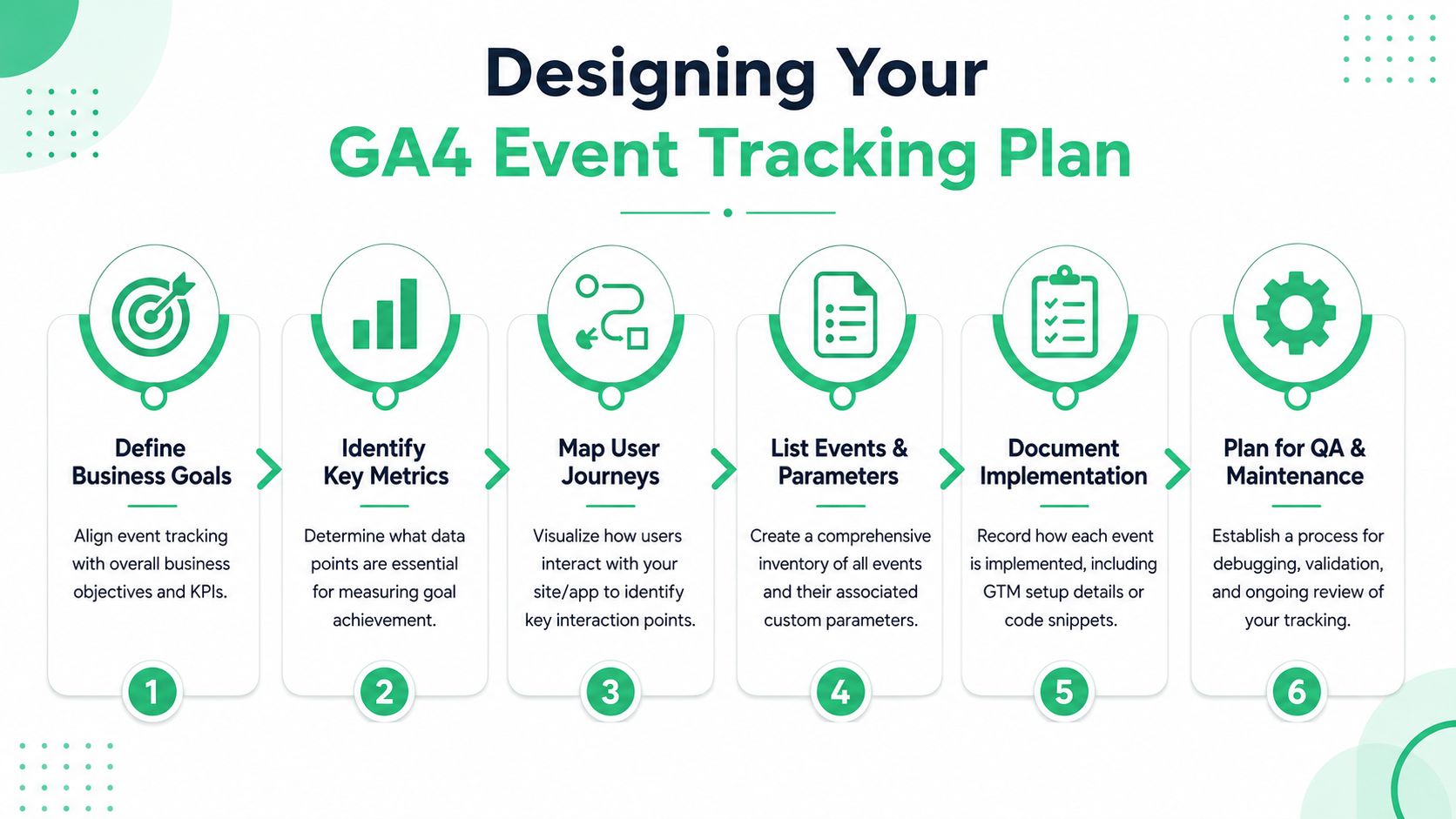
Most broken implementations start before GTM is even opened. The problem isn't JavaScript first. It's usually ambiguity. Teams haven't agreed on what the event is called, what should trigger it, which parameters are required, or why the event exists.
A durable setup starts with a tracking plan. A practical implementation maps each event to an exact event name, parameters, triggers, and expected business outcome, then gets implemented through gtag.js, Google Tag Manager, or Firebase SDK. Validation should happen before production with DebugView and Realtime, as outlined in Transmedia's GA4 event guide.
Build the plan before you build the tags
A tracking plan doesn't need to be elaborate. A shared spreadsheet is enough if it becomes the single source of truth.
Include these fields:
- Event name: Use a consistent format such as
snake_case. - Business purpose: State why the event exists in plain language.
- Trigger logic: Define the exact condition that should fire it.
- Parameters: List each parameter and what it means.
- Owner: Record who approves changes.
- QA notes: Document how to verify the event end to end.
Ten minutes of planning here saves hours of rework later. The value isn't administrative. It's operational. When a developer asks what should fire on submit, or a marketer asks why the dashboard changed, you have one canonical answer.
Translate business goals into trackable behavior
Don't begin with “what can we track?” Start with “what decision will this data support?” That changes the quality of the plan.
A useful pattern looks like this:
Business goal
Example: generate qualified leads.Observable user action
Example: user reaches a thank-you page after submitting a lead form.Event name
Example:generate_leadorlead_form_submit.Supporting context
Example:form_id,form_location,page_type,lead_source_detail.Expected consumer of the data
Example: paid media team, CRM analyst, CRO team.
That last field matters more than is often expected. If nobody can say who will use a parameter, it often becomes dead weight.
A clean taxonomy is easier to maintain than a clever one.
Standardize names before the first publish
Many GA4 properties start drifting. One team sends form_submit, another sends submit_form, a vendor adds leadSubmission, and six months later nobody knows whether reports are showing distinct actions or naming accidents.
Use conventions that are simple enough to survive handoffs:
- Use lowercase and underscores for event names and parameters.
- Prefer business meaning over UI wording.
newsletter_signuplasts longer thangreen_footer_button_click. - Keep parameter names reusable.
form_idworks across multiple forms.homepage_footer_hubspot_form_namedoesn't. - Separate event identity from event context. Don't encode every detail into the event name.
If you want scalable event tracking on Google Analytics, this document matters as much as any tag. It's the blueprint your implementation, QA, and reporting all rely on.
Implementing GA4 Events with Google Tag Manager
The cleanest GTM setups don't listen for random clicks if they can avoid it. They listen for deliberate signals. In practice, that means pushing a structured event into the dataLayer when the business action happens, then letting Google Tag Manager forward that event to GA4.
That approach is easier to debug, easier to explain, and much less fragile during redesigns.
Use the dataLayer as your contract
For marketers, the dataLayer is the handoff point between site behavior and tag logic. For developers, it's a structured payload the site exposes when something important happens.
A newsletter signup is a good example. Instead of asking GTM to guess that a button click means success, have the site push an event after the submission is successful.
Example payload structure:
- Event key:
newsletter_signup - Form identifier:
footer_newsletter - Signup method:
embedded_form - Page context:
blog_post
That lets GTM react to a real success state, not a hopeful UI interaction.
A practical GTM setup
Use this sequence inside Google Tag Manager.
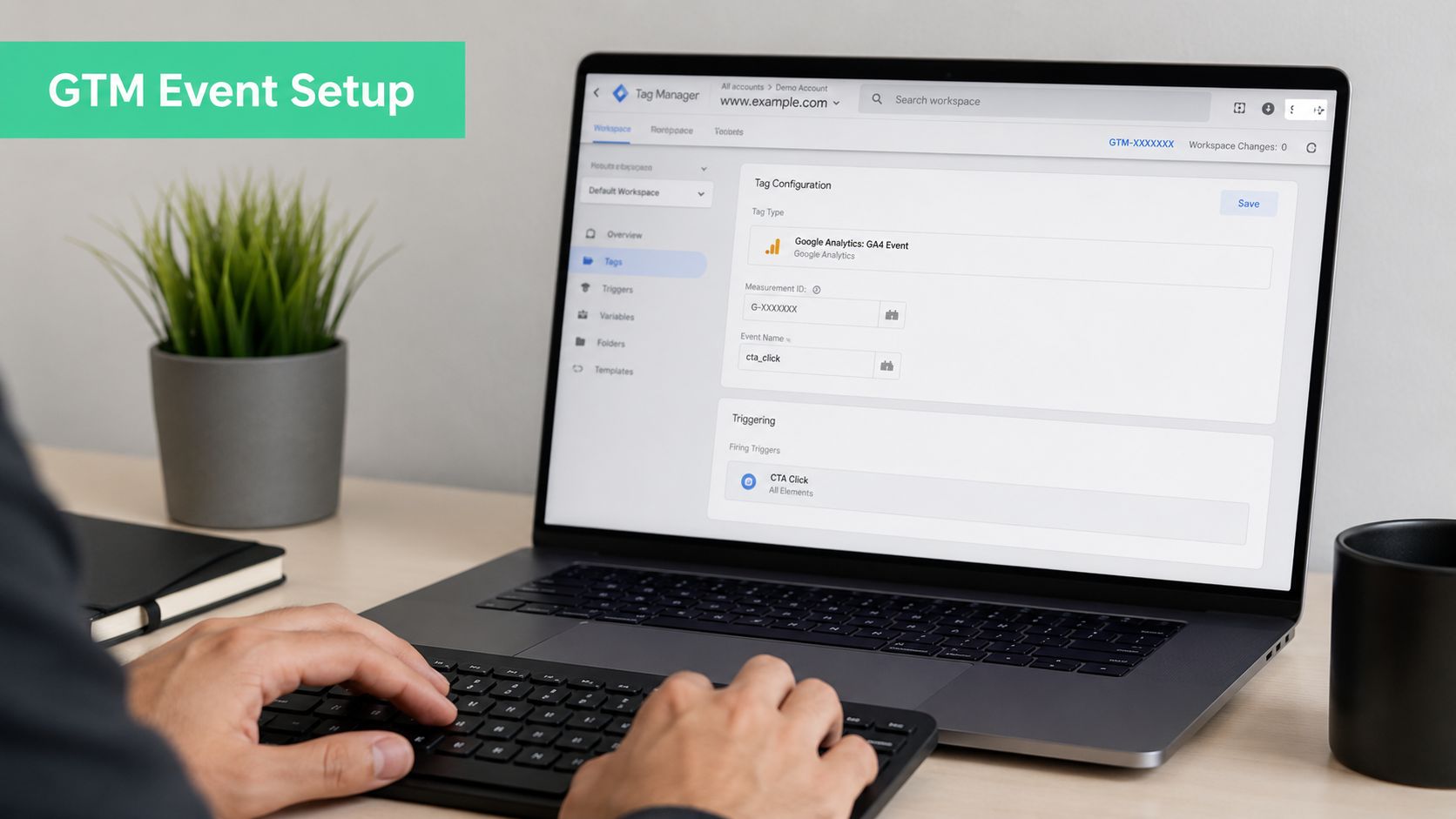
Create Data Layer Variables
Create variables for each parameter you want to send to GA4. If the site pushes form_id, signup_method, and page_type, create matching Data Layer Variables in GTM.
This step keeps your GA4 tag readable. You're no longer hardcoding values or relying on brittle DOM scraping.
Create the Custom Event Trigger
Set the trigger type to Custom Event and listen for newsletter_signup.
This is the key difference between a strong implementation and a fragile one. A custom event trigger fires when the site says the event happened. A generic click trigger fires when the interface looked like it might have happened.
Configure the GA4 Event Tag
Create a GA4 Event tag and connect it to your GA4 Configuration tag. Then:
- Event name:
newsletter_signup form_id= Data Layer Variablesignup_method= Data Layer Variablepage_type= Data Layer Variable
Attach the custom event trigger and test in Preview mode before publishing.
If the website can tell you “submission succeeded,” don't track “submit button clicked” and pretend they're equivalent.
When click tracking is still acceptable
Sometimes you don't control the application code, or the form lives inside a third-party embed with limited hooks. In those cases, click or visibility triggers can be acceptable, but only when they're narrow and explicit.
Use them carefully:
- Target a stable identifier such as Click ID or a specific selector.
- Avoid broad “all clicks” logic with layered exceptions.
- Prefer deterministic endpoints like a thank-you page when available.
- Document the compromise in the tracking plan so nobody mistakes proxy tracking for confirmed completion.
For teams also evaluating server-side tagging as part of a more controlled measurement stack, this guide to Google Tag Manager server-side setup adds the right context.
A visual walkthrough can help if you want to compare your GTM setup against a working example:
What works in production and what doesn't
The GTM patterns that hold up over time are usually boring. That's a good thing.
What tends to work
- Data-layer-driven events tied to confirmed user actions.
- Reusable parameters with consistent names.
- One event for one business action, instead of mixing several meanings into one tag.
- Documented ownership so changes are not made unannounced.
What usually breaks
- DOM-dependent selectors tied to design classes.
- Click tracking as a substitute for success tracking.
- Inconsistent parameter casing across pages or vendors.
- Tag logic spread across too many GTM workspaces without a naming convention.
If your goal is reliable event tracking on Google Analytics, GTM should be the transport layer, not the place where business logic becomes guesswork.
Your Workflow for Debugging and Validating Events
Most analytics errors don't announce themselves. A tag can fire and the data can still be wrong. That's why QA has to test the whole path, not just the first step.
The most common failure mode is overly broad or mis-scoped triggers, especially in GTM click-based setups. A more reliable pattern is to fire on specific element conditions such as CSS selectors or Click ID, then verify in Realtime and DebugView because missing values, bad parameter names, or mismatched event names can quietly break reporting even when the tag appears to work, as noted in Ladder's write-up on event tracking pitfalls.
Start in GTM Preview mode
Preview mode answers the first question: did GTM detect the right interaction and fire the right tag?
Check these items before anything else:
- Trigger match: Did the expected trigger fire, and only that trigger?
- Variable values: Are the dataLayer variables populated with the right values?
- Tag sequence: Did the GA4 event tag run in the expected order?
- Unexpected duplicates: Did another tag fire on the same action?
A clean trigger is usually more important than a clever one. If you find yourself stacking exceptions to stop accidental firing, the trigger logic probably needs to be redesigned.
Confirm the payload in GA4
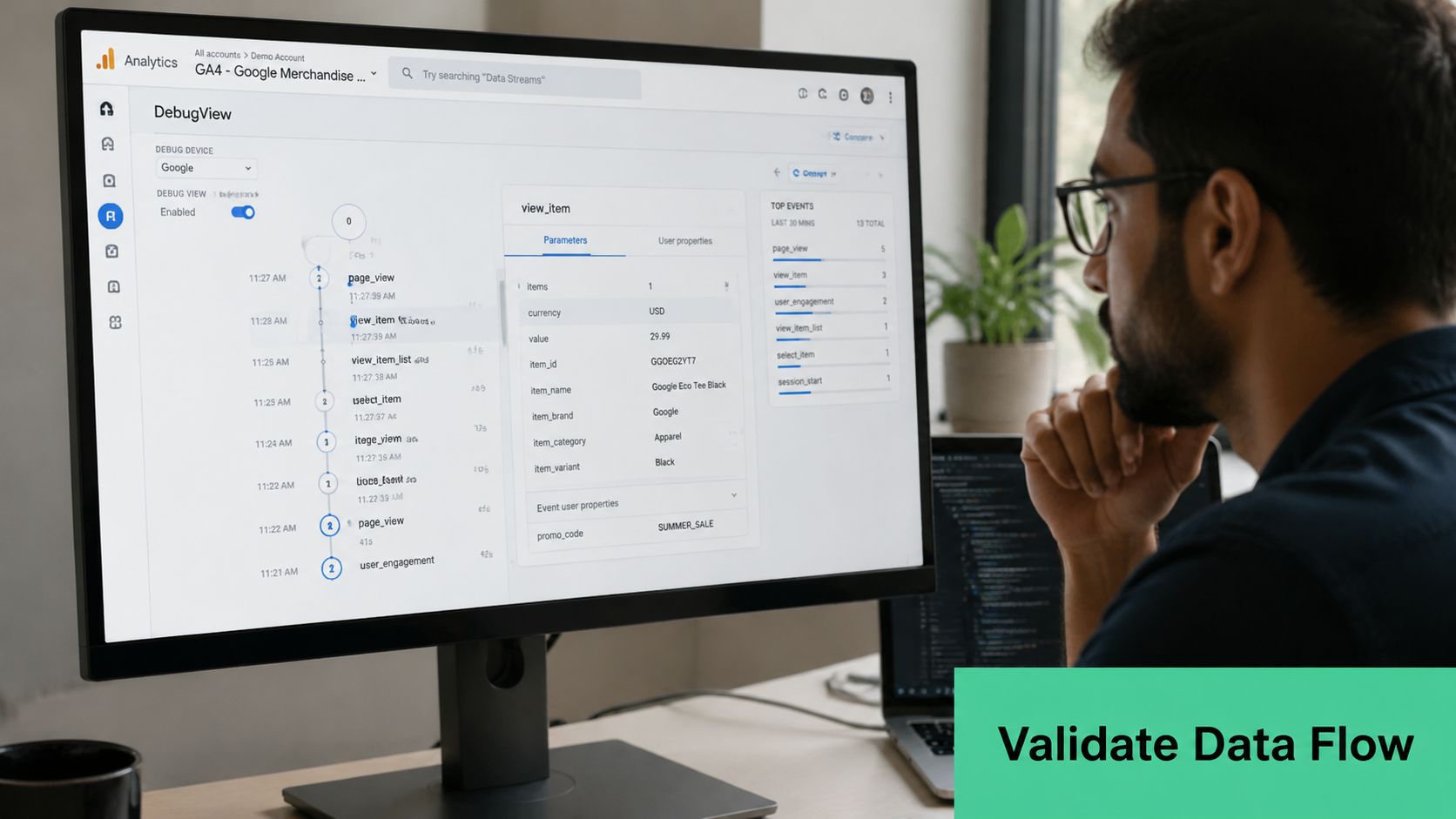
GTM Preview tells you the tag fired. GA4 DebugView tells you whether Google Analytics received the event and parameters you think you sent.
Look for three things:
| Check | What to confirm |
|---|---|
| Event name | Matches the tracking plan exactly |
| Parameters | Present, spelled correctly, carrying expected values |
| Journey logic | Event appears in the expected user flow |
If you're validating more complex objects before they get pushed into the dataLayer, a browser-based tool for secure client-side JSON formatting can help you inspect payload structure without turning QA into guesswork.
Tags don't fail only by not firing. They also fail by firing with the wrong payload.
For a deeper checklist around practical tag testing, Trackingplan's article on how to test a tag properly is useful.
Don't stop at successful QA sessions
Many teams get false confidence from DebugView. It is a QA tool, not proof of production coverage. Modern browser and privacy conditions can still prevent events from reaching GA4 in the wild. Support discussions around GA4 tracking regularly surface issues where Safari, Firefox, or ad blockers block Google scripts, and teams are advised to verify consent configuration and end-to-end behavior instead of assuming debug success equals complete collection in production, as discussed in Google Analytics support community feedback on data collection gaps.
That's why mature teams monitor after launch. They don't just test once. They check live flows after releases, compare expected and observed behavior, and investigate anomalies quickly. Some teams do that manually in GTM and GA4. Others add an observability layer such as Trackingplan to monitor changes in events, parameters, destinations, and consent-related issues across releases.
If you want to explore Trackingplan's GTM-related workflows visually, it's worth browsing the videos on Trackingplan's YouTube channel.
Turning Raw Events into Meaningful GA4 Reports
A valid event payload still isn't automatically useful to stakeholders. GA4 can collect parameters that never show up in standard reports unless you expose them properly.
This is the step many teams skip. They celebrate when the event arrives in DebugView, then wonder why their report only shows the event name and none of the business context attached to it.
Register the context you care about
If you send parameters like form_id, content_type, or signup_method, register the ones you'll analyze as Custom Dimensions or Custom Metrics inside GA4. Otherwise, they remain hard to use in standard reporting.
A practical rule is to promote only the parameters that support recurring analysis. Not every payload field deserves to become a reporting dimension. Keep the reporting layer focused.
Mark important outcomes as Key Events
GA4 also requires operational discipline around Key Events. A newly created event doesn't count as a key event immediately. It must first be collected so it appears in Recent Events, and then it can be promoted in reporting. Google's documentation also shows that event management sits under Admin > Data display > Events, where teams can set options like Default key event value and Counting method, as explained in Google's help documentation for creating and modifying events.
That workflow affects reporting expectations. If a team creates an event in the interface and immediately expects attribution-ready data, they'll think the setup failed. Usually, the event just hasn't been collected yet.
Raw collection is only the first half of analytics. Visibility in reports is the second half.
A good operating pattern is simple:
- Implement the event
- Validate collection
- Wait for the event to appear
- Mark the event as a Key Event if it represents a business outcome
- Register critical parameters for reporting
This is how event tracking on Google Analytics becomes useful outside the analytics team. Marketing can segment. Paid media can optimize. Stakeholders can read reports without asking engineering to inspect payloads.
Avoiding Common Event Tracking Mistakes for Data You Can Trust
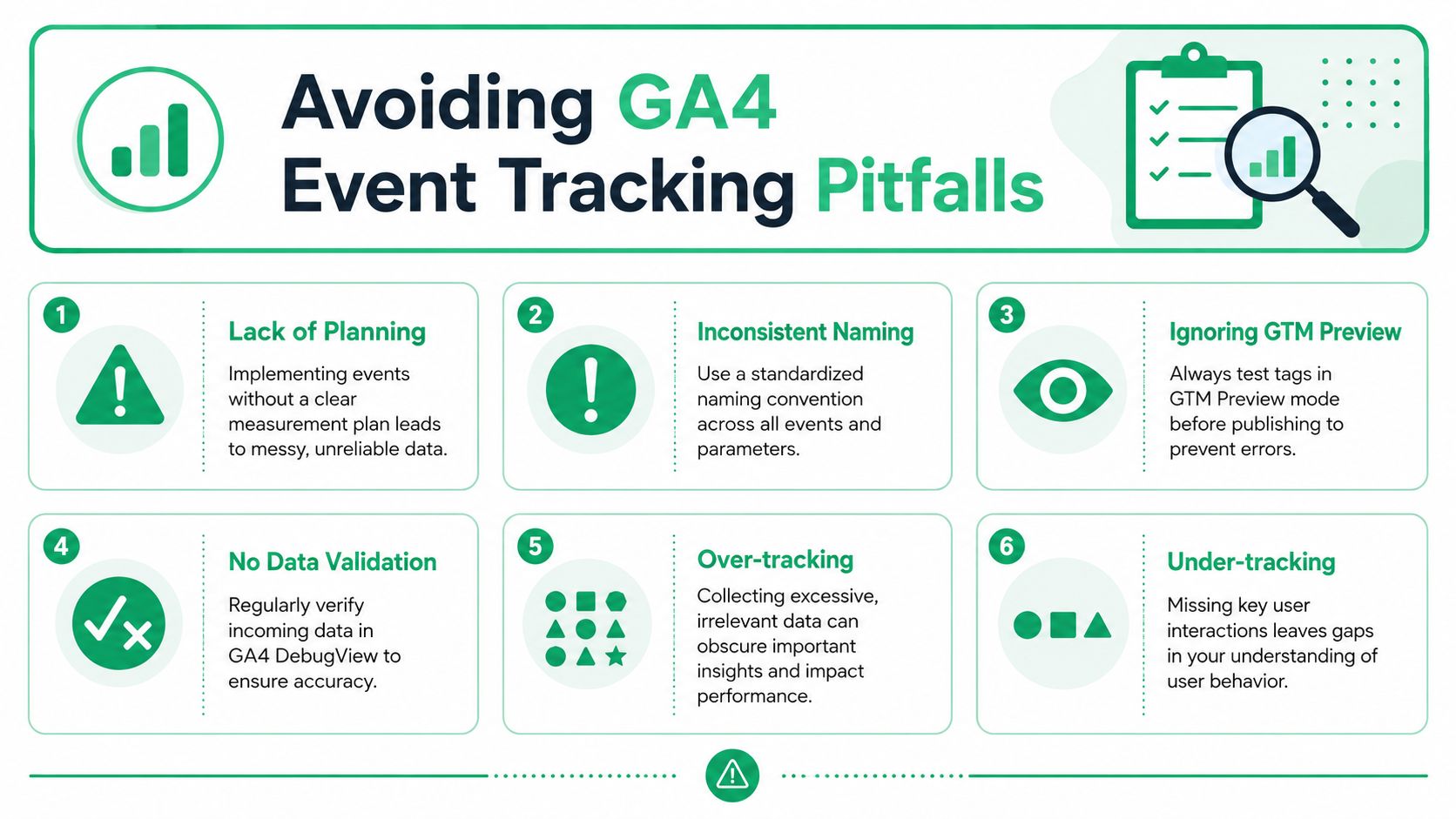
The biggest mistake in GA4 isn't technical. It's treating tracking like a one-time installation. That mindset creates slow data decay. Nothing looks obviously broken at first, but event names start drifting, parameters stop matching, old tags remain live, and nobody knows which version of the truth the dashboard reflects.
Governance is the part most guides underplay. Many explain how to create or mark events, but they don't explain how to keep names, parameters, and key-event definitions consistent across teams over time. That gap increases the risk of taxonomy drift, especially now that GA4 makes event creation easier in the interface, as discussed in Stape's analysis of GA4 event tracking and governance.
The mistakes that quietly ruin trust
Some problems are obvious, like a tag not firing. Others are worse because the data still arrives, just in inconsistent forms.
Common patterns include:
- Uncontrolled naming. Different teams create near-duplicate events for the same action.
- Redundant tracking. A thank-you page event, click event, and form submit event all try to measure the same outcome.
- Missing governance. Nobody approves changes to the taxonomy.
- Consent blind spots. QA passes in debug mode, but collection in real browsing conditions tells a different story.
- No release validation. Site changes ship without anyone checking analytics impact.
- No documentation ownership. The tracking plan exists, but nobody maintains it.
Build a lightweight governance process
This doesn't require bureaucracy. It requires clear ownership.
Use a process like this:
Request
A stakeholder asks for a new event or parameter with a business reason.Review
An analyst or implementation owner checks whether an existing event already answers the need.Approve naming and parameters
The change gets added to the tracking plan before implementation starts.Implement and test
GTM, code, or GA4 UI changes are validated in a standard QA flow.Monitor after publish
The team checks live data and watches for drift over time.
For teams trying to reduce manual QA overhead and spot issues continuously, this article on data quality and automated GA4 validation is relevant.
Reliable event tracking on Google Analytics isn't the result of one smart setup session. It comes from disciplined naming, controlled implementation, repeatable testing, and ongoing review. Teams that treat analytics as a living system end up with data they can use.
Tracking gets messy fast when websites, apps, and teams keep changing. Trackingplan gives analytics and data teams a way to monitor implementations continuously, detect broken or rogue events, compare payload changes, and keep a current view of their tracking plan across web, app, and server-side environments.