
To get tag testing right, you need to do more than just see if a tag is there. You have to confirm it loads correctly, fires at the right moment, and—most importantly—sends accurate data to your analytics platforms. This means digging into browser developer tools, running tests in your tag manager’s preview mode, and inspecting the dataLayer to make sure your events and variables are behaving exactly as you expect.
Getting this process right is the only way to build a data collection practice you can actually trust.
Why Flawless Tag Testing Is Your Data Lifeline
Before we get into the "how," let's talk about the "why." Bad data isn't just a small headache; it's a silent business killer. When your tracking tags are broken, misconfigured, or just plain missing, the data they're supposed to be collecting becomes completely unreliable. This isn't just a marketing problem—it creates a domino effect that poisons decision-making across the entire company. Every choice made from that point on is built on a shaky foundation.
This isn't some abstract concept. It has real, tangible consequences.
Imagine your e-commerce "purchase" event tag fails to fire for 15% of all transactions. Your dashboards suddenly show a drop in revenue and conversion rates. Based on this, your team might conclude a successful ad campaign is actually underperforming and decide to pull the plug. Just like that, you've cut spending on a profitable channel and directly hurt your bottom line, all because of a tiny tracking error.
The Real Cost of Bad Data
The fallout from poor tag implementation ripples through an organization, often in ways that are tough to trace back to the source. Without a solid process for testing your tags, you’re opening the door to some serious risks.
- Wasted Marketing Spend: If your conversion tags are off, your attribution models will be skewed. You'll end up giving credit to the wrong channels and pouring money into campaigns that aren't actually driving results.
- Untrustworthy Business Intelligence: When leadership can't trust the numbers they see, strategic planning turns into a high-stakes guessing game. Confidence erodes, and the organization shifts from proactive, data-informed strategy to reactive, gut-feel decisions.
- Flawed Product Development: If product engagement tags are failing, your product team is flying blind. They might misinterpret user behavior, kill a popular feature, or waste resources building something nobody wants.
In short, failing to test your tags properly is like trying to navigate a ship with a broken compass. You're moving, but you have no reliable way of knowing if you're actually heading in the right direction.
Ultimately, tag testing isn't a one-and-done technical task for a developer to check off a list. It's a critical, ongoing business function that protects the integrity of your data. When you start treating it that way, it stops being a simple debugging chore and becomes a cornerstone practice for anyone who depends on data to drive real growth.
Your Essential Toolkit for Manual Tag Checks
Forget theory for a moment; it's time to get your hands dirty. Manual tag checking is your first and most critical line of defense. It's the foundational skill that lets you pop the hood on your website and see exactly what data is being sent, to whom, and when.
This isn't about fancy, expensive software. It’s about mastering the powerful tools already built right into your web browser.
The main weapon in your arsenal is your browser's developer tools, which you can usually pull up by right-clicking and hitting "Inspect" or just by pressing F12. While there are a few useful tabs here, we're going to live inside the Network tab. Think of it as a real-time log of every single request your browser makes—including all the pings from your analytics and marketing tags.
Decoding Tag Requests in the Network Tab
Once you open the Network tab, you'll see a constant stream of activity as you click around your site. The key is learning to cut through the noise.
Let's say you're validating a Google Analytics 4 tag. To isolate it, just use the filter bar and type in collect?v=2. Instantly, you’ll see only the requests being sent to GA4. Simple as that.
When you click on one of those requests, you can inspect its payload. This is the good stuff—all the raw data sent with that hit. You’ll see parameters like:
en: The event name (e.g.,page_vieworadd_to_cart).dl: The document location, which is just the URL of the page.ep.: Event parameters, where you'll find all the custom data you’re sending (likeep.product_name).up.: User properties, which detail information about that specific user.
By digging into this payload, you can directly confirm if your custom dimensions, event data, and user attributes are firing correctly. If you just clicked on a product page, the payload should reflect that exact product's name and ID. If it doesn't, you’ve just caught a problem before it had a chance to pollute your data.
This is more important than it sounds. Catching these issues early prevents a dangerous domino effect.
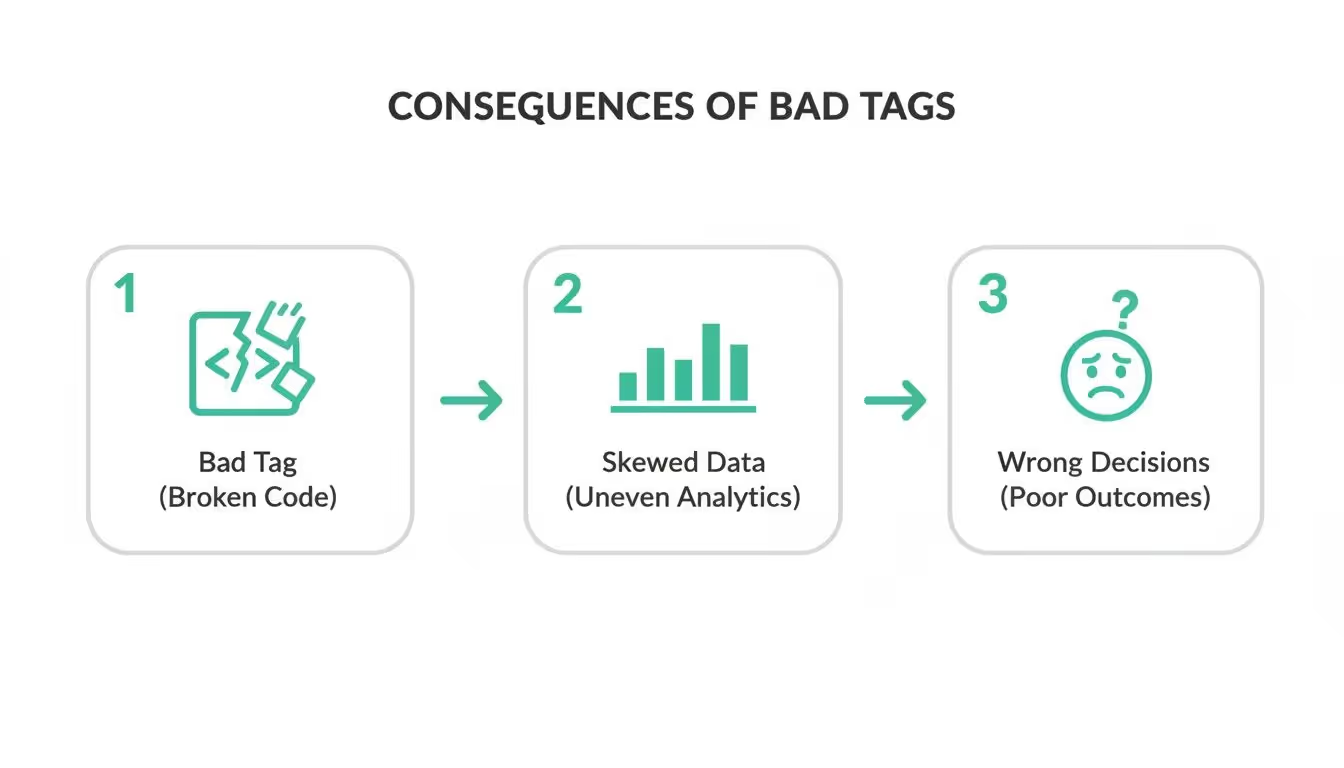
As you can see, a single bad tag is the first step toward skewed data, which leads directly to flawed business decisions and, ultimately, poor outcomes.
Real-World Manual Validation Scenarios
Let's walk through a classic e-commerce example: debugging a 'product_view' event. After you land on a product page, you'd filter the Network tab for your analytics provider's requests. Then, you'd find the hit for the product_view event and check its payload for parameters like item_id and item_name.
Are those parameters missing? Are they showing the wrong product info? If so, you know your product performance reports are already inaccurate. Enhancing your data observability through this kind of hands-on process is absolutely critical, especially if you're managing tags with a tool like Google Tag Manager.
Manual checking is more than just a technical task. It’s a validation mindset that builds deep confidence in your data foundation, one tag at a time. It's what ensures that when you look at a dashboard, you're seeing reality—not just a collection of errors.
This hands-on approach is invaluable, but testing isn't just a best practice; it's a billion-dollar necessity. The global Tag Management System (TMS) market hit USD 1.15 billion and is projected to reach USD 2.90 billion by 2033. Yet, experts estimate that up to 40% of tracking tags fail on live sites, causing millions in losses per company from bad attribution alone.
As you build out your toolkit, it helps to understand the bigger picture by comparing automated vs. manual testing strategies.
Mastering the DataLayer for Accurate Tracking
The dataLayer is the invisible engine driving modern analytics. Think of it as a virtual message board where your website posts crucial information—like user actions, product details, and form submissions—for your tags to read. When you test a tag, you're not just checking if it fires; you're confirming it reads the correct message from this board at exactly the right time.
Without a well-structured dataLayer, your tags are flying blind. They might fire too early before the necessary data is available, or they might receive information in a format they can't understand. Both scenarios lead to the same outcome: unreliable data that you can't trust for making decisions.
Inspecting the DataLayer in Real Time
So how do you actually eavesdrop on this virtual conversation? Your browser's developer console is the simplest way to get a quick look. Just pop open the console, type dataLayer, and hit Enter. You'll see a snapshot of all the information currently available, which is great for quickly verifying that variables like user_id or product_sku are populated correctly when the page loads.
But a static snapshot only tells part of the story. The real magic happens when you can watch the dataLayer change in real time. This is where the preview mode in tools like Google Tag Manager (GTM) becomes absolutely essential.
GTM's preview mode gives you a live, event-by-event feed of every single dataLayer.push(). As you click around your site, you can see exactly when new data is added and which events get triggered. For a more detailed breakdown, you can explore comprehensive guides on GA4 dataLayer applications to get a better handle on these mechanisms.
The dataLayer is your single source of truth. If the data isn't correct here, it will never be correct in your analytics reports. Using preview mode to watch it in action is the most effective way to debug complex user journeys.
Common DataLayer Issues and How to Spot Them
When a tag isn't working right, the root cause is often hiding in the dataLayer. Timing issues are a classic culprit; for instance, a tag might be set to fire on "DOM Ready," but the data it needs doesn't get pushed until "Window Loaded." This creates a frustrating race condition where the tag consistently misses its data.
Schema mistakes are another frequent offender. Maybe a developer pushed productID when your tag is configured to look for productId. That simple capitalization difference is all it takes to break your tracking completely.
Let's walk through a few common debugging scenarios you're likely to encounter.
Common DataLayer Debugging Scenarios
ScenarioCommon CauseHow to Test and VerifyEmpty or undefined VariablesData is not being pulled correctly from the page's HTML, or the script fetching it fails to execute in time.Use GTM Preview Mode. Trigger the event (e.g., add_to_cart) and inspect the dataLayer variables tab. If a value is undefined, the issue is with the data source.Incorrect Data TypesA developer has passed a value as the wrong type, like a price being pushed as a string ("19.99") instead of a number (19.99).In the browser console, inspect the dataLayer object for the event. Check the type of each variable. Strings will be in quotes, numbers won't.Delayed Data PushesThe dataLayer.push() occurs seconds after the user action, long after the trigger event has already fired.Watch the event timeline in GTM Preview. If you see a long delay between your click and the corresponding event appearing, you've found a timing issue.Mismatched Variable NamesThe variable name in the dataLayer (e.g., product_name) doesn't match what the tag is configured to look for (e.g., productName).Cross-reference the variable names shown in the dataLayer with the variable configuration in your tag manager. Check for casing, underscores, and typos.
By mastering dataLayer inspection, you move beyond basic "did it fire?" tag validation. You gain the ability to diagnose the true source of data discrepancies, ensuring the information sent to your analytics platforms is not just present, but precise and reliable.
Scaling Your QA with Automated Tag Monitoring
Manual checks are a great way to get your hands dirty and really understand how your tags work. But let's be honest, they have some serious limitations. They take forever, are wide open to human error, and just can't keep up with the sheer scale of a modern website or app. You simply can't check every page, every user journey, and every device combination.
This is where you make the leap from constantly fixing things to proactively governing your data. Automated tag monitoring platforms are the answer—they work 24/7 like a tireless QA team, validating your entire tracking setup in the background while you focus on bigger things.
Moving Beyond Manual Spot-Checks
Automated systems do way more than just check if a tag is present; they validate the entire data flow from end to end. They are constantly scanning your digital properties to catch the kinds of issues that manual checks almost always miss, especially those intermittent bugs or problems lurking on low-traffic pages.
This proactive approach breaks the endless cycle of debugging and lets your team get back to what they do best—analyzing the data. The whole point is to build unbreakable trust in your analytics, knowing the information fueling your decisions is consistently accurate.
These platforms are pros at sniffing out critical problems on their own:
- Rogue or Unauthorized Tags: Get an immediate alert when an unexpected tag shows up. This helps you lock down data leakage and keep your site secure.
- Broken Events: You'll know the second a critical event, like
add_to_cartorpurchase, stops firing or starts sending junk data. - PII Leaks: The system can flag when personally identifiable information is accidentally captured in tags, stopping a compliance nightmare before it even starts.
An automated monitoring solution is your safety net. It catches the problems you didn't know you had, on pages you rarely visit, ensuring complete data integrity across your entire digital footprint.
The Strategic Value of Automated QA
Bringing in automated QA is a massive strategic shift. There's a reason the tag management system (TMS) market has absolutely exploded, growing from USD 569.5 million in 2017 to a staggering USD 1.28 billion by 2023. Businesses are scrambling to manage their complex martech stacks. You can dig deeper into the TMS market trends over at MarketsandMarkets.
Without proper QA, it's common for teams to face 20-30% data loss from broken tags. Even worse, shoddy tagging can bloat customer acquisition costs by up to 25%.
By automating the mind-numbing work of validation, you give your team the confidence to move fast. They can launch new campaigns and features knowing a system is standing guard, ready to flag any unintended consequences for your data collection. It turns the stressful, manual process to test a tag into a seamless background operation.
Of course, picking the right platform is everything. It’s worth taking the time to understand the landscape of modern data quality monitoring tools to find the one that truly fits your stack and workflow. This kind of investment is what moves your data practice from a state of constant firefighting to one of reliable, proactive governance.
Advanced Testing for Mobile Apps and SDKs
Your data integrity doesn’t just stop at the edge of your website. With mobile app usage constantly climbing, testing analytics SDKs inside native iOS and Android apps is a whole different ballgame. It brings a unique set of challenges and requires a completely different toolkit and mindset.
Unlike websites, you can't just pop open a developer console to see what’s happening under the hood. To truly test a tag or an event firing within a mobile app, you have to get in the middle of the conversation between the device and the analytics servers. This is where proxy tools become absolutely essential.

Using Proxy Tools to Inspect Mobile Traffic
Tools like Charles Proxy or Fiddler are your best friends here. They act as a "person-in-the-middle," letting you see every single network request your phone or tablet makes. The setup is pretty straightforward: you configure the proxy on your computer and then route your mobile device's Wi-Fi traffic straight through it. This works perfectly for both physical devices and emulators.
Once you're connected, you can see the raw data payloads being sent from analytics SDKs like Firebase, Amplitude, or Mixpanel. When you take an action in the app—say, you beat a level or add something to your cart—you can watch the corresponding event hit fire in real-time.
This direct line of sight lets you verify all the critical details:
- Event Names: Is the event name exactly what you expect? A simple typo like
item_added_to_cartvs.addToCartcan break your reporting. - Event Properties: Are all the associated properties, like
product_id,price, andcurrency, present and formatted correctly? - User Identifiers: You need to make sure user IDs are consistent and correctly tied to every single event.
This kind of granular validation is non-negotiable for maintaining data quality in a mobile environment. For any serious mobile app development initiatives, this level of testing has to be a core part of the development cycle.
Ensuring Cross-Platform Data Consistency
One of the biggest headaches in analytics is trying to stitch together a unified view of the customer journey across web and mobile. A user might browse products on your website but jump into your app to complete the purchase. If your event data is inconsistent between those two worlds, your ability to map that journey is completely broken.
Think about it: if your web purchase event includes a coupon_code property but your mobile purchase event doesn't, you have no way to accurately analyze coupon performance. It's a massive blind spot.
The ultimate goal of mobile SDK testing is to ensure your event schema is identical across all platforms. Every event and every property should mean the same thing, regardless of whether it was triggered from a browser or a native app.
To make this happen, you have to validate more than just the fact that an event fired. Your testing process needs to explicitly compare the mobile event payloads against your established web tracking plan. This means checking data types (is price a number or a string?), naming conventions, and the presence of every required parameter. Only by enforcing this kind of consistency can you build a truly complete and trustworthy picture of user behavior—creating a single source of truth for your entire business.
Common Questions About Tag Testing
Even with the best tools, you're going to have questions when you're in the trenches validating tags. Let's run through some of the most common ones we hear from analysts, marketers, and developers trying to lock down their data quality. Getting these straight can save you a ton of troubleshooting time later on.
These are the practical, everyday things that come up when you just need to test a tag and be sure the data is right.
What Is the Difference Between a Tag and a Pixel?
You'll hear people use these terms interchangeably, and most of the time it's fine. But there is a subtle, important difference.
A "tag" is the big-picture term. It's any snippet of code you put on your site to collect data or make something happen. This covers everything from your main Google Analytics tag to a script that powers a website personalization tool.
A "pixel" is a specific type of tag. The name comes from its original form: a tiny, invisible 1x1 image used to track ad conversions and build remarketing audiences for platforms like Meta or LinkedIn.
So, just think of it like this: all pixels are tags, but not all tags are pixels.
How Often Should I Test My Analytics Tags?
Tag testing isn't a "set it and forget it" task. It has to be an ongoing process, built into your workflow at key moments to prevent data from going dark.
You absolutely have to test your tags thoroughly at these times:
- During initial setup: This is your best chance to build a solid foundation from the start. No shortcuts here.
- Before any major website update: A site redesign, a new feature launch, or a checkout flow change can easily—and silently—break your tracking.
- After any changes in your tag manager: Even a tiny tweak to a trigger or a variable in GTM can have unexpected ripple effects.
But for real peace of mind, continuous, automated monitoring is the gold standard. Tags can break silently because of a completely unrelated code change or a script conflict. An automated platform is so valuable because it catches these issues the moment they happen, long before you'd ever spot them in a manual audit.
What Are the Most Common Reasons Analytics Tags Fail?
When a tag breaks, it almost always comes down to one of a few usual suspects. Knowing what they are tells you exactly where to start looking when things go wrong.
Most failures trace back to one of these:
- DataLayer Issues: The classic timing problem. The tag fires before the data it needs has been pushed to the dataLayer, resulting in empty or
undefinedvalues being sent. - Implementation Errors: Simple human error. A typo in a variable name, the wrong event name, or incorrect trigger logic in your tag management system. It happens to everyone.
- Website Code Changes: A developer, completely unaware of your tracking setup, changes a CSS class or removes an element ID that your tag's trigger was depending on.
- Consent Management Conflicts: The user’s cookie consent choices are working as designed, blocking tags from firing until the right permissions are granted.
Can I Test Tags on a Staging Server?
Yes, and you absolutely should. Testing on a staging or development environment is non-negotiable. It's where you'll catch the vast majority of implementation mistakes and dataLayer problems in a safe sandbox before they ever pollute your live production data.
But a staging server isn't a perfect mirror of your live site. Things like different server configurations, the way third-party scripts load, or even just the lack of real user traffic can hide certain issues. Problems can pop up in production that were completely invisible in staging.
Because of this, you should always do a final round of validation the moment any changes are deployed to your live site. This final check is what catches those tricky environment-specific bugs.
Stop wasting time on manual audits and start trusting your data. Trackingplan provides a fully automated analytics QA platform that discovers and validates your entire tracking setup 24/7, alerting you to issues before they corrupt your reports. See how you can achieve flawless data integrity at Trackingplan.