
You launch a long-form guide, a campaign landing page, or a product story page. Traffic looks healthy. The pageview chart climbs. Then the team opens analytics and starts arguing.
Marketing says the content is working because visits are up. Product says nobody's engaging because bounce signals look rough. Content says time-on-page feels wrong. Development says the tags are firing. Nobody can answer the basic question: did people consume the page?
That gap is where scroll depth tracking earns its place. It doesn't replace business metrics like conversions, revenue, or qualified leads. It gives you the missing layer between a page load and a meaningful interaction. When you know how far people get, you stop treating every visit as equal.
Beyond the Click Understanding Real User Engagement
A common reporting failure starts with a page that looks successful from the top-line dashboard. A team publishes an in-depth article, sends email traffic, runs paid promotion, and sees a strong spike in visits. On paper, that page performed.
Then the follow-up questions arrive. Did readers reach the core argument halfway down the page? Did they see the CTA near the bottom? Did they abandon after the intro because the opening was weak, or because the layout created friction on mobile?
Pageviews can't answer that. Session metrics often can't answer it cleanly either. A user can load a page, skim the hero, and leave. Another user can scroll deep, read key sections, and leave without clicking anything else. If both sessions are treated similarly, the report misses the difference that matters.
Where standard page metrics fall short
Scroll depth tracking gives analysts a practical way to separate exposure from consumption. It tells you how far down the page users travel, which is often the first useful proxy for whether they encountered the important parts of the experience.
That's why scroll depth becomes valuable across teams:
- For marketers: it helps verify whether campaign traffic is reaching the content that supports conversion.
- For content teams: it reveals where readers stop progressing.
- For UX teams: it shows whether page structure encourages exploration or creates drop-off points.
- For analysts: it adds behavioral context that raw visit counts can't provide.
A strong measurement setup usually combines scroll tracking with other behavioral signals, not as a vanity metric but as one layer in a broader framework. A good primer on that wider approach is this guide to user behavior tracking methods for marketers.
Scroll depth tracking is rarely the final answer. It's the fastest way to know whether you're even asking the right question about content engagement.
What teams usually discover
Once teams start looking at scroll data, they often find one of three patterns:
- The page is too front-loaded. Users get what they need immediately, and deeper scroll isn't required.
- The page buries its value. Readers drop before reaching critical proof points, pricing context, or CTAs.
- The structure fights the user. Long blocks, weak subheadings, sticky overlays, or mobile spacing break reading momentum.
That's why scroll depth tracking matters. It turns a vague debate about “engagement” into something visible and testable.
What Is Scroll Depth Tracking and Why It Matters
Scroll depth tracking measures how far a user moves down a page. In practice, it is commonly tracked using percentage milestones such as 25%, 50%, 75%, and 90%. Think of it as digital page-turning. You're not just counting that someone opened the book. You're checking which chapters they reached.

A major shift happened when scroll depth tracking was standardized as a native metric in Google Analytics 4 in 2020, which automatically captures "Percent Scrolled" events and removed much of the custom code that had been common since the early 2010s, as described in Contentsquare's overview of scroll tracking.
Why stakeholders care about it
Different teams care about scroll depth for different reasons, but the metric is useful because it connects content design to actual behavior.
Content strategy
If readers repeatedly stop before the midpoint, that isn't just a reporting curiosity. It may signal weak structure, an overloaded introduction, poor pacing, or a mismatch between headline promise and page content.
Scroll depth helps content teams ask better editorial questions:
- Is the lead pulling readers in?
- Are section breaks doing enough work?
- Is the strongest proof too far down the page?
UX improvement
Scroll data can expose layout problems quickly. If an important signup prompt, pricing explanation, or comparison block sits low on the page and users don't reach it, the issue may not be the message. It may be placement.
Practical rule: Don't optimize the CTA copy first if the audience never reaches the CTA.
Attribution and journey analysis
Not every useful page causes an immediate conversion. Some pages educate, reassure, or qualify visitors before a later action. Scroll depth gives partial evidence that a user engaged with the page beyond a superficial load, which is often useful when evaluating supporting content.
What scroll depth does not tell you
It's helpful, but it isn't magic. Scroll depth doesn't prove comprehension, intent, or satisfaction. A user can scroll quickly without reading. Another can pause and read carefully without hitting the deepest threshold.
That's why the best teams treat scroll depth as behavioral context, not as a standalone success metric. It works best alongside events, page-level outcomes, and qualitative tools such as recordings or heatmaps.
Comparing Scroll Tracking Implementation Methods
There isn't one “correct” implementation path. The right choice depends on your stack, how much control you need, and how much maintenance your team can realistically own. In most organizations, the main trade-off isn't just setup difficulty. It's whether the implementation will remain understandable and reliable after future site changes.
Four common approaches
The main methods fall into four buckets: native analytics features, Google Tag Manager, custom JavaScript, and mobile analytics SDKs. Each solves a different problem.
| Scroll Tracking Method Comparison | Flexibility | Ease of Setup | Maintenance |
|---|---|---|---|
| Native analytics features | Low to medium | High | Low |
| Google Tag Manager | High | Medium | Medium |
| Custom JavaScript | Very high | Low | High |
| Mobile analytics SDKs | Medium to high | Medium | Medium to high |
Native analytics features
Native platform features are the fastest way to get baseline scroll data. For teams using GA4, that usually means turning on Enhanced Measurement and accepting the default behavior.
This method works well when you need quick visibility and can live with the platform's built-in rules. It's less useful when you need unusual thresholds, custom event naming, or page-specific logic.
Best fit: lean teams, quick audits, low-complexity sites.
What doesn't work well: assuming the default setup answers every stakeholder question.
Google Tag Manager
For most web teams, Google Tag Manager is the practical middle ground. It provides much more control than native analytics settings without forcing developers to hard-code every detail.
You can define thresholds, name events consistently, pass parameters, and add conditions so your tracking behaves differently across templates or page types. That flexibility is why GTM is the default choice for many analysts and implementation specialists.
A good companion read for stack decisions is this comparison of how to choose a tag management system.
Custom JavaScript
Custom JavaScript makes sense when scroll behavior is tightly tied to a unique front-end architecture, custom rendering, or complex interaction logic. It gives developers full control over timing, thresholds, and event structure.
It also creates ownership risk. If the original developer leaves, the documentation is thin, or the site gets refactored, custom code can become brittle fast.
If your scroll tracking requires custom code, document the trigger logic and payload structure like production code, because that's what it is.
Mobile analytics SDKs
Native apps are a different environment. Screen transitions, dynamic content rendering, and app-specific event models change how scroll should be measured. SDK-based tracking is usually the right route because it aligns with the app's architecture and analytics framework.
The challenge is consistency. Teams often end up with one logic model for web and another for app, which makes cross-platform reporting harder unless naming and parameter conventions are tightly governed.
The practical selection criteria
When choosing a method, ask these questions:
- How much customization do we need? If non-standard thresholds or element-based logic matter, native defaults may be too limited.
- Who will maintain this? Analyst-managed GTM setups often age better than undocumented custom scripts.
- How stable is the site? Frequent design or template changes raise the value of flexible, inspectable implementations.
- Do we need parity across platforms? App and web naming conventions should align before data starts flowing.
The best implementation is the one your team can still trust six months later.
How to Implement Scroll Tracking with GTM and GA4
For most websites, the most practical setup is Google Tag Manager feeding Google Analytics 4. It gives enough control to track useful thresholds, pass clean parameters, and avoid the common reporting problems that show up when teams rely on defaults without understanding them.
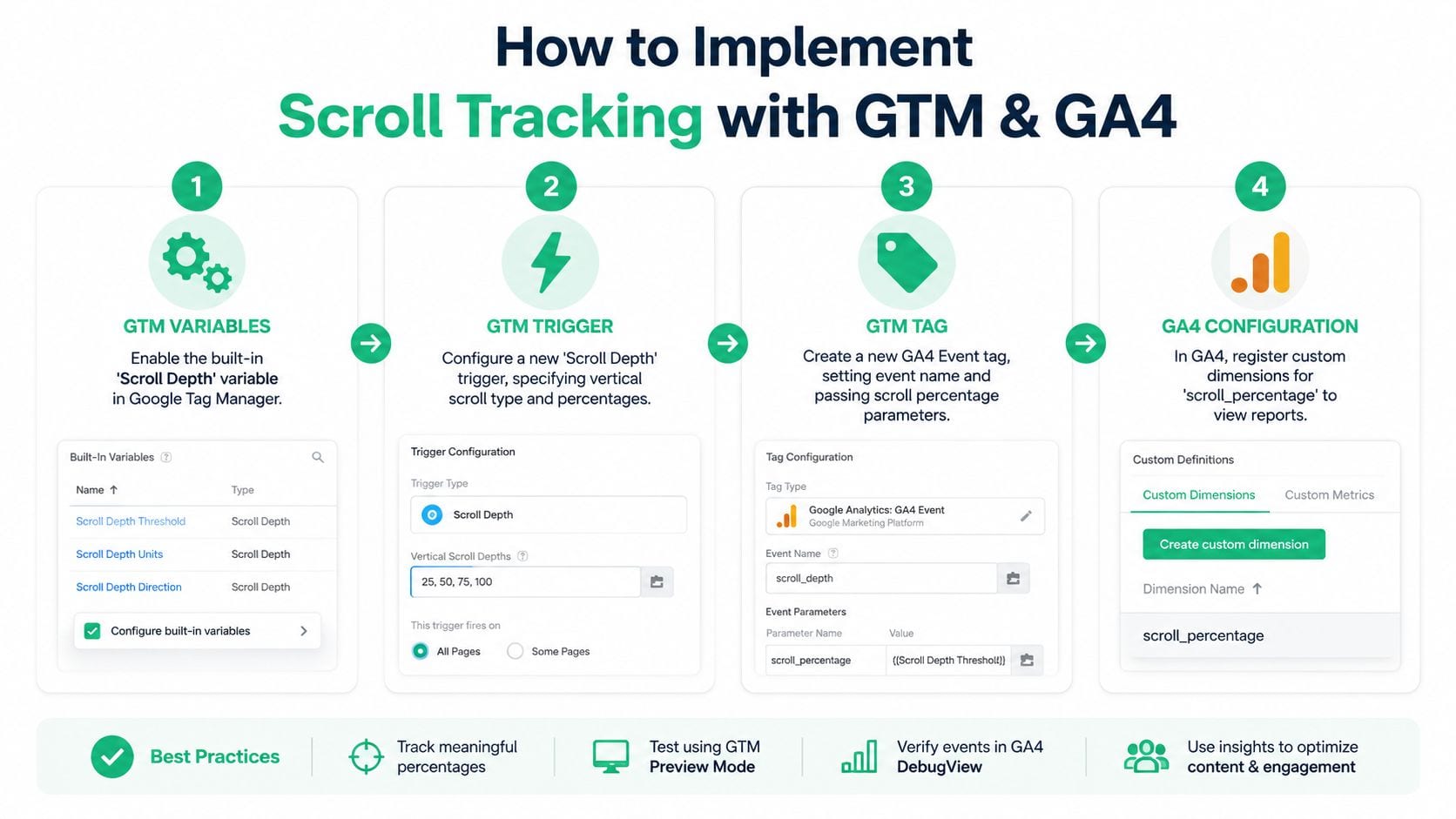
Start with the process view below.
Step 1 Disable GA4 default scroll collection if you need custom thresholds
This is the most common implementation mistake. GA4 includes native scroll measurement through Enhanced Measurement, but that default behavior isn't designed for every use case. If you want custom thresholds through GTM, you need to stop GA4 from sending its own scroll event or you'll create duplicate data.
According to Analytify's GA4 scroll depth guide, GA4 natively records user reach at 25%, 50%, 75%, and 100% of total page height, and teams that require non-standard breakpoints need to disable the native setting to prevent duplication before using a custom GTM trigger.
Step 2 Enable the right GTM variables and build the trigger
In GTM, turn on the built-in variable for Scroll Depth Threshold. That variable is the cleanest way to pass the threshold value into GA4 later.
Then create a new Scroll Depth trigger and configure it for vertical tracking. If your measurement plan calls for thresholds like 25%, 50%, 75%, and 90%, define those explicitly in the trigger. The setup is straightforward, but the trigger timing matters.
Woopra's technical write-up on scroll depth implementation notes that reliable setups should initialize on Window Load (gtm.load) rather than Visibility Change, because scroll detection should be ready as soon as the page finishes rendering.
Step 3 Protect your data from short-page false positives
Many implementations fail. Short pages can trigger misleading scroll completions immediately on load, especially when the viewport already covers most or all of the content.
That's why experienced teams add a condition before sending the event. The trigger should only fire when the page has enough height to make a scroll threshold meaningful.
A practical implementation pattern described in Jasmine Directory's GTM scroll tracking explanation is to require a custom JavaScript variable for page height and check that scrollHeight is greater than 3000 pixels before firing the event.
A simple custom variable can look like this:
function() {return document.body.scrollHeight || document.documentElement.scrollHeight;}Then apply a trigger condition such as:
{{JS - Scroll Height}} > 3000That specific threshold won't fit every site, but the principle does. Don't count “100% scrolled” on pages where no meaningful scrolling occurred.
Step 4 Create the GA4 event tag correctly
Next, create a GA4 Event tag in GTM. Use a clear event name such as scroll_depth and send the threshold as a parameter.
The critical part is the parameter mapping:
- Parameter name:
percent_scrolled - Value:
{{Scroll Depth Threshold}}
This isn't optional if you want useful reporting. As explained in Data Marketing School's implementation guide, the percent_scrolled parameter must be included explicitly so GA4 can use it in reporting and DebugView.
If you want a deeper event design reference, this guide on custom event tracking in GA4 with advanced techniques is worth keeping nearby during implementation.
After the tag is configured, use GTM preview mode and confirm:
- The trigger fires only at intended thresholds
- The event includes
percent_scrolled - Short pages don't produce misleading hits
- No duplicate scroll events appear from GA4 native tracking
Before you move to QA, it helps to see the workflow in action:
Step 5 Register reporting fields in GA4 if needed
If your reporting setup requires a custom dimension, create one in GA4 with Event scope based on the percent_scrolled parameter. This gives analysts cleaner access to the value in exploration workspaces and page-level analysis.
At this point, the implementation is technically done. The more important question is whether it stays correct after your next site release.
Validating Your Scroll Tracking and Automating QA
Most scroll tracking problems don't appear during setup. They appear later, after a redesign, a template change, a consent banner update, or a front-end release that subtly alters event behavior.
That's why implementation and validation have to be treated as separate jobs. A tag firing once in preview mode isn't proof that the data is reliable over time.
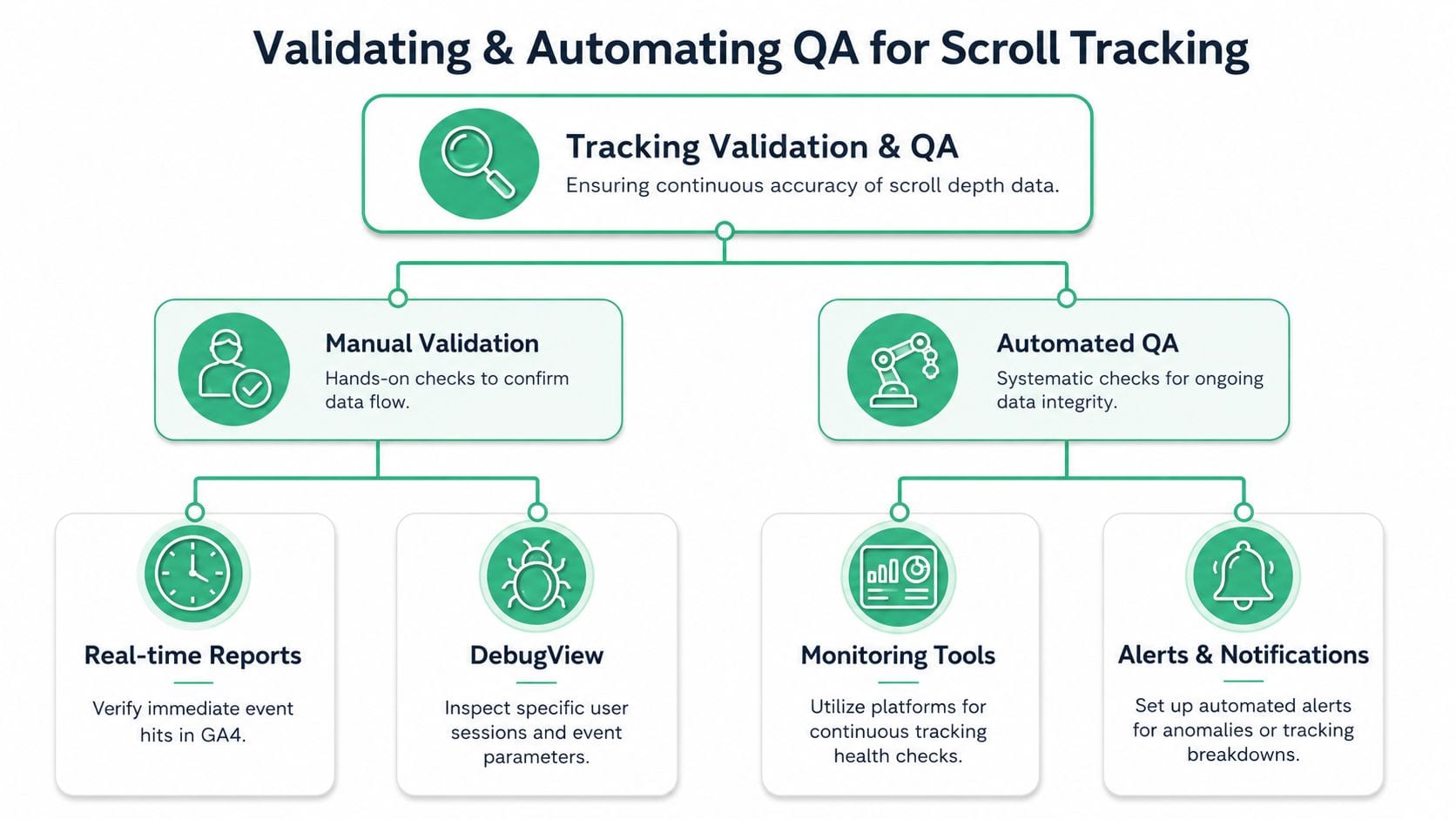
Manual validation that actually catches issues
A proper QA pass starts with live inspection, not just configuration review.
Use this checklist:
- Check GTM preview mode: verify the trigger fires at the intended thresholds and not before.
- Inspect GA4 DebugView: confirm the event appears with the expected event name and parameter payload.
- Review developer tools: inspect network requests or tag execution to ensure the payload structure is stable.
- Test across page types: long-form content, short landing pages, pages with sticky elements, and mobile breakpoints often behave differently.
- Retest after consent interaction: some setups break only after users accept or reject tracking.
Good analytics QA doesn't ask “did the event fire?” It asks “did the right event fire, under the right conditions, with the right payload?”
For a solid manual process, this guide on how to test a tag is a useful operational reference.
Why manual checks stop scaling
Manual QA is necessary, but it doesn't scale well once you have multiple templates, multiple markets, or frequent releases. Someone has to remember to revisit the implementation every time a front-end dependency changes. That usually doesn't happen consistently.
Three failure modes show up often:
- The event disappears. A release breaks the trigger, and nobody notices until reporting looks strange.
- The schema changes. The event still fires, but the parameter name or value format shifts.
- The event becomes noisy. A layout change causes thresholds to fire too early or too often.
Those failures are especially expensive because they don't always produce obvious errors. They just slowly erode trust in the data.
Automated QA as the safety net
Automated analytics QA is how mature teams close that gap. Instead of relying on someone to manually inspect scroll events after every change, they monitor event behavior continuously and compare actual production traffic against expected patterns.
That means you can detect when a scroll event stops firing, starts firing with the wrong structure, or drifts away from the implementation standard your team intended. For organizations with active release cycles, that kind of monitoring isn't a luxury. It's the practical way to protect downstream reporting.
The point isn't to automate for the sake of automation. It's to keep analysts, marketers, and developers from making decisions on corrupted behavioral data.
Advanced Strategies and Best Practices
Once the base setup is stable, the next step is improving signal quality. At this stage, scroll depth tracking becomes more than a generic engagement metric and starts supporting real analysis.

Choose thresholds that reflect page structure
Don't track thresholds just because they're conventional. Start with the page architecture. If a pricing section, testimonials block, or comparison table sits low on the page, make sure your thresholds help you infer whether users reached that area.
For some sites, percentage-based tracking is enough. For others, element visibility tracking is a better supplement because it maps more directly to business-critical modules.
Handle single-page applications carefully
SPAs complicate scroll logic because page state changes without traditional page loads. If your trigger relies on assumptions from server-rendered pages, threshold behavior can become inconsistent after route changes or lazy-loaded content updates.
In SPA environments, developers and analysts should agree on when a virtual page is considered “ready” for scroll measurement, and when scroll state should reset.
Respect consent before collecting behavioral data
Scroll tracking still counts as analytics collection. If your site uses a consent management platform, the trigger logic should align with that consent state. Otherwise, teams end up with a technical implementation that works, but a governance process that doesn't.
That misalignment often surfaces only during audits. It's better to wire consent checks into the implementation from the start.
Track only what you're allowed to collect, and validate that rule the same way you validate the event itself.
Work within GA4 limits
GA4 gives teams flexibility, but not unlimited flexibility. Only 50 custom dimensions are allowed per property, which can limit how many unique scroll thresholds or related custom parameters you register, as noted in Plausible's discussion of scroll depth tracking in GA4.
That limit changes how disciplined your implementation needs to be.
- Prioritize key thresholds: use the values that answer real business questions.
- Avoid dimension sprawl: don't register every experimental parameter permanently.
- Keep naming consistent: analysts can work faster when event and parameter conventions are predictable.
The strongest scroll implementations are selective, not exhaustive.
Frequently Asked Questions About Scroll Tracking
How can I track horizontal scroll on carousels or wide tables
Standard page scroll setups usually focus on vertical movement. For horizontal interactions, teams typically need custom event logic tied to the specific component, such as a carousel container or overflow table wrapper. GTM can support that, but many cases require developer help because the event should reflect component behavior, not general page scrolling.
Does scroll tracking hurt website performance
A basic implementation through GTM and GA4 is usually lightweight when configured correctly. Performance issues are more likely when teams stack multiple overlapping listeners, fire noisy events, or leave old tracking in place after redesigns. Keep the implementation minimal and remove redundant logic.
How is scroll depth different from a heatmap
Scroll depth tracking records defined milestones and feeds structured analytics data. A heatmap visualizes behavior across the page and helps people spot patterns faster. Use scroll tracking when you need reportable thresholds and segmentation. Use heatmaps when you need visual context for layout analysis.
Can I track scroll depth to specific elements instead of percentages
Yes. In many cases, element visibility is more actionable than raw page-depth percentages. If the core question is whether users saw pricing, reviews, or a CTA module, tracking that element directly is often cleaner than inferring visibility from page percentage alone.
What's the biggest implementation mistake
Duplicate or misleading data. That usually happens when teams mix native analytics scroll collection with custom GTM events, or when short pages trigger false positives. The setup can look fine in a quick test and still produce bad reporting later.
If your team wants reliable analytics without constant manual checking, Trackingplan is the safety net worth evaluating. It helps teams monitor analytics implementations across web, app, and server-side environments, detect broken or changed events in real time, and keep tracking plans trustworthy as sites evolve. That's especially valuable for scroll depth tracking, where a setup can look correct on launch day and gradually drift out of spec after the next release.