
If 81% of GA4 implementations contain errors that compromise data accuracy, the marketing decisions you’re making right now may be built on shaky ground. Broken event tracking, misconfigured consent settings, and missing UTM parameters don’t just create messy dashboards. They distort attribution, inflate or deflate conversion counts, and send budget toward channels that aren’t actually performing. A structured Google Analytics audit template gives you a repeatable, reliable way to catch these problems before they cost you. This guide walks you through every step, from prerequisites to benchmarks, so you can run a thorough audit and trust your data again.
Table of Contents
- Why a Google Analytics audit is essential
- What you need before starting your audit
- The Google Analytics audit template: step-by-step process
- Troubleshooting: common issues and expert solutions
- Benchmarks and interpreting your audit results
- When and how often to audit your Google Analytics
- Take your data quality further with automation and expert support
- Frequently asked questions
Key Takeaways
| Point | Details |
|---|---|
| Most GA4 setups contain errors | A structured audit can prevent lost marketing data and flawed decisions. |
| Manual audits take time | Set aside 4-8 hours to complete a comprehensive audit, and automate wherever possible. |
| Use benchmarks to assess data | Compare your engagement and session metrics to industry standards to spot major issues. |
| Automate for ongoing quality | Adopt monitoring tools to keep your analytics data accurate even as your website evolves. |
Why a Google Analytics audit is essential
Small tracking errors compound fast. A single misconfigured filter can silently exclude entire traffic segments for months. A missing consent trigger can wipe out data from a significant portion of your users. By the time someone notices the numbers look off, the damage is already done.
“Inaccurate data is worse than no data at all. It creates false confidence and leads teams to optimize for the wrong outcomes.” — Trackingplan GA4 audit checklist
Routine audits protect you from that trap. They surface issues while fixes are still straightforward, and they keep your reporting aligned with what’s actually happening on your site. The payoff is real: consent fixes alone can recover up to 20% of lost data. That’s not a rounding error. That’s a meaningful slice of your conversion funnel suddenly becoming visible again.
Beyond recovery, audits shift your focus from vanity metrics to business-aligned event tracking. Pageviews are easy to collect. Knowing whether your checkout completion event fires correctly on every device is what actually matters. A solid GA4 audit checklist keeps you focused on the signals that drive real decisions, and pairing it with GA4 anomaly detection means you catch drift between audits too.
What you need before starting your audit
Before you open a single GA4 report, get your toolkit in order. Jumping in without the right resources turns a focused audit into a frustrating scavenger hunt.
Essential tools and resources:
- GA4 property access with Editor or Administrator permissions
- Google Tag Assistant and DebugView for real-time tag validation
- A spreadsheet or PDF audit template to log findings systematically (the Inflow GA4 PDF checklist and Adasight spreadsheet template are both solid starting points)
- An observability or monitoring tool for automated checks between manual audits
- Access to your consent management platform and Tag Manager container
Here’s a quick reference for what each tool covers:
| Tool | Primary use | Manual or automated |
|---|---|---|
| GA4 DebugView | Real-time event validation | Manual |
| Google Tag Assistant | Tag firing confirmation | Manual |
| Spreadsheet template | Audit logging and tracking | Manual |
| Trackingplan | Continuous monitoring and alerts | Automated |
| Consent platform dashboard | Consent mode verification | Both |
For a deeper look at what’s available, the GA4 audit tools guide and the broader website audit checklist are worth reviewing before you start. Time-wise, manual audits average 4 to 8 hours for a standard site. Complex setups with multiple data streams, server-side tracking, or cross-domain configurations will take longer.
Pro Tip: Automate the repetitive checks. Tools that monitor your tracking continuously free you to focus your manual audit time on configuration logic and business alignment, not hunting for missing tags.

The Google Analytics audit template: step-by-step process
Once your tools are ready, work through these ten steps in order. Each one builds on the last, and skipping ahead creates blind spots.
Core GA4 audit components include verifying configuration, tracking code presence, enhanced measurement settings, event accuracy, custom dimensions, UTM parameters, filters, consent mode, and overall data quality.
- Account and property configuration — Confirm the correct property is linked to your site, time zone and currency match your reporting needs, and user permissions follow the principle of least access.
- Data stream verification — Check that all streams (web, iOS, Android) are active and sending data. Look for duplicate streams that inflate session counts.
- Tracking code presence — Use Tag Assistant to confirm the GA4 tag fires on every page, including thank-you pages, error pages, and dynamically loaded routes.
- Enhanced measurement settings — Review which automatic events are enabled. Scroll tracking and outbound clicks are useful. Video engagement may create noise if you don’t use video.
- Custom event and conversion accuracy — Validate that key events fire with the correct parameters. Use DebugView to test in real time. Cross-reference with your web analytics audit checklist.
- Custom dimensions and metrics — Confirm every custom dimension is registered in GA4 and maps to the correct event parameter. Unregistered dimensions silently drop data.
- UTM parameter consistency — Audit your campaign URLs for consistent naming conventions. Inconsistent casing or spelling fragments your channel data. The UTM parameter best practices guide covers the most common mistakes, and the campaign tagging FAQs address edge cases.
- Filters and data exclusions — Verify internal IP filters are active and correctly configured. Check that bot filtering is enabled under property settings.
- Consent mode and privacy compliance — Confirm Consent Mode V2 is implemented correctly for all regions where it applies. Review your consent management guide if you’re unsure about the setup. Google’s own audit checklist also covers this area.
- Anomaly and trend review — Compare recent data against historical baselines. Sudden drops or spikes in sessions, events, or conversions often signal a tracking break.
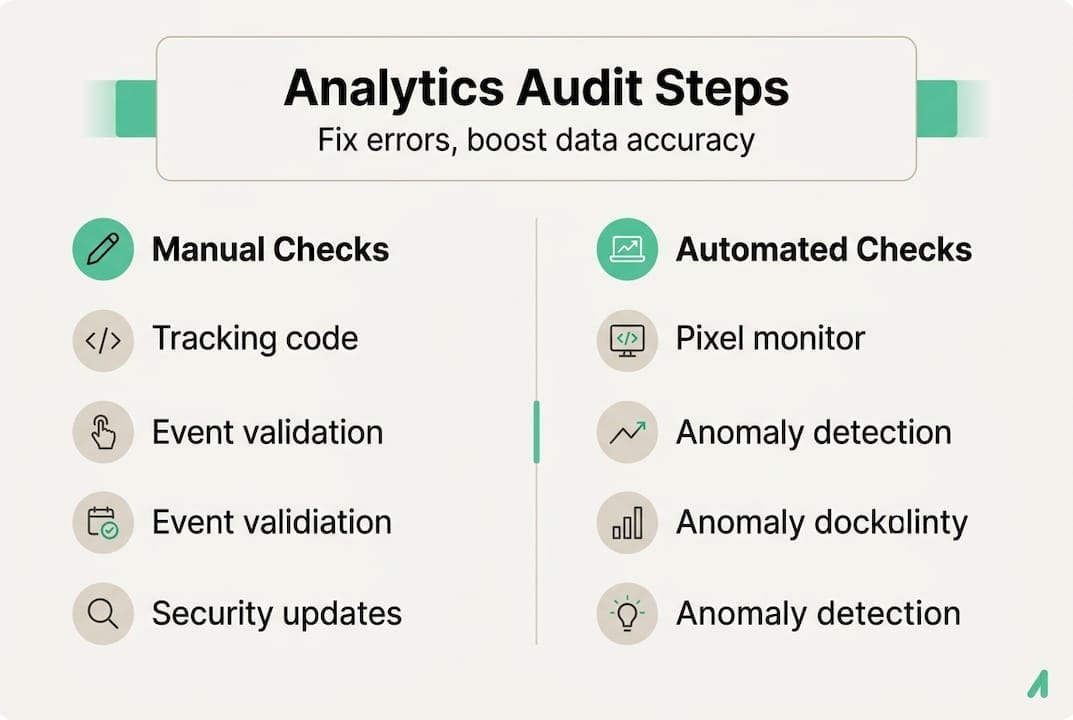
| Step | Manual check | Automated check |
|---|---|---|
| Tracking code presence | Tag Assistant | Continuous pixel monitoring |
| Event accuracy | DebugView | Schema validation alerts |
| UTM consistency | Manual URL review | Campaign tagging rules |
| Consent mode | CMP dashboard | Compliance monitoring |
| Anomaly detection | Report comparison | Real-time AI alerts |
Pro Tip: Run your UTM audit and event validation simultaneously. Both rely on live traffic, so testing them together cuts your active validation time nearly in half.
Troubleshooting: common issues and expert solutions
Even a well-structured audit surfaces surprises. Here are the issues that show up most often, along with how to fix them.
Frequent GA4 audit findings:
- Duplicate events — Usually caused by a tag firing twice due to overlapping triggers in Tag Manager. Audit your trigger conditions and use Tag Assistant to count event fires per page load.
- Parameter mismatches — An event fires but the parameter name doesn’t match what’s registered in GA4. The data arrives but gets discarded. Fix by aligning parameter names exactly, including case sensitivity.
- Consent mode misconfiguration — This is the most costly error. Consent Mode V2 mistakes can cause up to 20% data loss, and they’re often invisible until you compare modeled versus observed data.
- Cross-domain session fragmentation — Users moving between domains appear as new sessions, breaking funnel analysis. Confirm cross-domain measurement is configured in your data stream settings.
- Server-side vs. client-side discrepancies — If you run server-side tagging, compare event counts between your server container and GA4. Gaps usually point to filtering rules or endpoint misconfigurations.
“The most dangerous audit findings aren’t the obvious ones. They’re the silent errors that make your data look plausible while quietly distorting every metric downstream.”
For ongoing protection between audits, GA4 anomaly detection catches drift before it becomes a crisis. Pairing that with a clear marketing data governance framework ensures your team has documented standards to prevent these issues from recurring.
Benchmarks and interpreting your audit results
Finding issues is only half the job. You also need to know whether your baseline metrics are healthy before and after the fix.
| Metric | Typical GA4 benchmark | Action if below benchmark |
|---|---|---|
| Engagement rate | 46% to 54% | Check bounce triggers and page load speed |
| Session duration | 2 to 2.8 minutes | Review content relevance and UX flow |
| Conversion rate (eCommerce) | 1% to 4% (varies by sector) | Audit checkout event firing and funnel steps |
| Event hit rate | Consistent across sessions | Investigate tag firing gaps with DebugView |
When you compare your numbers to these benchmarks, context matters. A media site will have different engagement patterns than a B2B SaaS product. Use benchmarks as a directional signal, not a hard pass/fail threshold.
Prioritizing your findings:
- Fix anything that affects conversion tracking first. These errors directly distort ROI reporting.
- Address consent and privacy issues next. Compliance failures carry legal and financial risk.
- Resolve data quality issues (duplicates, parameter mismatches) before moving to optimization.
- Document everything you find, even issues you can’t fix immediately. Stakeholders need to understand the gap between reported and actual performance.
Communicating audit results clearly is as important as running the audit itself. Frame findings in business terms: “We’re missing conversion data from 18% of users due to a consent configuration error” lands harder than “Consent Mode V2 isn’t set up correctly.” Use GA4 anomaly detection reports to show stakeholders the before-and-after impact of your fixes.
When and how often to audit your Google Analytics
A one-time audit is better than nothing, but it’s not a strategy. Tracking implementations drift. Sites change. Consent regulations evolve. Your audit schedule needs to keep pace.
Audit at least once or twice a year at minimum, and always after major website changes, platform migrations, or significant KPI shifts. For high-traffic or high-revenue sites, quarterly reviews make sense.
A three-step system for sustainable audit practice:
- Set calendar reminders for scheduled audits tied to your business planning cycle. Quarterly reviews align well with budget and strategy reviews.
- Use automated monitoring tools to catch issues between manual audits. Automated observability tools are now the preferred approach for continuous data quality, because they surface problems in real time rather than weeks later.
- Review KPIs quarterly against your audit findings. If a metric shifts unexpectedly, check whether a tracking change preceded it before drawing any conclusions.
Pro Tip: Always run a focused audit immediately after any significant site change, including CMS updates, checkout redesigns, or new tag deployments. These are the moments when tracking breaks most often, and catching issues early saves hours of retroactive analysis.
For a structured starting point every time, keep a copy of the GA4 audit checklist bookmarked and ready to go.
Take your data quality further with automation and expert support
Running a manual audit every quarter is valuable, but it still leaves gaps between checks. That’s where continuous monitoring changes the game entirely.
Trackingplan monitors your digital analytics tools around the clock, automatically detecting broken pixels, missing events, schema mismatches, and consent failures the moment they occur. Instead of discovering a tracking break weeks after it happened, you get an alert in Slack, Teams, or email within minutes. The platform’s web tracking monitoring solution gives you a live view of your entire Martech stack, so your data stays clean without constant manual effort. If you want to see exactly where your current setup stands, start with a free analytics audit and get a clear picture of what needs fixing.
Frequently asked questions
What are the most common mistakes found in a Google Analytics audit?
The most common issues include missing tracking code, duplicated events and parameter mismatches, incorrect filters, and consent mode misconfiguration. These errors often go undetected for weeks because the data still appears to flow normally.
How often should I audit my Google Analytics account?
Audit at least once or twice a year, and always after major website changes, platform migrations, or significant shifts in your KPIs. High-traffic sites benefit from quarterly reviews.
Is a manual or automated GA4 audit better?
Automated monitoring is the preferred approach for continuous data quality, but a manual audit remains essential after initial setup, major changes, or when diagnosing complex issues.
What benchmarks should I use to judge my Google Analytics data?
Typical GA4 engagement rates range from 46% to 54%, with average session durations between 2 and 2.8 minutes. These figures vary by industry, so treat them as directional guides rather than fixed targets.