
TL;DR:
- Analytics errors can significantly distort KPIs and mislead marketing decisions.
- A structured troubleshooting workflow including root cause analysis is essential for reliable data accuracy.
- Proactive monitoring and automation help maintain stable, trustworthy analytics over time.
Imagine waking up to a report showing a 60% drop in conversions overnight. No campaign changes, no site outages. The culprit? A misconfigured GA4 event that stopped firing after a routine GTM update. Scenarios like this play out across marketing teams every week, quietly corrupting attribution data and sending ad spend in the wrong direction. Analytics errors are not just technical nuisances. They erode trust in data, distort KPIs, and make confident decision-making nearly impossible. This guide walks you through a structured, repeatable workflow to identify, diagnose, and fix analytics errors before they cost you real money.
Table of Contents
- Understand the impact of analytics errors
- Establish prerequisites for error troubleshooting
- Step-by-step workflow for troubleshooting analytics errors
- Verify fixes and monitor tracking performance
- Why chasing isolated errors misses the bigger picture
- Take your analytics error troubleshooting to the next level
- Frequently asked questions
Key Takeaways
| Point | Details |
|---|---|
| Root cause matters | Address underlying causes in analytics errors, not just symptoms, for long-term reliability. |
| Use official tools first | Google’s Tag Diagnostics and Status Dashboards streamline error detection across platforms. |
| Structured workflow | Following a step-by-step troubleshooting process ensures systematic error resolution. |
| Verification is essential | Always confirm fixes and monitor tracking performance to prevent recurring issues. |
| Align with KPIs | Analytics troubleshooting should always connect with business objectives for actionable results. |
Understand the impact of analytics errors
Analytics errors rarely announce themselves loudly. More often, they hide inside dashboards that look perfectly normal until someone asks the right question. A missing transaction ID here, a duplicated pageview event there, and suddenly your conversion rate looks 30% better than reality. That gap between perceived and actual performance is where budgets get misallocated.
The scale of the problem is significant. Nearly 40% of GA4 properties have misconfigured events, meaning a large share of organizations are making decisions based on flawed data right now. The downstream effects touch everything: paid media efficiency, email segmentation, A/B test validity, and revenue attribution.
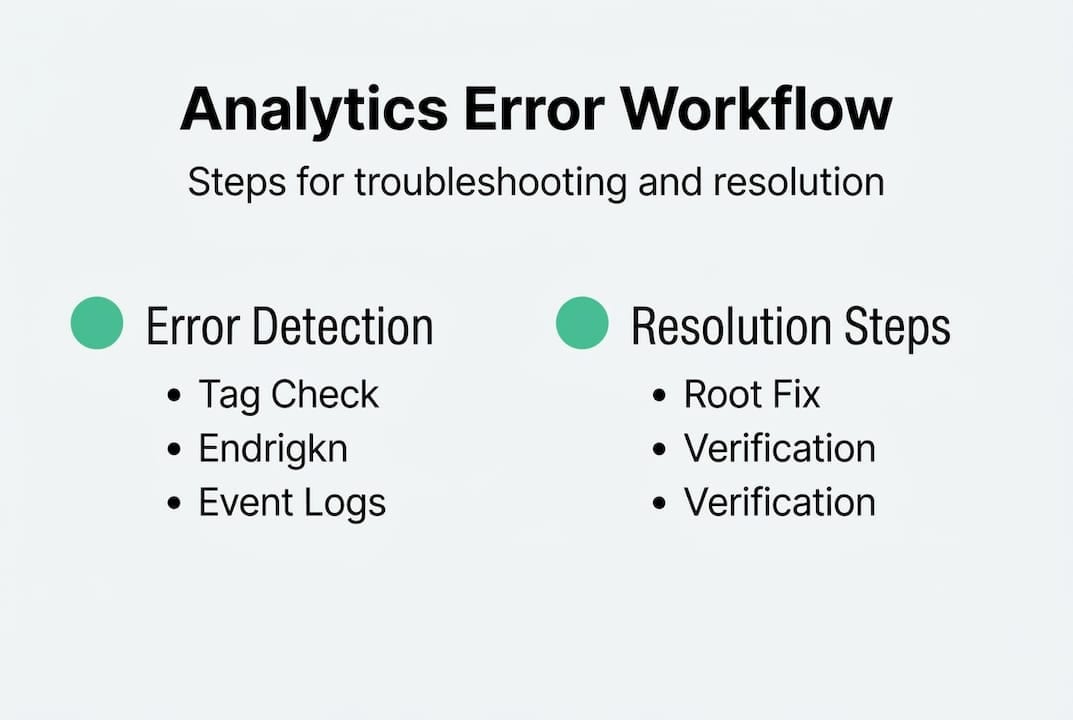
Understanding why an error exists matters more than just fixing the symptom. Root cause analysis (RCA) is the practice of tracing an observable problem back to its origin. Without RCA, teams patch the same issues repeatedly. With it, you fix the system, not just the symptom.
Here is what analytics errors commonly disrupt:
- Paid media attribution: Misattributed clicks inflate or deflate channel ROI
- Conversion tracking: Missing events cause under-reporting of actual conversions
- Audience segmentation: Corrupted event data feeds inaccurate remarketing lists
- Revenue reporting: Duplicate or absent transaction IDs skew ecommerce metrics
- Compliance signals: Broken consent flags can expose teams to privacy risk
Prioritizing data quality over speed is a discipline that separates high-performing analytics teams from reactive ones. The teams that treat tracking as a foundation rather than an afterthought consistently outperform peers on attribution accuracy.
“Fixing the symptom without understanding the cause guarantees the same error returns. RCA is not optional. It is the only path to stable analytics.”
For teams that want to understand why tracking accuracy matters at a strategic level, the business case is straightforward: bad data costs more to act on than good data costs to maintain. Formalizing your troubleshooting workflow is the first step toward breaking the cycle of repeated errors.
Establish prerequisites for error troubleshooting
Jumping into troubleshooting without the right setup wastes time and often leads to misdiagnosis. Before you touch a single tag or container, confirm you have the tools and access required to investigate properly.
Google provides a powerful first-line diagnostic suite. The Tag Diagnostics tool is the recommended starting point for identifying tag issues across GA4, Google Ads, and GTM. It surfaces configuration problems, missing parameters, and firing failures with actionable fix suggestions, saving hours of manual inspection.
Beyond Tag Diagnostics, your core toolkit should include:
- Google Tag Manager (GTM): Container version history and preview mode
- GA4 DebugView: Real-time event inspection for active sessions
- Google Ads conversion tracking: Status flags and GCLID verification
- Looker Studio: Data source connection health and quota monitoring
- GA4 Status Dashboard: Platform-level outage and latency alerts
A well-structured tracking implementation guide will also tell you what should be firing, which is just as important as knowing what is firing. Without documented event specifications, troubleshooting becomes guesswork.
| Prerequisite | Why it matters |
|---|---|
| GTM container access | Review tag firing rules and version history |
| GA4 admin access | Inspect event configurations and data streams |
| Documented event specs | Baseline for comparing expected vs. actual behavior |
| Tag Diagnostics access | Automated issue detection with fix recommendations |
| Consent layer documentation | Confirm tracking fires correctly post-consent |
Environment setup also matters. Client-side tracking, server-side tracking, mobile SDKs, and consent management platforms each behave differently. Knowing which layer an error originates from determines the correct fix path. Teams that detect tracking issues early by monitoring each layer independently resolve problems significantly faster than those treating the stack as a single unit.

Pro Tip: Always clear cache and reload your test environment after any GTM publish. Stale containers are one of the most common sources of false positives during troubleshooting.
Step-by-step workflow for troubleshooting analytics errors
With your tools and access confirmed, you can move through a structured resolution process. This workflow applies across GA4, GTM, Google Ads, and Looker Studio environments.
- Align on the affected KPI. Define which metric is behaving unexpectedly. Is it conversion volume, revenue, session count, or event rate? Specificity here prevents scope creep.
- Establish a timeline. Identify exactly when the anomaly started. Cross-reference GTM version publish dates, code deployments, and platform updates.
- Audit the relevant environment. Use GTM Preview Mode and GA4 DebugView to confirm whether events are firing, what parameters they carry, and whether triggers are activating correctly.
- Apply root cause analysis. The 5 Whys method works well here. Ask why the metric changed, then trace each answer back one level until you reach the origin. Cohort comparison (comparing affected vs. unaffected date ranges) helps isolate timing.
- Check platform-specific issues. For Looker Studio errors, refresh cache and reconnect data sources, check GA4 quota usage, and confirm extract refresh schedules. Quota exhaustion is a frequent but overlooked cause of blank or stale reports.
- Implement the fix. Apply corrections in a staging container first. Validate in DebugView before publishing to production.
- Apply hybrid tracking where needed. For conversion gaps caused by browser restrictions or ad blockers, server-side tracking fills the measurement void that client-side alone cannot cover.
| Common error | Likely cause | Fix |
|---|---|---|
| Missing GCLID | Auto-tagging disabled in Google Ads | Enable auto-tagging in account settings |
| Duplicate transactions | Tag firing twice on confirmation page | Add transaction ID deduplication logic |
| Blank Looker Studio report | Expired data source credentials | Reconnect and refresh data source |
| Events not in GA4 | GTM trigger misconfigured | Audit trigger conditions in Preview Mode |
Following campaign tracking best practices during this phase ensures fixes align with broader attribution strategy, not just isolated tag corrections.
Pro Tip: Document every fix with a timestamp, the error description, and the resolution applied. A shared changelog prevents teammates from re-investigating already-solved problems.
Verify fixes and monitor tracking performance
Fixing an error without verifying the fix is like patching a tire without checking air pressure. Verification closes the loop and confirms the resolution actually worked.
Start with Tag Diagnostics again. Re-run the diagnostic check after implementing your fix to confirm the tool no longer flags the issue. This is especially important for GCLID and transaction ID errors, which Tag Diagnostics surfaces with specific remediation steps.
After the initial check, monitor live data for at least 48 to 72 hours. A single session in DebugView is not sufficient proof. You need real traffic across multiple user paths to confirm consistent event firing.
Here is a final verification checklist to run after every fix:
- Test key conversion paths end to end. Complete actual purchases, form submissions, or sign-up flows in a real browser session.
- Validate event parameters. Confirm that event names, parameter keys, and values match your documented specifications exactly.
- Check attribution accuracy. Verify that UTM parameters and GCLIDs are passing through to GA4 and Google Ads correctly.
- Review quota status in Looker Studio. Confirm reports are pulling fresh data and no quota limits are blocking queries.
- Inspect audience lists. Confirm that remarketing audiences are populating correctly based on fixed event signals.
- Compare against historical baselines. Look at week-over-week and month-over-month trends to confirm the metric has returned to expected ranges.
For teams managing advertising analytics at scale, this verification step is non-negotiable. A fix that holds for one campaign but breaks under another traffic source is not a real fix.
Pro Tip: Schedule a monthly audit of your full tracking stack. Tracking drift, where configurations slowly deviate from specifications over time, is nearly invisible without regular review and one of the most expensive silent errors in analytics.
Why chasing isolated errors misses the bigger picture
Most analytics teams operate in reactive mode. An alert fires, someone investigates, the tag gets fixed, and the team moves on. This cycle feels productive. It is not.
The real problem is that isolated fixes do not address the conditions that allow errors to form in the first place. A GTM container with no governance process will keep producing misconfigured tags. A tracking plan with no version control will keep generating schema mismatches. Fixing individual errors without revisiting system design is like bailing water without patching the hull.
The teams that achieve stable, trustworthy analytics share one trait: they treat error prevention as a continuous process, not a one-time project. That means embedding detection into the workflow from day one, aligning every tracking decision with a documented KPI, and reviewing the full stack on a schedule rather than waiting for something to break.
If you want to unlock better marketing ROI, the shift from reactive fixing to proactive monitoring is the single highest-leverage change available to most analytics teams. The tools exist. The workflow exists. The missing piece is usually the discipline to treat analytics health as an ongoing operational priority.
Take your analytics error troubleshooting to the next level
Structured workflows get you far, but manual audits have limits. When your stack spans multiple platforms, client-side and server-side environments, and dozens of active campaigns, errors can slip through even the most disciplined process.
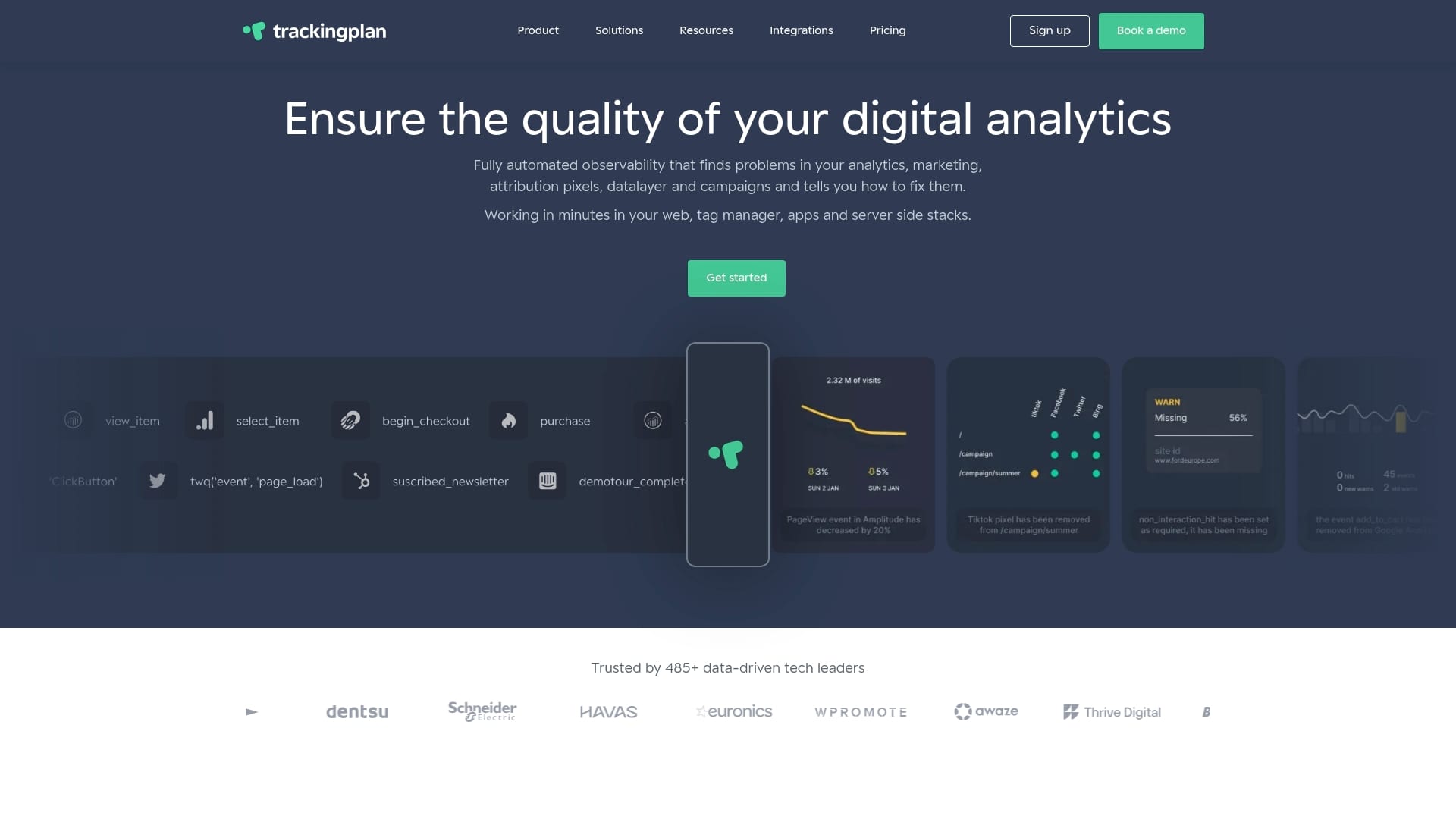
Trackingplan automates the detection layer that manual troubleshooting cannot scale to cover. By continuously monitoring your digital analytics tools and sending real-time alerts the moment an anomaly appears, it gives your team the signal before the damage compounds. From pixel monitoring to schema validation, web tracking monitoring with Trackingplan means fewer surprises, faster resolution, and analytics data you can actually trust.
Frequently asked questions
What is the fastest way to identify analytics tag errors?
Google’s Tag Diagnostics tool provides instant tag status checks and recommended fixes across GA4, Google Ads, and GTM, making it the fastest starting point for any tag investigation.
How do Looker Studio quota errors impact reporting?
Quota errors temporarily block data queries and can cause blank or stale reports. Fixes involve reconnecting data sources, and quota limits refresh within up to 24 hours.
Why should troubleshooting be aligned with business KPIs?
Aligning fixes with KPIs ensures you are solving errors that actually affect business outcomes. Without that alignment, teams often fix irrelevant symptoms while real attribution problems persist.
How can I prevent recurring analytics errors?
Schedule regular audits, implement hybrid client-server tracking, and maintain a shared changelog of all fixes so your team can identify patterns and address root causes before they repeat.