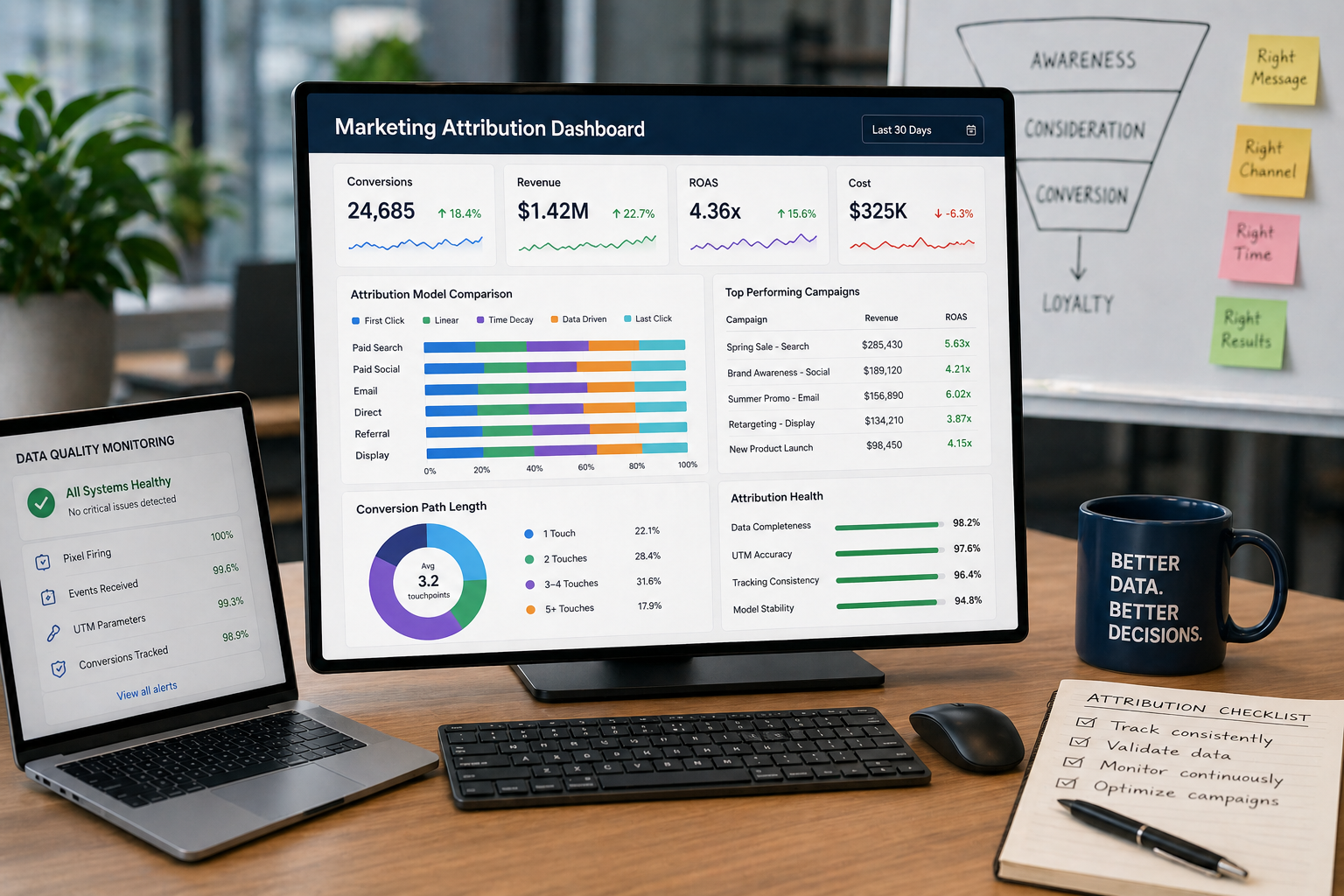
Discover why check for broken pixels is essential for marketers. Ensure your data accuracy and campaign reliability by understanding pixel defects.
TL;DR:
- Broken pixels, such as dead, stuck, or hot pixels, can distort marketing data visuals and lead to incorrect decisions. Regularly testing monitors with full-color cycling helps identify hardware defects early, preventing misinterpretation of analytics. Maintaining device hygiene and proper documentation ensures accurate campaigns and efficient warranty claims.
Broken pixels are malfunctioning display elements that fail to render color correctly, and for digital marketers, they represent a direct threat to data accuracy and campaign reliability. A dead pixel stays permanently black, a stuck pixel locks onto one color, and a hot pixel burns bright white regardless of the content displayed. These defects appear on monitors from Dell, HP, and Samsung alike, and they affect every screen your team uses to review ads, analyze dashboards, and QA tracking implementations. Understanding why check for broken pixels matters goes beyond hardware hygiene. It protects the integrity of every decision your analytics data drives.
Why check for broken pixels before trusting your data
Broken pixels corrupt the visual layer your entire marketing workflow depends on. When a stuck pixel sits inside a heatmap visualization or a dead pixel obscures a conversion funnel chart, you are not seeing accurate data. You are seeing a hardware artifact that mimics a data anomaly. That distinction costs real budget when it drives a false optimization decision.

The problem compounds in A/B testing environments. If two team members review the same test results on monitors with different pixel defects, they may reach different conclusions about which variant performed better. The discrepancy is not in the data. It is in the display. This is one of the most overlooked sources of interpretation error in marketing analytics.
Poor display quality also affects how you evaluate ad creative. A banner ad that looks broken on a defective monitor may trigger a creative revision that was never needed. Conversely, a genuine rendering error in your ad platform may go unnoticed because the team assumes the visual glitch is a screen defect. Both outcomes waste time and distort your campaign tracking accuracy.
Pro Tip: Before any major campaign review or A/B test debrief, run a quick pixel check on every monitor in the room. It takes under three minutes and eliminates one variable from your interpretation process.
How to identify broken pixels on marketing displays
The most reliable method for detecting dead pixels is cycling through solid colors across the full screen in a dimmed room. Each color exposes a different defect type. White reveals dark or dead pixels. Black surfaces bright or hot pixels. Red, green, and blue isolate stuck sub-pixels that only fail on one channel. On a 27-inch 1440p monitor, you are scanning more than 3.6 million pixels, so the testing environment matters as much as the method.
Here is a step-by-step process your team can run on any device:
- Dim the room. Ambient light washes out subtle defects, especially on IPS and OLED panels.
- Open a full-screen color tool. Free browser tools like Dead Pixel Test or the color screens at whitescreen.dev work without installation.
- Cycle through white, black, red, green, and blue. Hold each color for at least 10 seconds and scan the entire screen.
- Scan in a grid pattern. Scan row by row from the top left to the bottom right. Users consistently miss defects near edges and corners when scanning randomly.
- Test under different ambient conditions. OLED and LCD panels behave differently under varying light. A defect invisible under office lighting may appear clearly in a dim room.
- Take a screenshot of any suspected defect. If the anomaly appears in the screenshot, it is a software or GPU rendering issue, not a hardware pixel fault.
| Color Used | Defect Type Revealed |
|---|---|
| White | Dead or dark pixels |
| Black | Hot or bright pixels |
| Red | Stuck red sub-pixel |
| Green | Stuck green sub-pixel |
| Blue | Stuck blue sub-pixel |
Pro Tip: Run your pixel test within the first 15–30 days of receiving a new monitor. Retailers process returns within 48 hours of defect evidence, and the retail return window is far easier to navigate than a manufacturer warranty claim.
Dead pixels vs. stuck pixels: what is the real difference?
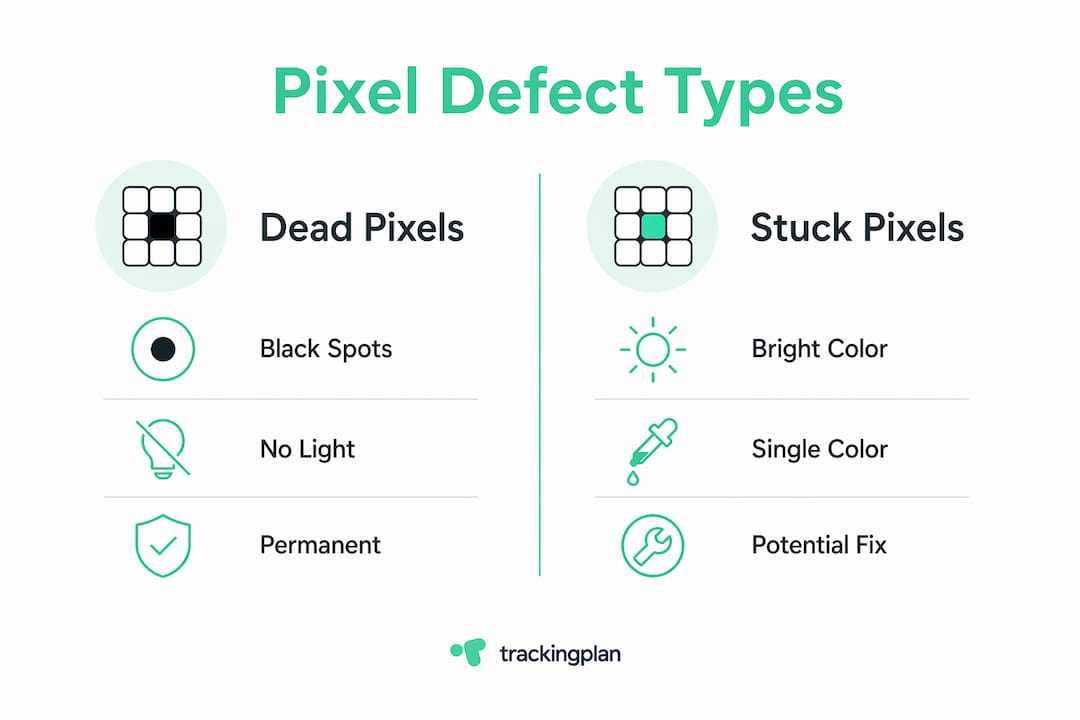
Dead pixels and stuck pixels are not the same problem, and treating them identically leads to wasted repair attempts or missed warranty claims. A dead pixel has a fully failed transistor. It shows no light at all, appearing as a permanent black dot regardless of what is on screen. A stuck pixel has a jammed transistor that locks onto one color. It stays red, green, or blue even when the surrounding image changes.
Software repair tools like JScreenFix cycle pixels at 60 Hz for 20 minutes and resolved 64% of stuck-pixel cases in a 2022 study on 1,200 LCD panels. That is a meaningful success rate. Dead pixels, by contrast, cannot be fixed by software because the transistor itself has failed. Physical pixel massage, which involves gentle pressure on the defect area with a soft cloth, has roughly a 30–40% fix rate for stuck pixels if the device is past warranty.
A third category worth knowing is the hot pixel. Hot pixels appear as a bright white dot and are caused by a transistor stuck in the fully open position. They are often mistaken for dust on the screen surface. The screenshot test is the fastest way to separate hardware defects from software artifacts. If the dot appears in your screenshot, the problem is in your GPU or display driver, not the panel itself.
ISO 9241-307 Class II tolerances allow a limited number of pixel defects per million pixels on consumer monitors. A single dead pixel near the edge of a display often falls within acceptable tolerance. Most manufacturers require multiple clustered stuck pixels before honoring a warranty replacement. Knowing this standard before you contact support saves significant time.
What are the best practices for pixel integrity in marketing teams?
Pixel integrity is a device management discipline, not a one-time check. Marketing teams that treat screen quality as a QA variable, rather than an IT afterthought, catch display problems before they influence campaign decisions.
- Check every new monitor before it enters the workflow. Run the five-color test on the day of setup, not weeks later when the return window has closed.
- Document defects with photography immediately. Photograph defects with flash off, using the background color that makes the defect most visible. Retailers and manufacturers require clear photographic evidence for returns.
- Integrate pixel checks into your quarterly device audit. Add a five-minute screen test to the same checklist your IT team uses for software updates and security patches.
- Assign ownership between marketing and IT. Marketing identifies display anomalies during campaign reviews. IT logs them, schedules replacements, and manages warranty timelines. Neither team should operate in isolation on this.
- Use software monitoring tools alongside physical checks. Platforms like Trackingplan detect pixel tracking errors across your analytics stack in real time, catching the data-layer equivalent of a broken pixel before it corrupts a report.
- Prioritize screens used for analytics dashboards and creative review. Not every monitor carries equal risk. The display your analyst uses to review attribution data deserves more frequent checks than a secondary office screen.
The marketing automation checklist approach applies here. Build pixel testing into a repeatable process rather than relying on individual team members to notice problems on their own. Systematic processes catch what ad hoc attention misses.
Key takeaways
Checking for broken pixels is a data quality practice, not just a hardware concern. Every defective display in your workflow is a potential source of misread analytics, wasted creative revisions, and flawed campaign decisions.
| Point | Details |
|---|---|
| Test displays on arrival | Run a five-color full-screen test within the first 30 days to stay inside the retail return window. |
| Distinguish defect types | Dead pixels are permanent hardware failures; stuck pixels have a 60–80% software repair success rate. |
| Use the screenshot test | If a defect appears in a screenshot, it is a GPU or software issue, not a hardware pixel fault. |
| Document before claiming warranty | Photograph defects against the background color that makes them most visible, with flash off. |
| Integrate checks into QA workflows | Add pixel testing to quarterly device audits and assign shared ownership between marketing and IT. |
The pixel problem nobody talks about in marketing
I have reviewed analytics setups for teams that spent weeks chasing a data anomaly, only to discover the “drop” in their funnel was a dead pixel obscuring a number on their dashboard. That is not a hypothetical. It happens more than anyone in this industry admits, because admitting it means acknowledging that a $15 hardware defect influenced a five-figure budget decision.
The deeper issue is cultural. Marketing teams treat their screens as neutral infrastructure. They are not. Every monitor is an interpretive layer between your data and your decisions. A stuck green pixel on a heatmap tool changes what you see. A hot pixel on a color-graded ad preview changes what you approve. These are not edge cases. They are predictable failure points that a three-minute test eliminates.
My honest observation after years in this field: the teams with the tightest data discipline are also the ones with the most rigorous device hygiene. They run pixel monitoring workflows on their analytics implementations and they run color tests on their physical screens. They treat both layers with equal seriousness. That combination is what separates teams that trust their data from teams that argue about it.
The emerging shift to OLED monitors in marketing and creative roles adds a new wrinkle. OLED panels are more susceptible to burn-in from static dashboard elements, and early burn-in is frequently misdiagnosed as a stuck pixel. If your team has moved to OLED displays, add burn-in checks to your testing protocol alongside the standard five-color cycle.
— David
How Trackingplan keeps your pixel data clean
Physical screen defects are one layer of the problem. The other layer is your analytics implementation itself, where broken tracking pixels, misfiring tags, and schema mismatches silently corrupt the data your screens display.

Trackingplan monitors your entire Martech stack in real time, detecting missing or broken pixels, attribution errors, and campaign misconfigurations before they reach your reports. Its AI-powered alerts notify your team via Slack, email, or Teams the moment an anomaly appears. For teams managing digital analytics data quality across multiple properties, Trackingplan replaces hours of manual auditing with automated root-cause analysis. You can also explore the Privacy Hub to maintain compliance while keeping your tracking accurate. Clean screens and clean data belong in the same workflow.
FAQ
What exactly is a broken pixel on a monitor?
A broken pixel is a display element that fails to render color correctly. It appears as a permanently black dot (dead pixel), a fixed-color dot (stuck pixel), or a constantly bright white dot (hot pixel).
How do i know if a pixel is dead or just stuck?
Run a full-screen color cycle across white, black, red, green, and blue. A dead pixel stays black on every color. A stuck pixel holds one color regardless of what is displayed on screen.
Can broken pixels affect my marketing analytics work?
Yes. Defective pixels can obscure numbers on dashboards, distort heatmap readings, and cause misinterpretation of A/B test results. They introduce a hardware variable into what should be a pure data review.
Does ISO 9241-307 protect me if i find a dead pixel?
ISO 9241-307 Class II sets acceptable defect thresholds for consumer monitors. A single dead pixel near the screen edge often falls within tolerance, meaning the manufacturer may not be required to replace the display.
When is the best time to check a new monitor for pixel defects?
Test within the first 15–30 days of purchase. The retail return window is broader and faster than manufacturer warranty processes, and retailers require clear photographic evidence of the defect to process an exchange.