
Start with the Meta Pixel Helper: if it shows nothing on the page, the problem is in the install or the trigger; if it shows the event and Events Manager does not, the problem is further down. This guide covers both, and the cases where the Pixel fires and conversions still go missing.
Your campaigns are live. Spend is flowing. Ads Manager says traffic is coming in, but conversions are thin, delayed, or missing entirely. It's common to start by tweaking creatives or bids. That’s usually the wrong first move.
When Meta pixel not firing is the issue, Meta optimizes on bad inputs. Audiences drift, attribution gets distorted, and performance decisions get made on partial or false data. By the time someone notices, the account has already learned from noise.
This is a technical problem, but it’s also an operating problem. Fixing it once isn’t enough. The teams that keep attribution stable don’t just debug pixels. They monitor them.
Why Your Meta Pixel Is Probably Broken
A broken Meta setup rarely announces itself clearly. Sometimes the pixel is missing. Sometimes it fires on page view but not on purchase. Sometimes it sends the wrong event, or two events, or an event with missing parameters that make it unusable for optimization.
That’s why this issue shows up so often in account audits. In audits of Meta ad accounts, 50-60% exhibit broken or misfiring event tracking, often due to incorrect event implementation, missing required parameters, or JavaScript conflicts, according to Trackingplan’s YouTube discussion of common tracking failures.
What broken looks like in practice
The obvious version is easy to spot. Events Manager shows nothing. Pixel Helper says no pixel found. Test orders never appear.
The more dangerous version is partial failure. You still see activity, so everyone assumes tracking is fine. Meanwhile, Purchase might fire without value or currency, or a thank-you page might trigger both Lead and Purchase, or a plugin might duplicate page events across the whole site.
Practical rule: If ad performance suddenly stops making sense, verify tracking before you touch campaign strategy.
Why this hurts more than most teams realize
Meta doesn’t optimize on your intentions. It optimizes on the events you send. If those events are absent, duplicated, blocked, or malformed, the algorithm learns from the wrong outcomes.
That’s why pixel debugging has to be methodical. Random checks won’t get you there. You need to confirm four things in order:
- The base code exists
- The correct pixel ID is present
- The expected events fire
- The payload is usable and reaches Meta
Most guides stop at step two. That’s not enough for a real audit.
Initial Diagnosis A Systematic Triage Process
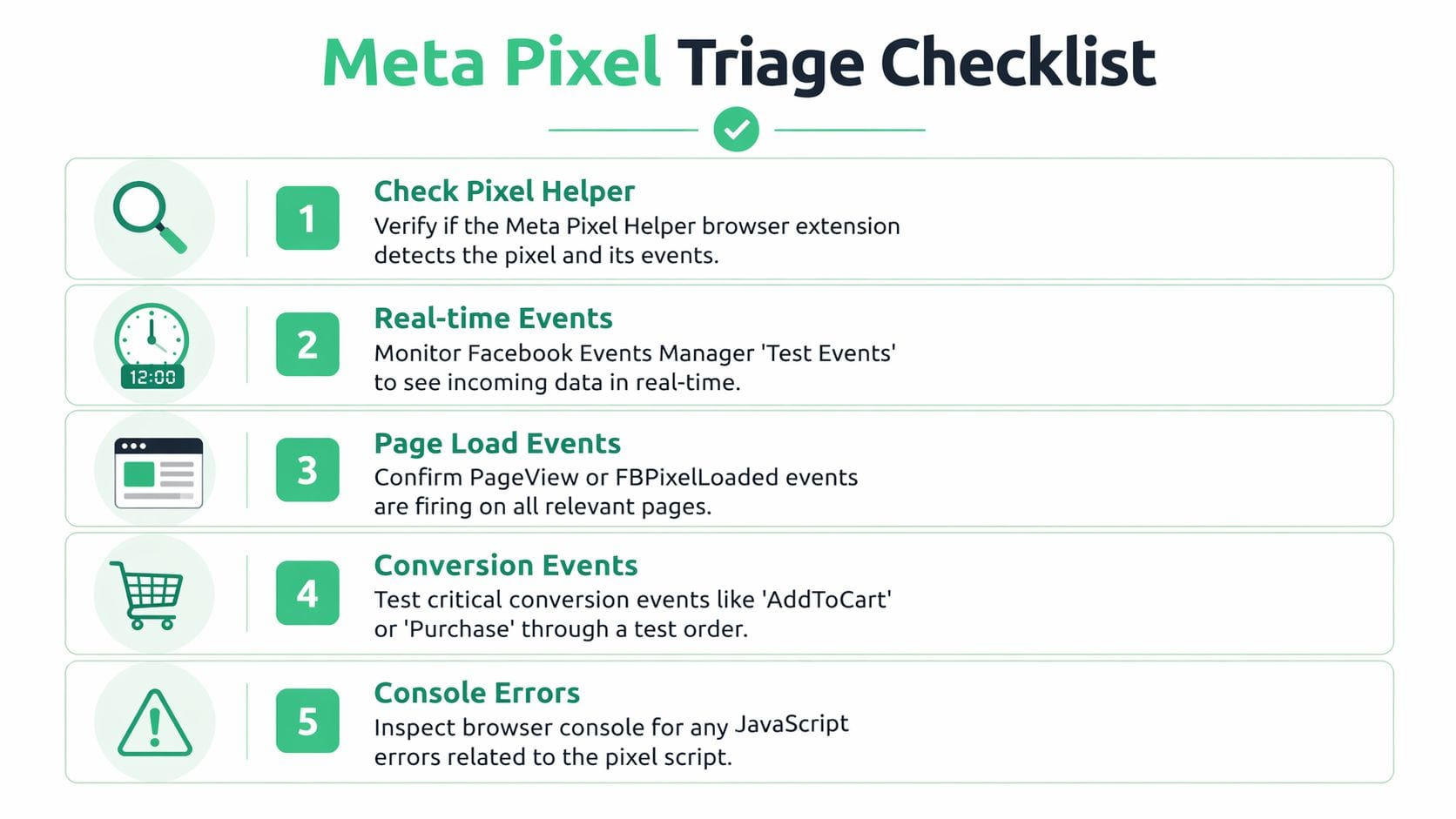
The first five minutes matter. Don’t start inside Shopify apps, GTM workspaces, or Meta account settings. Start at the browser and prove what the page is doing.
A practical troubleshooting flow starts with installation checks, browser diagnostics, and Meta’s own validation tools. A structured approach using developer tools, Pixel Helper, and source-code inspection is described in Cometly’s troubleshooting guide, which notes 85-95% verification success rates when teams follow a rigorous process.
Start with the page, not the platform
If the pixel isn’t on the page, nothing in Meta can save you. Open the affected page and inspect the rendered source or DOM. Search for fbq or the exact pixel ID.
You’re looking for simple truths:
- Base code present: If there’s no Meta base code, stop there. The implementation is missing or blocked before runtime.
- Correct ID loaded: The code may exist but point to the wrong Business Manager asset.
- Placement sanity: Base code should load early enough that downstream events can use it reliably.
If you’re auditing a Shopify storefront and need a fast way to understand what the theme and app stack might be doing, a tool like Shopify store analyzer can help you identify implementation context before you start pulling code apart.
Use Pixel Helper for fast signal
Meta Pixel Helper is still the fastest first check. It tells you whether a pixel is detected, which events fire, and whether the browser sees obvious errors.
What it does well:
- confirms whether a
PageViewfires - shows duplicate pixels
- flags missing parameters or formatting warnings
- reveals if multiple pixel IDs are present on the same page
What it does not do well:
- it doesn’t prove Meta received the event
- it doesn’t prove the payload is correct for optimization
- it doesn’t tell you whether consent logic blocked other users
- it doesn’t catch server-side duplication
Keep Test Events open while you browse
Open Meta Events Manager and load Test Events before you start clicking around the site. Then browse like a customer. Product page. Cart. Checkout. Confirmation page.
Match what you do against what appears.
| Action on site | What you expect |
|---|---|
| Land on page | PageView |
| View product | ViewContent if implemented |
| Add to cart | AddToCart |
| Begin checkout | InitiateCheckout |
| Complete test order | Purchase |
If Pixel Helper shows an event but Test Events doesn’t, you likely have an ID mismatch, destination issue, or delivery block. If neither shows it, the browser-side implementation is failing earlier.
Check the console before you touch code
Browser console errors are often the first real clue. Open DevTools and look for JavaScript exceptions related to fbq, blocked scripts, or app conflicts.
Common patterns include:
- Load-order problems: event code runs before the base code initializes
- Theme or app conflicts: another script interrupts execution
- Syntax mistakes: malformed custom event code kills the call
- Consent or policy blocks: scripts are withheld until user action
If the console is noisy, don’t ignore “unrelated” errors. A broken script from another app can prevent the pixel from executing.
A lot of teams also benefit from a deeper walkthrough of what Pixel Helper warnings mean. This guide on mastering the Meta Pixel Helper is useful when the extension shows activity but the implementation still feels suspect.
The triage decision tree
After this first pass, you should be able to classify the problem quickly:
- No pixel found: installation missing, blocked, or loading on the wrong template
- Pixel found, no events: trigger issue, consent block, or JavaScript failure
- Events fire locally, not in Meta: wrong pixel ID, account linkage problem, or delivery failure
- Events appear, but journey is incomplete: one or more templates or checkout steps are broken
That classification matters. It tells you whether to fix page code, tag management, privacy logic, or event design.
Uncovering Common Client-Side Pixel Failures
A common failure pattern looks like this. The pixel is present, Pixel Helper shows activity, and marketing assumes tracking is fine. Then purchases never reach Meta, retargeting pools shrink, and nobody notices until campaign performance drops.
That usually points to client-side drift, not some rare platform bug. A theme update changed a selector. A consent tool now blocks marketing storage by default. A Shopify app injected a second pixel. GTM still publishes cleanly, but the live trigger no longer matches the page.
Consent blocks hide in plain sight
On Shopify and other ecommerce stacks, consent is often the reason a pixel appears installed but sends nothing in real sessions. The code exists. The browser just never gets permission to execute it.
I check consent in three states:
- Before consent: confirm whether
PageViewis intentionally blocked - After accepting marketing cookies: confirm the base pixel and downstream events start
- Regional variations: confirm the same implementation behaves correctly in GDPR and non-GDPR flows
The key trade-off is obvious. Legal compliance can reduce observable browser-side traffic. Bad consent wiring reduces it by accident. Those are different problems and they need different fixes.
A reliable review means testing the CMP, the platform privacy settings, and the tag trigger together. Looking at only one layer misses the failure.
Duplicate installations create noisy and misleading data
I still find duplicate Meta setups on mature stores all the time. One copy comes from the native Shopify integration. Another sits in theme.liquid. A third fires through GTM because nobody removed the old container tag after a migration.
That leads to two kinds of damage. Sometimes events fire twice and inflate performance. Sometimes one script loads the base pixel while another sends events against a different configuration, which creates inconsistent reporting that is harder to catch.
Check these places first:
- Theme templates: old hardcoded
fbqsnippets - GTM: Meta tags firing alongside native platform integrations
- Sales channel and tracking apps: injected scripts added outside the main implementation
- Checkout or post-purchase apps: separate event logic that was never reconciled with the main pixel
The fastest sanity check is simple. Compare reported purchases against actual orders and look for suspicious ratios or sudden jumps after a site change.
GTM failures often look clean until you test a real journey
A broken GTM setup does not always throw a visible error. The container loads, preview mode looks reasonable, and the tag still fails on the live site because the trigger depends on conditions that no longer happen.
I see the same patterns repeatedly:
AddToCartdepends on a click class that disappeared in a theme redesign.Purchasewaits for adataLayerevent name that changed during checkout customization.- A custom HTML tag sends events before the base Meta tag has initialized.
- Variables resolve in preview mode but return empty values for real users because the page renders differently after consent or login.
That is why I test the actual path a customer takes, not just GTM preview. Product page, cart, checkout, thank-you page. One clean page view proves almost nothing.
If the browser-side audit still feels ambiguous, a practical Meta Pixel Helper troubleshooting reference helps interpret what the extension shows and, just as important, what it cannot confirm.
Browser conditions change what "working" means
Chrome on a desktop is the easiest case. It is not the only case that matters.
Safari, iOS webviews, private browsing, and ad-blocking environments all change storage access, script loading, and request behavior. A pixel can work for your internal QA team and fail for a meaningful share of actual visitors.
Run the same checks across:
- Chrome desktop: baseline implementation check
- Safari and iPhone: stricter privacy behavior
- Private browsing: exposes storage and consent assumptions
- Ad-blocking setups: shows expected loss and helps separate implementation bugs from environmental suppression
If the site relies on many third-party scripts, review broader web application security controls too. CSP rules, script restrictions, and privacy tooling can block marketing tags just as effectively as a coding mistake.
What actually fixes these problems
Teams lose time by reinstalling the pixel instead of isolating the failure condition. Reinstallation only helps when the original install is missing or corrupted. In every other case, it adds another variable.
These actions usually produce answers:
| Usually works | Usually wastes time |
|---|---|
| Verifying consent behavior with real user states | Assuming pixel presence means event delivery |
| Removing duplicate implementations at the source | Leaving multiple installs live and comparing reports later |
| Testing live user journeys across templates and browsers | Testing only the homepage in one browser |
Auditing GTM triggers against current DOM and dataLayer output | Trusting preview mode alone |
| Monitoring event drops after releases | Waiting for campaign results to reveal a tracking failure |
The significance of that last point is frequently overlooked. Client-side failures tend to come back after app installs, theme edits, consent changes, or checkout work. Manual debugging catches the current issue. Ongoing observability catches the next one before paid media data is affected.
That is the difference between reactive troubleshooting and a tracking program you can trust.
Solving Advanced Event Schema and Deduplication Errors
Sometimes the pixel fires on every page and still gives you bad data. That’s a different class of problem. At that point, the question isn’t whether the tag exists. It’s whether the event payload is valid, consistent, and deduplicated across data sources.
Advanced debugging through Events Manager, console inspection, and implementation review can resolve a large share of these issues. In this Shopify technical discussion on persistent Meta pixel failures, structured root-cause analysis is associated with a 92% resolution rate, especially when teams validate rogue implementations, Test Events output, and parameter mismatches.
A firing event can still be unusable
Meta needs more than an event name. For key conversion events, the payload has to make sense.
Take Purchase. If you send the event without the expected business context, Meta may still record something, but optimization and reporting quality will degrade. Common implementation mistakes include wrong data types, missing fields, stale values, and mismatched product identifiers.
A practical review starts with these checks:
- Event name accuracy:
Purchaseshould bePurchase, not a custom variant that your campaigns don’t optimize against - Parameter completeness: confirm fields like value and currency are present when required by your implementation
- Type validation: numbers should be numbers, not strings pretending to be numbers
- Product mapping sanity:
content_idsshould align with your catalog logic if you use dynamic ads
Use Test Events as a payload inspector
Test Events are often used as a yes-or-no screen. That leaves a lot on the table. It’s much more useful when you inspect the event details and compare them to the actual business action you just performed.
Complete a real test path and compare:
| What happened | What Meta should receive |
|---|---|
| Product priced at checkout | matching purchase value |
| Store currency shown to customer | matching currency parameter |
| Single order created | one purchase event, not several |
| Known product bought | content identifiers that map cleanly |
When values don’t align, don’t start in Ads Manager. Start where the event payload is assembled. That could be theme code, GTM variables, Shopify data objects, or a middleware script.
If you’re assembling custom payloads or debugging malformed event bodies, a simple JSON syntax checker is useful for validating object structure before you assume the problem is inside Meta.
Rogue implementations create quiet reporting damage
One of the hardest problems to spot is the “mostly works” setup. The site has a browser pixel, a server event feed, and maybe an app-based connector, all trying to send versions of the same event. Nothing is fully dead. Everything is slightly wrong.
That usually creates one of three outcomes:
- Inflated counts because the same conversion is sent more than once
- Suppressed events because Meta treats similar payloads as conflicts
- Broken attribution because browser and server versions don’t line up
A detailed Meta pixel audit workflow becomes useful. The goal is to map every event source, not just the one you think is active.
“Pixel present” is not the same as “measurement trustworthy.”
Deduplication is not optional in hybrid setups
If you run both browser-side and server-side tracking, deduplication decides whether your data is usable. Meta needs a reliable way to understand that two incoming events represent the same user action.
The practical requirement is consistency. The browser event and the server event must share the same event identity logic. If one side uses a generated ID and the other side omits it or generates a different one, Meta can’t reliably reconcile them.
Review these points carefully:
- Shared event identity: the same conversion needs the same linking key across sources
- Stable timing: one source shouldn’t fire on cart state while the other fires on order confirmation unless that difference is intentional
- Single source of truth for values: revenue and product metadata should come from the same underlying transaction logic
Here’s a useful explainer from Trackingplan’s channel on data issues that don’t look broken at first glance:
The fastest way to isolate schema problems
When the implementation is messy, simplify the test:
- trigger one event on one page
- observe it in Pixel Helper
- inspect it in Test Events
- compare it with browser console output
- verify the payload against the actual transaction
Do that before you chase attribution discrepancies in reports. Reports are downstream. Schema errors start upstream.
Navigating Server-Side Tracking and CAPI Issues
A browser-only Meta setup is fragile. That’s no longer a niche technical opinion. It’s just how the web works now. Browser restrictions, privacy controls, consent enforcement, and blocking technology all interfere with client-side tracking in ways you can’t fully solve with front-end fixes.
The strategic gap is that many teams know they need Conversions API, but they don’t know how to evaluate whether it’s working properly. This review of Meta tracking gaps and CAPI implementation blind spots points out that browser-side tracking alone can lose 30-40% of data, while most guidance still fails to explain parity validation, dual-system migration, or CAPI-specific debugging.
When CAPI stops being optional
You don’t add server-side tracking because it sounds advanced. You add it because browser delivery is incomplete by design.
That becomes obvious when you see patterns like these:
- browser events appear inconsistent across devices
- purchase reporting drops after privacy or consent changes
- Meta learns poorly even though orders still exist in your commerce platform
- ad blockers and restricted browsers create visible gaps between observed revenue and attributed conversions
Client-side tracking still matters. It gives you immediate browser context and supports parts of the event stream that are useful for diagnosis. But on its own, it isn’t enough for resilient conversion measurement.
The main failure modes in hybrid setups
CAPI doesn’t magically clean up a messy implementation. It adds another event path, which means another place things can go wrong.
The most common hybrid problems are conceptual, not just technical:
| Problem | What it looks like |
|---|---|
| No parity between browser and server events | numbers drift and event details disagree |
| Poor deduplication design | purchases inflate or collapse unpredictably |
| Wrong event prioritization | engineering effort goes to low-value events while purchase remains unreliable |
| Parallel systems without governance | no one knows which feed is authoritative |
A sensible rollout starts with your highest-value business events. For most commerce setups, that means getting Purchase stable before expanding to lower-intent actions.
How to validate CAPI without fooling yourself
A lot of teams “test” CAPI by confirming that some server event appears in Meta. That’s too shallow. Presence is not parity.
A practical validation pass should compare:
- event name alignment: browser and server should describe the same action consistently
- transaction alignment: values and identifiers should reflect the same completed business action
- timing expectations: some delay is normal, but mismatched lifecycle timing creates confusion fast
- deduplication behavior: one conversion should still be one conversion
You also need to know which system owns which event logic. If the browser sends cart intent and the server sends confirmed order data, document that clearly. Otherwise people will compare unlike with unlike and conclude the setup is broken when it’s just undefined.
For teams planning or cleaning up this architecture, this guide to Meta Conversions API implementation and debugging is a useful reference point.
Field note: The safest CAPI migrations run both paths deliberately, compare them closely, and only expand coverage after purchase events reconcile cleanly.
What not to do
Teams usually get into trouble when they rush one of these moves:
- replacing browser tracking completely before validating server coverage
- sending every possible event server-side before core commerce events are stable
- layering apps, custom code, and platform-native connectors without clear ownership
- treating CAPI as a one-time installation instead of a monitored data pipeline
CAPI is infrastructure. It needs QA like any other production system.
Common culprits and their fixes
Most Facebook pixel failures repeat the same patterns. The trick is mapping the symptom to the actual cause instead of fixing the wrong layer.
Duplicate pixels and conflicting installations
This is one of the most common causes of polluted data. You inherit a store where the pixel was installed in Shopify, then again in GTM, then again through an old app. All three survive. Reporting becomes unreliable because events either duplicate or conflict.
The fix is boring but effective. Pick one owner for each event path and remove the rest. If Shopify owns the Meta integration, don’t let theme code or GTM also inject the same event unless there’s a specific reason and a clean governance model behind it.
Missing or weak event parameters
A pixel can “work” and still be unusable. Purchase is the classic example. If it fires without enough context, Meta gets a conversion signal but not one strong enough for clean optimization and reporting.
For ecommerce, I expect Purchase to carry a stable amount, valid currency, and product identifiers. If those fields are missing or inconsistent, fix the data layer or the event mapping rather than reinstalling the whole pixel.
Consent and privacy blocks
Consent tools break more tracking than is often understood. The issue isn’t just whether the pixel is allowed to fire. It’s whether consent logic suppresses some events, delays others, or blocks browser-side delivery on critical pages.
That’s why privacy and consent reviews need to sit inside the troubleshooting workflow, not outside it. The post on fixing cookie banner issues for accurate tracking is a good reference if your problem started after a CMP update or legal rollout.
If tracking drops after a banner redesign or privacy rollout, assume consent logic is involved until proven otherwise.
Shopify and the missing Purchase problem
Shopify deserves its own category because the pattern is so common. Sales appear in Shopify, but Meta misses Purchase events or underreports them badly.
A frequent cause is inactive or misconfigured Conversions API. For Shopify stores, setting Customer Data Sharing to Maximum in the Facebook & Instagram app activates CAPI. That matters because server-side events bypass browser-side issues like ad blockers, which can affect 30-40% of traffic, according to Easy Ads’ Shopify troubleshooting guide.
Other Shopify-specific failure points include:
- Mismatched Pixel IDs between Shopify settings and Meta
- Old Facebook apps still interfering
- Unverified or mismatched domains
- Checkout customizations that interrupt event flow
Weak event quality doesn’t just hurt reporting. It degrades the audiences that depend on those events.
Data flow failures that look like installation problems
This is the category that traps experienced teams too. Pixel Helper shows activity, but Events Manager doesn’t reflect the event stream correctly. The code fires, yet Meta doesn’t receive or process the data as expected.
In these cases, reinstalling the pixel often does nothing. The problem sits in asset linkage, data source configuration, platform connection, or delivery logic. The faster you separate “script executed” from “data reached destination,” the less time you waste.
iOS and broader privacy limits
Not every gap is fixable with browser-side changes. Mobile privacy restrictions and broader cookieless behavior reduce what the pixel can observe directly. That doesn’t mean you give up. It means you stop pretending browser-only measurement is enough.
The practical answer is hybrid tracking. Use browser events where they still work. Add server-side delivery where browser coverage is weak. Then monitor the gap between the two so you know whether your implementation is degrading over time.
What usually works and what doesn’t
Here’s the short version from real-world debugging:
| Works | Usually doesn’t work |
|---|---|
| Removing duplicate implementations | Adding another plugin on top of a broken setup |
| Verifying the exact Pixel ID in each system | Assuming the right ID is installed because “it used to work” |
| Testing one event path at a time | Browsing around and hoping the issue becomes obvious |
| Enabling server-side support where appropriate | Relying on browser-only tracking in privacy-heavy environments |
| Auditing consent behavior after site changes | Treating the CMP as unrelated to performance data |
When conversions are missing: the root causes
When the Pixel fires but conversions still go missing, the next job is classification. Not all missing conversions come from the same layer. Some are implementation mistakes. Others are the predictable outcome of modern privacy controls.
According to Cometly’s explanation of missing conversion data in Facebook, conversion tracking now faces systemic underreporting from privacy-driven browser limitations such as Apple’s iOS 14 update and ad blockers. Those controls can prevent the Meta Pixel from storing cookies and following users, so a meaningful share of conversions never reaches Meta even when the purchase happened. That is why the mismatch between backend revenue and Facebook reporting is increasingly expected rather than exceptional.
The fixable causes
These are the issues a careful implementation can often solve:
| Symptom | Likely Cause | Where to Check |
|---|---|---|
| Purchase never appears | Event missing on thank-you page | Pixel Helper, theme code, GTM triggers |
| Purchases show wrong values | Bad parameter mapping | Event payload, dataLayer, platform integration |
| Conversions spike unrealistically | Duplicate browser and server firing | Events Manager connection methods, event IDs |
| Events vanished after release | Schema drift or site update | Recent deployments, app/plugin changes |
| Some users track, others do not | Consent suppression or browser restrictions | CMP settings, browser tests, regional behavior |
A lot of debugging work still lives here. GTM triggers misfire. Shopify apps overlap. Theme changes remove data attributes. Developers rename variables and nobody updates the downstream tag logic. These are annoying problems, but they're at least understandable and testable.
The structural causes
Many teams waste time. They keep looking for one broken snippet when the loss is happening because the browser no longer allows the same level of tracking it once did.
The major structural causes are usually these:
- App Tracking Transparency on iOS: Limits cross-app and cross-site tracking.
- Safari privacy controls: Restrict browser-based persistence and attribution continuity.
- Ad blockers: Prevent the Meta Pixel from firing at all for some users.
- Third-party cookie erosion: Reduces continuity between ad interaction and later conversion.
None of these mean your implementation is perfect. They mean perfect browser-side recovery is no longer realistic.
If you only use browser-side collection, some missing conversions are built into the environment.
The subtle causes that distort reporting
The hardest issues are not the fully missing events. They are the conversions that happen but fail to match or attribute cleanly.
Examples include:
- Weak event parameters: The event exists, but missing customer or product context makes it less useful.
- Cross-device journeys: Someone clicks on an iPhone and purchases later on a laptop. That connection can disappear.
- Consent logic timing: The customer converts before tracking is allowed, or the consent state suppresses marketing destinations.
- Attribution window mismatch: The sale happened, but not within the window Meta uses for reporting.
These are the cases where marketers insist “the pixel is working” because they can see purchases in the interface. They're also the cases where finance, CRM, or ecommerce teams keep asking why platform numbers stay low.
The practical takeaway is simple. Facebook pixel missing conversions is not one bug. It's a stack of loss points across page code, consent, browser behavior, attribution rules, and user behavior. If you don't separate fixable implementation errors from unavoidable browser-side loss, you end up doing a lot of work that never materially closes the gap.
From Reactive Fixes to Proactive Observability
Manual debugging still matters. Pixel Helper, DevTools, GTM preview, and Test Events are the right tools when something is already broken. They are not enough to keep a production tracking stack healthy over time.
The problem is simple. Most Meta failures happen between audits. A theme update changes a selector. A consent banner starts suppressing marketing tags. A server event schema shifts after a backend release. No one notices until campaign performance looks strange.
Why observability changes the operating model
The better approach is continuous monitoring of the implementation itself. Not just dashboards. Not just ad performance. The actual event stream, payload quality, destination behavior, and changes across web and server-side systems.
That’s where data observability fits. A good overview of the concept is in this article on what data observability means for analytics teams.
What a monitored setup catches that manual QA misses
Instead of waiting for someone to run a spot check, observability systems watch for changes continuously:
- Missing events: critical steps stop sending data
- Rogue events: an app starts firing extra events nobody approved
- Schema drift: a parameter changes type or disappears
- Consent misconfigurations: tag behavior changes after privacy tooling updates
- Tagging problems: campaign parameters arrive malformed or inconsistently
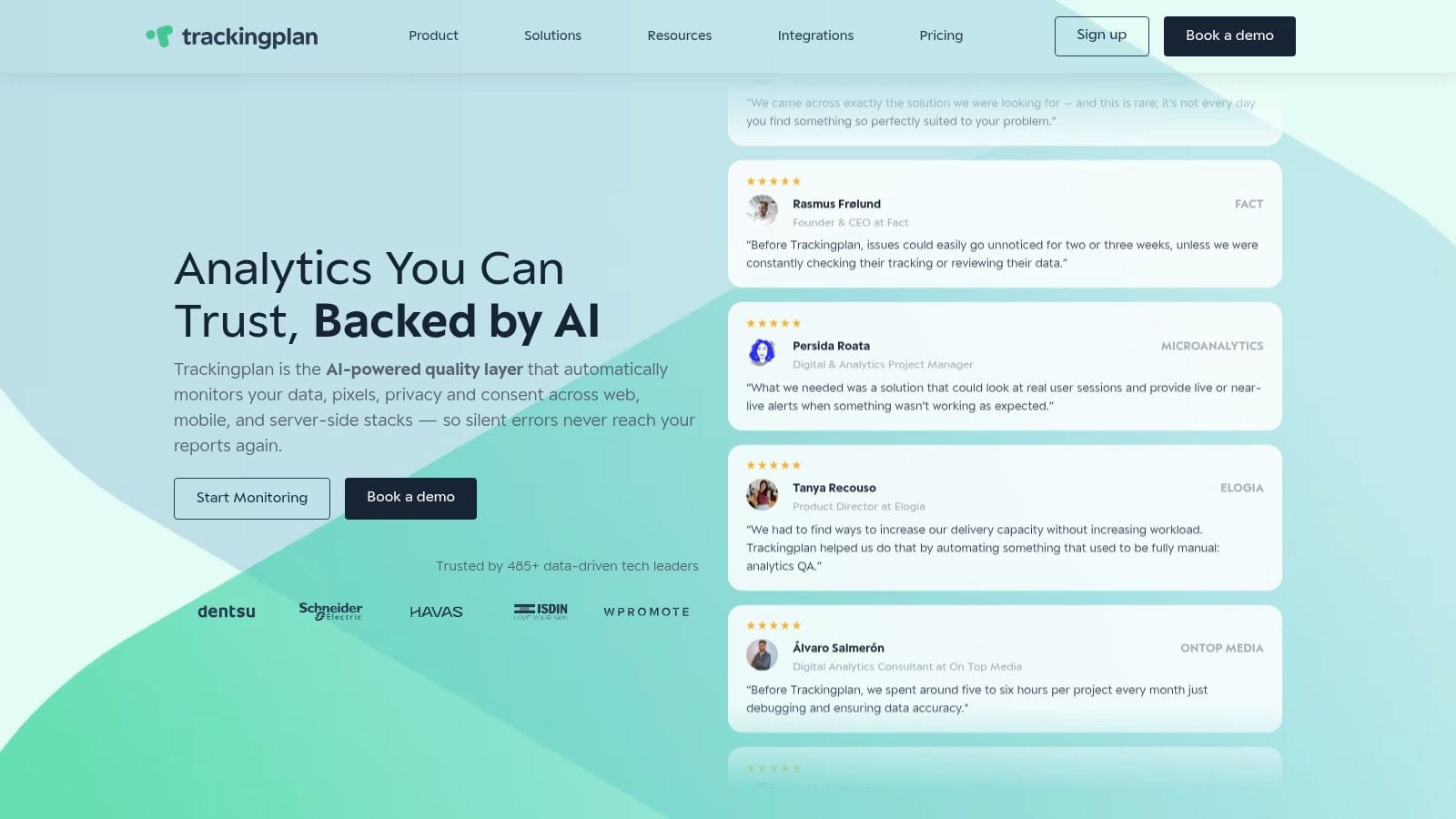
This is the point where a platform like Trackingplan becomes operationally useful. It monitors analytics and marketing implementations, detects missing or broken pixels, flags schema mismatches and consent issues, and alerts teams through channels like Slack or email. That’s different from a troubleshooting checklist. It’s ongoing QA. The pixel check on real traffic shows what that looks like for Meta: which pixels and CAPI events fire, where, and which ones duplicate.
Here’s the video from Trackingplan’s channel that captures the shift clearly:
The practical takeaway
Reactive troubleshooting fixes incidents. Observability reduces how often those incidents reach the business. For agencies, that means fewer silent failures across client accounts. For in-house teams, it means fewer weeks spent explaining why paid social reports no longer match reality.
Frequently Asked Questions About Meta Pixel Firing
Why does my pixel work on desktop but fail on mobile?
Mobile failures usually come from conditions your desktop test never reproduced. iPhone Safari blocks differently, in-app browsers strip or delay scripts, consent banners behave differently on smaller screens, and some mobile templates load tags in a different order.
Test the specific device and browser combination that matters. Then compare three things: whether the event fired, whether Meta received it in Test Events, and whether the business outcome occurred, such as a lead submit or purchase. A pixel that "works" in a desktop simulator can still miss live mobile traffic.
How do I handle Meta pixel tracking in a single-page application
In an SPA, the browser often loads the document once and changes views without a full refresh. If the pixel only initializes on first load, route changes can pass with no page-level tracking at all.
The fix is route-aware instrumentation. Fire virtual page views and key conversion events when the route changes or when the app reaches the state that matters, not just when the first HTML document loads. In practice, I also check for duplicate fires caused by both the router and a tag manager reacting to the same change.
What’s the difference between a warning and an error in Pixel Helper
An error usually points to a failure that can block delivery or make the event unusable. A warning means Meta likely received something, but the implementation still needs work.
That distinction matters because teams often clear "errors" and ignore "warnings," then wonder why match quality, optimization, or attribution looks weak. Missing parameters, bad formatting, and duplicate signals often sit in the warning bucket while still hurting performance.
How do I fix Meta pixel issues specifically in WordPress
WordPress breaks pixels in predictable ways. The same pixel may be installed through a theme, a plugin, GTM, and hardcoded header scripts at once.
Start by finding every place the pixel can load. Then disable overlap one source at a time and retest the full journey from landing page to conversion. After that, check caching plugins, script optimization settings, consent plugins, and checkout extensions. Those tools often change timing, suppress scripts before consent, or reorder code enough to break event firing.
If Test Events shows data, am I done
No.
Test Events confirms that Meta received an event from your session. It does not confirm that the payload is correct, that standard and custom parameters are mapped properly, that deduplication works between browser and server events, or that users in other browsers and consent states are tracked the same way. Treat it as one checkpoint, not the final sign-off.
If your team keeps finding broken tracking only after campaign performance drops, Trackingplan helps monitor Meta pixel behavior continuously so changes in events, schema, or consent handling are caught earlier. That gives teams a way to reduce manual spot checks and catch problems before they turn into reporting disputes or wasted spend.